
Updated November 2026. We’ve added how Windows calculates startup impact, the Settings page for startup apps, and fixed a broken link. We’ve also removed figures we couldn’t source.
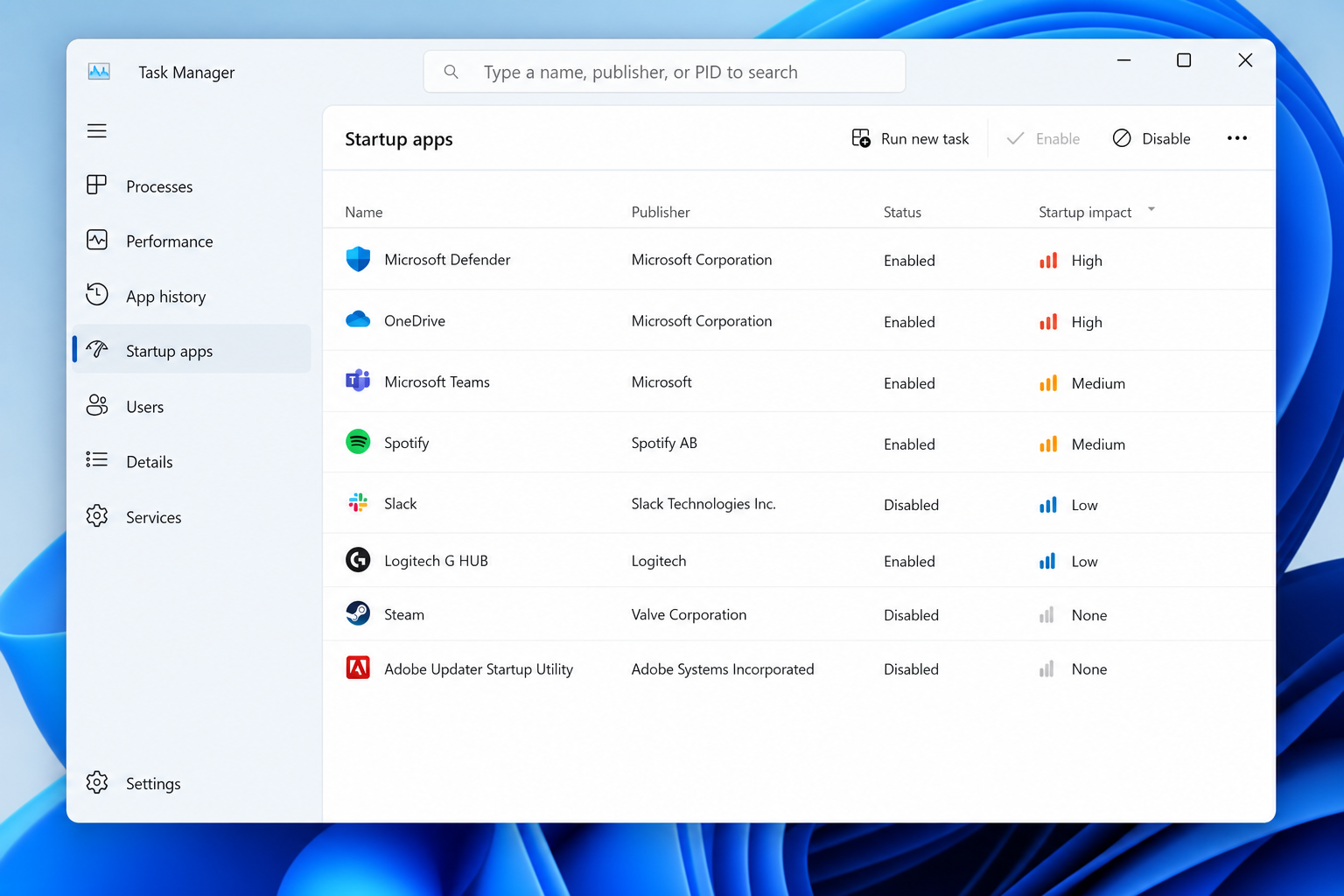
Startup programs are the apps and background tools Windows launches automatically when you sign in, and most PCs collect more of them than they need. The quickest way to find the ones slowing you down is to open Task Manager’s Startup apps tab, sort by impact, and disable the High or Medium entries you don’t use every day. Leave security software and hardware drivers alone.
That covers most PCs. The rest of this guide explains how to tell which apps are safe to turn off, and where to look when Task Manager doesn’t show everything.
What startup programs are
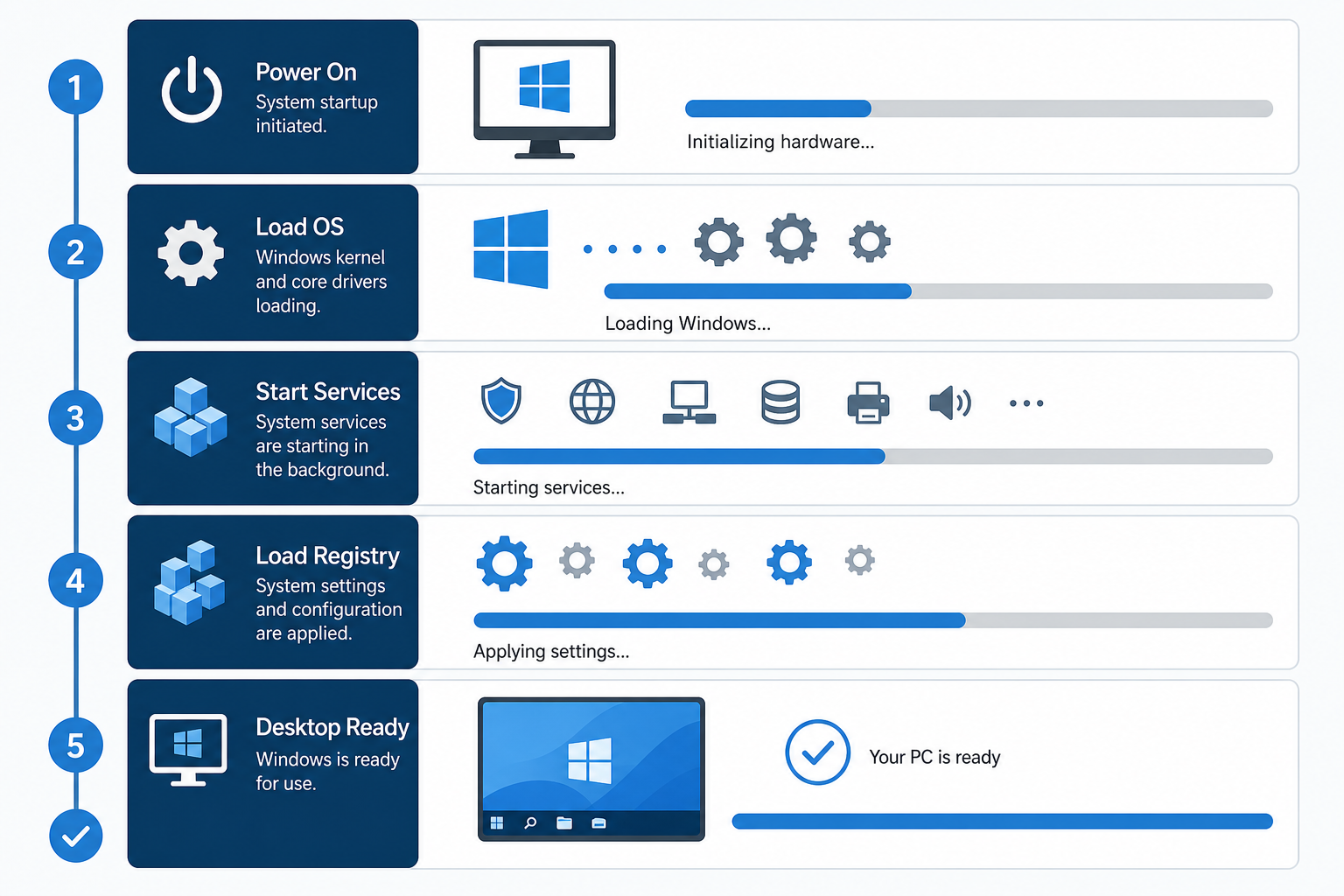
They fall into three rough groups: full apps such as Spotify or Steam, background helpers such as cloud sync clients and printer utilities, and system-level software such as antivirus and driver tools.
They don’t all start from the same place. Windows reads startup entries from:
- The Startup folder in your user profile, and the shared one for all users
- The Run keys in the registry
- Scheduled tasks set to run when you sign in or when the PC starts
- Services set to start automatically
Task Manager mainly shows the first two. That’s why a PC can still feel slow after you’ve disabled everything you can see there.
Checking startup apps in Task Manager or Settings
Press Ctrl + Shift + Esc to open Task Manager, then select Startup apps. You’ll see each app’s name, publisher, status and impact rating. Right-click an entry and choose Disable to stop it launching. This doesn’t uninstall anything, and you can turn it back on the same way.
Windows 11 also has a simpler list in Settings > Apps > Startup, with an on/off switch for each app. It’s the same list, so use whichever you prefer. Microsoft’s guide to configuring startup apps in Windows covers both.
What the startup impact rating means
Startup impact is measured from how much CPU time and disk activity an app uses while Windows starts. According to Microsoft’s developer documentation, as summarised by Winhelponline:
- High: more than 1 second of CPU time or more than 3 MB of disk activity
- Medium: 300 ms to 1 second of CPU time, or 300 KB to 3 MB of disk activity
- Low: less than 300 ms of CPU time and less than 300 KB of disk activity
A High rating doesn’t automatically mean “disable this”. It means the app does real work at startup, which is exactly what you want from your antivirus. Use the rating together with what the app is:
- High impact, and you use it daily (cloud backup, security software): leave it on.
- High impact, and you rarely open it (a photo editor, a game launcher): safe to disable.
- Any impact, from a publisher you don’t recognise: search the name before you decide. Low impact doesn’t mean trustworthy.
- Not measured: Windows hasn’t collected enough data yet, usually after an update or a new install. Restart a couple of times and check again.
Which startup programs are safe to disable
These are usually safe to switch off without affecting Windows itself:
- Update checkers from Adobe, printer makers and game launchers. They still check for updates when you open the app.
- Chat and media apps such as Spotify and Discord, unless you want them open the moment you sign in
- Manufacturer utilities that repeat features Windows already has
- Cloud storage clients you rarely use
- Quick-launch helpers for apps you open yourself anyway
Leave these on unless you know exactly what you’re doing:
- Your antivirus or security software
- Audio and graphics driver tools, which can stop hardware working properly if disabled
- Software for special keyboards, drawing tablets or accessibility devices you rely on
- Cloud sync clients you use for work files
- VPN or security agents your employer requires
If you’re unsure, disable one entry at a time and restart. That way, if something stops working, you know exactly which change caused it. If a change ever stops Windows starting properly, you can boot into Safe Mode on Windows 11 and turn the entry back on.
What Task Manager doesn’t show
Scheduled tasks and services can start software without appearing in the Startup apps list. Manufacturer tools and update checkers often use them.
Scheduled tasks
Open Task Scheduler from the Start menu and look through the Task Scheduler Library for tasks with the trigger “At log on” or “At startup”. If you’ve cleaned up Task Manager and startup is still slow, this is the next place to look. Right-click a task you recognise and don’t need, and choose Disable.
Services
Run services.msc and sort by Startup Type. Services set to Automatic start with Windows. Be careful here: many have unclear names, and disabling the wrong one, especially anything to do with networking, audio or Windows Update, can cause real problems. Only change services you can clearly identify.
Autoruns for the full picture
Microsoft’s free Autoruns tool from Sysinternals shows everything that starts automatically in one place: Run keys, scheduled tasks, services, drivers and more. It can also check digital signatures, which helps you spot entries that aren’t from a known publisher. It’s meant for experienced users, so untick entries rather than deleting them, and change one thing at a time.
How startup programs affect boot time
Every app that starts at sign-in competes for the processor, disk and memory at the same moment Windows is loading its own services. The more apps there are, the longer it takes before the desktop responds. The effect is much stronger on an older hard drive than on an SSD, because hard drives are far slower at reading lots of small files at once.
Low-impact entries add up too. Going by the thresholds above, ten Low entries can use as much CPU time between them as one High entry, so a long list of small helpers is still worth trimming.
If your PC is still slow after a startup program cleanup, the problem is probably somewhere else: not enough RAM, a nearly full or failing drive, or malware. If your drive looks fuller than it should, our Windows 11 disk space bug fix explains one known cause. For a wider cleanup, see our guide to debloating Windows 11 safely.
Security: check before you disable
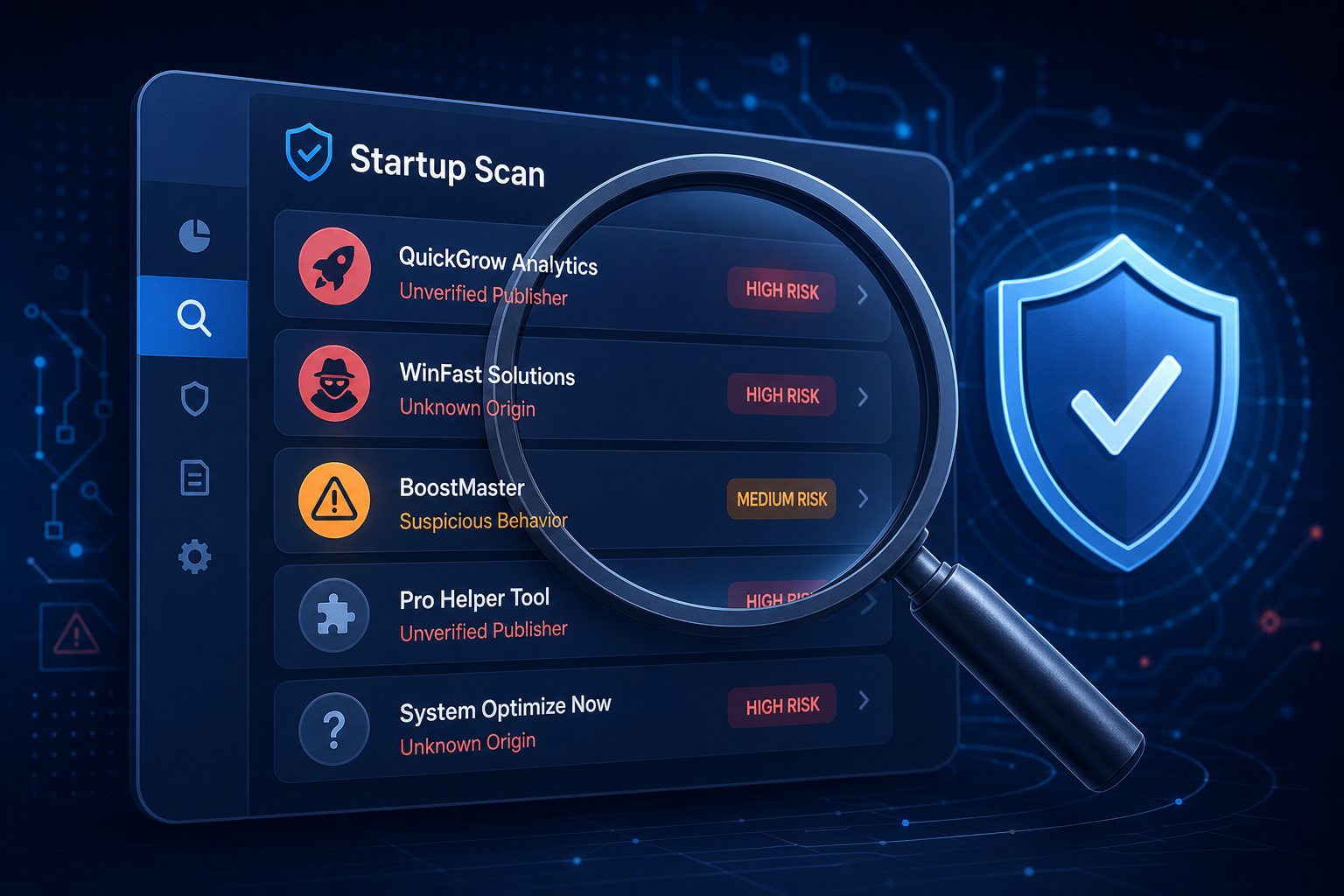
Some malware adds itself to startup under a name that looks legitimate, so it survives restarts. If you see an entry with a vague publisher, a random-looking name or no publisher at all, don’t just disable it. Right-click it in Task Manager and choose Open file location to see where it lives, search the file name, and run a full scan with Windows Security. If anything is found, a Microsoft Defender Offline scan, also in Windows Security, checks the PC before Windows loads.
Startup program cleanup checklist
This order avoids breaking anything important:
- Open Task Manager’s Startup apps tab and sort by impact, highest first.
- Disable High or Medium entries you don’t use daily.
- Restart and check that everything you rely on still works.
- Look in Task Scheduler for sign-in tasks from the same apps.
- Use Autoruns if startup is still slow or you suspect malware.
- Leave security software, drivers and anything your employer requires alone.
FAQ
Is it safe to disable all startup programs?
No. Disabling everything, including security software and driver tools, can leave you unprotected or stop hardware working properly. Disable the apps you don’t need and leave security and driver entries on.
Will disabling a startup program delete the app?
No. Disabling only stops it launching automatically. The app stays installed and you can still open it whenever you want.
Why does Task Manager show “Not measured” for startup impact?
Windows hasn’t collected enough startup data for that app yet. This is common after an update, a new install or adding a new startup app. It usually goes away after a couple of restarts.
Does Fast Startup change which startup programs load?
No. Fast Startup saves part of Windows to disk when you shut down so the next boot is quicker, but it doesn’t change which apps launch when you sign in. Those are still controlled in Task Manager, Settings, Task Scheduler and Services.
Can Low-impact entries still slow my PC?
Yes, if there are a lot of them. The rating measures each app on its own, but many small entries add up, especially on an older PC or a nearly full drive.
How many startup apps is too many?
There’s no fixed number. Keep only the apps you need the moment you sign in, and check the list every few months, especially after installing new software.
