
You can disable antimalware service on Windows through Group Policy, the Registry, or by stopping the Antimalware Service Executable process — but doing so turns off real-time malware protection system-wide, not just for the app or test causing the problem. In almost every case, a targeted exclusion solves the underlying issue just as well without leaving the whole machine exposed.
This guide walks through why people genuinely need to disable antimalware service (performance testing, software conflicts, resource-heavy workloads), what you actually give up when you do it, and the safer middle-ground options that fix the same problems without an unprotected PC.
What Is the Antimalware Service Executable, Really?
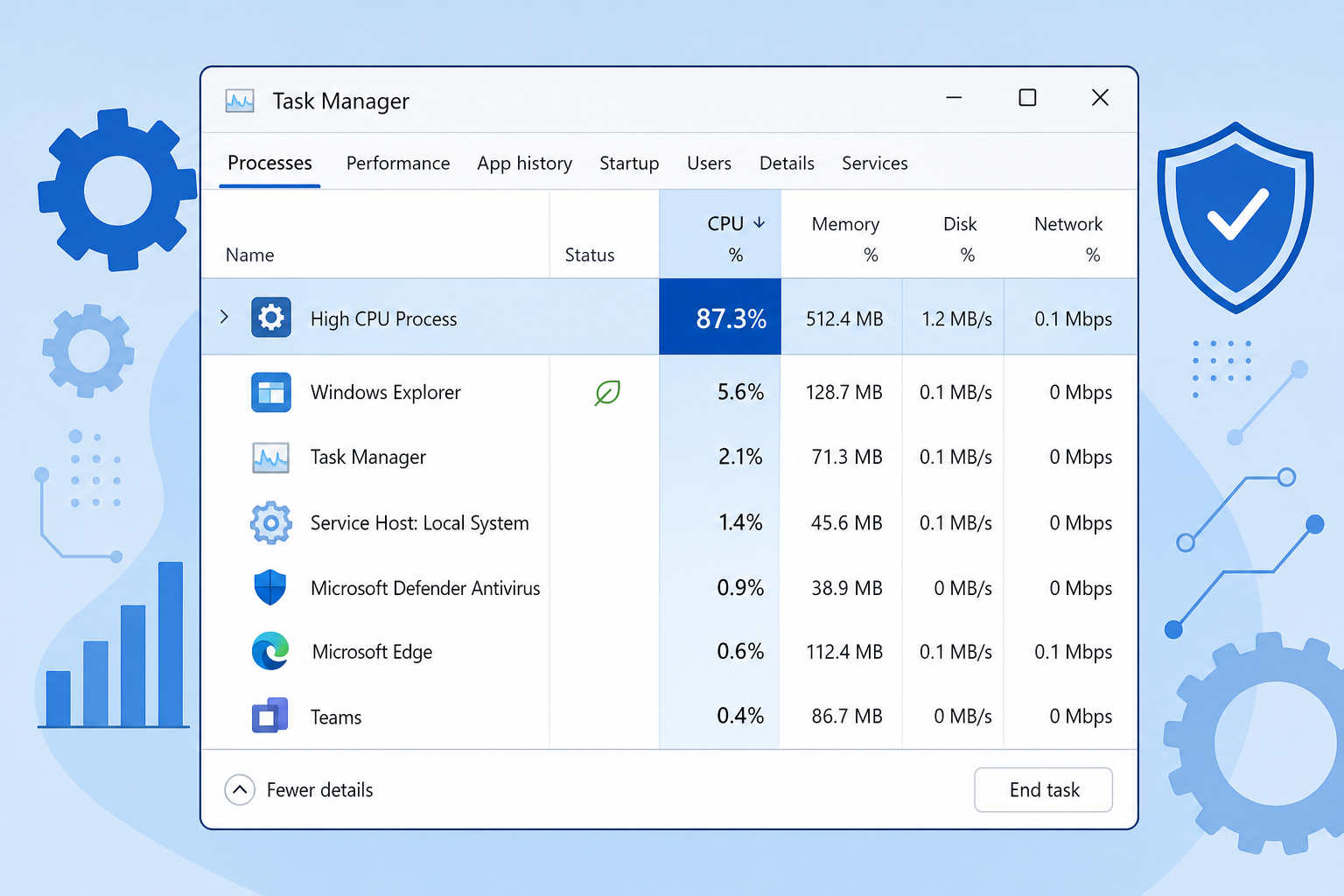
The Antimalware Service Executable — the process named MsMpEng.exe in Task Manager — is the background engine that runs Microsoft Defender’s real-time scanning, behavioral monitoring, and cloud-based threat checks. It’s not a separate program; it’s the core of Windows Defender itself, built into Windows 10 and Windows 11 and running whether or not you’ve installed a third-party antivirus.
Because it scans files as they’re opened, written, or executed, it’s also the process most likely to show up at the top of Task Manager’s CPU or disk column — especially during large file operations, software builds, or full system scans. That’s the single biggest reason people start searching for how to disable antimalware service in the first place.
Why People Want to Disable Antimalware Service
There are legitimate, non-malicious reasons someone searches for this, and they generally fall into two categories: performance measurement and tool conflicts.
Performance Testing and Benchmarking
Developers compiling large codebases, video editors working with huge media files, and gamers benchmarking frame rates all want to isolate the variable they’re actually testing. Real-time scanning adds measurable overhead to disk-heavy and CPU-heavy tasks, and in widely reported cases on Microsoft’s own support forums, users have seen the Antimalware Service Executable spike to 70–80% CPU usage during intensive scans. If you’re trying to get a clean benchmark or diagnose whether a slowdown is hardware- or software-related, that noise matters.
Conflicts With Other Security Tools
Running two real-time antivirus engines at once can cause file-lock conflicts, false “access denied” errors, and occasionally crashes, since both products try to scan the same files simultaneously. IT teams deploying endpoint detection and response (EDR) software, or developers testing their own security tools, sometimes need Defender to step back temporarily so it doesn’t fight with the other product.
The Real Security Tradeoffs When You Disable Antimalware Service
Turning off Defender’s real-time protection removes the layer that catches threats the moment they try to run — not just during a scheduled scan. That gap matters more than most people expect.
- No real-time blocking: malware, ransomware, and malicious scripts can execute and spread before anything catches them.
- No cloud-delivered protection: Defender’s cloud lookups catch brand-new threats faster than signature updates alone — disabling it loses that speed advantage.
- No tamper protection alerts: if you’ve also disabled tamper protection to make the change stick, you lose the warning system that normally flags unauthorized security changes.
- No safety net if you forget to re-enable it: a surprising number of “temporary” disables stay off for weeks because the task gets finished and nobody remembers to flip the setting back.
It’s also worth knowing that attackers are well aware of this behavior. Security researchers have repeatedly documented malware campaigns that specifically look for Defender exclusions and disabled states to hide their payloads, because a disabled antimalware service is one of the easiest conditions for malicious code to detect and exploit. If Windows Defender is your only line of defense — which is the case for most home users — disabling it completely for any meaningful stretch of time is a real gamble, not a minor inconvenience. For a deeper look at where Defender’s protection actually falls short even when it’s running, see our breakdown of Windows Defender’s current limitations and why layered security matters.
Safer Alternatives to Fully Disabling Antimalware Service
In most situations, you don’t need to disable antimalware service at all — you need Defender to leave one specific file, folder, or process alone. That’s exactly what exclusions are for.
Temporary Exclusions
Instead of switching off real-time protection entirely, add the specific application, project folder, or file type to Defender’s exclusion list:
- Open Windows Security and go to Virus & threat protection.
- Under Virus & threat protection settings, select Manage settings.
- Scroll to Exclusions and select Add or remove exclusions.
- Choose the file, folder, file type, or process you need Defender to skip.
Microsoft’s own guidance on Defender exclusions confirms this is the recommended fix for the common “high CPU” and “tool conflict” complaints — it resolves the friction without opening the whole system up. The key is scope: an exclusion for one build folder protects everything else on the machine, while a full disable protects nothing.
Scheduled Scans Instead of Real-Time Scanning
If your concern is scan timing rather than real-time protection itself, you can adjust when full and quick scans run (for example, overnight) without touching real-time monitoring at all. This avoids interference during work hours while keeping active protection on.
Using Group Policy for Controlled Changes
On Windows 11 Pro and Enterprise editions, Group Policy and Microsoft Defender Antivirus policies let administrators disable specific components (like scheduled scans or cloud delivery) rather than the entire service, which gives much finer control than a blanket on/off switch. If you’re managing multiple machines and need that level of control, it’s one of the practical differences covered in our comparison of Windows 11 Home vs Pro features, since Home edition doesn’t include the Group Policy editor at all.
How to Disable Antimalware Service Temporarily (Step-by-Step)
If you’ve weighed the tradeoffs and still need to disable antimalware service — for a short, specific test — here’s the safest way to do it and reverse it cleanly:
- Open Windows Security and go to Virus & threat protection settings.
- Under Real-time protection, toggle it off. Note that Windows will often re-enable it automatically after a short period or reboot — this is by design, not a bug.
- Complete your specific task (benchmark, install, conflict test) as quickly as possible.
- Immediately toggle Real-time protection back on and run a quick scan to confirm nothing slipped through while it was off.
Avoid disabling it through registry edits or Group Policy unless you have a specific administrative reason — these methods can persist after a reboot and are easier to forget about than the toggle in Windows Security, which Microsoft resets as a safety measure.
What Happens If You Disable Antimalware Service Permanently?
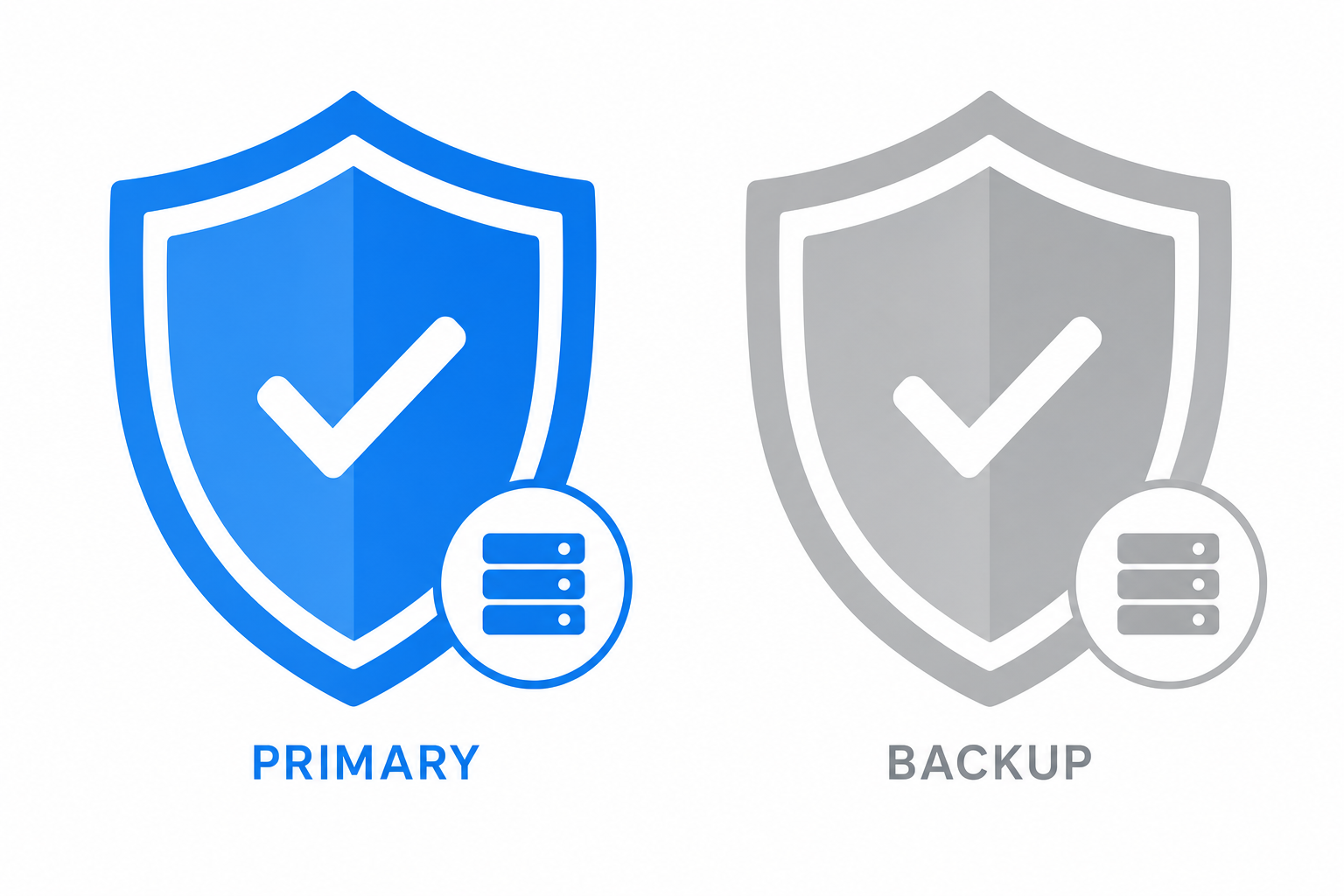
If you disable antimalware service permanently — typically by installing a full third-party antivirus, which automatically hands off real-time protection duties — Windows Defender steps into a passive, backup role rather than disappearing. This is the one scenario where a persistent disable is actually normal and expected, because another active scanner has taken over the job.
What you should never do is disable it permanently and leave nothing in its place. An unprotected Windows PC connected to the internet is a realistic target within hours, not months — phishing links, malicious downloads, and drive-by exploits don’t wait for you to remember to turn protection back on. It’s also worth remembering that Defender’s own components aren’t immune to risk either; researchers recently showed how a signed Defender driver could be weaponized at the kernel level, which is a good reminder that security software of any kind needs to stay current and layered rather than treated as a single permanent switch.
When a Third-Party Antivirus Makes Sense
If your actual goal is better malware protection rather than less of it, replacing Defender with a dedicated antivirus suite is a more defensible reason to disable antimalware service than simply wanting fewer background processes. Look for a product with independently verified detection rates, low performance overhead, and active real-time scanning rather than relying on manual scans alone.
Whatever route you choose, make sure the licensed operating system underneath it is genuine and fully supported — a properly activated copy of Windows 11 Home or Windows 11 continues to receive the security patches that any antivirus — Defender or otherwise — depends on to do its job properly.
FAQ
Is it safe to disable antimalware service executable?
Only briefly and only for a specific reason, like a benchmark or a one-time conflict test. Leaving it off for an extended period removes real-time protection system-wide, which is risky unless another active antivirus has taken its place.
How do I disable Antimalware Service Executable on Windows 11?
Go to Windows Security > Virus & threat protection > Manage settings, then toggle Real-time protection off. Windows will usually re-enable it automatically after a period, which is intentional, not a glitch.
Will disabling antimalware service remove Windows Defender permanently?
No. Toggling real-time protection off is temporary by design. Fully and permanently disabling it usually requires Group Policy or registry changes, and even then Defender typically reactivates if no other antivirus is detected.
What’s the difference between disabling Defender and adding an exclusion?
Disabling Defender turns off protection for the entire system. An exclusion tells Defender to skip one specific file, folder, or process while continuing to protect everything else — which is why it’s the recommended fix for most performance and conflict issues.
Can third-party antivirus replace Windows Defender safely?
Yes. When you install a full third-party antivirus, Windows is designed to detect it and automatically move Defender into a passive, backup role. This is the one case where Defender staying inactive long-term is expected and safe.
Does disabling antimalware service improve gaming performance?
It can reduce background CPU and disk usage slightly, but the difference is usually small compared to using Game Mode, excluding the game’s install folder, or updating GPU drivers — all of which don’t require giving up protection.
