
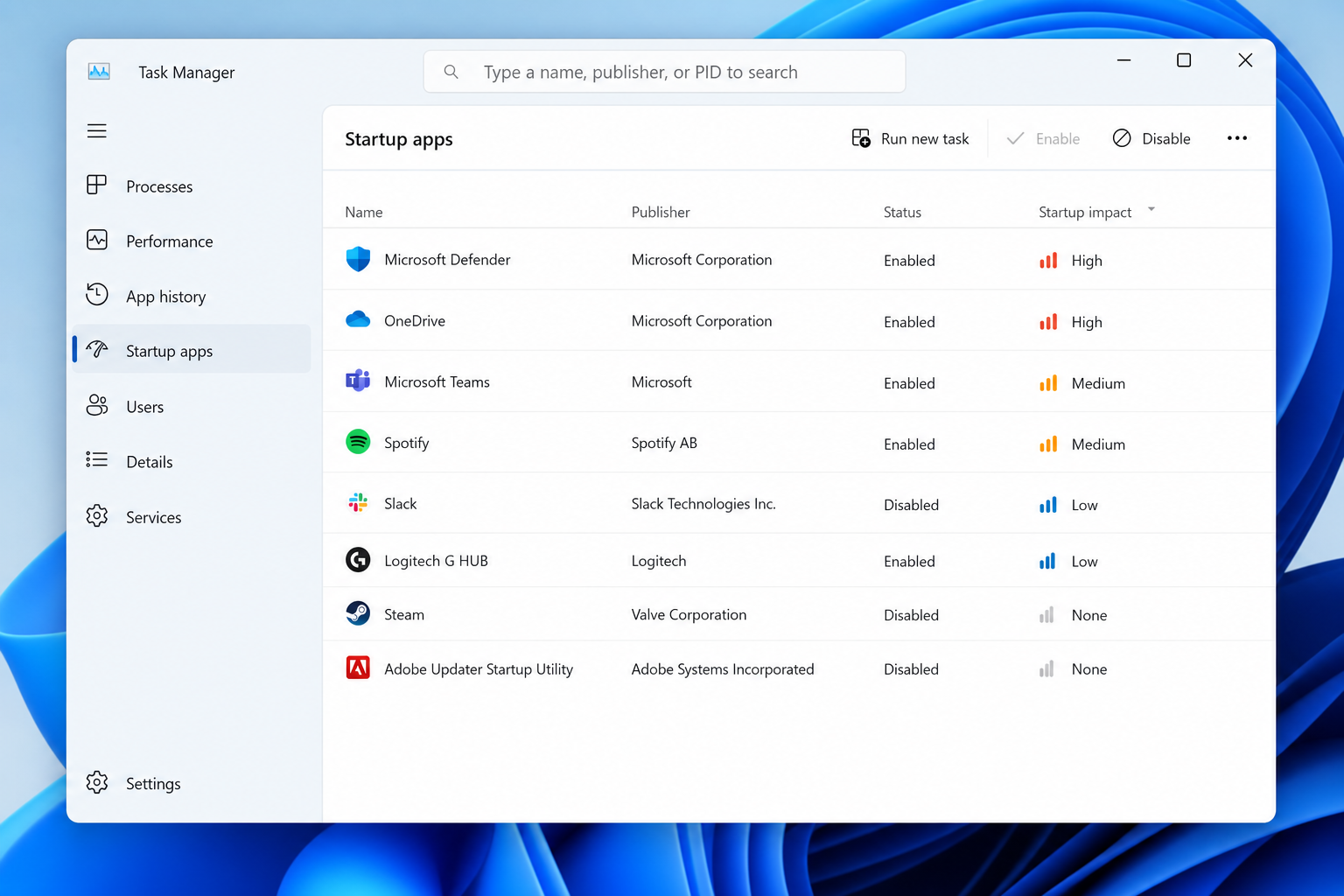
Startup programs are the apps and background processes Windows automatically launches every time you sign in — and most PCs collect far more of them than they need. The fastest way to find out which ones are slowing your boot is to open Task Manager’s Startup apps tab, sort by impact, and disable anything rated High or Medium that you don’t recognise or rely on daily.
That one-line answer gets most people 80% of the way there, but it doesn’t tell you which apps are genuinely safe to kill versus which ones quietly keep your system secure, synced, or stable. This guide walks through exactly that — using Task Manager first, then the deeper tools IT professionals reach for when Task Manager isn’t enough.
What Are Startup Programs, Exactly?
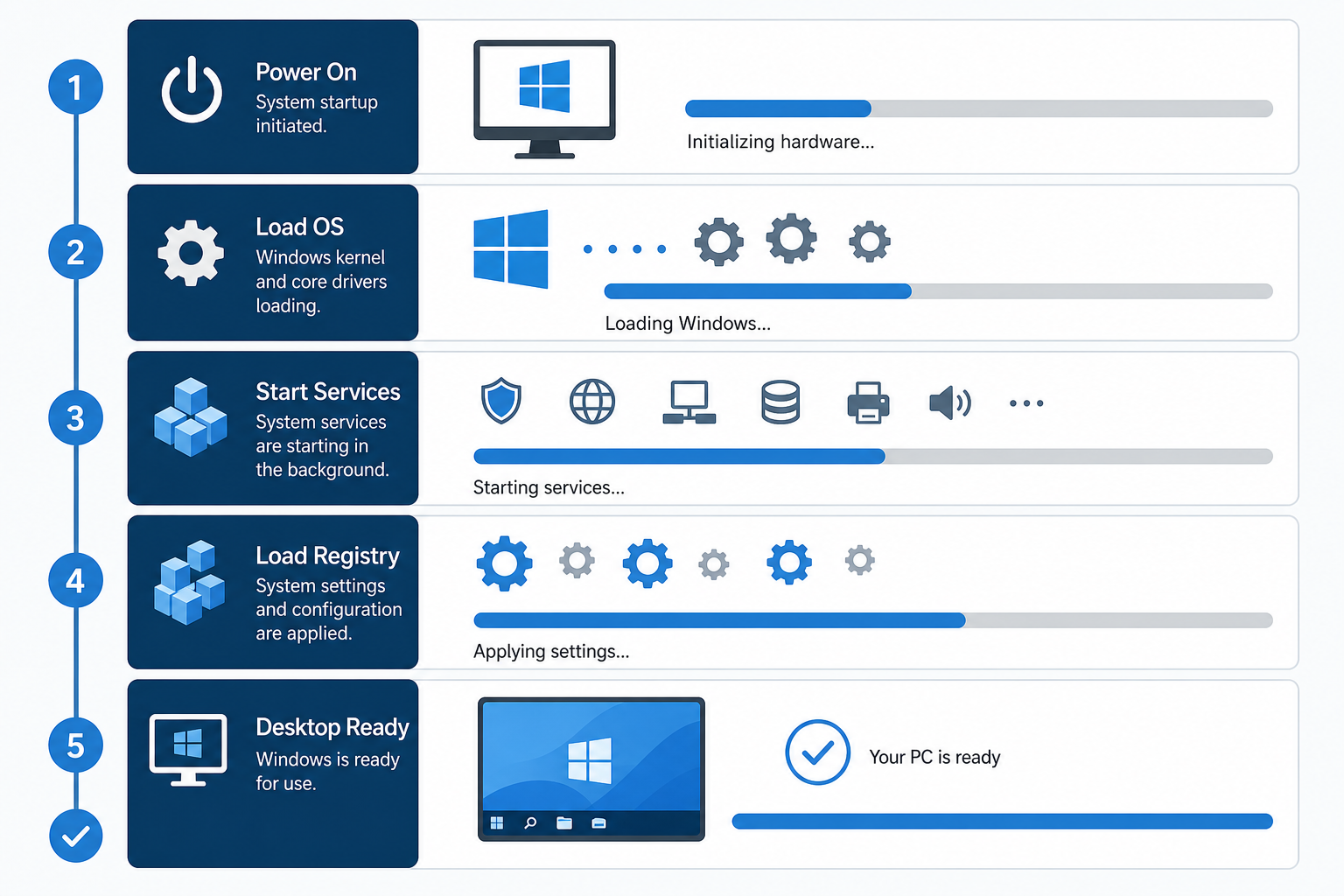
Startup programs are applications, background services, and helper processes configured to launch automatically when Windows boots or when you log into your user account. They fall into a few categories: full applications (like Spotify or Steam), background agents (cloud sync clients, printer utilities), and system-level services (security software, driver helpers).
Not all of them live in the same place. Windows pulls startup entries from several sources:
- The Startup folder in your user profile and the all-users ProgramData folder
- Registry Run and RunOnce keys
- Scheduled Tasks configured to trigger at logon
- Services set to Automatic start
- Browser extensions that register their own startup helpers
Task Manager’s Startup apps tab only shows the first two categories by default — which is why a PC can still feel sluggish even after you’ve disabled everything visible there.
Using Task Manager to Audit Startup Programs
Task Manager is the fastest built-in way to see and control startup programs, and for most home users it’s all you’ll need. Press Ctrl + Shift + Esc, or right-click the Start button and choose Task Manager, then select the Startup apps tab.
You’ll see four columns worth paying attention to: Name, Publisher, Status, and Startup impact. The impact column — rated Low, Medium, or High — is Microsoft’s own measurement of how much each entry delays your boot sequence, based on CPU and disk usage during the startup window.
Reading the Startup Impact Column Correctly
A High impact rating doesn’t automatically mean “disable this.” It means the program does real work at boot — which is sometimes exactly what you want from, say, your antivirus engine. Context matters more than the label:
- High impact + recognisable app you use daily (cloud backup, security suite) — usually leave enabled, but consider delaying it.
- High impact + app you rarely open (a photo editor, a game launcher) — safe to disable.
- Medium or Low impact + unfamiliar publisher — worth a quick search before deciding; low impact doesn’t mean trustworthy.
- “Not measured” status — Windows hasn’t finished collecting data yet, usually after a recent reinstall or update; restart once or twice and check again.
To disable an entry, right-click it and select Disable. This doesn’t uninstall the software — it only stops it from launching automatically, and you can always turn it back on the same way.
Which Startup Programs Are Safe to Disable?

Most of the clutter slowing down a typical boot falls into a short list of repeat offenders. These are generally safe to disable without affecting how Windows itself runs:
- Software update checkers (Adobe, printer manufacturers, game launchers) — they can check for updates when you open the app instead
- Chat and media apps set to auto-launch (Spotify, Discord, Skype) unless you genuinely need them instantly available
- Manufacturer bloatware and OEM utilities that duplicate built-in Windows features
- Secondary cloud storage clients you rarely use
- Browser helper toolbars and “quick launch” companions
On the other side, a few categories of startup programs are essential and should almost never be disabled casually:
- Your antivirus or endpoint security engine
- Audio and graphics driver services (disabling these can cause hardware to stop responding correctly)
- Input device software for specialised keyboards, tablets, or accessibility hardware you depend on
- Sync clients for cloud storage actively used for work files, if offline access matters to you
- VPN or corporate security agents required by an employer’s IT policy
If you’re ever unsure, disable one entry at a time and reboot, rather than clearing the whole list in one pass. That makes it easy to spot exactly which change caused a problem, if any.
Beyond Task Manager: Deeper Startup Program Control
Task Manager covers Run keys and the Startup folder, but it won’t show you Scheduled Tasks or Services configured to start at logon — both common hiding spots for stubborn startup programs, especially ones installed by OEM bloatware or older software that doesn’t register cleanly.
Checking Scheduled Tasks
Open Task Scheduler (search for it in the Start menu) and look through the Task Scheduler Library for entries with a trigger “At log on” or “At startup.” Vendors often use scheduled tasks for update checks instead of registry Run keys, so this is worth a look if you’ve disabled everything in Task Manager and boot is still slow.
Checking Services
Run services.msc and sort by Startup Type. Anything set to Automatic launches at boot regardless of what Task Manager shows. Be cautious here — many services have cryptic names, and disabling the wrong one (particularly anything tied to networking, audio, or Windows Update) can cause real problems. Only change services you can positively identify.
Using Autoruns for a Complete Picture
For IT professionals and power users, Microsoft’s free Autoruns tool from Sysinternals gives the full picture Task Manager leaves out — covering Run keys, scheduled tasks, services, driver auto-starts, browser extensions, and more in one view. It also flags unsigned or unrecognised entries, which makes it genuinely useful for spotting malware that’s added itself to startup, not just slow legitimate software. If you manage multiple machines, it’s worth keeping in your troubleshooting kit alongside Task Manager.
How Startup Programs Affect Boot Time and Performance
Every startup program competes for the same limited CPU, disk, and memory bandwidth during the first 30-60 seconds after sign-in — which is exactly when Windows is also loading its own core services. The more that’s queued up, the longer that window stretches, and on a mechanical hard drive the effect is far worse than on an SSD because of slower random read speeds.
This isn’t just a theoretical concern. A machine with 15-20 startup entries competing for resources can easily take two to three times longer to reach a responsive desktop than one with a handful of essentials. Trimming unnecessary entries down to the ones you actually use is one of the highest-value, lowest-risk performance fixes available on any Windows PC — no hardware upgrade required.
If your PC is still sluggish after a thorough startup program cleanup, that’s usually a sign the bottleneck is elsewhere — low RAM, a failing or full hard drive, or background malware that isn’t registering through normal startup channels.
Startup Programs and Security: Don’t Disable Blind
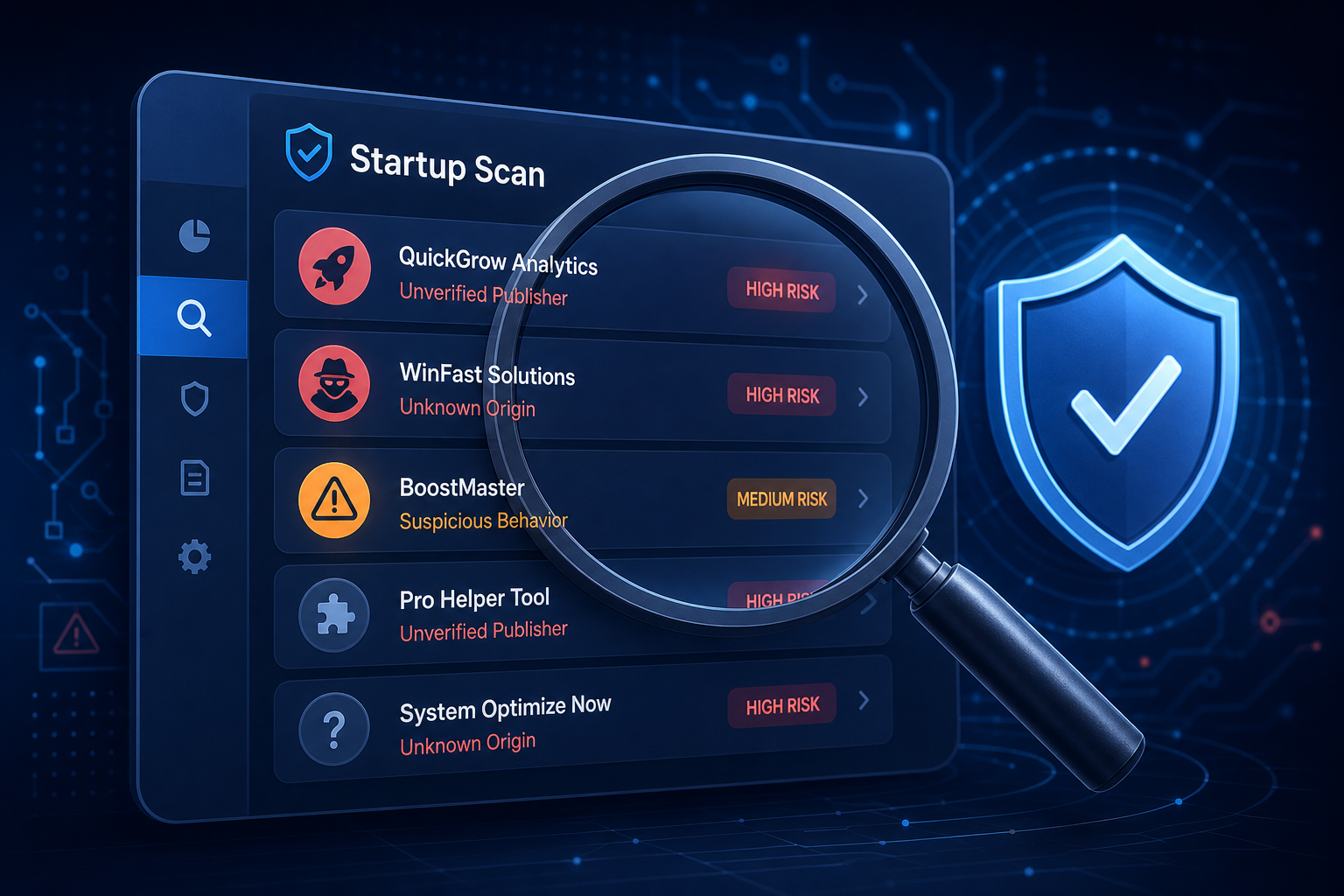
Disabling startup programs can occasionally look like a security problem rather than a performance one — some malware deliberately disguises itself with legitimate-sounding names in the startup list to survive reboots. If you spot an unfamiliar entry with a vague publisher name, random characters, or no digital signature, don’t just disable it — investigate it, and consider a full scan before you continue.
A reliable, actively maintained antivirus product makes this kind of audit far easier, since most modern suites now flag suspicious autostart entries automatically rather than leaving you to recognise them by name alone. If your current protection doesn’t do this, it’s worth comparing options built for exactly this kind of visibility.
A Practical Startup Program Cleanup Checklist
Here’s a simple order of operations that avoids breaking anything important:
- Open Task Manager’s Startup apps tab and sort by impact, highest first
- Disable anything High or Medium impact that you don’t use daily or don’t recognise
- Restart and confirm boot feels faster and nothing essential stopped working
- Check Task Scheduler for logon-triggered tasks from the same vendors you just disabled
- Run Autoruns if you’re still seeing unexplained slowdown or suspect malware
- Leave security software, driver services, and anything tied to employer IT policy untouched
This staged approach — rather than disabling everything at once — is what separates a clean, fast boot from a broken one.
FAQ
Is it safe to disable all startup programs?
No. Disabling every single entry, including security software and driver services, can cause stability or protection gaps. Disable non-essential apps selectively and leave antivirus, driver, and hardware-related services enabled.
Will disabling startup programs delete the app?
No. Disabling a startup entry in Task Manager only stops it from launching automatically at boot — the application itself stays installed and can still be opened manually anytime.
Why does Task Manager show “Not measured” for startup impact?
This appears when Windows hasn’t collected enough boot performance data yet, often right after a reinstall, update, or when startup tracking was recently re-enabled. It usually resolves itself after a couple of restarts.
Does Fast Startup affect how startup programs load?
Fast Startup changes how Windows hibernates the kernel session between shutdowns, but it doesn’t change which startup programs launch at logon — those are controlled separately through Task Manager, Scheduled Tasks, and Services.
Can a startup program cause a slow boot even if it’s Low impact?
Yes, if there are many of them running at once. Startup impact measures one app’s individual load, but a long list of Low-impact entries still adds up, especially on older hardware or a near-full hard drive.
How many startup programs is too many?
There’s no fixed number, but once you’re past 10-15 active entries, most PCs start showing noticeably slower boot times. Reviewing the list every few months, especially after installing new software, keeps it under control.
