
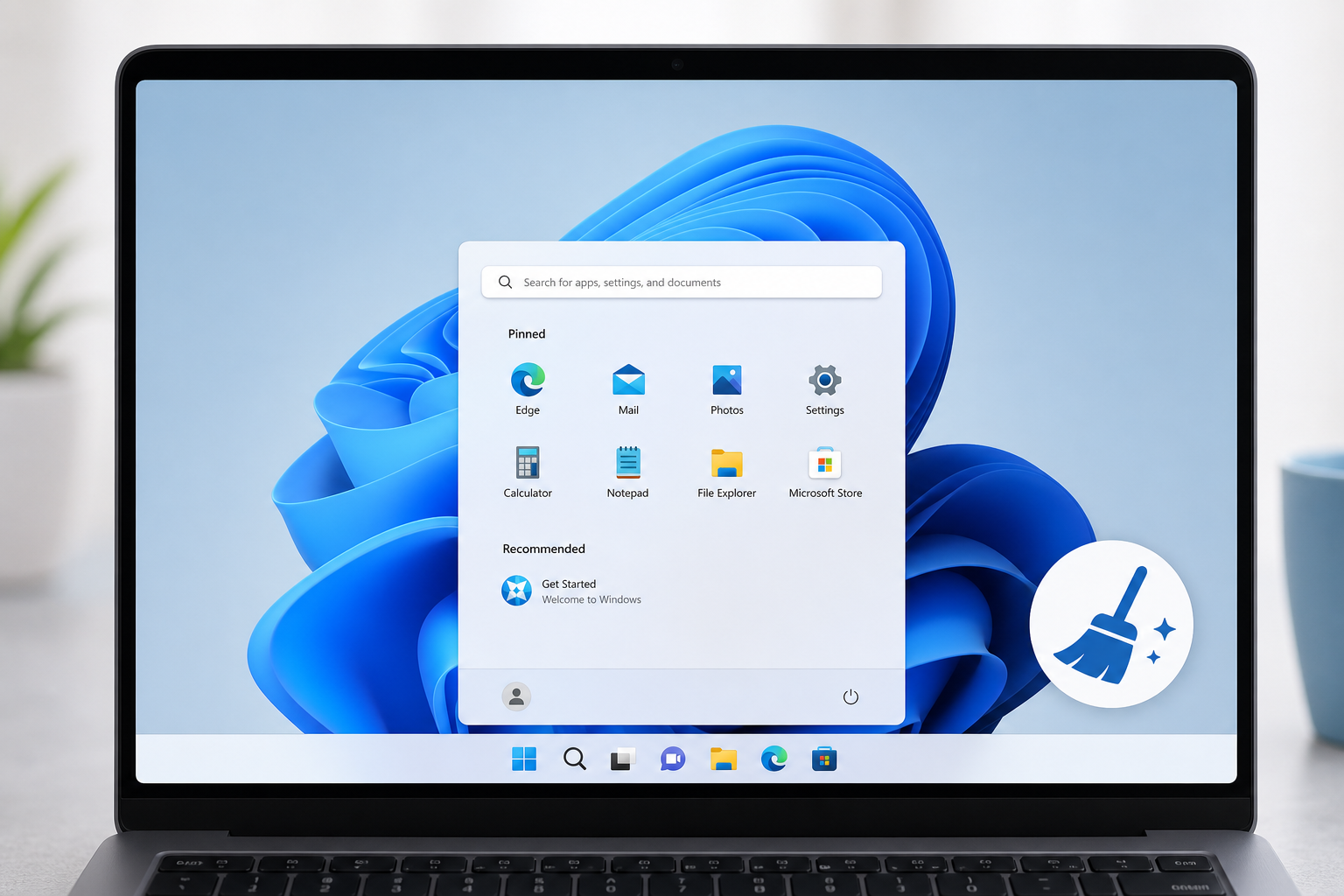
If you want to debloat Windows 11 without risking system stability, stick to Microsoft’s own uninstall tools and Group Policy settings instead of third-party debloat scripts. This approach takes a bit longer than running a one-click tool, but it won’t break Windows Update, void your support options, or leave your PC in an unbootable state.
Every new Windows 11 PC — and every fresh install — comes loaded with apps you probably never asked for: Candy Crush, Spotify, Disney+, a handful of Microsoft Store placeholders, and background processes quietly phoning home for telemetry. None of it is dangerous, but it eats disk space, clutters your Start menu, and in some cases keeps running processes you’ll never use. The good news is that removing it doesn’t have to be risky.
Why You Should Debloat Windows 11 Carefully
The biggest risk when you debloat Windows 11 isn’t removing an app — it’s removing the wrong thing with the wrong tool. Aggressive third-party debloat scripts often delete core system packages that other Windows components quietly depend on, like the Microsoft Store framework, Widgets, or parts of the Settings app itself. When that happens, future feature updates can fail to install, or Windows Update gets stuck in a repair loop.
Microsoft’s own support documentation is explicit that some in-box apps are tied to system functionality and shouldn’t be removed with unsupported methods — only specific app packages are safe to strip via PowerShell or Settings, and others are protected for a reason. Sticking to supported removal paths means you stay inside Microsoft’s own guidelines, so your installation remains fully supported if you ever need help from Microsoft or a PC manufacturer.
What Counts as “Low Risk” Bloatware Removal
- Uninstalling consumer apps like Candy Crush, TikTok, Spotify, or Disney+ through Settings — fully reversible, fully supported.
- Disabling startup apps and background permissions instead of deleting system components.
- Using Group Policy or the built-in Settings app rather than registry hacks or unofficial scripts.
- Creating a restore point before you start, so any change can be undone in minutes.
Step 1: Create a Restore Point Before You Debloat Windows 11
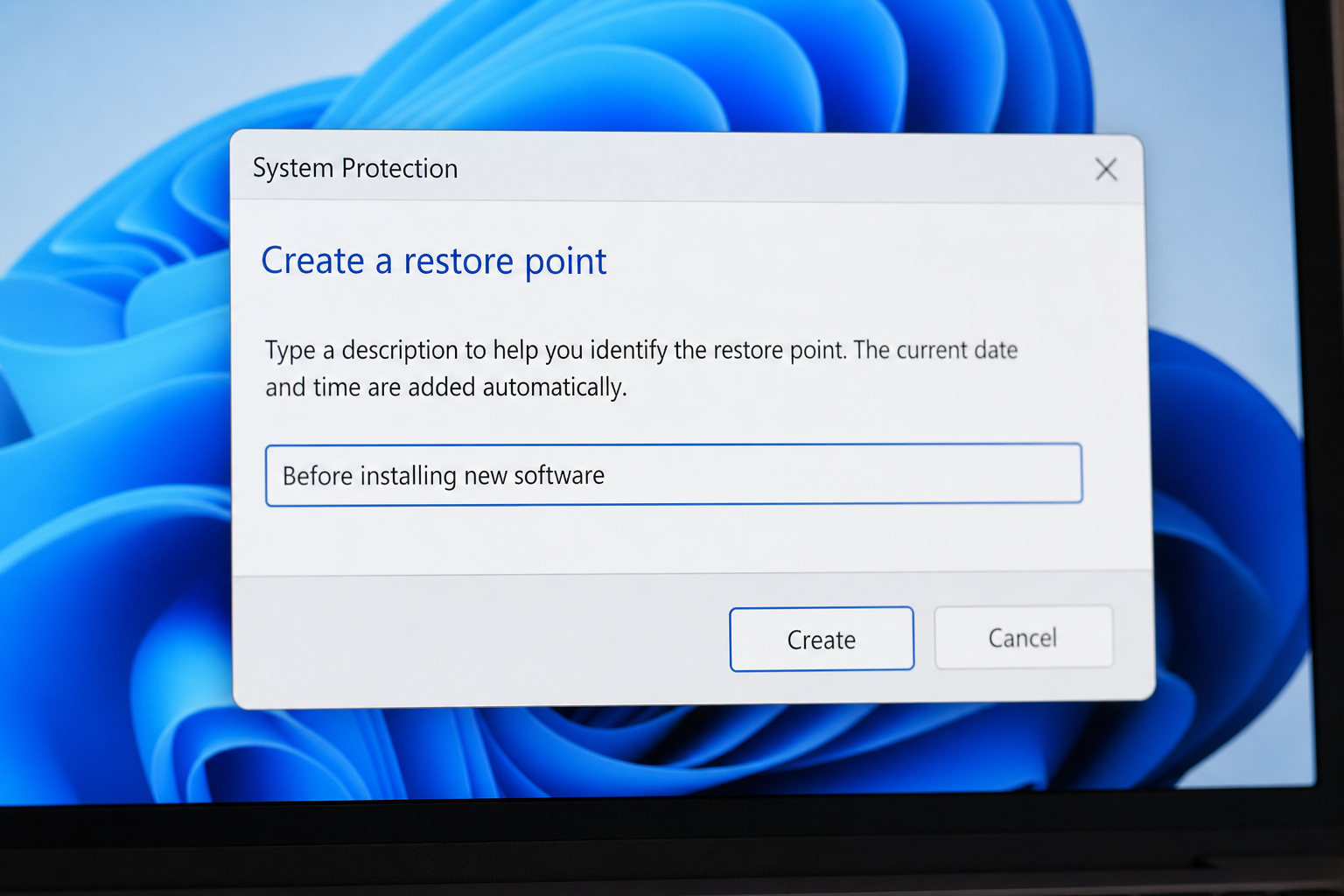
Before touching a single app, create a System Restore point — this is the single most important safety net in the entire process. Type “Create a restore point” into the Start menu search, open System Properties, and click Create under the System Protection tab. This takes under a minute and gives you a one-click way back if anything feels off afterward.
If you’re not sure System Protection is even turned on for your main drive, check it now. Many Windows 11 installs ship with it disabled by default, so this step is easy to skip accidentally.
Step 2: Remove Apps Through Settings, Not Third-Party Tools
The safest way to debloat Windows 11 is still the most boring one: Settings > Apps > Installed apps. Scroll through the list, click the three-dot menu next to anything you don’t use, and select Uninstall. This works for the vast majority of preinstalled consumer apps, including games, streaming apps, and most Microsoft Store extras.
Apps You Can Safely Uninstall
- Candy Crush Saga, Disney+, Spotify, TikTok, and other preloaded third-party apps
- Clipchamp, if you don’t do video editing
- Microsoft Teams (consumer), if you use a different chat client
- Xbox apps, if you don’t game on the PC
- LinkedIn, if preinstalled by your OEM
Apps to Leave Alone
- Microsoft Store, Widgets, and Settings itself — removing these can break update delivery
- Windows Security — this is your built-in antivirus, don’t remove it even if you use a third-party tool alongside it
- App Installer and framework packages with no visible UI — these are shared dependencies
This manual, app-by-app method is slower than a script, but every change is logged by Windows itself, visible in Settings, and reversible by reinstalling from the Microsoft Store if you change your mind.
Step 3: Use Group Policy or Settings to Cut Startup Clutter
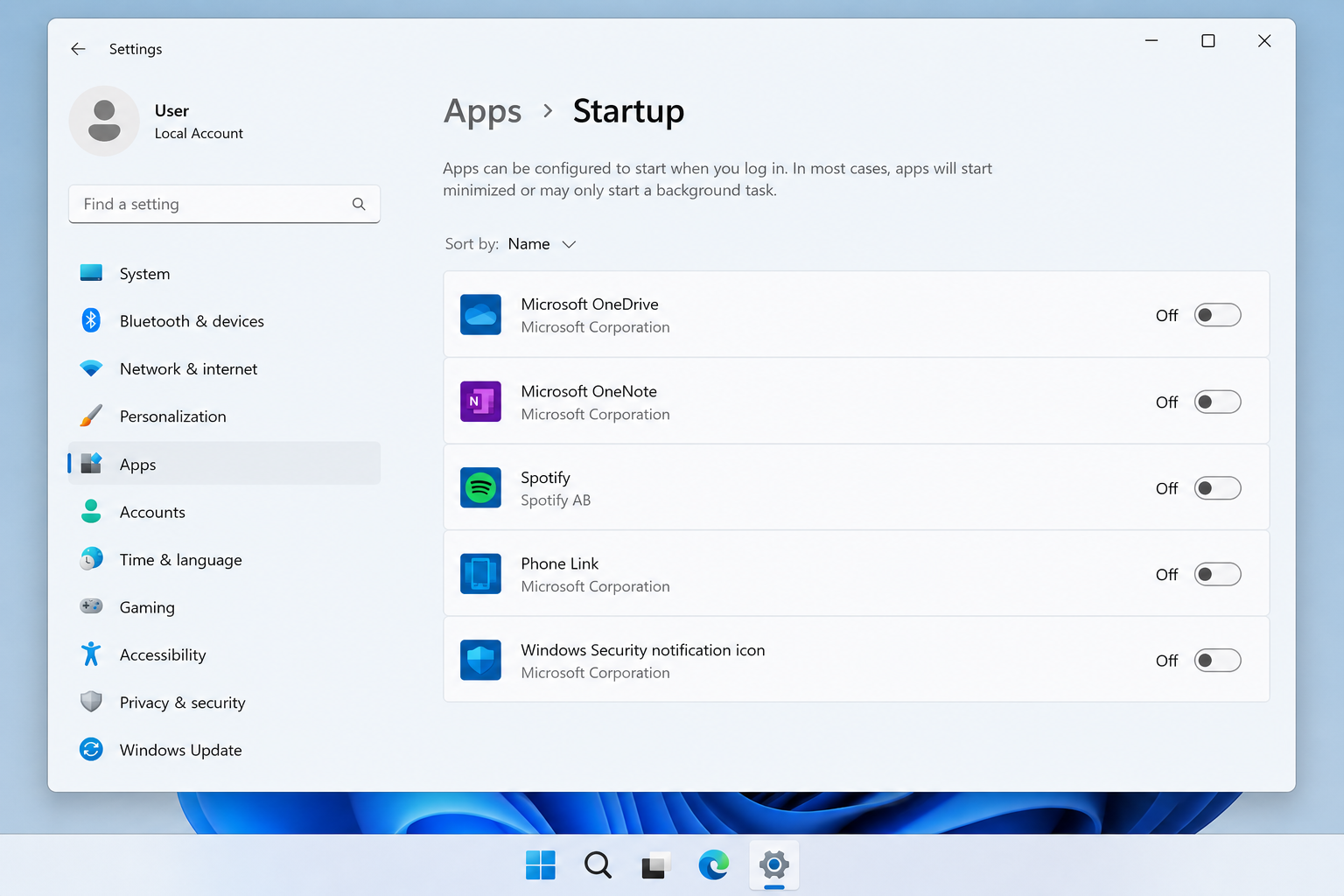
Disabling startup apps is often more effective than uninstalling them, especially for apps that relaunch themselves after updates. Go to Settings > Apps > Startup and toggle off anything you don’t need running the moment you log in. This alone noticeably speeds up boot time without deleting anything.
If you’re on Windows 11 Pro, Education, or Enterprise, Group Policy gives you a cleaner, more controlled way to manage preinstalled Microsoft Store apps at a system level, including policy-based removal that Microsoft documents for IT administrators managing multiple machines. This is the same mechanism IT departments use to keep fleets of PCs consistent, and it’s fully supported — unlike registry edits copied from a random forum post.
Step 4: Turn Off Unnecessary Background Permissions and Telemetry
Reducing background activity matters as much as removing apps when you debloat windows 11 for better performance. Head to Settings > Privacy & security and review which apps can run in the background, access your camera, microphone, and location, and send diagnostic data. Set Diagnostic data to the “Required” level rather than “Optional” — this alone cuts a meaningful amount of background telemetry traffic without disabling anything Windows needs to function.
Quick Privacy and Performance Checklist
- Settings > Privacy & security > Diagnostics & feedback — set to Required diagnostic data
- Settings > Privacy & security > Background apps — disable per-app as needed
- Settings > Apps > Startup — disable unused startup entries
- Settings > Personalization > Start — turn off “Show recommendations” and ads in Start/lock screen
Why Skip Third-Party Debloat Scripts
Scripts like aggressive registry-based “debloaters” can look tempting because they promise a one-click fix, but many strip packages Windows Update depends on to deliver future feature updates. If a future cumulative update or feature update fails because a dependency was removed, you may need to do a repair install or even a clean reinstall to recover — which defeats the purpose of debloating in the first place.
There are community-maintained PowerShell tools that are more conservative and well documented, and some IT professionals use them carefully on test machines first. But for most everyday users, the built-in Settings app and Group Policy cover 90% of what you actually want to remove, with zero risk to system stability or your ability to get support later.
How Much Space and Performance Gain to Expect
Debloating alone typically frees up a few gigabytes of storage and trims a handful of background processes — it’s a cleanup, not a full performance overhaul. According to Microsoft’s own support documentation, not every preinstalled app can be removed because some are built into Windows itself — so don’t expect a drastically “lighter” OS footprint. What you will notice is a cleaner Start menu, fewer notification interruptions, and slightly faster boot times once unnecessary startup apps are disabled.
If your PC still feels sluggish after debloating, the bottleneck is more likely hardware, drive health, or an aging Windows license than leftover bloatware. In that case, a clean reinstall with a genuine license is often the more reliable fix. Top Key Shop’s Windows 11 Pro Retail key lets you do a completely fresh install, which is the ultimate “debloat” — you start from a clean slate with none of the OEM-added extras that come bundled on pre-built PCs.
When a Fresh Windows 11 Install Beats Debloating
If your current installation has accumulated years of OEM software, failed updates, or registry clutter beyond normal bloatware, a clean install is often faster and safer than trying to debloat windows 11 piece by piece. Reinstalling with an official ISO and a genuine key gives you a baseline system with only Microsoft’s default apps — all of which are still removable through the same Settings-based method covered above.
For step-by-step activation help, Top Key Shop’s Windows 11 Pro installation and activation guide walks through downloading the official ISO and activating with a retail key, so you’re not relying on an OEM image that comes preloaded with manufacturer bloatware in the first place.
FAQ
Is it safe to debloat Windows 11 without professional help?
Yes, as long as you stick to Microsoft’s built-in Settings app and Group Policy instead of third-party scripts. Creating a System Restore point first means any mistake is reversible within minutes, which makes the manual method safe even for less experienced users.
Will debloating Windows 11 void my warranty or support?
No, uninstalling apps through Settings does not void your hardware warranty or Microsoft support, since it uses officially supported removal methods. Only unsupported registry hacks or edits to protected system files could complicate a future support request.
Can I reinstall an app after I debloat Windows 11?
Most apps you remove through Settings can be reinstalled from the Microsoft Store at any time, since uninstalling only removes the app, not your Microsoft account data. Apps tied to OEM bloatware from the manufacturer may not be reinstallable the same way.
Do debloat scripts actually improve performance?
They can free up some storage and reduce background processes, but the performance gain is usually modest rather than dramatic. Aggressive scripts also carry real risk of breaking Windows Update, which isn’t a trade-off worth making for a minor speed boost.
What’s the difference between debloating and a clean install?
Debloating removes unwanted apps from an existing Windows installation, while a clean install replaces the entire OS with a fresh copy. A clean install is more thorough but takes longer and requires backing up your files first.
Does debloating affect Windows Update or future feature updates?
Using Settings or Group Policy to remove apps does not interfere with Windows Update. Third-party scripts that delete core system packages are the main cause of update failures after debloating.
