
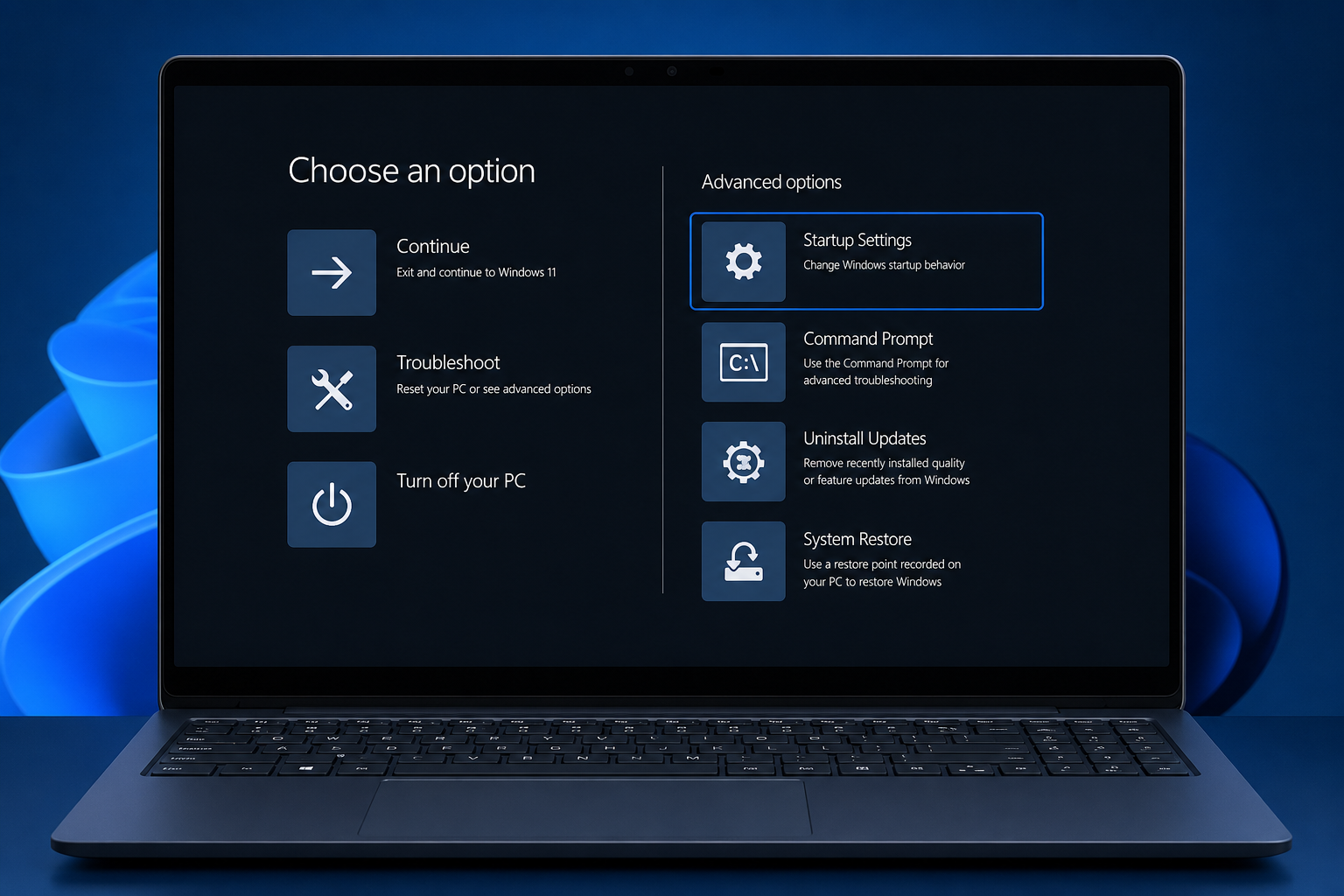
To boot into Safe Mode on Windows 11, hold Shift while clicking Restart from the Start menu, then follow the on-screen path Troubleshoot > Advanced options > Startup Settings > Restart. This loads Windows with only the essential drivers and services running, which makes it far easier to isolate what’s actually causing a crash, freeze, or malware problem.
Safe Mode has been a core Windows troubleshooting tool for decades, and it works largely the same way on Windows 11 as it did on earlier versions — though Microsoft has removed the old F8 key shortcut, so you now need one of the methods below instead. Whether your PC won’t start properly, a driver update broke your display, or you suspect malware is interfering with normal operation, Safe Mode gives you a clean, stripped-down environment to work from. With Windows 11 now running on 69.9% of desktop Windows PCs worldwide according to StatCounter’s June 2026 figures, these are the steps most Windows users will need today.
What Is Safe Mode in Windows 11?

Safe Mode is a diagnostic startup mode that loads Windows using only the minimum set of drivers, services, and system files required to run. Unlike a normal boot, it skips most third-party software, startup programs, and non-essential drivers — so if a problem disappears in Safe Mode, you know it’s being caused by something outside the core operating system.
This stripped-down approach is exactly what makes it useful for troubleshooting. A normal Windows 11 boot loads dozens of background processes, drivers, and startup apps; any one of them can be the source of instability. Safe Mode removes that noise so you can test, uninstall, or repair one thing at a time.
Why You’d Need to Boot into Safe Mode on Windows 11
You’ll typically want to boot into Safe Mode when something is preventing your PC from working normally and you need a stable environment to fix it. Common scenarios include:
-
Malware removal: Some malicious programs load automatically at startup and actively block antivirus scans. Safe Mode with Networking stops most of them from launching, giving your antivirus tool a clear shot at removing the infection.
-
Bad driver updates: A newly installed or updated driver — especially graphics or network drivers — can cause crashes, black screens, or even a Blue Screen of Death. Safe Mode lets you roll back or uninstall the offending driver without it interfering.
-
Corrupted system files: If Windows 11 fails to boot normally, corrupted system files are often the culprit. Safe Mode gives you access to tools like System File Checker (sfc /scannow) and DISM to repair the installation.
-
Undoing a bad system change: If a recent update, app install, or settings change destabilized your PC, Safe Mode lets you run System Restore to roll back to a point when everything worked.
-
Troubleshooting software conflicts: When you can’t tell which startup program or service is causing slowdowns or crashes, Safe Mode isolates the problem by removing most variables.
How to Boot into Safe Mode on Windows 11: 5 Methods
There isn’t a single fixed key to press anymore, so Microsoft built several routes into Safe Mode depending on whether your PC starts normally, is stuck in a boot loop, or won’t start at all. Pick whichever method matches your situation.
Method 1: Use the Start Menu (Works If Windows Starts Normally)
This is the fastest way to boot into Safe Mode if your PC is still able to start up and log in normally.
-
Click the Start button, then select the Power icon.
-
Hold down the Shift key and click Restart.
-
Your PC will reboot into the “Choose an option” screen.
-
Select Troubleshoot > Advanced options > Startup Settings > Restart.
-
After the next restart, a numbered list appears. Press 4 for Safe Mode, or 5 for Safe Mode with Networking if you need internet access (for downloading antivirus updates, for example).
Method 2: Use the System Configuration App (MSConfig)
This method is useful if you want Windows to boot into Safe Mode automatically every time until you turn the setting off — handy if you’re doing extended troubleshooting.
-
Press Win + S, type “System Configuration,” and open it.
-
Go to the Boot tab.
-
Under Boot options, check the Safe boot box (choose Minimal for standard Safe Mode, or Network for Safe Mode with Networking).
-
Click OK, then restart your computer when prompted.
Remember this setting persists across restarts until you manually uncheck it — see the exit instructions further down so you don’t get stuck cycling through Safe Mode.
Method 3: Use the Windows 11 Settings App
If you prefer working through Settings rather than the Start menu shortcut, this route gets you to the same recovery screen.
-
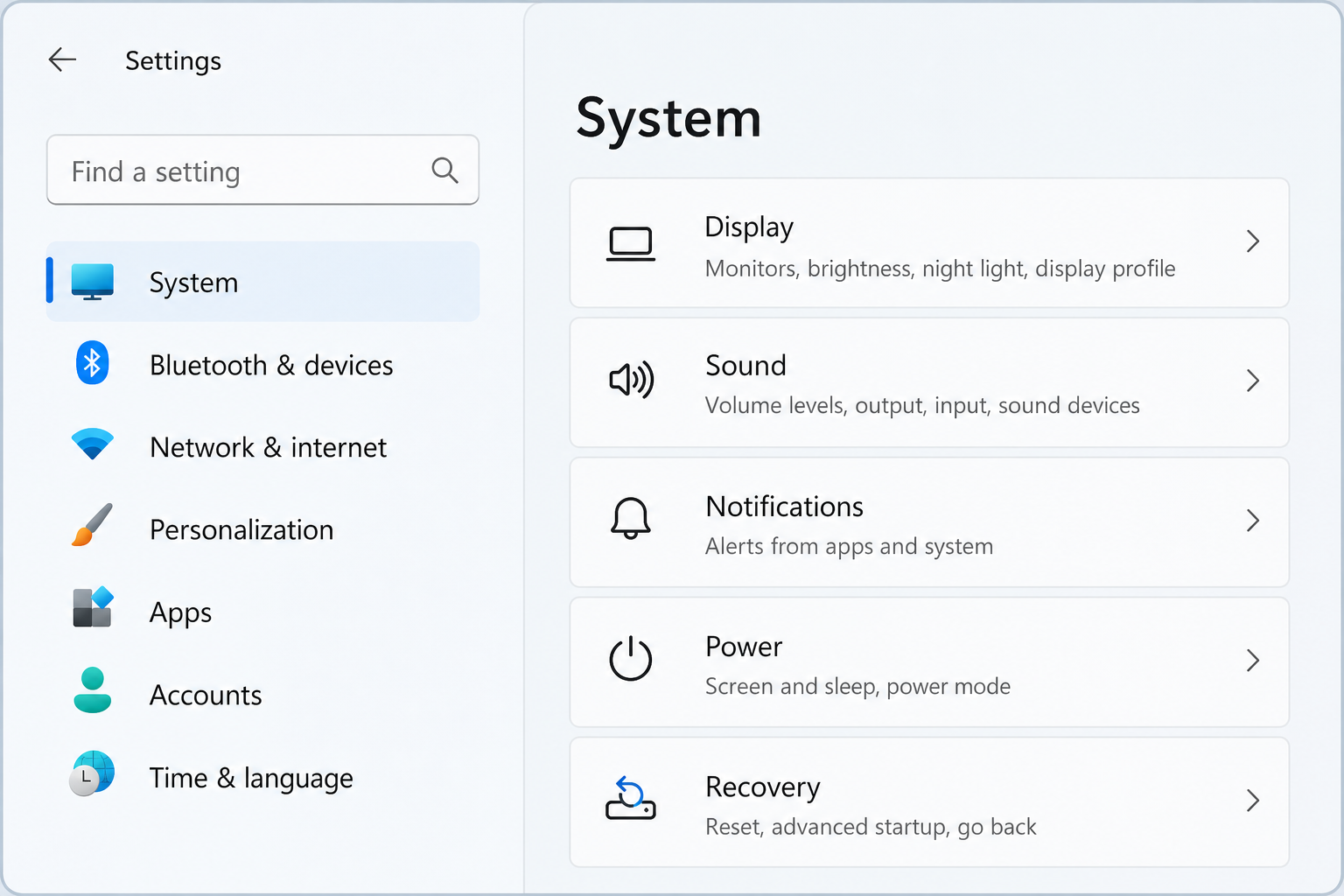
Open Settings (Windows key + I), then go to System > Recovery.
-
Next to Advanced startup, click Restart now.
-
After your PC restarts, select Troubleshoot > Advanced options > Startup Settings > Restart.
-
Choose the Safe Mode option you need from the numbered list.
Method 4: Use Windows Terminal or PowerShell
For a quicker, command-based route, especially if you’re comfortable with the terminal, this command takes you directly to the Advanced Startup Options screen.
-
Press Win + S, type “PowerShell,” and open it.
-
Type the following command and press Enter:
shutdown.exe /r /o
Your PC will restart directly into the recovery options screen, where you can navigate to Troubleshoot > Advanced options > Startup Settings > Restart, then choose Safe Mode.
Method 5: Boot into Safe Mode on Windows 11 Using a Recovery Drive
If Windows 11 won’t start at all — no login screen, no desktop, nothing — a recovery drive is your way in. This is a USB-based Windows Recovery Environment that works even when the operating system itself is unreachable.
-
Boot your PC from a bootable USB recovery drive (created in advance on a working PC, or via a Windows installation USB).
-
Choose your keyboard layout when prompted.
-
Select Troubleshoot > Advanced options > Startup Settings > Restart.
-
Choose the Safe Mode option once the numbered list appears.
Because this method doesn’t rely on the installed Windows environment being functional, it’s the go-to option when your PC is stuck in a boot loop or won’t reach the desktop at all.
How to Exit Safe Mode on Windows 11
Once you’ve finished troubleshooting, getting back to a normal boot is straightforward. Use whichever of these matches how you entered Safe Mode:
-
Simple restart: If you entered Safe Mode using the Start menu or recovery screen (Methods 1, 3, 4, or 5), just restart your PC normally without holding any keys or selecting any special options — Windows 11 will boot normally on its own.
-
Shut down instead of restart: From the Start menu, choose Shut down rather than Restart, then power the PC back on as usual.
-
Undo the System Configuration setting: If you used Method 2 (MSConfig), you must manually turn off Safe boot, or Windows will keep restarting into Safe Mode indefinitely. Press Windows + R, type
msconfig, go to the Boot tab, uncheck Safe boot, click Apply, then Restart.
Troubleshooting Tips for When Safe Mode Doesn’t Fix the Problem
If the issue you’re chasing still shows up in Safe Mode, that’s actually useful information — it usually means the problem lies in a core Windows component rather than a third-party app or driver. In that case:
-
Run
sfc /scannowfrom an elevated Command Prompt in Safe Mode to check for and repair corrupted system files. -
Try DISM (
DISM /Online /Cleanup-Image /RestoreHealth) if SFC alone doesn’t resolve the corruption. -
Consider a System Restore to a point before the issue started, if one is available.
-
As a last resort, a repair install or clean reinstall of Windows 11 may be necessary — at which point having a valid, genuine license ready to reactivate matters.
If you’re reinstalling Windows 11 as part of a repair and need a genuine license key, Top Key Shop stocks Windows 11 Home retail keys with instant email delivery, so you’re not left waiting on activation while your PC is already having problems. For persistent malware that keeps reappearing even after Safe Mode cleanup, pairing Windows with dedicated protection like the antivirus software available at Top Key Shop gives you ongoing real-time defense rather than one-off manual removal.
FAQ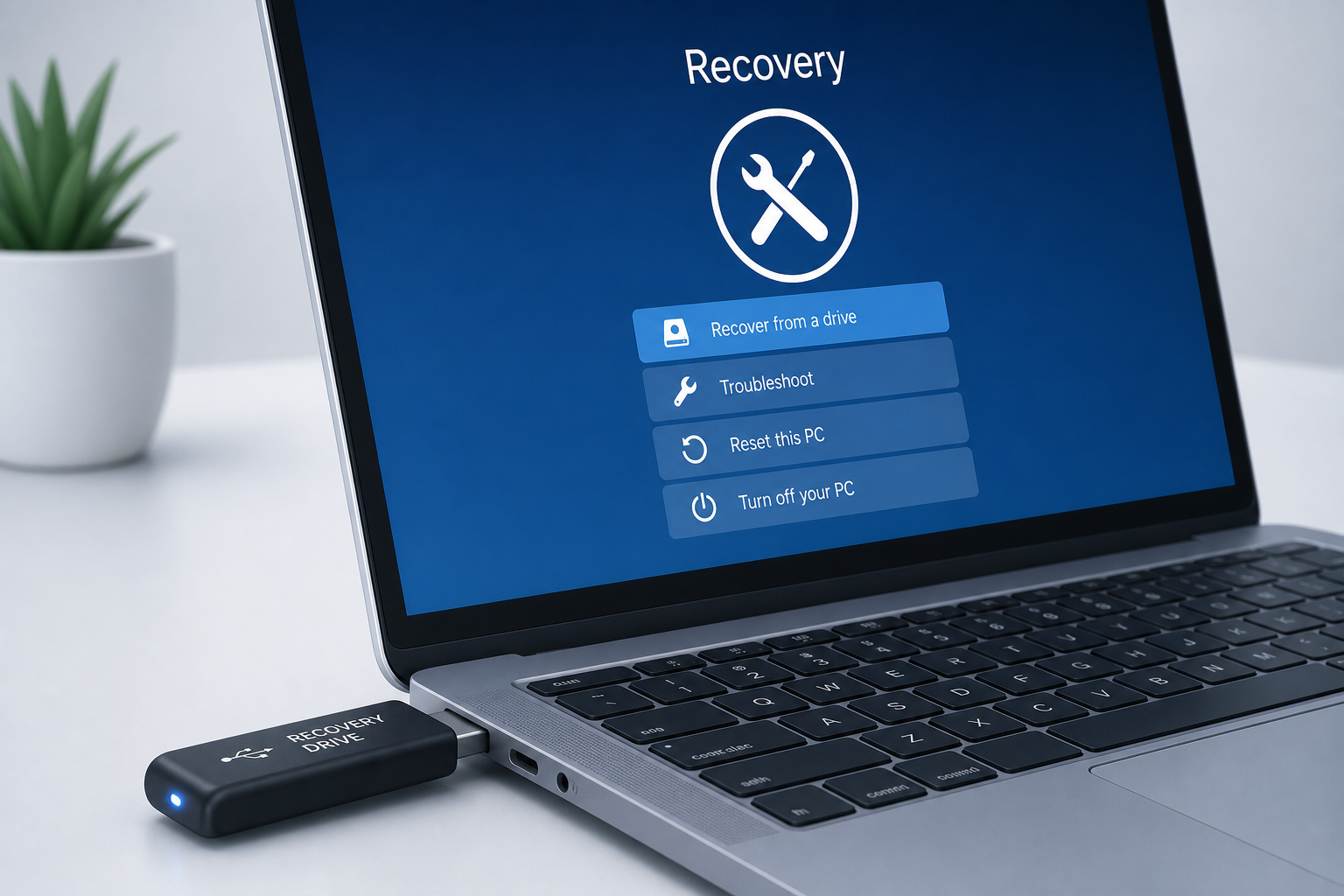
Is there still a way to boot into Safe Mode on Windows 11 using a function key?
No. Unlike older versions of Windows, pressing F8 during startup no longer triggers Safe Mode on Windows 11 by default, because fast boot times make it difficult for the system to reliably detect the keypress. You’ll need one of the methods described above instead.
Can I boot into Safe Mode without a password?
You’ll still need to sign in with your normal Windows account credentials once you reach the Safe Mode desktop, unless your PC is set up without a password already. Safe Mode doesn’t bypass your login.
What’s the difference between Safe Mode and Safe Mode with Networking?
Safe Mode with Networking loads the same minimal environment but also enables network drivers, so you can access the internet — useful for downloading updated antivirus definitions or a driver installer. Standard Safe Mode has no network access at all.
Why won’t my Windows 11 PC boot into Safe Mode?
If none of the standard methods work because Windows won’t start at all, you’ll need to use a recovery drive or Windows installation USB created on another working PC, since this bypasses the broken installation entirely and boots straight into the Windows Recovery Environment.
Does Safe Mode remove viruses automatically?
No, Safe Mode itself doesn’t remove anything — it simply stops most malware from auto-launching so your antivirus software can scan and remove it more effectively. You still need to run an actual scan and removal tool once you’re in Safe Mode.
How long can I safely stay in Safe Mode?
There’s no time limit, but Safe Mode disables many normal features (networking, most drivers, most apps), so it’s meant for troubleshooting only, not day-to-day use. Exit back to normal mode once you’ve finished diagnosing or fixing the issue.
For more background on how Safe Mode works across different Windows startup scenarios, Microsoft’s own Windows startup settings documentation covers each advanced boot option in detail.
