
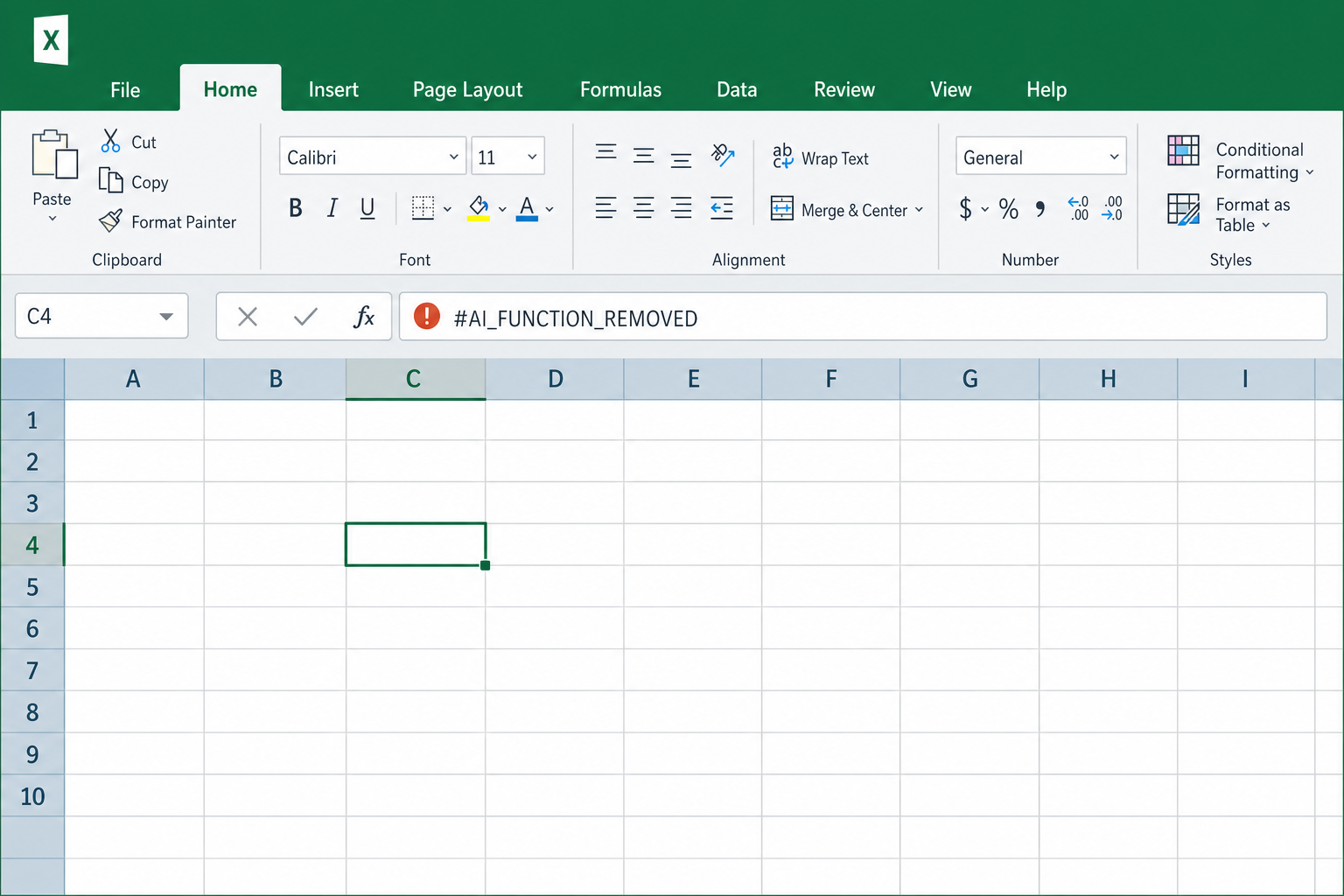
The Excel Copilot function removal is real: as of September 14, 2026, the =COPILOT() worksheet function no longer works in Microsoft Excel. Microsoft quietly retired the feature roughly a year after it first appeared as a preview, ending a short-lived experiment in letting a formula call generative AI directly inside a spreadsheet cell. If you built workflows around it, you need a replacement plan — and there are several that already do the job better.
This wasn’t a case of Microsoft killing AI in Excel altogether. The Copilot side pane, chat-based analysis, and other AI features in Microsoft 365 remain active. What disappeared was one specific, narrow implementation: a formula function that let you type =COPILOT("prompt", range) into a cell and get an AI-generated answer back. That distinction matters, because it explains both why the feature struggled and why the alternatives worth using look nothing like it.
What Was the Excel COPILOT Function?
The COPILOT function was a worksheet formula that sent a natural-language prompt, along with referenced cell data, to an AI model and returned the result directly in a cell. Microsoft introduced it as a preview through the Insider channel in August 2025, positioning it as a way to summarize text, classify data, or draft content without leaving the grid.
On paper, it sounded like the natural evolution of formula automation: instead of nesting IF, VLOOKUP, and TEXT functions, you could just describe what you wanted. In practice, it introduced problems that traditional Excel functions don’t have.
Why the Excel Copilot Function Removal Happened
The short answer is reliability. A spreadsheet function is expected to return the same result every time you open the file, recalculate, or share it with a colleague — that’s the entire point of a formula. An AI-backed function that calls a model behind the scenes breaks that expectation in several concrete ways.
-
Non-deterministic output: the same prompt could return different results on different days as the underlying model changed, which is unacceptable for financial models, audits, or any formula meant to be reproducible.
-
Latency and connectivity requirements: every recalculation needed a live connection to Microsoft’s AI backend, which slowed down large workbooks and simply failed offline.
-
Licensing confusion: the function only worked for users with an active Microsoft 365 Copilot license, so shared files broke for anyone without the same entitlement.
-
Governance and auditability concerns: businesses in finance, healthcare, and compliance-heavy sectors don’t want a cell’s value depending on an opaque model call they can’t trace or lock down.
Put together, these issues meant the function worked fine as a demo but poorly as a production tool — and Excel formulas are, above all, a production tool.
Excel Copilot Function Removal Timeline
Microsoft’s own support documentation confirms the cutoff: starting September 14, 2026, the COPILOT function is no longer available in Excel, though existing formulas may show a broken reference or a #NAME? error rather than an automatic conversion. If you still have workbooks depending on it, you’ll need to manually replace those formulas with static values or an alternative method.
What Happens to Workbooks That Still Use It?

Any workbook containing a live =COPILOT() formula will now show an error where the function used to return a result. Copilot in Excel itself — the chat pane you open from the ribbon — is unaffected by the Excel Copilot function removal and can still help you build formulas, summarize ranges, or clean data; it’s just no longer accessible as a callable cell formula. The practical fix is to open affected files, identify every cell using the function, and either hardcode the last known good result or switch to one of the alternatives below.
What to Use Instead of the Excel Copilot Function
The good news is that formula automation didn’t disappear along with the function — it just moved to tools better suited to the job. Depending on what you were actually trying to do, one of the following will likely cover it more reliably than the retired function ever did.
1. Copilot in Excel (the Chat Pane)
For most everyday tasks — building a formula, explaining what an existing one does, or summarizing a table in plain language — the Copilot side pane is still the closest replacement. It’s conversational rather than embedded in a cell, so it doesn’t create the recalculation and reproducibility problems that sank the COPILOT function. Ask it to “write a formula that flags orders over 30 days late” and it drops a working formula into the cell you select — but the formula itself is standard Excel syntax, not a live AI call.
2. Native Excel Functions (XLOOKUP, LET, Dynamic Arrays)
Many tasks people reached for =COPILOT() to solve are already handled cleanly by native Excel functions that have existed for years. XLOOKUP, LET, LAMBDA, and dynamic array functions like FILTER and SORT cover the vast majority of lookup, transformation, and conditional logic needs without any AI dependency, license requirement, or non-deterministic behavior. They’re also fully offline and auditable — a serious advantage for anyone working with financial or compliance data.
3. Power Query for Repeatable Data Transformation
If your use case was closer to “clean and reshape this data automatically,” Power Query (built into Excel) is a far more robust answer than an AI formula ever was. It records repeatable transformation steps — splitting columns, merging tables, removing duplicates — that run identically every time you refresh, with none of the unpredictability of a model-generated result.
4. Third-Party AI Add-ins for Formula Generation
Several dedicated AI add-ins focus specifically on formula generation rather than trying to be a general-purpose assistant baked into a cell. These tools typically generate the formula text for you to review and insert, rather than executing a live AI call on every recalculation — which sidesteps the exact problem that caused the Excel Copilot function removal in the first place.
Choosing the Right Excel Version for Reliable Formula Work
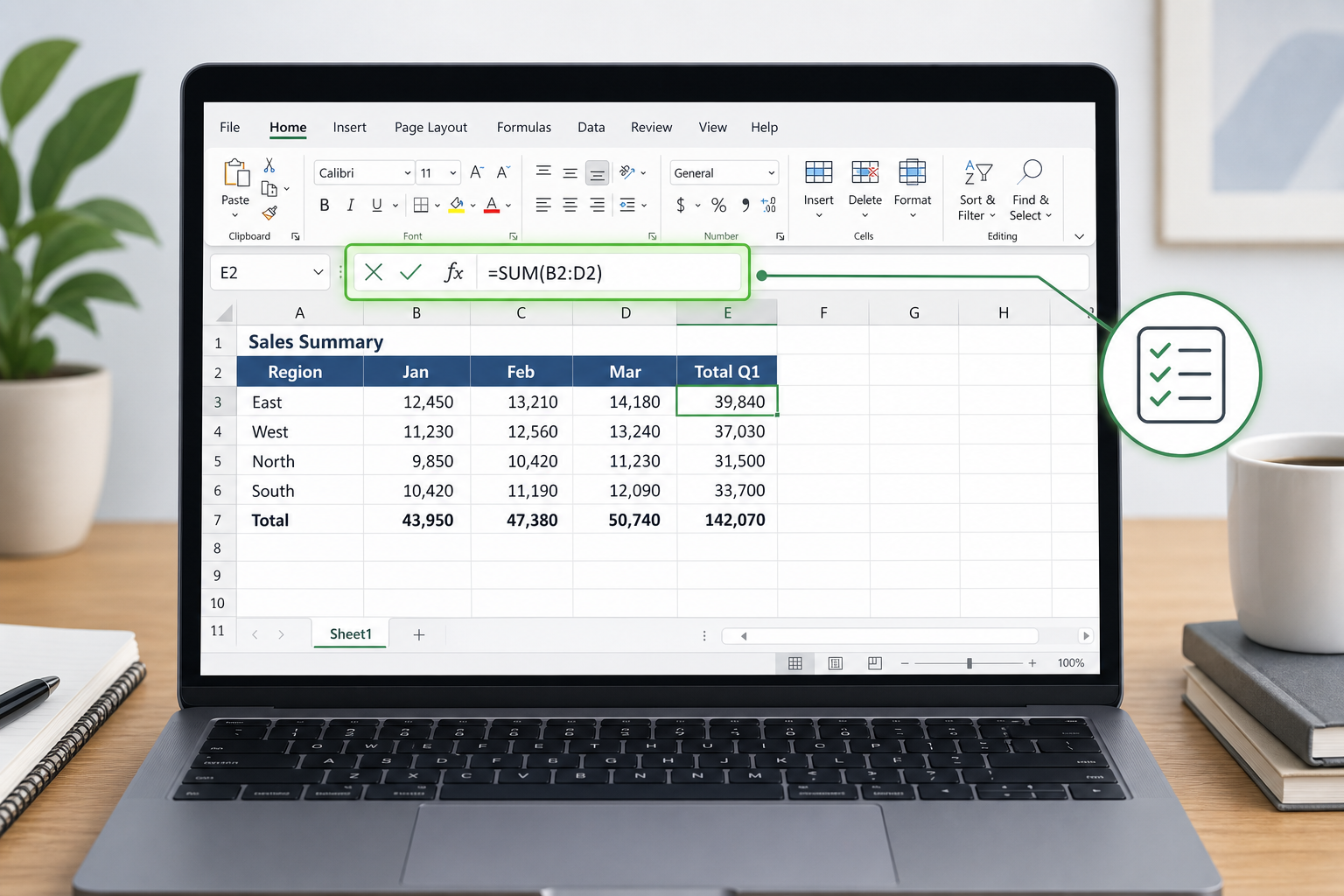
If the retirement of an AI-dependent feature has you rethinking how much you want your spreadsheet tools tied to a subscription and a live cloud connection, it’s worth comparing your options. A one-time-purchase license like Excel 2024 for Windows gives you the full native function set — XLOOKUP, LET, dynamic arrays, Power Query — without recurring fees or dependency on features that can be withdrawn a year after launch. For teams setting up new machines, the Windows 11 Pro + Excel 2024 bundle is a practical way to get the OS and spreadsheet software activated together.
If your workflow depends more on formula fluency than on AI chat features, our breakdown of Excel power user functions that still matter in 2026 covers the native tools — including XLOOKUP and dynamic arrays — that outperform AI-generated formulas for everyday accuracy and speed.
Lessons From the Excel Copilot Function Removal
The core lesson is that AI features work best in Excel when they stay outside the calculation engine, not inside it. A chat pane that suggests a formula, which you then review and insert, keeps a human in the loop and keeps the resulting cell fully deterministic. A live AI function embedded in a formula bar removes that checkpoint and turns every recalculation into a fresh, unverifiable request to a model. Microsoft’s own documentation on the retirement is consistent with this: the company frames it as consolidating AI assistance into the Copilot pane rather than abandoning AI in Excel altogether, per Microsoft’s official COPILOT function support page.
For anyone managing shared workbooks, the practical takeaway is simple: favor native functions and repeatable transformation tools for anything that needs to be reproducible, and treat AI chat assistants as a drafting aid rather than a formula engine. That approach would have avoided most of the friction that led to this retirement in the first place.
FAQ
When did the Excel Copilot function removal take effect?
The =COPILOT() function stopped working in Excel on September 14, 2026, according to Microsoft’s support documentation. Formulas that still reference it will now return an error instead of an AI-generated result.
Is Copilot completely gone from Excel now?
No. Only the standalone COPILOT() worksheet function was retired. The Copilot side pane and other AI-assisted features in Microsoft 365 remain fully available and are unaffected by this change.
What happens to old formulas that use =COPILOT()?
Existing formulas using the function will display an error rather than continuing to calculate. You’ll need to manually replace them with static values, native Excel functions, or another automation method.
Why did Microsoft remove the Excel Copilot function after only a year?
Reported reasons include non-deterministic results, dependency on a live connection and Copilot license, and difficulty auditing AI-generated values in shared or regulated workbooks — issues that conflict with how spreadsheet formulas are expected to behave.
What’s the best replacement for AI-driven formula automation in Excel?
For most users, native functions like XLOOKUP, LET, and dynamic arrays combined with Power Query for repeatable transformations offer more reliable automation than an embedded AI function. The Copilot chat pane remains useful for drafting formulas that you then insert and verify manually.
Do I need a Microsoft 365 subscription to use Copilot in Excel now?
Yes, the Copilot chat pane still requires an eligible Microsoft 365 Copilot license. If you prefer not to depend on a subscription for core spreadsheet work, a perpetual-license version of Excel with native functions may suit your workflow better.
