

The Windows 11 disk space bug is real, and Microsoft has officially confirmed it: a rogue log file tied to app permissions can balloon to over 500GB on your system drive — completely silently, and without triggering a single warning. If your PC has been mysteriously running low on storage, this is likely the culprit. The good news is that a fix is now available, and you can check your exposure in under five minutes.
What Is the Windows 11 Disk Space Bug?
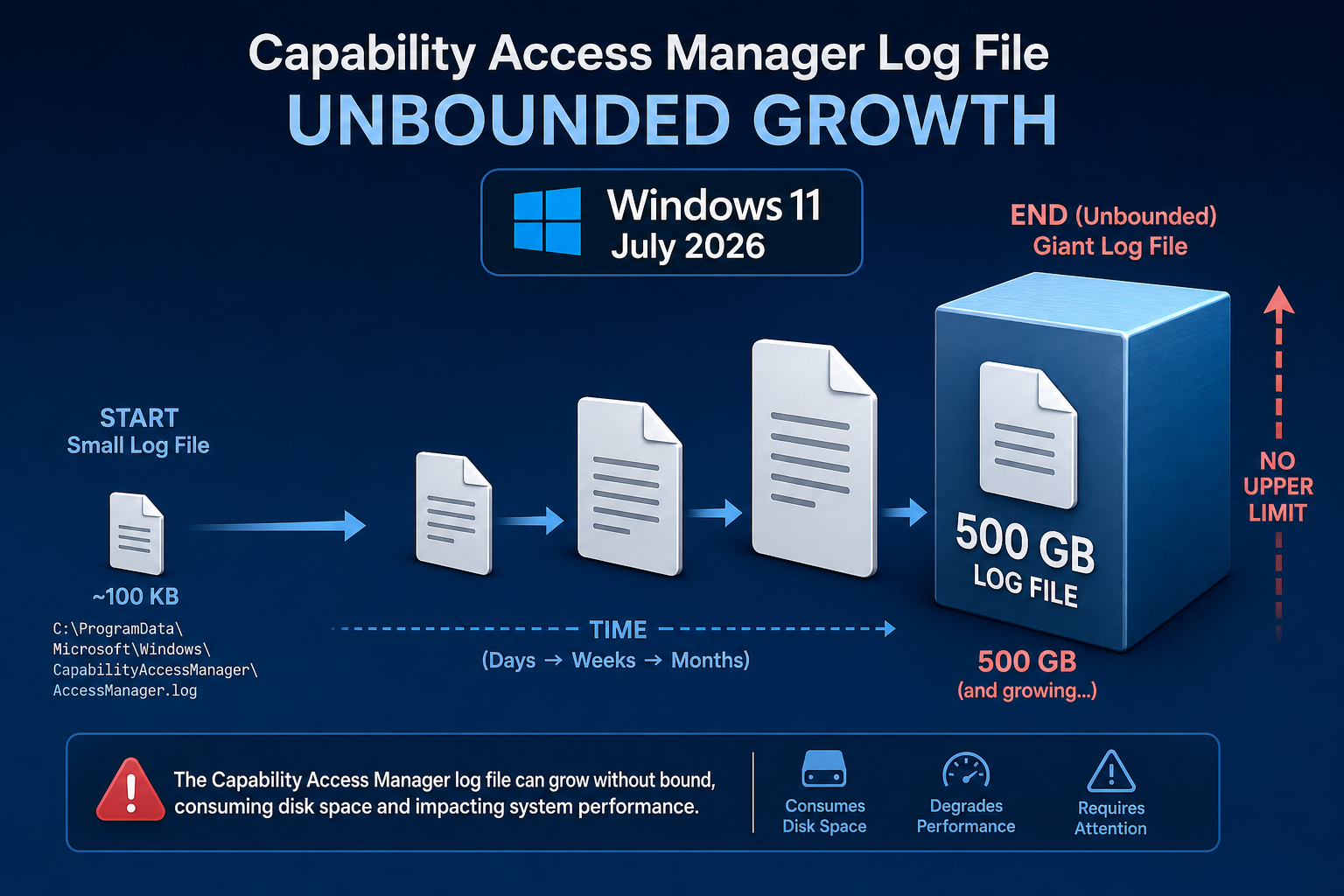
Microsoft acknowledged a defect in Windows 11 where the Capability Access Manager (CAM) log file — a system file that records app permission events (microphone access, camera use, location requests, and so on) — fails to rotate or truncate correctly. Instead of being capped at a sensible size, it keeps growing indefinitely. Users and researchers have reported instances where this single hidden file swelled to hundreds of gigabytes, with the theoretical maximum reaching 500GB on affected machines.
The file lives deep inside the protected System & Reserved partition, so it doesn’t appear in File Explorer under normal circumstances. Most users simply notice that their C: drive is shrinking and assume it is Windows Update files, application data, or something they installed — when in fact it is this runaway permission log.
According to Ghacks Technology News, the bug is specifically triggered by a failure in the log rotation mechanism for the Capability Access Manager service, and it affects Windows 11 systems that received certain cumulative updates in 2026.
Which Windows 11 Versions Are Affected?
The Windows 11 storage bug primarily targets systems running Windows 11 24H2 and 23H2 that received the affected cumulative updates in early-to-mid 2026. If your machine updated automatically during this period and you haven’t yet applied the June 2026 optional update (or the July 14, 2026 Patch Tuesday release), you are likely still exposed. Earlier versions such as 22H2 appear less impacted, but Microsoft’s advisory does not fully exclude them.
- Highest risk: Windows 11 24H2 with 2026 cumulative updates applied
- Moderate risk: Windows 11 23H2 with the same update window
- Lower risk: Windows 11 22H2 and earlier builds
- Not affected: Windows 10 users (this bug is Windows 11-specific)
How to Check If You Have the Disk Space Bug
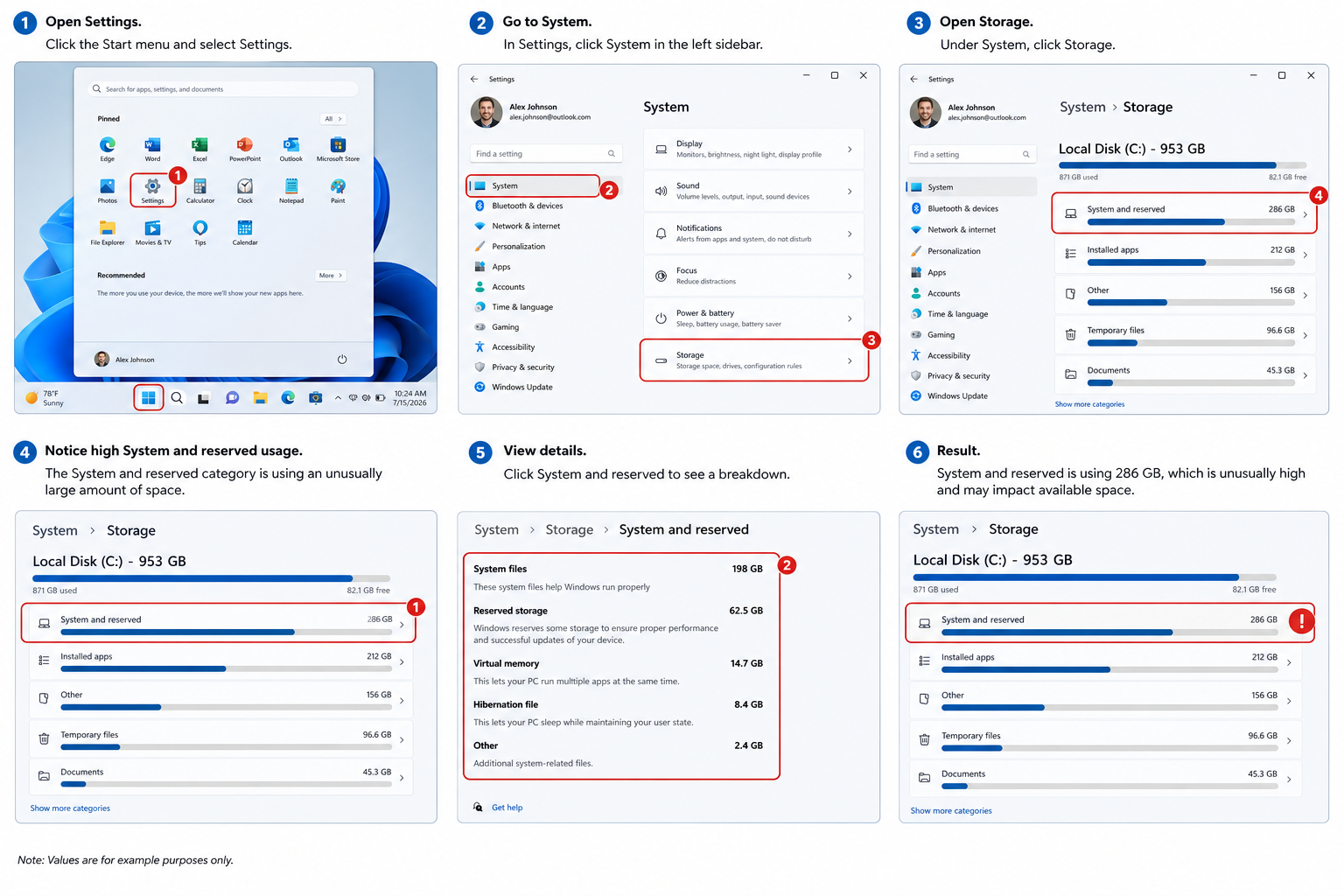
Detecting the Windows 11 storage bug takes just a few steps. You do not need any third-party tools for the initial check — Windows Settings will reveal suspicious usage instantly.
Method 1: Use Windows Storage Settings
- Open Settings (Win + I).
- Navigate to System > Storage.
- Click Show more categories.
- Select System & Reserved.
- If this section reports more than 10–15GB (and especially if it shows 50GB, 100GB, or more), the bug has likely affected your machine.
Method 2: Use a Disk Analysis Tool
For a more precise view, free tools like WinDirStat or TreeSize Free can scan your drive and surface the oversized CAM log file directly. Look for a file named CapabilityAccessManager.db or similar inside the Windows system directories. If it is measured in gigabytes rather than megabytes, you have found the problem.
Method 3: Check Windows Update History
Go to Settings > Windows Update > Update History and check whether the June 2026 Preview Update (containing the fix for this disk space missing Windows 11 issue) has already been installed. If it has not, you are still vulnerable.
How to Fix the Windows 11 Storage Bug
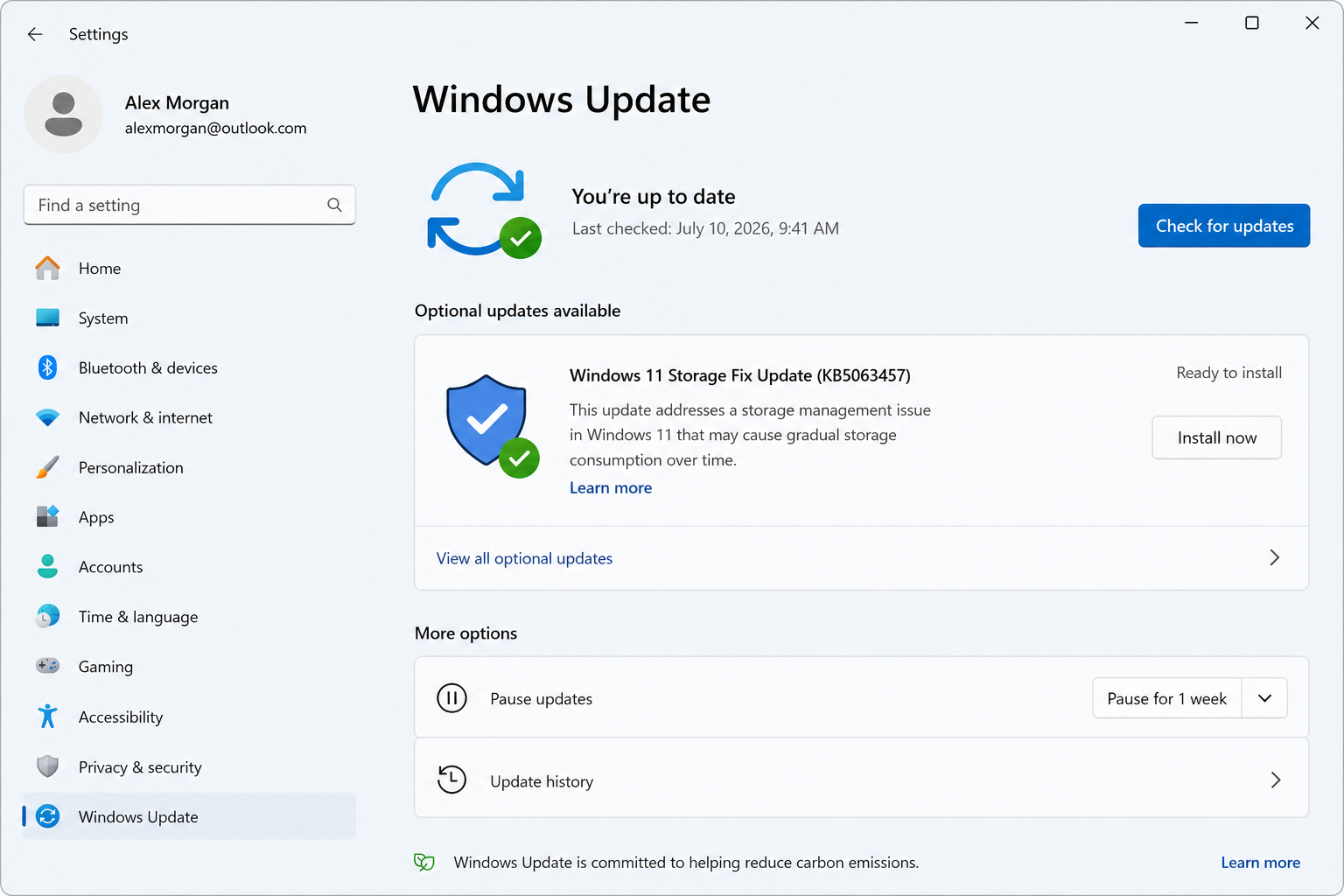
Microsoft’s official Windows 11 storage fix is delivered via Windows Update. There are two routes, depending on how quickly you want to act.
Option A: Install the Optional June 2026 Update (Fastest)
- Open Settings > Windows Update.
- Click Advanced options.
- Select Optional updates.
- If the June 2026 Preview Update is listed, tick it and click Download & Install.
- Restart your PC when prompted.
Option B: Wait for the July 2026 Patch Tuesday (Automatic)
Microsoft confirmed the fix is included in the July 14, 2026 Patch Tuesday cumulative update. If you have automatic updates enabled, Windows will install this without any manual action. After the patch, Windows automatically cleans up the bloated log file — you do not need to delete anything manually.
After Patching: Reclaim Your Disk Space
The update removes the oversized log file as part of the remediation, but running a Disk Cleanup or Storage Sense pass afterwards is still worthwhile. For a broader clean-up of cached update files, temp data, and other hidden space hogs, see our full guide on Windows 11 storage cleanup — reclaim 10–20GB right now.
Why Does This disk space missing Windows 11 Issue Matter?
On a modern laptop with a 256GB or 512GB SSD, losing 100–500GB to an invisible log file is not a minor inconvenience — it can make the machine functionally unusable. Windows itself demands a minimum amount of free system drive space to apply future updates; once that threshold is breached, your PC stops receiving security patches, leaving it exposed to known vulnerabilities. Beyond updates, low disk conditions degrade virtual memory performance and can cause application crashes. This bug is serious precisely because it is invisible: there is no pop-up, no warning, no indication that anything is wrong until your drive is effectively full.
Should You Upgrade or Stay on Your Current Windows 11 Licence?
If this bug has you questioning your Windows setup more broadly, it is worth ensuring you are running a genuine, fully licenced copy of Windows 11 — only genuine installations receive timely cumulative updates and security patches via Windows Update. A counterfeit or grey-market key may appear to activate initially but can lose access to updates at any time, which means you would not receive the fix for this storage bug (or any future critical patch) automatically.
At Top Key Shop, genuine Windows 11 Home Retail keys start from just €14.70, with instant email delivery and free 24/7 activation support. For power users or anyone running a home office, a Windows 11 Home + Office 2024 bundle is available from €19.90 — genuine keys, official download links, and the peace of mind that every future Windows Update (including storage bug fixes like this one) arrives automatically.
Preventing Future Windows 11 Storage Problems
Once you have applied the Windows 11 storage fix, a few habits will help you stay ahead of similar issues in the future.
- Enable Storage Sense: Settings > System > Storage > toggle Storage Sense on. It automatically clears temp files and old update caches on a schedule.
- Check Storage monthly: A quick glance at Settings > System > Storage catches anomalies before they become critical.
- Keep Windows Update on automatic: The fastest way to receive bug fixes — including this one — is to never delay cumulative updates.
- Run Disk Cleanup after major updates: Windows keeps a rollback copy of every major upgrade; once you are confident in the new version, running Disk Cleanup with “Clean up system files” recovers several gigabytes.
- Use a disk analysis tool quarterly: Free tools like WinDirStat surface runaway files before they become a 500GB problem.
FAQ
What exactly is the Windows 11 disk space bug?
It is a defect in the Capability Access Manager service that causes its log file to grow without limit. Microsoft confirmed the Windows 11 disk space bug after users reported their system drives shrinking by hundreds of gigabytes. The file records app permission events but never trims itself correctly, reaching up to 500GB on the most severely affected machines.
How do I know if the Windows 11 storage bug has hit my PC?
Go to Settings > System > Storage > Show more categories > System & Reserved. If System & Reserved is consuming far more space than expected — typically well above 15GB — the disk space missing Windows 11 issue is likely present. A third-party disk tool like WinDirStat will confirm it by locating the oversized log file directly.
Do I need to manually delete any files to apply the Windows 11 storage fix?
No. Once you install the June 2026 optional update or the July 14 Patch Tuesday release, Windows automatically cleans up the bloated log file. You do not need to navigate to any system folder or delete anything yourself. Simply installing the update is sufficient.
Does this bug affect Windows 10 users?
No. The Capability Access Manager log rotation bug is specific to Windows 11. Windows 10 users are not affected by this particular storage issue. That said, Windows 10 reaches end of support in October 2025, so users still on Windows 10 face a different but equally pressing concern about security updates.
Can this storage bug cause permanent data loss?
The bug itself does not corrupt or delete your personal files — it simply fills up your drive with a hidden system log. However, if your drive reaches 100% capacity as a result, Windows may fail to apply updates or run correctly, which could indirectly lead to instability. Applying the patch and reclaiming the space resolves the issue completely without data loss.
Is it safe to upgrade to Windows 11 now given this bug?
Yes. Microsoft has already released the fix via optional updates, and the July 14, 2026 Patch Tuesday delivers it to all users automatically. New installations of Windows 11 that include the latest cumulative updates are not affected. The bug only occurs on machines that received the flawed update window without yet applying the subsequent fix.

bonjour, la mise à jour ne s’est pas faîte, windows 11 fait 181 go je n’ai plus que 40 go de libre, je ne sais plus quoi faire, j’ai eu microsoft 3 fois avec des techniciens, rien n’y a changé, ils m’ont fait réinstallé windows 11, que dalle je suis décourage, mon pc n’a que 18 mois, mon disque dur fait 500 go à la base, si quelqu’un peut m’aider s’il vous plait, Jmichel D.
Bonjour Jean-Michel,
Ne vous découragez pas. Avant de réinstaller Windows à nouveau, il faudrait d’abord identifier précisément ce qui occupe les 181 Go.
Allez dans Paramètres → Système → Stockage → Afficher plus de catégories et dites-nous combien d’espace est indiqué pour Système et réservé, Applications installées, Fichiers temporaires et Autres.
Si possible, indiquez-nous également votre version de Windows 11 en tapant winver dans le menu Démarrer.
Avec ces informations, nous pourrons déjà déterminer si votre problème correspond au bug décrit dans cet article ou si les 181 Go sont utilisés par autre chose. Une nouvelle réinstallation de Windows n’est probablement pas la première chose à faire à ce stade.