

Updated November 2026. The blank white window has since been traced to a Chrome scheduled task, not to Chrome’s graphics engine. We’ve rewritten the post around that fix and removed explanations that turned out to be wrong.
The Chrome graphical bug that put a blank white window on Windows 10 and 11 desktops in July 2026 wasn’t a graphics problem at all. It was traced to a Chrome background task called RunPlatformExperienceHelperOnUnlock, which runs when you sign in or unlock your PC. Disabling that task in Task Scheduler stops the white window for most people. If you’re seeing a different Chrome display issue, such as flickering, black boxes or garbled pages, the fixes are different, and they’re covered further down.
What the Chrome graphical bug looks like
From early July 2026, Windows users started reporting a plain white rectangle that appeared after starting the PC, signing in or unlocking it. As PCWorld reported:
- The window is usually in a corner of the screen, but it can be large enough to cover icons and other windows.
- Sometimes it disappears after a few seconds, and sometimes it stays until you restart.
- It appears on both Windows 10 and Windows 11, with Intel, AMD and NVIDIA graphics.
- It shows up even when Chrome isn’t open.
Because it appeared with every kind of graphics card, early theories blamed Chrome’s graphics engine or a Windows update. Both turned out to be wrong.
What really causes the Chrome graphical bug
Chrome installs scheduled tasks alongside the browser, for things like updates. Reports from July 2026 found that a newer task, RunPlatformExperienceHelperOnUnlock, in a Task Scheduler folder called GoogleUserPEH, runs a Chrome helper program each time you unlock Windows. On affected PCs, that helper leaves an empty white window behind.
The problem started in 2026, around the release of Chrome 150 in July. Google hasn’t publicly explained what the helper does or confirmed the bug, and its Chrome release notes haven’t mentioned a fix. Some users say later Chrome updates stopped the white window, but that hasn’t been confirmed.
How to fix the Chrome graphical bug
1. Update Chrome first
Open Chrome, go to Settings > About Chrome, let it install any update and select Relaunch. Then restart the PC and lock and unlock it a few times. If the white window doesn’t come back, you’re done.
2. Disable the Chrome task in Task Scheduler
- Press Windows key + R, type
taskschd.mscand press Enter. - In the left pane, open Task Scheduler Library, then the GoogleUserPEH folder.
- In the middle pane, right-click RunPlatformExperienceHelperOnUnlock and choose Disable.
- Restart the PC and check whether the white window still appears.
Disabling the task doesn’t uninstall Chrome or touch your bookmarks, passwords or extensions. Users who disabled it haven’t reported problems with Chrome itself. Because Google hasn’t said what the helper is for, though, it’s sensible to note what you changed. If anything behaves oddly, go back to Task Scheduler, right-click the task and choose Enable.
Chrome updates can recreate or re-enable the task, so if the white window comes back after an update, check Task Scheduler again.
3. Find the window’s owner if you’re not sure
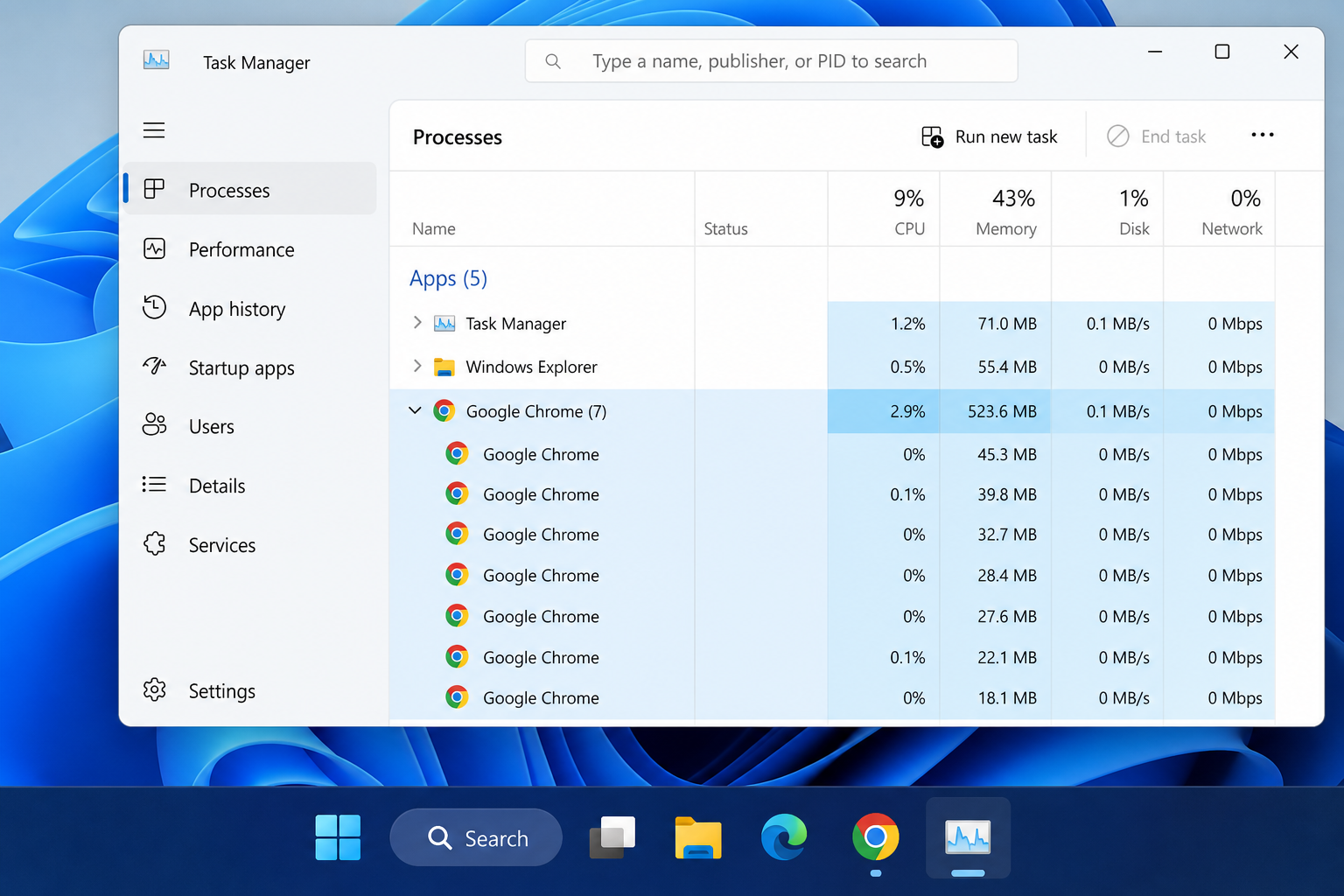
If you’re not sure the white window comes from Chrome, open Task Manager with Ctrl + Shift + Esc while it’s on screen. Look for a Chrome process or a process named platform_experience_helper. If you find it, end it, and the window should close. If there’s nothing from Chrome, the window comes from another app.
Task Scheduler is also where many other programs start themselves quietly. Our guide to safe-to-disable startup programs shows where else to look.
Fixes for any other Chrome display issue
If your problem happens inside Chrome itself, with flickering, black or grey boxes, stretched text or pages that only half draw, it’s usually linked to the graphics card. These fixes help, in this order.
Check Chrome’s graphics report
Type chrome://gpu in the address bar. Under Problems Detected, Chrome lists any known issues with your graphics card or driver. It’s a quick way to see whether Chrome has already spotted a conflict.
Update the graphics driver
Download the latest driver from your PC maker or from Intel, AMD or NVIDIA, install it and restart. Outdated drivers are the most common cause of drawing problems in Chrome.
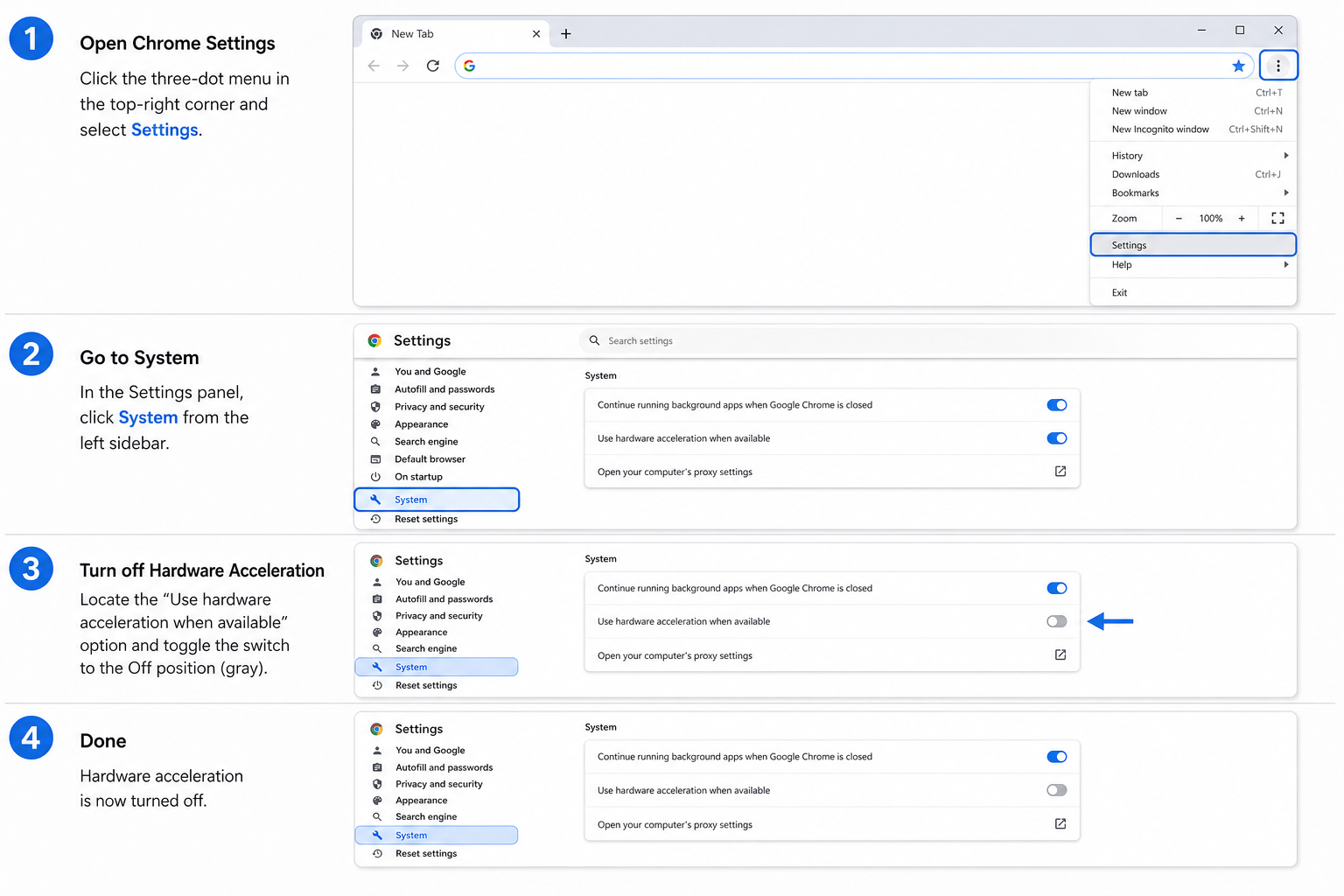
Turn off hardware acceleration to stop a Chrome rendering glitch
Go to Settings > System in Chrome, turn off Use graphics acceleration when available and select Relaunch. Chrome then draws pages with the processor instead of the graphics card. Scrolling and video can feel slightly less smooth, but most display glitches stop. Turn it back on after your next driver or Chrome update to check whether it’s still needed.
Reset Chrome flags
If you’ve ever changed settings on the chrome://flags page, open it and select Reset all, then relaunch. Experimental settings, especially ones for graphics, often cause display problems after an update.
Stop Chrome running in the background
In Settings > System, turn off Continue running background apps when Google Chrome is closed. This stops Chrome processes from staying open after you close the browser. It doesn’t affect the scheduled task above, which runs separately.
Chrome problem or Windows graphics bug?
For the white window, it’s Chrome: the problem goes away when the Chrome task is disabled, and Windows works normally without it.
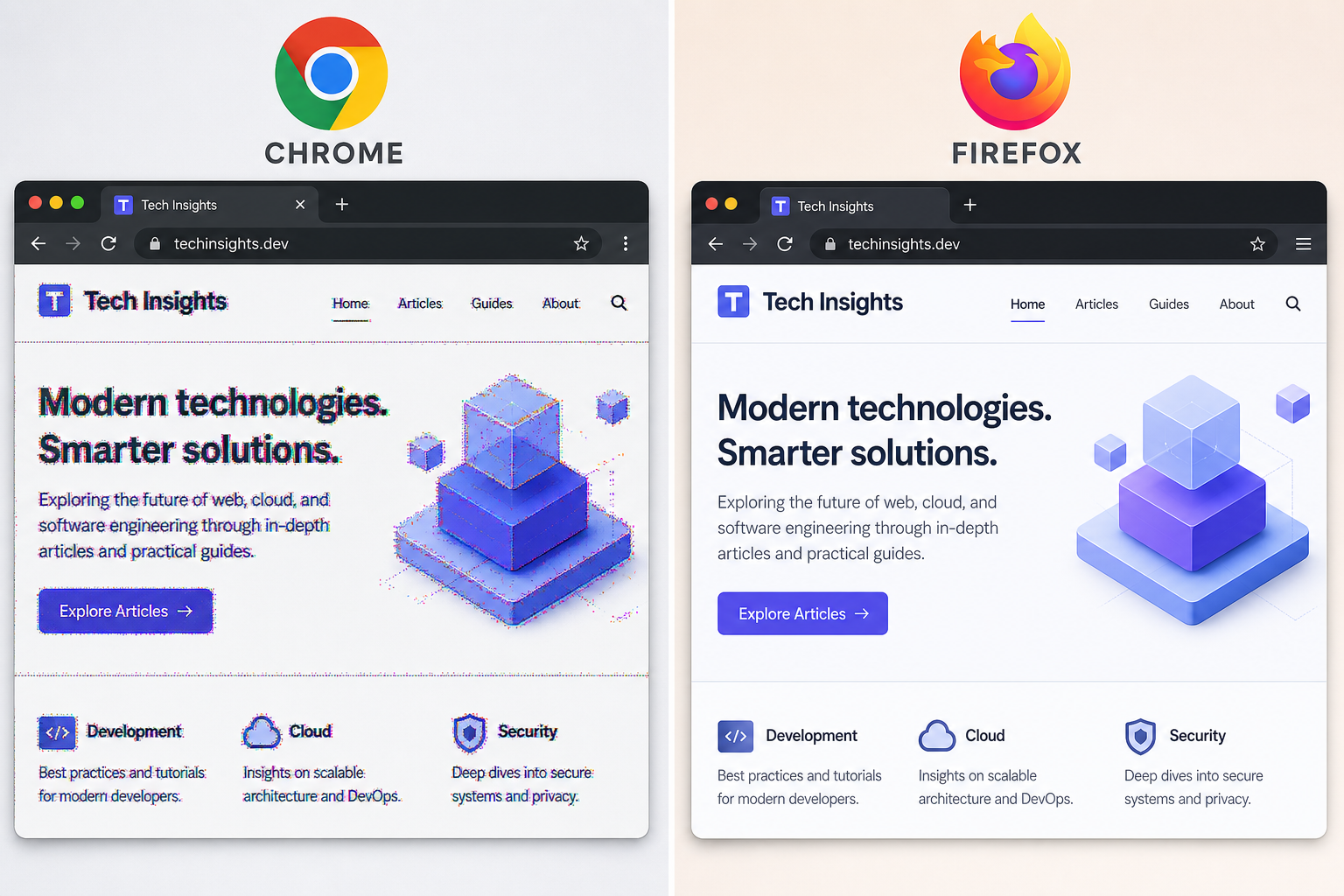
For other display problems, a quick test tells you. Open the same pages in Microsoft Edge or Firefox. If they look fine there, the problem is in Chrome, and the fixes above apply. If every app flickers or shows artefacts, it’s a Windows or driver problem rather than a Chrome one. Microsoft’s quick test is to press Windows key + Ctrl + Shift + B, which restarts the graphics driver. Our guide to fixing screen flickering on Windows covers driver-level problems in more detail.
Should you switch browsers?
Usually not. Disabling the scheduled task fixes the white window, and the display fixes above solve most other Chrome problems. If you need a working browser while you troubleshoot, Firefox uses a completely different engine. Edge is built on the same Chromium engine as Chrome, but it doesn’t use Chrome’s scheduled tasks, so the white window bug doesn’t affect it.
You can follow Chrome’s updates on the Google Chrome Releases blog, where Google posts notes for every version.
FAQ
What is the Chrome graphical bug on Windows?
The best-known case is a blank white window that appears after signing in or unlocking Windows 10 or 11. It was traced in July 2026 to a Chrome scheduled task called RunPlatformExperienceHelperOnUnlock, not to Chrome’s graphics engine.
How do I get rid of the white window?
Update Chrome first. If the window still appears, open Task Scheduler, go to Task Scheduler Library > GoogleUserPEH, and disable RunPlatformExperienceHelperOnUnlock. Then restart.
Is it safe to disable the Chrome task?
People who disabled it haven’t reported problems with Chrome. Google hasn’t explained what the task does, so note the change and re-enable it if anything stops working.
Does this affect Windows 10 as well as Windows 11?
Yes. The white window was reported on both, with all the main graphics card makers.
Is my data at risk?
No. The white window is a display problem caused by a Chrome helper. It doesn’t affect your files, passwords or browsing data.
Will turning off hardware acceleration fix the white window?
Usually not, because the white window doesn’t come from Chrome’s graphics engine. Hardware acceleration only helps with display problems inside the Chrome window, such as flickering or garbled pages.
