
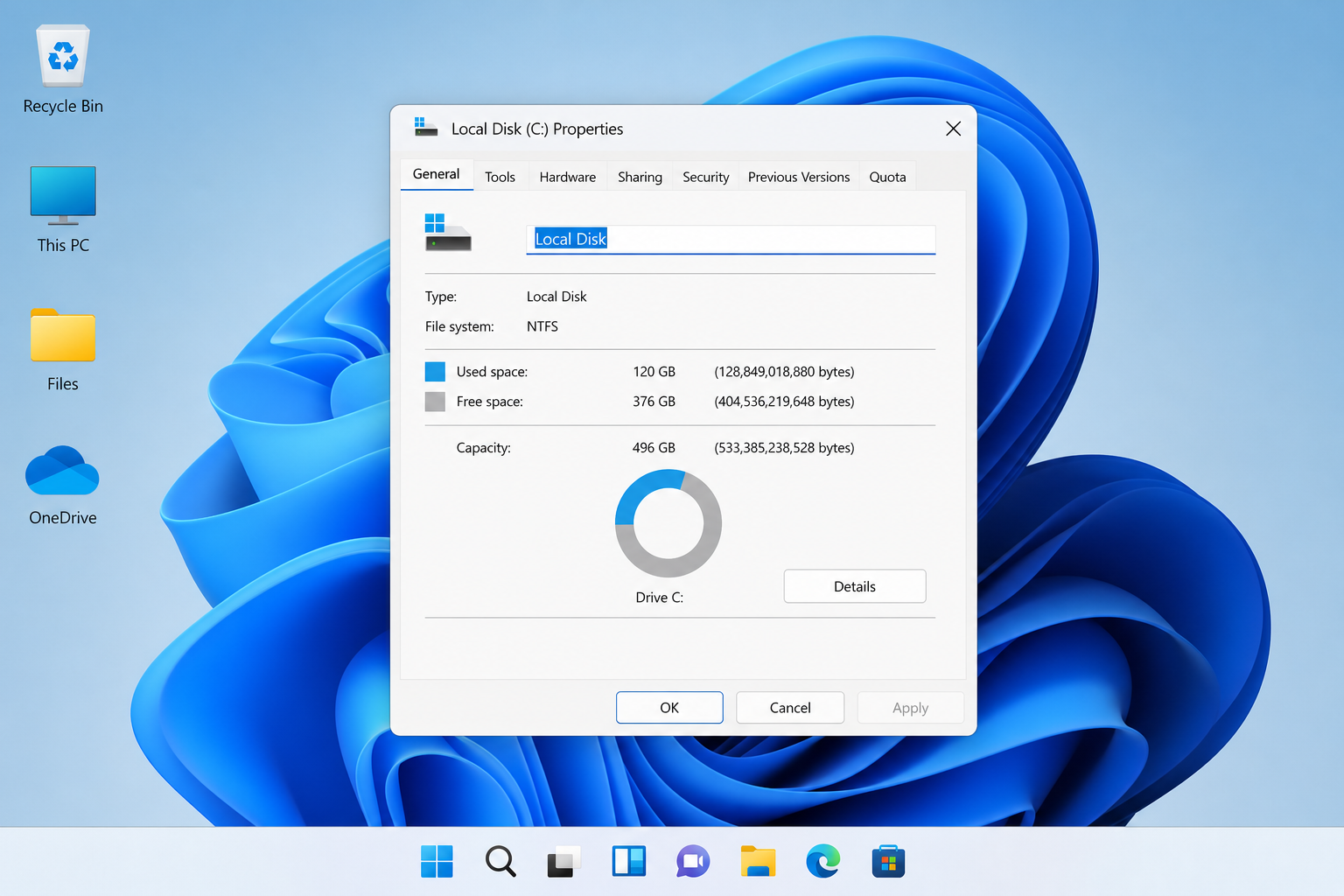
If your drive shows less storage than the number printed on the box, nothing is broken — it comes down to two things: how manufacturers count bytes, and how much space Windows itself quietly sets aside. A “1TB” drive will never show 1,000GB in File Explorer, and that’s expected, not a defect.
This mismatch confuses a lot of people, especially right after buying a new PC or SSD, because the drop in available space can look like 5-10% of the total capacity has simply vanished. Once you understand where that space actually goes, the numbers stop looking suspicious.
Binary vs Decimal: The Real Reason a Drive Shows Less Storage
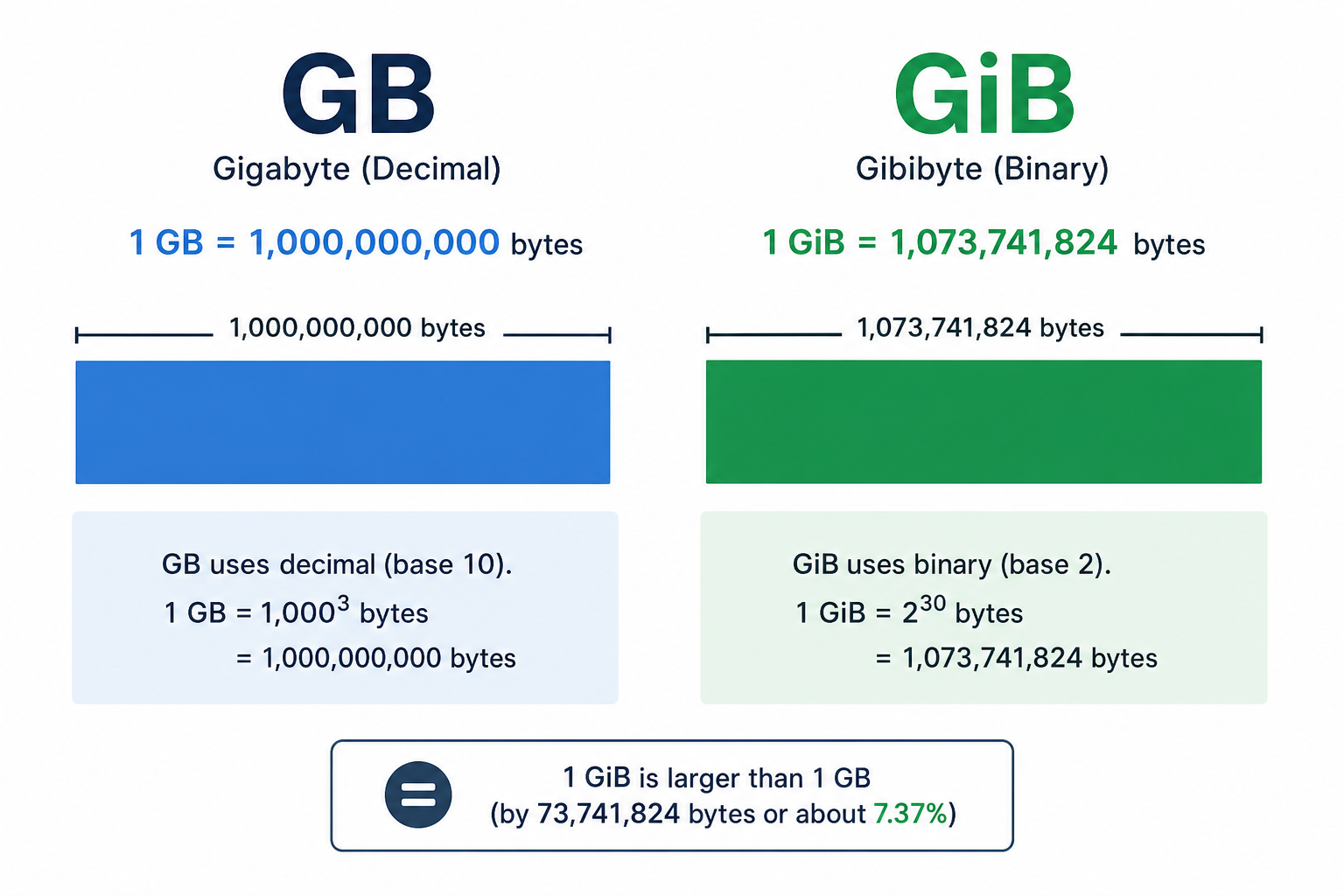
The single biggest reason a drive shows less storage than advertised is a units mismatch, not a missing file. Drive manufacturers calculate capacity in decimal (base-10) units, where 1GB = 1,000,000,000 bytes. Windows, on the other hand, reports capacity in binary (base-2) units, where what it labels “GB” is actually a gibibyte (GiB) — 1,073,741,824 bytes.
Because a binary gigabyte is larger than a decimal gigabyte, the same number of raw bytes produces a smaller number when Windows does the math. The gap grows as the drive gets bigger:
- A 500GB drive (decimal) shows as roughly 465GB in Windows
- A 1TB drive (decimal) shows as roughly 931GB in Windows
- A 4TB drive (decimal) shows as roughly 3.63TB in Windows
That’s a consistent loss of about 7% purely from the unit conversion — no files, no partitions, nothing missing. Seagate’s own technical explanation confirms this is a long-standing industry-wide convention, not a manufacturing shortfall: Seagate’s guide to decimal vs binary capacity breaks down the exact math behind it.
Windows System Files That Reduce Your Usable Space
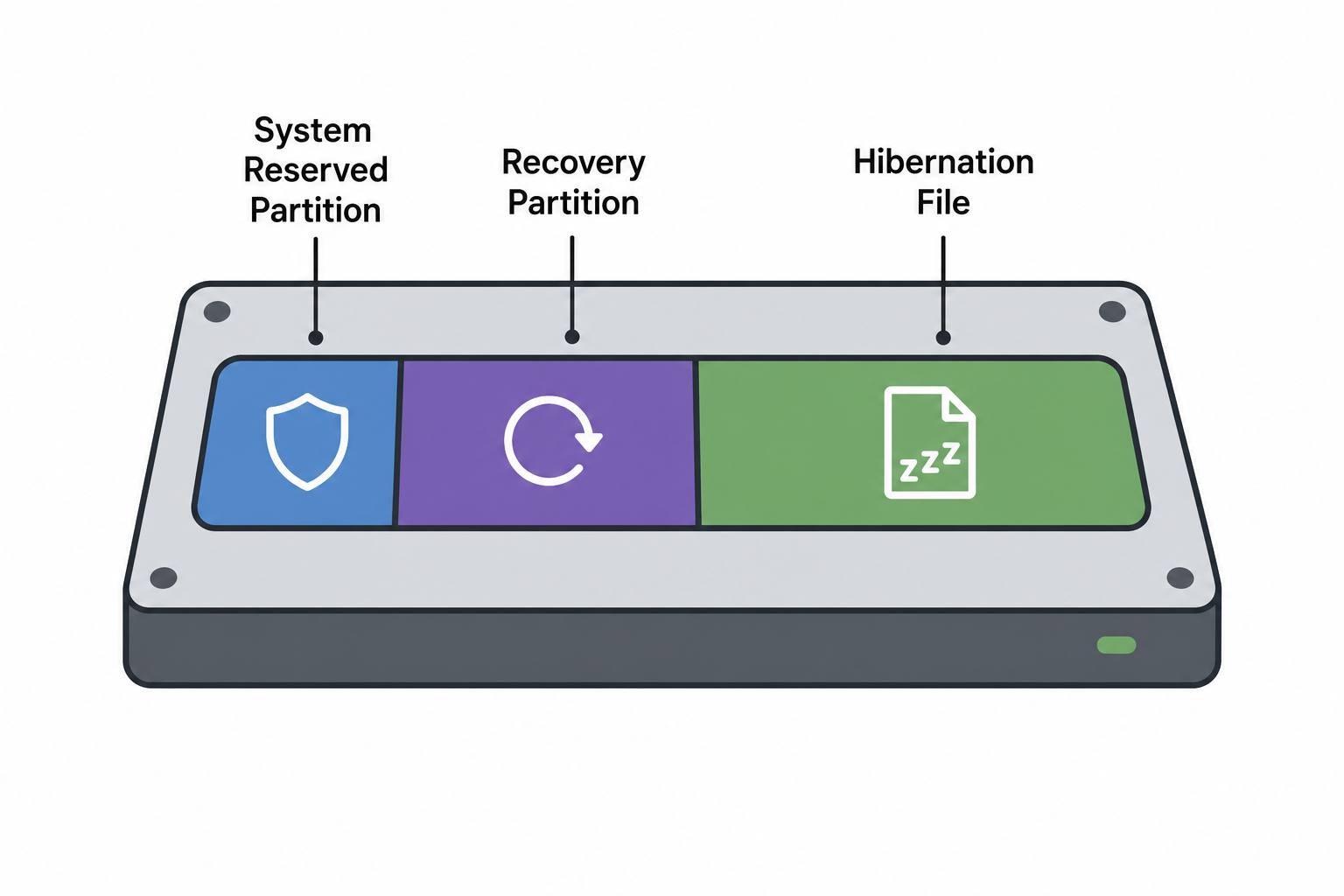
Beyond the unit conversion, Windows itself claims a slice of every drive it’s installed on. This is the second reason a drive shows less storage than expected, and it’s most noticeable on smaller SSDs and budget laptops.
The System Reserved Partition Explained
On many Windows installations, a small system reserved partition (typically 100MB–500MB) is created to hold boot files and BitLocker encryption data. It isn’t visible as a separate drive letter in File Explorer by default, but it does consume physical space on the disk, and Disk Management will show it clearly.
Recovery Partition (WinRE) and Hibernation File
Windows also sets aside a recovery partition (WinRE) for troubleshooting and reset tools — usually around 1GB — plus a hibernation file (hiberfil.sys) sized close to your installed RAM if Fast Startup or hibernation is enabled. On a laptop with 16GB of RAM, that single file alone can eat several gigabytes of usable space.
- System reserved partition: ~100MB–500MB
- WinRE recovery partition: ~1GB
- Hibernation file: roughly equal to installed RAM
- Page file (virtual memory): size varies, often 1.5x RAM by default
Manufacturer Overprovisioning and Reserved Sectors
SSD makers also reserve a portion of the raw flash memory that never appears in any capacity report. This overprovisioned space is used for wear-levelling, bad-block replacement, and maintaining performance as the drive ages, so it’s intentionally excluded from the advertised figure. Crucial’s support documentation on why an SSD shows smaller than advertised walks through this in more technical detail if you want the full breakdown.
Traditional hard drives can also mark off a small number of sectors during manufacturing testing, though this is a much smaller factor on modern drives than it was a decade ago.
How Much Storage Should You Expect to Lose on a Drive Showing Less Storage Than Advertised
As a rough rule, expect to lose about 7-10% of the advertised capacity to decimal-to-binary conversion alone, with another few gigabytes disappearing into system files depending on your Windows edition and hardware. On a fresh 256GB SSD, it’s completely normal to see somewhere between 225GB and 238GB of usable space once Windows, recovery tools, and the page file are accounted for.
This is why a drive showing less storage than the label promises isn’t unique to one brand or one retailer — it happens with every manufacturer, on every operating system, because the measurement convention is industry-wide.
How to Check Real Usable Space on Windows
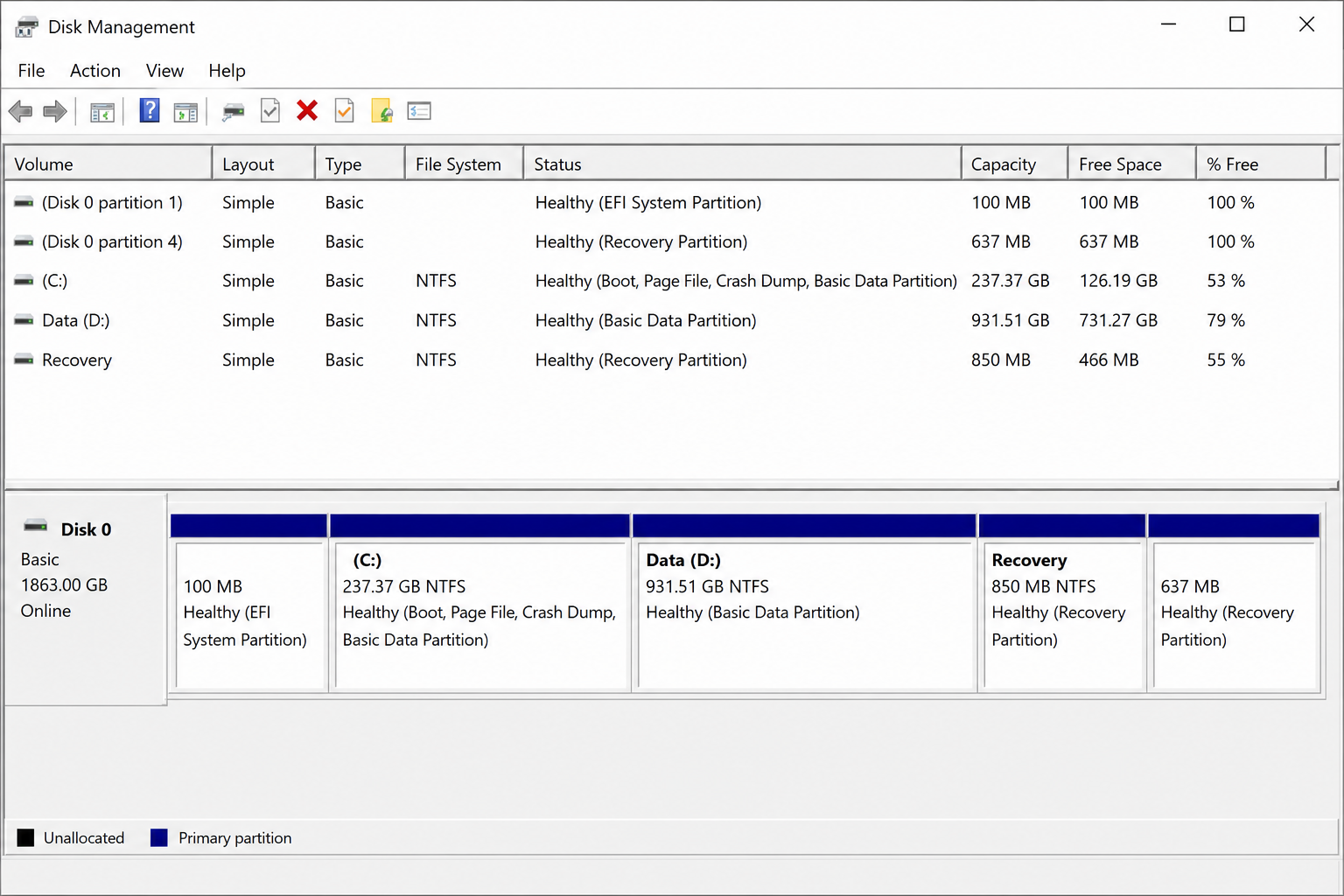
The fastest way to confirm what’s actually happening on your system is to open Disk Management and compare the partition layout against what File Explorer reports. This takes under a minute and tells you exactly where every gigabyte went.
Using File Explorer to See Actual Drive Capacity
- Open File Explorer and select This PC
- Right-click your drive and choose Properties
- Compare the “Used space” and “Free space” figures against the total capacity shown in bytes at the bottom of the dialog
The byte figure in Properties is the true, unrounded number — useful for sanity-checking whether the drive is reporting correctly.
Using Disk Management for a Full Storage Breakdown
- Right-click the Start button and select Disk Management
- Look at the full layout of the disk — you’ll typically see the system reserved partition, the main OS partition (C:), and a recovery partition listed separately
- Add up each partition’s size; the total should match the drive’s advertised decimal capacity far more closely than the C: drive figure alone
If you want a visual record for comparison after any future upgrade, note the total partition sizes now — it makes diagnosing a sudden capacity drop much faster later.
Drive Shows Less Storage Than Expected? Here’s What to Do Next
If the numbers still look off after accounting for binary conversion and system partitions, run a quick check before assuming hardware failure. Open Disk Management and confirm there’s no unallocated space sitting unused — this is common after cloning a drive or resizing partitions, and it’s easy to extend the main volume to reclaim it.
- Check for unallocated space in Disk Management and extend the volume if needed
- Run
chkdskfrom an elevated Command Prompt to rule out file-system errors - Disable hibernation (
powercfg /hibernate off) if you don’t use Sleep/Fast Startup and want hiberfil.sys space back - Confirm the SSD firmware and drive letter match what you actually purchased, in case of a mislabelled or faulty unit
If you’re setting up a new machine from scratch and want a clean baseline to measure storage against, doing a fresh install with a genuine Windows 11 Home licence key avoids leftover files from manufacturer bloatware that can also eat into free space before you’ve even started using the PC.
FAQ
Drive Shows Less Storage Than the Box Says — Is That a Problem?
No, this is expected behaviour. Manufacturers measure capacity in decimal gigabytes while Windows reports in binary gibibytes, which alone accounts for roughly 7% of the apparent loss. Add in system partitions and the page file, and the remaining gap is normal, not a sign of a faulty drive.
Why does my 512GB SSD show less storage than 512GB?
A 512GB SSD is manufactured using decimal gigabytes, so Windows displays it as approximately 476GB after the binary conversion. The remaining space is further reduced slightly by the system reserved partition, recovery tools, and any pre-installed software.
How much usable space should a 1TB drive have?
Expect roughly 931GB of usable space from a 1TB (decimal) drive before Windows and system files are installed, and typically 900-920GB once a fresh Windows installation, recovery partition, and page file are in place.
Can I recover space used by the recovery partition?
Technically yes, by deleting the WinRE partition through diskpart, but this isn’t recommended — it removes your built-in repair and reset tools, and the space it frees (around 1GB) is usually too small to be worth the risk.
Does the file system affect usable space?
Yes, slightly. NTFS, the default Windows file system, uses some space for its own metadata and journaling, while exFAT or FAT32 handle overhead differently. The difference is small compared to the binary-vs-decimal gap but can add up to a percent or two on larger drives.
Is a drive showing less storage a sign of counterfeit hardware?
Rarely, but it’s worth checking if the gap is extreme — for example, a “1TB” drive showing only 100GB usable. That pattern is associated with counterfeit flash drives and SD cards that report a false capacity, rather than the normal few-percent difference seen on genuine drives.
