
A genuine sudo for Windows experience means running an elevated command from an ordinary terminal without clicking through a User Account Control (UAC) prompt every time — and that’s exactly what the open-source tool wsudo set out to deliver. Built by developer parkovski and shared on GitHub, wsudo lets Windows users type a command, authenticate once, and run privileged operations the way Linux and macOS users have for decades with sudo.
For IT professionals who live in PowerShell or a terminal all day, the appeal is obvious. But any tool that bypasses the standard Windows elevation dialog deserves scrutiny before it goes anywhere near a managed fleet or a production server. This article breaks down how wsudo works, how it compares to the sudo command Microsoft eventually built into Windows itself, and the real security tradeoffs worth weighing.
What Is wsudo and How Does It Bring Sudo for Windows?
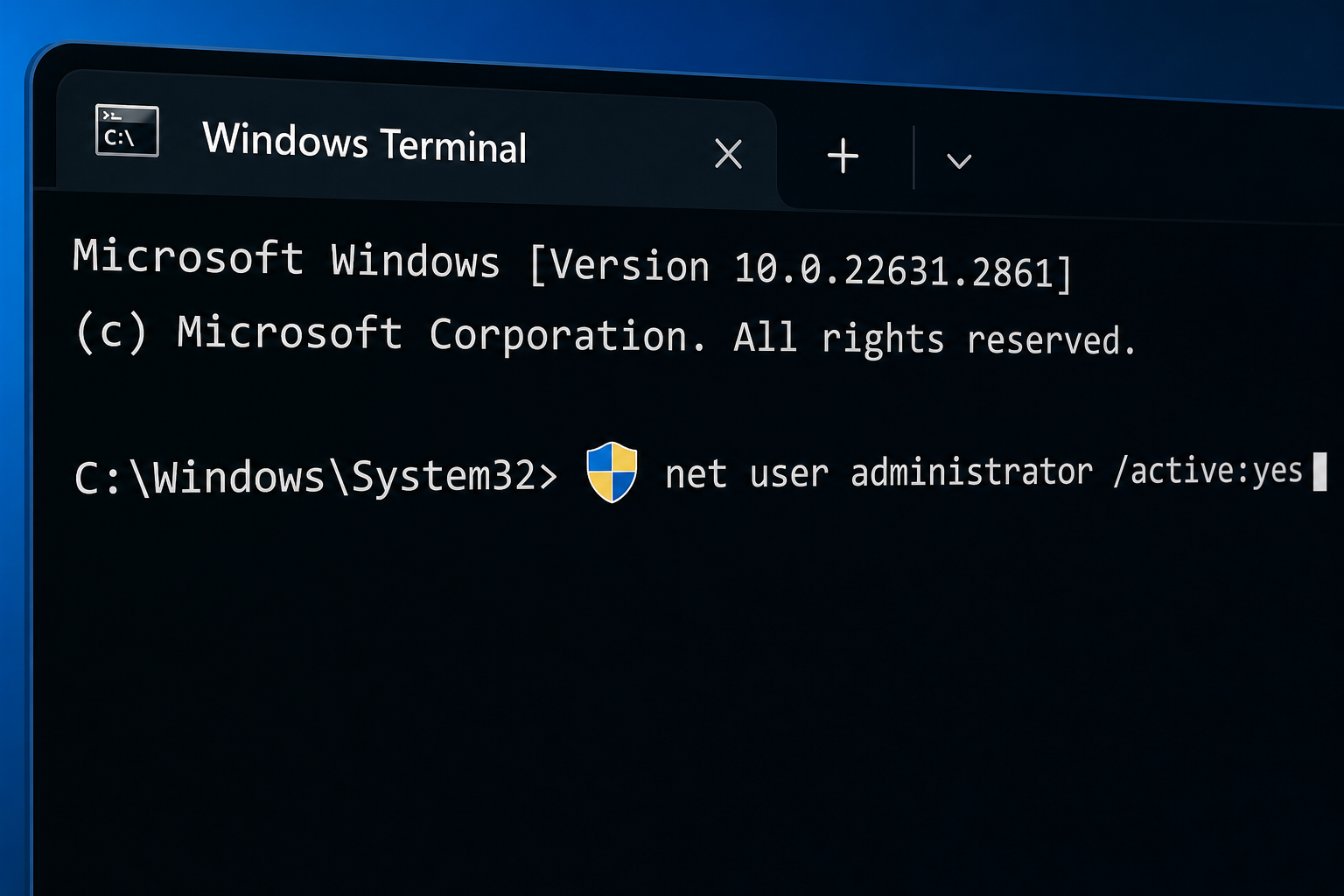
wsudo is a lightweight, open-source utility that mimics the behavior of the Unix sudo command on Windows. Instead of right-clicking an app and choosing “Run as administrator,” or waiting for a UAC consent dialog to interrupt your workflow, you prefix a command with wsudo and it attempts to run that command with elevated privileges directly from your existing console session.
The project’s goal — as described in its own repository — was to give power users and scripters a faster, more scriptable route to elevation than the built-in Windows UAC flow allows. That matters most for people who run dozens of elevated commands a day: sysadmins managing services, developers installing drivers, or testers toggling registry keys.
How the wsudo Command Elevates Permissions
Under the hood, wsudo uses a background service or helper process that already holds administrative rights, then relays commands to it from your unprivileged shell. This is architecturally similar to how several other Windows sudo alternatives work, including the more actively maintained gsudo project.
UAC-Free Elevation: What It Actually Means
“UAC-free” doesn’t mean UAC is disabled system-wide — it means the interactive consent prompt is skipped for commands routed through the wsudo service after the initial authentication. That’s the entire value proposition of a sudo for Windows tool: fewer interruptions, faster iteration, a workflow that feels familiar to anyone coming from Linux.
It also means a layer of Windows’ security model — the explicit, per-action user consent that UAC is designed to enforce — is effectively being delegated to a third-party helper process instead of the OS itself.
Is There Already an Official Sudo for Windows?

Yes — and this is the detail every IT pro evaluating wsudo should know. Microsoft shipped its own native sudo command for Windows 11, built directly into the OS rather than relying on a third-party service. It’s available as an inbox feature that can be turned on from Settings > System > For Developers on supported Windows 11 builds.
Microsoft’s Native Sudo Command vs. wsudo
The two tools solve the same problem with different trust models:
- Microsoft’s built-in sudo is maintained by Microsoft, open-sourced on GitHub, and integrates with Windows’ existing elevation and audit infrastructure. It offers three modes: disabled, “new window” (similar to classic UAC), and “inline” (runs in the same console without a new window).
- wsudo is an independent, community-built project that predates Microsoft’s official feature and relies on its own helper service rather than native OS plumbing.
For most IT departments today, Microsoft’s native sudo for Windows is the safer default simply because it’s reviewed, signed, and supported as part of the operating system rather than a side-loaded binary from a third-party repository.
Security Tradeoffs IT Pros Should Weigh Before Using wsudo
Any UAC-free sudo for Windows tool shifts risk in ways worth spelling out clearly before deployment.
Privilege Escalation and Attack Surface Risks
A helper process running with standing administrative rights is, by definition, an attractive target. If that service can be tricked into relaying a malicious command, or if its communication channel with the unprivileged shell isn’t properly locked down, it becomes a potential local privilege-escalation path. This is the same category of risk security researchers have long flagged around sudo implementations on Linux, where misconfiguration or outdated versions have repeatedly led to CVEs.
Why Open-Source Code Auditing Matters Here
wsudo being open source is a genuine plus — anyone can read the code, and nothing is hidden in a closed binary. But open source only helps security if the code is actively maintained and actually reviewed. Before trusting any community elevation tool, check:
- When the repository was last updated and whether known issues are still open
- Whether the project has had any independent security review
- How the helper service authenticates requests from the unprivileged side
- Whether it logs elevated actions for audit purposes
A sudo for Windows tool with no audit trail is a harder sell in any environment bound by compliance requirements, since standard UAC prompts and Windows Event Logs already give administrators a record of who elevated what, and when.
Should IT Pros Deploy wsudo in Production?
For a personal dev machine, wsudo-style tools can be a reasonable convenience if you understand the tradeoff. For managed business endpoints, servers, or anything touching regulated data, the calculus changes. Group Policy, endpoint detection tools, and compliance frameworks are generally built around Windows’ native UAC and the inbox sudo feature — not around third-party elevation services. Introducing an unmanaged helper process with standing privileges adds an extra variable that security teams have to account for in incident response and patching.
A practical middle ground many IT pros land on: use Microsoft’s native sudo command where version support allows it, reserve wsudo-style tools for isolated lab or personal machines, and never run either as a substitute for least-privilege account design.
Getting Started with Sudo for Windows Safely

Whichever route you choose, a few habits reduce risk regardless of which sudo for Windows tool you pick:
- Keep your Windows installation itself genuinely licensed and fully patched — elevation tools are only as trustworthy as the OS underneath them. If you’re setting up a new machine, a guide like this Windows product key activation walkthrough covers activation and common errors.
- Run elevation tools under a standard user account, not an account that’s already an administrator by default.
- Review what edition of Windows you’re actually running — some sudo features and Group Policy controls differ between editions, which is covered in detail in our Windows 11 Home vs Pro comparison.
- If you’re deploying across a fleet, a Windows 11 Pro licence gives you the Group Policy and BitLocker controls needed to manage elevation policy centrally — something Home edition lacks.
For the technical details of how wsudo’s elevation service is structured, the project’s own documentation on GitHub is the primary source, and Microsoft’s official reference on Sudo for Windows explains the native alternative in full.
FAQ
Is wsudo the same as Microsoft’s built-in sudo for Windows?
No. wsudo is an independent, community-built project, while Microsoft’s sudo is a native, inbox feature for supported Windows 11 builds. They solve the same problem — elevating commands without a full UAC interruption — but wsudo relies on its own helper service rather than OS-integrated plumbing.
Does using a sudo for Windows tool disable UAC entirely?
No. UAC remains active system-wide. A sudo-style tool simply routes specific commands through an already-elevated helper process so you aren’t prompted for every individual action, rather than turning off Windows’ consent mechanism altogether.
Is wsudo safe to install on a work laptop?
That depends on your organization’s security policy. Because wsudo runs a helper service with standing administrative rights, many IT teams prefer Microsoft’s native sudo command or standard UAC prompts on managed devices, reserving third-party elevation tools for personal or lab machines.
Why would someone want sudo for Windows instead of just using UAC prompts?
Frequent command-line users — developers, sysadmins, and scripters — often find repeated UAC prompts disruptive when running many elevated commands in a session. A sudo-style workflow authenticates once and lets subsequent commands run with far less friction.
Which Windows editions support the native sudo command?
Microsoft’s inbox sudo feature is available on supported Windows 11 builds and can be toggled on from the Developer settings page. Older Windows versions and some editions don’t include it natively, which is one reason third-party tools like wsudo gained attention in the first place.
