
An open source office suite can now open, edit, and save real Word, Excel, and PowerPoint files well enough for most daily tasks — but a handful of advanced features still trip it up, especially in complex spreadsheets and heavily designed slide decks. A new wave of free, open-source clones is pushing the category further than LibreOffice and OnlyOffice already have, and it’s worth knowing exactly where they hold up and where they don’t before you move a business or a semester’s worth of files onto one.
A developer previously known for free, open-source clones of Adobe’s creative apps recently released a new set of replications aimed squarely at Word, Excel, and PowerPoint, with reports suggesting Autodesk-style tools and other subscription software could be next. It’s a sign that the open-source alternative movement isn’t slowing down, even as Microsoft keeps adding features to the paid suite. This piece looks at what these tools get right, where they still fall short, and who should actually consider switching.
What Counts as an Open Source Office Suite Today
An open source office suite is a productivity package whose source code is publicly available and freely modifiable, usually distributed under a license like the MPL or GPL. The category includes long-running projects and newer entrants:
- LibreOffice — the most mature option, forked from OpenOffice.org and actively maintained by The Document Foundation
- OnlyOffice — strong at mirroring the Microsoft ribbon interface and DOCX/XLSX/PPTX formats
- Collabora Online — a browser-based, self-hosted option built on LibreOffice’s engine
- Newer, narrower clone projects — smaller tools built to replicate specific Word, Excel, or PowerPoint behaviors rather than offer a full suite
What ties them together is the promise that you shouldn’t need a Microsoft 365 subscription to open, edit, and share standard office documents. Whether that promise holds up depends entirely on the file you’re working with.
Putting Open Source Office Tools to the Real Document Test
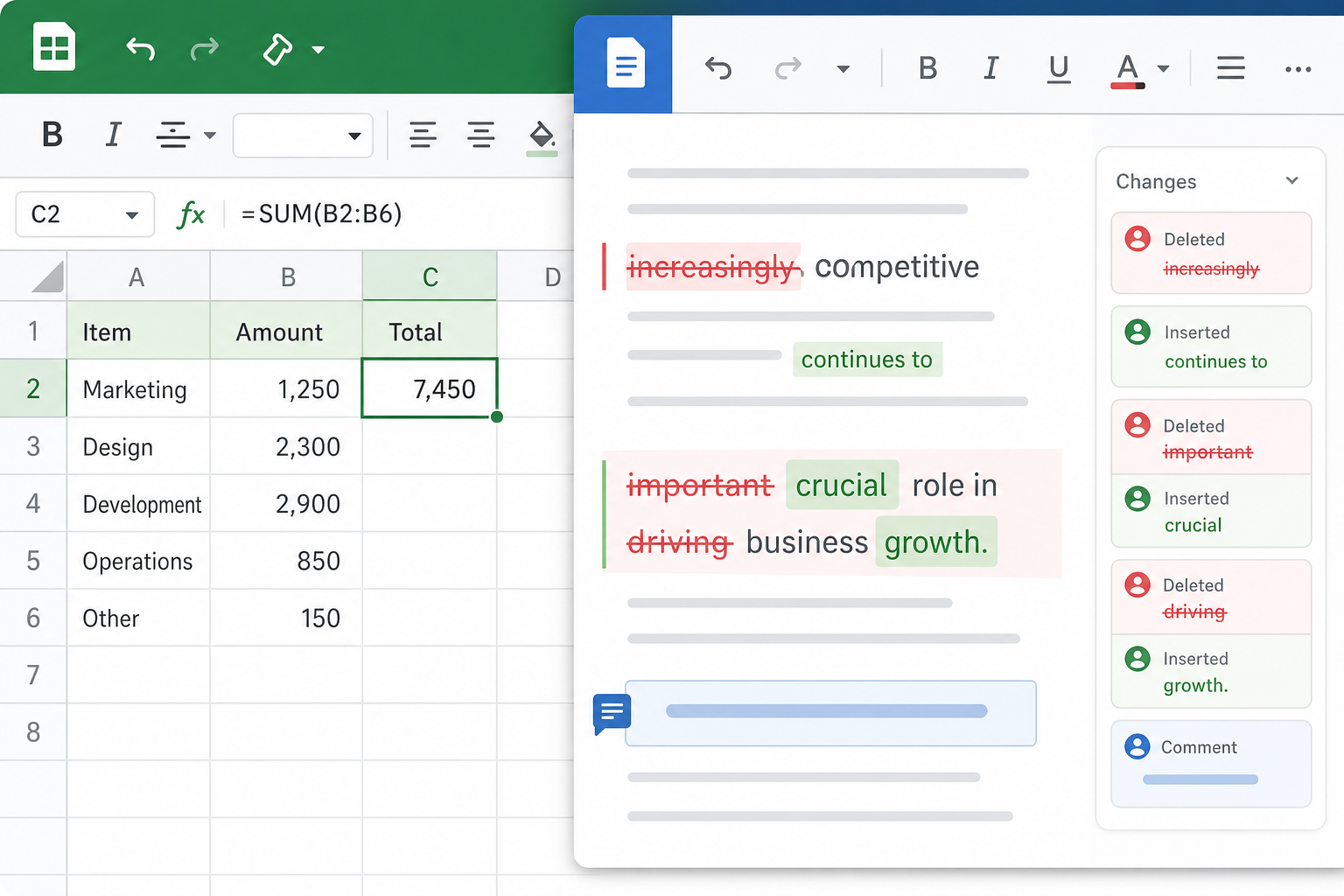
The honest answer is: it depends on the complexity of the document, not the file extension. A one-page letter or a simple budget sheet behaves almost identically across every open source office tool and Microsoft’s own apps. Problems start appearing once a document relies on features specific to Microsoft’s proprietary formatting engine.
Word Documents: Formatting and Track Changes
Basic DOCX files — headings, bullet points, simple tables — open cleanly in LibreOffice Writer and OnlyOffice Docs almost every time. Where things get shaky:
- Complex nested tables and custom styles can shift slightly on reflow
- Track Changes and comment threads sometimes render with minor formatting differences when the file bounces between Word and an open source editor
- Embedded fonts not installed on the system get substituted, which can quietly break pagination
For resumes, contracts, or anything with strict formatting requirements, it’s worth proofreading the saved file in the format you’ll actually submit it in — a lesson that also applies when formatting a Word resume template for ATS scanning, where a single shifted table can break the parsing entirely.
Excel Files: Formulas, Macros, and Pivot Tables
This is where an open source office suite is tested hardest. Standard formulas — SUM, VLOOKUP, IF, basic date math — calculate correctly in Calc and OnlyOffice Spreadsheets. The gaps show up with:
- VBA macros, which LibreOffice only partially supports and OnlyOffice handles better but not perfectly
- Newer dynamic array functions and some of the more recent lookup functions, which can behave inconsistently across engines
- Pivot tables built with heavy custom formatting, which sometimes need to be rebuilt rather than simply reopened
- Conditional formatting rules with complex nested logic
If your spreadsheets lean on advanced functions day to day, it’s worth comparing what still works natively in Excel versus what needs rebuilding — our breakdown of Excel power user functions is a useful reference for what to check before migrating a workbook.
PowerPoint Decks: Animations and Embedded Media
Slide decks are the least forgiving test. Text and static layouts transfer fine, but:
- Custom animations and slide transitions frequently don’t translate 1:1
- Embedded video and audio can fail to carry over depending on codec support
- Master slide templates with layered effects sometimes flatten or distort
If your decks are mostly text, charts, and simple builds, an open source office suite handles them well. If you’re designing polished, animation-heavy presentations, you’ll likely notice the difference — something we cover in more detail in our guide to modern PowerPoint presentation design.
New Open Source Clones Challenging LibreOffice and OnlyOffice
The newest entrants aren’t trying to out-feature LibreOffice — they’re trying to replicate Microsoft’s interface and file handling as closely as possible, which lowers the learning curve for people who already know Word, Excel, and PowerPoint by muscle memory. That’s a meaningfully different strategy than LibreOffice’s, which has its own distinct UI conventions built up over more than a decade.
Early hands-on reports suggest these newer clones are promising for basic-to-intermediate documents but are still young compared to LibreOffice, which has had years of real-world compatibility fixes. A brand-new open source office project simply hasn’t accumulated the same volume of edge-case bug reports yet, so expect rougher handling of unusual file structures for now.
Where Open Source Office Software Still Falls Short
Open source office software has closed most of the compatibility gap, but a few limitations are consistent across the category rather than specific to one app:
- Real-time co-authoring — Microsoft 365’s cloud co-editing is smoother and more reliable than most open source equivalents, which often require a hosted server component to match it
- Enterprise-grade macro and add-in support — custom VBA tooling built for Office rarely ports over cleanly
- Font and DRM-protected template fidelity — branded corporate templates with licensed fonts can look noticeably different
- Official support channels — community forums are helpful but there’s no guaranteed response time the way there is with a paid product
None of these are dealbreakers for a solo user or a small team with flexible needs, but they matter for larger organizations with strict formatting or compliance requirements.
Who Should Actually Switch to an Open Source Office Suite

Students, freelancers, and small businesses with straightforward document needs are the best fit for an open source office suite right now. If your work is mostly text documents, standard spreadsheets, and simple presentations, the switch is low-risk and saves real money. If you depend on VBA macros, pixel-perfect branded templates, or live co-authoring with external teams, sticking with Microsoft Office — or at minimum testing thoroughly before fully switching — is the safer call.
A practical middle ground many people use: keep an open source office suite for quick personal edits, and keep a licensed copy of Word or Excel for anything client-facing or formula-heavy. A Word 2024 for Windows license currently starts at €47.90, and an Excel 2024 license starts at €69.90 — both reasonable backstops if an open source tool mangles one too many client files.
Open Source Office vs Licensed Microsoft Office: Cost and Risk Trade-offs
The cost comparison isn’t as one-sided as it looks. An open source office suite is free to download and use indefinitely, with no subscription. But “free” doesn’t account for the hours lost reformatting a broken document or rebuilding a pivot table under deadline — that’s a real cost, just not a monetary one.
On the other side, a one-time Microsoft Office license tends to be cheaper over time than an ongoing Microsoft 365 subscription, which is worth factoring in if you’re weighing long-term cost rather than just the upfront price. We break down that math fully in our comparison of the lifetime Microsoft Office license versus Microsoft 365.
For a deeper technical comparison of what each suite supports feature-by-feature, The Document Foundation maintains a detailed feature comparison between LibreOffice and Microsoft Office that’s worth bookmarking before a migration.
FAQ
Is an open source office suite good enough for business use?
For small businesses with standard documents, spreadsheets, and presentations, yes. For businesses relying on complex macros, branded templates, or tight Microsoft 365 integration, test thoroughly on real files before switching entirely.
Can open source office software open DOCX and XLSX files correctly?
Basic DOCX and XLSX files open accurately in most cases. Complex formatting, advanced formulas, and macros are where compatibility issues are most likely to appear, so always check critical documents after conversion.
Is LibreOffice the same as OpenOffice?
No. LibreOffice was forked from OpenOffice.org in 2010 and has since become the more actively developed and widely recommended of the two, with more frequent updates and better Microsoft format compatibility.
Do open source office tools support Excel macros?
Partially. LibreOffice has limited VBA macro support, and OnlyOffice handles more macros but still not all of them. Macro-heavy workbooks are the single biggest risk area when migrating away from Excel.
Is open source office software completely free?
Yes, the core software itself is free to download, use, and modify. Some providers charge for optional cloud hosting, enterprise support, or managed deployment, but the desktop applications themselves carry no license fee.
What is the best open source alternative to Microsoft Office?
LibreOffice is generally the most mature all-around choice due to its long development history. OnlyOffice is a strong pick if you want an interface closer to Microsoft’s ribbon layout and better DOCX/XLSX fidelity.
