
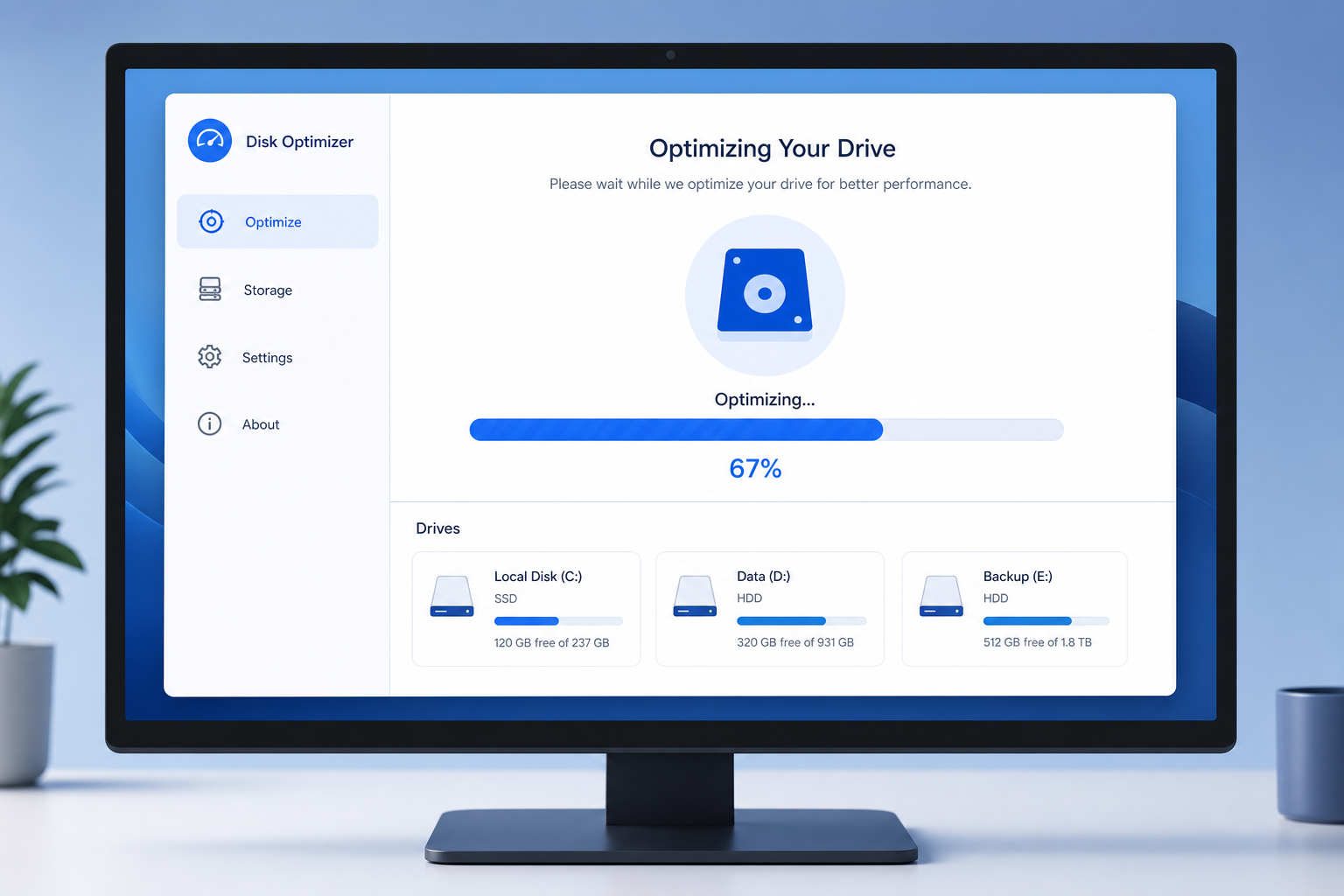
The windows maintenance tool is a set of built-in utilities — Storage Sense, the System Maintenance troubleshooter, and Optimize Drives — that clean junk files, defragment hard drives, and re-trim SSDs automatically, without installing any third-party software. You don’t need to buy a “PC cleaner” app to keep a Windows machine running smoothly; the operating system already has everything required, you just need to know where to look.
This guide walks through exactly where each part of the windows maintenance tool lives, what it actually does under the hood, and how to run it safely so you don’t waste time on steps that no longer matter for modern hardware.
What Is the Windows Maintenance Tool, Exactly?
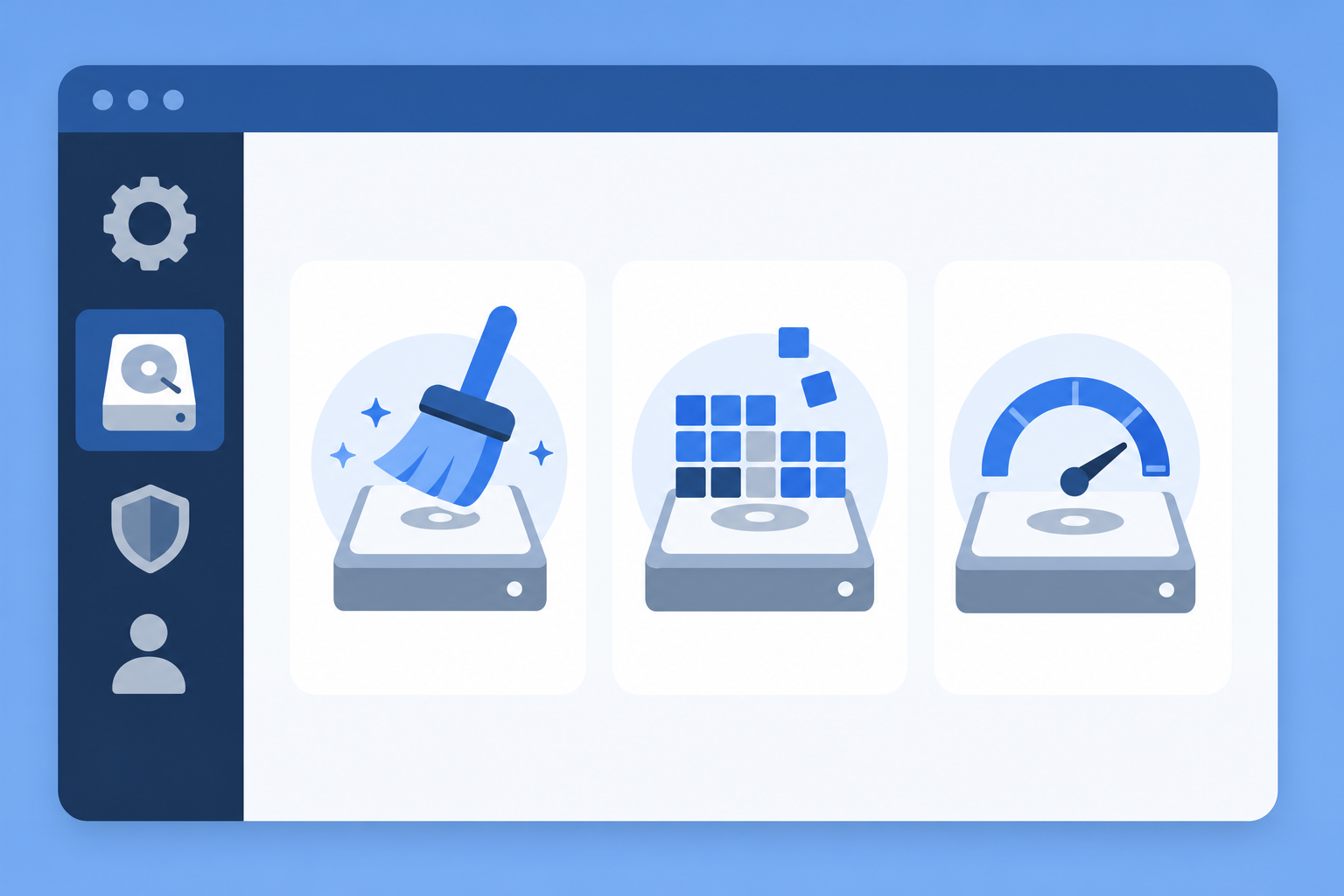
There isn’t one single app called “Windows Maintenance Tool” — it’s a collection of native components that Microsoft has built into every version of Windows since Windows 7, and refined heavily in Windows 10 and Windows 11. Together they form the windows maintenance tool most people mean when they ask how to clean up a slow PC without installing anything extra.
-
Automatic Maintenance — runs daily in the background (disk checks, security scans, update prep)
-
System Maintenance troubleshooter — the on-demand tool that fixes broken shortcuts, unused icons, and scheduled task errors
-
Storage Sense — automated disk cleanup for temp files, Recycle Bin, and Downloads
-
Optimize Drives (Defragment and Optimize Drives) — defrags HDDs and re-trims SSDs on a schedule
Each piece targets a different kind of slowdown, and knowing which one to use — and when — is the real skill here, not just finding the button.
Where to Find the Maintenance Tools
You can reach every part of the windows maintenance tool through Control Panel or Settings, and the exact path differs slightly between Windows 10 and Windows 11.
Locating It on Windows 11
-
Press Win + S and type Control Panel, then open it
-
Go to System and Security > Security and Maintenance
-
Expand the Maintenance section and select Start maintenance
For the troubleshooter version, open Settings > System > Troubleshoot > Other troubleshooters, scroll down, and run System Maintenance.
Locating It on Windows 10
The path is nearly identical: open Control Panel > System and Security > Security and Maintenance, or search “troubleshoot” from the Start menu and choose System Maintenance under additional troubleshooters. If you’re still deciding between operating systems, our comparison of Windows 11 Home vs Pro covers what else changes between versions beyond maintenance tools.
How the Windows Maintenance Tool Cleans Your Disk
The cleaning function works by scanning temporary files, old Windows Update caches, and Recycle Bin contents, then removing anything safe to delete without touching personal files. This is handled primarily by Storage Sense, which you can find under Settings > System > Storage.
-
Toggle Storage Sense on to let it run automatically
-
Set a schedule (daily, weekly, monthly, or “when low on space”)
-
Configure it to empty the Recycle Bin and delete temp files after a set number of days
For a one-time manual clean, the classic Disk Cleanup app (still present in both Windows 10 and Windows 11) lets you select exactly which categories to remove, including old Windows installation files that can take up 10GB or more after a feature update.
How the Windows Maintenance Tool Defragments and Optimizes Drives
Optimize Drives detects whether your disk is a traditional hard drive or a solid-state drive, then applies the correct maintenance method automatically — defragmentation for HDDs, TRIM for SSDs. You never need to choose manually; Windows handles this distinction itself.
Running Optimize Drives Manually
-
Search “defrag” from the Start menu and open Defragment and Optimize Drives
-
Select the drive you want to check
-
Click Analyze to see current fragmentation percentage
-
Click Optimize to run the process
According to Microsoft’s own documentation, this tool is scheduled to run weekly by default, so manual intervention is rarely necessary unless you’ve disabled the schedule or just installed a large batch of software. As Microsoft explains in its support documentation on defragmenting and optimizing drives in Windows, SSDs are never traditionally defragmented — only re-trimmed — because moving data blocks on flash storage adds wear without any performance benefit.
Running the Maintenance Tools Safely

Running the maintenance tool safely mainly means not interrupting it mid-process and understanding what each component is allowed to touch. None of these built-in tools delete personal documents, photos, or installed programs — they only clear caches, logs, and temporary system files.
Before You Start
-
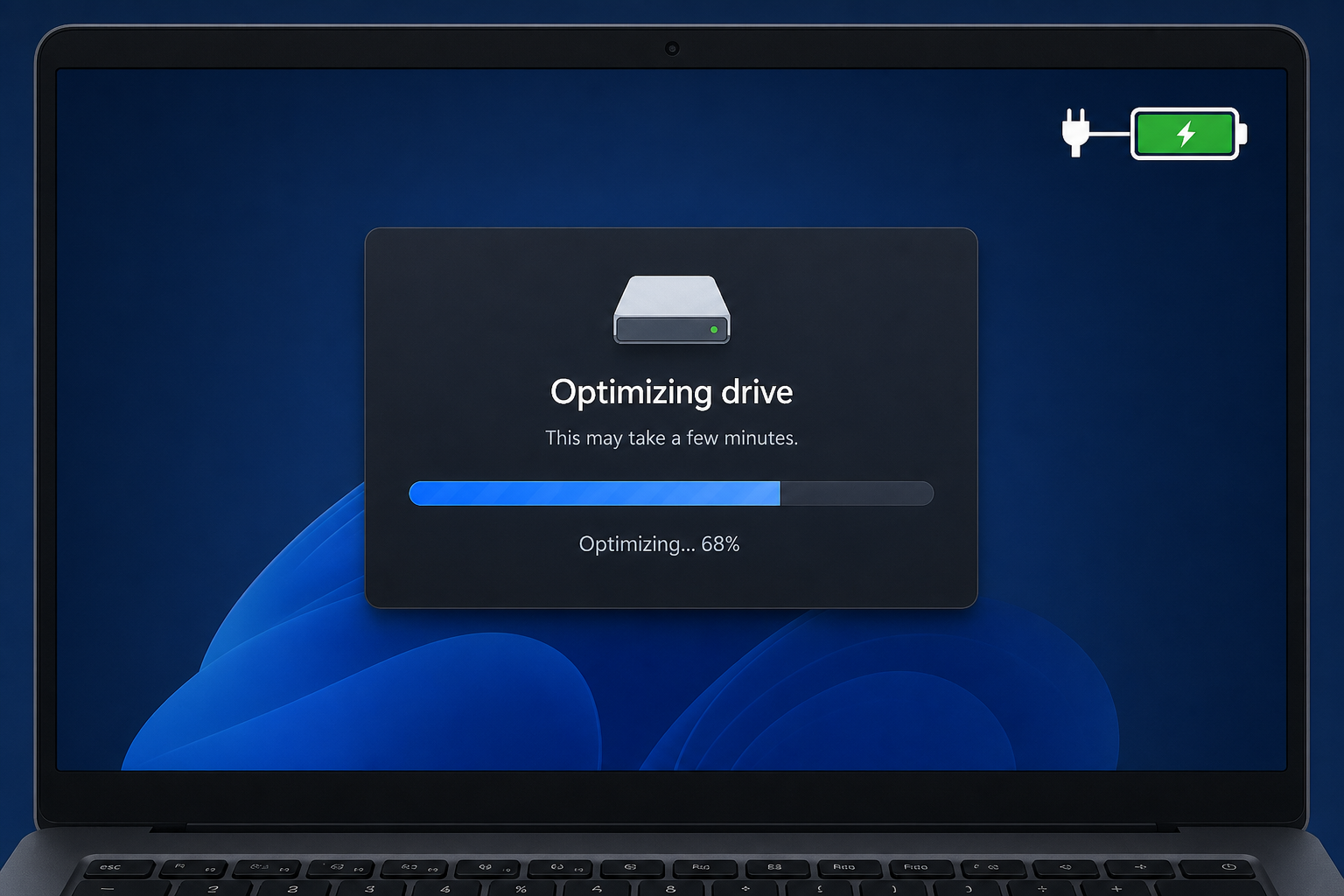
Plug in a laptop before running Optimize Drives — interrupted defrag on battery can leave a drive in an inconsistent state
-
Close resource-heavy apps so Automatic Maintenance can run its disk and security checks without competing for CPU
-
Back up anything irreplaceable — not because these tools are risky, but because it’s good practice before any system-level maintenance
During and After Maintenance
Automatic Maintenance is designed to pause itself if you start using the PC actively, so you won’t notice a slowdown during normal use. If you ever need to troubleshoot a PC that won’t boot properly after maintenance or an update, our guide on how to boot into Safe Mode on Windows 11 walks through the recovery options step by step.
Windows Maintenance Tools vs Third-Party Optimizers
The honest answer is that most paid “PC optimizer” software duplicates functions Windows already performs natively, often with more aggressive marketing than actual benefit. Third-party cleaners frequently flag registry entries or files as “junk” that are actually harmless, and some bundle adware or unnecessary background processes of their own.
-
Native tools are free and already installed — no download, no subscription
-
Microsoft controls what’s safe to delete, reducing the risk of removing something needed
-
Optimize Drives correctly distinguishes SSD from HDD; some third-party tools still default to old defrag logic that can shorten SSD lifespan
That doesn’t mean every third-party utility is bad — some offer deeper reporting or bulk uninstall features Windows lacks — but for routine cleaning, defragging, and optimizing, the built-in windows maintenance tool covers the vast majority of what a typical user or IT professional needs.
When to Reinstall Instead of Just Running Maintenance
If a PC is still sluggish after cleaning caches, defragging, and freeing disk space, the issue is often deeper than what any maintenance tool — built-in or paid — can fix. A fresh, genuine Windows installation resets accumulated system clutter entirely. If you’re setting up a new machine or doing a clean install, a genuine Windows 11 Home license gives you official activation and download links rather than relying on an old, heavily-patched image. For business or multi-device environments, our Windows 11 license key collection covers Home, Pro, and bundle options depending on what the machine needs.
FAQ
Does the maintenance tool work on both Windows 10 and Windows 11?
Yes. Automatic Maintenance, Storage Sense, and Optimize Drives all exist in both operating systems, with only minor differences in menu location. The underlying functionality — disk cleanup, defragmentation, and SSD trimming — is the same.
How often should I run Optimize Drives manually?
Rarely, since it’s scheduled weekly by default. Manual runs make sense after installing large software batches, moving big files, or if you’ve noticed the scheduled task was disabled or missed several runs in a row.
Is it safe to defragment an SSD?
Windows does not perform traditional defragmentation on SSDs — it runs TRIM instead, which is safe and recommended. Manually forcing a full defrag pass on an SSD using third-party tools is unnecessary and can add wear without any real speed benefit.
Will the windows maintenance tool delete my personal files?
No. Storage Sense and Disk Cleanup only remove temporary files, cached data, and Recycle Bin contents based on settings you control. Personal documents, photos, and installed applications are never touched.
Why does Automatic Maintenance sometimes seem stuck?
This usually happens when a scheduled task is waiting on another process, such as a pending update or a security scan that hasn’t finished. Restarting the PC and letting maintenance run again from Security and Maintenance in Control Panel typically resolves it.
Can I disable the windows maintenance tool entirely?
Yes, through Task Scheduler by disabling the Automatic Maintenance task, though this isn’t recommended since it also handles security-related checks. Most performance-conscious users only adjust the schedule rather than disabling it outright.
