
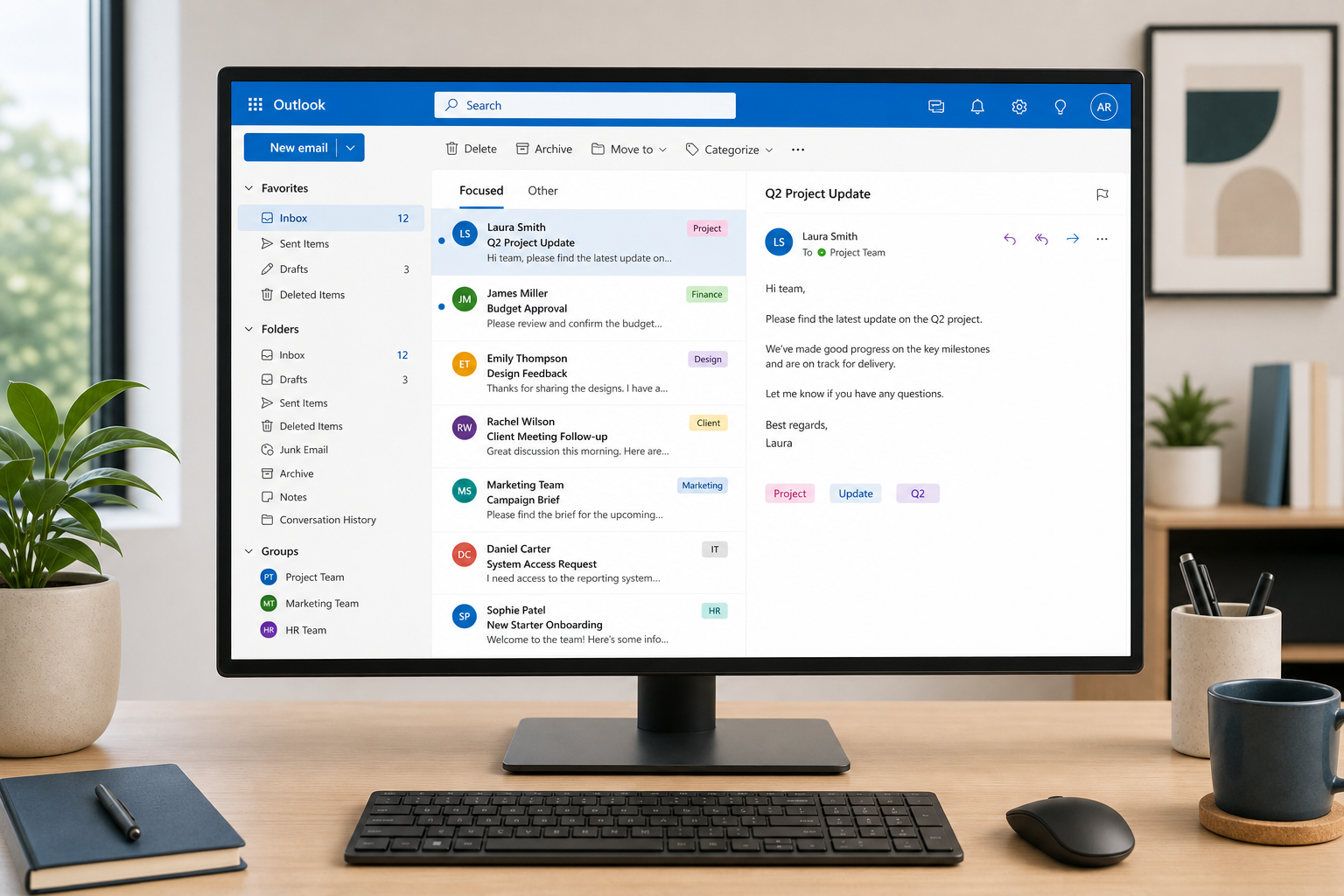
Good Outlook management comes down to three habits: automating what repeats, searching instead of scrolling, and cutting the notifications that don’t need your attention. You don’t need a new tool to fix an overloaded inbox — you need to use the one you already have properly. This guide walks through the folder automation, search operators, rules, and Teams settings that turn Outlook from a stress source into a system you actually control.
Why Outlook Management Breaks Down for Heavy Users
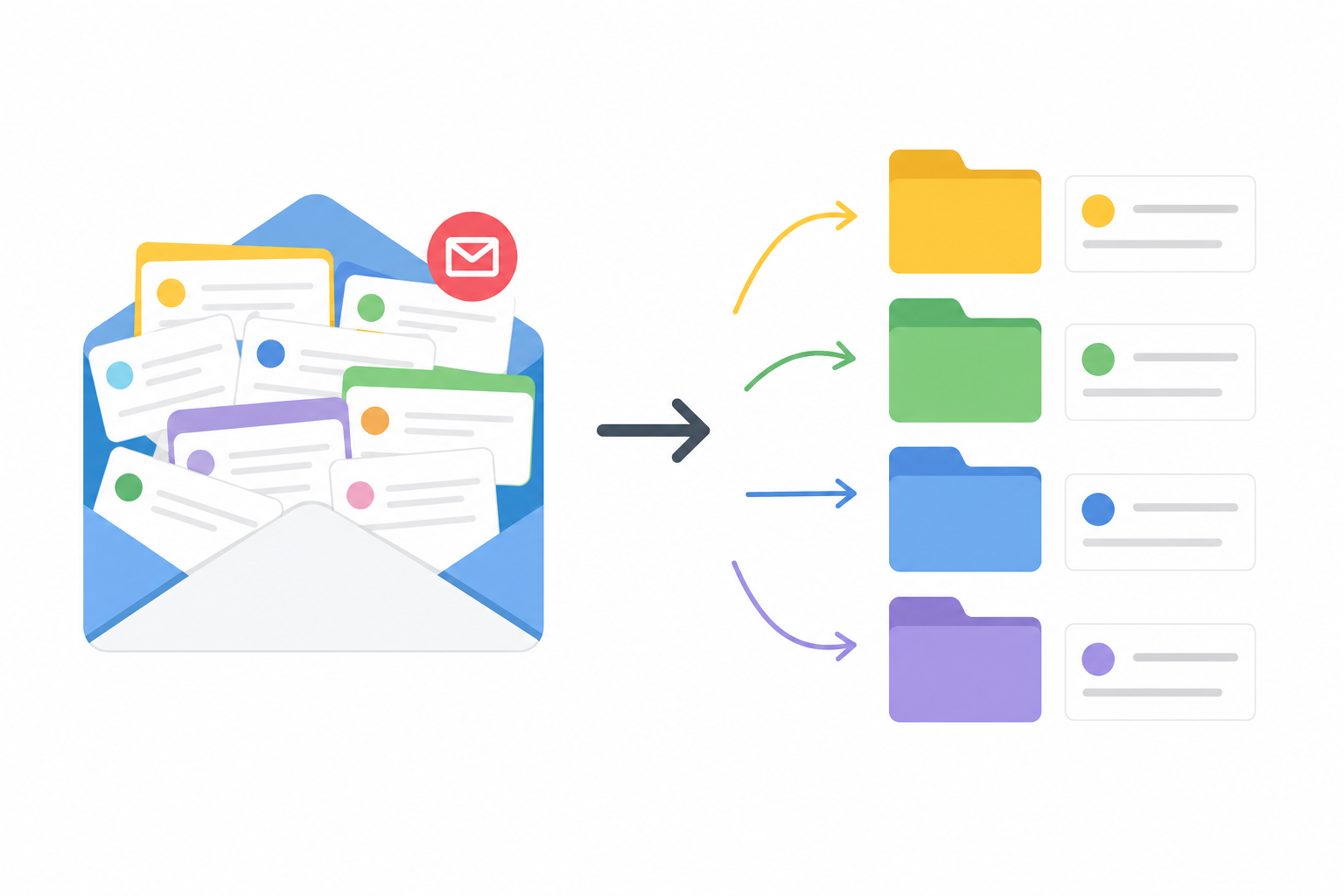
Most inbox overload isn’t a volume problem — it’s a triage problem. When every message lands in one flat list with equal visual weight, your brain has to re-decide what matters every single time you open the app. That decision fatigue is what makes 500 unread emails feel unmanageable even though most of them never needed your attention in the first place.
Office workers, students juggling coursework threads, and small business owners running support and sales from the same inbox all hit this wall for the same reason: they’re using Outlook as a passive receiving tray instead of an active filter. Fixing that doesn’t require switching to a new email client — it requires configuring the one you have so it does the sorting for you.
Folder Automation: Let Outlook Sort Before You Even Open It
Folder automation means setting up rules once so messages land in the right place automatically, instead of you dragging them there every day. This is the single highest-leverage change you can make to your Outlook management routine.
Set Up Rule-Based Folders
Go to File > Manage Rules & Alerts and create rules based on sender domain, keywords in the subject line, or whether you’re on the To/Cc line. A few starting points that work well for most inboxes:
- Newsletters and marketing emails → auto-move to a “Read Later” folder
- Automated system notifications (invoices, ticket updates, CI/CD alerts) → their own folder, checked once a day
- Emails where you’re only Cc’d → a “FYI” folder, separate from direct requests
- Messages from your top 5-10 regular contacts → flagged and kept in the main inbox, everything else filtered out
Use Focused Inbox Instead of Fighting It
Outlook’s Focused Inbox splits mail into “Focused” and “Other” based on your past interaction patterns. It’s not perfect out of the box, but it improves quickly once you manually move a few misclassified emails — Outlook learns from those corrections. Combined with folder rules, this is where most of the noise reduction happens before you’ve read a single message.
Outlook Management Through Search Operators

Search operators let you find a specific email in seconds instead of scrolling through months of history — this is the fastest habit change for anyone doing serious Outlook management day to day. Instead of typing a vague keyword and scanning results, you can filter by sender, date, attachment, or subject in one line.
The Operators Worth Memorizing
from:— narrows results to a specific sender, e.g.from:johnsubject:— searches only the subject line, e.g.subject:invoicehasattachment:yes— returns only messages with files attachedreceived:or date ranges — restricts results to a specific week or monthAND,OR,NOT— combine terms, typed in uppercase, to refine multi-condition searches
According to Microsoft’s own documentation on how to search in Outlook, these operators work across desktop, web, and mobile builds, so a search habit you build on one device carries over to the others without relearning syntax.
Save Searches You Repeat Often
If you regularly search the same combination — say, unread emails from your manager with attachments — save it as a Search Folder. It sits in your folder list like any other folder but updates live, so you never retype the same query twice.
Rules That Actually Reduce Noise
The right rules stop irrelevant email from ever reaching your main view, which is the core of noise reduction in Outlook management. The mistake most people make is creating rules that move things around after they’ve already been seen — the goal is prevention, not tidying.
Build Rules Around Behaviour, Not Just Sender
Beyond simple sender rules, use conditions that reflect how you actually work:
- Mark messages from external domains with a colour category so you instantly know they’re not internal
- Auto-flag anything containing “urgent” or “action required” in the subject, but only from verified contacts, to avoid rewarding spam that games urgency language
- Route calendar invite responses (accepted/declined) straight to a low-priority folder — they rarely need action
Review Rules Quarterly
Rules go stale. A project that ended, a client relationship that changed, or a team restructure can leave rules silently misfiling important mail. Set a recurring reminder every few months to open Manage Rules & Alerts and prune anything no longer relevant.
Outlook Management and Teams: Reducing the Overlap

Integrating Teams with Outlook properly means fewer duplicate notifications, not more — done wrong, it doubles your interruptions instead of reducing them. Since Teams meeting invites, chat mentions, and calendar syncs all flow through Outlook by default, misconfigured settings are a common source of the exact overload this guide is trying to fix.
Control the Teams Meeting Add-in
If Outlook automatically adds a Teams link to every meeting you schedule — even ones that don’t need it — you can turn this off in Teams under Settings > Calendar, or manage the add-in directly from File > Options > Add-ins in Outlook. Only enable it for meeting types where you actually need a video link.
Stop Duplicate Notifications
A common complaint is getting a Teams chat notification and an email copy of the same message. Check your Teams notification settings and turn off “email digest” style alerts for chats and channels you’re already actively monitoring in the Teams app itself — you don’t need both channels firing for the same event.
Reducing Email Overload Without Switching Tools
You can cut inbox volume significantly using only Outlook’s native settings — no migration to a different email client required. The combination of folder automation, disciplined rules, and Focused Inbox has been shown to meaningfully reduce the daily unread count for heavy users, based on real-world setups documented in Outlook management guides.
A Weekly Reset Routine
- Every Monday, archive anything in “Read Later” or “FYI” folders older than two weeks
- Unsubscribe from at least one recurring sender you never open
- Check rule performance — are messages landing where expected?
- Clear Search Folders of anything resolved
This routine takes under ten minutes but prevents the slow pile-up that leads back to an unmanageable inbox within a few months.
Getting the Most From Your Outlook License
Rules and search operators work the same whether you’re on a subscription or a one-time-purchase copy of Office, but for small business owners comparing long-term costs, a perpetual license is worth checking. If you’re setting up Outlook management on a new machine or license, Office 2021 Home and Student for Windows includes Outlook alongside the core apps as a one-time purchase, currently priced at €125.00. If you’d rather not handle the install yourself, the Remote Office Installation Service (€9.90) sets up Office 2016 through 2024 remotely so you can go straight to configuring rules instead of troubleshooting installation.
For a deeper walkthrough on the folder and rule setup covered above, see our detailed guide on stopping unread emails piling up in Outlook. And if a recent service disruption affected your mail flow, our breakdown of the Microsoft 365 outage from July 2026 covers what to check before assuming a rule or sync issue is to blame.
FAQ
What’s the fastest way to reduce email overload in Outlook without changing tools?
Start with two changes: turn on Focused Inbox and create three or four rules that route newsletters, CC-only mail, and automated notifications into separate folders. Most users see a noticeable drop in inbox clutter within the first week, without installing anything new.
Do Outlook search operators work the same on desktop and web?
Yes. Operators like from:, subject:, and hasattachment:yes function consistently across Outlook desktop, Outlook on the web, and mobile, according to Microsoft’s own search documentation. Learning them once carries across every device you use.
Why does Teams keep adding meeting links to every Outlook invite?
This happens because the Teams Meeting Add-in is set to apply by default to all new calendar events. You can disable this default in Teams under Calendar settings, or manage the add-in directly inside Outlook’s Add-ins menu, and only add the link manually when a call is actually needed.
How often should I review my Outlook rules?
Every three to four months is a reasonable cadence for most people. Rules quietly go stale as projects end and teams change, so a quick quarterly review prevents important mail from being misfiled without your noticing.
Can I fix email overload without paying for a new inbox tool or subscription?
Yes — everything covered here uses features already built into Outlook, whether you’re on Microsoft 365 or a one-time-purchase Office license. The tactics are about configuration, not additional software spend.
