
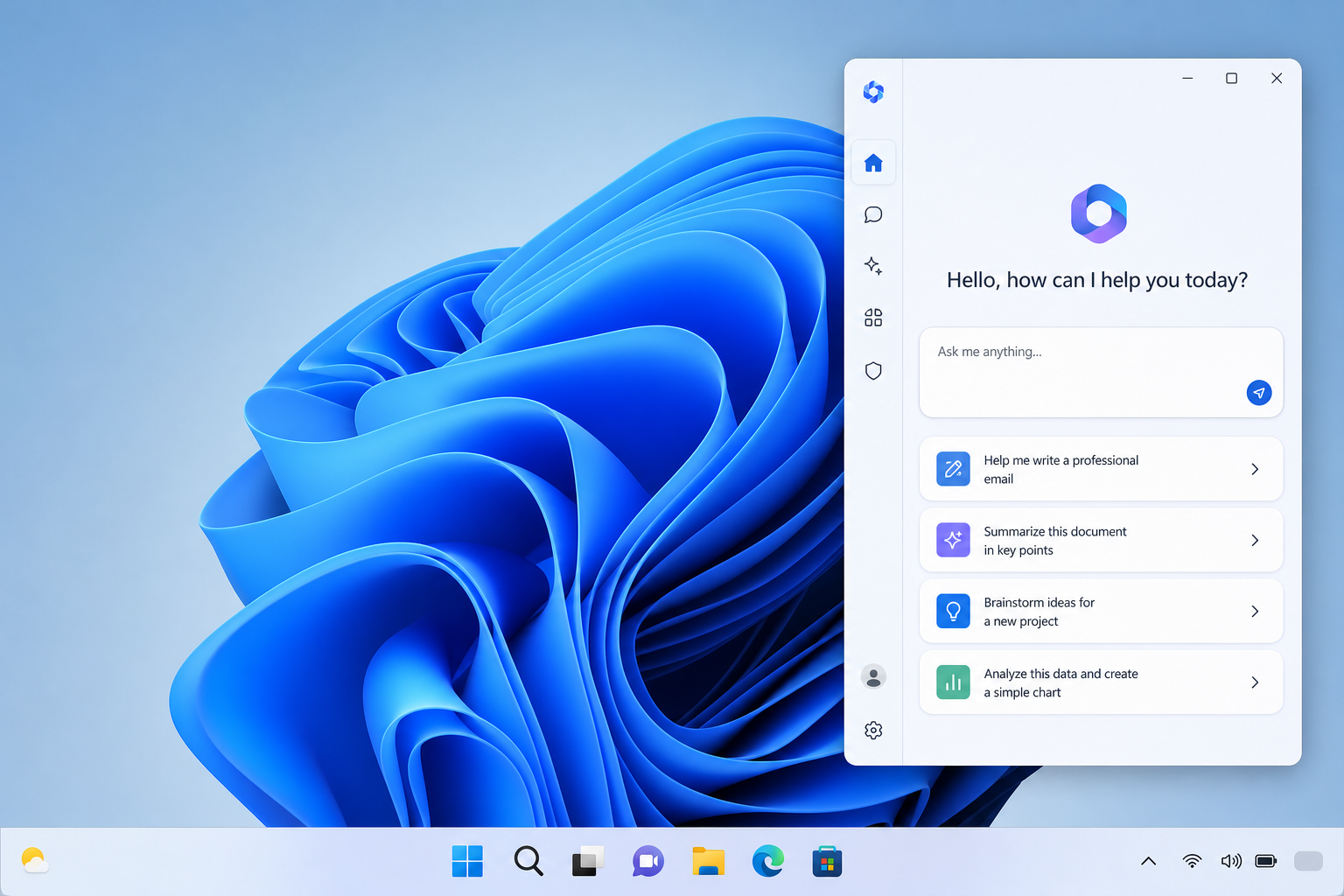
Windows 11 Gemini app setup takes about five minutes: download the native app from Google’s official desktop page, sign in with your Google account, and pin it to your taskbar for instant access. Google has now rolled out a genuine native Gemini application for Windows 11 and Windows 10, replacing the old workaround of pinning a browser tab as a Progressive Web App.
If you’ve been using Gemini through Chrome or Edge, this update matters. A native app means faster launch times, a global keyboard shortcut that works from any window, deeper integration with your desktop, and none of the tab-clutter that comes with browser-based AI tools. This guide walks through the full setup process, how to configure it for real work, and where it fits alongside the Windows tools you already use.
What Is the Native Gemini App for Windows 11?
The native Gemini app is a standalone desktop application, not a browser shortcut or a web wrapper pretending to be one. Google confirmed the rollout in Google’s official announcement, describing it as an AI assistant built to sit alongside your other apps rather than inside a browser tab.
Unlike the previous PWA-based approach, the new app installs directly onto your system, appears in your Start menu like any other Windows program, and supports a global shortcut (Alt + Space by default) so you can summon it from anywhere — mid-email, mid-spreadsheet, or mid-code review — without alt-tabbing to a browser.
Why Google Built a Dedicated Windows App
Browser-tab AI tools have a structural weakness: they compete for attention with every other open tab, they don’t persist a floating window, and they can’t hook into system-level shortcuts. A dedicated app fixes all three. It also signals that Google is treating the Windows desktop as a serious platform for Gemini, competing more directly with Microsoft’s own Copilot integration built into the OS.
Windows 11 Gemini App Setup: Step-by-Step Installation
Setting up Gemini on Windows 11 is straightforward if you follow the official installation path rather than a third-party mirror. Here’s the process from a clean start:
-
Go to Google’s official Gemini desktop download page and select the Windows version.
-
Run the downloaded installer file and accept the standard Windows permission prompt.
-
Launch the app once installation finishes and sign in with your Google account credentials.
-
Grant the permissions the app requests (notifications, clipboard access if you want screenshot analysis, and microphone if you plan to use voice prompts).
-
Pin the app to your taskbar or Start menu for one-click access going forward.
The entire Windows 11 Gemini app setup should complete in under five minutes on a typical broadband connection, since the installer itself is a small footprint — well under 200 MB.
System Requirements to Check First
Before you start the Windows 11 Gemini app setup, confirm your machine meets the basics: a 64-bit dual-core processor, at least 4 GB of RAM, and roughly 200 MB of free disk space for the app itself (more if you plan to use it heavily with cached conversation history). Any PC running a fully updated, genuine copy of Windows 11 will comfortably meet these requirements — this isn’t a Copilot+ PC exclusive feature requiring a neural processing unit.
If your current Windows 11 installation isn’t activated or is running on an outdated build, it’s worth sorting that out first. An unlicensed or unpatched system can cause update and permission issues that have nothing to do with Gemini itself but will get blamed on it. A genuine Windows 11 Pro Retail key ensures you’re running a fully supported, update-eligible installation before adding new AI software on top of it.
Signing In and Configuring Gemini for Windows 11
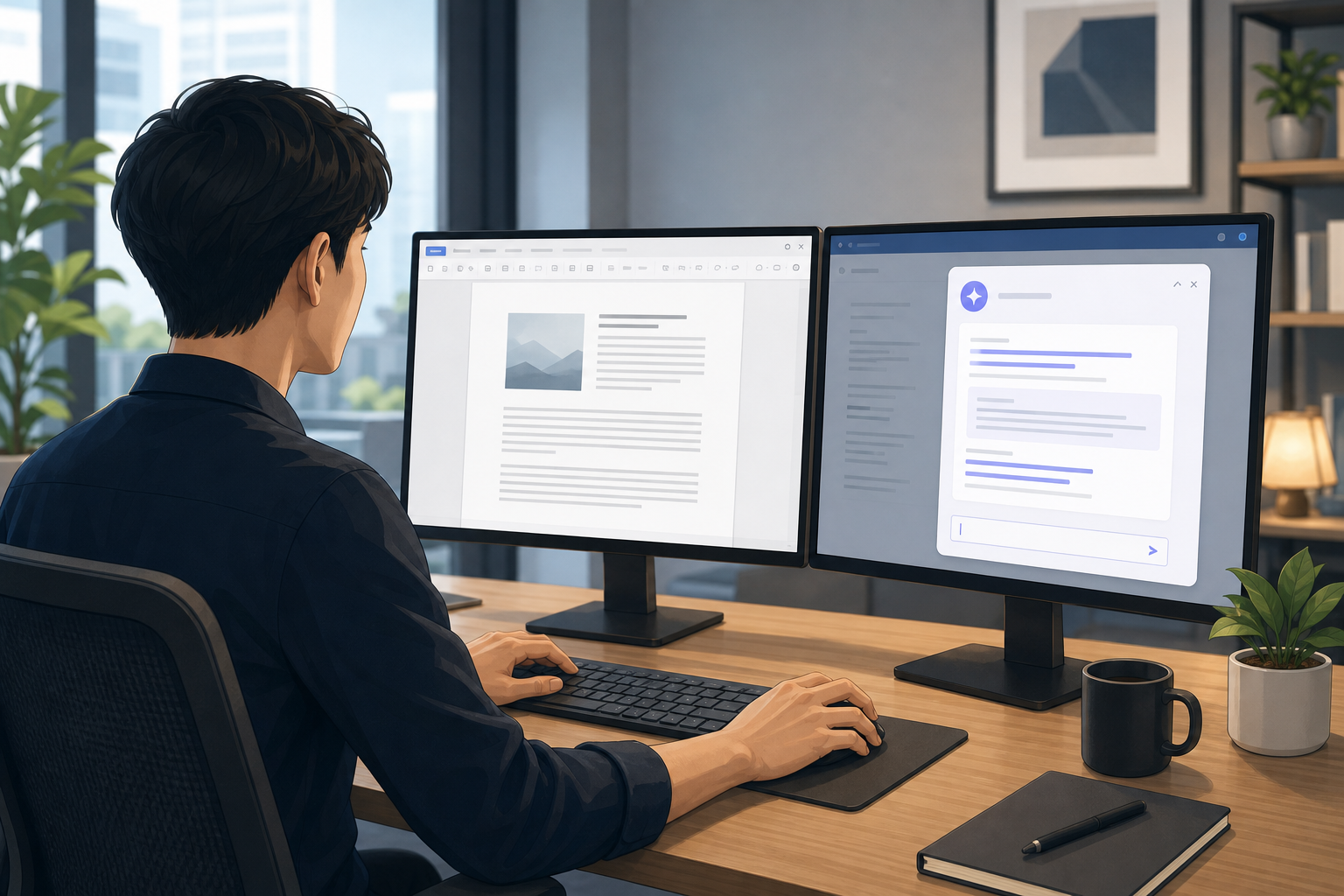
Signing into the Gemini app uses your existing Google account — there’s no separate registration step. Once signed in, take a few minutes to configure the settings menu rather than accepting every default.
-
Global shortcut: Customize the default hotkey if it conflicts with another app you already use.
-
Startup behavior: Decide whether Gemini launches automatically with Windows or only when you open it manually.
-
Notification preferences: Turn off non-essential alerts if you want a distraction-free workspace.
-
Account switching: If you use separate personal and work Google accounts, set up quick switching so you’re not logging in and out repeatedly.
This configuration stage is where most of the “why isn’t this useful yet” frustration disappears. A default install with no shortcut customization and every notification enabled feels intrusive; a five-minute tuning pass makes it feel like part of the OS.
Integrating the Gemini App for Windows Into Your Daily Workflow
Gemini earns its place on your desktop when it’s woven into tasks you already do, not treated as a separate destination you visit. A few integration patterns work particularly well on Windows 11:
Quick Reference Without Losing Your Place
Use the global shortcut to pull up Gemini as a floating overlay while working in another app — drafting an email, reviewing a document, or debugging code — then dismiss it and return exactly where you left off. This is the single biggest advantage of the native app over the browser-tab approach.
Screenshot and Clipboard Analysis
Because the native app has direct clipboard and screen-capture permissions, you can paste an error message, a spreadsheet snippet, or a screenshot directly into the chat window for a faster diagnosis than typing out a description.
Pairing With Office Workflows
Gemini works well as a drafting and summarizing companion alongside Microsoft Office. If your workflow includes heavy document and spreadsheet work, pairing it with a full Windows 11 Pro and Excel bundle gives you a licensed productivity stack that AI tools can actually plug into — Gemini can help draft the content, but you still need genuine Office apps to build and format the final files.
Gemini vs Windows Copilot: Do You Need Both?
Running Gemini and Copilot side by side is not redundant — they solve different problems. Copilot is deeply wired into Windows 11 itself: system settings, File Explorer actions, and OS-level automation. Gemini is stronger for open-ended research, long-form drafting, and multimodal tasks like image and document analysis, since it’s backed by Google’s broader Gemini model family.
Many power users end up running both: Copilot for quick OS-level tasks (“change my display settings,” “summarize this PC’s health”), and Gemini for deeper research, writing, and cross-referencing information across sources. There’s no licensing conflict — both apps install and run independently on the same Windows 11 machine.
Troubleshooting Common Windows 11 Gemini App Setup Issues

Most installation problems trace back to a handful of predictable causes. Before contacting support, check these:
-
Installer won’t run: Confirm you downloaded from Google’s official desktop page, not a third-party mirror — unofficial installers are a common malware vector for trending AI app names.
-
App won’t launch after install: Restart your PC; a pending Windows update can silently block new app registrations.
-
Sign-in loop: Clear cached credentials in your browser if you use browser-based single sign-on, then retry directly in the app.
-
Global shortcut doesn’t respond: Check for a conflicting hotkey assigned by another app (many screen-recording and clipboard-manager tools claim the same key combinations).
If none of these resolve the issue, it’s usually a Windows-side permissions or update problem rather than anything wrong with the Gemini installer itself.
Is the Native Gemini App for Windows Worth Installing?
Yes, for most PC users and IT professionals the native app is a clear upgrade over the browser-tab workaround, provided you don’t already have too many overlapping AI assistants competing for the same shortcuts. It’s free to install, doesn’t require Copilot+ hardware, and takes a genuinely small footprint on disk.
The main consideration is workflow fit. If you rarely leave your browser anyway, the native app’s advantages shrink. If you regularly switch between documents, code editors, and communication tools, the persistent overlay and global shortcut save real time — small amounts per use, but they compound across a full workday.
FAQ
Is the Windows 11 Gemini app setup free?
Yes, downloading and installing the native Gemini app is free. Some advanced Gemini features may require a paid Google subscription tier, but the core app installation itself carries no cost.
Do I need a Copilot+ PC to run the Gemini app?
No. The native Gemini app runs on any Windows 11 PC meeting the basic system requirements — a 64-bit processor, 4 GB of RAM, and minimal free storage. It does not require the neural processing unit found in Copilot+ certified devices.
Can I use Gemini and Copilot at the same time on Windows 11?
Yes. Both apps install and run independently, and there’s no conflict between them. Many users keep Copilot for OS-level tasks and Gemini for research and drafting.
Why won’t the Gemini app install on my PC?
The most common causes are downloading from an unofficial source, a pending Windows update blocking new app registrations, or insufficient free disk space. Always install from Google’s official desktop page to avoid unofficial or malicious installers.
Does the Gemini app for Windows work on Windows 10 as well?
Yes, Google made the native app available globally for both Windows 10 and Windows 11 at launch, though Windows 11 receives priority for future feature updates as Microsoft’s current supported OS.
Will installing Gemini affect my Windows activation or license?
No. Gemini is a standalone third-party application and has no interaction with your Windows activation status. However, running any new software is easier to troubleshoot on a fully updated, genuinely activated copy of Windows 11.
