
Windows 11 desktop ads have arrived — and they’re hard to miss. Microsoft is now using the Bing Wallpaper app to push full-screen promotional images directly onto consumer PCs, replacing your chosen background with advertising content you never asked for. If your desktop suddenly looks like a billboard, you’re not imagining it — and you’re not alone. Here’s exactly what Microsoft is doing, which users are in the firing line, and the fastest ways to reclaim your wallpaper.
What Are the Windows 11 Wallpaper Ads?
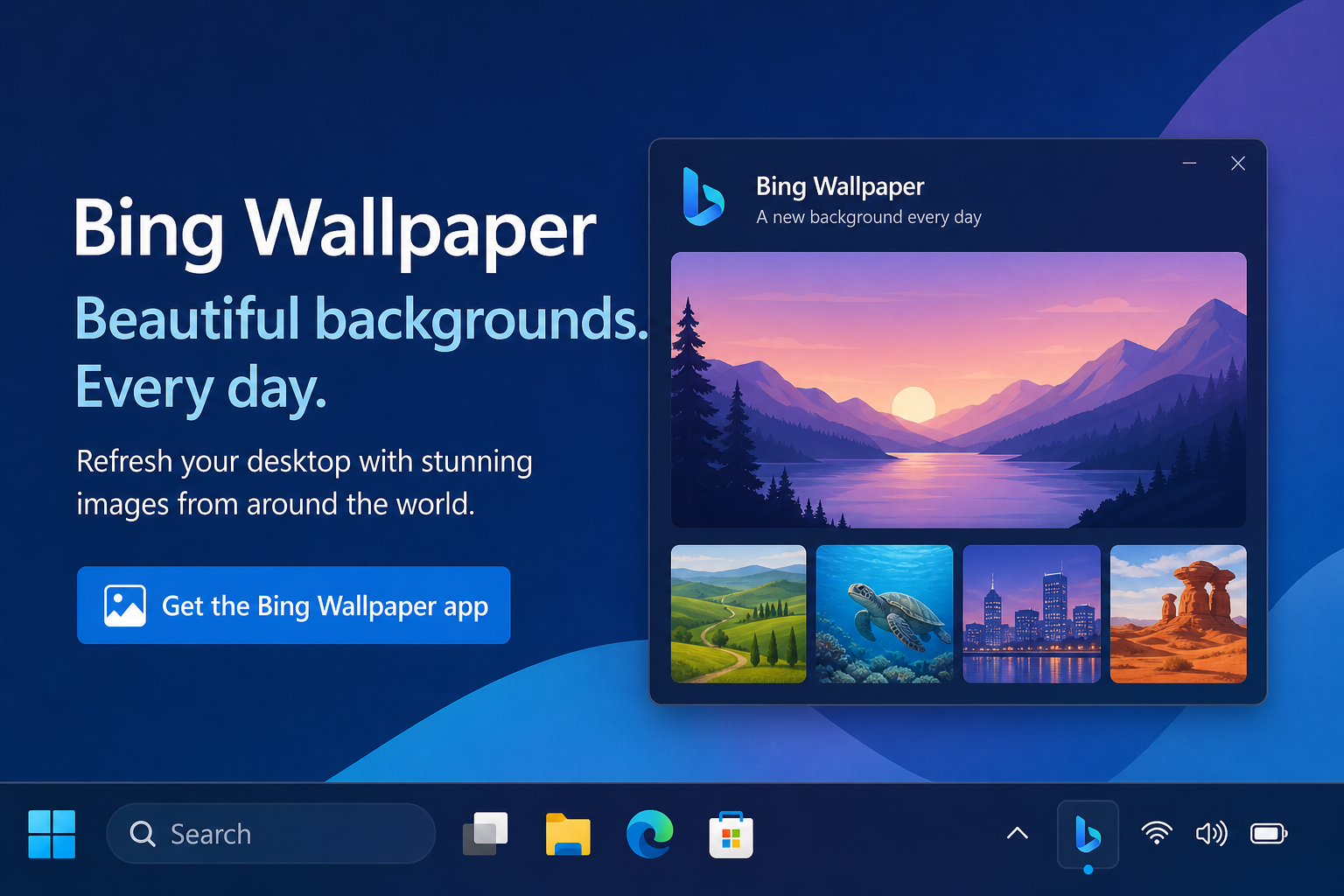
Microsoft’s Bing Wallpaper app — a free utility that rotates beautiful Bing-sourced photos as your desktop background — has quietly been repurposed as an ad-delivery mechanism. Instead of a landscape from Iceland or a macro shot of a forest, some users are waking up to find full-screen promotional banners covering their entire desktop. These Windows 11 wallpaper ads have included promotions for Microsoft 365, Xbox Game Pass, and third-party partner campaigns such as the Harry Potter franchise.
The behaviour is not a virus or third-party malware. It originates directly from Microsoft’s own Bing Wallpaper application, which pushes promotional “spotlight” images alongside its usual photo rotation. Users who installed the app to get pretty pictures find they are now receiving Microsoft desktop ads whether they opted in or not. According to reporting by Neowin, the advertising wallpapers have been confirmed by multiple users across social media and tech forums.
Which Windows 11 Users See Microsoft Desktop Ads?
Not every Windows 11 machine is showing these ads. The key factors that determine whether you see Microsoft desktop ads are:
-
Bing Wallpaper app installed: The ads are delivered exclusively through this app. If you never installed it, you are not directly affected by this specific campaign.
-
Consumer licences: The behaviour has been observed primarily on Home edition PCs — the kind that ship pre-installed on retail laptops and desktops. Business or Enterprise licences managed through Group Policy are generally shielded from consumer-facing advertising.
-
Windows Spotlight enabled: Users running Windows Spotlight on the lock screen or desktop are also exposed to Microsoft-curated content that can include promotional material, even without the Bing Wallpaper app.
-
Region: Reports are most concentrated in the United States and Western Europe, though the roll-out appears to be widening.
If your desktop background changed unexpectedly and you have the Bing Wallpaper app installed, that app is almost certainly the source.
Why Is Microsoft Doing This?
Microsoft’s advertising ambitions inside Windows are not new. The company began embedding suggestions into the Start Menu as far back as Windows 8, and Windows 10 famously shipped with app tiles the tech press quickly dubbed “ads”. What is new is the sheer scale: using the desktop wallpaper — the one piece of visual real estate most users consider entirely personal — crosses a line many consumers find unacceptable.
From Microsoft’s perspective, Windows 11 desktop ads represent a straightforward revenue diversification play. The operating system itself is increasingly given away free as an upgrade, and the hardware OEM market is fiercely competitive on margin. Serving ads to the estimated 400 million-plus Windows 11 devices worldwide is a commercially attractive proposition, even if only a fraction of those users ever click through.
Critics, however, argue that users who paid for their hardware — and in many cases paid separately for a Windows licence — have a reasonable expectation of an ad-free desktop environment. The backlash on Reddit, Hacker News, and tech forums has been significant, and it remains to be seen whether Microsoft will pull back as it did in 2024, when it halted earlier full-screen ad campaigns following public outcry.
How to Disable Desktop Ads on Windows 11 — Step by Step
The good news: every single layer of Windows 11 wallpaper ads can be turned off without third-party software. Work through the methods below in order — most users will find Method 1 or 2 sufficient.
Method 1: Uninstall the Bing Wallpaper App
This is the most decisive fix if you installed Bing Wallpaper and no longer want it.
-
Open Settings → Apps → Installed apps.
-
Search for Bing Wallpaper in the search box.
-
Click the three-dot menu to the right of the listing.
-
Select Uninstall and confirm the prompt.
Once uninstalled, Microsoft loses the delivery mechanism for this particular ad format. Set your wallpaper manually via Settings → Personalization → Background to a local image or a solid colour.
Method 2: Disable Windows Spotlight
Windows Spotlight is a built-in feature that rotates Microsoft-curated images on the lock screen and (optionally) the desktop. It also serves as a vector for promotional content. To disable it:
-
Go to Settings → Personalization → Lock screen.
-
Change the Personalise your lock screen dropdown from Windows spotlight to Picture or Slideshow.
-
Then go to Settings → Personalization → Background and ensure your desktop background is set to Picture — not Windows spotlight.
Method 3: Turn Off “Tips, Tricks, and Suggestions”
Even without Bing Wallpaper or Spotlight active, Windows 11 can still surface Microsoft desktop ads through the Start Menu and notification system. Kill these too:
-
Settings → Personalization → Start: disable Show recommendations for tips, shortcuts, new apps, and more.
-
Settings → System → Notifications: scroll down and turn off Get tips and suggestions when using Windows.
-
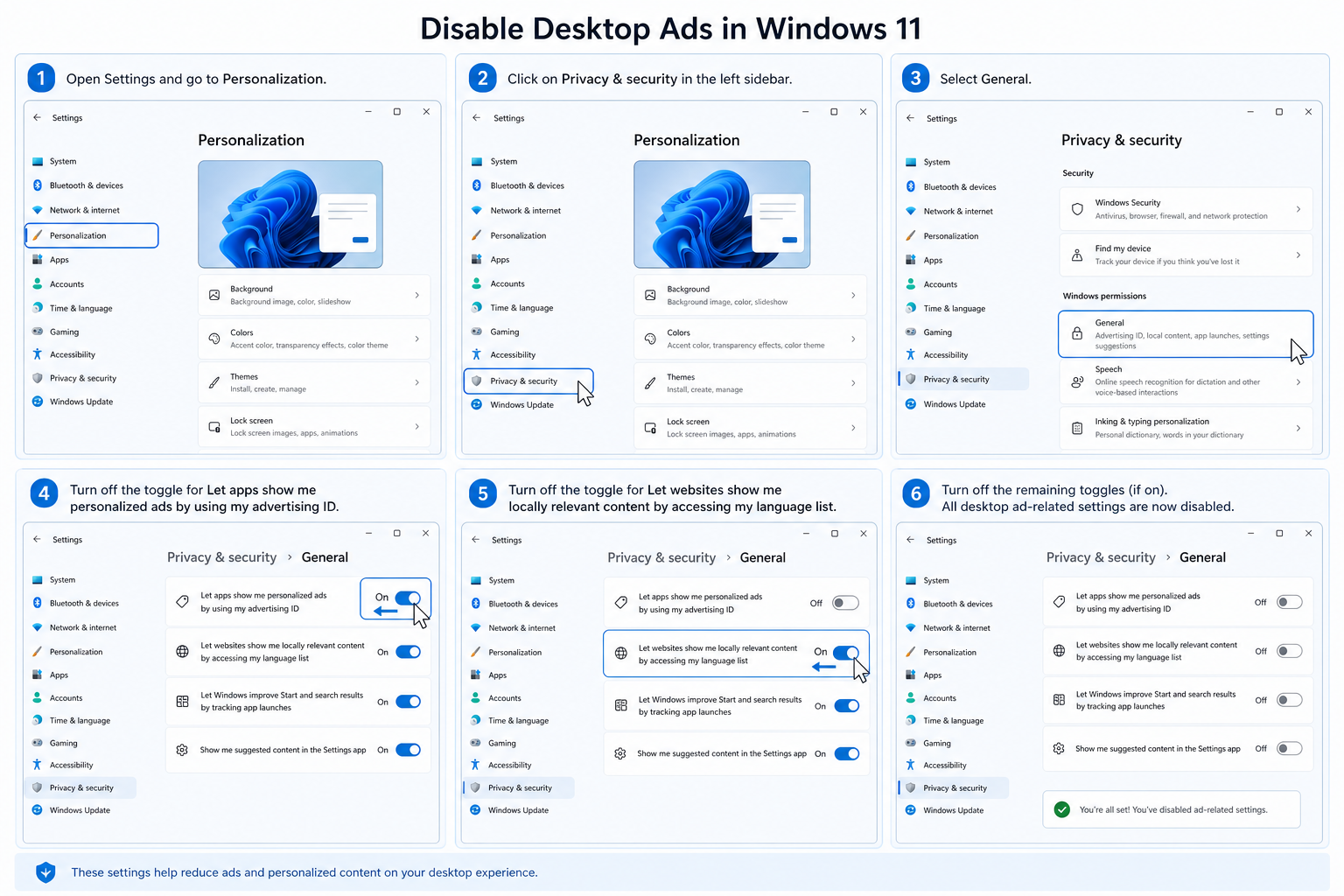
Settings → Privacy & security → General: turn off Show me suggested content in the Settings app and Let apps show me personalised ads by using my advertising ID.
Method 4: Group Policy (Windows 11 Pro Users)
If you are on Windows 11 Pro, the Local Group Policy Editor gives you a more robust kill-switch. Press Win + R, type gpedit.msc, and navigate to:
Computer Configuration → Administrative Templates → Windows Components → Cloud Content
Set the following policies to Enabled (which, counterintuitively, means “enable the restriction”):
-
Turn off Microsoft consumer experiences
-
Do not show Windows tips
-
Turn off Spotlight collection on Desktop
These Group Policy settings persist across Windows Updates and are the preferred option for power users who want a lasting solution without revisiting Settings every few months.
Does Windows 11 Pro Protect You From Desktop Ads?
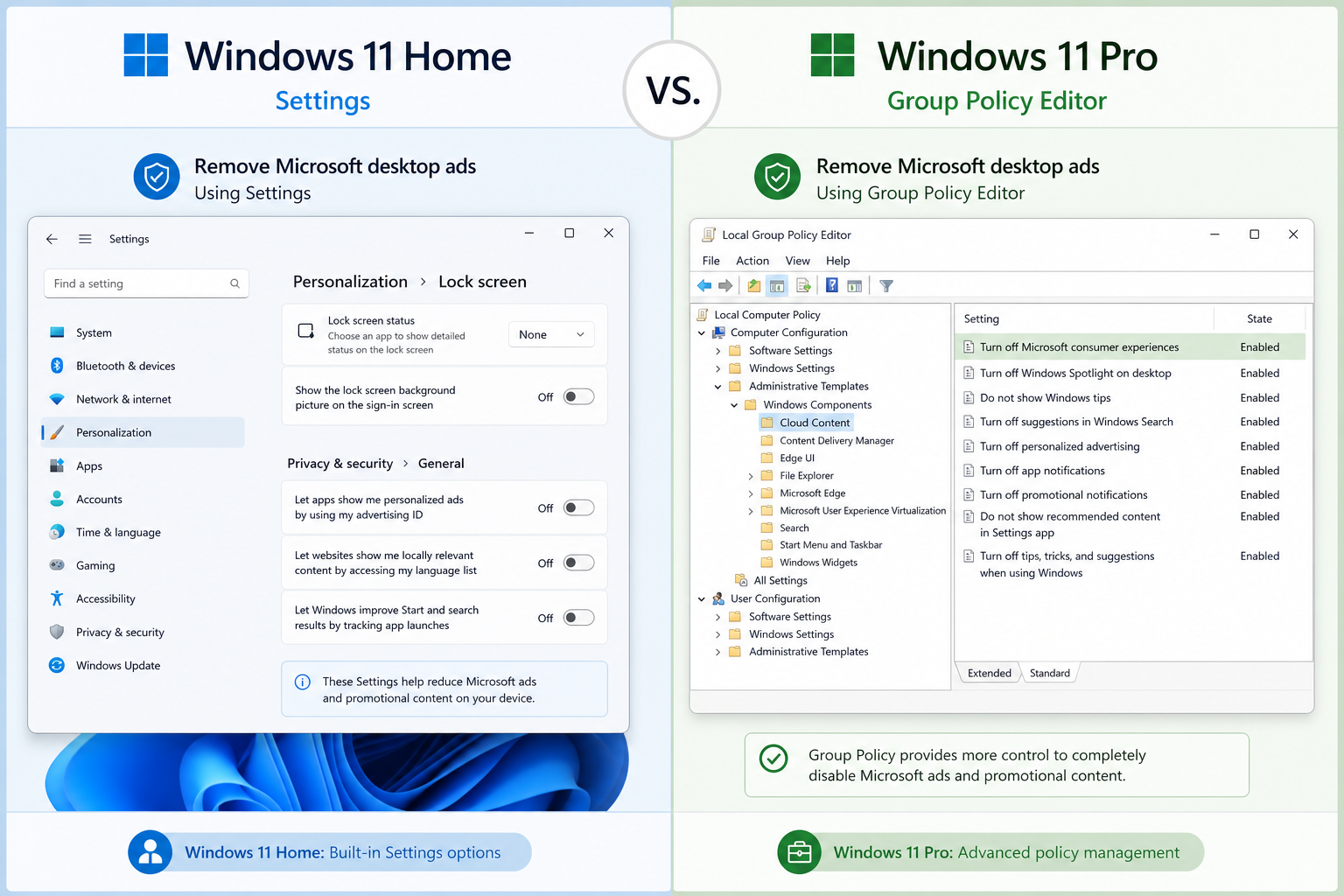
Partially — but only if you actively configure it. Windows 11 Pro ships with the Group Policy Editor and the ability to disable consumer experiences at a system level, which Home users cannot do as easily. However, simply buying a Pro licence does not automatically block Microsoft desktop ads; you still need to apply the Group Policy settings described in Method 4 above, or manage settings centrally via Microsoft Intune if you are in a business environment.
Home users have fewer levers but Methods 1–3 above are fully available on every Windows 11 edition and are effective when applied together. For a deeper dive into locking down everything Windows sends back to Microsoft’s servers, our guide on Windows 11 privacy features and telemetry controls covers the full picture.
Should You Upgrade, Downgrade, or Stay Put?
Some users frustrated by Windows 11 wallpaper ads have floated the idea of reverting to Windows 10. That option has narrowed considerably: mainstream support ended on 14 October 2025, and Windows 10 machines have only stayed patched since then through the consumer Extended Security Updates programme, which you have to enrol in. It buys time rather than solving anything, and Windows 10 was never immune to Microsoft’s advertising experiments either. The more durable solution is to configure Windows 11 correctly from the outset, which takes under ten minutes using the methods above.
If you are considering a fresh install or upgrading a second machine, it is worth picking up a genuine Windows 11 licence rather than relying on a pre-loaded OEM copy that may come bundled with additional manufacturer bloatware on top of Microsoft’s own. Browse the full range of genuine Windows 11 licence keys at Top Key Shop, starting from €14.70 for a Home retail key — a clean install from a fresh key gives you a baseline system you control, not the manufacturer.
Will Microsoft Pull Back on Windows 11 Desktop Ads?
History gives cautious grounds for optimism. In April 2024, Microsoft halted a similar campaign of full-screen ads targeting Windows 10 users — those promotions urged people to buy new Windows 11-compatible hardware — after sustained negative press coverage and user backlash. The company acknowledged the ads were “not appropriate” and rolled back the behaviour via a security update patch.
The pattern suggests Microsoft tests the boundaries of what users will accept, retreats when the public outcry is loud enough, and then quietly tries again a few months later. The Bing Wallpaper ad campaign follows exactly this playbook. Whether the current wave of disable desktop ads tutorials and angry forum posts is enough to prompt another rollback remains to be seen — but applying the settings above means you don’t have to wait and find out.
FAQ
Why is my Windows 11 wallpaper showing an advertisement?
The most likely cause is the Bing Wallpaper app, which Microsoft has been using to deliver full-screen promotional images as desktop backgrounds without explicit user consent. Windows Spotlight — the feature that rotates curated images on the lock screen — can also serve promotional content. Uninstalling Bing Wallpaper and switching Spotlight to a static picture or slideshow stops both vectors.
Are these Windows 11 wallpaper ads a virus?
No. The ads originate directly from Microsoft’s own Bing Wallpaper application and Windows Spotlight feature. They are not malware or adware installed by a third party, which makes them frustrating rather than dangerous — but it also means your antivirus software will not remove them. The methods described in this article are the correct way to disable them.
Can I disable desktop ads on Windows 11 Home, or only on Pro?
You can disable Microsoft desktop ads on any edition of Windows 11, including Home. Home users cannot access Group Policy Editor (Method 4 above), but uninstalling Bing Wallpaper, disabling Windows Spotlight, and toggling off the relevant Privacy and Personalization settings in the Settings app achieves the same result. Pro users have the additional option of Group Policy, which provides a more permanent lock.
Can Windows updates re-enable wallpaper ads?
Potentially, yes. Microsoft has a history of resetting certain notification and advertising toggles after major feature updates. It is good practice to check your Personalization, Notifications, and Privacy settings after any major Windows Update — particularly after a new version like 24H2 or 25H2 — to confirm your preferences are still in place. Group Policy settings on Windows 11 Pro are more resistant to being overridden by updates.
Does switching to a local account help reduce ads?
Switching to a local account rather than a Microsoft account does limit some personalisation features that feed ad targeting — Microsoft cannot serve you a personalised advertising ID without an account linked to its ecosystem. However, it does not stop the Bing Wallpaper app or Windows Spotlight from delivering promotional images, since those features operate at the system level independently of your account type. The Settings toggles described above remain the most reliable fix regardless of account type.
