
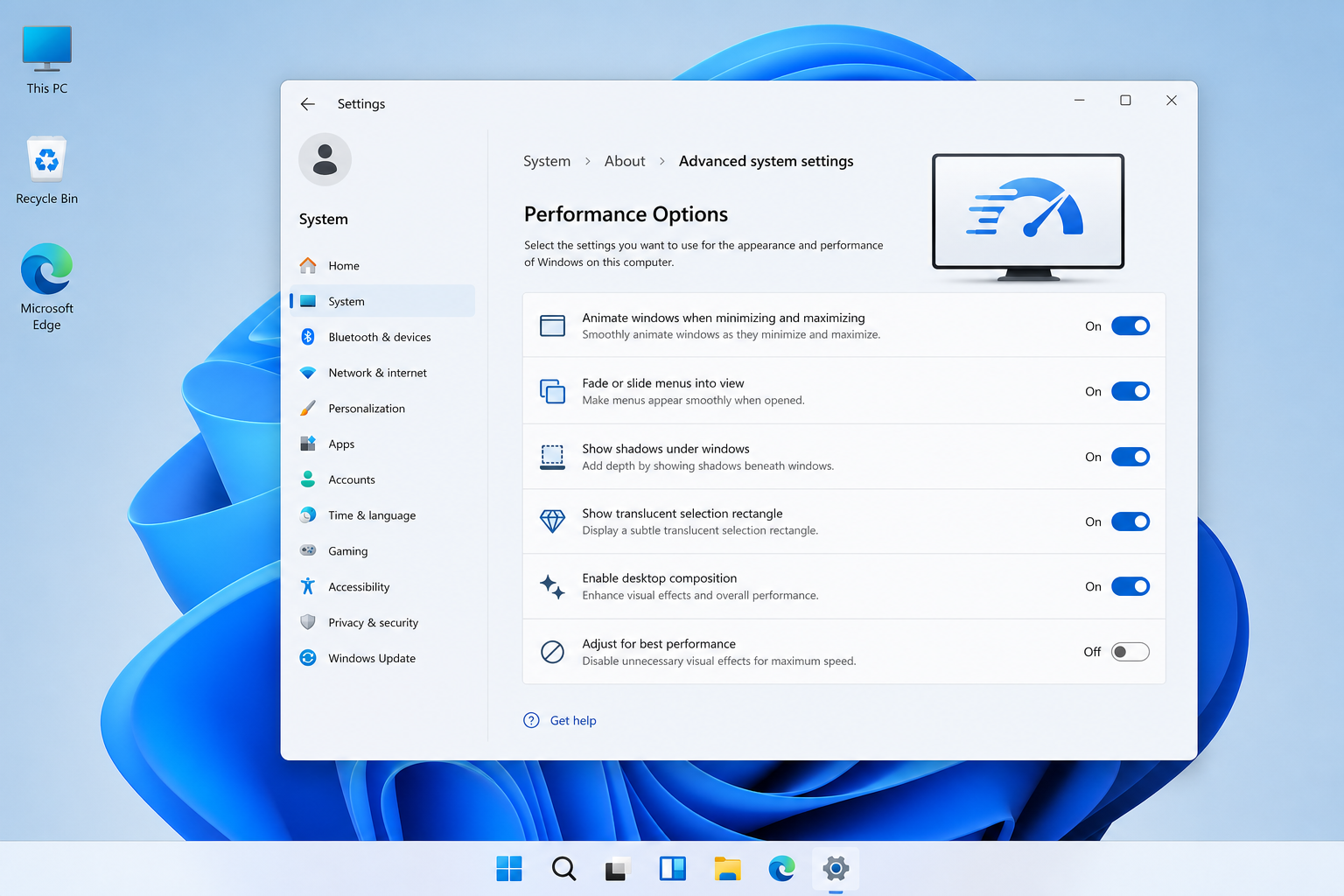
The fastest way to make your PC faster without spending a cent is to turn off Windows 11’s animated visual effects — the setting hides under Settings > Accessibility > Visual effects, or the older “Adjust for best performance” panel. It costs nothing, takes under a minute, and on older or resource-strapped machines the difference in responsiveness is immediate and obvious.
This isn’t a myth or a placebo. Windows 11 spends real CPU and GPU cycles animating windows as they open, fade menus in and out, and rendering transparency blur behind the Start menu and taskbar. On a modern high-end machine you’ll barely notice the load. On a laptop with integrated graphics, an older CPU, or a machine already juggling too many background processes, those animations compete for the same resources your actual work needs. Switching them off frees that headroom immediately.
Why Visual Effects Slow Windows 11 Down
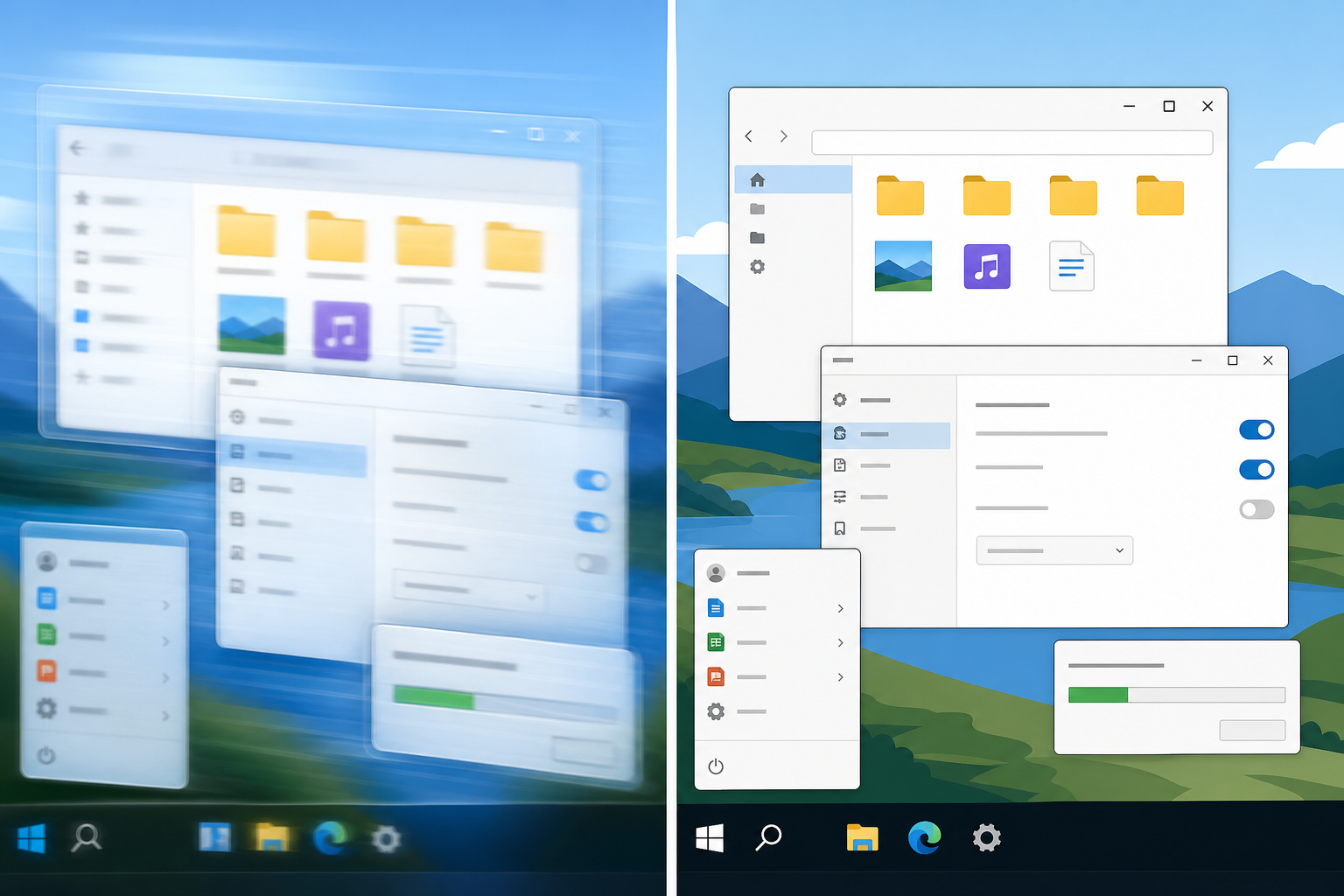
Every animation in Windows 11 — window minimising, menu fades, taskbar transparency, shadow rendering — is drawn by the GPU and coordinated by the CPU in real time. None of this is free. On systems with dedicated graphics cards and fast processors, the overhead is trivial. But on integrated graphics, budget laptops, or aging desktops, these effects add measurable input lag and stutter, especially when multiple windows or apps are running at once.
The effect compounds under load. If your machine is already short on RAM or running background updates, antivirus scans, or several browser tabs, every extra animation is one more thing competing for the same limited resources. Turning them off doesn’t add power to your PC — it simply stops wasting the power you already have on cosmetic polish.
Which Effects Actually Matter
Not all visual effects cost the same. Based on how Windows renders them, these are the heaviest hitters:
- Animate windows when minimizing and maximizing — continuous GPU redraw during every window action
- Transparency effects (Mica/Acrylic blur) — real-time background blur behind Start, Search, and the taskbar
- Show shadows under windows — adds rendering overhead to every open window
- Animations in the taskbar and Start menu — fade and slide transitions on every click
- Smooth-scroll list boxes — minor but adds up in File Explorer and long menus
How to Make Your PC Faster With the Visual Effects Setting
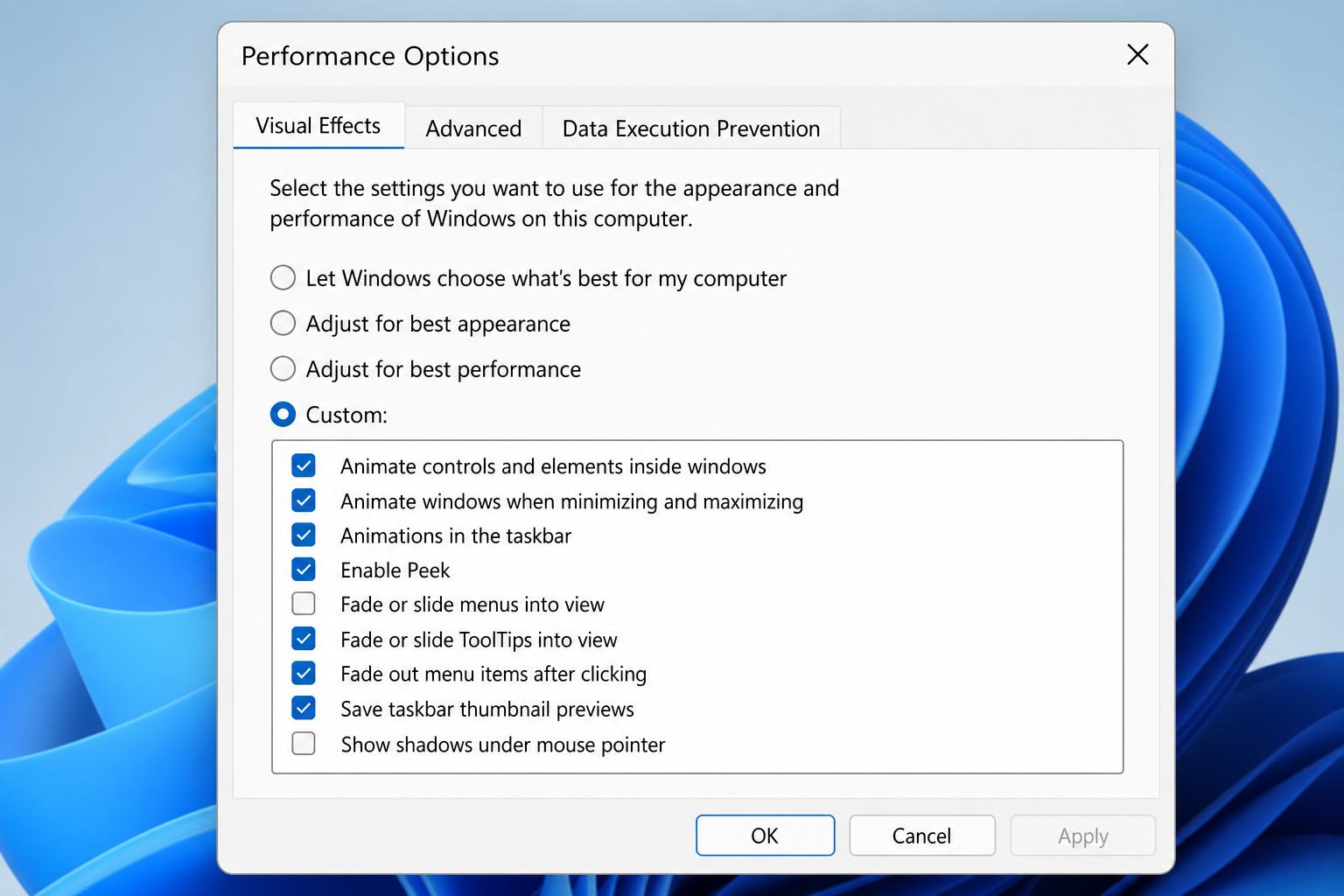
The quickest route is through the classic Performance Options dialog, which still exists in Windows 11 and gives you full control in one place.
- Press Start and type “adjust the appearance and performance of Windows”, then open it.
- In the Visual Effects tab, choose “Adjust for best performance” to disable everything, or select “Custom” to turn off individual effects while keeping ones you like (such as font smoothing).
- Click Apply, then OK. No restart is required — the change is instant.
If you prefer the newer Settings app, go to Settings > Accessibility > Visual effects and toggle off Animation effects and Transparency effects directly. Both routes control largely the same underlying settings, so use whichever is faster for you.
Custom vs. “Best Performance” — Which Should You Pick
Full “best performance” mode strips every animation and reverts Windows to a flatter, boxier look. It’s the fastest option but the most visually jarring. Most users get 90% of the speed benefit by disabling just the four heaviest items listed above and leaving the rest — like smooth edges on screen fonts — turned on, since font smoothing has negligible performance cost and keeps text readable.
Does This Tweak Actually Make Your PC Faster, or Just Feel That Way
Both, and the distinction matters. Disabling animations doesn’t increase your CPU’s clock speed or add RAM — your benchmark scores in something like Cinebench won’t change. What it does is remove a constant, low-level rendering task that was competing for frame time and input responsiveness. That shows up as snappier window switching, faster menu opens, and less stutter when multitasking, which is exactly what “feeling faster” means to a real user typing, clicking, and switching apps all day.
On machines with a dedicated GPU and 16GB+ RAM, expect a subtle improvement. On older laptops, budget desktops, or systems with 8GB of RAM or less, the difference is often the most noticeable free performance change available — more so than most registry tweaks or “cleaner” utilities that promise similar results.
Is It Safe to Turn Off Visual Effects to Make Your PC Faster
Yes — this is a fully supported, reversible Windows setting with no risk to your system, files, or activation. It only affects how Windows draws its interface, not how any app or driver functions underneath. You can toggle it back on at any time using the same steps, and it has no effect on your Windows license, installed software, or data.
The one caveat: some third-party skinning tools or accessibility software that rely on specific transparency or animation behavior may look slightly different afterward. If you use screen magnification or high-contrast accessibility tools, test after applying the change to confirm nothing broke.
Other Quick Wins That Pair Well to Make Your PC Faster
Turning off visual effects works best as part of a short list of no-cost changes, not a standalone fix. Combine it with:
- Disabling unnecessary startup apps via Task Manager’s Startup tab
- Setting your power plan to Balanced or High Performance rather than Power Saver on desktops
- Running Disk Cleanup or Storage Sense to clear temp files if your drive is nearly full
- Checking Windows Update for pending driver and firmware updates, which occasionally resolve GPU-related slowdowns
None of these require new hardware. If your PC is still sluggish after all of them and it’s several years old, that’s usually a sign the bottleneck is genuinely the hardware — CPU, RAM, or an old mechanical hard drive rather than an SSD — not the operating system.
When a Setting Isn’t Enough: Considering a Clean Reinstall
If your Windows 11 install has accumulated years of leftover drivers, startup bloat, and background services, sometimes the fastest genuine fix is a clean reinstall rather than another round of tweaks. A fresh, genuinely licensed copy of Windows 11 Pro gives you a clean baseline with none of the accumulated cruft — and Pro adds Hyper-V and BitLocker if you need them for IT work. Budget-focused users who just want a stable, faster-feeling system can also compare it against a Windows 11 Home license to see which edition actually fits their setup.
For anyone reinstalling from scratch, the official Microsoft Q&A guidance on visual effects settings is a useful reference to confirm you’re changing the right options for your build.
FAQ
Will disabling visual effects make my PC faster for gaming?
It can help marginally on lower-end systems by freeing up a small amount of GPU headroom, but in-game performance is driven far more by your graphics card, drivers, and in-game settings. Treat this as a general responsiveness fix, not a gaming FPS boost.
Do I need to restart my computer after changing visual effects?
No. Both the Performance Options dialog and the Accessibility settings apply changes immediately without a restart.
Will this tweak affect my Windows 11 license or activation?
No. Visual effects are purely a display setting and have no connection to license activation, product keys, or Microsoft account binding.
Can I turn individual effects back on later?
Yes. Return to the same Performance Options dialog or Accessibility > Visual effects panel at any time and re-enable any effect individually — nothing is permanent.
Why does my PC still feel slow after disabling visual effects?
If the machine has very little RAM, a full hard drive, or is running many background processes, disabling animations alone won’t fix a genuine hardware or storage bottleneck. Pair it with clearing startup apps and freeing disk space, and if it’s still slow, the hardware itself may be the limiting factor.
Does this work the same way on Windows 10?
Yes. Windows 10 uses the identical “Adjust the appearance and performance of Windows” dialog, so the same steps apply if you’re managing an older machine.
