
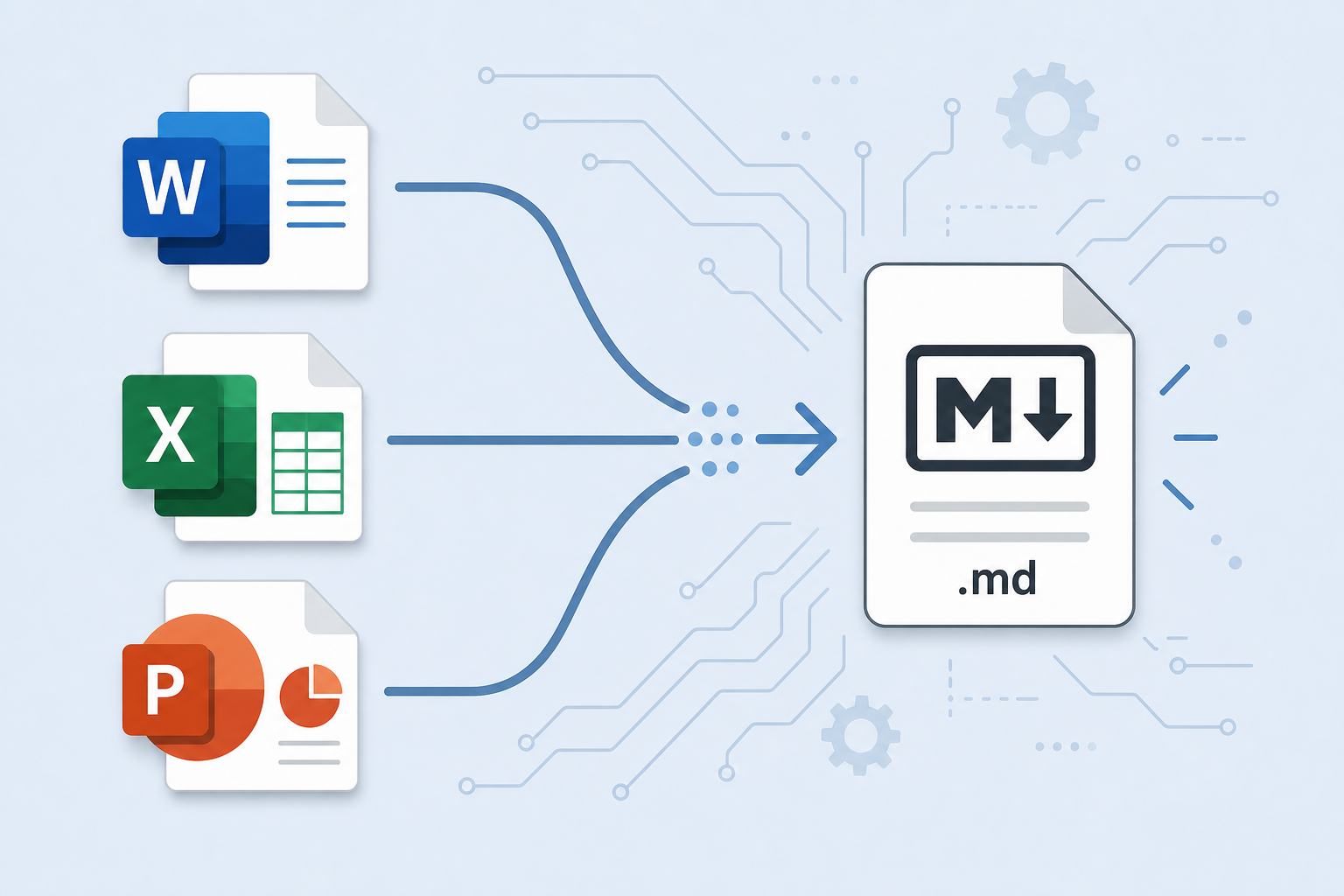
Office document conversion has never been faster — Anydoc, the open-source Rust library from the Firecrawl team, converts Word, Excel, PowerPoint, and 11 other formats into clean Markdown in a median time of just 4.4 milliseconds. If you regularly move content between apps, feed documents into AI pipelines, or simply want a portable, version-control-friendly format for your files, this tool changes the calculus entirely. Below we break down exactly how it works, where it wins, and when it’s genuinely worth adding to your workflow.
What Is Anydoc and Why Does Office Document Conversion Matter?
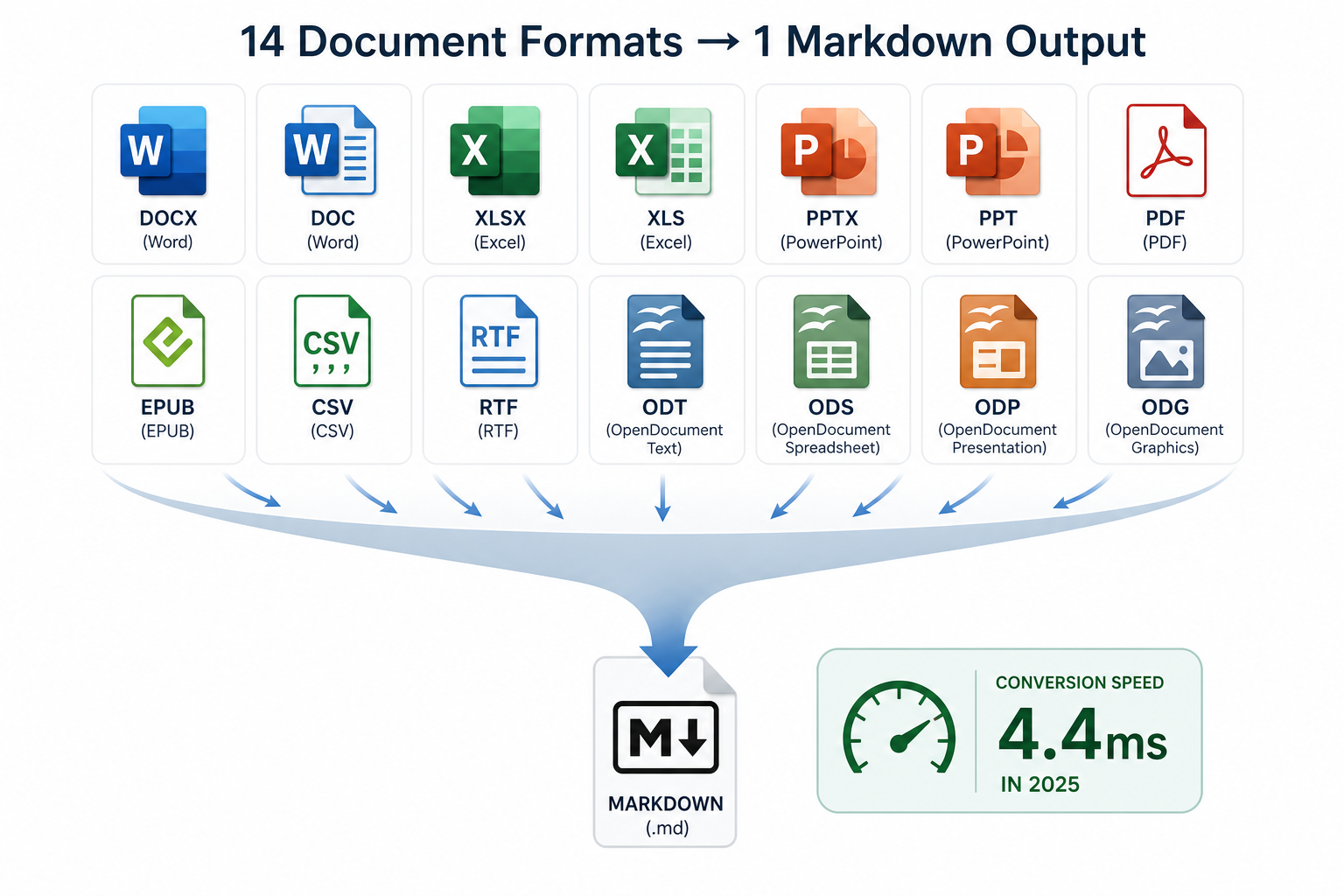
Anydoc is a Rust-based library — with Node.js and Python bindings — purpose-built for document conversion at scale. It supports 14 input formats: Word (.docx), Excel (.xlsx), PowerPoint (.pptx), OpenDocument files (.odt, .ods, .odp), RTF, EPUB, CSV, and PDF. The output is always clean, consistent Markdown — a format that humans can read, version-control systems can diff, and AI language models can consume without pre-processing overhead.
Why does that matter for everyday Office users? Because converting Office files to Markdown (or another neutral format) is often the fastest way to:
- Feed document content into AI assistants, RAG pipelines, or chatbots.
- Publish Word drafts directly to static sites, wikis, or documentation platforms.
- Strip proprietary formatting so content can move freely between tools.
- Archive files in a plain-text format that will still open in 20 years.
Before tools like Anydoc, each of those tasks required a separate converter — Pandoc, MarkItDown, Docling, or Unstructured — each with different quality levels and setup complexity.
How Anydoc Handles Convert Office Files — Under the Hood
Anydoc is written entirely in Rust, which gives it two advantages: raw speed and memory safety with no garbage-collector pauses. When you feed it a .docx file, it parses the underlying XML structure directly (Office Open XML is just zipped XML), extracts text, tables, and headings, and maps them to Markdown equivalents — headings become # H1/H2, tables become Markdown pipe tables, bold and italic are preserved as ** and *.
For Excel files it converts each worksheet to a Markdown table or CSV-style block. PowerPoint slides become structured Markdown sections, with slide titles rendered as H2 headings and bullet content below them. PDFs are handled via a companion tool, pdf-inspector, which Firecrawl developed alongside Anydoc for accurate PDF-to-Markdown extraction.
In Firecrawl’s own benchmark across 100 real-world documents spanning all 14 supported formats, Anydoc achieved an overall quality score of 81 out of 100 — compared to 70 for the next-best alternative. That gap is significant when you are processing hundreds of documents per day.
Word to Markdown: Where the Conversion Shines
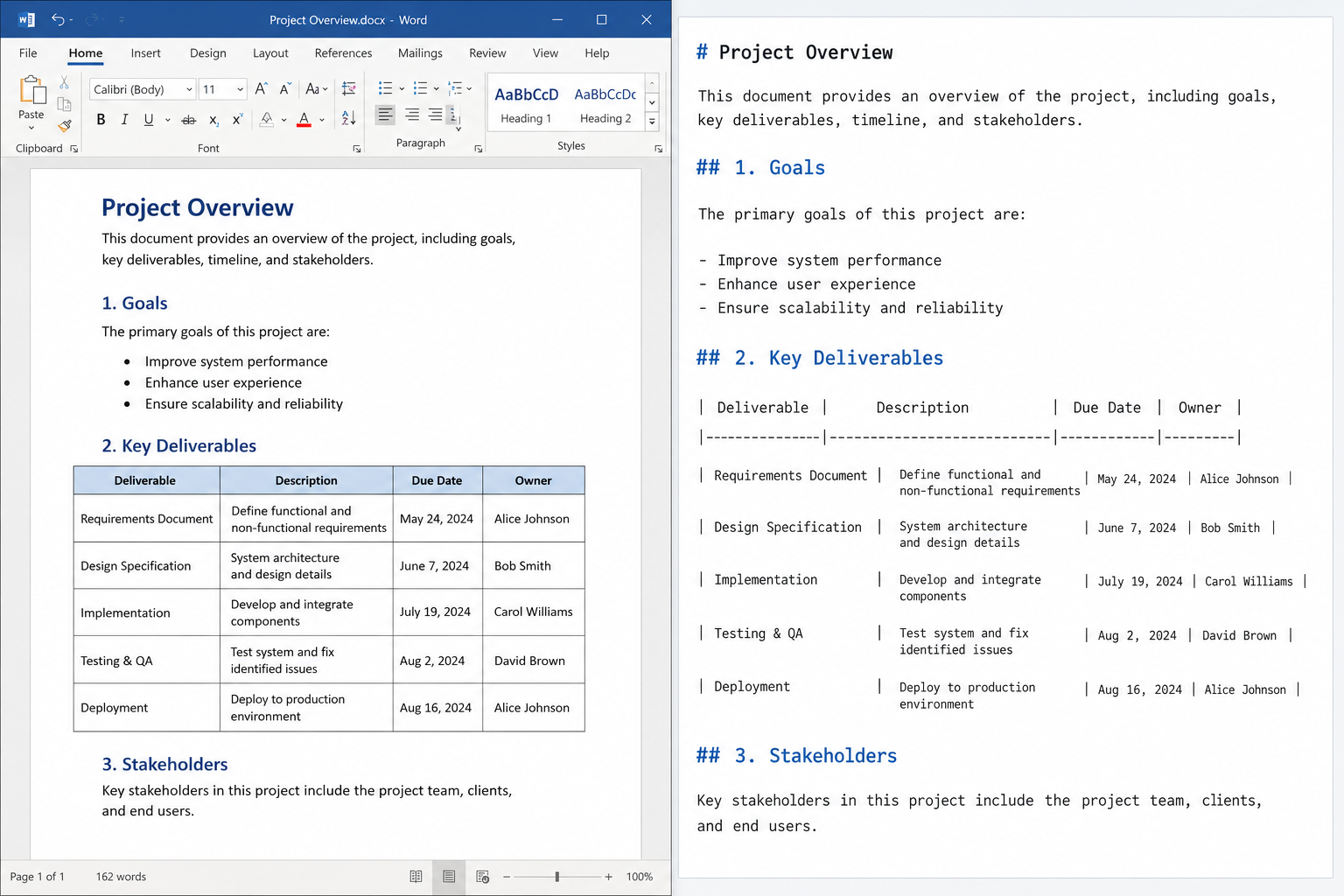
Word to Markdown conversion is Anydoc’s most immediately useful feature for the average knowledge worker. A document that took 45 minutes to write in Word can be converted, committed to a Git repository, and published to a documentation site in under a second. The output honours heading hierarchy, preserves ordered and unordered lists, and retains table structure — the three elements most likely to break in cheaper converters.
Common scenarios where Word to Markdown conversion saves real time:
- Technical documentation teams that write in Word but publish to Docusaurus, MkDocs, or GitBook.
- Legal and compliance teams archiving contracts in plain text for long-term storage.
- AI developers building retrieval-augmented generation (RAG) systems who need clean, chunked text from enterprise document libraries.
- Journalists and researchers moving content from Word drafts into CMS platforms.
For a thorough walkthrough of how Anydoc benchmarks against MarkItDown, Pandoc, Docling, and Unstructured, the official Firecrawl introduction to Anydoc and pdf-inspector lays out the methodology and full quality scores format by format.
Excel and PowerPoint: Office File Conversion Beyond Word
Excel spreadsheets and PowerPoint presentations are often neglected in document conversion discussions — most tools handle them badly. Anydoc treats them as first-class inputs.
For Excel, it converts tabular data to Markdown tables, preserving column headers and row structure. This is especially useful when you want to include a data table inside a Markdown README, a wiki page, or a prompt sent to a language model. For PowerPoint, each slide becomes a clearly delimited Markdown section, making it straightforward to extract key points from a presentation without opening the file in PowerPoint itself.
This broad coverage is what makes Anydoc a genuine document conversion platform rather than just another Word-to-Markdown script. If your team stores knowledge across Word reports, Excel dashboards, and PowerPoint decks, a single Anydoc pipeline can normalise all three into a searchable, indexable Markdown corpus.
When a Conversion-First Workflow Actually Saves Time
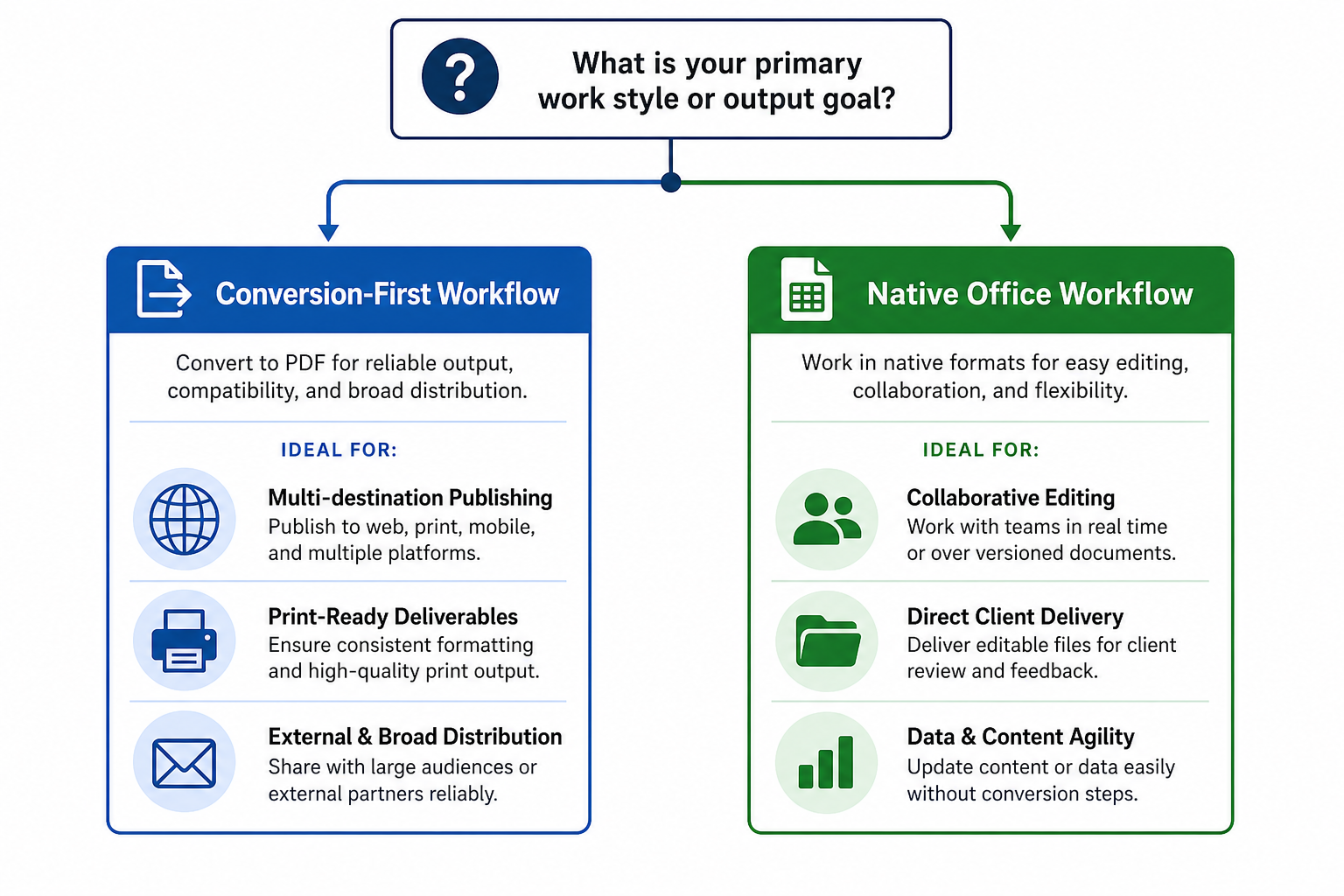
Not every Office workflow benefits from conversion-first thinking. Here is an honest breakdown of when the overhead is worth it and when it is not.
Conversion-First Makes Sense When:
- You publish documents to multiple destinations (web, PDF, wiki, email) from a single source.
- Your team collaborates in Office but your publishing platform is Markdown-based.
- You are feeding document content to AI models regularly — converting once upstream is far cheaper than converting on every API call.
- You need long-term archival in a format with no vendor lock-in.
Stick with Office Natively When:
- Your final output is always a Word or PDF file shared directly with clients.
- Your documents rely heavily on advanced formatting (tracked changes, complex charts, embedded objects) that Markdown cannot represent.
- Your team has no developer capacity to set up or maintain a conversion pipeline.
For teams in the first group, Anydoc’s 4.4 ms median conversion time means the tool essentially disappears into the background — conversion becomes a non-event rather than a workflow interruption.
Document Conversion and Your Microsoft Office Licence
Anydoc is an open-source tool — it sits outside your Microsoft Office licence entirely. You still need a genuine, fully licensed copy of Office to create the source files in the first place. Anydoc simply reads the output files those apps produce.
If your team is running an older version of Office or thinking about upgrading before adopting a heavier document-processing workflow, it is worth checking current pricing. Office 2021 Professional Plus is available at Top Key Shop for just €15.90 — a genuine retail licence key delivered instantly by email. For teams that want the latest feature set, Office 2024 Professional Plus is also available at €15.95. Both include Word, Excel, and PowerPoint — the three apps whose output Anydoc converts most effectively.
Having a current Office install ensures you are generating .docx, .xlsx, and .pptx files in the latest Open XML schema, which tools like Anydoc parse most reliably. Older binary formats (.doc, .xls, .ppt) are not in Anydoc’s supported input list — another quiet argument for keeping Office up to date.
Setting Up Anydoc: A Quick-Start Overview
Anydoc is available on GitHub at github.com/firecrawl/anydoc and can be installed via npm or pip for Node.js and Python workflows respectively. A basic conversion from the command line looks like this:
- Install via npm:
npm install anydoc - Pass in a file path and specify your output format (Markdown is the default).
- For batch processing, point it at a directory — Anydoc will convert every supported file it finds.
- For PDF inputs, pair it with pdf-inspector for best results on complex layouts.
There is no cloud API to configure, no API key to manage, and no data leaves your machine — which is a significant advantage for teams working with confidential legal or financial documents. The entire conversion stack runs locally.
Anydoc vs Pandoc: The Office Document Conversion Comparison
Pandoc is the long-standing default for document conversion among developers, and it remains excellent for formats like LaTeX, EPUB, and HTML. But for Office-native formats (.docx, .xlsx, .pptx), it has historically been patchy — particularly for tables and PowerPoint slides.
Anydoc is purpose-built for the Office Open XML ecosystem. In direct benchmarks, Anydoc outscores Pandoc on overall quality for Office-origin documents by a meaningful margin (81 vs approximately 65 in Firecrawl’s tests). It is also substantially faster on large batches, thanks to Rust’s zero-cost abstractions eliminating the interpreter overhead that affects Python-based alternatives.
That said, Pandoc wins on output format breadth — it can target dozens of formats beyond Markdown, including LaTeX, HTML, EPUB, and MediaWiki. For teams that specifically need convert Office files to Markdown or PDF, Anydoc is the sharper tool.
FAQ
What Office file formats does Anydoc support?
Anydoc supports Word (.docx), Excel (.xlsx), PowerPoint (.pptx), OpenDocument formats (.odt, .ods, .odp), RTF, EPUB, CSV, and PDF — 14 formats in total. It does not currently support older binary Office formats such as .doc, .xls, or .ppt, so upgrading to a modern Office version is recommended before using it.
Is Anydoc free and open source?
Yes. Anydoc is fully open-source and available on GitHub under a permissive licence. It has Node.js and Python bindings, so it integrates into most existing automation stacks without additional licensing costs. You only need to supply the Office licence for the apps that create your source documents.
Does document conversion affect Office file quality or formatting?
Anydoc’s Markdown output preserves headings, lists, tables, bold, and italic — the core structural and emphasis formatting of most Office documents. However, Markdown cannot represent every Office formatting element; complex layouts, embedded charts, and tracked changes are not carried over. For archival and AI-ingestion use cases, the fidelity is more than sufficient.
Can I convert Office files to PDF with Anydoc?
Anydoc’s primary output format is Markdown, not PDF. For PDF output from Office files, Microsoft Office’s own built-in export (File → Save As → PDF) remains the most reliable route. Anydoc is best viewed as a Markdown-first converter, with PDF as a source format it can read rather than one it produces.
Do I need a new Office licence to use Anydoc effectively?
You need Office to create the .docx, .xlsx, and .pptx files that Anydoc converts. Any modern Office licence — 2019, 2021, or 2024 — produces files in the Open XML format that Anydoc reads natively. If you are still on an older version, upgrading to Office 2021 Professional Plus or Office 2024 Professional Plus is a cost-effective step that ensures full format compatibility.
