
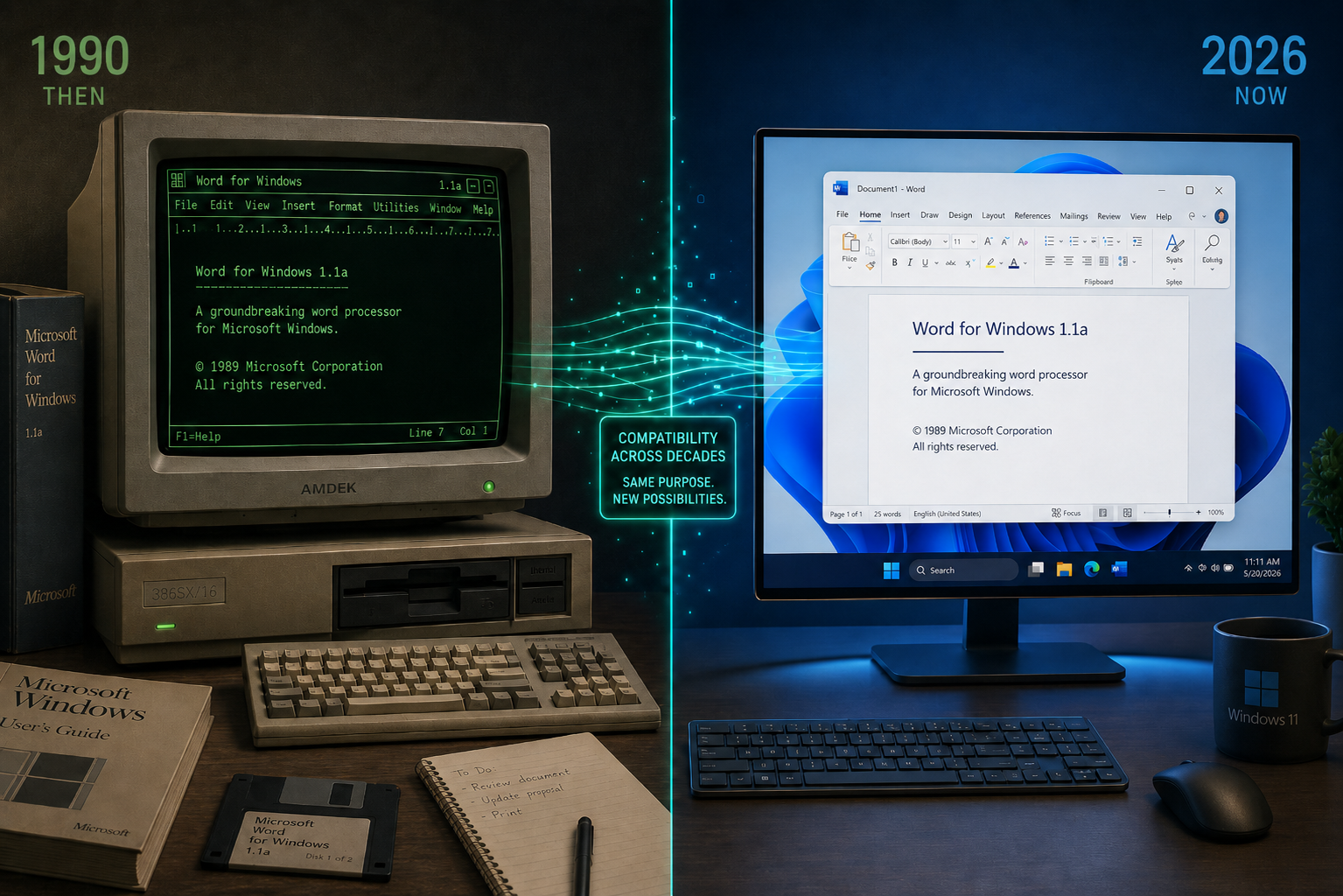
Legacy Windows software can absolutely run on Windows 11 — but the path from a 1990s executable to a modern desktop is rarely a straight line. A developer recently made headlines by successfully porting Word for Windows 1.1a (originally released in 1990) to run natively as a 64-bit application on Windows 11, proving that even the most ancient code can be coaxed back to life. Whether you are a developer testing old Windows apps, an IT admin supporting critical line-of-business tools, or simply a retro-computing enthusiast, this guide walks through exactly what works, what doesn’t, and how to bridge the gap.
Why Running Old Windows Apps on Windows 11 Is Harder Than It Looks
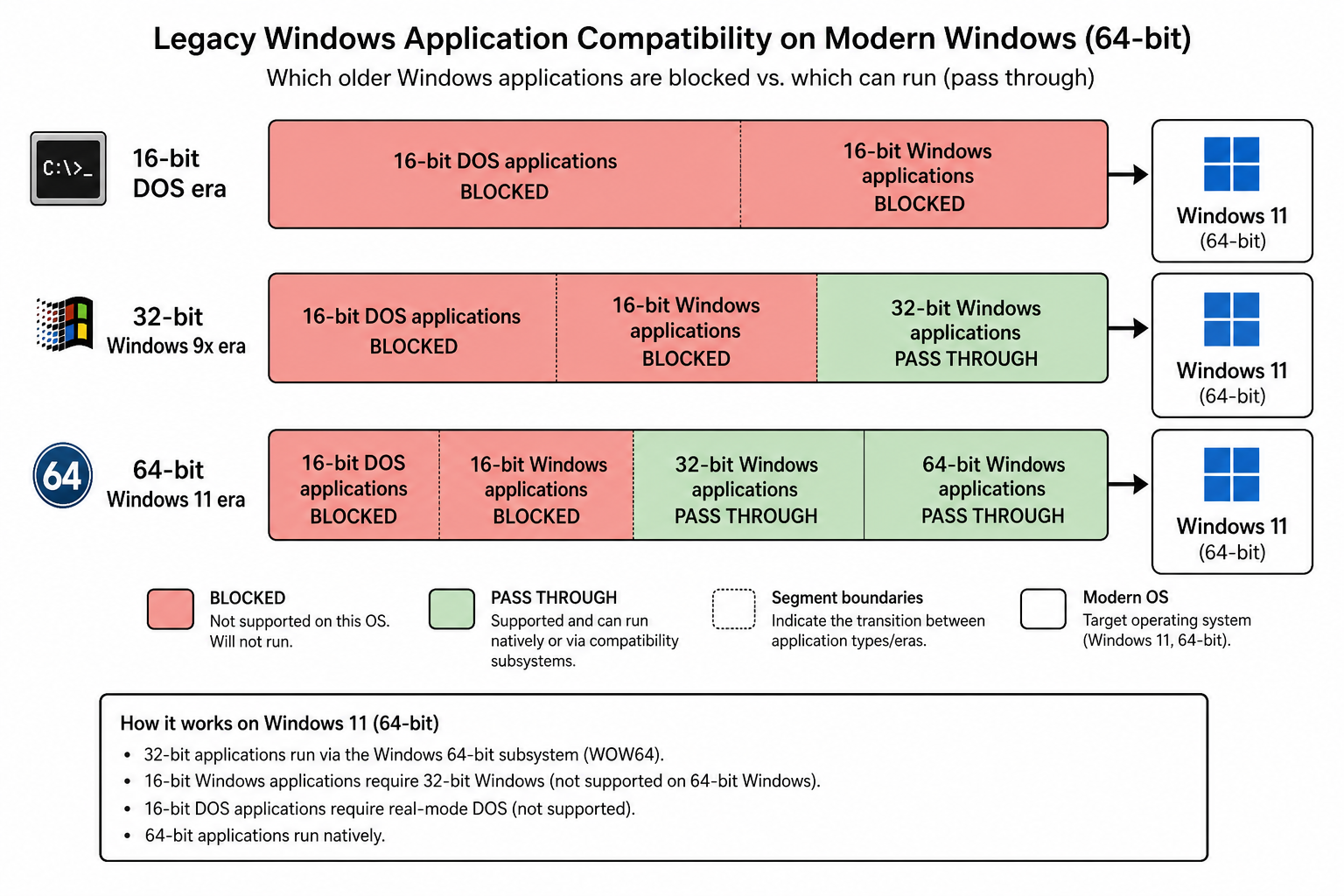
Windows 11 is exclusively a 64-bit operating system, and that single architectural fact creates the biggest wall between modern hardware and retro software. Microsoft’s official documentation confirms that 64-bit Windows does not support 16-bit applications — the NT Virtual DOS Machine (NTVDM) subsystem that handled them was dropped entirely in 64-bit editions. That means any program built for DOS or Windows 3.x faces a hard barrier at the OS level before compatibility mode even enters the picture.
Beyond the 16-bit wall, there are three other common failure patterns with old Windows apps on a modern system:
- Missing 32-bit subsystem components — Windows 11 ships with 32-bit support but Microsoft has signalled it may not last forever.
- Deprecated APIs — calls to WinSock 1, DirectDraw 1-3, or the old VxD driver model simply don’t exist in the modern kernel.
- Hard-coded system paths — software from the 1990s often assumed
C:\WINDOWSwith a specific directory layout that no longer exists. - Privilege model mismatches — pre-Vista apps frequently tried to write directly to
C:\Program Files, which UAC now blocks.
The Compatibility Mode Toolkit: Windows 11’s Built-In Fix for Old Windows Apps
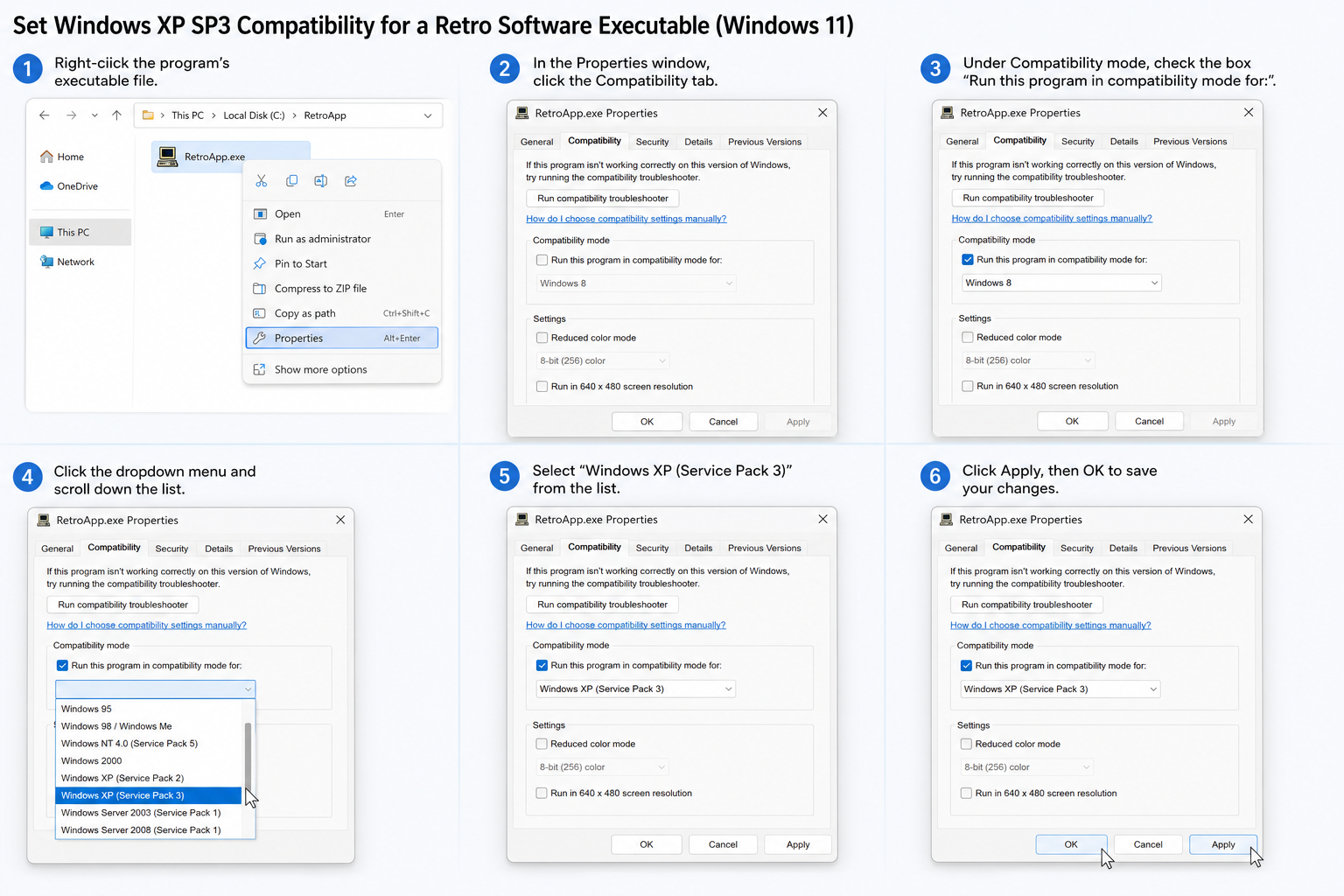
Windows Compatibility Mode remains the fastest first step for any old Windows app that was designed for Windows 95 through Windows 8. Right-click the executable, choose Properties, and open the Compatibility tab. From there you can:
- Target a specific older OS version (Windows XP SP3, Vista, 7, 8, or 8.1).
- Reduce colour depth to 256 colours or 16-bit, useful for games that demand legacy display modes.
- Run the app in 640×480 resolution mode.
- Disable fullscreen optimisations, which resolves display-tearing bugs in older DirectX titles.
- Force administrator privileges so legacy installers can write where they need to.
For 32-bit retro software that was written for Windows 95 or XP, compatibility mode resolves the majority of launch failures without any third-party tools. The Program Compatibility Troubleshooter (accessible via the same Properties dialog) auto-detects the best settings and is a smart starting point before manual tweaking.
When Windows Compatibility Mode Is Not Enough for Legacy Windows Software
Some legacy Windows software demands more surgical intervention. If compatibility mode fails, work through this escalation path:
Step 1 — Try the Application Compatibility Toolkit (ACT)
Microsoft’s free Application Compatibility Toolkit lets you create database shims — small patches applied at runtime that lie to an application about the OS version, folder paths, or API responses. Many corporate IT teams use ACT to keep critical old Windows apps alive across OS upgrades without touching the original code.
Step 2 — Use a Virtual Machine
Windows 11 Pro includes Hyper-V at no extra cost. Spin up a Windows XP or Windows 7 guest VM, install the legacy software inside it, and share files via a network folder. This approach is completely isolated — the old Windows app never touches your host filesystem and security risks are contained. Windows Sandbox (also available in Windows 11 Pro) works for quick, disposable tests of unknown installers.
Step 3 — DOSBox or DOSBox-X for 16-bit and DOS Programs
Because 64-bit Windows cannot run 16-bit code natively, DOSBox fills the gap for genuine DOS-era software. DOSBox-X (the extended fork) adds Windows 3.x GUI emulation, meaning you can boot a simulated Windows 3.11 environment and run software from 1990–1993 that would be completely invisible to Windows 11’s loader. The Word for Windows 1.1a port that made headlines took a different route — recompiling the original 1990 source code as native x64 — but for most users without access to source code, DOSBox-X is the practical answer.
Step 4 — WineVDM for 16-bit Windows Programs
WineVDM is an open-source project that implements a lightweight 16-bit Windows subsystem on top of Wine technology, allowing genuine 16-bit Windows executables (NE format) to launch inside Windows 11. It covers a surprising slice of early 1990s software — including early versions of Word, Excel, and countless shareware titles — without needing a full VM.
The Word for Windows 1990 Port: What Developers Can Learn
The story of Word for Windows 1.1a running natively on Windows 11 is more than a curiosity. Microsoft released the source code to several classic programs, and in 2026 a developer compiled the original 1990 Word codebase against a modern toolchain, resolved thousands of deprecated API calls, and produced a genuine x64 binary. It launched. It rendered text. It even printed. The exercise demonstrated two important principles:
- Core logic ages well. Business logic written in C in 1990 is still valid C. The challenge is the surface layer — UI frameworks, system calls, and hardware abstractions — not the algorithms themselves.
- Modern toolchains are remarkably tolerant. With the right compatibility headers and a willingness to stub out dead APIs, you can bridge 35 years of platform evolution.
For enterprise developers maintaining old Windows apps with available source code, this approach — recompile rather than emulate — yields the most stable and performant result on Windows 11.
Retro Software Windows Testing: A Practical Checklist
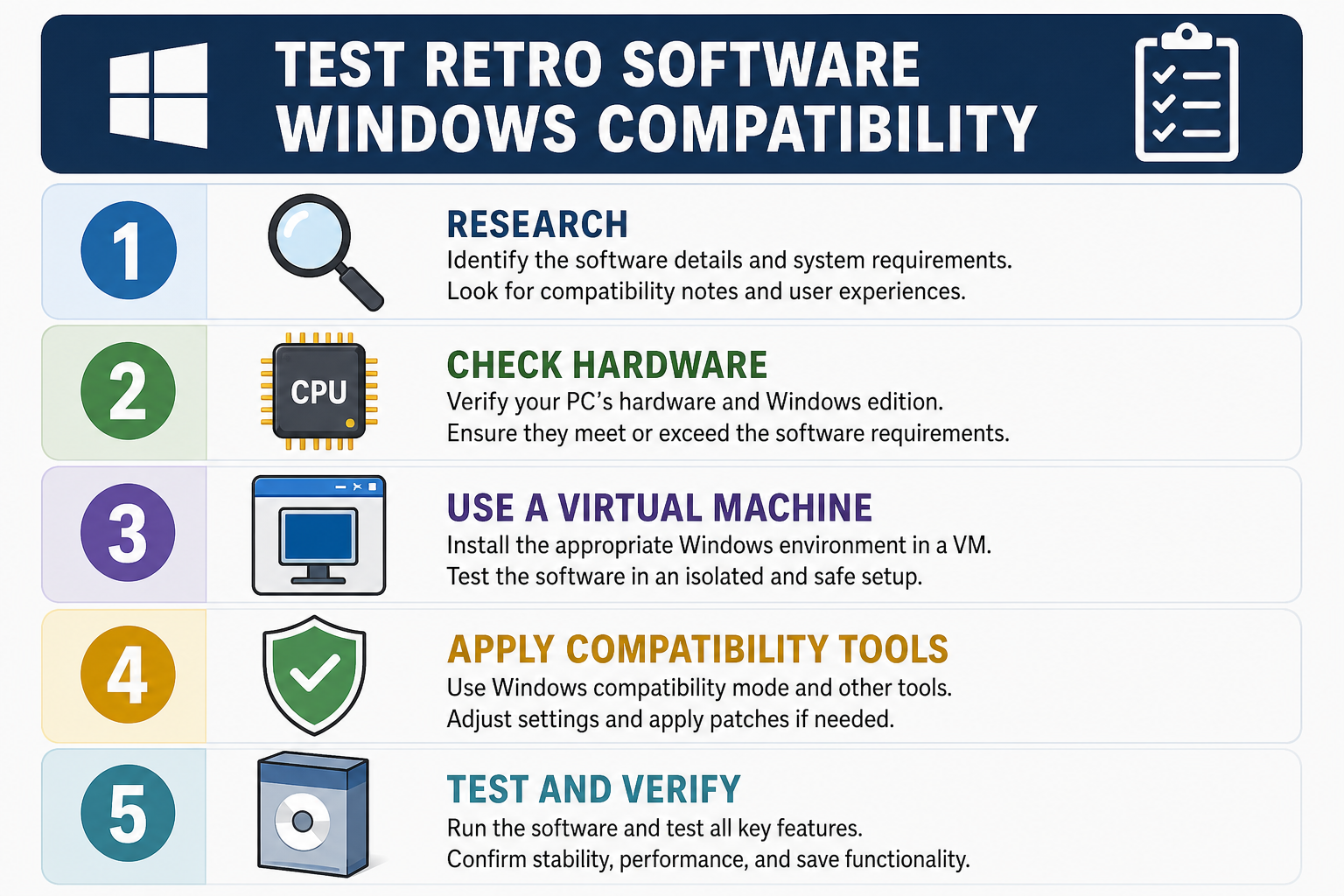
Before investing hours in troubleshooting, run through this quick checklist to understand what you are dealing with:
- Identify the bitness — Is the executable 16-bit (NE), 32-bit (PE), or 64-bit (PE+)? Use a tool like CFF Explorer or simply check Task Manager → Details → Platform after launch.
- Check the target OS in the PE header — This tells you the minimum Windows version the developer intended.
- Search the Microsoft compatibility database — Microsoft maintains records of known issues and existing shims for thousands of applications.
- Test in a VM snapshot first — Never install unknown legacy software directly on your production machine; restore points are not always reliable for deeply integrated old installers.
- Check for a modern equivalent — Sometimes the legacy software has been superseded by an actively supported version that runs natively on Windows 11 without any workarounds.
According to Microsoft, Windows 11 maintains broad compatibility with the tens of thousands of applications that ran on Windows 10 — the compatibility database covers over 1.4 billion PCs worth of telemetry data from the Windows 10 era alone.
Windows Compatibility Mode vs. Virtual Machine: Which Should You Choose?
The right approach depends on how critical and how old the software is:
- 32-bit software from Windows 95–Windows 8 era — Start with Windows Compatibility Mode. Success rate is high, effort is low.
- 16-bit Windows software (1990–1995) — WineVDM or DOSBox-X; native Windows 11 cannot help here.
- DOS software — DOSBox or DOSBox-X exclusively.
- Business-critical old Windows apps with no source code — Hyper-V VM running the OS the software was certified for, kept air-gapped from the internet.
- Software with available source code — Recompile with a modern toolchain; the Word 1.1a port is proof this is viable even for 35-year-old code.
Upgrading Your OS Without Losing Old Windows Apps
If you are still on Windows 10 because you are worried about breaking legacy Windows software, there is a structured way to migrate safely. Before upgrading, document every application you rely on, check the Microsoft App Assure program (free for enterprise customers), and test in a VM running Windows 11 first. For most 32-bit retro software Windows users depend on daily, the transition is smoother than expected — the Windows on Windows 64 (WoW64) layer handles 32-bit execution transparently.
When you are ready to make the jump, Top Key Shop stocks genuine Windows 11 licence keys at competitive prices — Windows 11 Home starts from €14.70, giving you a clean, activated installation to test your old Windows apps against without risking your existing production environment. If you are running a fleet of machines and want to understand failure patterns before rolling out, our dedicated guide on Windows app compatibility on Windows 11 covers the most common breakage scenarios and their fixes in detail.
FAQ
Can Windows 11 run 16-bit legacy Windows software natively?
No. Windows 11 is a 64-bit-only operating system and does not include the NTVDM subsystem required to execute 16-bit code. To run genuine 16-bit Windows software (NE executables), you need a third-party solution such as WineVDM or a virtual machine running a 32-bit OS like Windows XP. DOS programs require DOSBox or DOSBox-X.
Does Windows Compatibility Mode work for old Windows apps from the 1990s?
Compatibility Mode works for 32-bit PE executables — typically software from the Windows 95 era onward. It does not help with 16-bit programs, which require a different solution entirely. For 32-bit 1990s software, setting the compatibility target to Windows 95 or Windows XP SP3 and enabling reduced colour depth resolves most launch failures.
What is the safest way to test retro software on a production Windows 11 machine?
The safest approach is to use Windows Sandbox (available in Windows 11 Pro) for quick disposable tests, or Hyper-V to run a dedicated guest VM. Both options prevent legacy installers from modifying your host system. Always create a system restore point before installing any old application directly on the host, as legacy installers frequently modify shared registry keys and system DLLs.
What did the Word for Windows 1.1a port to Windows 11 prove?
It demonstrated that 35-year-old C source code can be successfully recompiled as a native 64-bit Windows 11 executable when access to the original source is available. The developer resolved deprecated API calls, stubbed out unsupported subsystems, and produced a functional word processor from 1990 running natively on a modern OS — no emulation layer required. It is a proof of concept for enterprises that still own the source code to critical old Windows apps.
Is it worth upgrading to Windows 11 if I depend on legacy Windows software?
In most cases, yes — provided you test first. Windows 11 runs the vast majority of 32-bit applications through its built-in WoW64 layer without any configuration. Microsoft’s App Assure programme provides free compatibility assistance for enterprise customers. The risk is primarily with 16-bit and DOS-era software, which requires additional tooling regardless of whether you stay on Windows 10 or move to Windows 11.
