
Windows 11 fixes in 2026 have arrived — and for once, Microsoft actually followed through. After years of user frustration with a locked-down taskbar, sluggish File Explorer, and update notifications that ignored your schedule, the 2026 update cycle has delivered five concrete improvements that change the day-to-day experience in measurable ways. This guide breaks down exactly what shipped, whether each fix matters to your workflow, and how to switch it on right now.
Five Windows 11 Fixes That Actually Landed in 2026
Not every promised feature makes it to a stable release — Windows 11’s history is full of features announced, delayed, and quietly shelved. These five did land, confirmed across Microsoft’s official update notes and real-world testing. If you haven’t seen them yet, you likely just need to apply the latest cumulative update from Windows Update.
1. The Movable Taskbar Is Finally Back
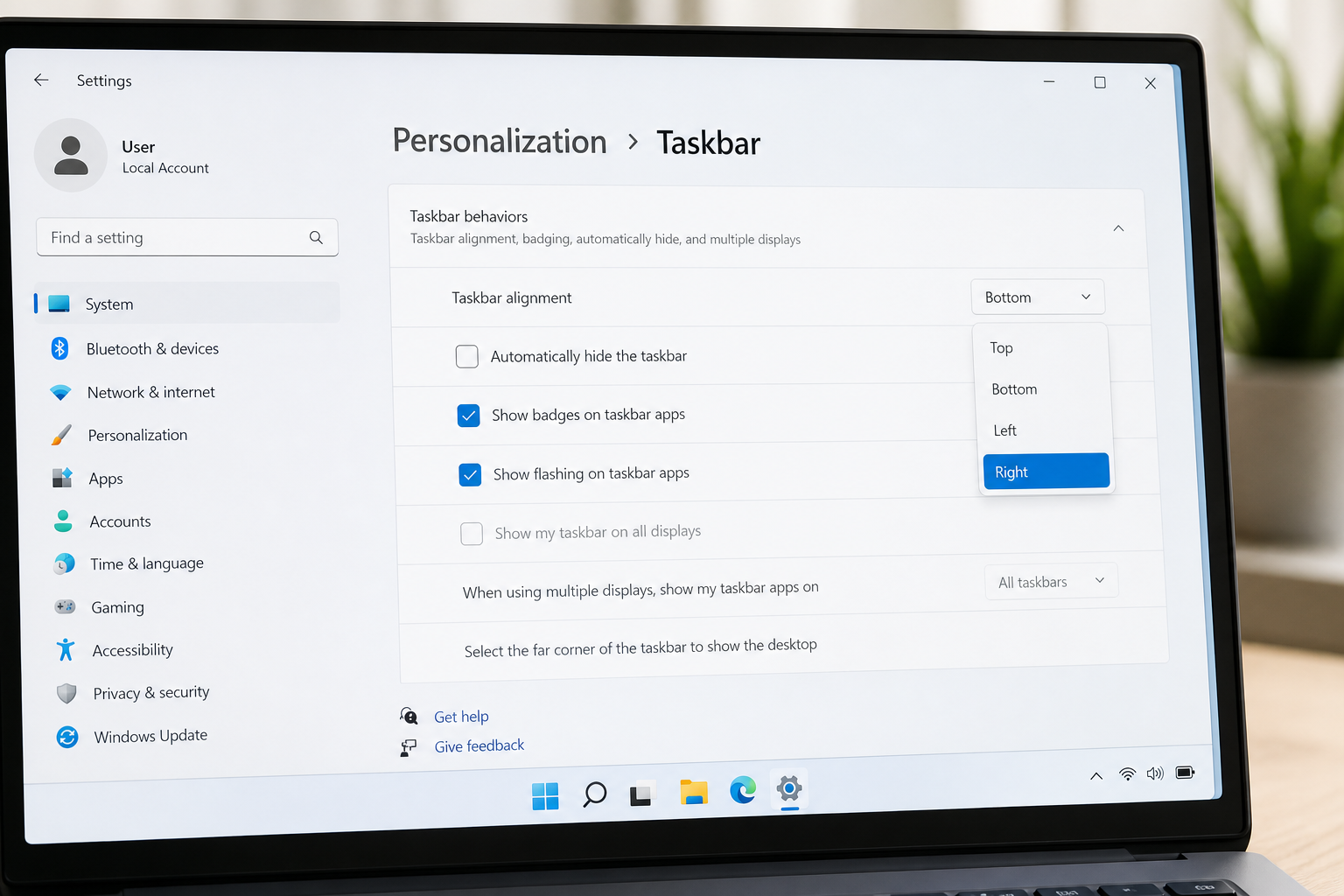
This was the number-one complaint when Windows 11 launched in October 2021: Microsoft removed the ability to place the taskbar anywhere except the bottom of the screen. After nearly five years of user outcry, native taskbar repositioning has returned in Windows 11 version 26H2. You can now dock the taskbar to the top, bottom, left, or right edge of your display, with every element — clock, system tray, pinned apps, and Start button — repositioning automatically to match. A smaller taskbar size option also ships alongside it, useful for anyone who wants to squeeze out extra vertical screen space on a laptop.
For multi-monitor users, ultrawide enthusiasts, and anyone who simply preferred the Windows 10 layout, this is the single biggest quality-of-life addition in this year’s Windows 11 updates 2026.
How to Move Your Taskbar in Windows 11
Right-click the taskbar, select Taskbar settings, and look for the new Taskbar position dropdown. Choose top, left, right, or bottom — the layout updates instantly, no restart required and no third-party tools needed.
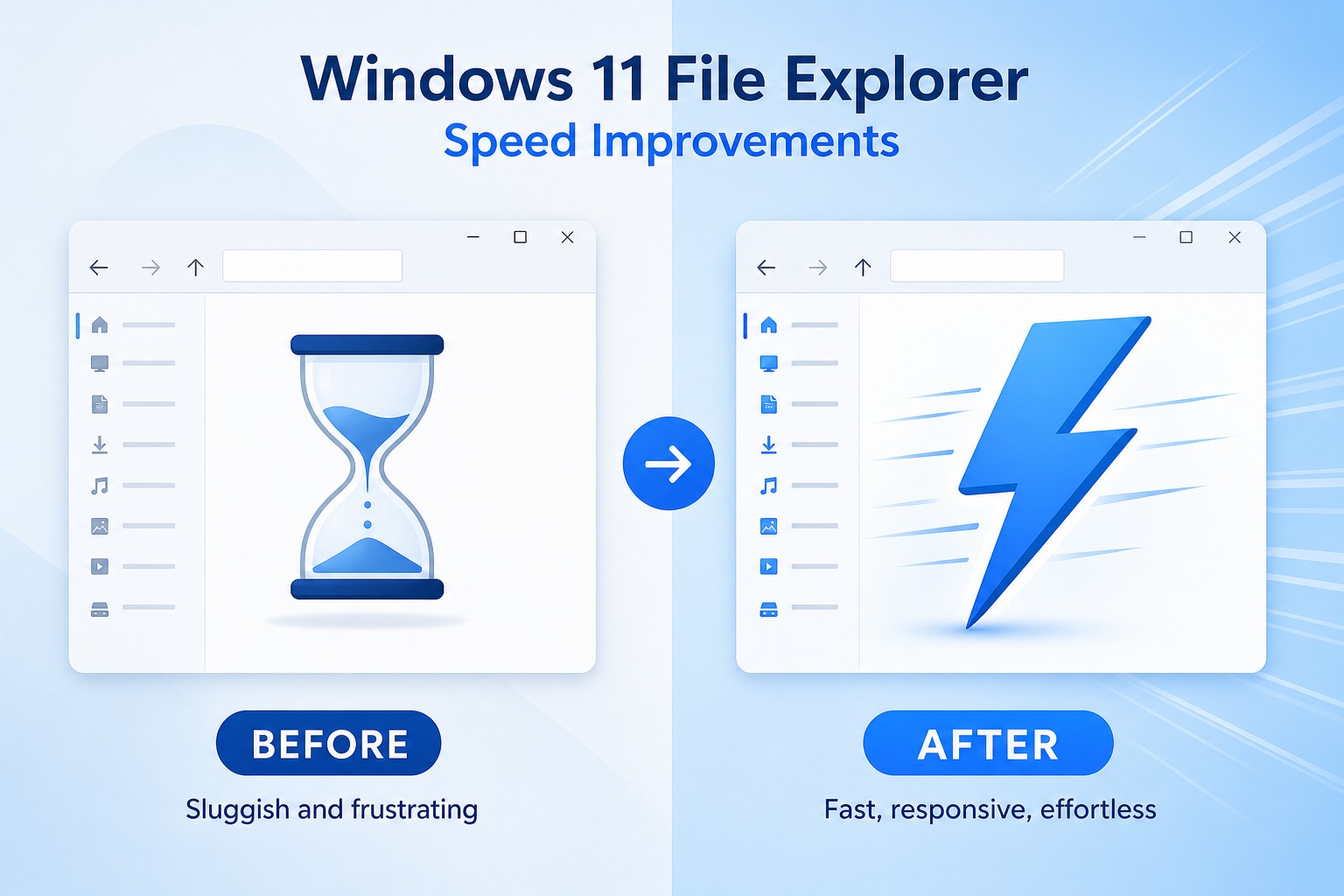
2. File Explorer Gets a Speed Overhaul
File Explorer has been a performance sore point since Windows 11 launched. Folder loading was sluggish on HDDs, navigation stutter was common on mid-range hardware, and large directories with thousands of files could cause Explorer to hang entirely. The 2026 update cycle addressed this head-on, delivering noticeably faster folder launching, smoother directory navigation, and significantly reduced lag when loading large file counts.
The refresh also streamlined flyout animations and transitions, making the interface feel snappier across the board — not just on flagship machines. If you work with large project folders in video production, software development, or graphic design, this is one of the Windows 11 improvements you will feel within the first five minutes of use.
- Faster initial folder load on large, file-heavy directories
- Smoother scroll performance on high-DPI and ultrawide displays
- Improved search indexing within Explorer itself
- Reduced animation jank and stutter on mid-range and older hardware
3. Windows Search Finally Finds What You’re Looking For
Windows Search has long been one of the most criticised parts of the OS — returning Bing web results, advertisements, and AI suggestions when users simply wanted to locate a local file. The 2026 overhaul changes the default behaviour fundamentally: local results now appear first, clearly separated from web suggestions, which are pushed into a secondary panel rather than mixed at the top of the results list.
The redesigned Search also supports basic natural language queries for local files. Type something like “invoice from last month” and Windows 11 surfaces relevant documents based on content type, filename, and date metadata. It isn’t a perfect system, but it is a marked step forward. For knowledge workers who live in their documents, this ranks among the most practical Windows 11 improvements delivered this cycle — reducing friction instead of adding it.
4. Start Menu Customisation: More Control, Less Clutter
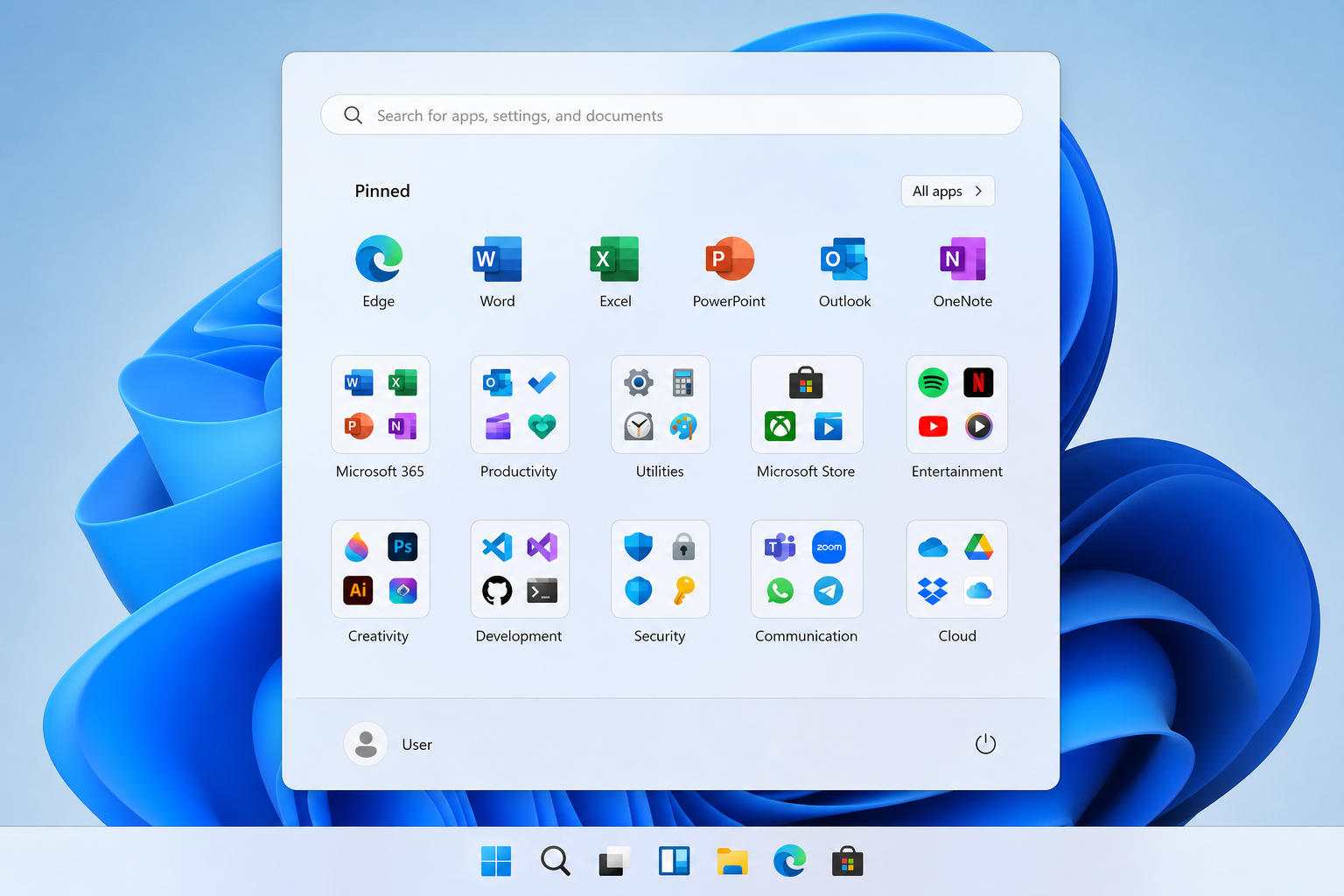
The Windows 11 Start menu launched with a rigid pinned-app grid and a “Recommended” section that surfaced recently opened files and suggested content — useful in theory, intrusive in practice for users who prefer a clean, predictable layout. The Windows 11 updates 2026 brought meaningful control back without a full redesign:
- Adjustable pin grid size — expand or contract the pinned apps area to show more pins or more recommendations, based on your preference.
- Recommendations toggle — disable the Recommended section entirely from a single Settings toggle, no registry editing required.
- Folder grouping for pins — drag pinned apps into groups and label them, similar to app folders on a smartphone home screen.
- Expanded All Apps default — a toggle to show your full installed app list by default instead of the truncated grid view.
These aren’t radical redesigns. They are the specific settings users requested from day one. The fact that Microsoft has delivered them — even if it took four years — is evidence that feedback does eventually move the needle.
5. Windows Update Stops Hijacking Your Day
Forced restarts at inconvenient moments have been a source of frustration since Windows 10, and the problem carried over directly into Windows 11. The Windows 11 changes to update scheduling in 2026 are the most user-respectful improvements Microsoft has made to this system in years:
- Smart active-hours detection — Windows now learns your actual usage patterns across a rolling 7-day window, rather than depending on a manually set active-hours range you set once and forget.
- Extended update pausing on Home edition — updates can now be paused for up to 5 weeks on Windows 11 Home, up from the previous 1-week limit that previously required a Pro licence.
- Update reason notifications — before agreeing to a restart, you can now see exactly why the update is being applied: security patch, feature update, or driver update.
For anyone who has missed a deadline because Windows decided to restart mid-presentation, this counts as a genuine Windows 11 fix — not just a cosmetic tweak to the Settings panel.
Windows 11 Improvements: Do They Matter to Your Workflow?
Taken individually, each of these Windows 11 improvements addresses a specific, long-documented complaint. Taken together, they represent the most user-responsive update cycle Microsoft has shipped since Windows 10’s early years. The question is whether you will actually notice them in daily use.
The answer depends largely on your workload. Power users handling large file sets will feel the File Explorer speed changes immediately. Creative professionals and developers who prefer a custom taskbar position will value the repositioning feature. Remote workers who resent unexpected restarts will appreciate the smarter update scheduling. And anyone who has wasted time fighting Windows Search will benefit from the local-first overhaul.
According to Microsoft’s official Inside This Update documentation, the 2026 update cycle also brings taskbar icon resizing, enhanced thumbnail previews, and new clock-display options — reinforcing that these Windows 11 changes are part of a deliberate, sustained improvement effort rather than a one-off patch bundle.
One important caveat: Microsoft uses staged rollouts. Not every user on the same OS build will see every feature simultaneously. If a particular setting isn’t visible yet, check Windows Update for pending cumulative updates and try again after the next patch cycle.
How to Access the Windows 11 Changes Right Now
Most of these Windows 11 changes are available from version 24H2 onward, with the full suite rolling out through the 26H1 and 26H2 update channels. Here’s how to make sure you have them:
- Open Settings → Windows Update and click Check for updates.
- Install all pending cumulative updates and restart when prompted.
- For taskbar repositioning, confirm you are on build 26100 or later before checking Settings.
- Navigate to Settings → Personalisation → Taskbar for the new position and size controls.
- Check Settings → Privacy & Security → Search permissions for the updated local-first Search preferences.
If you are still running Windows 10 — which reaches end of support in October 2025 — or on an older Windows 11 licence, now is a strong time to get current. You can grab a genuine Windows 11 Home licence key for just €14.70, or browse the full Windows 11 licence range at Top Key Shop to find the right edition for your setup — Home, Pro, or OEM.
For deeper context on how Microsoft’s 2026 quality pledge has played out at the system level, our dedicated breakdown of Windows 11 quality improvements since March 2026 covers the full mid-year progress report, including USB4 reliability fixes and additional File Explorer refinements.
FAQ
Are these Windows 11 fixes available for all users?
Yes — the core Windows 11 fixes covered here are available to Home, Pro, and Pro for Workstations users running version 24H2 or later. Some features require at least the July 2026 cumulative update. Microsoft uses staged rollouts, so if a specific setting hasn’t appeared yet, run Windows Update, install pending patches, and check again after the next release.
Do I need new hardware for Windows 11 updates 2026?
No new hardware is required for the Windows 11 updates 2026 described in this article. These are software-level improvements delivered through standard cumulative and feature updates. Any device that already meets Windows 11’s TPM 2.0 and processor requirements will receive these changes through Windows Update. The 26H1 channel is targeted at new silicon innovations, but the user-facing fixes apply broadly to existing compatible hardware.
How do I get the latest Windows 11 improvements?
Open Settings → Windows Update and click “Check for updates.” Install all available patches and restart when prompted. The Windows 11 improvements to File Explorer, Search, Start Menu, and taskbar positioning are all delivered through standard update channels — no Insider Preview or beta track is required. If you’re on a managed work PC, contact your IT department as Group Policy may be controlling your update schedule.
Will these Windows 11 changes affect my existing software?
The Windows 11 changes in 2026 are focused on the OS shell — taskbar, File Explorer, Start menu, Search, and update scheduling. They do not modify application compatibility layers or core system APIs, so your installed software should continue running exactly as before. If you rely on older or legacy applications, see our guide on legacy Windows software compatibility on Windows 11 for a full rundown of what works and what doesn’t.
Is upgrading to Windows 11 worth it in 2026?
With these five Windows 11 fixes now shipped, the gap between the Windows 11 experience and what users wanted at launch has narrowed considerably. The movable taskbar, faster File Explorer, local-first Search, better Start menu controls, and smarter update scheduling make 2026 the most compelling time yet to move to Windows 11 — particularly for users still holding out on Windows 10, which is no longer receiving security support.
