

AI icon generator tools have become one of the most practical time-savers available to UI and UX designers in 2026 — capable of producing dozens of icon concepts in seconds that would previously require hours of manual vector work. Whether you’re building a mobile app, a SaaS dashboard, or a brand identity system, understanding how to integrate AI icon generation with a professional vector editor like CorelDRAW puts you firmly ahead of the curve.
Why AI Icon Generators Are Taking Over UI Design
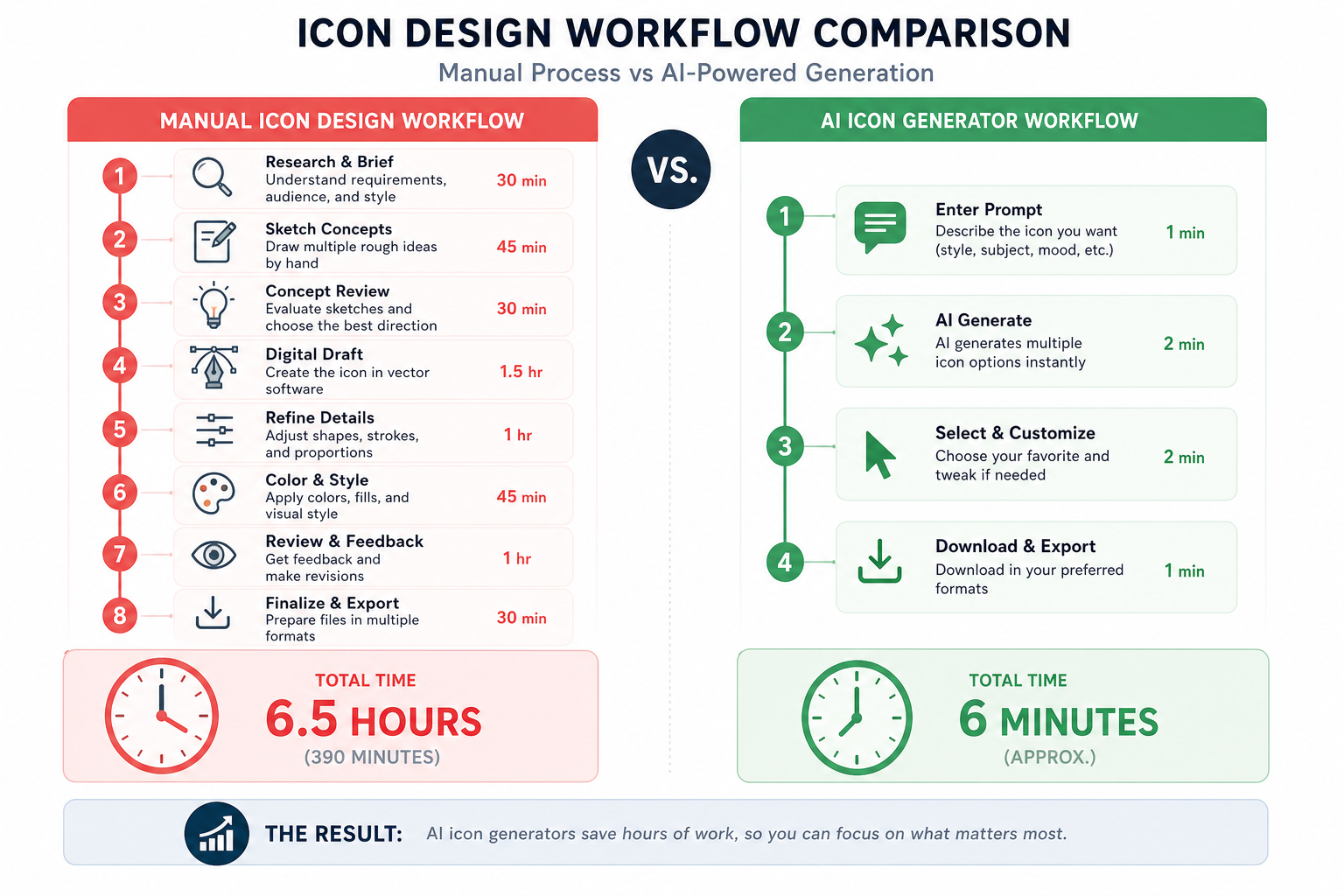
The demand for consistent, high-quality icon sets has always been a bottleneck in product design timelines. Traditional icon design requires strong vector drawing skills, an eye for optical balance, and meticulous pixel-level refinement — skills that take years to develop. AI icon design tools short-circuit the most time-consuming part of that process: ideation and initial construction.
According to a 2025 survey by the Nielsen Norman Group, designers using AI-assisted tools reported saving an average of 40–60% of their time on asset creation tasks compared to fully manual workflows. That’s not a marginal gain — it’s a structural shift in how design teams operate.
Today’s leading AI icon generators use diffusion models and vector-aware neural networks to produce scalable, style-consistent outputs from simple text prompts. Feed in a description like “minimal line-style settings gear, dark mode, rounded corners” and you’ll receive a polished starting point within seconds.
Top AI Design Tools for Icon Generation in 2026
Not all AI icon generator platforms are equal. Here’s a breakdown of the tools most widely adopted by professional UI and UX teams:
- IconikAI — Specialises exclusively in app icons; generates production-ready exports for iOS and Android in under 10 seconds. Ideal for mobile-first designers.
- Iconly AI — Offers a comprehensive library approach with AI generation layered on top, giving designers style continuity across large icon sets.
- Adobe Firefly (Icon mode) — Deep integration with the Adobe ecosystem, making it a natural choice for teams already in Illustrator or Photoshop workflows.
- Figma AI — Embedded directly inside Figma, it accelerates icon drafting within existing component libraries without context-switching.
- Midjourney + vector tracing — A popular hybrid approach: generate raster icon art in Midjourney, then auto-trace to SVG for refinement.
- Looka — Originally a logo platform, now widely used for generating branded icon suites from a single style prompt.
Each of these AI design tools outputs assets that are strong starting points — but not finished products. That’s where CorelDRAW enters the workflow.
Where AI Falls Short — and CorelDRAW Fills the Gap
AI icon design outputs are impressive but rarely production-perfect straight out of the generator. Common issues include:
- Inconsistent stroke weights across a set of icons
- Anchor point inefficiencies that bloat SVG file sizes
- Subtle optical illusions — circles that look slightly oval, corners with mismatched radii
- Colour palette drift when rendering across multiple icons
- Missing grid alignment to standard icon canvases (24×24, 32×32, 48×48 px)
These are exactly the categories where a professional vector suite like CorelDRAW excels. CorelDRAW’s node-editing tools, precision grids, and object alignment features give designers granular control that no AI generator currently replicates.
A Practical AI Icon Design Workflow with CorelDRAW
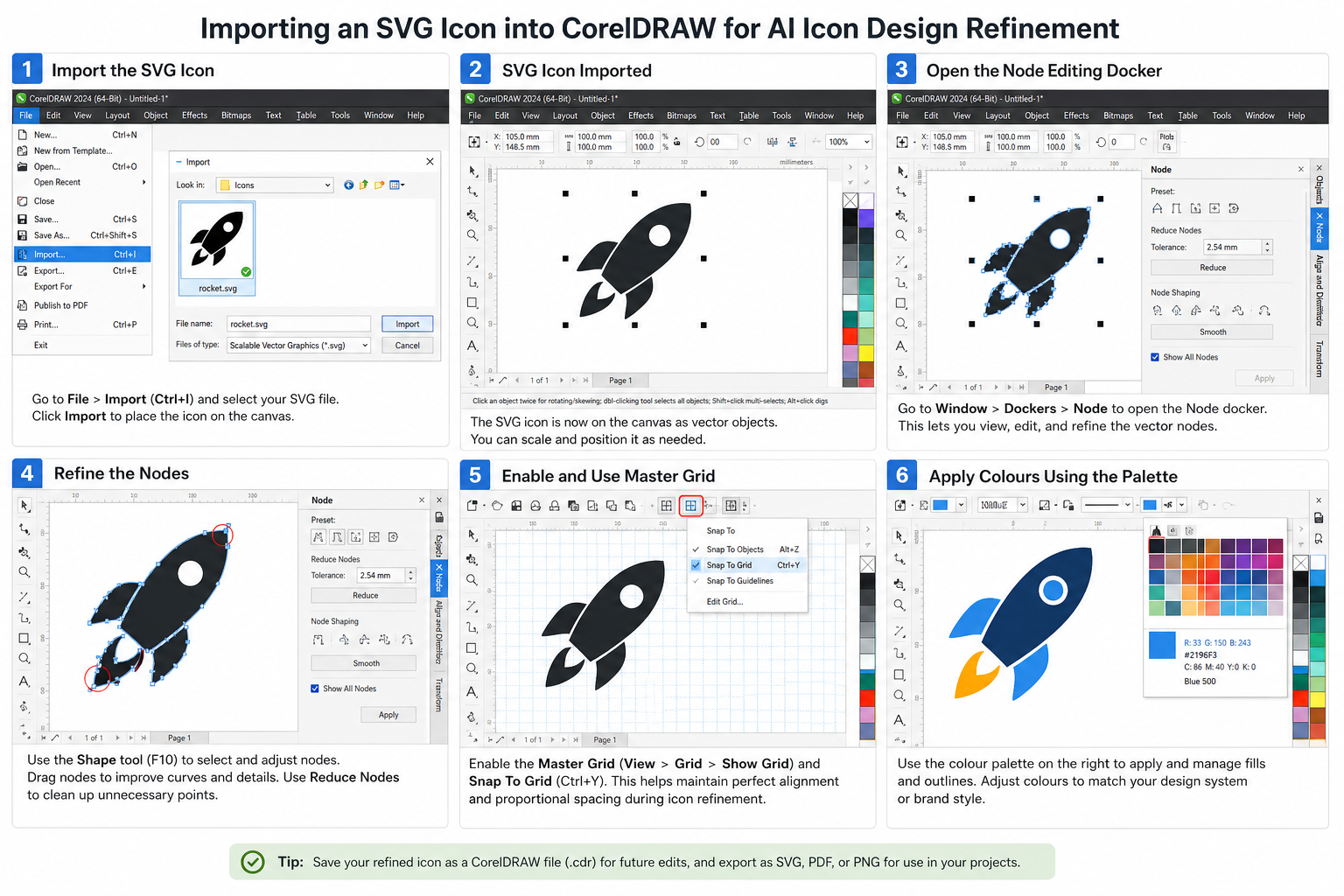
Here is a step-by-step workflow that blends AI icon generation speed with CorelDRAW’s refinement muscle:
- Define your style brief. Before touching any tool, document your icon style — line weight, corner radius, fill vs. outline, colour palette, and target canvas size. This brief drives both your AI prompts and your CorelDRAW style templates.
- Generate a batch of candidates. Use your chosen AI icon generator (IconikAI, Iconly AI, or Figma AI) to produce 10–20 icon candidates based on your brief. AI is cheap at this stage — generate liberally and curate ruthlessly.
- Export as SVG. Download the best candidates as SVG files. Most platforms offer this natively; if yours only exports PNG, use an auto-trace tool first to convert to vectors before importing.
- Import into CorelDRAW. Open each SVG in CorelDRAW. Use File > Import and ensure “Import SVG as grouped objects” is selected to preserve layer structure.
- Set up a master grid. Create a document grid matching your target icon canvas — typically a 24×24 px or 48×48 px artboard with 2 px padding margins. Apply this consistently across all icons in the set using CorelDRAW’s Master Layer feature.
- Refine nodes and paths. Use the Shape tool (F10) to inspect and clean anchor points. Remove redundant nodes, smooth Bézier curves, and ensure all stroke widths match your defined line weight (e.g., 1.5 px for 24 px icons).
- Standardise colours. Apply a saved Colour Style (CorelDRAW’s palette feature) to enforce your brand palette across the entire set in one step — a major time-saver when adjusting 30+ icons for dark mode variants.
- Optical correction. Visually check each icon at 100% and 200% zoom. Adjust shapes where AI-generated curves appear asymmetrical. CorelDRAW’s Align and Distribute panel is invaluable here.
- Export for production. Export final icons as optimised SVG for web, PNG at multiple densities (@1x, @2x, @3x) for mobile, and PDF for print. CorelDRAW’s multi-export dialogue handles all three formats in a single pass.
CorelDRAW’s Own AI Features Strengthen the Pipeline
It’s worth noting that modern versions of CorelDRAW are themselves leaning into AI icon design capabilities. The CorelDRAW Graphics Suite 2025 introduced an AI Generate docker — a prompt-based image and asset creation tool built directly into the interface. This means designers can generate rough icon concepts without leaving CorelDRAW, then immediately refine them with the suite’s full vector toolkit.
According to Corel’s official AI design guide, CorelDRAW supports an end-to-end workflow where AI-generated imagery can be explored, refined, and prepared for final output without breaking the creative flow — precisely what icon designers need.
If you’re ready to take your icon production pipeline to the next level, CorelDRAW Graphics Suite 2025 for Mac is available at TopKeyShop for just €64.90 as a lifetime licence — a one-time cost that unlocks the full vector suite plus its integrated AI tools. Windows users working on technical documentation-heavy projects may prefer the CorelDRAW Technical Suite 2025 for Windows, also €69.90 lifetime.
Keeping Icon Sets Consistent at Scale
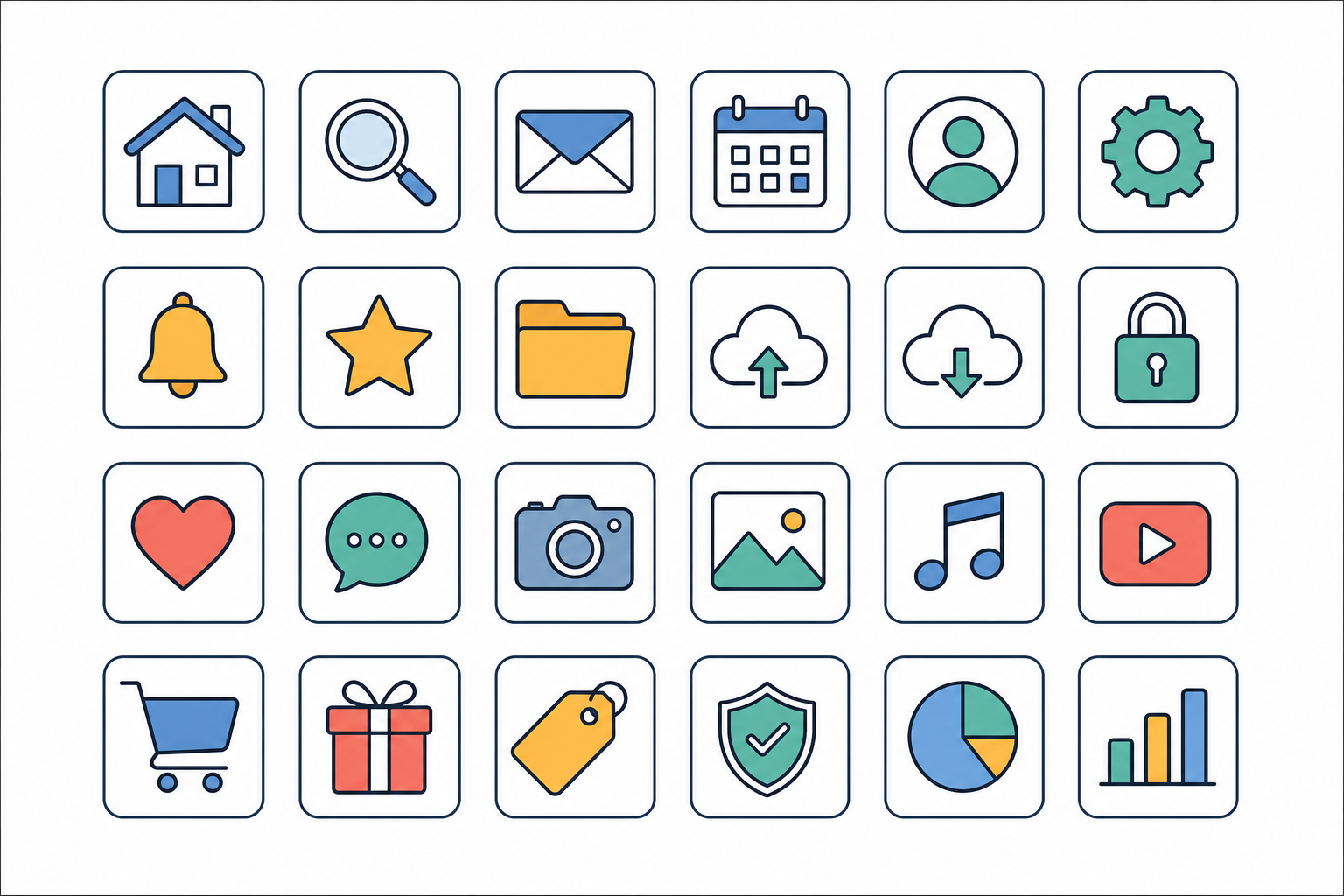
One of the trickiest challenges with AI icon generators is maintaining visual consistency across a large icon set. AI models trained on broad datasets may drift in style between individual icons — a problem that compounds when you’re producing 50, 100, or 200 icons for a complex product.
Strategies for style consistency
- Lock your prompt template. Build a reusable prompt structure: [style] [object] icon, [colour], [stroke weight], [background]. Use the identical template for every icon in a batch.
- Use AI tools with “style reference” features. Platforms like Iconly AI and Adobe Firefly let you upload a reference icon to anchor the AI’s style output — dramatically reducing drift.
- Batch-process in CorelDRAW with macros. Once your first icon is polished, record a CorelDRAW macro that applies your grid, colour styles, and stroke settings. Run it against every imported SVG in the set automatically.
- Review on a unified canvas. Lay all icons on a single CorelDRAW page at actual export size before finalising. Inconsistencies that are invisible at 500% zoom become immediately obvious at 24 px.
AI Icon Generator Tools: Choosing the Right One for Your Stack
The best AI icon generator for your workflow depends on three factors: your primary delivery format, your team’s existing toolchain, and your budget.
- Mobile-first teams shipping to iOS and Android should prioritise IconikAI for its native export presets.
- Web and SaaS product teams already in Figma will find Figma AI the lowest-friction option for AI icon design within their existing component system.
- Brand and print designers using CorelDRAW as their primary tool benefit from the built-in AI Generate docker in CorelDRAW 2025/2026, keeping the entire workflow inside a single application.
- Teams needing large, coherent icon libraries (100+ icons) should evaluate Iconly AI for its style-locking features before committing to a platform.
FAQ
What is an AI icon generator?
An AI icon generator is a software tool that uses machine learning — typically diffusion models or vector-aware neural networks — to create icon artwork from text prompts or reference images. Modern AI icon design platforms can produce style-consistent, scalable icon candidates in seconds, dramatically reducing the time designers spend on early-stage ideation and construction.
Can AI-generated icons be used commercially?
It depends on the platform. Most dedicated AI icon generator tools — including IconikAI and Iconly AI — include commercial usage rights in their paid plans. Always check the licence terms before shipping AI-generated assets in a client or commercial product. When in doubt, use the AI output as a reference draft and redraw the final version manually in CorelDRAW to retain full IP ownership.
How do I convert an AI-generated PNG icon to a vector?
Import the PNG into CorelDRAW and use the PowerTRACE feature (Bitmaps > Outline Trace > Line Art for simple icons). CorelDRAW’s AI-enhanced PowerTRACE produces clean SVG paths from raster art. After tracing, use the Shape tool to clean up nodes before exporting your final SVG.
Do AI design tools replace vector editors like CorelDRAW?
Not yet — and probably not soon. AI icon design tools excel at rapid concept generation but consistently fall short on precision alignment, optical correction, multi-format export, and brand colour management. Professional vector editors like CorelDRAW remain essential for taking AI-generated drafts to production quality, especially for large, consistent icon sets.
Which AI icon generator works best with CorelDRAW?
Any platform that exports SVG files integrates cleanly with CorelDRAW. IconikAI, Iconly AI, and Adobe Firefly all support SVG export. Additionally, CorelDRAW Graphics Suite 2025 and 2026 include a built-in AI Generate docker, making it the most seamless all-in-one option for designers who want AI-assisted icon creation and professional vector refinement inside a single application.
