
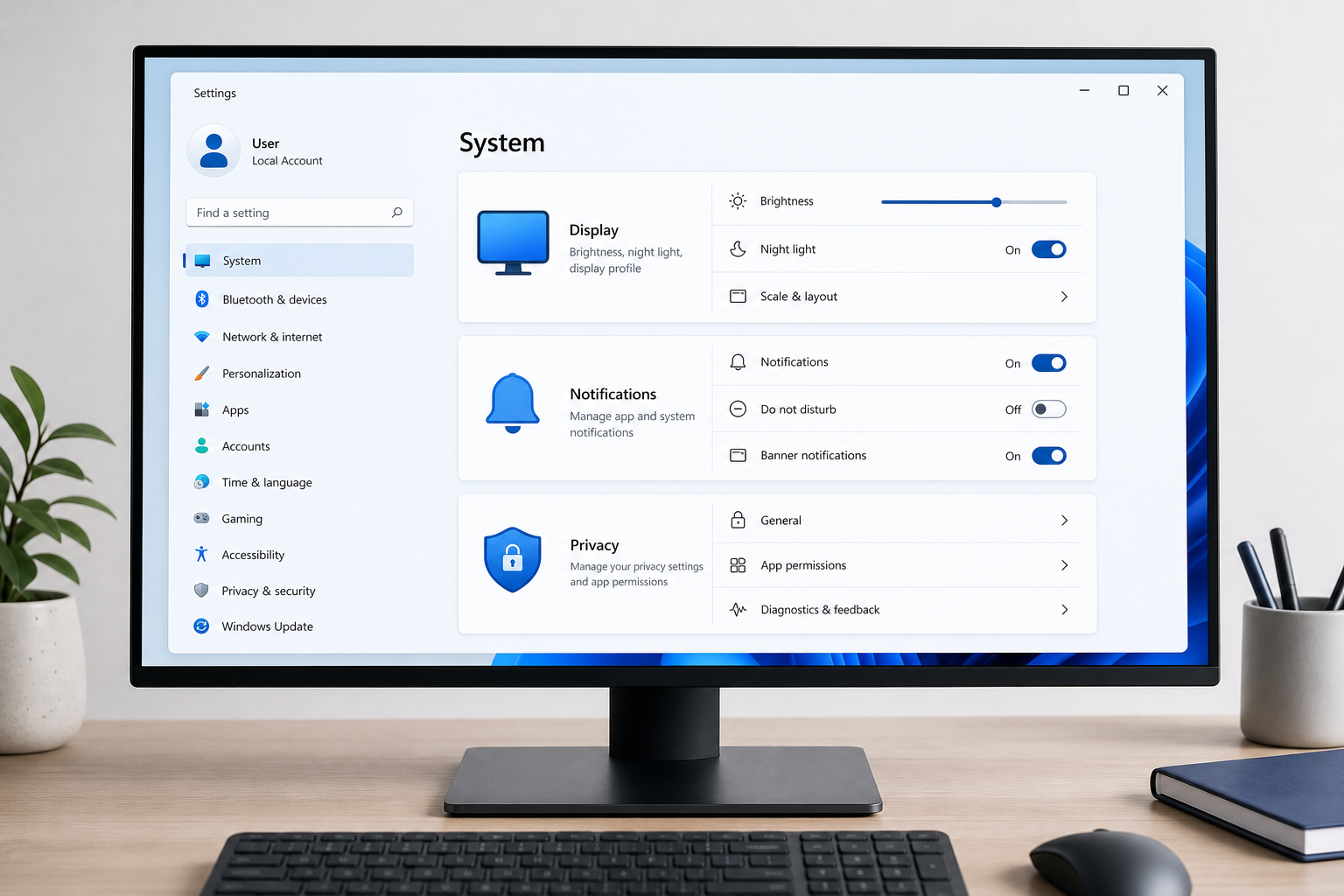
Most of the daily friction in Windows 11 comes from defaults nobody asked for — not from missing features. A handful of targeted Windows 11 settings changes to display, notifications, privacy, and File Explorer can make the whole system feel faster and quieter within ten minutes, with no reinstall or third-party tool required.
This walkthrough skips the obvious stuff (dark mode, wallpaper, taskbar alignment) and focuses on the settings that actually change how the OS behaves day to day — the ones buried two or three menus deep that most guides never mention.
Why Default Windows 11 Settings Cause So Much Friction
Microsoft ships Windows 11 tuned for the broadest possible audience, which means many defaults prioritize discoverability and engagement over a quiet, efficient workflow. Recommended files in File Explorer, broad notification permissions, and diagnostic data collection are all opt-out rather than opt-in. Once you know where to look, correcting them takes a few clicks per item.
Display Settings That Remove Daily Friction
Fixing display behavior starts with getting Windows to treat your monitor setup correctly instead of guessing. Two display-related Windows 11 settings cause more support tickets than almost anything else: scaling mismatches on multi-monitor setups and refresh rate throttling.
Fix Per-Monitor Scaling Issues
If text looks blurry or oddly sized when you move a window between monitors, go to Settings > System > Display and set scaling independently for each screen rather than relying on the “Recommended” value. Mixed-DPI setups (a 4K laptop screen plus a 1080p external monitor) are the most common cause of this problem.
Set the Correct Refresh Rate Manually
Windows sometimes defaults a monitor to 60Hz even when it supports 120Hz or 144Hz. Under Settings > System > Display > Advanced display, confirm the refresh rate matches your monitor’s actual spec. This single change noticeably smooths scrolling and cursor movement on supported displays.
Turn Off Night Light Scheduling Conflicts
Night Light scheduling under Settings > System > Display > Night light can clash with color-accurate work (photo editing, design) if left on “Sunset to sunrise.” Switch to a manual schedule or disable it entirely on a secondary monitor dedicated to color work.
- Set display scaling per-monitor instead of using the system-wide recommendation
- Manually confirm refresh rate under Advanced display settings
- Use a manual Night Light schedule instead of automatic sunset detection
Notification Settings Worth Changing Immediately
The fastest way to cut distraction is to turn off per-app notification banners for anything that doesn’t need real-time attention. Go to Settings > System > Notifications and review the full app list rather than the default toggle — most installed apps have notifications enabled by default even if you never open them.
Use Priority Notifications Instead of All-or-Nothing
Under Settings > System > Notifications > Set priority notifications, you can allow calls, reminders, and specific apps through while silencing everything else. This is more useful than a blanket mute because it preserves the alerts you actually need.
Configure Focus Sessions Properly
Focus (the successor to Focus Assist) lets you automatically silence notifications during set hours or when you start a timer. According to Microsoft’s official Focus documentation, you can customize exactly which apps and contacts can still break through during a session — worth setting up once under Settings > System > Focus rather than relying on manual mutes.
Turn Off Lock Screen Notification Previews
If notification content is visible on your lock screen, anyone glancing at your desk can read message previews. Under Settings > System > Notifications, disable “Show notifications on the lock screen” or hide message content specifically — a small change with a real privacy payoff.
Privacy Toggles That Deserve a Second Look
Windows 11’s privacy dashboard under Settings > Privacy & security controls far more than most users realize, and several settings default to sharing more than necessary. Working through this section once is the single highest-impact privacy change you can make.
Limit Diagnostic Data Collection
Under Privacy & security > Diagnostics & feedback, Windows 11 lets you choose between “Required” and “Optional” diagnostic data. Selecting “Required diagnostic data only” reduces what gets sent to Microsoft without affecting update delivery or security patching.
Review App Permissions by Category
Rather than reviewing apps one by one, use Privacy & security > App permissions to review by category — camera, microphone, location, contacts. This view makes it obvious which background apps have access they don’t need, such as a calculator app with microphone permission.
Turn Off Advertising ID Personalization
Under Privacy & security > General, turning off “Let apps show me personalized ads by using my advertising ID” stops Windows from building a cross-app ad profile tied to your account. It has no effect on system performance or app functionality.
- Open Privacy & security and set diagnostic data to Required only
- Review app permissions by category, not app by app
- Disable the advertising ID toggle under General privacy settings
- Turn off lock screen notification previews for sensitive apps
File Explorer Settings That Fix Everyday Clutter
File Explorer’s default view mixes recently opened cloud files with local folders under “Recommended,” which confuses more than it helps for most desktop and IT workflows. Changing a few File Explorer settings restores a cleaner, more predictable layout.
Switch File Explorer Settings Back to Classic Folders
Open File Explorer, click the three-dot menu, go to Options > General, and change “Open File Explorer to” from Home to “This PC.” This removes the Recommended files section entirely and opens straight to your drives and folders.
Show File Extensions and Hidden Items
Under View > Show, enable both “File name extensions” and “Hidden items.” This is especially important for IT professionals troubleshooting file type issues or malware disguised with double extensions — a default that should never have been off in the first place.
Restore Compact View for Dense Folders
If large folders feel sluggish to scroll, go to View > Compact view to tighten row spacing. This is a cosmetic-only change but it meaningfully speeds up visual scanning in folders with hundreds of files.
Disable the Gallery Section
The Gallery item in File Explorer’s sidebar aggregates photos from OneDrive and local folders — useful for some, unnecessary clutter for others. Right-click it and select “Show in navigation pane” to toggle it off if you don’t use it.
How These Windows 11 Settings Changes Work Together
None of these changes are dramatic on their own, but applied together they remove a surprising amount of daily noise: fewer notification interruptions, a File Explorer that opens where you expect, and a privacy posture that only shares what’s required. None require admin tools, third-party software, or a Windows reinstall — just the built-in Settings app on a standard Windows 11 install, whether that’s Windows 11 Home or Windows 11 Pro.
If you’re setting up a new or secondary PC and want a clean baseline before applying these changes, a genuine Windows 11 Home license gives you the full Settings app with every toggle covered here. For IT professionals managing multiple machines or needing BitLocker and Group Policy, the Windows 11 Pro options add the extra administrative controls that pair well with the privacy tweaks above.
FAQ
Where are the main Windows 11 settings for privacy located?
Open Settings > Privacy & security. This single hub controls diagnostic data, app permissions (camera, microphone, location), advertising ID, and activity history. Reviewing it top to bottom takes about five minutes.
Why do my Windows 11 notification settings keep resetting?
This usually happens after a feature update, which can reset per-app notification preferences to default. Re-check Settings > System > Notifications after major updates, and use priority notifications so important alerts aren’t affected even if defaults change.
Can I change File Explorer’s default folder without registry edits?
Yes. The Options > General menu inside File Explorer includes a dropdown to open to “This PC” instead of “Home” — no registry editing or third-party tool needed.
Do these Windows 11 settings changes affect security patches?
No. Changing diagnostic data to “Required only” or adjusting notification and File Explorer behavior has no effect on how or when security updates install. Those processes run independently of the settings covered here.
Is it safe to turn off all Windows 11 notifications?
It’s safer to use priority notifications or Focus sessions than a full blanket mute, since some system and security alerts are useful to keep visible. A complete mute can cause you to miss low-battery warnings, storage alerts, or security prompts.
