
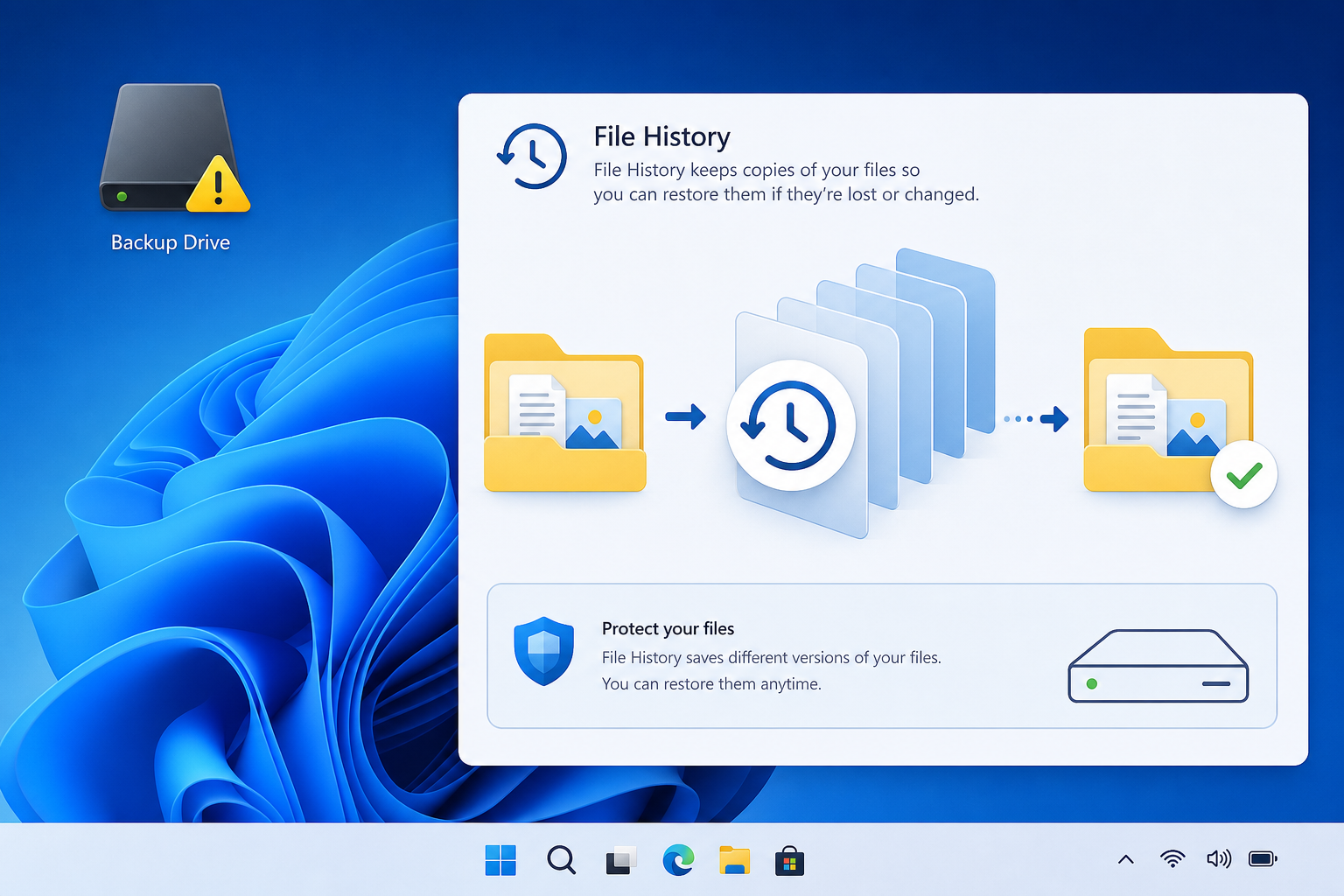
If your file history backups have silently stopped updating since installing this month’s Windows security patch, you’re not imagining it — Microsoft confirmed a bug in its September 2026 cumulative updates that can prevent File History from creating or updating backups on affected PCs. The good news is that a fix exists, and most users can restore functionality in under fifteen minutes.
This guide walks through exactly what went wrong, how to tell if you’re affected, and the concrete steps to get File History working again — whether you choose to install the optional patch or roll back the update that caused the problem.
What Happened to File History in the September Update
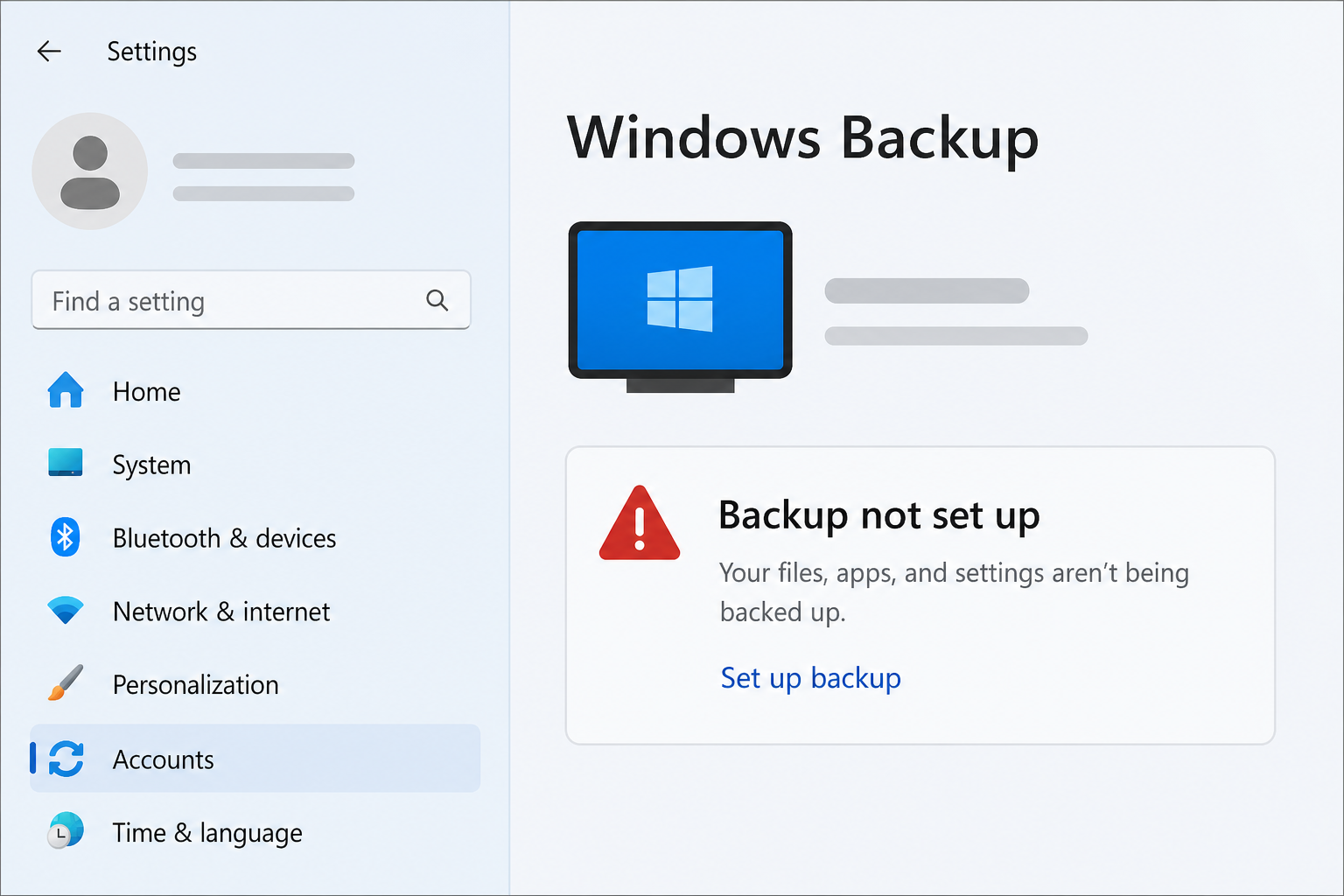
Microsoft’s September 2026 security update, delivered through cumulative patches including KB5124008, introduced a regression that breaks the File History service on some Windows 11 PCs. According to ZDNet’s report on the issue, the bug can cause File History to stop creating or updating backups entirely, often without throwing an obvious error message — the backup status in Settings may still look normal even though nothing is actually being copied to your backup drive.
Multiple users reported the same pattern on Microsoft’s own support forums: File History either refuses to turn back on after being toggled, or it runs silently without actually writing new versions of files to the backup location. Because the failure is quiet rather than a crash or blue screen, many people didn’t notice until they tried to restore a file and found the backup hadn’t updated in days or weeks.
Why File History Backups Matter
File History is Windows’ built-in versioning backup tool — it continuously copies files in your Libraries, Desktop, Contacts, and Favorites folders to an external or network drive, keeping multiple versions so you can roll back to an earlier copy of a document or recover a deleted file. For anyone who doesn’t run a separate commercial backup product, it’s often the only safety net protecting personal files from accidental deletion, ransomware, or drive failure. A silent failure in that safety net is exactly the kind of bug that causes real damage only when it’s too late to fix.
How to Check If Your File History Backup Is Actually Affected
You can confirm the problem in under a minute by checking the last backup timestamp rather than trusting the on/off toggle. Here’s how:
- Open Settings > Accounts > Windows Backup, or search “File History” in the Start menu.
- Check the “last backup” timestamp shown in the File History control panel.
- If the date is older than your normal backup interval — especially if it stopped right around the time you installed the September update — your system is likely affected.
- Open File Explorer and navigate to your File History drive directly; compare the folder’s last-modified date against recent work you’ve done.
If the timestamp hasn’t moved since you installed the patch, don’t just re-toggle the feature — toggling File History off and on again does not reliably fix this particular bug, based on multiple user reports on Microsoft’s support forums.
File History Fix: Install the Optional Update
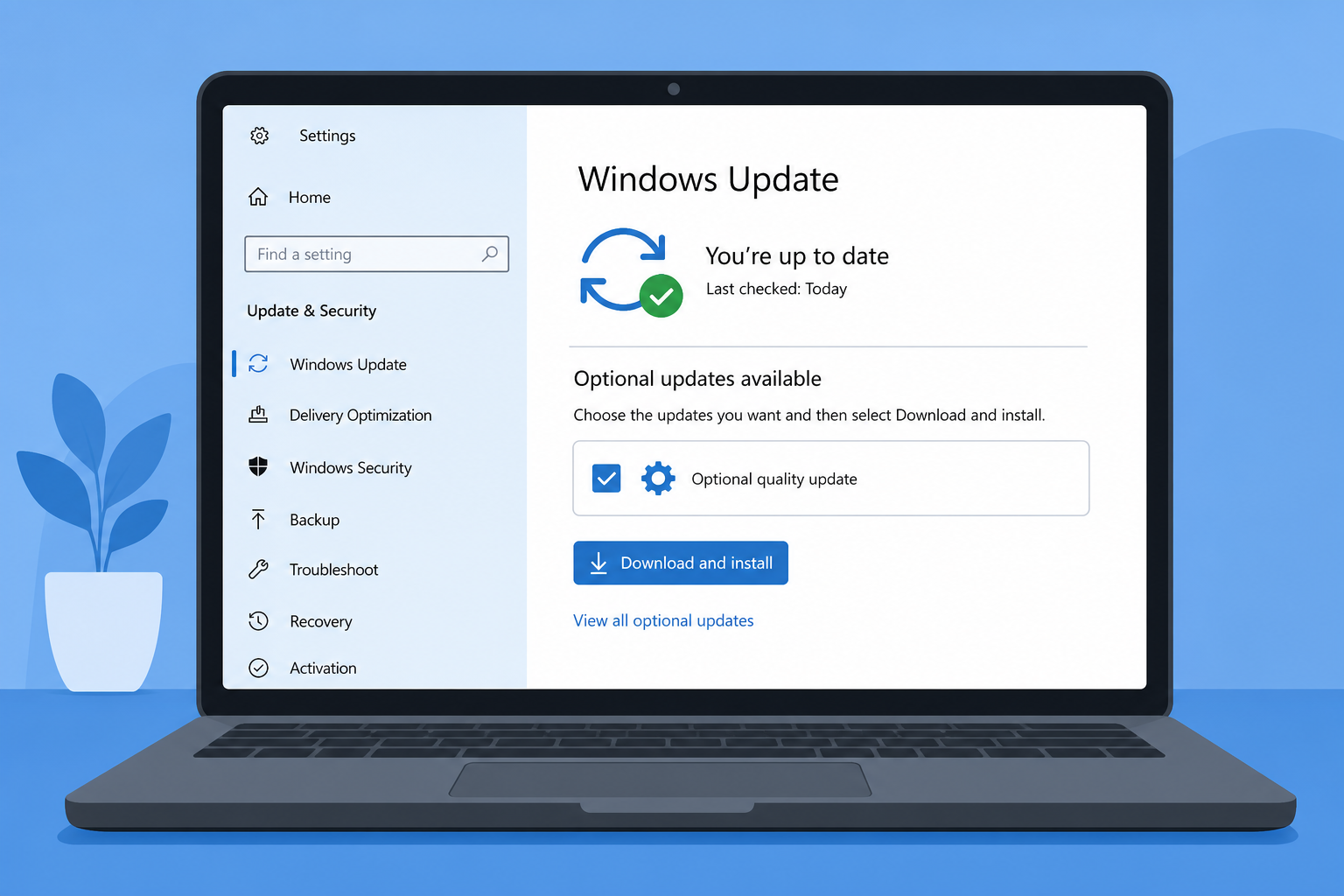
The most reliable fix for most users is to install Microsoft’s out-of-band optional update, which specifically addresses the File History regression. Microsoft released corrective patches that are available through Windows Update’s optional updates section rather than being pushed automatically, so you’ll need to install it manually.
Steps to Apply the File History Fix
- Open Settings > Windows Update.
- Click Advanced options, then select Optional updates.
- Look for the latest cumulative update flagged as addressing File History or backup reliability issues, and select it for installation.
- Restart your PC once the update finishes installing.
- Reopen File History settings and confirm a new backup timestamp appears after your next scheduled backup window.
Because optional updates aren’t delivered automatically, PCs with updates paused or managed by an IT department may not see the fix until it’s bundled into next month’s mandatory patch cycle. If you manage multiple machines, check Windows Update history on each one individually rather than assuming the fix rolled out everywhere at once.
Alternative Fix: Roll Back the Problem Update
If the optional patch isn’t available yet on your device, uninstalling the update that caused the regression is a workable short-term fix. This temporarily removes the September patch, restoring File History functionality until you can install the corrected update.
- Go to Settings > Windows Update > Update history > Uninstall updates.
- Find the September 2026 cumulative security update in the list and select Uninstall.
- Restart your PC and verify File History resumes creating new backup versions.
- Pause updates for a few days from Windows Update settings so the same patch doesn’t reinstall automatically before the fix is available.
Keep in mind that rolling back a security update also removes whatever vulnerability fixes it contained, so this should be treated as a temporary measure, not a permanent solution. Reinstall the patched version as soon as it’s available in your optional updates list.
Restoring File History Functionality for Good
Once the fix is applied, a few extra checks confirm File History is actually protecting your files again rather than just appearing to run. Don’t rely on the toggle switch alone — verify an actual new backup has been written.
Confirm Your Backups Are Current
- Open Control Panel > File History and click “Restore personal files” to browse available versions — if recent files show up, backups are working.
- Check free space on your backup drive; File History won’t complete new backups on a full or disconnected drive.
- If you use a network location for File History, confirm the share is still reachable and your credentials haven’t expired.
If backups still aren’t resuming after applying the fix, Microsoft’s own troubleshooting documentation through the Microsoft Q&A thread on this issue recommends recreating the File History configuration from scratch: turn the feature off, select a different drive letter or folder temporarily, then switch back to your usual backup location to force Windows to rebuild its backup database.
Reducing Your Risk From the Next Windows Update Bug

This isn’t the first time a Windows update has quietly broken a core system feature, and it won’t be the last — which is why relying on a single backup method is risky. A layered approach protects you even when one tool has a bad month.
- Pair File History with a second backup destination, such as cloud storage, so a local bug never leaves you with zero recovery options.
- Delay installing cumulative updates for a few days on non-critical machines, giving Microsoft time to catch and patch regressions like this one.
- Keep a documented system image or recovery point separate from File History, since versioning backups and full system restore points solve different problems.
If you’re setting up a new PC or reinstalling Windows after troubleshooting an unstable update, having a genuine, properly licensed copy of the OS also avoids a whole separate category of update problems tied to unofficial installations. Top Key Shop’s Windows 11 Home retail key and Windows 11 Pro retail key both come with official download links and standard activation support, which matters when you need a clean, fully updatable installation to test fixes like this one.
FAQ
Which Windows update broke File History?
Microsoft’s September 2026 cumulative security update, including the patch identified as KB5124008, introduced the regression. Microsoft confirmed the issue publicly and later shipped a corrective optional update to address it.
Will Microsoft fix File History automatically?
Not immediately — the corrective patch is distributed as an optional update, meaning you need to install it manually from Windows Update’s advanced options rather than waiting for it to install on its own.
Can I lose files because of this File History bug?
The bug itself doesn’t delete existing files, but it stops new versions from being backed up, so any changes made while File History was silently failing won’t have a backup copy until you apply the fix and a new backup completes.
Is it safe to uninstall the September security update?
It’s a reasonable short-term workaround, but uninstalling a security update also removes the vulnerability fixes it included. Reinstall the corrected version as soon as it appears in your optional updates, then re-enable automatic updates.
How do I know if my File History backup is actually working again?
Check the last backup timestamp in the File History control panel and confirm it updates after a new backup cycle completes. You can also open “Restore personal files” and confirm recently edited files appear in the version list.
Does this bug affect Windows 10 as well as Windows 11?
Most confirmed reports center on Windows 11 systems that installed the September 2026 cumulative update, though anyone running File History should check their backup timestamp regardless of which Windows version they’re on.
