
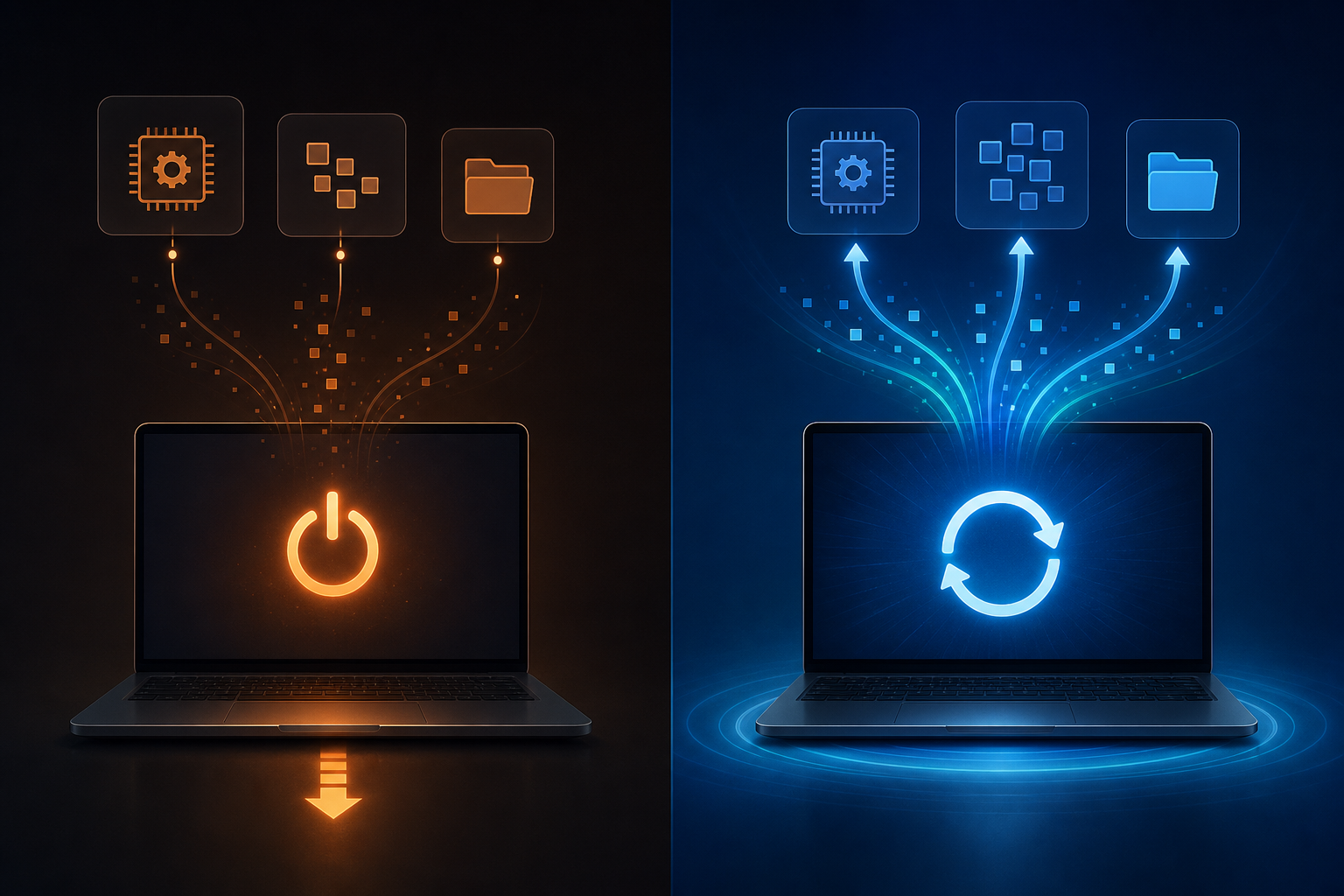
In the shutdown vs restart debate, restart wins for troubleshooting because it forces a full reload of the Windows kernel and every loaded driver, while a normal shutdown often preserves part of the system state through a feature called Fast Startup. If your PC is glitching, restart first — shutdown is for when you’re done working, not for fixing problems.
This isn’t a myth or a power-user superstition. Microsoft’s explanation of restart vs shutdown behavior confirms the technical reason behind it, and understanding the mechanics changes how you should approach everyday troubleshooting on Windows 10 and Windows 11.
Why Shutdown vs Restart Isn’t a Simple Either/Or
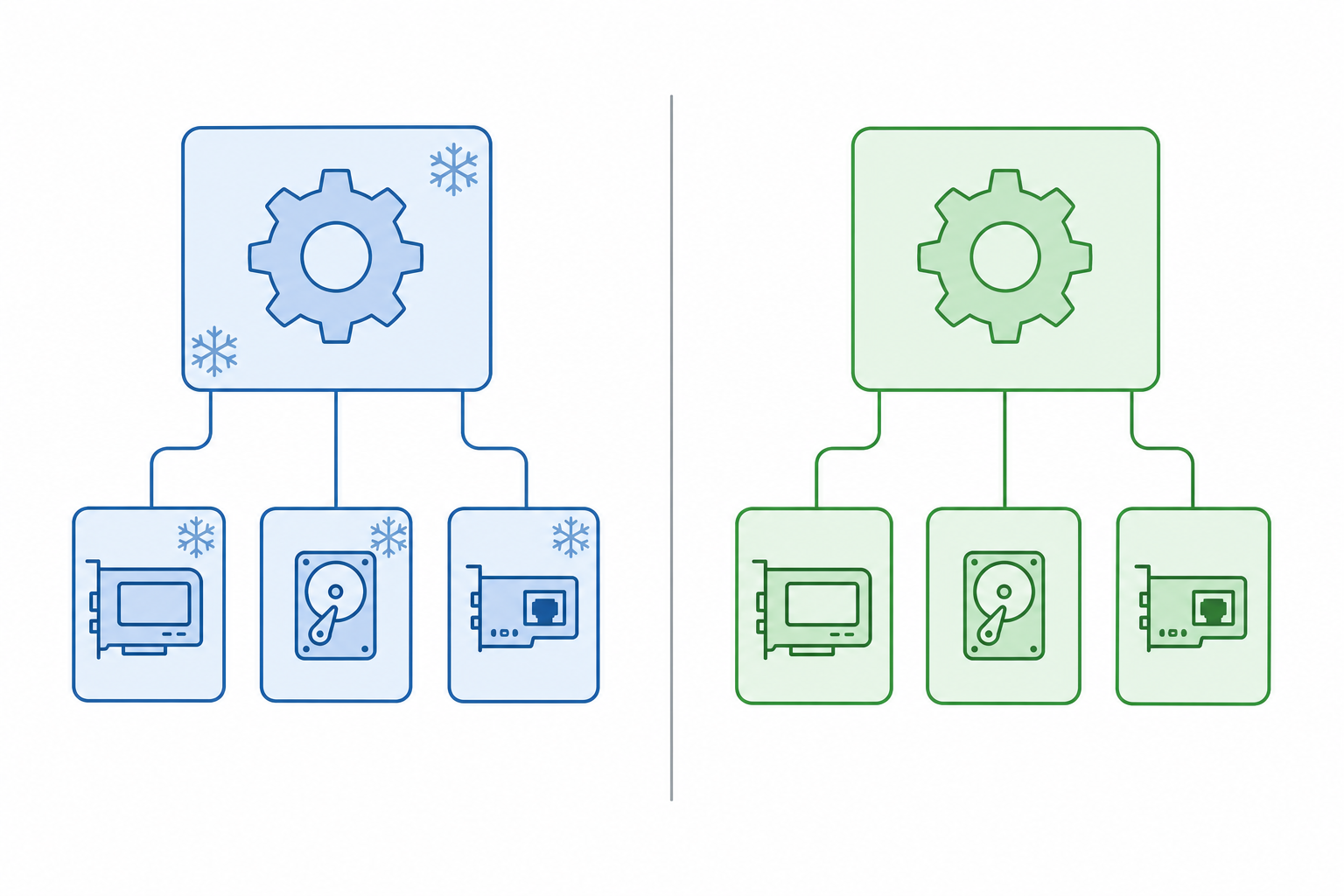
The short answer: shutdown and restart trigger genuinely different processes under the hood, not just a different order of the same steps. Most people assume “Shut Down” fully powers off the machine and wipes everything, while “Restart” just does the same thing twice. That assumption is wrong on any modern Windows installation with Fast Startup enabled — which is the default on the vast majority of consumer PCs.
When you click Shut Down, Windows closes your user session, logs you out, and stops most running applications and user-mode processes. But it doesn’t necessarily unload the kernel session or all system drivers. Restart, on the other hand, has no shortcut available to it — it always tears down the full session, including kernel and driver state, before bringing everything back from scratch.
What Fast Startup Actually Does
Fast Startup (sometimes called Fast Boot) is the feature responsible for most of the confusion in the shutdown vs restart comparison. Instead of a full power-off, a Fast Startup shutdown performs a hybrid shutdown: Windows closes your user session normally, but then hibernates the kernel session — saving the core OS state, loaded drivers, and system memory image to a file called hiberfil.sys — rather than powering it down completely.
-
User applications and your logged-in session: fully closed
-
Kernel session, loaded drivers, and core OS state: frozen and saved to disk, not cleared
-
Next boot: Windows resumes from that saved image instead of starting cold
This is why a “shut down” PC can boot noticeably faster than a restarted one — it isn’t really starting fresh, it’s resuming a hibernated kernel. Convenient for speed, but exactly the opposite of what you want when you’re trying to clear a stuck driver or a corrupted memory state.
Shutdown vs Restart: What Actually Gets Cleared
Restart clears more because it skips the hibernation shortcut entirely and forces a genuine cold reload of the kernel, drivers, and system services. There’s no saved state to resume from — Windows has to rebuild everything from zero on the next boot.
-
Shutdown (with Fast Startup): closes apps and your user session; hibernates kernel, drivers, and system memory to disk for a quicker next boot
-
Restart: closes apps, ends your user session, unloads the kernel and every driver, then performs a full cold boot with none of it preserved
-
Shutdown with Fast Startup disabled: behaves like a true full power-off, closer to what most people assume “shutdown” already does
This distinction matters most for driver-level issues — a Wi-Fi adapter that’s dropped its connection, a graphics driver stuck in a bad state, a USB controller misbehaving after a docking station was connected — because those live in the kernel session that Fast Startup shutdown leaves untouched.
When to Use Restart for Troubleshooting
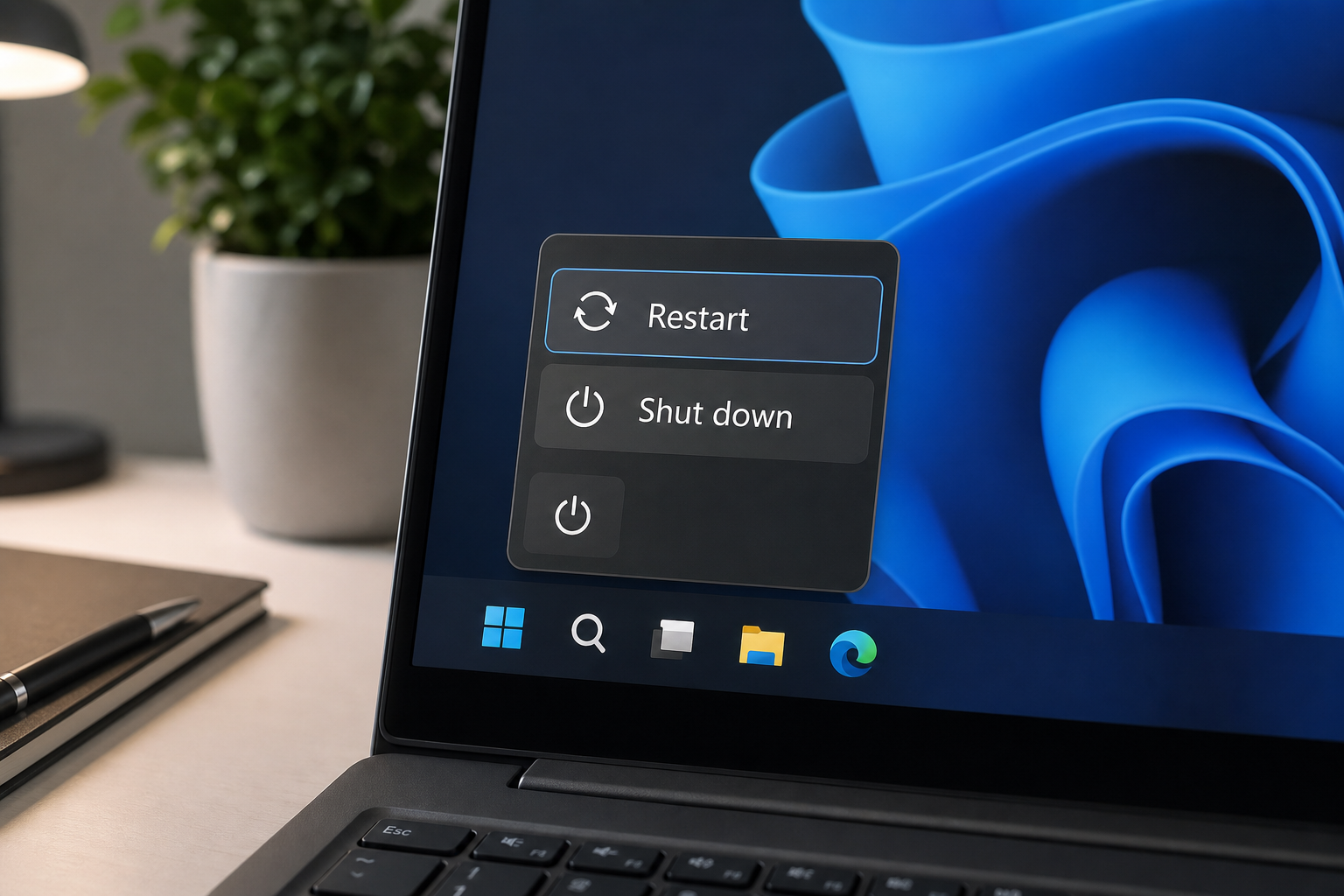
Use restart whenever the problem looks driver-related, memory-related, or tied to something that’s been running for a long time without a clean reload. Restart should be your first move, not shutdown, in these situations:
-
A peripheral (webcam, printer, USB device) stops responding but isn’t physically faulty
-
Wi-Fi or Bluetooth drops out and won’t reconnect after toggling airplane mode
-
The system feels sluggish after being on for days without a reboot
-
A Windows Update needs to finish applying — updates almost always require a real restart, not a shutdown, for exactly this reason
-
Graphics glitches, display flickering, or a driver crash notification appears
-
You’ve just installed new hardware or updated a driver and want to confirm it loads cleanly
If a restart doesn’t resolve the issue, the next troubleshooting step is often booting into a minimal environment. Our guide on how to boot into Safe Mode on Windows 11 walks through five reliable methods for isolating whether a driver or third-party software is the root cause.
When Shutdown Is the Right Call
Shutdown is the right choice when you simply want to power off the machine, save energy, or store it for an extended period — not when you’re chasing a bug. Because Fast Startup’s hibernation file can grow large and occasionally becomes corrupted itself, shutdown is not a diagnostic tool; it’s an end-of-session action.
A few scenarios where shutdown makes more sense than restart:
-
You’re finished for the day and want the fastest possible boot next time
-
You’re shipping, storing, or moving the PC and want it fully powered down
-
You’re troubleshooting a battery or power-management issue on a laptop, where you want to rule out standby drain entirely
If you’re chasing a power-related quirk specifically — like a laptop draining battery while asleep — it’s worth checking Windows’ own power management settings before assuming a hardware fault.
Shutdown vs Restart on Windows 10 Compared to Windows 11
The underlying mechanism is the same across both operating systems — Fast Startup and the shutdown-vs-restart behavior were introduced back in Windows 8 and carried through unchanged in principle. What differs is mostly UI: Windows 11 groups the Restart option with additional context around updates, while Windows 10 keeps the classic Start menu power flyout. If you’re planning an upgrade path, our comparison of Windows 11 Home vs Pro covers the feature differences that matter beyond power settings, including BitLocker and Group Policy support relevant to IT admins managing multiple machines.
For IT professionals managing fleets of machines, this distinction has real operational weight. A remote restart command reliably clears kernel-level drift across a shift change; a remote shutdown command followed by wake-on-LAN does not guarantee the same reset, because Fast Startup can carry state across the “off” period.
How to Check or Disable Fast Startup
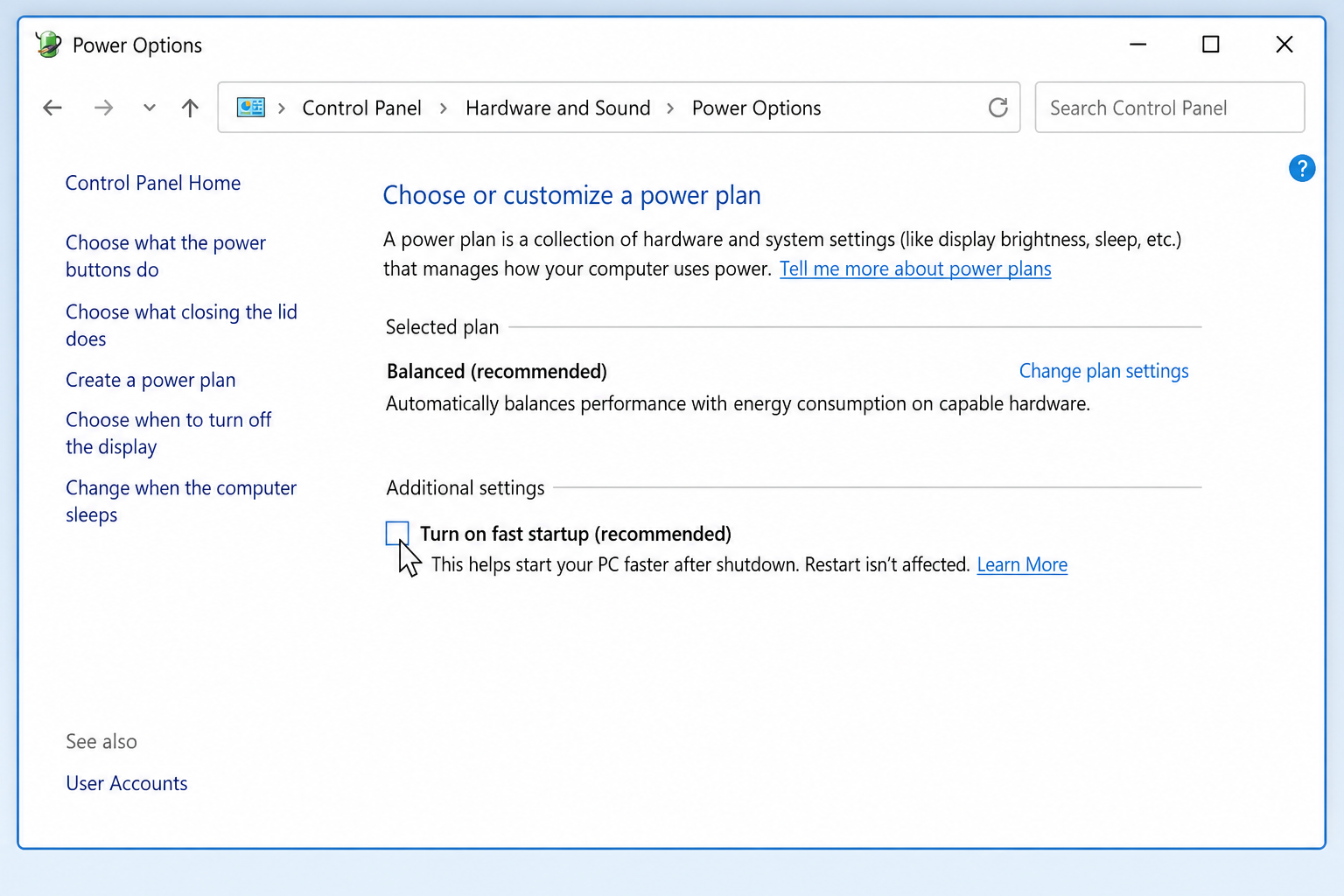
You can confirm whether Fast Startup is affecting your shutdowns in under a minute through Control Panel. If you troubleshoot the same machine often, disabling it makes shutdown behave like a true full power-off — closer to what most users expect the button to do.
-
Open Control Panel and go to Power Options
-
Select “Choose what the power buttons do”
-
Click “Change settings that are currently unavailable” (requires admin rights)
-
Uncheck “Turn on fast startup (recommended)”
-
Click Save changes
Once disabled, every shutdown behaves like a full cold power-off — no hibernation file, no preserved kernel state, and a boot time that’s closer to restart’s, though still not identical since restart also flushes the session in memory before power is cut.
Reinstalling Windows When Restart Alone Isn’t Enough
Sometimes neither shutdown nor restart resolves a persistent issue, and that’s a sign the problem sits deeper than a stuck driver or a hung process — a corrupted system file, a failed update, or a licensing conflict, for example. In those cases a clean reinstall with a genuine license is the more reliable fix. Windows 11 license keys from Top Key Shop start at a fraction of retail price, and if you’re still on the older OS, Windows 10 license keys are also available for machines not yet eligible for the Windows 11 upgrade path.
According to Microsoft, Windows 11 was released on 5 October 2021 as the successor to Windows 10, and both operating systems share the same Fast Startup and restart mechanics described above, so the troubleshooting logic in this article applies equally whichever version you’re running.
FAQ
Does restart fix more problems than shutdown?
Generally yes, for driver and memory-related issues, because restart forces a complete reload of the kernel and drivers rather than resuming from a saved hibernation state. Shutdown followed by powering back on can leave the same stale kernel session intact if Fast Startup is enabled.
Why does my PC boot faster after shutdown than after restart?
Because a default shutdown with Fast Startup enabled saves the kernel and driver state to a hibernation file instead of clearing it, so the next boot resumes from that saved image rather than starting cold. Restart never uses this shortcut, so it always takes a little longer but starts genuinely fresh.
Should I restart or shut down before installing a Windows update?
Restart. Updates that require a reboot need the kernel and system files to reload completely, which is exactly what restart guarantees and a Fast Startup shutdown does not. This is also why Windows itself always prompts for a restart to finish installing updates, never a shutdown.
Does disabling Fast Startup slow down my computer?
It will make shutdown and the next boot slightly slower, since Windows can no longer resume from a saved hibernation image. For most modern SSDs the difference is a few seconds, which many IT professionals consider a fair trade for more predictable troubleshooting behavior.
Is restart the same as a full reboot?
Yes — restart and “reboot” describe the same action: shutting down the current session completely and starting the operating system again from scratch, without the hibernation shortcut that a standard shutdown can use.
Can shutdown vs restart affect driver updates?
Yes. A newly installed or updated driver may not load correctly until the kernel session is fully reloaded, which only a restart guarantees. If a driver update seems to have failed to take effect, restart before assuming the driver itself is broken.
