
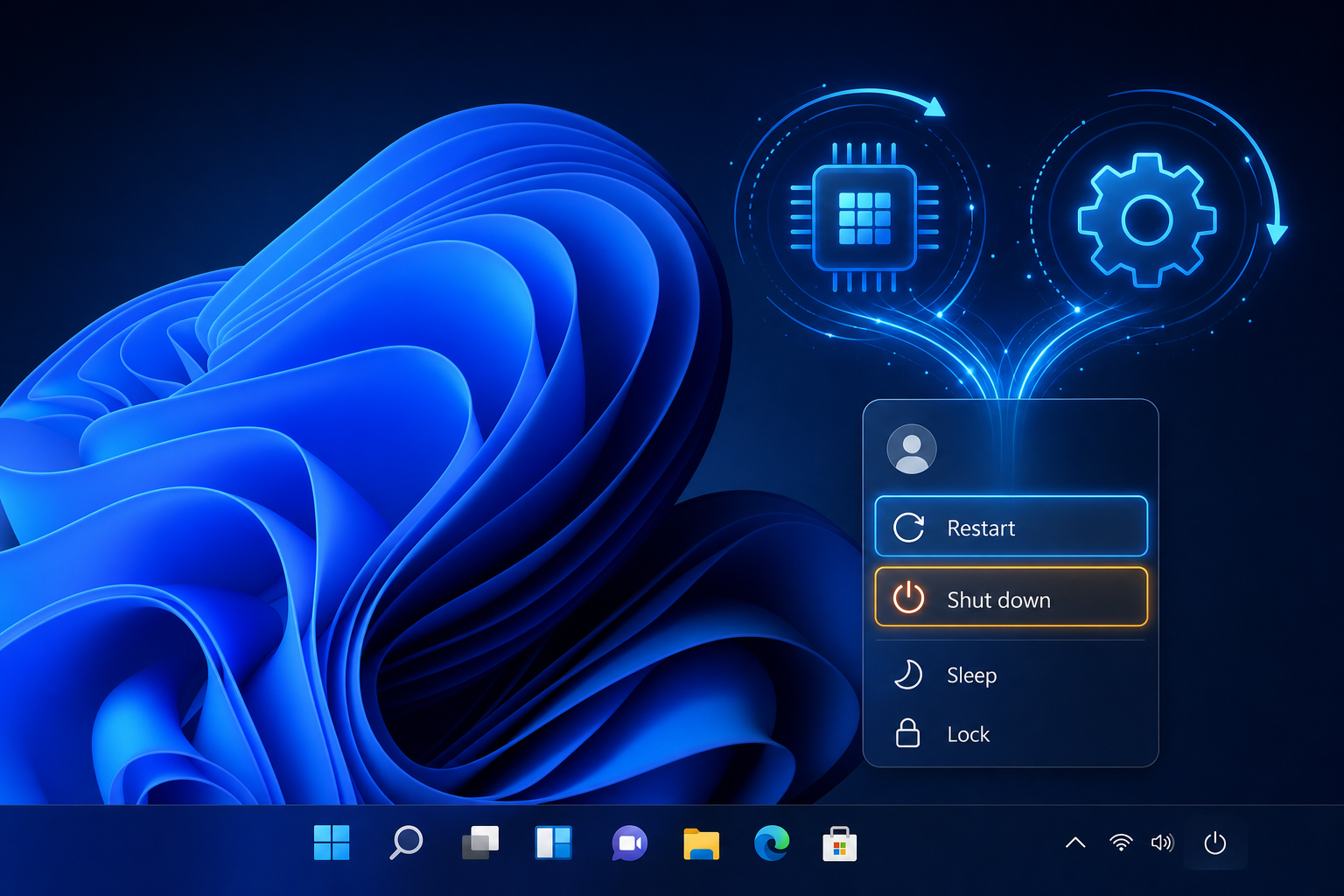
If you’ve ever wondered why your PC still feels “off” in the same way after shutting down, here’s the short answer: restart vs shut down Windows behavior isn’t identical, because Shut Down doesn’t always fully close the kernel session the way Restart does. When a feature called Fast Startup is switched on, which it is by default on almost every Windows 11 PC, clicking Shut Down actually hibernates part of the operating system instead of closing it completely. Restart, on the other hand, always forces a full reload of the kernel and every driver. That difference matters more than most people realize, especially when you’re trying to fix a stubborn bug.
Restart vs Shut Down Windows: What’s Really Different?
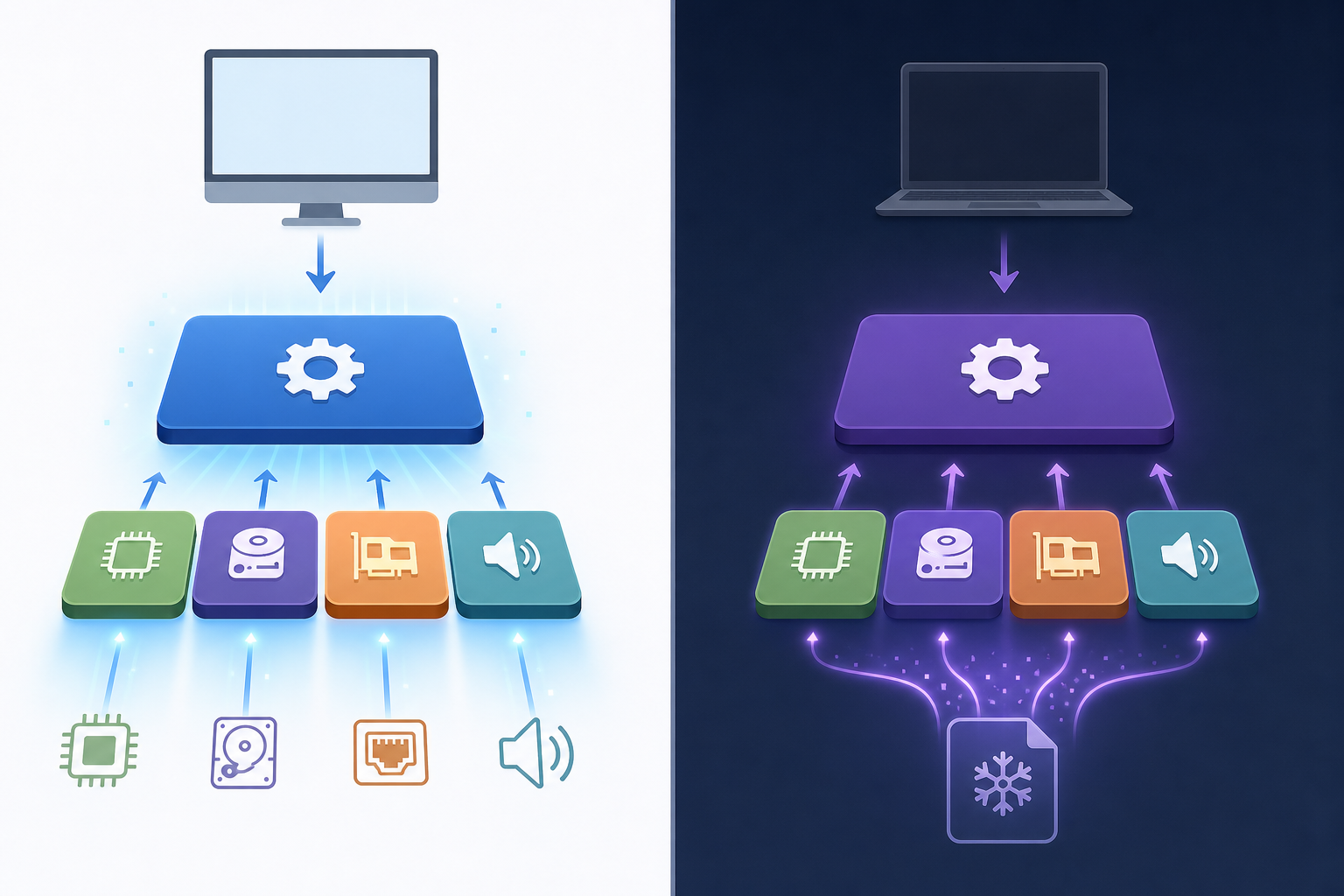
The core difference in restart vs shut down Windows behavior comes down to what happens to two critical components: the kernel and your device drivers. The kernel is the part of Windows that manages memory, running processes, and communication with your hardware. It loads the moment Windows starts and keeps running for as long as your PC is powered on. Drivers are the small programs that let the kernel talk to your GPU, network adapter, and every other piece of hardware attached to your system.
When Fast Startup is enabled, here is what actually happens with each option:
-
Shut Down (with Fast Startup): apps close and you’re signed out, but the kernel session is not fully terminated. Instead, it’s hibernated, and the loaded kernel plus drivers get written to a file called hiberfil.sys before the PC powers off.
-
Restart: apps close, you’re signed out, and the kernel session ends completely. No snapshot is saved. When the PC comes back on, everything, kernel and drivers alike, loads fresh from scratch.
Microsoft explains this directly in its own troubleshooting documentation: “During Fast Startup, the kernel session is not closed, but it is hibernated.” That single sentence explains why a shutdown can feel less “complete” than a restart, even though shutting down sounds more final.
Why Restart Can Fix What Shut Down Cannot
Because a restart forces the kernel and every driver to initialize from a clean state, any problems that were quietly building up in memory, like a stuck driver, a memory leak, or a corrupted process, get wiped out along with the old session. A shutdown followed by a power-on, when Fast Startup is active, simply restores the previous session from hiberfil.sys. If something was wrong in that session, it comes right back.
Microsoft’s own hardware guidance warns developers about this trade-off, noting that with Fast Startup, the up-time between actual kernel reboots can be significantly longer than in older versions of Windows, which means small issues have more time to accumulate before they’re finally cleared out by a genuine restart.
How Fast Startup and hiberfil.sys Actually Work
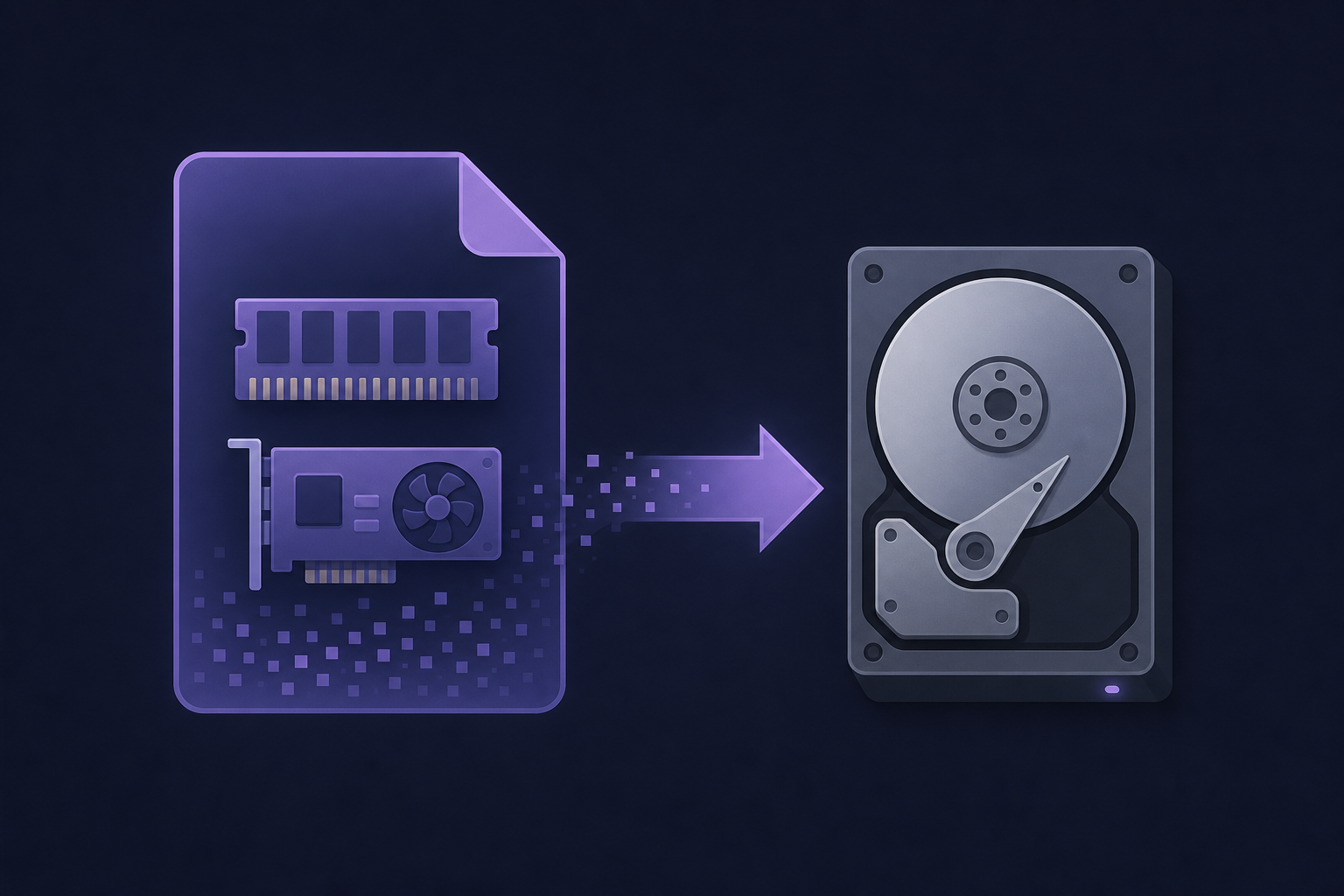
Fast Startup speeds up boot times by saving a snapshot of the kernel and loaded drivers to disk instead of loading them from zero every time. That snapshot lives in a file called hiberfil.sys, sitting on your system drive.
Windows uses three distinct startup modes, and understanding them helps make sense of the restart vs shut down Windows question:
-
Cold boot — a complete, from-scratch startup of Windows with nothing preserved.
-
Wake-from-hibernation — the system resumes from a full hibernation file, restoring your open apps and desktop exactly as you left them.
-
Fast Startup — introduced in Windows 8, this combines elements of both. Your apps close and you sign out like a normal shutdown, but the kernel and drivers are preserved in hiberfil.sys, so the next power-on is a partial restore rather than a full cold boot.
This system exists for a good reason. Mechanical hard drives used to make Windows boot painfully slowly, and Microsoft needed a way to cut that wait without forcing people to change how they used their PCs. When it was designing Windows 8, its Windows 7 telemetry showed that 57% of desktop users and 45% of laptop users shut their machines down rather than putting them to sleep, roughly half of all users. Fast Startup was engineered as the middle ground, and Microsoft measured it as 30-70% faster than a traditional cold boot on most systems tested, because reading the kernel snapshot back from disk and reinitialising drivers is quicker than loading everything from scratch.
When Fast Startup Becomes a Problem
Fast Startup generally works well, but it becomes an issue the moment something is actually wrong with the current kernel session, a driver that’s misbehaving, a memory leak that’s grown over days of uptime, or a pending system change that needs a genuinely fresh start. In those cases, restoring the old session from hiberfil.sys just brings the problem back with it. That’s precisely when a full Restart, or a deliberate full shutdown, becomes the more useful tool.
When to Restart vs Shut Down Windows for Troubleshooting
The simplest way to decide between restart vs shut down Windows options is to think about what you’re trying to achieve:
-
Restart when you need a completely fresh Windows session, after installing a driver, when an app is behaving oddly, when performance has degraded over a long uptime, or when general troubleshooting advice tells you to “turn it off and on again.”
-
Shut Down when you simply want the PC off for a while and don’t need to clear the current session, this is fine for short breaks or overnight use.
-
A forced full shutdown when you want the PC completely off with no saved kernel state at all, useful before hardware changes, long storage periods, or serious troubleshooting.
This is also why IT support desks and troubleshooting guides so often recommend a restart over a shutdown-then-power-on cycle: a restart guarantees the fresh boot that a Fast Startup shutdown doesn’t.
How to Force a Full Shutdown on Windows 11
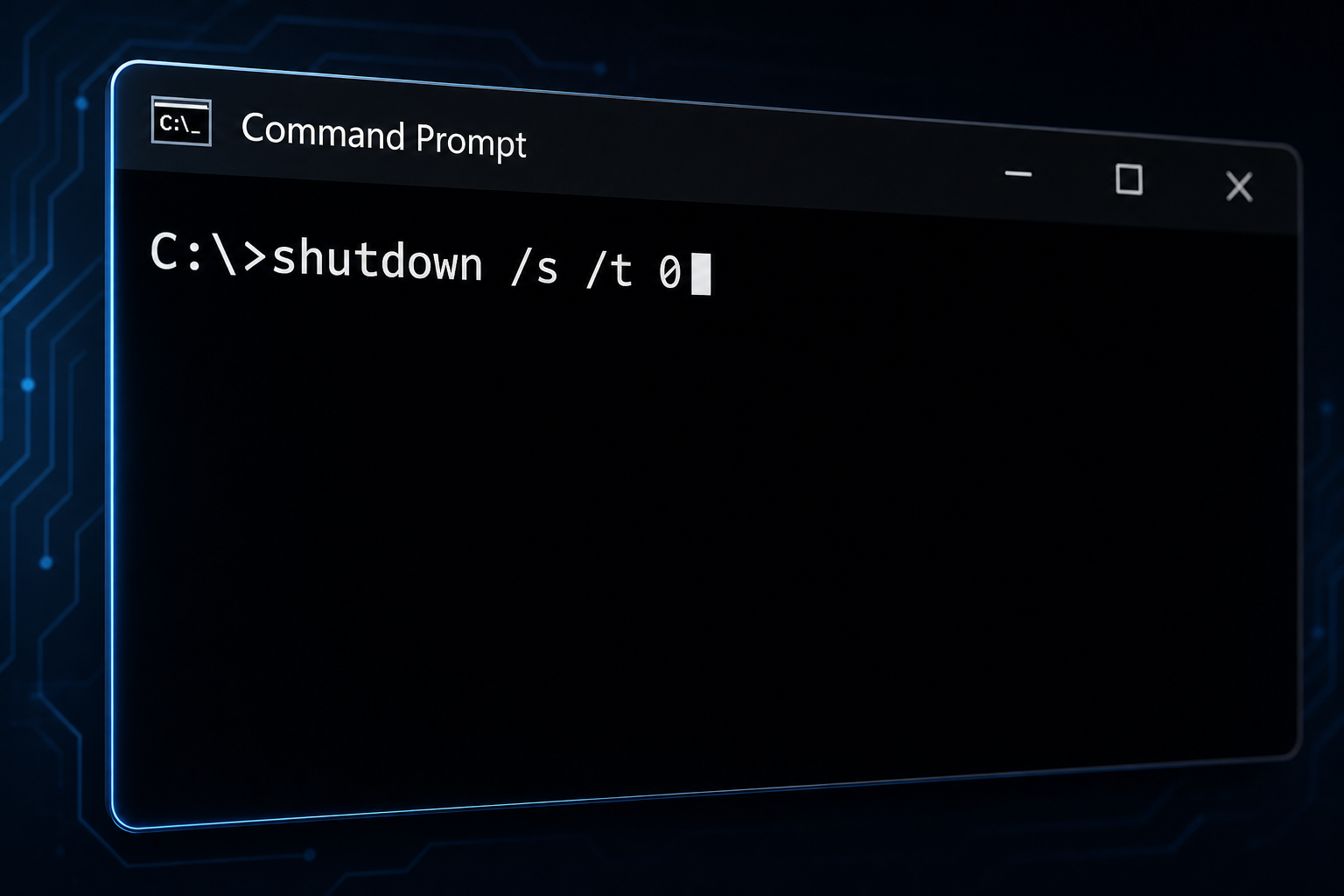
If you want a shutdown that skips Fast Startup entirely and behaves like a true cold boot the next time you power on, Windows has a built-in command for exactly that. Save your work first, since this command closes everything immediately.
Open Command Prompt, PowerShell, or the Run box (Windows key + R) and enter:
shutdown /s /t 0
This tells Windows to shut down immediately, bypassing the hibernation step that Fast Startup normally performs. If you instead want the standard shutdown that still prepares the hybrid Fast Startup hibernation file, use:
shutdown /s /hybrid /t 0
Microsoft maintains a full shutdown command reference confirming both Windows 11 and Windows 10 support these switches. One important caution: avoid adding the /f switch to either command. It forces every open application to close without warning, which can cost you unsaved work in documents, browsers, or games.
It’s also worth noting that Microsoft does not recommend permanently disabling Fast Startup for most users. Microsoft’s own troubleshooting page states that disabling it “is not recommended,” since the feature genuinely speeds up everyday shutdown-to-boot cycles for the vast majority of PCs. The shutdown /s /t 0 command gives you the full-reset benefit only when you actually need it, without giving up Fast Startup’s speed the rest of the time.
A Quick Reference Table
-
Step 1: Apps close and you’re logged off in both Shut Down and Restart.
-
Step 2: Shut Down keeps the kernel loaded in memory momentarily; Restart ends the kernel session completely.
-
Step 3: Shut Down saves kernel and driver state to hiberfil.sys; Restart saves nothing.
-
Step 4: Shut Down powers the PC off; Restart reboots immediately.
-
Step 5: On the next power-on after Shut Down, Windows restores the saved snapshot; after Restart, everything loads fresh from scratch.
Why This Matters for Everyday Windows Users
Understanding restart vs shut down Windows behavior isn’t just trivia, it directly affects how you troubleshoot. If your PC has been running for days without a proper restart, small issues like a stuck driver or a rising memory leak can quietly build up under Fast Startup’s hibernated session. A quick shutdown and power-on won’t clear that; only a real restart, or a forced full shutdown using shutdown /s /t 0, actually flushes the kernel state and starts fresh.
This also explains why Fast Startup has occasionally been linked to update problems. Some Windows Update operations require a full shutdown sequence to complete pending system changes, and a Fast Startup shutdown can leave those operations unfinished, a known friction point that has surfaced in various forms over the years. If a Windows Update seems stuck, is misbehaving, or a fresh driver isn’t taking effect, restart before assuming something bigger is wrong.
If you’re setting up a new Windows 11 PC or reinstalling after cleaning out old session issues, having a genuine, activated copy of Windows makes the whole process smoother. You can browse genuine Windows 11 Home license keys for a clean install, and if you want a deeper breakdown of what separates the Home and Pro editions before you decide which to install, this guide on Windows 11 Home vs Pro differences covers the practical distinctions.
FAQ
Does restart vs shut down Windows really make a difference for everyday use?
Yes, for most casual use the difference is minor, but when you’re troubleshooting a bug, driver issue, or performance slowdown, restarting is more effective because it forces a complete kernel and driver reload rather than restoring a saved session.
Is Fast Startup safe to leave enabled?
Generally yes. Microsoft’s own documentation states that disabling Fast Startup is not recommended for most users, since it speeds up everyday boot times significantly without causing problems for the majority of PCs.
Why does my PC still feel slow or buggy after I shut it down and turn it back on?
Because Fast Startup restores your previous kernel session from hiberfil.sys rather than starting fresh, any issue that existed before you shut down, like a stuck driver or memory leak, can carry over. Restarting instead forces a full reload that clears those problems.
What does the shutdown /s /t 0 command actually do?
It tells Windows to shut down immediately while skipping the Fast Startup hibernation step, so the next time you power on, Windows performs a genuine cold boot instead of restoring a saved session.
Should I avoid using the /f switch with the shutdown command?
Yes. The /f switch forces all open applications to close immediately without warning, which can cause you to lose unsaved work in documents, browsers, or other open programs.
Can Fast Startup cause Windows Update problems?
It can in some cases. Certain update operations require a full shutdown sequence to finish applying changes, and a Fast Startup shutdown can leave those pending operations incomplete, which is one reason a restart is often recommended after installing updates.
