
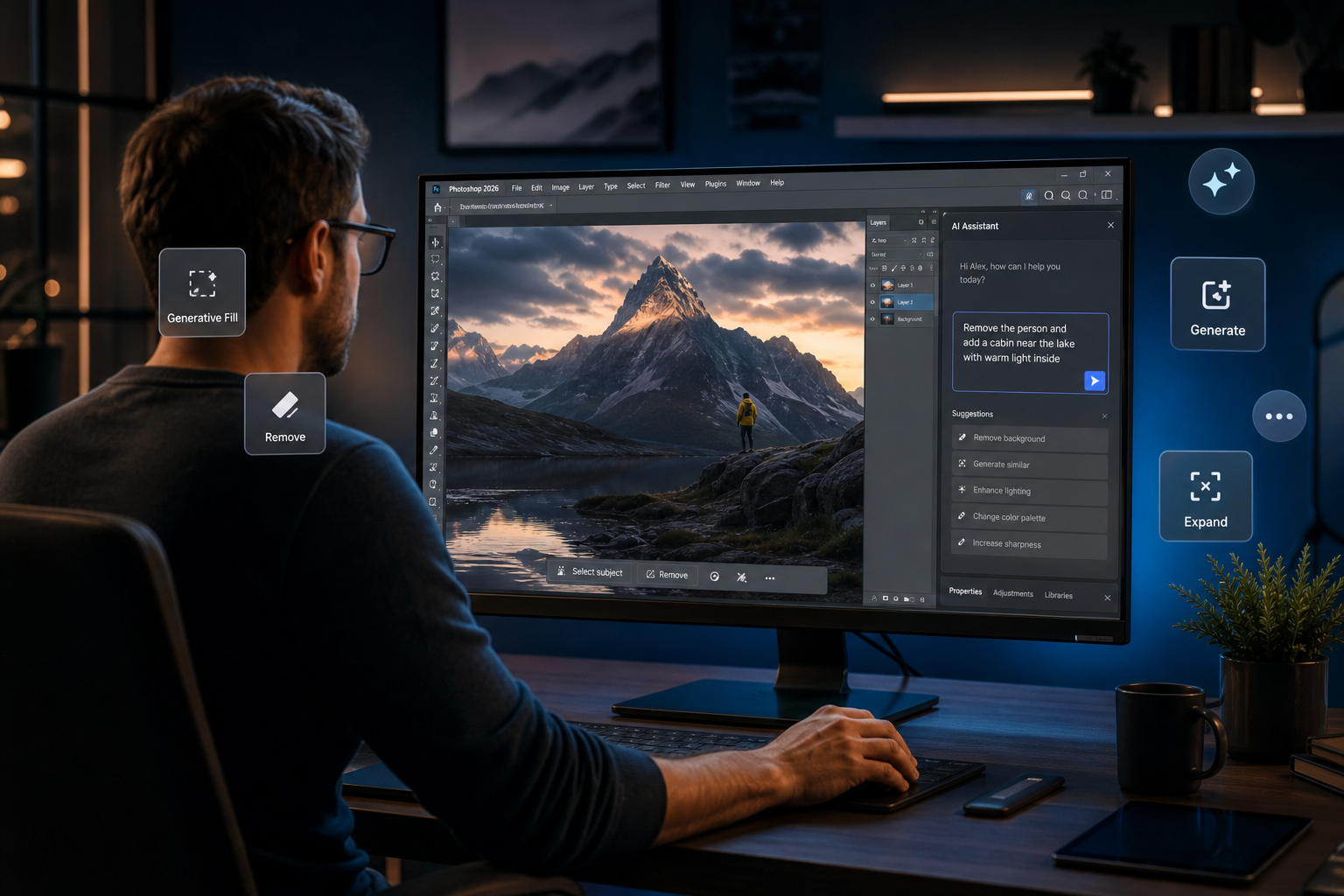
The Photoshop AI editor has arrived — and it is arguably the biggest change to Adobe’s flagship app in a decade. Launched in public beta in 2026, the new AI Assisted Editor consolidates every generative AI feature Photoshop offers into a single, prompt-driven interface, letting photographers, designers, and retouchers work faster without memorising where every tool lives. Whether you need to remove an unwanted object, extend a background, or completely reimagine a scene, the AI Assisted Editor puts it all one typed sentence away.
What Is the Photoshop AI Assisted Editor?
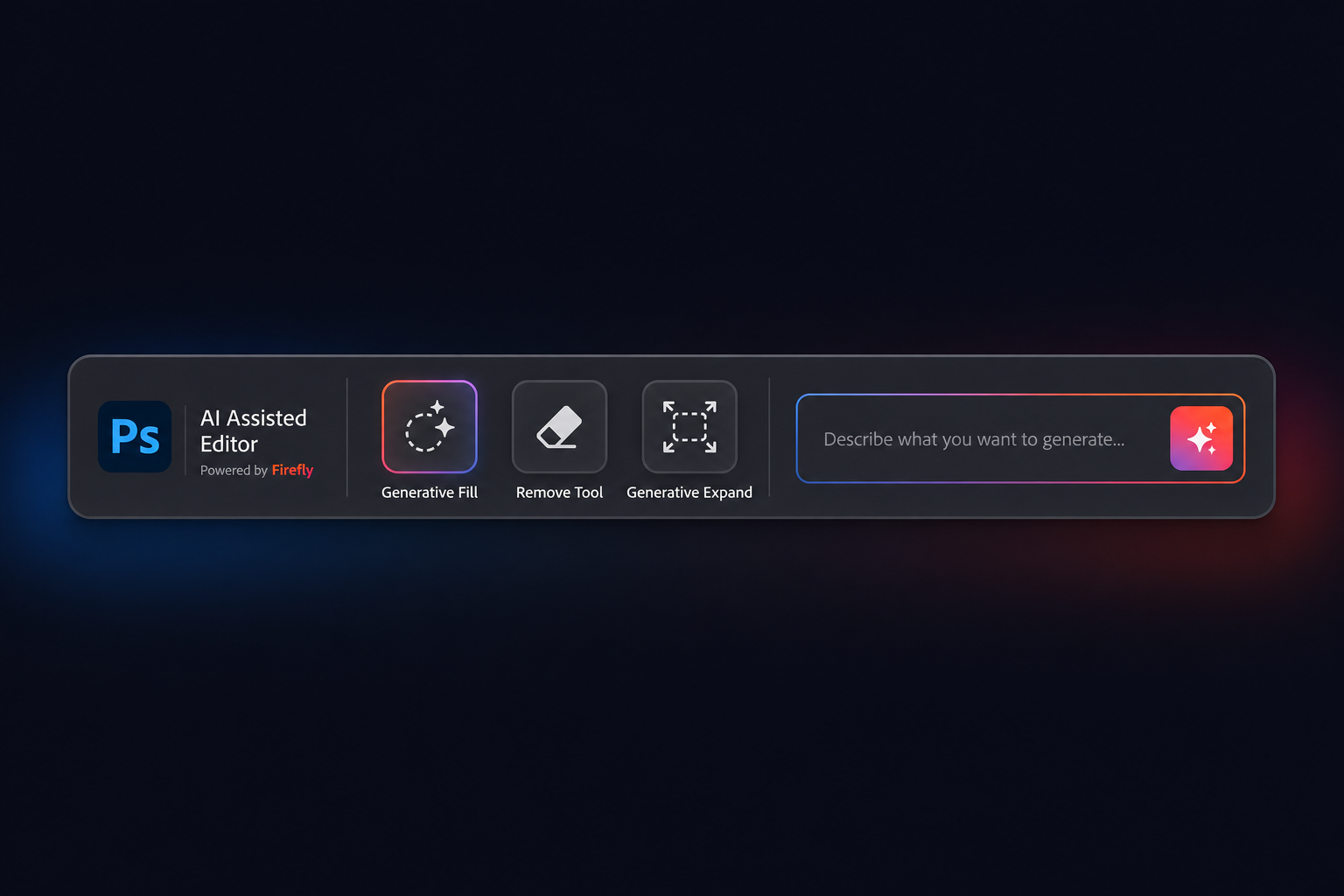
The AI Assisted Editor is an optional interface layer built directly into Adobe Photoshop that surfaces all of the app’s AI photo editing capabilities in a single consolidated toolbar. Instead of hunting through nested menus for Generative Fill, the Remove Tool, or the Background Generator, you simply describe what you want in plain language and Photoshop — powered by Adobe Firefly — interprets your intent and applies the correct tool automatically.
Adobe describes it as an “agentic” experience: the editor can chain multiple AI operations together in one request. Ask it to “remove the tourist in the background, extend the sky upward, and add a golden-hour glow” and the AI Assisted Editor will execute each step in sequence without you switching contexts once.
- Single unified toolbar — all AI features accessible from one place
- Natural-language prompts — type or speak what you want done
- Multi-step chaining — string several edits into one instruction
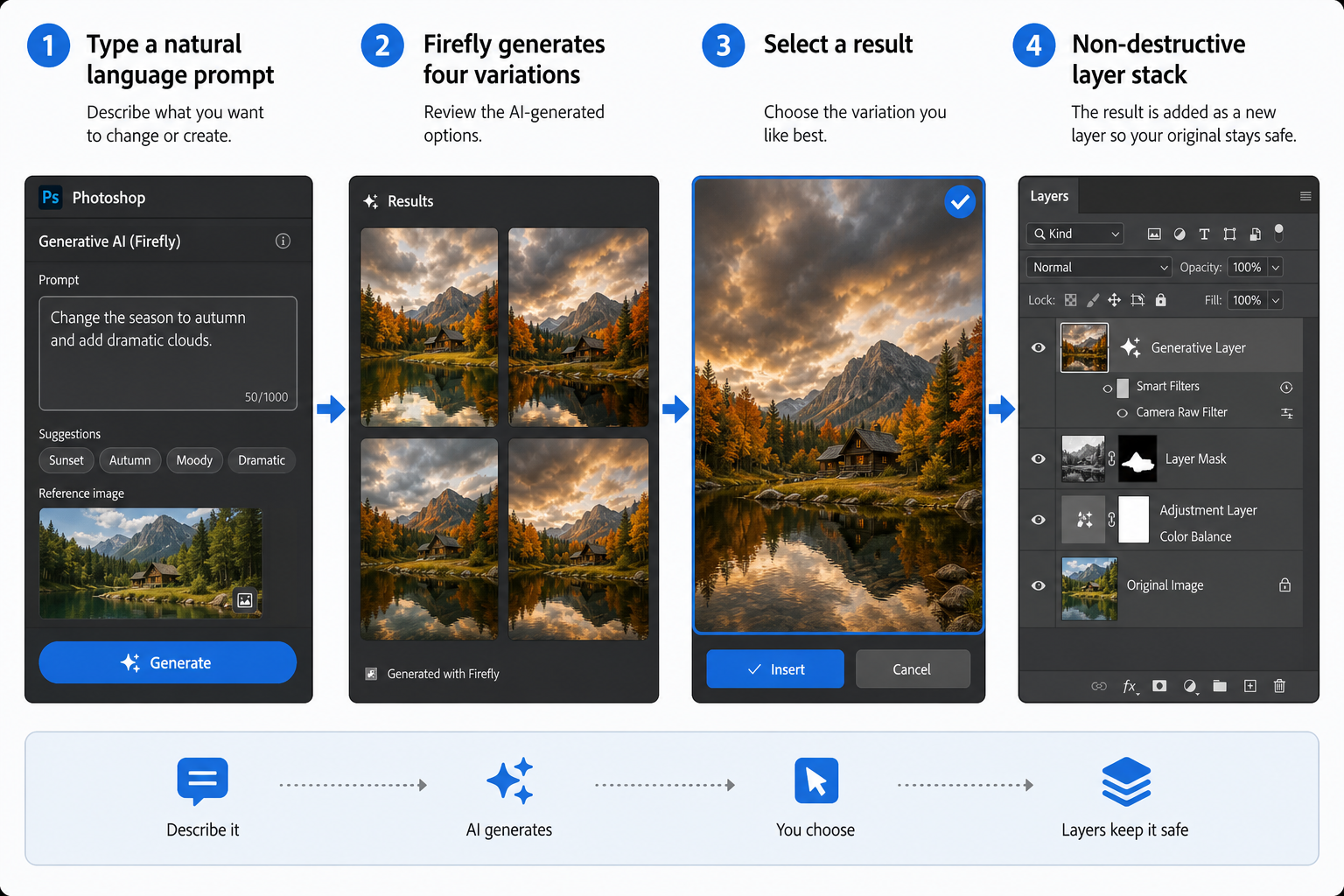
- Non-destructive output — all changes land on separate layers
- Firefly Image 5 model — the most photorealistic generative model Adobe has released
How the AI Assisted Editor Fits Into Photoshop’s AI Tools
To understand the AI Assisted Editor’s value, it helps to know what Photoshop AI tools already existed before it arrived. Adobe has been layering generative capabilities into Photoshop since 2023, each feature powerful on its own but scattered across different menus and workflows.
Generative Fill
Generative Fill lets you select any area of an image, type a text prompt, and have Firefly synthesise entirely new pixels that blend seamlessly with the surrounding image. It is the backbone of the AI Assisted Editor and is now callable directly via natural language — you no longer need to manually draw a selection first.
Generative Expand
Generative Expand extends the canvas beyond its original borders, synthesising convincing continuation of any background. Landscape photographers use it to widen a shot taken in portrait orientation; product photographers use it to create more breathing room around a subject.
AI-Powered Remove Tool
The Remove Tool received a major Firefly upgrade in Photoshop 2025, making content-aware removal far more accurate on complex backgrounds like foliage, crowds, and textured surfaces. The AI Assisted Editor can call this tool automatically when you prompt it with phrases like “erase the power lines”.
AI Markup (Photoshop Web)
Alongside the desktop AI Assisted Editor, Adobe launched AI Markup in public beta for Photoshop on the web. AI Markup lets collaborators annotate images with freehand sketches and have Firefly generate content that matches the sketch — a powerful feature for creative teams working remotely.
Getting Started With the AI Assisted Editor
The AI assisted editor is currently in public beta, meaning any active Creative Cloud subscriber can opt in today. Here is how to access and start using it:
- Update Photoshop — open the Creative Cloud desktop app and update Photoshop to the latest 2026 build.
- Enable the beta — in Photoshop, go to Help > Manage Beta Apps and toggle on AI Assisted Editor.
- Open a file — load any photo or composite; the AI Assisted Editor panel appears in the right-hand sidebar.
- Type your prompt — describe the edit you want in plain English. Be specific: “Remove the red car parked on the left and replace it with an empty street.”
- Review variations — Firefly generates up to four variations; click to preview each on a non-destructive layer.
- Commit or refine — accept the result or add a follow-up prompt to iterate further.
Adobe recommends keeping prompts clear and descriptive. Mentioning lighting (“soft morning light”), style (“cinematic colour grade”), or material (“polished concrete floor”) yields noticeably better results than generic instructions.
Photoshop AI Editor vs. Traditional Workflow: What Actually Changes?
For experienced retouchers, the honest answer is: the Photoshop AI editor does not replace traditional skills — it removes the repetitive groundwork so those skills can be applied where they matter most.
Consider a typical product photography retouch job. Pre-AI, a retoucher might spend 30–45 minutes on background cleanup, reflection removal, and colour correction before even beginning the creative work. With the AI Assisted Editor, that same preparation can be reduced to under 10 minutes of prompted steps, according to early beta testers. The creative decisions — where to place emphasis, how to grade colour, which compositional crop tells the best story — still belong entirely to the human editor.
Speed Gains by Task Type
- Background removal / replacement — seconds via a prompt vs. minutes of manual masking
- Object removal — one prompt replaces lasso selection + content-aware fill iteration
- Canvas extension — instant with Generative Expand vs. manual cloning and healing
- Sky replacement — AI-driven, light-matched result in one step
- Skin retouching — frequency separation still recommended; AI handles blemish removal quickly
Practical Tips for Better AI Photo Editing Results
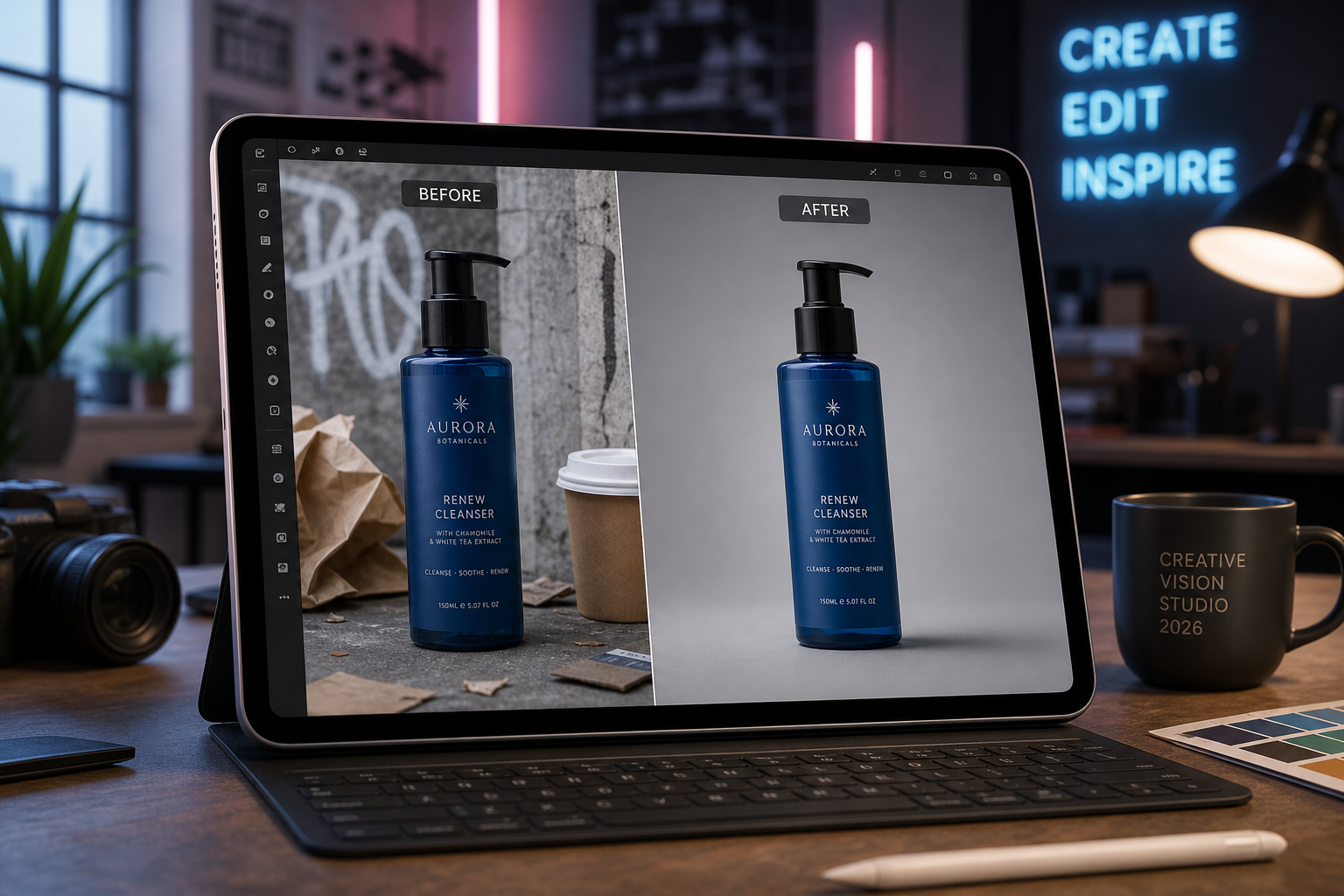
Getting the most from AI photo editing in Photoshop is partly about prompt craft and partly about understanding what the underlying Firefly model does well. These practical tips will sharpen your results from day one.
Be Specific About What Should Stay
The AI Assisted Editor responds as well to exclusions as it does to additions. If you want to change a background but preserve exact product colours, say so: “Replace the background with a soft grey gradient — keep the product colours unchanged.” This prevents Firefly from normalising or reinterpreting colours it thinks look inconsistent.
Work on High-Resolution Files
Generative Fill and Expand produce results at the resolution of the source file. Starting with the highest-resolution image available gives Firefly more pixel data to work from and produces sharper, more detailed outputs — especially important for print work or large-format display.
Use Layers to Compare Results
Because all AI Assisted Editor outputs land on separate layers, you can keep multiple variations active and toggle between them using layer visibility. This is far faster than undoing and regenerating when a client requests a comparison.
Combine AI with Manual Refinement
Treat the AI Assisted Editor as your first pass, not your final pass. After Firefly generates a result, use traditional Photoshop tools — Healing Brush, Clone Stamp, Curves — to tighten edges, correct minor artefacts, and add the nuance that elevates a competent AI output into professional-grade work.
Save Prompt Presets
The AI Assisted Editor supports saving prompt templates. If you regularly process e-commerce images that need the same background and colour treatment, save a preset and apply it across batches — a genuine time multiplier for studio workflows.
Who Benefits Most From the AI Assisted Editor?
The AI assisted editor is genuinely useful across a wide range of creative roles, though the nature of the benefit differs by discipline.
- Photographers — culling and retouching dozens of images per session becomes dramatically faster; mundane fixes no longer eat into creative time.
- Graphic designers — rapid compositing and background generation accelerates concept exploration and client presentation rounds.
- Social media managers — fast, on-brand asset creation without deep Photoshop expertise, using straightforward text prompts.
- E-commerce teams — consistent product image treatment at scale, reducing per-image editing costs significantly.
- Beginners — the natural-language interface lowers the barrier to entry enormously; complex edits that once required years of Photoshop knowledge can now be prompted in plain English.
Adobe’s own data suggests that users leveraging generative AI features in Photoshop complete common retouching tasks up to 3× faster than with purely traditional methods — a figure that is likely to improve as the Firefly model continues to be refined through 2026.
Accessing Photoshop AI Tools Through Creative Cloud
Every feature discussed in this article — including the AI Assisted Editor beta — is available to active Adobe Creative Cloud subscribers. There is no separate add-on to purchase; access is included with any Creative Cloud plan that includes Photoshop. TopKeyShop stocks Adobe Creative Cloud licences from just €39.50 per month, with 3-month, 6-month, and full-year options available to suit every budget.
If you primarily use Photoshop for photo editing rather than the full suite, the Adobe Photoshop Elements 2025 licence is a cost-effective one-time purchase that includes a solid set of guided and AI-assisted editing tools for everyday photographers who do not need the full Creative Cloud ecosystem.
For more on Adobe’s AI capabilities, the official Adobe Photoshop What’s New page is updated with every release and is the most reliable reference for feature availability, version requirements, and beta access instructions.
The Future of AI Photo Editing in Photoshop
The AI Assisted Editor is currently in beta, meaning Adobe is actively iterating based on user feedback. Several features already confirmed for upcoming updates include video frame editing via AI prompts, deeper integration with Adobe Firefly’s new image generation models, and cross-app AI workflows that will let Premiere Pro and After Effects share assets with Photoshop through the same natural-language interface.
The broader trajectory is clear: Adobe is moving toward a world where Photoshop AI tools handle the technical execution of edits while the creative professional focuses entirely on direction and intent. That shift will not eliminate the value of photographic skill or design knowledge — it will amplify it, because the people who understand what a great image looks like will be able to produce it faster than ever before.
FAQ
Is the Photoshop AI Assisted Editor free to use?
The AI Assisted Editor is included with any active Adobe Creative Cloud subscription that includes Photoshop — there is no additional cost. It is currently in public beta, so you need to enable it manually through the Manage Beta Apps menu inside Photoshop. Generative credits are consumed when using Firefly-powered features, and Creative Cloud plans include a monthly allowance of generative credits.
What is the difference between the AI Assisted Editor and Generative Fill?
Generative Fill is a specific tool that synthesises new pixels inside a selected area based on a text prompt. The AI Assisted Editor is a broader interface that encompasses Generative Fill alongside many other AI tools — including the Remove Tool, Generative Expand, and sky replacement — and lets you access all of them through a single natural-language prompt rather than switching between individual tools manually.
Do I need a powerful PC to run Photoshop AI tools?
Generative AI features in Photoshop are processed server-side on Adobe’s cloud infrastructure, which means your local hardware has less impact than you might expect. A reasonably modern computer that runs Photoshop smoothly is sufficient; you do not need an expensive GPU workstation. A stable internet connection is required for cloud-processed AI features.
Can beginners use the AI Assisted Editor effectively?
Absolutely — the natural-language prompt interface is arguably the most beginner-friendly editing experience Adobe has ever shipped. You describe the outcome you want in plain English and Firefly handles the technical execution. That said, understanding basic Photoshop concepts like layers and masking will help you refine AI results and produce polished, professional-quality images more consistently.
Will the AI Assisted Editor replace professional photo editors?
Not in the foreseeable future. The AI Assisted Editor excels at automating repetitive, technically defined tasks — background removal, object erasure, canvas extension. Creative judgement, nuanced colour work, storytelling through composition, and client communication remain firmly in human territory. The tool’s most likely effect is to make skilled editors more productive, not redundant.
