
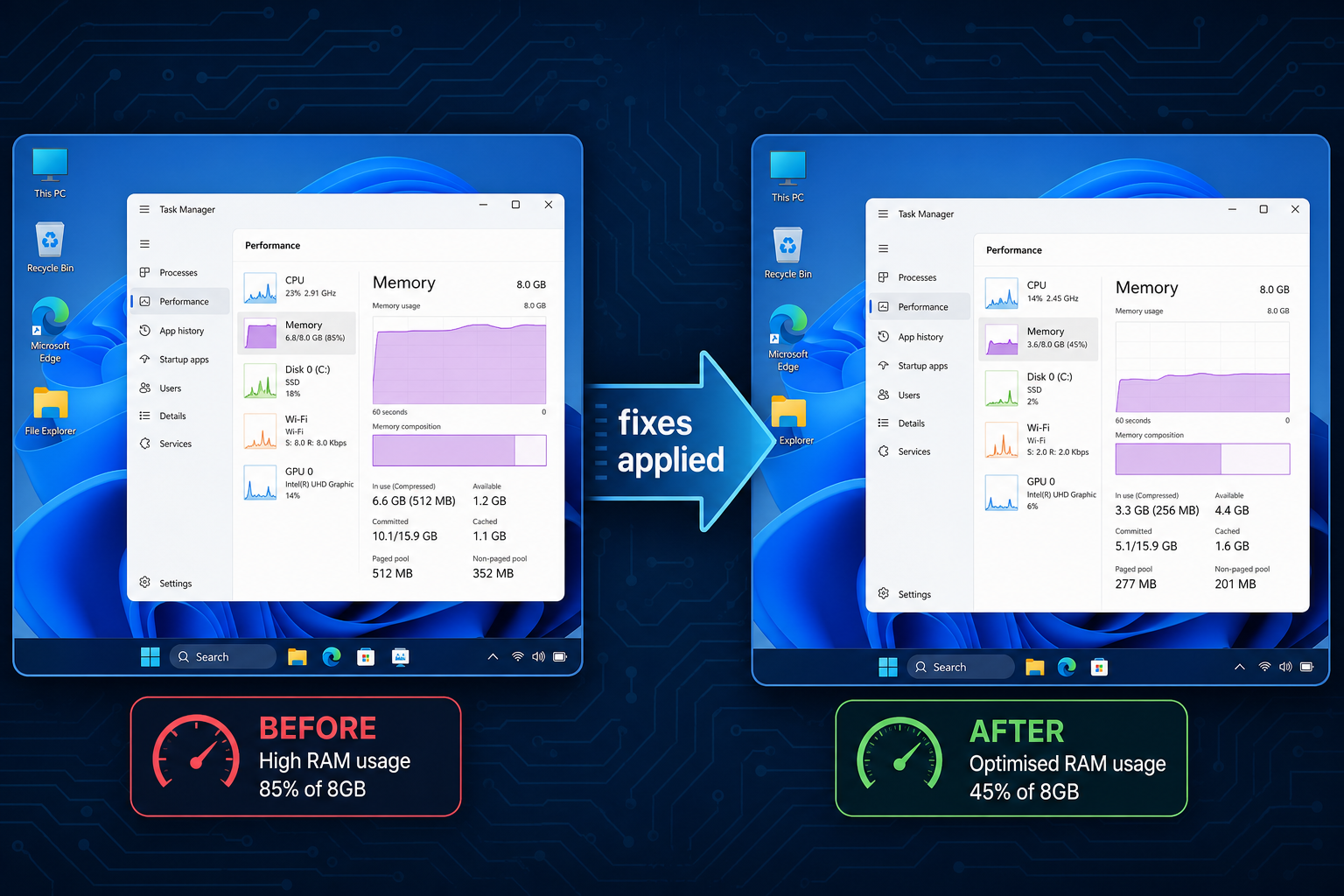
Windows 11 on 8GB RAM is genuinely frustrating — even Microsoft’s own hardware couldn’t escape the slowdowns. Whether you’re seeing sluggish app launches, a spinning cursor, or your browser tabs grinding to a halt, the root cause is almost always the same: Windows 11 simply expects more memory than many machines carry. This guide breaks down exactly what’s happening under the hood, what Microsoft’s own testing revealed, and — most importantly — how to claw back that responsiveness without spending a penny on new hardware.
Why Windows 11 Memory Demands Are Higher Than You Think
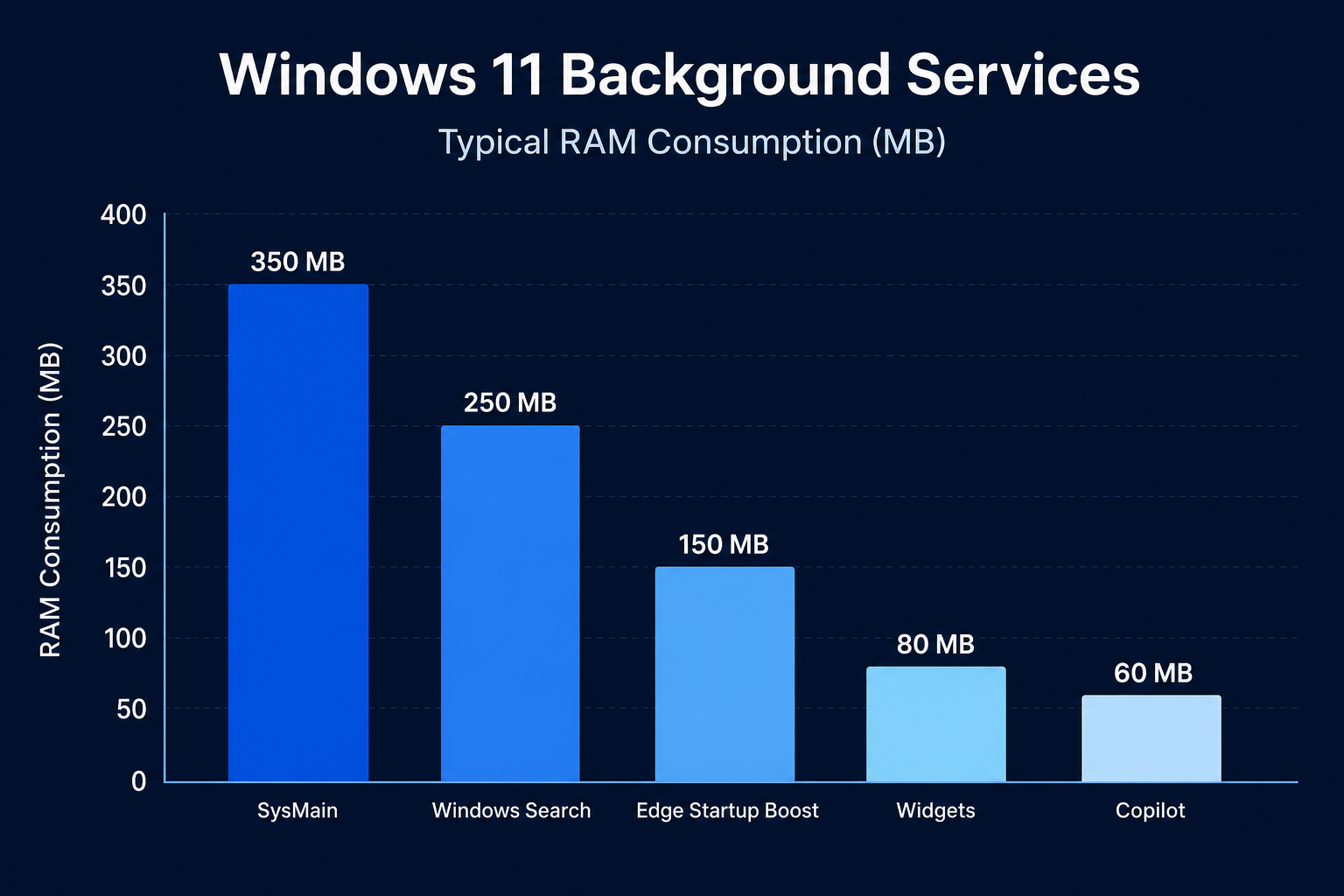
Windows 11 lists just 4 GB as its official minimum RAM requirement on the Microsoft Windows 11 specifications page, but that number is deeply misleading in practice. Real-world idle consumption on a freshly booted Windows 11 system regularly lands between 3.5 GB and 4.5 GB — before you open a single application. On an 8 GB machine, that leaves you with roughly 3.5 GB of usable headroom for everything else: your browser, Office, media player, and any background syncing services.
Several Windows 11 subsystems are the main culprits behind that elevated baseline:
-
SysMain (formerly Superfetch) — preloads apps it predicts you’ll use, consuming RAM proactively.
-
Windows Search indexing — builds and maintains a searchable index of your drive in the background.
-
Widgets and the News & Interests feed — pulls live content and keeps a rendering process alive.
-
Copilot and AI features — on supported hardware, these services maintain active memory allocations.
-
Microsoft Edge’s startup boost — loads the browser partially at boot, even when you haven’t launched it.
Stack all of those together and Windows 11 memory consumption at idle can chew through 50–60% of an 8 GB system before your morning’s work even begins.
Microsoft’s Own Surface Laptop Shows the Windows 11 8GB RAM Problem
The most pointed illustration of Windows 11 low RAM Windows 11 limitations came in 2026 when The Verge reviewed Microsoft’s own entry-level 13-inch Surface Laptop — a machine priced at $949 and shipped with just 8 GB of RAM. The verdict was stark: even Microsoft couldn’t make Windows 11 work well on 8GB of RAM on its own flagship consumer device. Tasks that should feel instant — switching between a browser with several tabs open and a document editor — produced noticeable lag. The system leaned on its SSD as swap space far more often than a $949 laptop should.
This matters beyond brand loyalty. If Microsoft’s own engineers, shipping their own OS on their own hardware, can’t tune Windows 11 to feel fluid at 8 GB, that tells you the problem is structural, not a configuration quirk you can tweak away entirely. But you can still make a meaningful difference.
What Actually Happens on Low RAM Windows 11 Machines
When physical memory fills up, Windows moves the least-recently-used memory pages to a pagefile on your storage drive — a process called paging. On a fast NVMe SSD, this is relatively painless. On an older SATA SSD or, worse, a mechanical hard drive, it produces the infamous “disk thrashing” effect: your machine becomes unresponsive for several seconds while Windows frantically shuffles data.
On an 8 GB system running Windows 11, paging kicks in far sooner than most users expect. Opening Chrome with eight tabs, a PDF, and a Spotify stream is enough to push a freshly booted machine into active paging. The 8GB RAM performance ceiling isn’t just about speed — it affects stability, as some applications begin throwing out-of-memory errors when the combined virtual address space runs thin.
How to Improve Windows 11 8GB RAM Performance: Step-by-Step Fixes
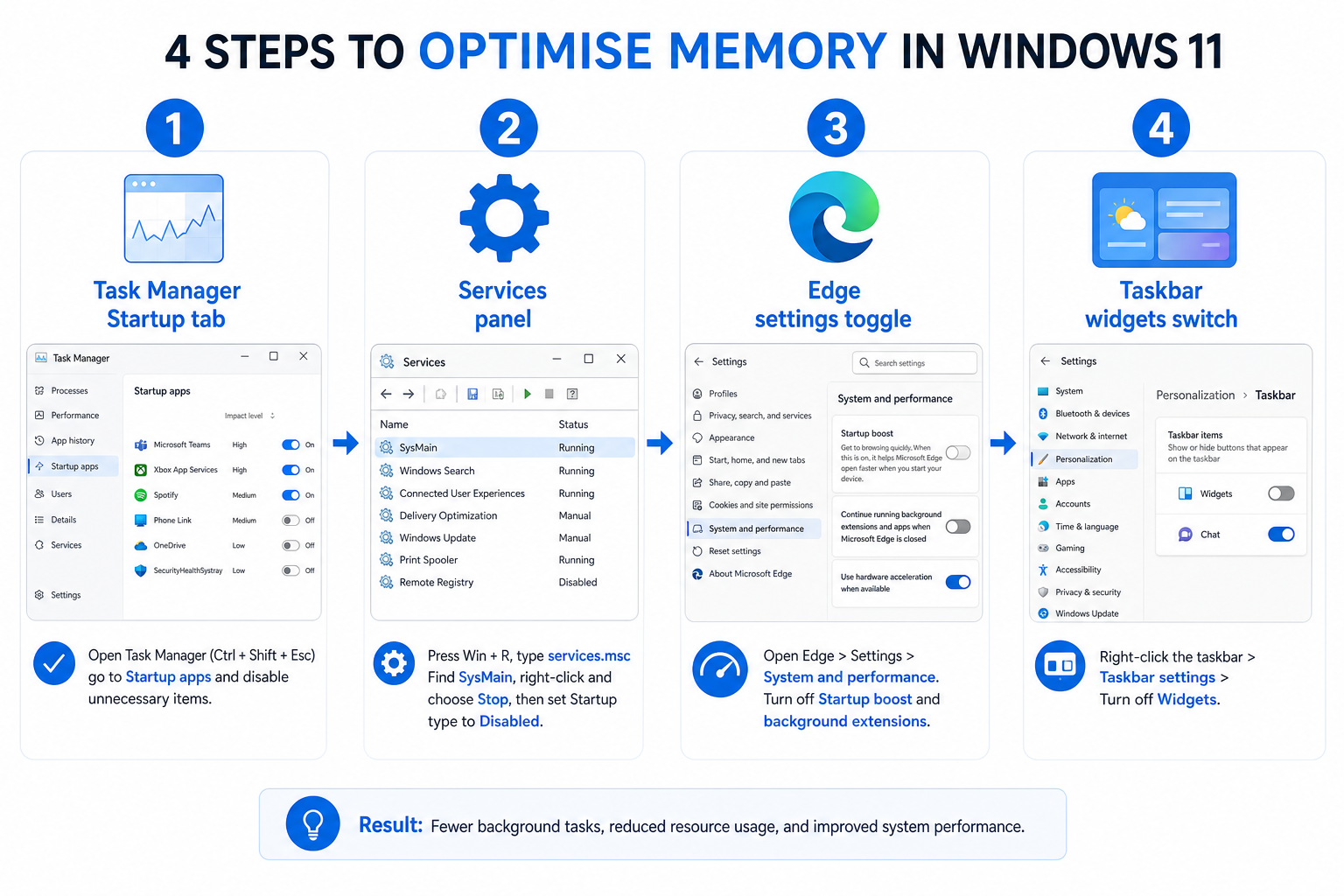
You can’t add physical RAM through software, but you can dramatically reduce how much Windows wastes on things you don’t need. Work through these fixes in order — each one has a measurable impact.
1. Audit and Trim Your Startup Programs
Press Ctrl + Shift + Esc to open Task Manager, click the Startup apps tab, and sort by “Startup impact”. Disable everything you don’t need at boot — Spotify, Discord, Teams, OneDrive (if you sync manually), and any manufacturer utilities. Cutting three or four high-impact items can reclaim 400–800 MB of RAM at idle.
2. Disable or Reconfigure SysMain
If your Windows 11 memory footprint is still high after trimming startup apps, disabling SysMain can help — especially on machines with an NVMe SSD, which is already fast enough to load applications quickly without preloading. Press Win + R, type services.msc, find SysMain, double-click it, set Startup type to Disabled, and stop the service. Monitor your idle RAM usage for a day before deciding whether to keep it off.
3. Limit Microsoft Edge’s Startup Boost
Open Edge, go to Settings → System and performance, and toggle off Startup boost. Also disable Continue running background extensions and apps when Microsoft Edge is closed. This alone can free 200–400 MB on systems where Edge isn’t the primary browser.
4. Turn Off Windows 11 Widgets
Right-click the taskbar, select Taskbar settings, and toggle Widgets off. The Widgets board keeps a background process running at all times; removing it is a quick, no-downside win for low RAM Windows 11 machines.
5. Optimise Your Virtual Memory (Pagefile) Settings
For 8 GB systems, letting Windows manage the pagefile automatically is usually fine, but if your drive is fast and you want to reduce visible stutter, you can set a fixed pagefile size. A good starting point is an initial size of 8192 MB and a maximum of 16384 MB. Go to Settings → System → About → Advanced system settings → Performance Settings → Advanced → Virtual Memory.
6. Switch Your Power Plan
If your machine is plugged in, switch to the Balanced or High performance power plan to prevent the CPU from throttling mid-task. On a laptop, CPU throttling under memory pressure amplifies the sluggishness caused by paging — fixing one without the other leaves performance on the table.
7. Use a Lighter Browser Profile
Chrome is the single biggest RAM consumer on most Windows desktops. Each tab runs as a separate process. Consider grouping tabs, using a tab-suspending extension, or switching to a browser with a lighter memory footprint for routine browsing. Reducing browser RAM consumption from 2 GB to 1 GB on an 8 GB system effectively doubles your available headroom for everything else.
Can a Clean Install Improve 8GB RAM Performance?
If your machine has accumulated months or years of software, a clean reinstall of Windows 11 can recover a surprising amount of 8GB RAM performance. Bloatware, leftover background services from uninstalled apps, and fragmented startup entries all compound over time. A fresh installation typically idles 500 MB–1 GB lower than an aged one.
Doing a clean install means you’ll need a valid Windows 11 licence. If you’re reinstalling on the same hardware, your digital licence usually reactivates automatically. If you’re building a new machine or your licence is tied to old hardware, TopKeyShop offers genuine Windows 11 Pro Retail keys from €9.10, making it straightforward to get a legitimate, fully activated copy without the OEM lock-in.
When Fixes Aren’t Enough: The Honest Verdict on Windows 11 8GB RAM in 2026
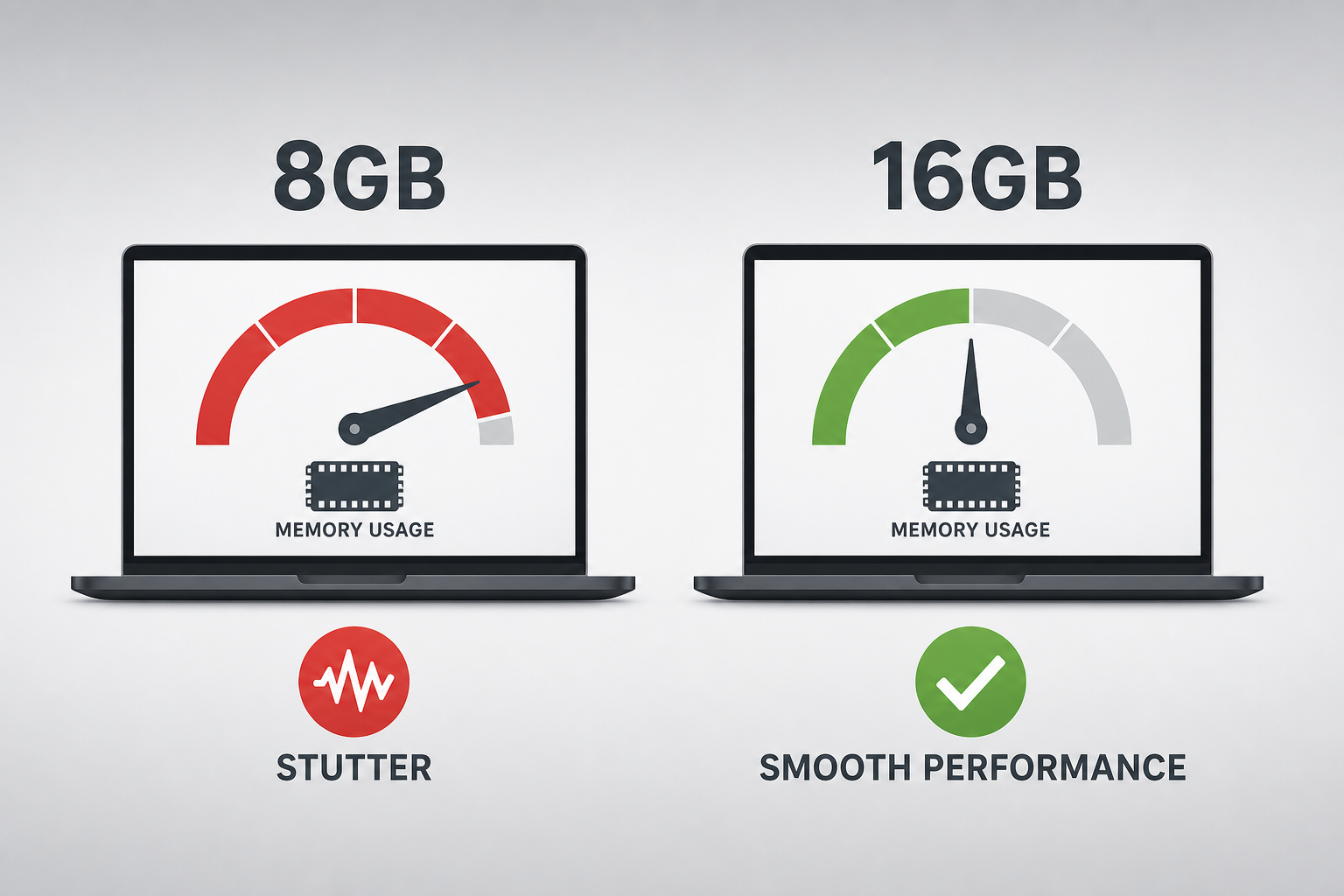
Here’s the reality: the software optimisations above will make a tangible difference to Windows 11 memory management, but they have a hard ceiling. If your typical workflow involves a browser with ten-plus tabs, video conferencing, a creative application, and background downloads running simultaneously, 8 GB is structurally insufficient for a smooth Windows 11 experience in 2026.
The mid-range sweet spot is now 16 GB. Machines shipping with 16 GB idle comfortably below 35% memory usage, leaving genuine headroom for multitasking without touching the pagefile under normal workloads. If your device supports RAM upgrades — many modern laptops solder the RAM, so check first — upgrading from 8 GB to 16 GB is typically the single highest-impact hardware investment you can make for daily productivity.
If a RAM upgrade isn’t possible and you’re planning a full system refresh, look at what software licences you’ll need for the new machine. Bundling Windows with Office from the start saves money: TopKeyShop’s Windows 11 Pro + Office 2024 bundle is available from €19.10, covering both a genuine OS key and Office 2024 Professional Plus LTSC in a single purchase.
Windows 11 Memory Tips: Quick-Reference Summary
-
Trim startup apps — potentially 400–800 MB reclaimed
-
Disable SysMain on NVMe-equipped systems
-
Turn off Edge Startup Boost — up to 400 MB saved
-
Disable Widgets from the taskbar
-
Set a fixed pagefile on fast SSDs to reduce stutter
-
Switch to High performance power plan when plugged in
-
Use tab grouping or a lighter browser to reduce browser memory use
-
Consider a clean Windows 11 install to reset accumulated bloat
FAQ
Is 8GB RAM enough for Windows 11 in 2026?
For light use — documents, email, and light browsing — 8 GB is manageable if you apply the optimisations above. For moderate multitasking, video calls, or creative work, it falls short regularly. Microsoft’s own recommended baseline for a comfortable Windows 11 experience is effectively 16 GB, even if the official minimum remains 4 GB.
Why does Windows 11 use so much RAM at idle?
Windows 11 runs several background services by default — SysMain, Windows Search indexing, Widgets, Edge Startup Boost, and various Copilot components — all of which consume RAM even when you’re not actively using the PC. On a fresh boot with no open apps, total idle consumption typically sits between 3.5 GB and 4.5 GB on standard Windows 11 Home or Pro installations.
What happens when Windows 11 runs out of physical RAM?
Windows automatically offloads memory pages to a pagefile stored on your drive. On a fast NVMe SSD this is mostly invisible, but on slower storage it causes disk thrashing and severe slowdowns. On 8 GB machines the pagefile activates far earlier than on 16 GB systems, which is why responsiveness degrades noticeably under moderate workloads.
Can I improve low RAM Windows 11 performance without buying more RAM?
Yes — disabling unnecessary startup programs, SysMain, Widgets, and Edge’s startup boost can collectively reclaim 1–2 GB of RAM, which is significant on an 8 GB system. A clean OS reinstall can recover another 500 MB–1 GB. These steps won’t match the impact of a physical RAM upgrade, but they produce real, measurable improvements in responsiveness.
Does Windows 11 Pro perform better than Windows 11 Home on 8GB RAM?
The memory footprint between Home and Pro is minimal — the difference is typically under 200 MB. Pro’s additional features (Hyper-V, BitLocker, Group Policy) don’t materially affect 8GB RAM performance unless you actively use virtualisation. The choice between Home and Pro should be driven by feature needs, not RAM management.
