
Windows 11 memory integrity is now being pushed as a mandatory security feature by Microsoft — and if you’re a gamer, it may already be quietly eating into your frame rates. Tests and user reports consistently point to a performance hit of around 5% on average, with some hardware configurations seeing steeper drops in CPU-heavy titles. Understanding what this feature does, why Microsoft is forcing it on, and how you can manage it is essential reading for any serious PC gamer in 2025 and beyond.
What Is Windows 11 Memory Integrity?
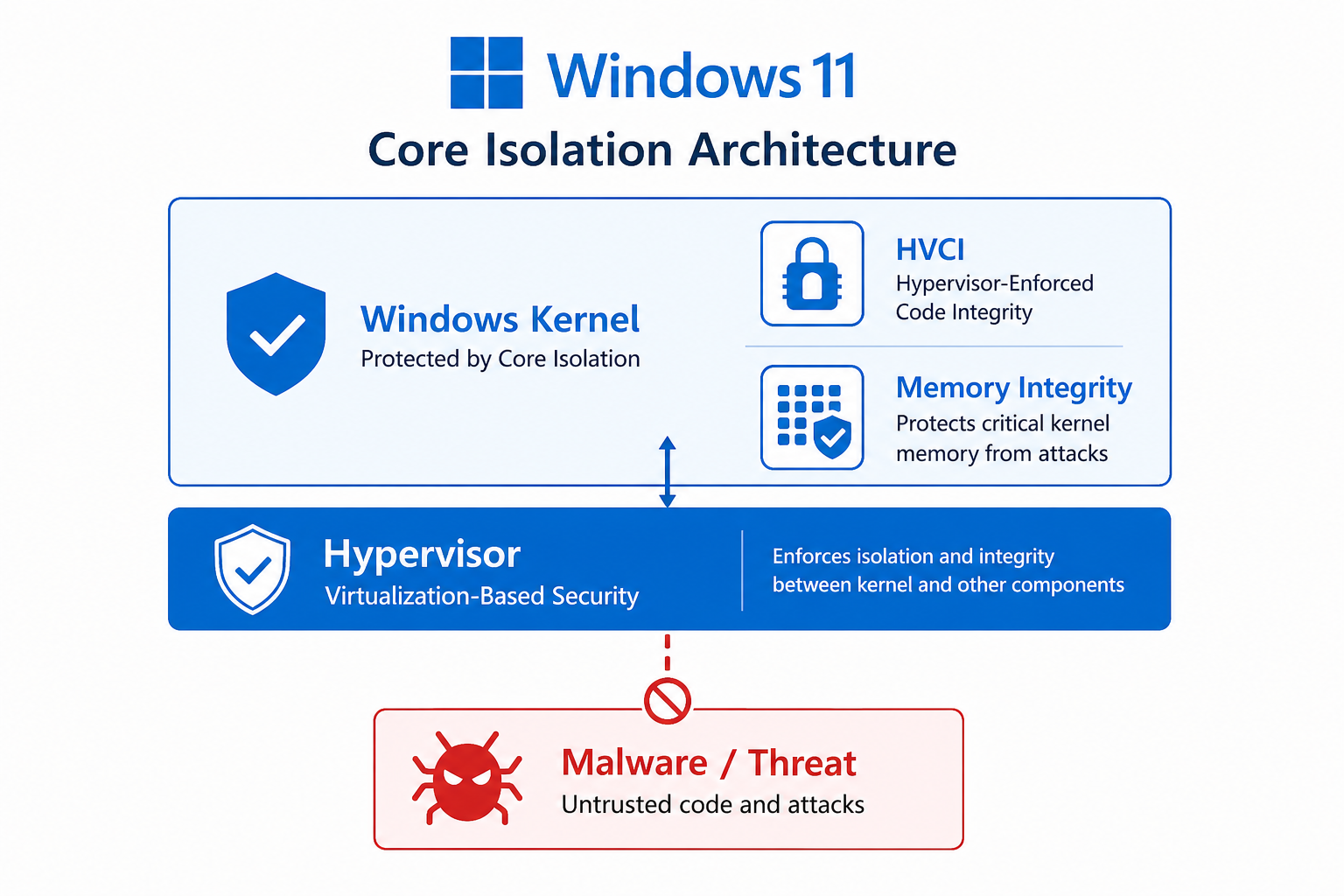
Memory integrity — also known as Hypervisor-Protected Code Integrity (HVCI) — is a virtualization-based security (VBS) feature built into Windows 10 and Windows 11. It works by running the Windows kernel inside a protected hypervisor environment, making it dramatically harder for malware to inject malicious code into the operating system’s core processes.
In practical terms, it means that even if an attacker gains access to your system, they face a hardened barrier around the most sensitive parts of Windows. Microsoft describes it as one of the most effective defences against kernel-level exploits — the kind used in sophisticated ransomware and rootkit attacks.
You can find the setting under Windows Security → Device Security → Core Isolation Details → Memory Integrity. On many systems running Windows 11, you’ll notice it’s been switched on automatically.
Why Is Microsoft Forcing Memory Integrity On?
Microsoft’s push to enable HVCI by default is driven by a straightforward security calculus: kernel exploits are among the most dangerous attack vectors in modern computing, and most home users never manually enable security features. By baking core isolation into the default Windows 11 experience, Microsoft raises the baseline protection floor for hundreds of millions of devices.
The company has also been aligning Windows 11 with its Secured-core PC standard, which mandates HVCI alongside other hardware-backed protections like TPM 2.0 and Secure Boot. New PCs shipping with Windows 11 are increasingly expected to have these features active out of the box, and Microsoft is extending that expectation to existing machines through updates.
Windows will also enable broader VBS features on many PCs from October 2026, which may add further virtualisation overhead — making it worth understanding the trade-offs now rather than being caught off guard later.
The Real-World Gaming FPS Hit from Core Isolation
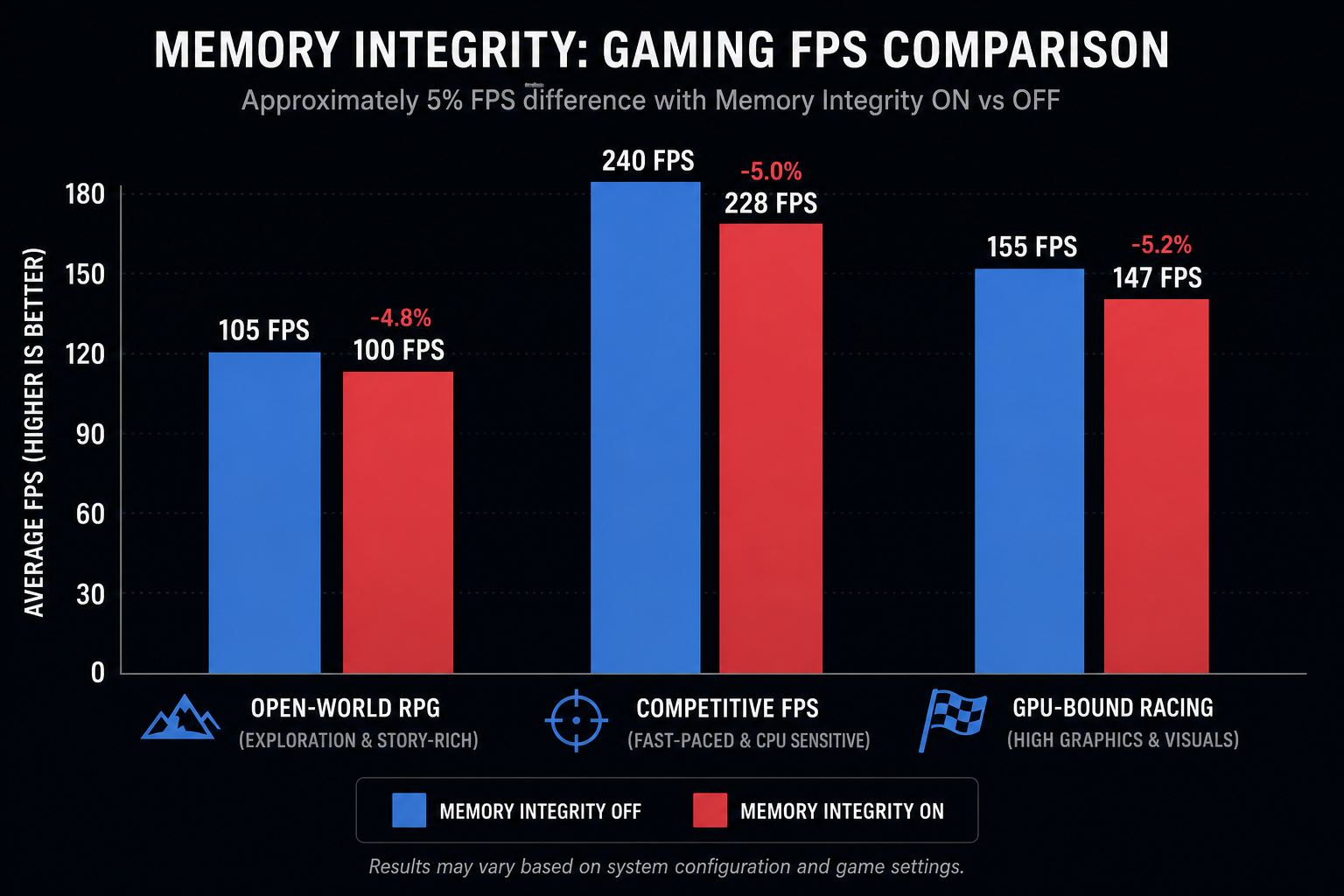
Here’s the part most gamers care about. Because Windows 11 memory integrity forces kernel code validation to run inside a virtualised environment, every kernel-mode driver call passes through an additional security layer. This overhead is small in general desktop workloads but becomes measurable in games, which pound the GPU driver stack with thousands of calls per second.
-
Average FPS drop: approximately 5% across a range of titles and hardware, based on community benchmarks and third-party analysis.
-
Worst-case scenarios: CPU-bound games and older systems with less CPU headroom can see drops above 10%.
-
GPU-bound scenarios: On systems where the GPU is the clear bottleneck, the impact is often negligible — the CPU overhead is masked.
-
Driver compatibility: Older or unsigned drivers may be outright blocked from loading when HVCI is active, which can cause game crashes or devices failing to initialise.
It’s worth noting that the performance penalty isn’t unique to gaming — any workload that hammers kernel-mode drivers (audio production, 3D rendering, video editing) can feel the same pinch. But gamers notice it most because FPS is a concrete, measurable number.
Should You Turn Off Memory Integrity for Gaming?
This is the question every gamer is asking, and the honest answer is: it depends on your threat model. Disabling HVCI removes the virtualised kernel protection layer, which is a meaningful security concession. However, that risk looks different depending on how you use your PC.
When Disabling May Be Reasonable
-
You have a dedicated gaming rig that rarely browses the open web or handles sensitive data.
-
You run other security layers — a reputable antivirus, a hardware firewall, and you keep Windows updated.
-
You’re on older hardware where the performance penalty is severe enough to make games unplayable at your target settings.
When You Should Leave It On
-
Your PC doubles as a work machine with sensitive files or login credentials stored.
-
The FPS difference in your titles is within the margin of error (less than 3 fps at high frame rates).
-
You use unsigned or legacy drivers — disabling HVCI doesn’t fix those, it just stops Windows blocking them at boot.
If you decide to toggle the feature, Microsoft’s official documentation for enabling virtualization-based protection of code integrity walks through exactly what HVCI protects and the steps to manage it safely on your system.
How to Toggle Windows 11 Memory Integrity
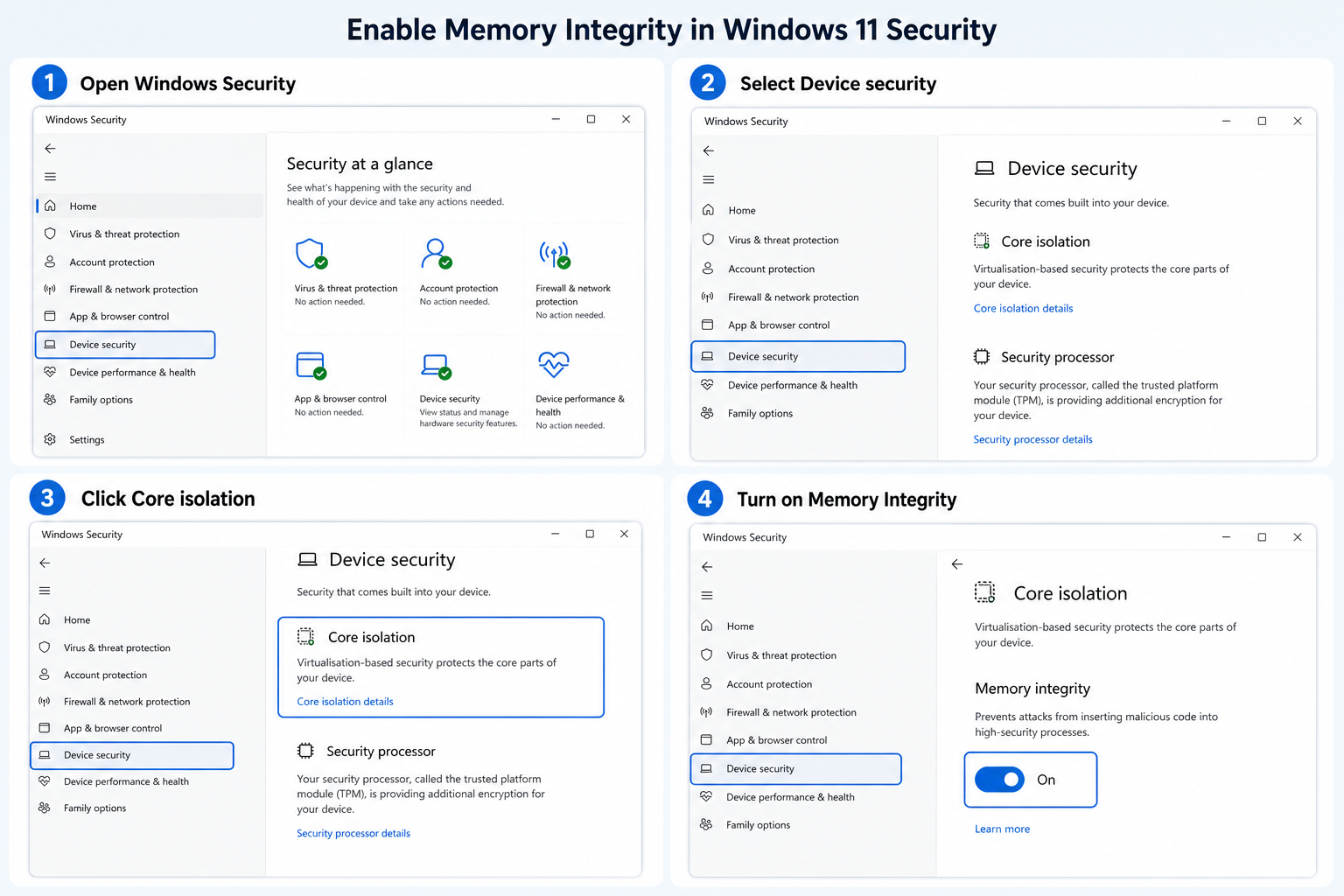
Changing the HVCI setting is straightforward, though a reboot is required for it to take effect. Here’s how to do it:
-
Open Windows Security from the Start menu or system tray.
-
Click Device Security, then select Core isolation details.
-
Toggle Memory Integrity on or off as needed.
-
Restart your PC — the change does not apply until after reboot.
If the toggle is greyed out, it typically means either your hardware doesn’t support virtualisation, virtualisation isn’t enabled in your UEFI/BIOS, or a driver conflict is preventing the feature from running. In that case, check your BIOS settings and ensure Intel VT-x or AMD-V is active.
HVCI Performance: Will It Get Better?
There is cautious optimism here. Microsoft and hardware partners are aware that the virtualisation overhead associated with HVCI performance is a friction point for performance-focused users. Modern CPUs from Intel (12th Gen and later) and AMD (Ryzen 5000 series and later) have improved hardware virtualisation support that reduces — though doesn’t eliminate — the overhead. As newer silicon becomes the norm, the gap between HVCI-on and HVCI-off is likely to narrow.
Driver ecosystems are also maturing. The more GPU, audio, and peripheral vendors ship fully HVCI-compatible drivers, the less the feature disrupts existing setups. NVIDIA, AMD, and Intel have all been updating their driver stacks with Windows 11 security compliance in mind.
For now, though, the trade-off is real and measurable. Gamers on tight performance margins should treat it as a genuine variable to account for — not a paranoid overcaution.
Upgrading to Windows 11? What Gamers Need to Know First
If you’re still on Windows 10 and considering the move, the Windows 11 memory integrity default-on state is one of several things worth understanding before you upgrade. It’s not a dealbreaker — but going in aware means you won’t be blindsided by a sudden FPS regression post-upgrade and spend hours hunting for the cause.
The good news is that a genuine Windows 11 licence doesn’t have to break the bank. At Top Key Shop, you can pick up Windows 11 Home from just €14.70, with fast email delivery and a 100% money-back guarantee — so you can upgrade, benchmark your setup, and know exactly where you stand with memory integrity and core isolation before committing to any settings changes.
If you’re already on Windows 11 and experiencing unexplained performance issues in games, it’s also worth checking out our breakdown of Windows 11 gaming crashes and Microsoft’s latest fix, which covers another set of update-related issues that can compound the memory integrity overhead problem.
FAQ: Memory Integrity and Gaming on Windows 11
Does turning off memory integrity improve FPS?
In most cases, yes — by roughly 5% on average, and potentially more on CPU-bound systems. However, the improvement comes at the cost of reduced kernel-level protection. Whether that trade-off is worth it depends entirely on how you use your PC and what other security measures are in place.
Is it safe to disable Windows 11 memory integrity?
It reduces your protection against kernel-mode malware and rootkits, so it’s not without risk. On a dedicated gaming machine with up-to-date security software, kept offline when not gaming, the risk is lower. On a work or general-use PC, disabling it is harder to justify.
Why is my memory integrity greyed out in Windows 11?
The most common reasons are that hardware virtualisation isn’t enabled in your UEFI/BIOS, or an incompatible driver is blocking the feature. Check that Intel VT-x or AMD-V is turned on in your firmware settings, and look at the Core Isolation details page for flagged driver conflicts.
Does memory integrity affect all games equally?
No. CPU-bound titles and games that make frequent driver calls tend to show the highest performance delta. GPU-bound games at high resolutions, where the graphics card is the clear bottleneck, often show little to no measurable difference. Testing your specific games is the only reliable way to know.
Will future Windows 11 updates change how memory integrity works?
Microsoft is expanding VBS features further, with broader mandatory enablement planned for October 2026. Future CPU generations with better hardware virtualisation support should reduce overhead over time, but in the near term the feature is becoming more, not less, prevalent in Windows 11.
