
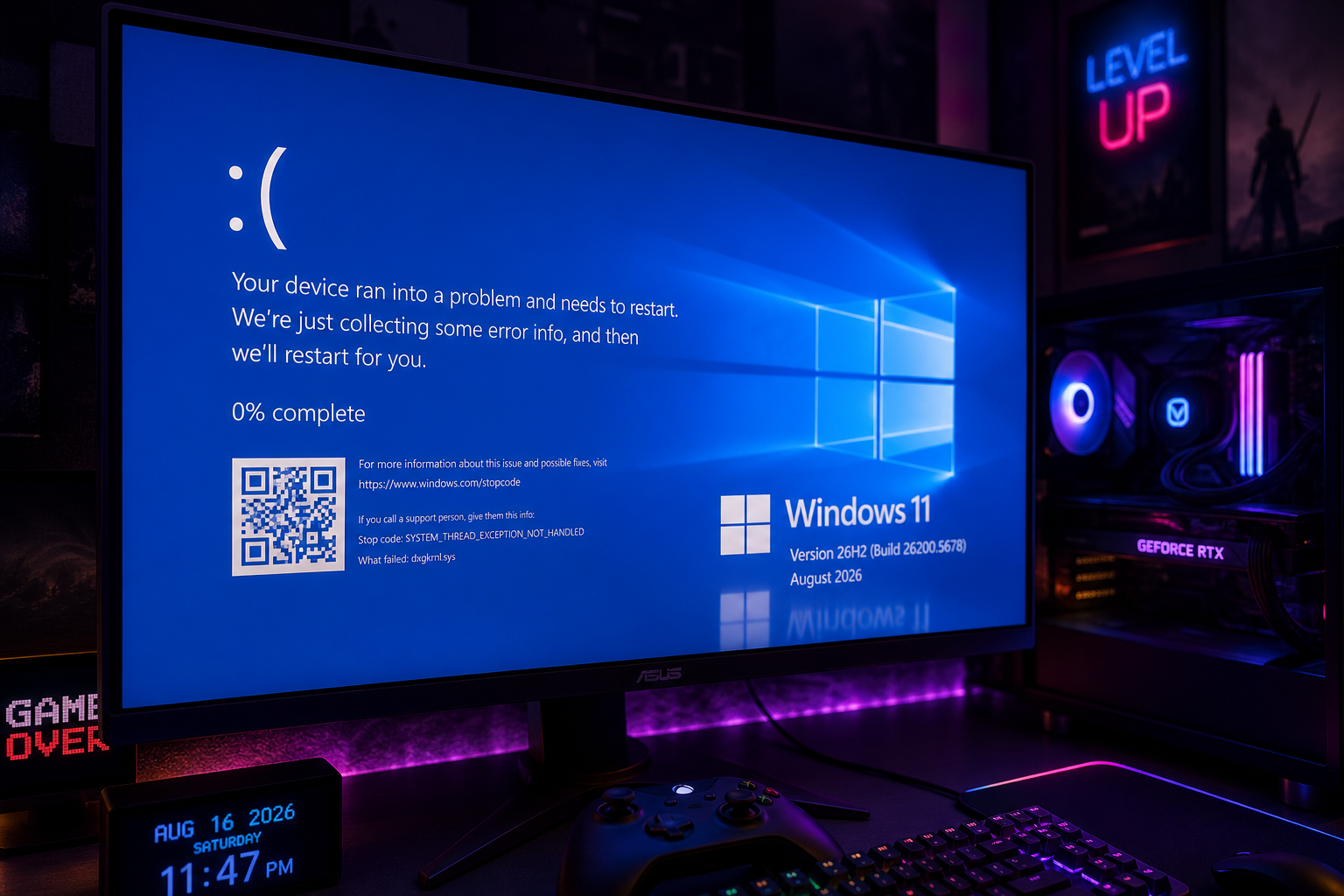
Windows 11 gaming crashes surged in August 2026 after Microsoft’s Patch Tuesday update KB5121003 hit millions of PCs — leaving players staring at frozen screens, silent exits, and BSOD loops mid-session. The good news: Microsoft has now rolled out an official resolution, and applying it is straightforward if you know which steps to follow.
What Triggered the Windows 11 Game Crashes?
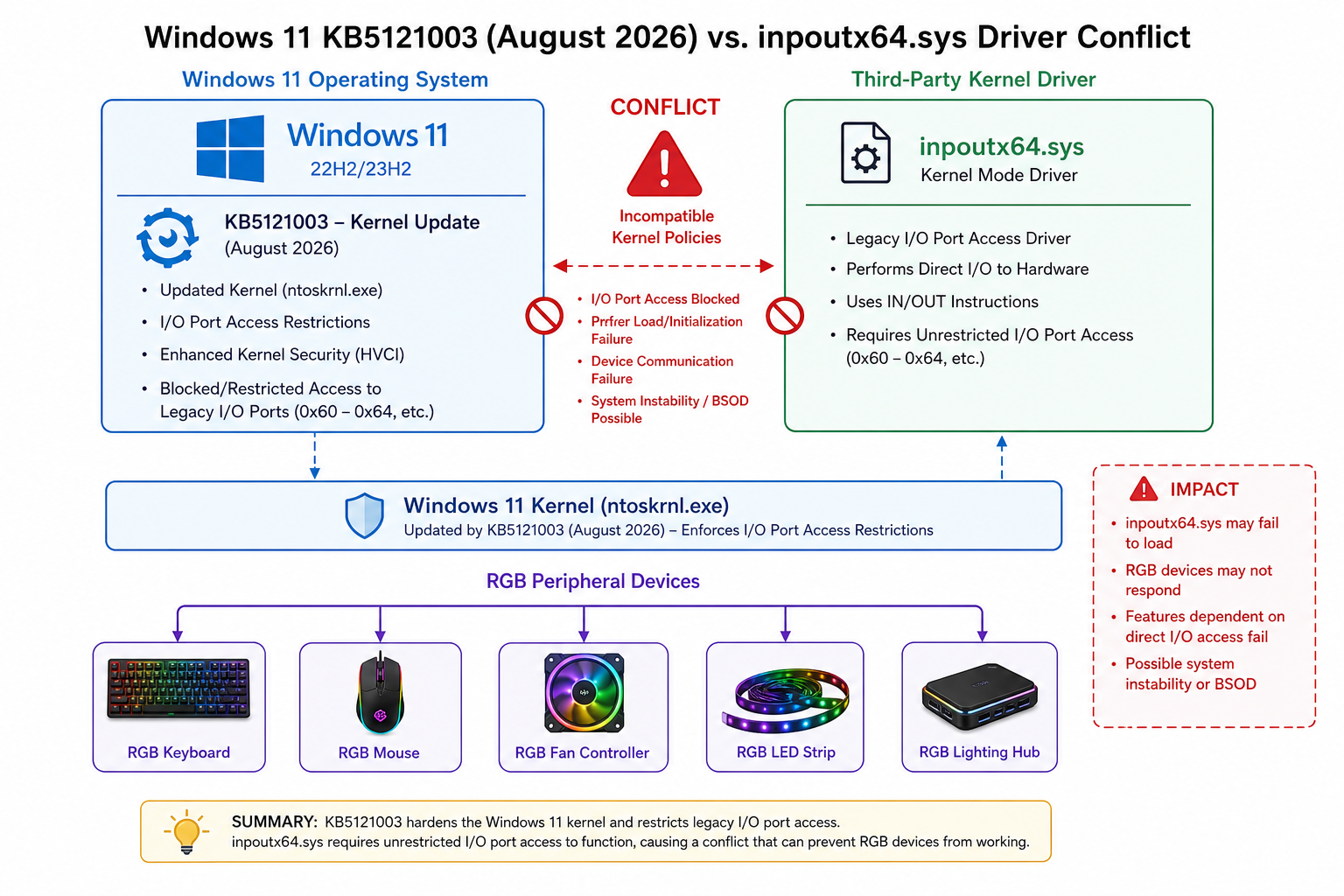
The root cause of the widespread Windows 11 game crashes is a third-party kernel driver called inpoutx64.sys. This driver is bundled with numerous RGB lighting controllers, fan-speed utilities, and hardware monitoring tools — the exact kind of software a gaming rig typically runs in the background. When KB5121003 landed on August 11, 2026, a conflict between the update’s new kernel-level changes and inpoutx64.sys caused the driver to behave unpredictably, resulting in games freezing, crashing without warning, or refusing to launch at all.
Microsoft’s own Known Issues page for the update lists the symptoms clearly: the game application becomes unresponsive, the game application closes without notice, or an error message appears. The patch itself is significant — it addresses over 400 security vulnerabilities — so simply skipping it is not a safe long-term strategy.
Which Games and Hardware Are Affected?
Reports from the gaming community pointed to a broad range of titles, including ARC Raiders and The Finals, among others. The common thread is not the game engine but the peripheral software running alongside the game. If your PC runs any of the following, you are more likely to have encountered the Windows 11 game crashes:
- RGB lighting suites (e.g., iCUE, Armoury Crate, MSI Center)
- Fan and pump control utilities (e.g., Aquasuite, SpeedFan forks)
- Hardware monitoring overlays that use direct I/O access
- Overclocking tools that interface with hardware at the kernel level
The inpoutx64.sys driver is the shared ingredient across all of them. If none of these apply to your setup, you may have escaped the issue entirely.
Microsoft’s Official Gaming Crashes Fix — Timeline
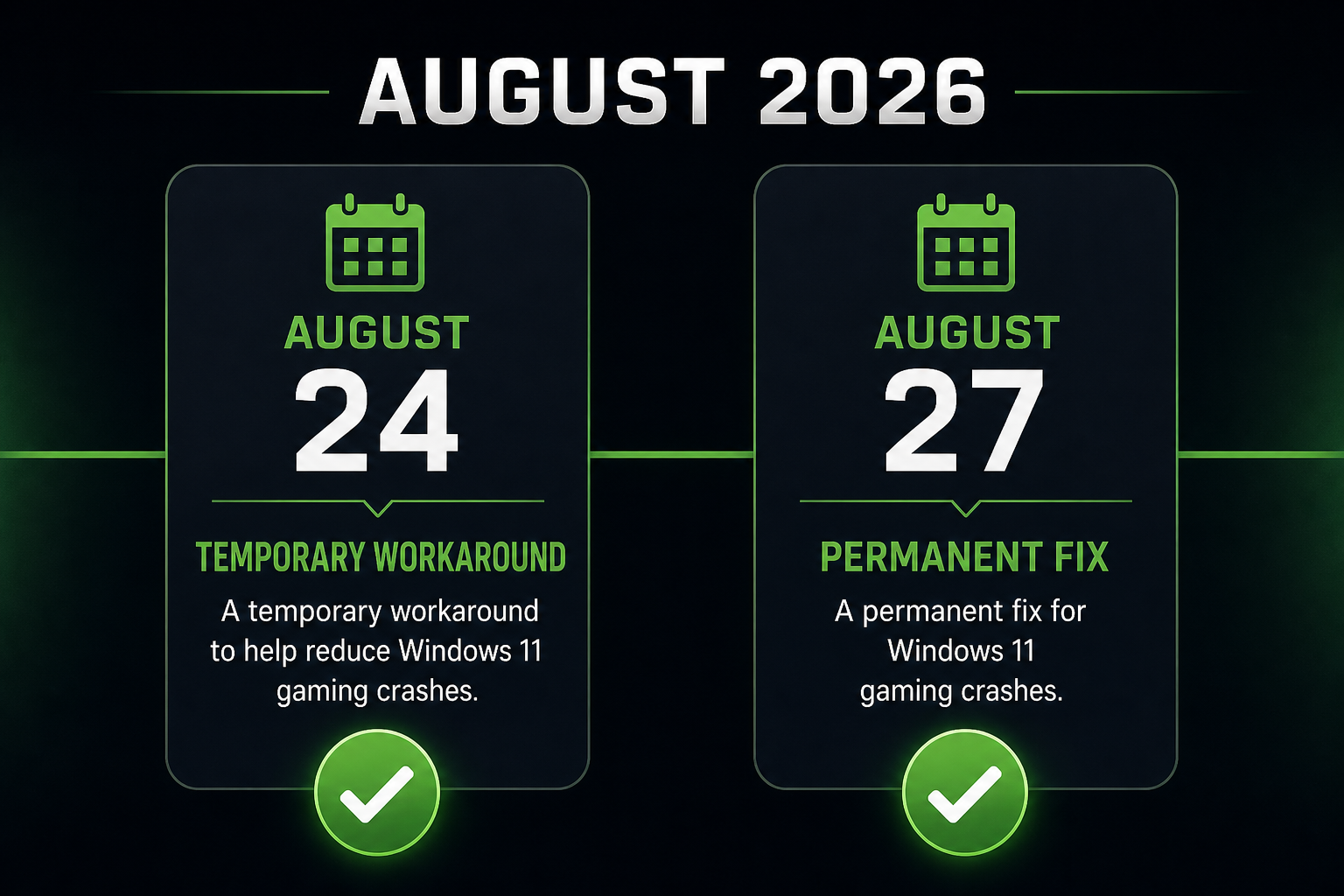
Microsoft moved in two stages to deliver a gaming crashes fix:
- August 24, 2026 — Temporary workaround: Microsoft published guidance instructing affected users to block the inpoutx64.sys driver from loading via an elevated Command Prompt. This stopped the conflict but also disabled the associated hardware software.
- August 27, 2026 — Permanent resolution: Microsoft rolled out a block that automatically prevents the problematic version of inpoutx64.sys from loading, resolving the crash loop without requiring manual Command Prompt steps. The fix targets only devices with the specific vulnerable driver version active.
According to Microsoft’s official KB5121003 release health page, the company is continuing to investigate the underlying conflict and is working with hardware vendors on a permanent driver update. Once a new, compatible version of inpoutx64.sys is available from the relevant peripheral manufacturers, users will be able to re-enable their hardware software without issue.
Step-by-Step: How to Apply the Fix Game Crashes Solution
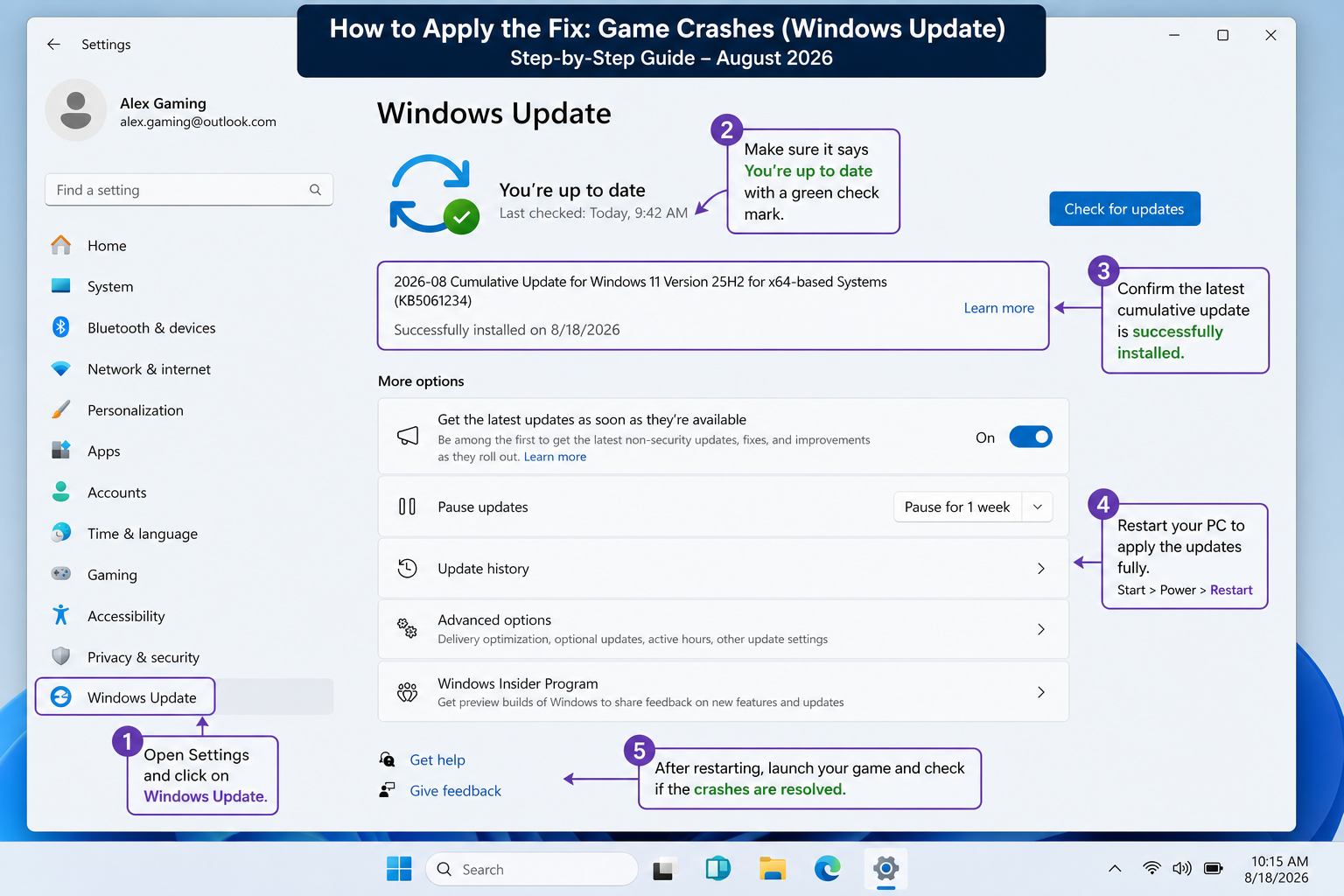
Follow these steps in order. Most users on Windows 11 24H2 or 25H2 will find the fix is delivered automatically via Windows Update — but it pays to verify.
Step 1 — Check Your Current Build Number
Press Win + R, type winver, and hit Enter. You need OS Build 26200.9168 or later. If you see an earlier build number, you have not yet received KB5121003 — or your update is pending a restart.
Step 2 — Run Windows Update
Go to Settings → Windows Update → Check for updates. Allow any pending updates to download and install, then restart your PC. The driver block that resolves the Windows 11 gaming crashes is distributed as part of the update pipeline, so keeping Windows Update current is the fastest path to the fix.
Step 3 — Verify the Driver Block Is Active (Optional)
Open an elevated Command Prompt (search “cmd”, right-click, Run as administrator) and run:
sc query inpoutx64
If the service shows STOPPED or returns “The specified service does not exist”, the block is in place and your system is protected.
Step 4 — Update Your RGB and Hardware Software
Check the software vendor’s website — Corsair, ASUS, MSI, Aquacomputer, and others — for updated versions of their utilities that ship with a patched inpoutx64.sys driver. Once an updated version is available, install it and you should regain full peripheral functionality alongside a stable gaming experience.
Step 5 — Test Your Games
Launch the games that were previously crashing. If a title still exits unexpectedly, try disabling remaining background hardware utilities one at a time to isolate any second driver contributing to the problem.
Should You Uninstall KB5121003 to Fix Game Crashes?
Uninstalling KB5121003 is a tempting shortcut, but it is not recommended. The update patches over 400 security vulnerabilities — removing it exposes your system to real risks. Microsoft’s block-based fix addresses the gaming crashes without sacrificing those protections, so rolling back the update trades one problem for a much larger one. Stick with the official gaming crashes fix path described above.
Keeping Your Windows 11 Licence Stable for Gaming
Update conflicts like this one are a reminder that a genuine, activated copy of Windows 11 is the foundation of a reliable gaming PC. When Windows Update pipelines are clean and your licence is properly activated, patches flow in correctly and recovery options work as intended. At Top Key Shop, you can grab a genuine Windows 11 Home licence key from €14.70 — delivered by email within minutes — ensuring your OS is update-ready and fully supported from day one.
For a broader look at what Microsoft has been shipping in 2026 and how its quality improvements are shaping up, our Windows 11 quality improvements deep-dive covers the full picture — from USB4 fixes to File Explorer overhauls.
Frequently Asked Questions
Why are my Windows 11 gaming crashes happening after the August update?
The August 11, 2026 update (KB5121003) introduced a kernel-level change that conflicts with the inpoutx64.sys driver used by many RGB and hardware control applications. This conflict causes games to freeze, close unexpectedly, or fail to launch. Microsoft has issued a fix that blocks the problematic driver version from loading.
Do I need to uninstall KB5121003 to fix game crashes?
No — and it is strongly advised not to. KB5121003 patches over 400 security vulnerabilities, so removing it leaves your PC exposed. Microsoft’s official gaming crashes fix is a driver block delivered via Windows Update, which resolves the instability without requiring you to roll back the security patch.
How do I know if the Windows 11 game crashes fix has been applied?
Run sc query inpoutx64 in an elevated Command Prompt. If the service is STOPPED or absent, the block is active. You can also check Settings → Windows Update → Update history for confirmation that your build is 26200.9168 or later.
Which games are affected by the Windows 11 gaming crashes?
The crash is not game-specific — it depends on whether your system runs software that loads the inpoutx64.sys driver. Titles like ARC Raiders and The Finals were among those reported, but any game running alongside RGB or hardware monitoring utilities that use this driver could be affected.
When will my RGB software work again after the fix game crashes solution?
Once your peripheral software vendor — Corsair, ASUS, MSI, Aquacomputer, and so on — releases an updated utility with a patched inpoutx64.sys driver, you can install it and regain full functionality. Keep an eye on each vendor’s release notes and update your software as soon as a compatible version is available.
