

Windows 11 RAM bloat is a genuine, Microsoft-acknowledged problem — and if your PC has been feeling sluggish since upgrading, you finally have official confirmation that it isn’t just in your head. At Build 2026, Microsoft’s own engineers admitted that native Windows 11 applications consume significantly more memory than their predecessors, with some WinUI 3-based apps using roughly twice the RAM of equivalent Windows 10 apps. The good news: a structured fix is on the way. The less good news: it isn’t a single patch you can download today.
What Microsoft Actually Admitted About Windows 11 Memory Usage
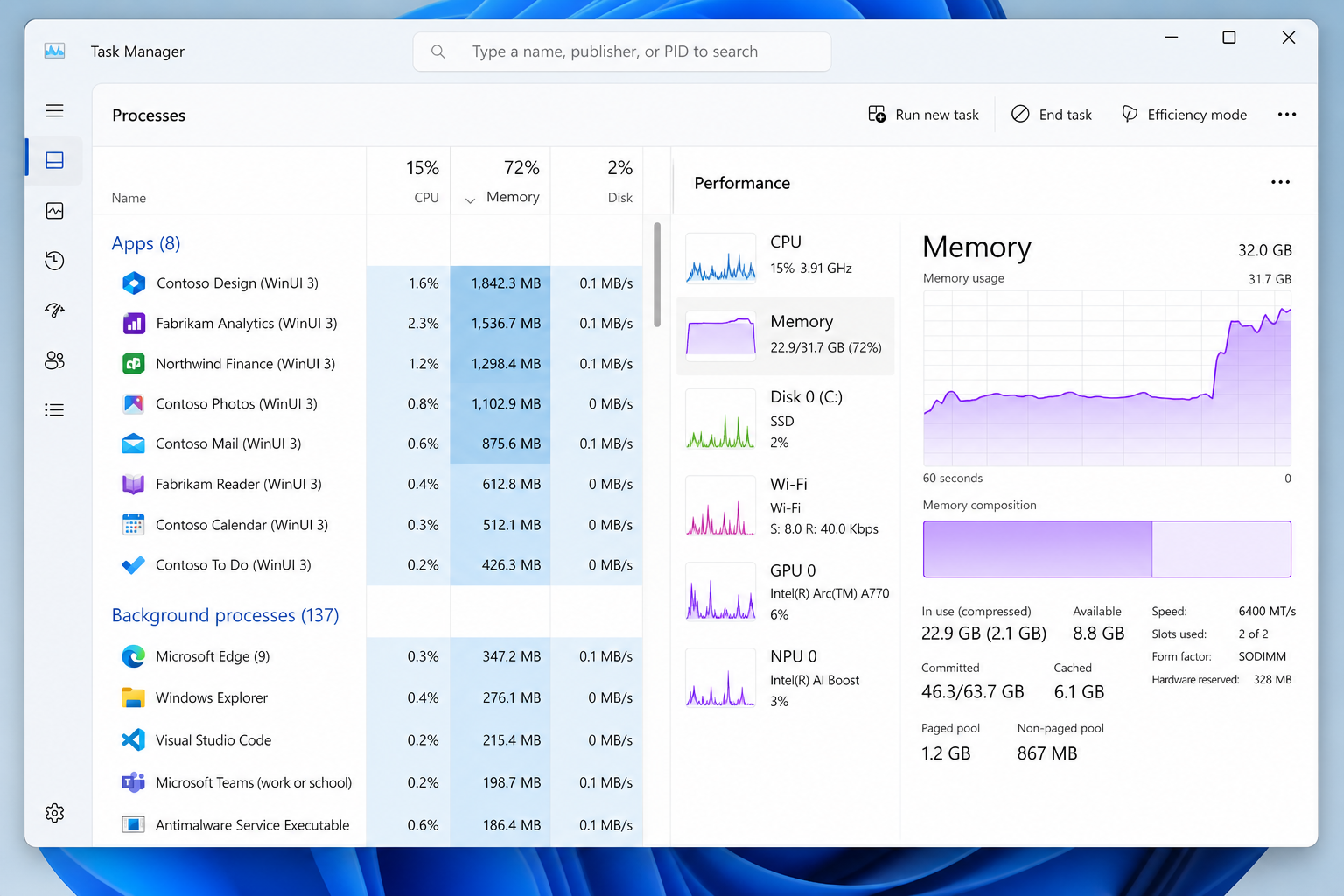
Microsoft engineers publicly acknowledged at Build 2026 that Windows 11 high RAM consumption is directly tied to the WinUI 3 framework — the modern UI toolkit underpinning virtually every rebuilt native app in Windows 11, including Settings, Photos, the Widgets panel, and File Explorer components. According to reporting by Windows Latest, Microsoft confirmed that WinUI 3 carries substantial overhead in its current form, and that performance improvements must be shipped before any further UI redesigns — such as the planned Start Menu rewrite — can roll out.
This is a significant admission. For years, users complained about high idle RAM readings, only to be told it was Windows doing intelligent pre-fetching. While some of that is true, the WinUI 3 framework issue is distinct: it adds persistent memory overhead that doesn’t release cleanly, compounding on systems that are already stretched.
Which Windows 11 Apps Are the Worst RAM Offenders?
Not every app on your system contributes equally to Windows 11 RAM bloat. The heaviest offenders are the ones rebuilt on WinUI 3 for Windows 11’s launch and subsequent updates:
- Widgets panel — Reported by many users to consume 130 MB or more even when never opened, running persistently in the background via the WidgetService process.
- Settings app — Rebuilt entirely in WinUI 3 for Windows 11; carries a noticeably heavier memory footprint than the Windows 10 Settings app it replaced.
- Microsoft Photos — The redesigned Photos app loads WinUI 3 rendering infrastructure on launch, with higher baseline RAM than the legacy Photos viewer.
- File Explorer (new tabs UI) — The tabbed File Explorer introduced in Windows 11 22H2 uses WinUI 3 components, adding to idle memory costs.
- Notepad and Paint (redesigned versions) — Both received WinUI 3 makeovers, and both now carry more RAM overhead than their Win32 predecessors despite doing essentially the same job.
The pattern is consistent: any app that Microsoft rebuilt using WinUI 3 as part of its “modern Windows” push is likely contributing to your elevated Windows 11 memory usage reading.
Why Does WinUI 3 Cause Such High RAM Usage?
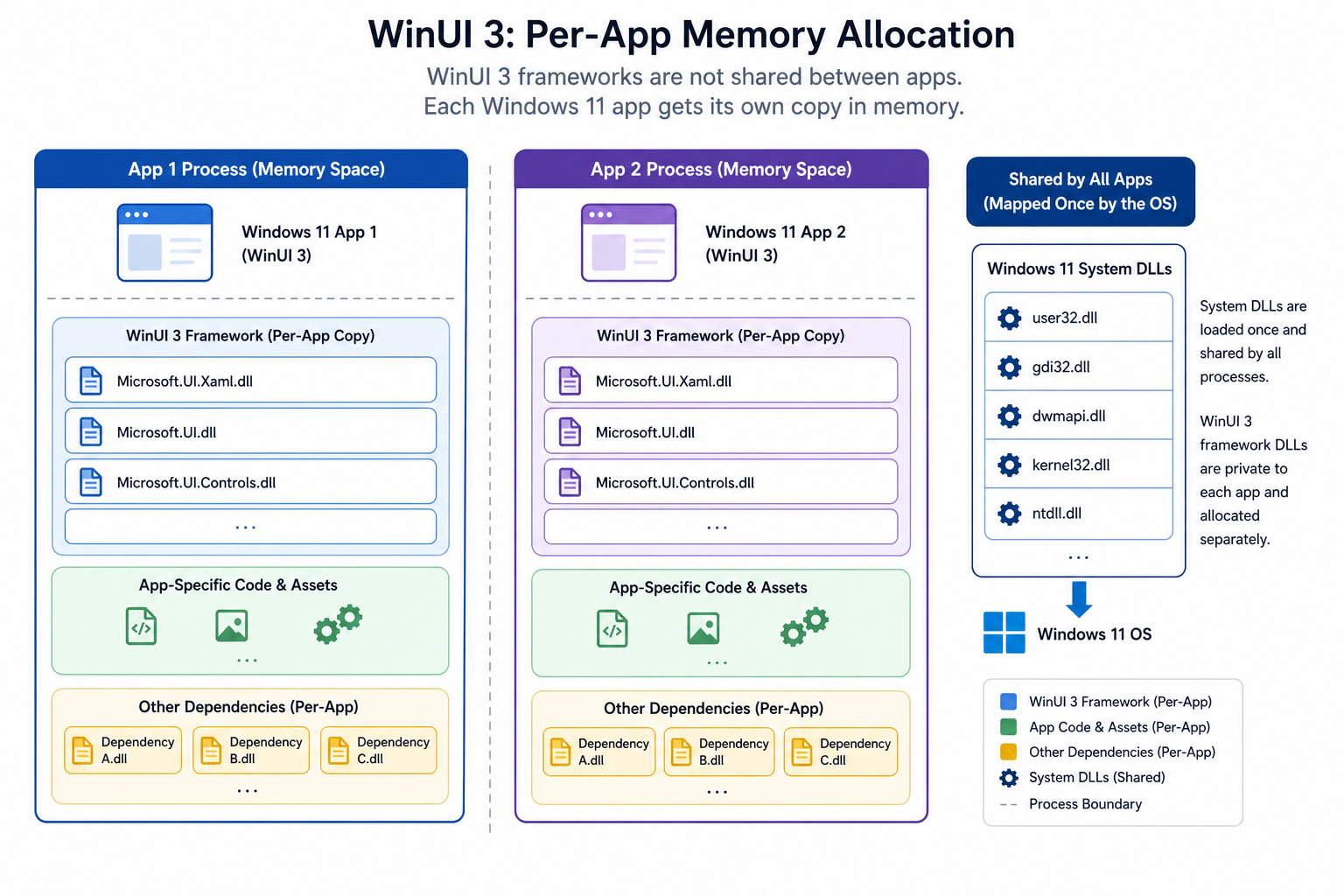
Understanding the root cause of Windows 11 high RAM figures requires a brief look at how WinUI 3 works. The framework is built on top of the Windows App SDK and uses a separate rendering pipeline from the older Win32 and UWP approaches. Each WinUI 3 app loads its own copy of the framework runtime — there is no true shared-library model the way classic Win32 apps share system DLLs. That means five WinUI 3 apps running simultaneously each carry their own independent allocation of framework memory rather than pooling it.
Microsoft’s engineers noted that the memory allocator used by WinUI 3 was not optimised for the kind of lightweight, always-on Windows shell apps that Settings or the Widgets panel are. These are apps designed to be opened briefly and closed, yet they behave more like full productivity applications in terms of their memory footprint. A new allocator and targeted WinUI 3 tuning — internally referred to in connection with the “K2” effort — are the core of what Microsoft has committed to shipping.
The 8 GB RAM Problem
Microsoft has specifically flagged 8 GB RAM systems as a priority for the memory optimisation work. With Windows 11’s baseline overhead, background processes, and WinUI 3 app memory, a machine with 8 GB of physical RAM can find itself at 50–70% memory utilisation before a single user application launches. That leaves precious little headroom for a browser, a productivity suite, or any creative software. Machines with 16 GB or more feel the WinUI 3 overhead less acutely — though they are not immune to it.
What the RAM Bloat Fix Actually Does
Microsoft’s announced remediation is not a one-click hotfix. It is a multi-stage engineering effort with three primary components:
- New memory allocator for WinUI 3 — A replacement allocator designed to reduce per-app baseline consumption and release memory more aggressively when apps are minimised or idle.
- Framework-level tuning — Profiling and optimising the WinUI 3 rendering pipeline itself so that lightweight shell apps (Settings, Widgets) no longer carry the same overhead as a full productivity application.
- Widgets panel memory reductions — Already partially shipped in some Windows Insider builds (notably Build 26220), the Widgets service has received targeted cuts to its background RAM reservation.
According to Microsoft, these changes to address Windows 11 RAM bloat will be prerequisites before the planned Start Menu rewrite and other major UI changes ship. In other words, performance comes before new features — a welcome (if overdue) shift in priority.
What You Can Do Right Now to Reduce Windows 11 High RAM Usage
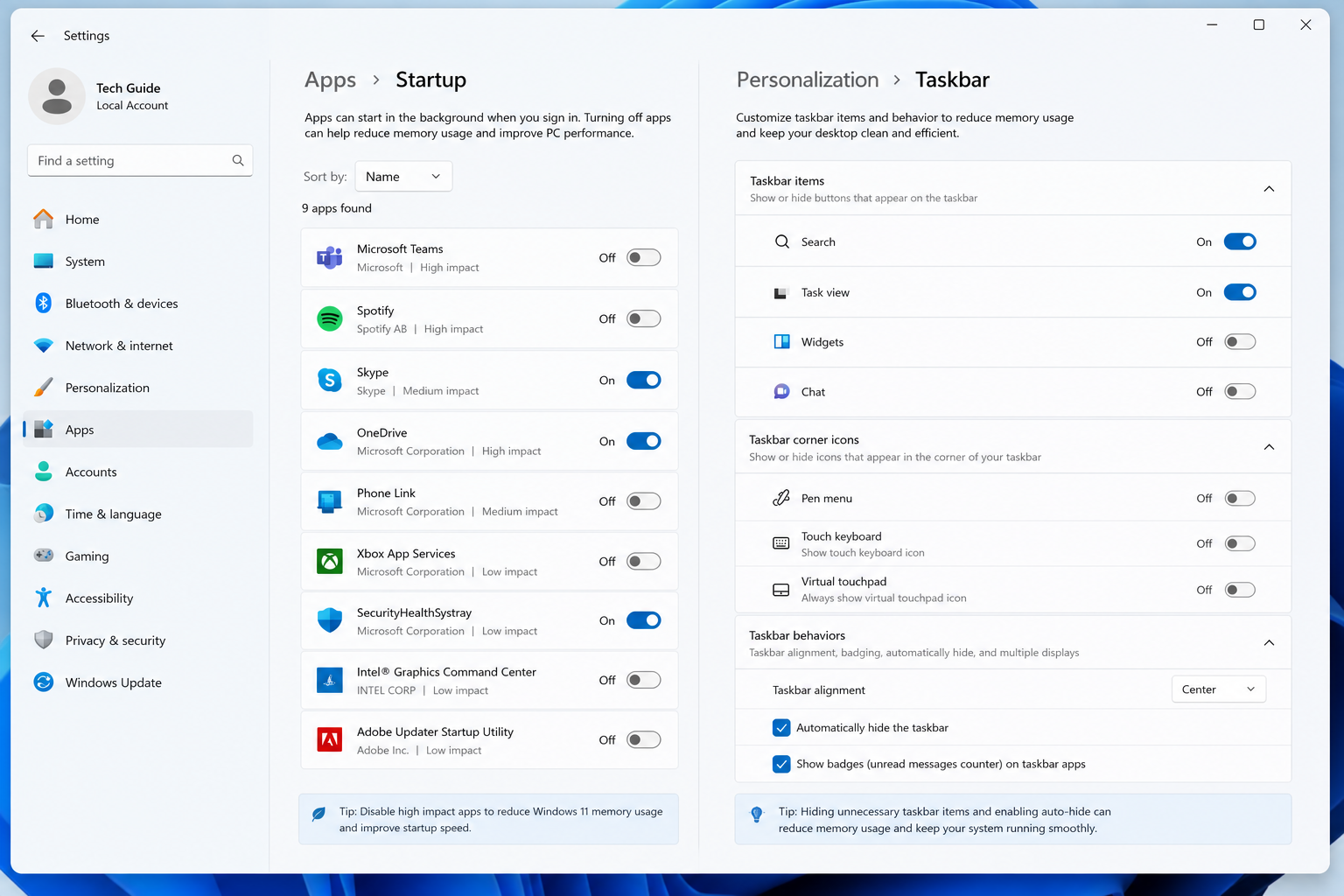
While you wait for Microsoft’s framework-level fix to reach your machine via Windows Update, several practical steps can meaningfully reduce your Windows 11 high RAM readings today.
Disable the Widgets Panel
If you do not use the Widgets panel, disabling it entirely stops WidgetService from consuming background memory. Right-click the Taskbar, select Taskbar settings, and toggle Widgets off. For a more thorough removal, you can use PowerShell to uninstall the Widgets app package — though this is only recommended for advanced users comfortable with command-line tools.
Audit and Trim Startup Apps
Go to Settings > Apps > Startup and disable any non-essential programmes set to launch at boot. Every startup app you disable is RAM you free up before you even open your first browser tab. Focus especially on apps you recognise but rarely use.
Adjust Visual Effects for Performance
Open System Properties > Advanced > Performance Settings and select Adjust for best performance, or manually deselect animations and transparency effects. Windows 11’s visual layer has its own memory cost; stripping back effects reduces compositor overhead, which compounds with WinUI 3 savings.
Increase Your RAM — or Clean Install Windows 11
If your machine has 8 GB or less, the single most impactful long-term move is a RAM upgrade if your hardware allows it. Alternatively, a clean install of Windows 11 (rather than an in-place upgrade from Windows 10) often results in a leaner baseline — upgraded systems can accumulate legacy processes and services that a fresh install avoids. If you are planning a clean install, make sure you have a genuine licence key ready so activation is seamless from the start.
Should You Roll Back to Windows 10 Over RAM Bloat?
For most users, rolling back to Windows 10 is not the right response to Windows 11 RAM bloat. Windows 10 reaches end of support in October 2025, meaning no more security patches — a far more serious risk than slow performance. The memory optimisation Microsoft has committed to is real, and the framework-level changes, once shipped to stable builds, should produce meaningful improvements for everyday users.
That said, if you are running an older machine with 8 GB RAM, ageing hardware, and no upgrade path, the maths may not work out in Windows 11’s favour right now. In that case, staying on Windows 10 with Extended Security Updates is a documented option — though it comes with its own costs and limitations.
For users looking to upgrade cleanly to Windows 11 on capable hardware, a genuine licence from a trusted source is the right starting point. Top Key Shop offers Windows 11 Pro Retail from just €9.10, with instant email delivery and free activation support if you need it — a far more affordable option than buying direct from Microsoft. If you prefer a bundle, the Windows 11 Pro Retail + Office 2024 Professional Plus Bundle is available from €19.10 (regularly €29.00).
How Soon Will the RAM Bloat Fix Reach Your PC?
Microsoft has not committed to a specific patch date for the full WinUI 3 memory optimisation work. Some incremental improvements have already shipped via Insider builds in mid-2026. The broader allocator changes and framework tuning are expected to roll out through Windows Update across stable builds during 2026, prioritising machines with 8 GB RAM. Given that Microsoft has made these improvements a gating condition for the Start Menu rewrite, there is a structural incentive for the engineering team to ship them sooner rather than later.
Keep Windows Update enabled and check for optional updates regularly — performance improvements of this type often ship as optional updates before becoming mandatory.
FAQ
Why is my Windows 11 RAM usage so high at idle?
Windows 11 high RAM at idle is primarily caused by two things: the WinUI 3 framework overhead carried by native apps like Settings, Photos, and the Widgets panel, and the SysMain service pre-loading frequently used apps into memory. The WinUI 3 issue is a known framework limitation Microsoft is actively fixing. SysMain is a feature by design — it speeds up app launches by using otherwise idle RAM as a cache, and is not harmful in most cases.
Which Windows 11 app uses the most RAM in the background?
The Widgets panel (WidgetService) is consistently the most-reported background RAM offender, with users documenting it consuming 100–200 MB even when never opened. The Settings app and redesigned Photos app are also significant contributors due to their WinUI 3 foundations. Task Manager’s Processes tab is your best tool for identifying what is consuming RAM on your specific machine.
Does the Windows 11 RAM bloat fix require a new PC?
No. The WinUI 3 memory optimisation Microsoft has committed to will ship as a Windows Update to existing Windows 11 machines. You will not need new hardware to benefit — the improvements target the software framework, not the underlying silicon. However, machines with more physical RAM will always handle any OS overhead more gracefully.
Is 8 GB RAM enough for Windows 11 in 2026?
It is the stated minimum, but it is tight. Microsoft has specifically prioritised its RAM bloat fix for 8 GB systems, acknowledging that current WinUI 3 overhead leaves very little headroom on those machines. With the fix applied, 8 GB should become more comfortable for light-to-moderate use. For productivity, gaming, or anything involving a browser with multiple tabs alongside other apps, 16 GB remains the practical recommendation.
Will disabling Widgets fix my high RAM usage on Windows 11?
Disabling the Widgets panel will free up 100–200 MB of background memory on most systems — a meaningful gain on 8 GB machines. It will not solve all Windows 11 memory usage issues on its own, since the WinUI 3 overhead affects several other apps. But it is one of the fastest single actions you can take right now for a measurable improvement.
Should I upgrade from Windows 10 to Windows 11 if RAM is a concern?
If your hardware meets the requirements and you have 16 GB of RAM, upgrading is still recommended — especially with Windows 10 support ending in October 2025. If you have 8 GB of RAM, waiting a few months for Microsoft’s WinUI 3 optimisations to reach stable builds is a reasonable approach. Either way, make sure you are running a genuine, activated copy of Windows so you receive all performance and security updates automatically.
