
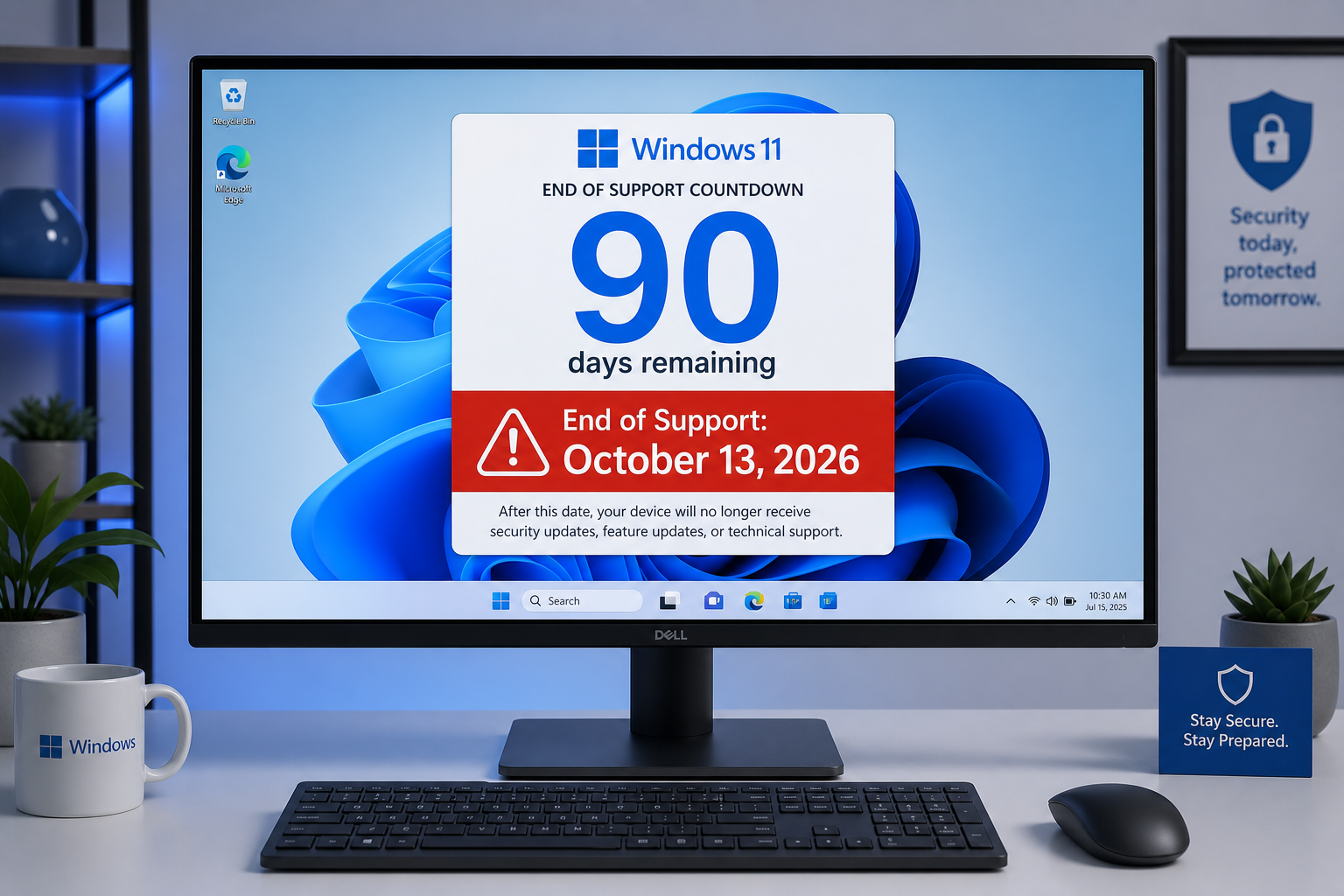
Windows 11 24H2 end of support arrives on October 13, 2026 — and if you’re still running Windows 11 Home or Pro version 24H2 on that date, Microsoft will stop delivering security patches, bug fixes, and feature updates to your device entirely. That’s not a distant warning: it’s a hard cutoff that leaves unpatched PCs exposed to every vulnerability discovered after that date. The good news is you still have time to act, and your options are straightforward.
What Does “Windows 11 24H2 end of support” Actually Mean?
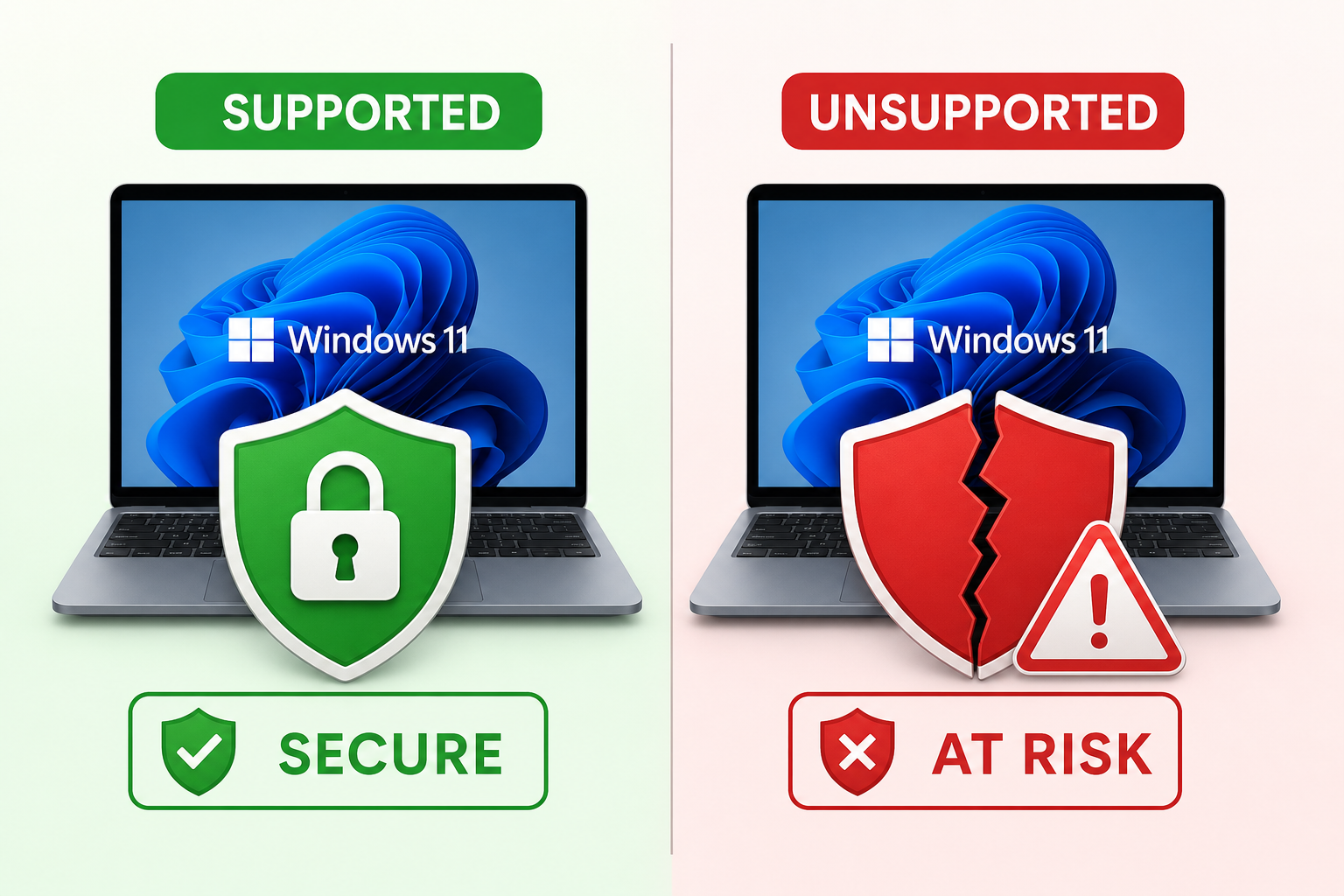
End of support — also called end of servicing — means Microsoft officially retires a Windows version and stops issuing monthly Patch Tuesday updates for it. After the Windows 11 support deadline passes for 24H2, your PC will keep running day-to-day, but it will no longer receive:
-
Security patches for newly discovered vulnerabilities
-
Bug fixes and stability improvements
-
Compatibility updates for new hardware and drivers
-
Feature enhancements rolled out to newer versions
Microsoft’s official Windows 11 Home and Pro lifecycle page confirms that version 24H2 reaches its end-of-servicing date on October 13, 2026. This follows the standard 24-month support window that Microsoft applies to annual feature updates for consumer editions.
Why the 24H2 End of Life Date Matters So Much
When a Windows version hits its 24H2 end of life, the risk to everyday users grows fast — and it compounds month by month. History shows that cybercriminals actively target unsupported operating systems because defenders have no official patch to close the gap. Consider what happened with Windows 7: within months of its January 2020 end-of-support date, targeted ransomware campaigns explicitly singled out machines that hadn’t upgraded. The same dynamic will apply to 24H2 once October 13, 2026 passes.
There’s also a practical business angle. If you use your PC for any work involving customer data, banking, or cloud services, running an unsupported OS can put you in breach of data-protection obligations, invalidate cyber-insurance policies, or flag compliance issues during audits.
Which Devices Are Affected by the Windows 11 Support Deadline?
Every consumer PC running Windows 11 Home or Pro, version 24H2 is affected. Version 24H2 — formally the Windows 11 2024 Update — began rolling out in October 2024 and became the default installation on new hardware shortly after. If you bought or reinstalled Windows 11 any time between late 2024 and mid-2026, there’s a high probability you’re on 24H2.
To confirm your version, press Win + R, type winver, and press Enter. Look for “Version 24H2” in the dialog box. If you see it, the October 13, 2026 deadline applies to you.
What About Enterprise and Education Editions?
Windows 11 Enterprise and Education editions of 24H2 receive a longer support window — typically 36 months. If you’re on an enterprise licence managed by IT, your organisation’s team will handle the upgrade cycle. This guide focuses on the Home and Pro consumer editions most commonly used by individuals and small businesses.
Your Upgrade Options Before the Deadline
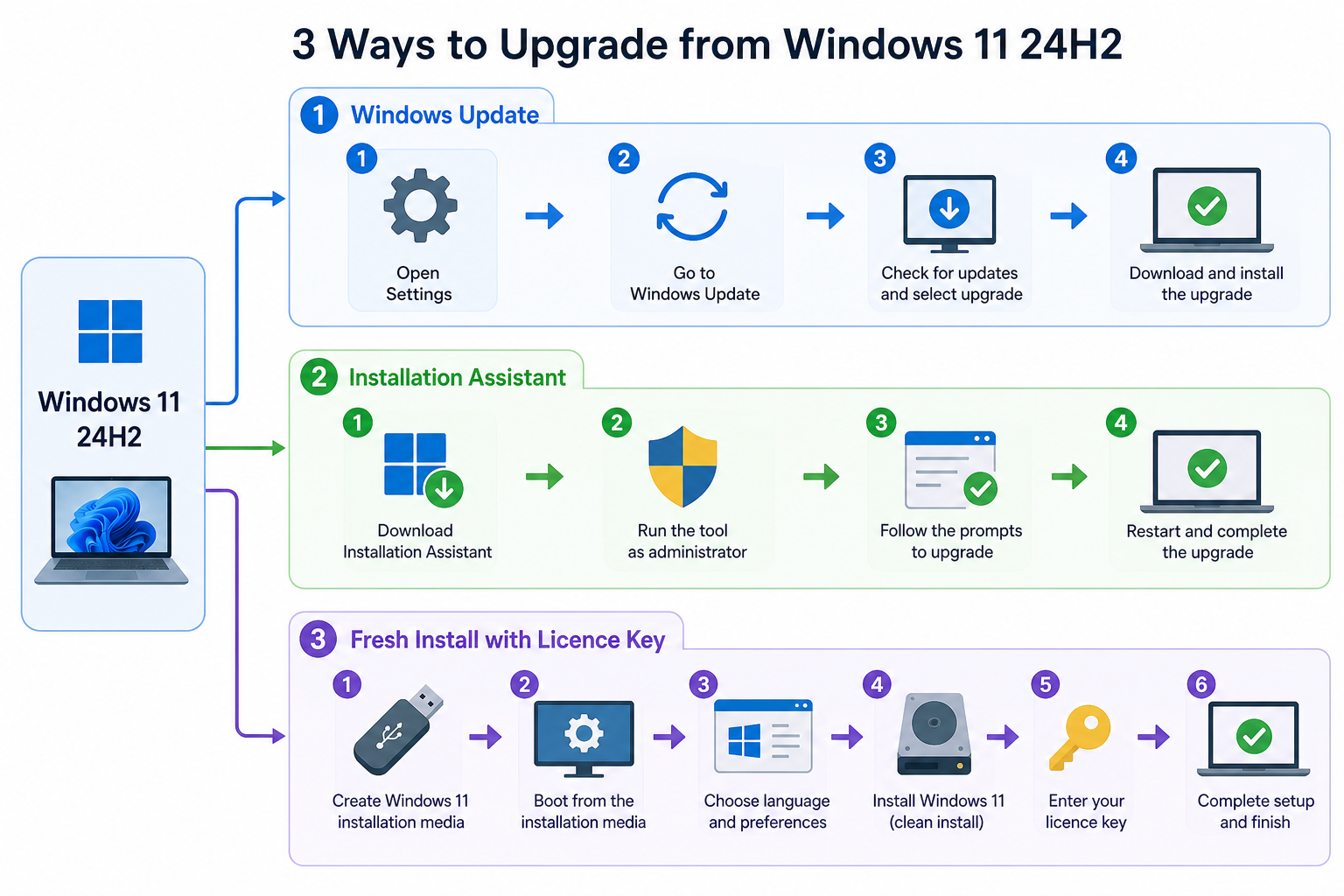
Upgrading from 24H2 is simpler than most people expect. Microsoft has already begun force-rolling Windows 11 25H2 to eligible devices running 24H2, meaning many users will receive the update automatically via Windows Update. Here are all three paths you can take:
Option 1: Windows Update (Easiest)
Go to Settings → Windows Update → Check for updates. If your device is eligible and 25H2 is available in your region, you’ll see the option to download and install. This is the safest and most straightforward route — Microsoft handles everything, and your files and applications stay intact.
Option 2: Windows 11 Installation Assistant
Download the Windows 11 Installation Assistant directly from Microsoft’s software download page. Run it, accept the licence terms, and follow the prompts. The assistant upgrades your version while preserving all your personal files, settings, and installed programs.
Option 3: Fresh Install with a New Licence Key
If you’re upgrading to a newer PC, replacing an old machine, or simply want a clean slate, a fresh installation using a genuine Windows 11 licence key is the way to go. This is especially relevant if you’re moving from an older Windows 10 device to a new Windows 11 build and want full 25H2 compatibility from day one.
At Top Key Shop, you can pick up a genuine Windows 11 Pro Retail licence from just €9.10, or grab a value bundle that pairs Windows 11 with Microsoft Office — ideal if you’re setting up a new machine entirely. Browse the full range in our Windows 11 Pro category for OEM and Retail options to suit your setup.
Should You Upgrade from 24H2 to 25H2 or Stay Put?
The short answer: upgrade. There is no security benefit to staying on 24H2 past October 13, 2026. Windows 11 25H2 maintains the same hardware requirements as 24H2, so if your device runs 24H2 comfortably today, it will run 25H2 just as well. The upgrade path is in-place — you don’t need to wipe your machine or repurchase a licence. Microsoft is also initiating automatic migrations for many 24H2 devices, so the update may arrive on its own.
If your hardware is too old to support Windows 11 at all (check Microsoft’s Windows 11 25H2 release health page for compatibility notes), then a new PC is the most practical long-term solution — one that ships with a supported Windows 11 version pre-installed.
What Happens If You Do Nothing After the Windows 11 24H2 End of Life?
Your PC will not suddenly stop working on October 14, 2026. Windows will boot, your apps will open, and your files will be exactly where you left them. What changes is the security posture of the device:
-
No more zero-day patches: Any newly discovered exploit in the Windows 11 24H2 codebase will remain permanently open on your machine.
-
Growing incompatibility: Software vendors will drop support for unsupported OS versions, meaning some applications may stop updating or functioning correctly over time.
-
Browser and antivirus gaps: Even though Chrome and Edge update independently, some security tooling relies on OS-level components that stop being patched.
-
Insurance and compliance risks: Running an unsupported OS is increasingly flagged in cyber-insurance underwriting and regulatory audits.
The longer you wait after the Windows 11 support deadline, the more exposed your device becomes — and the harder it gets to justify the delay.
How to Check and Prepare Right Now
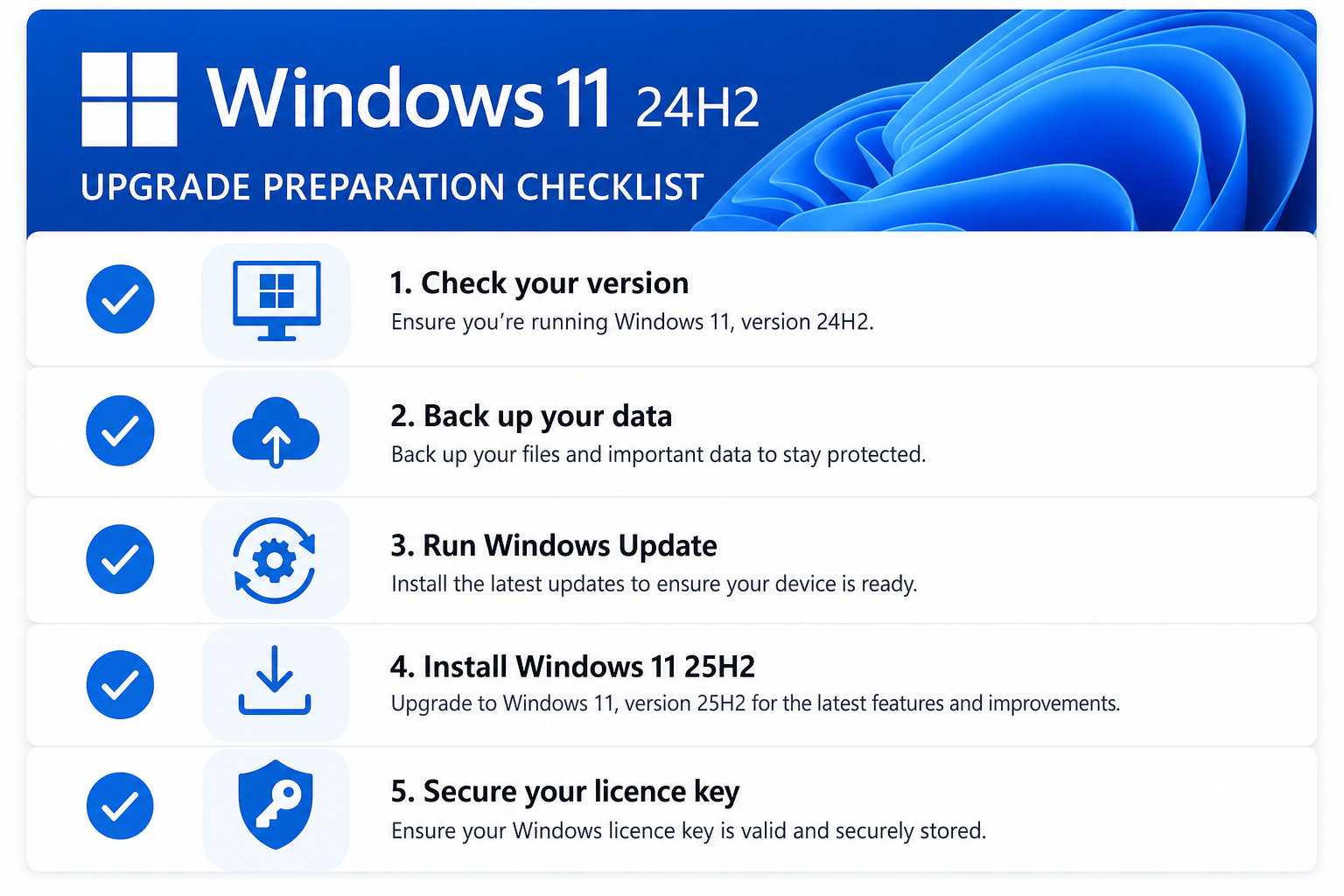
Here’s a quick checklist to get ahead of the upgrade from 24H2 before the October 2026 deadline:
-
Confirm your version: Press Win + R, type
winver, press Enter. Note your version number. -
Back up your data: Use File History, OneDrive, or an external drive. Always back up before any major OS change.
-
Check Windows Update: Settings → Windows Update → Check for updates. Install any pending updates first.
-
Look for the 25H2 offer: If eligible, the feature update should appear here. Download and install it.
-
If you need a new licence: Make sure you have a genuine Windows 11 key ready — especially important on a new or rebuilt PC.
FAQ
When exactly does Windows 11 24H2 reach end of support?
Windows 11 Home and Pro version 24H2 officially reaches end of servicing on October 13, 2026. After this date, Microsoft will no longer release security updates, bug fixes, or feature enhancements for this version. Enterprise and Education editions have a longer 36-month window and are not affected by this October 2026 date.
Will my PC stop working after the Windows 11 support deadline?
No — your PC will continue to function normally. The operating system itself doesn’t stop running. What stops is Microsoft’s delivery of security patches and updates. Over time, the risk of exploitation through unpatched vulnerabilities increases significantly, which is why upgrading before the deadline is strongly recommended.
Is upgrading from 24H2 to 25H2 free?
Yes, if your device is eligible and you already hold a valid Windows 11 licence, the upgrade from 24H2 to 25H2 is a free feature update delivered via Windows Update. You do not need to buy a new licence to move between feature versions of the same Windows 11 edition. A new licence is only needed if you’re installing Windows on a new device or replacing a current licence.
What are the hardware requirements for Windows 11 25H2?
Windows 11 25H2 maintains the same minimum hardware requirements as 24H2 — a compatible 64-bit processor, 4 GB RAM, 64 GB storage, UEFI firmware with Secure Boot, and TPM 2.0. If your machine runs 24H2 today, it will almost certainly run 25H2 without any hardware changes. Use the PC Health Check app from Microsoft to confirm compatibility.
What if I’m still on Windows 10 — is it too late to upgrade?
Windows 10 reached end of support on October 14, 2025, so it’s already operating without security patches. Upgrading to Windows 11 is the right move — and the good news is the free upgrade path for eligible hardware is still available. If your hardware qualifies, you can upgrade at no extra cost. If it doesn’t meet Windows 11 requirements, a fresh installation with a genuine retail key on supported hardware is the next best step.
Where can I get a genuine Windows 11 licence if I need one?
Top Key Shop stocks genuine Windows 11 Home and Pro licence keys — both OEM and Retail — at competitive prices. Retail keys are the most flexible, as they can be transferred to a new device if you upgrade hardware in the future. Check out our Windows 11 Pro Retail licence starting from €9.10, with bundle options pairing Windows with Microsoft Office also available at a significant saving.
