
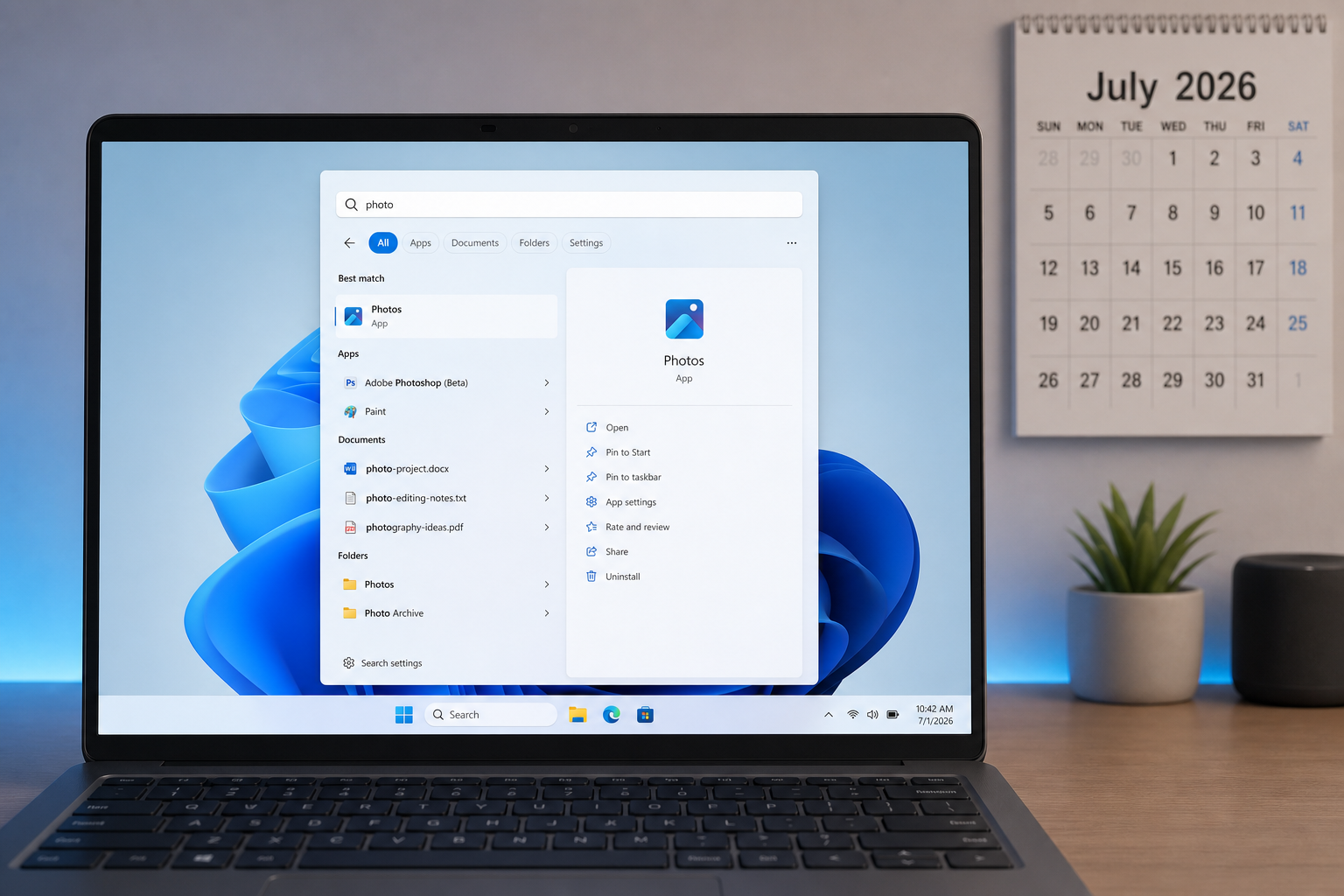
The Windows Search declutter update rolling out in 2026 is one of the most welcome quality-of-life changes Microsoft has made to Windows 11 in years. For the first time since Windows 10 introduced Bing-powered web tiles, the Search box actually behaves like a search tool rather than a mini news feed — finding your files, apps, and settings faster, with far less noise getting in the way.
What Exactly Has Microsoft Removed from Windows 11 Search?
The Windows Search cleanup strips out a surprisingly long list of content that had accumulated inside the Search panel over the years. According to the official Windows Insider blog post published 13 July 2026, the removed elements include:
-
MSN-powered content tiles (news, weather, image-of-the-day)
-
Bing-driven trending search suggestions
-
The daily trivia quiz embedded in the Search panel
-
Recommended games and promotional app tiles
-
Sponsored web results surfaced alongside local files
These tiles were web-based components piped in from Bing, and they consumed RAM even when you were simply trying to find a document on your own hard drive. Their removal is not cosmetic — it has a measurable impact on how quickly the panel responds when you open it.
What the New Windows Search Actually Looks Like
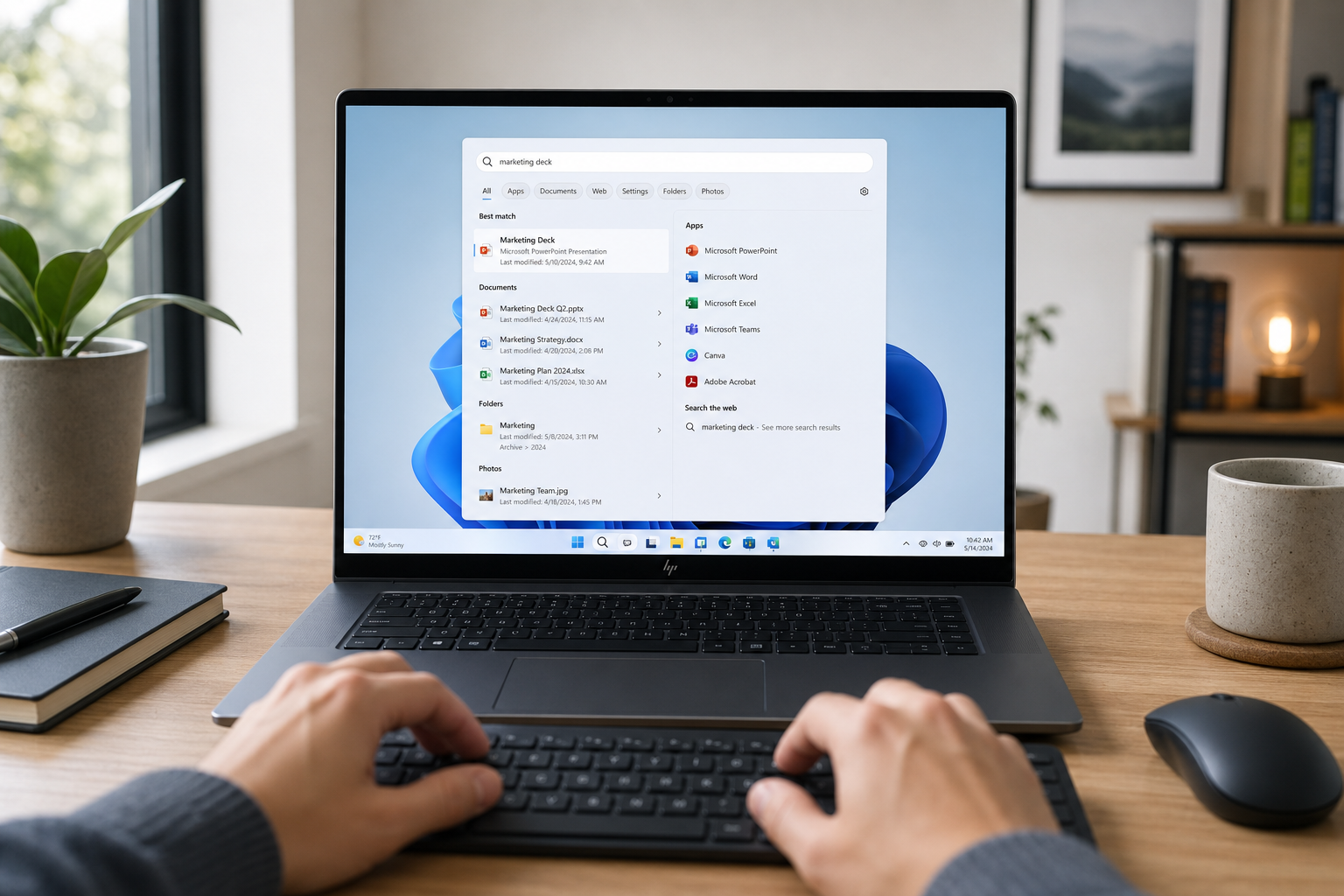
The redesigned Search box now opens to a calm, minimal panel showing your recent searches and recently accessed files. That is it. No animated tiles, no trending topics you never asked for, no promotional banners urging you to try a new game. The interface has been described by testers as looking more like a traditional application launcher than a web portal — which is precisely what most users wanted.
Result labels have also been clarified. Local files, apps, and system settings are grouped separately and labelled clearly so you can see at a glance whether a result lives on your PC or would open a browser. This was a persistent source of frustration under the old design, where a click on what looked like a local app result would silently redirect to a Bing web search.
New Toggle Controls for Web and Store Suggestions
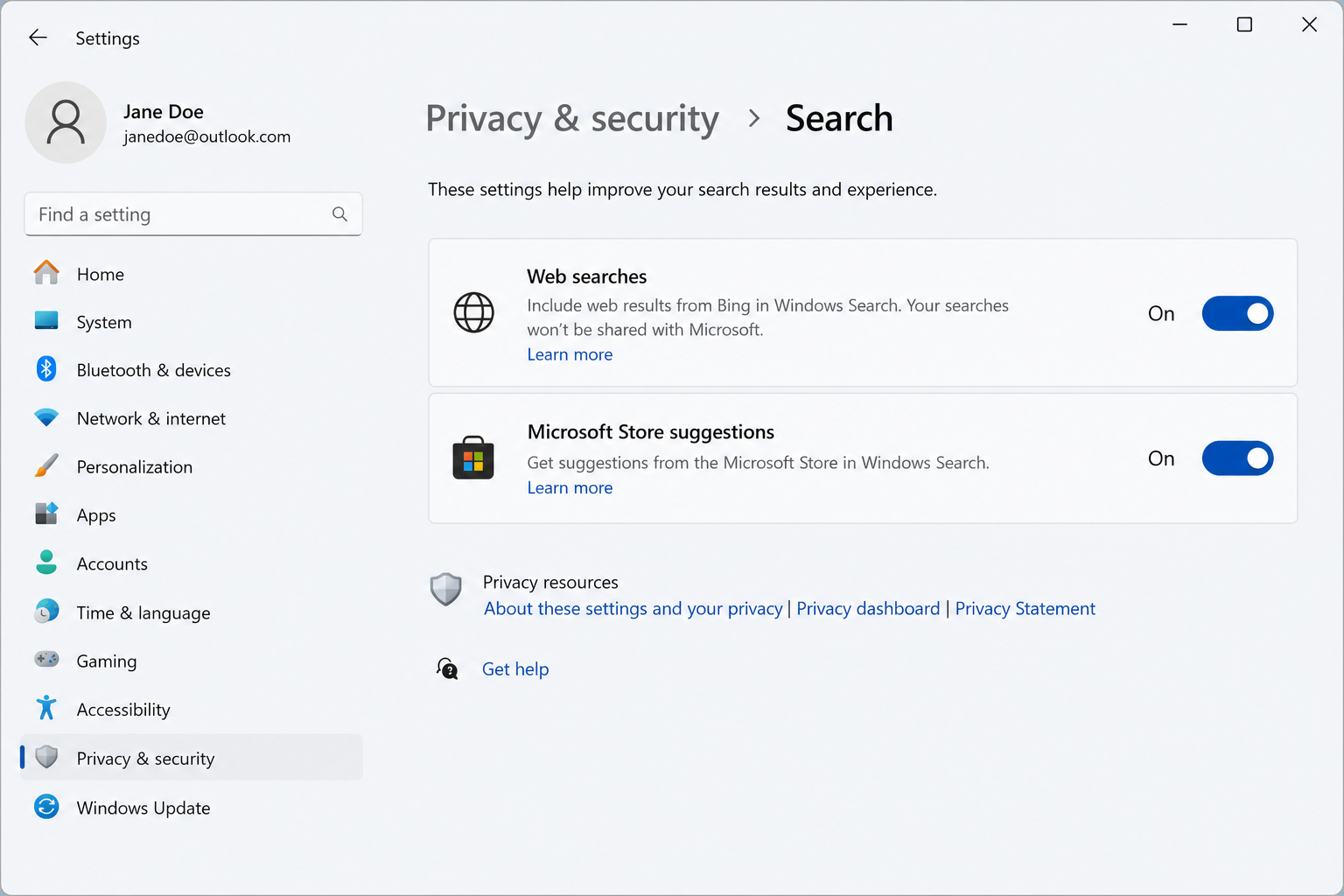
The Windows Search update 2026 introduces granular controls in Settings → Privacy & Security → Search. You now have two independent toggles:
-
Web searches — switch off to stop Bing results appearing alongside local content
-
Microsoft Store suggestions — switch off to prevent app recommendations from the Store
Both are on by default for users who still want the web integration, but the fact that they can be disabled individually is a significant improvement over the previous all-or-nothing approach. Power users and privacy-conscious workers will appreciate being able to keep Store suggestions while blocking web results, or vice versa.
Local-First Search: Why It Matters for Productivity
The core philosophical shift in the Windows Search cleanup is a return to local-first results. When you type a filename, an app name, or a system setting, the results that appear first are guaranteed to be things that exist on your machine — not Bing’s best guess at what you might mean combined with three sponsored links.
This sounds obvious, but it represents a meaningful reversal of the direction Windows Search had been heading since around 2019, when Microsoft began aggressively integrating Bing into the taskbar. For office environments, the practical benefit is real: fewer accidental browser redirects, faster app launches, and a search experience that stops treating the internet as the answer to every query.
Microsoft has also improved typo tolerance for local results specifically. Fuzzy matching for file and folder names now works more reliably, so a mistyped filename is more likely to surface the right document rather than redirect you to a web search.
How to Get the Windows Search Declutter Update
As of mid-July 2026, the cleaner Search experience is rolling out to Windows Insiders first. The timeline for general availability mirrors Microsoft’s standard phased rollout approach — typically a few weeks after Insider builds prove stable. Here is what you can do right now:
-
Join the Windows Insider Programme (Dev or Beta channel) to receive the update immediately.
-
Check for updates manually via Settings → Windows Update → Check for updates.
-
Disable web tiles today without waiting — go to Settings → Privacy & Security → Search Permissions and turn off “Show search highlights” and “SafeSearch” web integration. This removes most of the clutter in older builds.
-
Once the full update arrives, use the new dedicated web and Store toggles for finer control.
Windows Search Without Ads: A Long Time Coming
User frustration with Search clutter has been building for years. Reddit threads, tech forums, and feedback portals have consistently flagged the MSN tiles and sponsored content as among the most disliked features in Windows 11. One widely cited post from the r/pcmasterrace community noted that the tiles “ate through RAM while offering nothing most users ever clicked on.”
What makes the 2026 overhaul notable is that Microsoft is not just quietly reducing ads — it is actively promoting the cleaner experience as a feature, publishing it prominently through the Windows Insider blog and framing it as a user-control story. That is a shift in positioning: admitting the old design prioritised Microsoft’s advertising revenue over user experience, and committing to something better.
Should You Upgrade to Windows 11 to Get the Cleaner Search?
If you are still on Windows 10, the Windows Search update 2026 is one more reason to consider making the move. Windows 10 reached end of mainstream support and has a limited remaining security update window, while Windows 11 continues to receive meaningful feature improvements like this one. The cleaner Search, combined with the AI-powered features introduced throughout 2025 and 2026, makes Windows 11 a substantially more polished daily-use system.
At TopKeyShop, you can pick up a genuine Windows 11 Home Retail licence key for €14.70, or grab the excellent value Windows 11 Home + Office 2024 Professional Plus bundle — currently on sale at €19.90 (down from €29.00) — so you can get a clean, ad-light Windows experience and a full productivity suite in one shot.
What This Means for Privacy-Conscious Users
The Windows Search without ads changes have an important privacy dimension beyond convenience. The MSN tiles and Bing-driven suggestions required Search to maintain a persistent connection to Microsoft’s servers, sending query data remotely even for searches you intended to be entirely local. Removing those components by default — and giving users controls to disable the remainder — reduces the volume of telemetry generated by routine Search use.
It does not eliminate all data sharing, and users who keep the web and Store toggles enabled will still send queries to Bing. But the direction of travel is positive, and for users in regulated industries or privacy-sensitive roles, the new local-first mode is a practical improvement worth enabling.
The Bigger Picture: Microsoft Listening to Feedback
The 2026 Search overhaul sits within a broader pattern of Microsoft walking back some of the more controversial design decisions in Windows 11. The Start Menu has been simplified following criticism of its initial layout, the default browser prompt behaviour was altered after regulatory scrutiny, and now Search is being dialled back from content aggregator to utility. None of these changes happened quickly — Microsoft moves deliberately — but the direction is consistent: simplify, give users control, reduce the sense that the operating system is working for advertisers rather than for the person at the keyboard.
For everyday users and IT professionals managing fleets of machines, a leaner, faster, more predictable Search panel is a genuine quality-of-life win. The fact that it arrives without any additional cost — as a free update to existing Windows 11 licences — makes it one of the better news stories out of Redmond in recent memory.
FAQ
When will the Windows Search declutter update roll out to everyone?
Microsoft began rolling out the cleaner Search experience to Windows Insiders on 13 July 2026. The general availability rollout typically follows within a few weeks once the Insider builds are confirmed stable. You can check for updates manually via Settings → Windows Update to receive it as soon as it reaches your device.
Will disabling web searches in Windows Search break anything?
No. Turning off the web searches toggle in Settings → Privacy & Security → Search simply stops Bing results from appearing alongside your local files. All local search functionality — files, apps, settings, and documents — continues to work exactly as before. You can re-enable the toggle at any time.
Does the update remove all Microsoft Store suggestions from Search?
The new Store suggestions toggle lets you disable app recommendations that previously appeared when Search did not find an exact local match. Switching it off prevents the Store panel from opening automatically. The Microsoft Store itself remains fully accessible from the Start Menu — only the Search integration is affected.
Does the Windows Search cleanup improve performance?
Yes, in practice. The MSN tiles and Bing-driven content were web-rendered components that consumed RAM and required network requests every time the Search panel opened. Removing them reduces memory overhead and means the panel loads faster, particularly on mid-range hardware where available RAM is more constrained.
Is this Windows Search without ads update also coming to Windows 10?
No. Microsoft has confirmed this overhaul is exclusive to Windows 11. Windows 10 reached end of mainstream support and will not receive new feature updates. If a cleaner Search experience matters to you, it is a good reason to consider upgrading to Windows 11 before the end of Windows 10’s extended security support window.
