

Windows crash AI diagnostics have transformed the way everyday users tackle the dreaded Blue Screen of Death. Instead of spending hours trawling forums and decoding cryptic stop codes, you can now paste a crash dump into ChatGPT or Claude and get a plain-English explanation — and a fix — in under a minute. This guide shows you exactly how.
Why Traditional BSOD Troubleshooting Falls Short
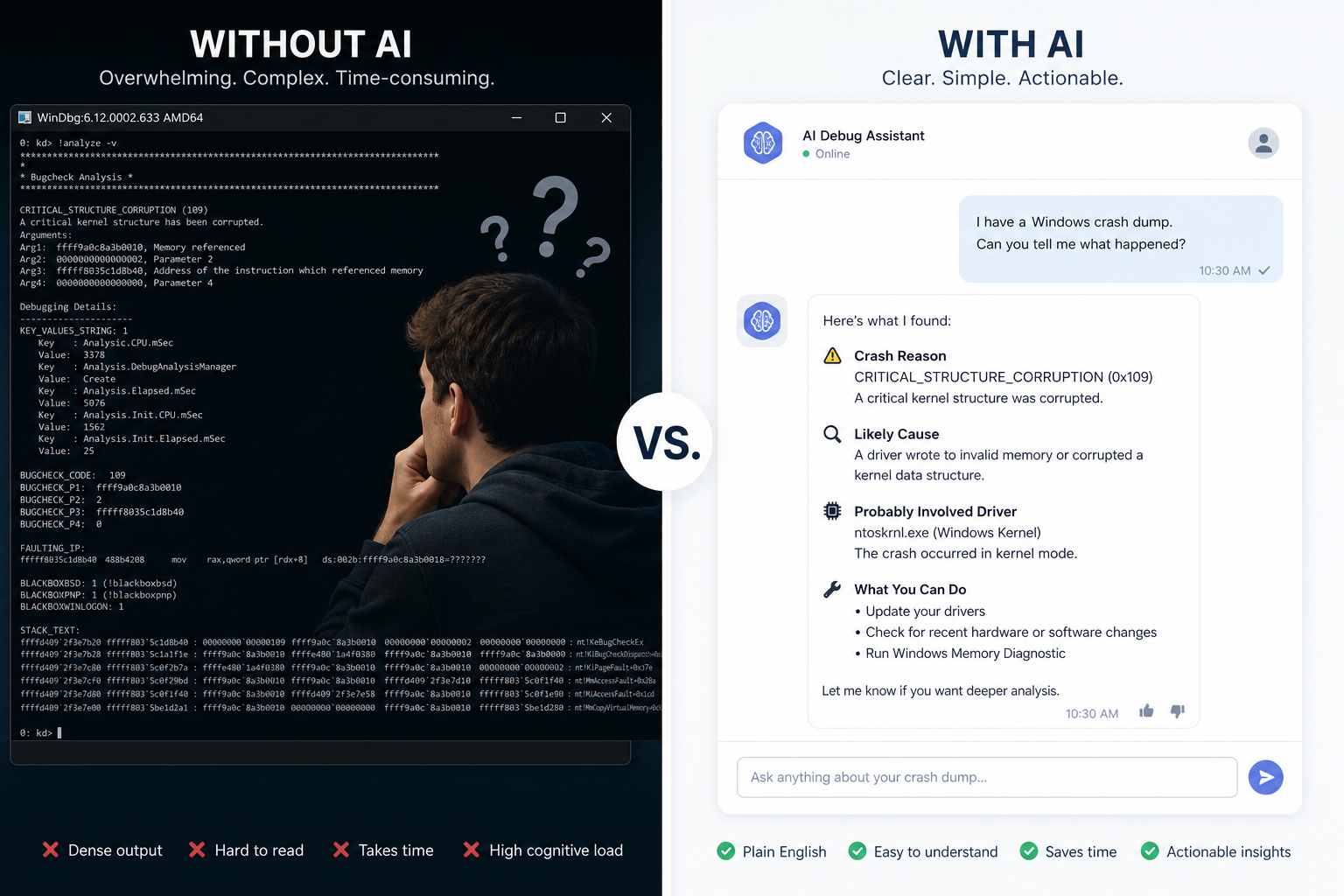
The classic approach to fixing a blue screen involves Event Viewer, WinDbg, and a working knowledge of kernel stop codes. WinDbg is powerful — Microsoft’s official WinDbg documentation confirms it can analyse kernel-mode crash dumps, examine CPU registers, and debug live code — but it has a steep learning curve that most home users simply don’t have time for. The result? Hours lost, systems left unstable, and frustration levels through the roof.
AI changes this equation completely. Modern large language models have been trained on vast amounts of debugging documentation, kernel error references, and driver compatibility data. That knowledge is now available to anyone with a browser and a crash dump file.
What Is AI Crash Analysis and How Does It Work?
AI crash analysis means feeding raw crash data — stop codes, driver names, memory addresses, or full dump text — into an AI assistant that interprets it and suggests a root cause. The AI does not access your PC directly; instead, it reads the text output you provide and cross-references it with its training data to identify likely culprits.
In 2025, a software engineer released an open-source tool called mcp-windbg that connects AI models (including GitHub Copilot) directly to Microsoft’s WinDbg, automating the entire process. The developer described the leap as going “from hunting with a stone spear to using a guided missile” — and for anyone who has ever stared at a hexadecimal call stack, that analogy rings true.
Step-by-Step: Running a BSOD AI Fix
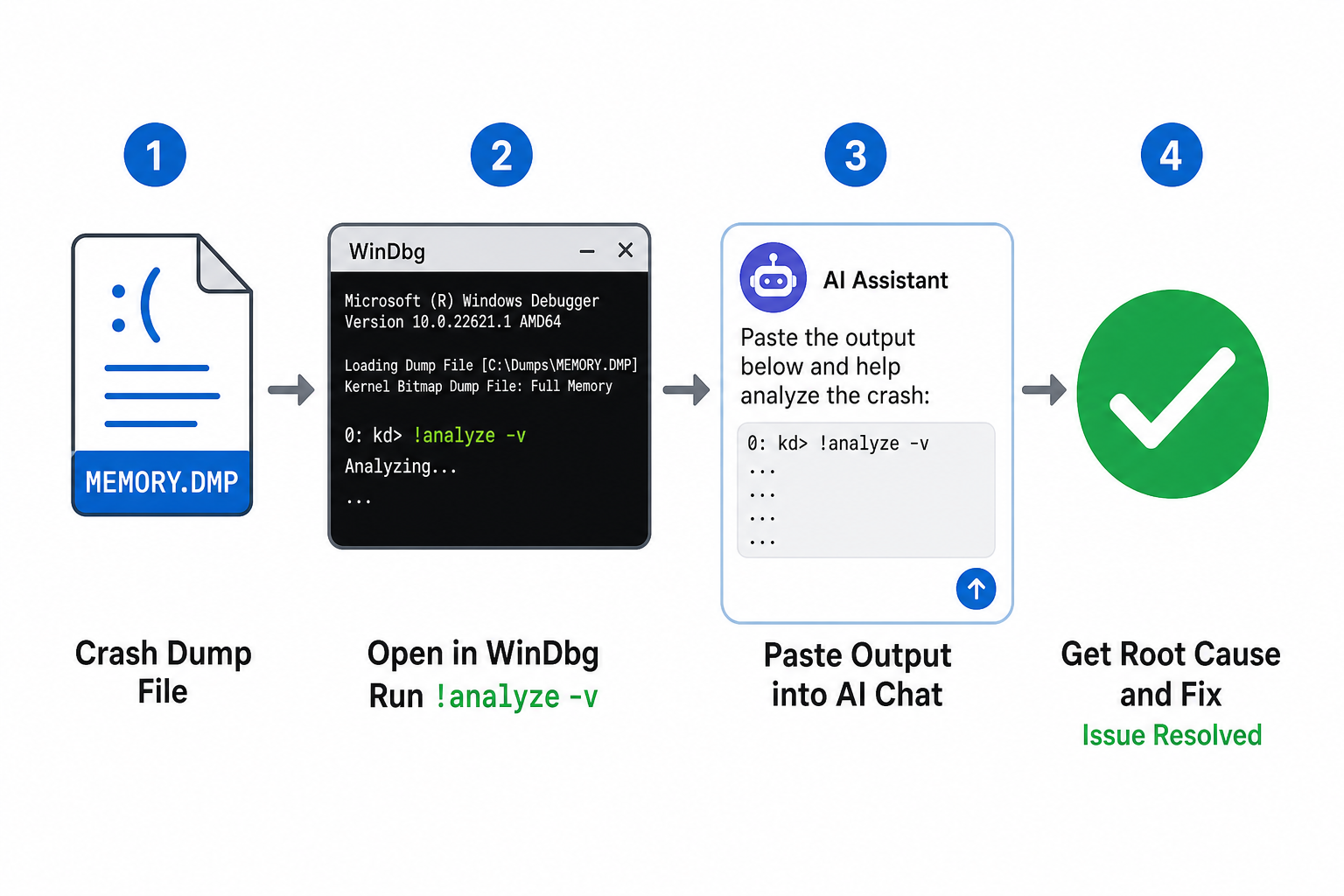
Follow these steps to perform your own BSOD AI fix using free tools — no paid subscriptions required for basic analysis.
Step 1 — Locate Your Crash Dump File
Windows saves crash dumps automatically. Open File Explorer and navigate to C:\Windows\Minidump\. You should see one or more .dmp files, each named with a date and time stamp. If the folder is empty, check System Properties → Advanced → Startup and Recovery and ensure “Small memory dump” is enabled.
Step 2 — Extract Readable Text with WinDbg
Download WinDbg Preview from the Microsoft Store (free). Open it, go to File → Open Dump File, and load your .dmp file. Once loaded, type !analyze -v in the command window and press Enter. WinDbg will output several screens of analysis text. Select all of it and copy it to your clipboard.
Step 3 — Paste Into Your AI of Choice
Open ChatGPT, Claude, or any capable AI assistant. Start a new conversation and use a prompt such as:
“I have a Windows crash dump analysis output below. Please identify the root cause, the specific driver or component responsible, and give me step-by-step instructions to fix the issue. Here is the output: [paste your WinDbg text]”
The AI will typically respond within seconds, naming the offending driver, explaining the stop code, and suggesting concrete fixes — whether that means updating a driver, rolling back a Windows update, or running a memory test.
Step 4 — Use the BSOD AI Analyzer Tool (No WinDbg Needed)
If installing WinDbg feels like too much effort, try a dedicated crash dump diagnosis service. The free BSOD AI Analyzer at bsod.windowsforum.com lets you upload a .dmp file directly and receive an instant AI-powered report — no command line required. It identifies the error code, names the driver, and gives actionable next steps in plain language.
AI Crash Analysis: What the AI Actually Looks For
Understanding what the AI reads helps you ask better questions. When you paste WinDbg output, the AI focuses on:
- Stop code (Bug Check code): e.g. 0x0000007E, SYSTEM_THREAD_EXCEPTION_NOT_HANDLED — tells the AI which category of failure occurred.
- Faulting module: the specific
.sysor.dllfile that triggered the crash, often a third-party driver. - Call stack: the sequence of function calls leading to the fault — the AI traces this to pinpoint whether the root cause is hardware, a driver, or a kernel component.
- Exception code: machine-level error type (e.g. access violation, divide by zero) that narrows down whether the crash is a software bug or a hardware fault like faulty RAM.
- Driver timestamps: outdated drivers from years ago are a major red flag the AI will flag immediately.
Common Windows Crashes the AI Diagnoses Fast
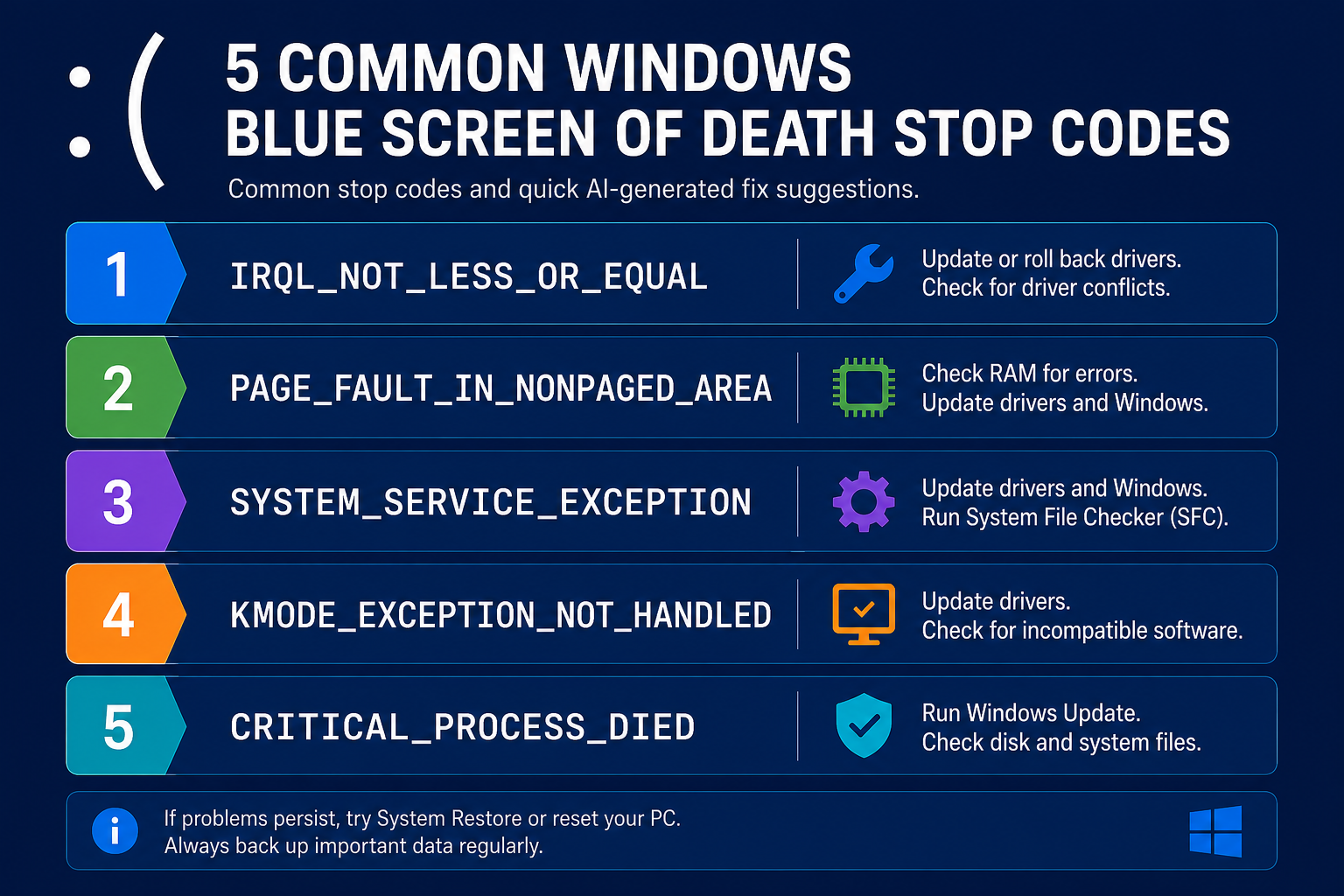
The following are the stop codes that appear most frequently in home and small-business systems, and where Windows crash AI diagnostics adds the most value:
- IRQL_NOT_LESS_OR_EQUAL (0x0000000A): almost always a driver trying to access memory it shouldn’t. AI will name the driver instantly.
- KERNEL_SECURITY_CHECK_FAILURE (0x00000139): memory corruption or an incompatible driver. AI identifies the module and suggests a rollback or update path.
- PAGE_FAULT_IN_NONPAGED_AREA (0x00000050): can indicate faulty RAM or a driver bug. AI will recommend MemTest86 or a specific driver update.
- SYSTEM_SERVICE_EXCEPTION (0x0000003B): frequently linked to antivirus software or display drivers. AI diagnosis narrows the field within seconds.
- CRITICAL_PROCESS_DIED (0x000000EF): a core Windows process failed. AI differentiates between a corrupted system file and a hardware fault.
Tips for Getting the Best Results From Your BSOD AI Fix
AI is only as good as the information you provide. Follow these tips to maximise the accuracy of your AI crash analysis:
- Paste the full
!analyze -voutput, not just the stop code. More context means a sharper diagnosis. - Mention recent changes in your prompt — new hardware, a Windows update, a freshly installed app. The AI will factor this in.
- Ask follow-up questions. If the first answer mentions a driver, ask “How do I safely roll back that driver in Windows 11?” and the AI will walk you through it.
- Cross-check multiple AI tools. Run the same dump through ChatGPT and Claude — if both point to the same driver, you can be highly confident in the diagnosis.
- Keep your dump files. If the fix doesn’t work and the crash recurs, the AI can compare multiple dumps to spot a pattern.
Does Your Windows Version Affect Crash Dump Diagnosis?
Yes — the Windows version matters for both the format of crash dumps and the AI’s ability to interpret them. Windows 11 generates richer diagnostic data than older versions, and its updated kernel means many legacy driver incompatibilities trigger more descriptive stop codes. If you are still running Windows 10 and experiencing frequent crashes, upgrading to Windows 11 can itself resolve a number of stability issues caused by outdated kernel components.
Running a licensed, fully updated copy of Windows is the foundation of a stable system. At TopKeyShop, you can grab a genuine Windows 11 Pro Retail licence key for just €9.10, with fast email delivery and official Microsoft download links included. If you want the full productivity stack, the Windows 11 Pro + Office 2024 bundle is available from €19.10 — a straightforward way to move to a stable, supported platform before running your crash dump diagnosis.
When AI Diagnostics Can’t Solve the Problem
AI is remarkably accurate for software and driver-related crashes, but it has limits. If the AI repeatedly points to hardware — specifically RAM, a failing SSD, or an overheating CPU — you will need to take physical action. Tools like MemTest86 (for RAM), CrystalDiskInfo (for drive health), and your motherboard’s temperature monitoring software are the next step. The AI is excellent at telling you which component to check; it cannot replace the physical test.
Similarly, if your stop code is 0x00000124 (WHEA_UNCORRECTABLE_ERROR), this almost always points to hardware-level faults — CPU instability, voltage irregularities, or memory errors — that require hardware replacement, not a software patch.
Frequently Asked Questions
Can I use AI to diagnose Windows crashes without installing WinDbg?
Yes. Free online tools like the BSOD AI Analyzer accept direct dump file uploads and generate an AI-powered report without any local software installation. For deeper analysis, WinDbg Preview is free from the Microsoft Store and adds significantly more detail.
Is it safe to share my crash dump with an AI service?
Minidump files contain kernel memory snapshots and driver names but rarely contain personal documents or passwords. That said, always use reputable AI services (ChatGPT, Claude, or dedicated BSOD tools) and avoid uploading complete memory dumps, which can contain more sensitive data. Check the privacy policy of any online tool before uploading.
Which AI is best for crash dump diagnosis — ChatGPT or Claude?
Both perform well on structured technical output like WinDbg logs. ChatGPT (GPT-4 and above) tends to give more detailed step-by-step repair instructions, while Claude often excels at reading long-form log output without losing context. Running both and comparing results is a sound strategy for difficult crashes.
How do I prevent Windows crashes from happening in the first place?
Keep drivers up to date — especially GPU, network, and chipset drivers. Ensure Windows Update is current, avoid overclocking without proper stability testing, and run a reputable antivirus solution. A clean, fully licensed Windows installation dramatically reduces instability caused by corrupted or modified system files.
Does Windows 11 crash more or less than Windows 10?
In most real-world deployments, Windows 11 is at least as stable as Windows 10 when run on compatible hardware. Its stricter hardware requirements (TPM 2.0, Secure Boot) actually filter out configurations prone to instability. Crashes on Windows 11 are more often driver-related than OS-level, making AI crash analysis particularly effective at identifying and fixing them.
