
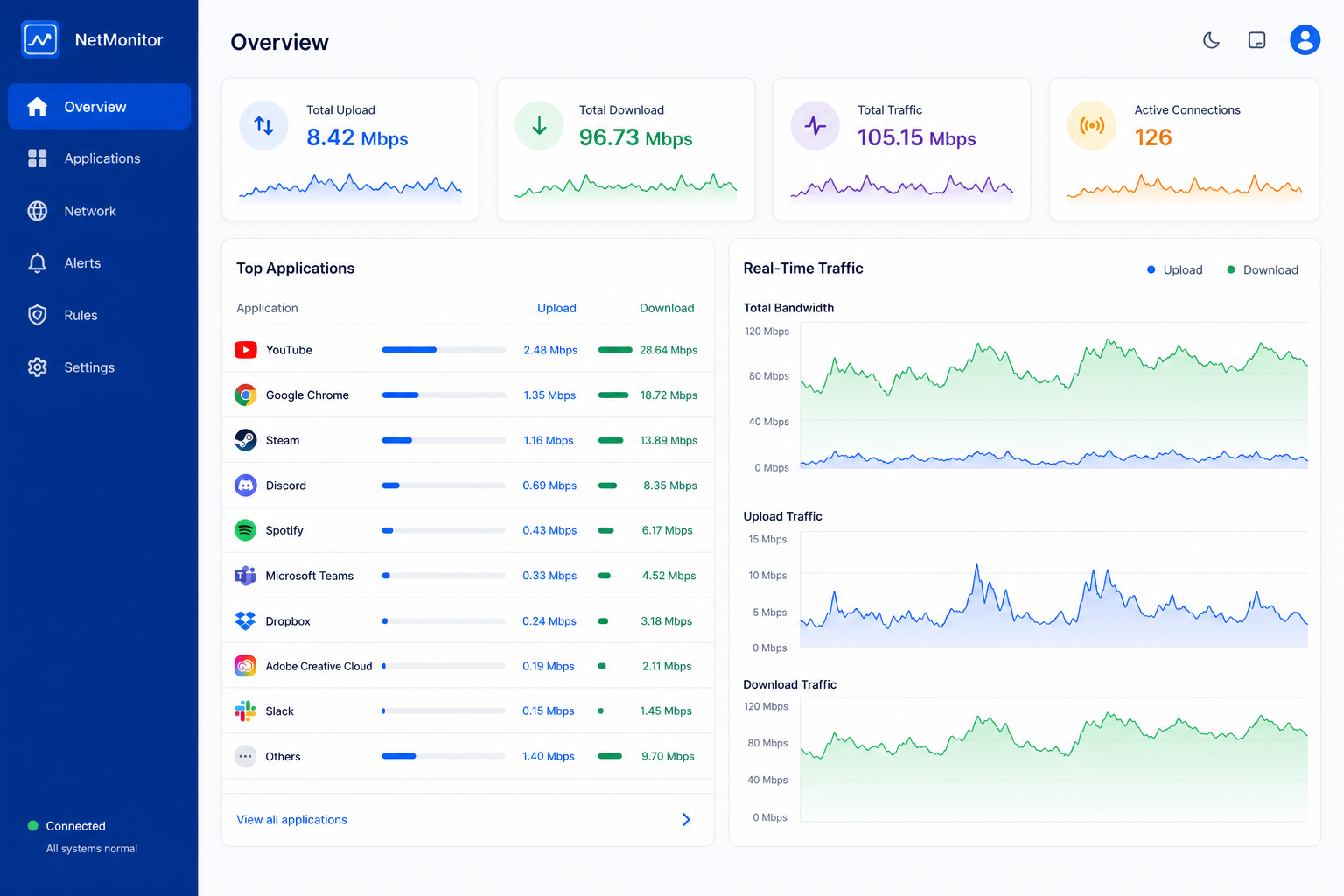
If you want to know which apps on your PC are using your bandwidth right now, you need network monitoring tools that break traffic down by process, not just total throughput. Windows 11 includes basic options, but a new wave of lightweight, open-source utilities is giving everyday users and IT professionals a far clearer picture of per-app network activity without the overhead of enterprise software.
What Network Monitoring Tools Actually Show You
A good network monitoring tool tells you exactly which running process is sending or receiving data, how much, and to which remote address — in real time. That’s different from a simple speed test, which only measures the connection between your PC and the internet as a whole.
Most modern tools in this category display:
- Per-process upload and download speed, usually in KB/s or MB/s
- A running total of data used per app, per session or per day
- The remote IP address or hostname each connection is talking to
- Historical graphs so you can spot spikes after the fact
This level of detail matters because background sync clients, update services, and telemetry processes can quietly consume gigabytes without ever showing up in a basic speed test.
Why You Need Network Monitoring Tools on Windows 11
You need network monitoring tools on Windows 11 whenever a connection feels slower than it should, a metered connection is burning through a data cap, or you suspect an app is phoning home more than expected. Windows 11 doesn’t make this information easy to find by default, which is exactly the gap these utilities fill.
Common scenarios where this visibility pays off include:
- Diagnosing why video calls stutter while other apps seem idle
- Finding the background process responsible for a capped mobile hotspot filling up fast
- Confirming that a newly installed app isn’t sending unexpected traffic
- Troubleshooting VPN or proxy issues where only some apps lose connectivity
For IT professionals supporting multiple machines, this kind of per-app detail often resolves a support ticket faster than checking router logs or asking the user to run a speed test.
Built-In Windows Options Before You Download Anything
Windows 11 already ships with two tools worth checking before installing third-party software: Task Manager’s Network tab and Resource Monitor. Task Manager shows current network usage per process under the Processes tab, sorted from highest to lowest, which is often enough for a quick check.
Resource Monitor goes further. Its Network tab lists active processes with network activity, the TCP connections each one holds open, and the remote address and port for every connection. It has been part of Windows since Windows Vista and remains one of the most detailed free diagnostic tools built into the operating system. The main limitation is that neither tool logs history — close the window and the data is gone, which is where dedicated network monitoring tools take over.
Lightweight Open-Source Network Monitoring Tools Worth Trying
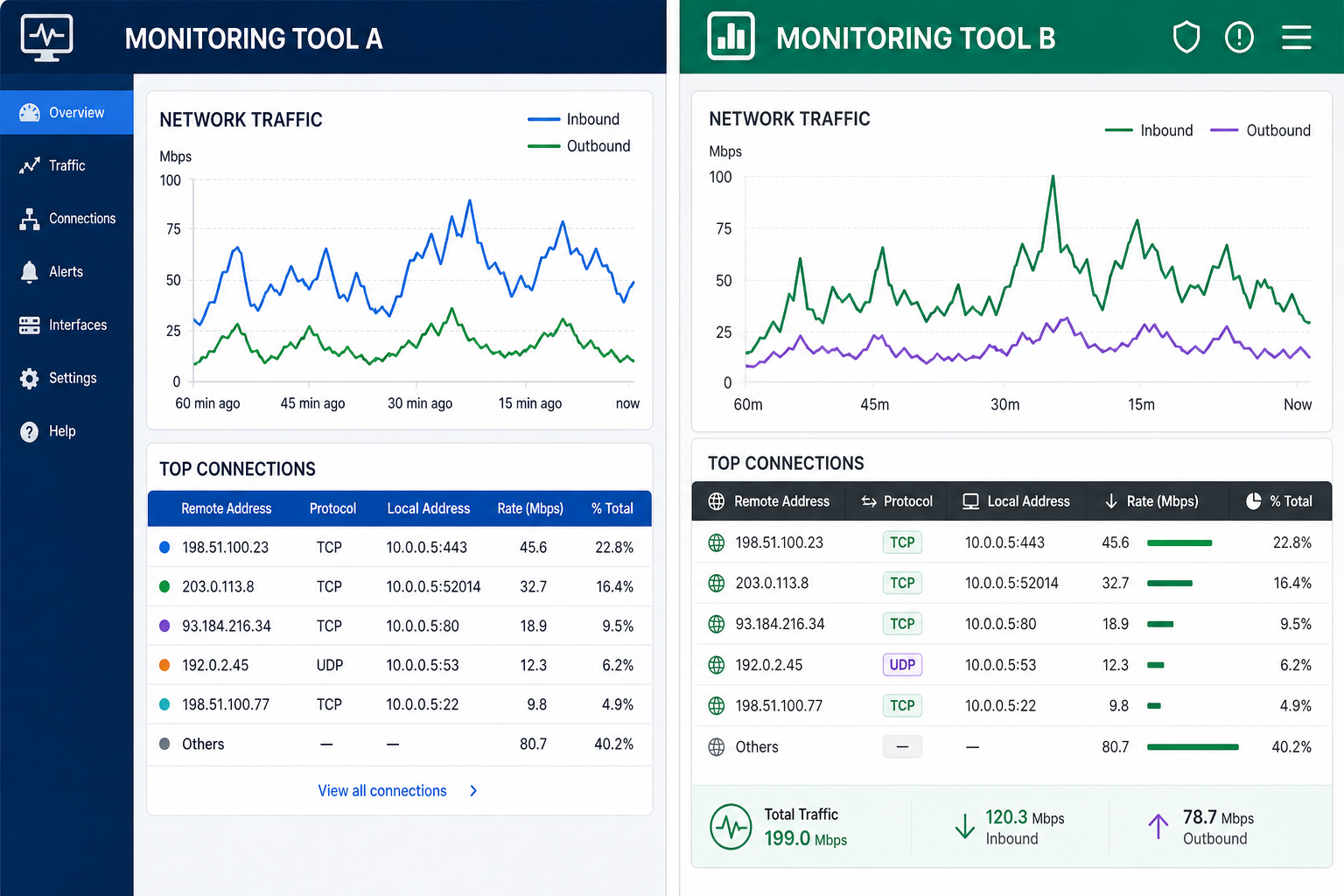
Several lightweight, open-source network monitoring tools have gained real traction recently because they focus on one job — showing per-app traffic clearly — instead of trying to be a full network management suite.
AppNetPlotter: A New Open-Source Pick
AppNetPlotter is a Windows-focused, open-source project built specifically to monitor existing app network traffic and estimate connection stability without generating extra test traffic of its own. Rather than pinging external servers, it passively observes the traffic your apps are already producing, which makes it a genuinely lightweight option for spotting which process is responsible for a connectivity problem. You can review the project directly on its GitHub repository to see current features and setup instructions.
Sniffnet: Cross-Platform and Visual
Sniffnet is a free, open-source network traffic monitor that runs on Windows, macOS, and Linux. It displays real-time charts of traffic intensity, lists the hosts and services each connection touches, and makes it easy to see at a glance which app is dominating your bandwidth at any given moment. Its cross-platform support makes it a solid pick if you manage a mix of operating systems.
NetLimiter and GlassWire: Established Alternatives
If you want more control alongside visibility, NetLimiter lets you throttle or block specific apps’ bandwidth in addition to monitoring it, which is useful when a background process needs to be reined in rather than just identified. GlassWire pairs per-app monitoring with a built-in firewall interface and alerts for unusual connection attempts, making it a popular choice for users who also want a privacy layer on top of basic traffic visibility.
How to Choose the Right Network Monitoring Tool for Your Setup
Choosing the right network monitoring tool comes down to matching the feature set to what you’re actually trying to solve. A quick one-off check only needs Resource Monitor; ongoing visibility or troubleshooting across multiple machines calls for a dedicated utility.
Consider these factors before installing anything:
- Resource footprint: lightweight tools should use minimal CPU and memory themselves — check reviews or the project’s own benchmarks
- Logging and history: decide whether you need long-term logs or just a live snapshot
- Open-source vs closed-source: open-source options let you (or your IT team) audit exactly what the tool does with the traffic data it reads
- Alerts and automation: some tools can notify you when an app crosses a usage threshold, which is handy on metered connections
For most home users and smaller IT setups, a free or open-source network monitoring tool covers everything needed without a licensing cost or a complex configuration process.
Keeping Your Windows Installation Healthy Alongside Monitoring
Network monitoring tools work best on a stable, properly licensed Windows installation, since an unpatched or improperly activated system can produce its own background noise that muddies the data you’re trying to read. If you’re setting up a clean Windows 11 install specifically to test monitoring software, a genuine Windows 11 Home license or a Windows 11 Pro license — priced from roughly €14.70 for Home at Top Key Shop — gives you a clean baseline without the update conflicts that pirated or mismatched builds often introduce.
It’s also worth keeping your system current in general. Microsoft’s own quality updates have changed networking behavior in recent builds, and staying up to date reduces the chance that a Windows bug — rather than an app — is behind unusual bandwidth readings; our rundown of recent Windows 11 quality improvements covers what’s changed under the hood.
FAQ
What’s the difference between network monitoring tools and a speed test?
A speed test measures your overall connection to the internet at one moment. Network monitoring tools break that traffic down by individual app or process, continuously, so you can see exactly which program is using the bandwidth rather than just the total.
Can I monitor app network usage without installing anything?
Yes. Windows 11’s Task Manager and Resource Monitor both show per-process network activity out of the box. They don’t log long-term history, so a dedicated tool is only necessary if you need ongoing tracking or alerts.
Are open-source network monitoring tools safe to use?
Generally yes, since the source code is publicly viewable and can be audited by anyone, including security researchers. Always download from the official project repository rather than a third-party mirror to avoid tampered builds.
Will a network monitoring tool slow down my PC?
Lightweight tools built for this purpose are designed to use minimal CPU and memory, since they’re reading traffic metadata rather than inspecting full packet contents. Heavier, enterprise-grade monitoring suites can use noticeably more resources, so check a tool’s footprint before installing it on an older machine.
Do these tools work on a metered mobile hotspot connection?
Yes, and this is one of the most common reasons people start using them. Per-app monitoring quickly reveals which background process is burning through a data cap, letting you pause or uninstall it before it causes an overage.
The Bottom Line
You don’t need an enterprise network management platform to see which apps are using your bandwidth. Between Windows 11’s built-in Resource Monitor and a handful of lightweight, open-source network monitoring tools like AppNetPlotter and Sniffnet, most users can get clear, real-time, per-app visibility in a few minutes without spending anything. Start with the built-in options, and only move to a dedicated tool once you know exactly what extra detail you need.
