
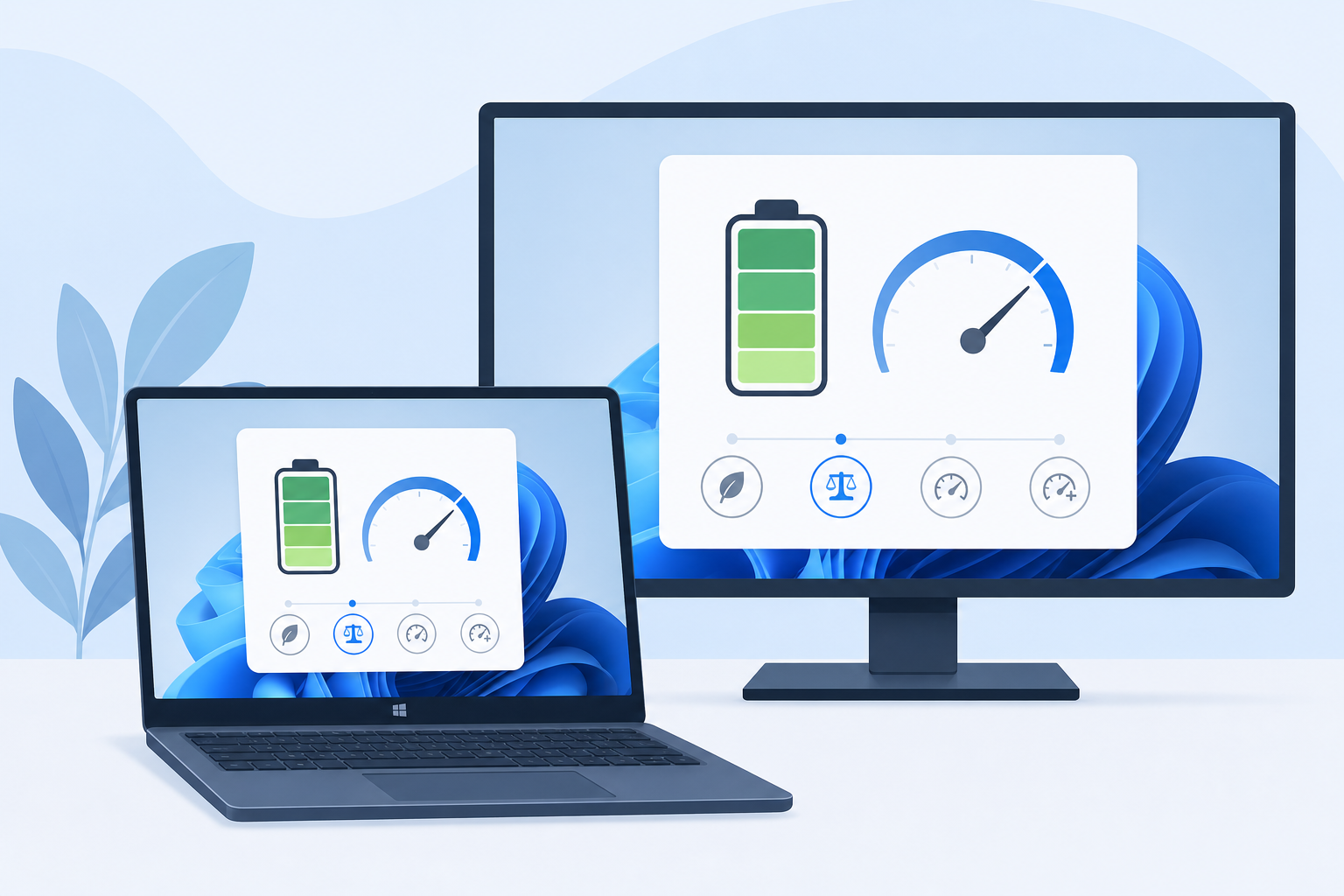
A windows power plan is the setting that decides whether your PC prioritizes speed, battery life, or a balance of both by controlling CPU speed, screen brightness, and sleep timers. Windows ships with three built-in options — Balanced, High Performance, and Power Saver — and you can also build a custom plan tuned to exactly how you work.
Picking the right one isn’t just a cosmetic choice. The wrong power plan can leave a desktop running hotter and louder than necessary, or drain a laptop battery in half the time it should last. This guide breaks down what each built-in plan actually does, when a custom power plan makes more sense, and how IT professionals and everyday users can match a plan to their workload.
What Is a Windows Power Plan, and Why Does It Matter?
A windows power plan is a bundled set of hardware settings — CPU minimum/maximum state, display timeout, sleep behavior, USB selective suspend, and more — that Windows applies all at once instead of asking you to configure each one individually. Switching plans changes dozens of settings in a single click.
This matters because the same laptop can behave completely differently depending on which plan is active. A machine on Power Saver might throttle its processor to stretch battery life on a flight, while the same hardware on High Performance will run the CPU at full clock speed for video rendering or gaming, at the cost of noise, heat, and battery drain.
Built-In Windows Power Plans Explained
Windows includes three default plans, and most users never need anything beyond these. Here’s what each one actually prioritizes.
Balanced Power Plan
Balanced is the default power plan on nearly every new Windows installation, and for good reason: it dynamically scales CPU speed up when you need performance and down when the system is idle. For general browsing, office work, and everyday multitasking, Balanced gives you solid responsiveness without unnecessarily draining a battery or generating excess heat.
High Performance Power Plan
The High Performance plan keeps the processor running closer to its maximum clock speed at all times, minimizing the brief lag that comes from a CPU ramping up from a low-power state. It’s the right call for sustained workloads — video editing, 3D rendering, compiling code, or competitive gaming — where consistent performance matters more than battery life or fan noise. On a laptop, expect noticeably shorter battery life while this plan is active.
Power Saver Power Plan
Power Saver caps CPU speed and dims the display to conserve energy, making it the obvious choice when you’re away from a charger and need the laptop to last as long as possible. The trade-off is reduced responsiveness — apps may feel sluggish, and heavier tasks like video playback can stutter. It’s best reserved for light tasks: reading, note-taking, or working in a text editor while battery is limited.
Built-In vs Custom Power Plans: Which Should You Use?
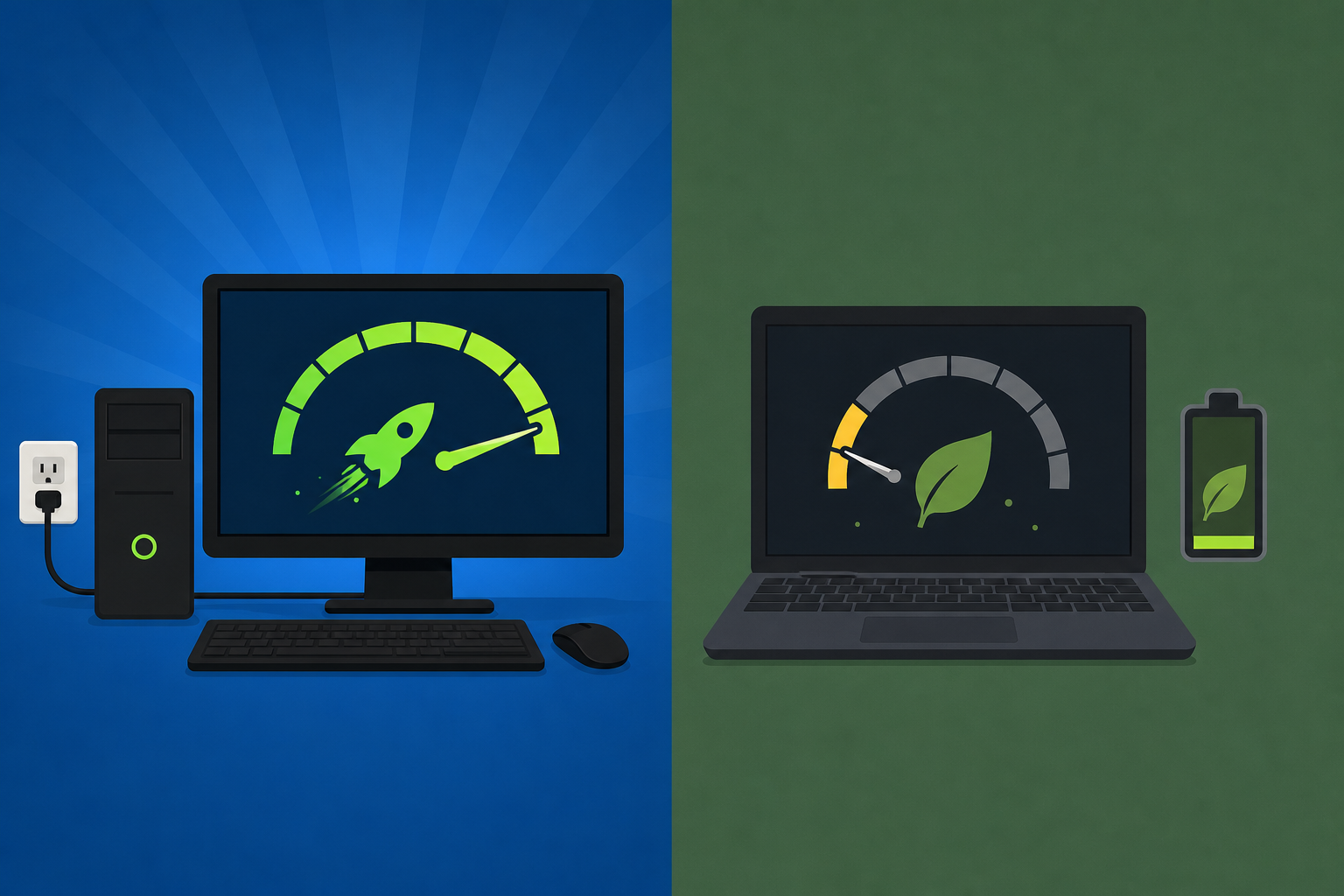
For most people, a built-in power plan is all you need — but a custom power plan earns its place when your workflow doesn’t fit neatly into Balanced, Performance, or Saver. Built-in plans are preset by Microsoft or your PC manufacturer, while a custom plan lets you fine-tune individual settings like minimum processor state, hard disk sleep timing, or when the display turns off.
Consider a custom power plan if you:
- Need the CPU to run at full speed but want the display to dim sooner to save battery
- Run a home server or NAS where the disk should never sleep but the screen can turn off immediately
- Want High Performance-level CPU behavior without the aggressive fan curve some manufacturer utilities attach to it
- Manage multiple PCs in an office and need a standardized power profile that differs slightly from Microsoft’s defaults
IT professionals managing fleets of machines often build one custom power plan and deploy it via Group Policy, ensuring every workstation behaves consistently instead of relying on whatever plan shipped with each device.
How to Create a Custom Windows Power Plan
Creating a custom plan takes a few minutes and starts from whichever built-in plan is closest to what you need. Here’s the process:
- Open Control Panel and go to Power Options (or search “Edit power plan”)
- Click “Create a power plan”
- Choose the built-in plan you want to base it on — usually Balanced or High Performance
- Name the plan something descriptive, like “Office Render Profile”
- Click “Change plan settings,” then “Change advanced power settings” to adjust individual parameters such as processor power management, hard disk timeout, and PCI Express link state power management
- Save and apply the plan
On Windows 11, Microsoft has shifted much of this into simplified “power mode” sliders under Settings > System > Power & battery, while the classic Control Panel plans still exist underneath for anyone who needs granular control. Microsoft’s official power mode documentation covers how the two systems interact on current builds.
When to Use Balanced, Performance, or Power Saver Mode
Match the power plan to the task at hand rather than leaving one plan active all the time. A quick way to decide:
- Balanced — everyday use: email, browsing, documents, video calls, light multitasking
- High Performance — rendering, gaming, large compiles, data analysis, or any CPU-bound task where you’re plugged in
- Power Saver — traveling, long meetings, or any time you need maximum battery runtime over raw speed
Many laptop users switch plans manually depending on whether they’re plugged in, while desktop users with no battery concerns can often leave High Performance active permanently without a downside beyond slightly higher electricity use and fan noise.
Windows Power Plan Settings for Laptops vs Desktops
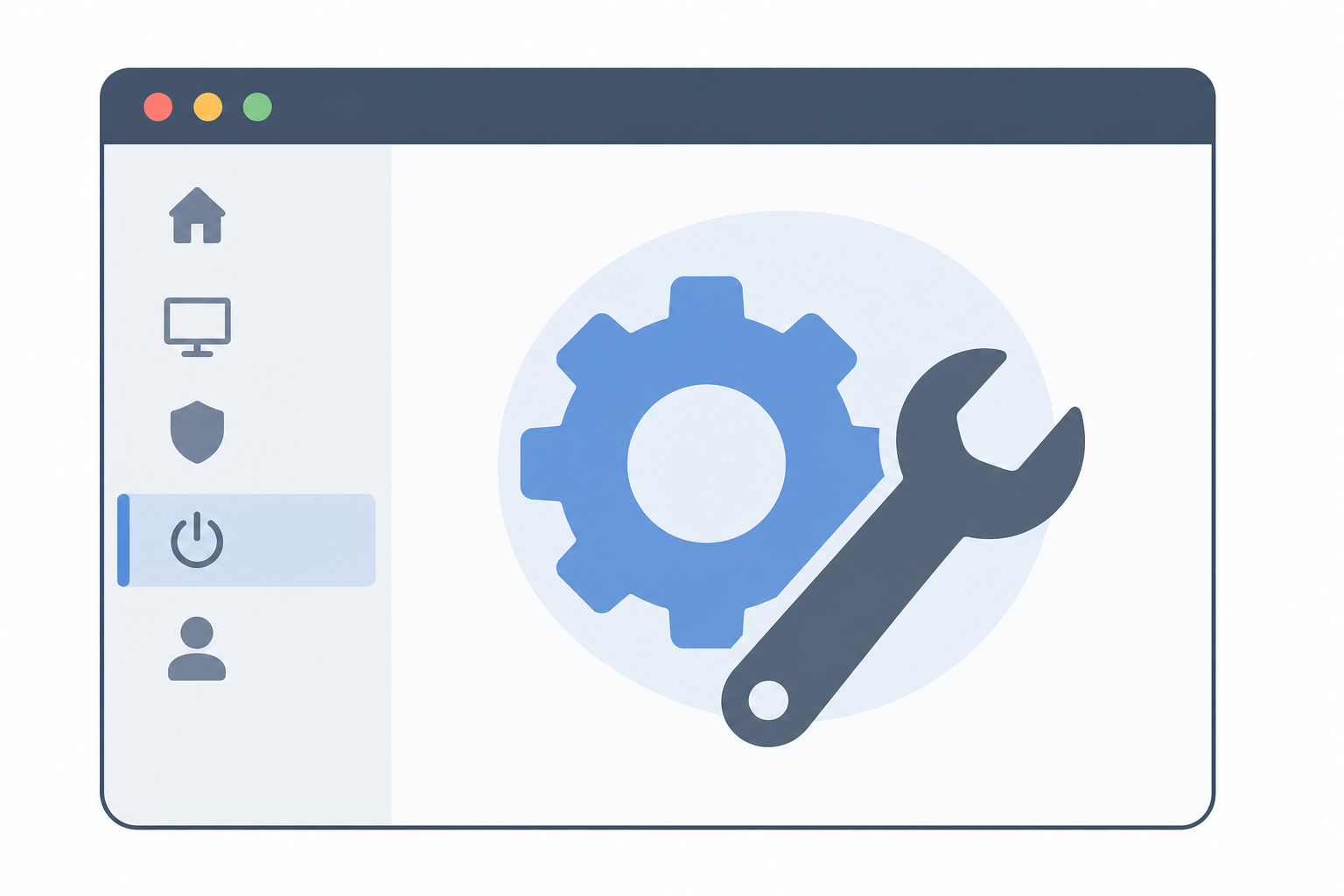
Laptops benefit the most from actively managing their power plan because battery life is a real constraint; desktops, on the other hand, are usually plugged into mains power and don’t need to worry about draining a battery. On a desktop, the main reason to leave Balanced active instead of High Performance is noise and heat — a fully loaded CPU running at max clock speed around the clock generates more fan noise and shortens component lifespan slightly under sustained thermal stress.
For laptops, it’s worth checking your manufacturer’s power settings app too; many OEMs layer their own profiles (like “Quiet,” “Performance,” or “Extreme”) on top of Windows’ native plans, and these can sometimes conflict with or override the Windows settings entirely.
Troubleshooting Common Windows Power Plan Issues
If your windows power plan settings aren’t sticking, or the High Performance plan has disappeared from the list, a few common causes are worth checking:
- Missing High Performance plan: Some OEM laptops hide it by default. Run
powercfg -restoredefaultschemesin an elevated Command Prompt to restore all default plans. - Plan keeps switching automatically: Battery Saver mode or manufacturer software (like Lenovo Vantage or Dell Power Manager) can override your chosen plan when battery drops below a threshold.
- Settings revert after restart: Group Policy settings pushed by an IT administrator will always take precedence over local power plan changes.
- Custom plan disappeared: A Windows feature update can occasionally reset power plans to default; it’s worth re-creating custom plans after a major update.
If you’re setting up a new machine or reinstalling Windows and want a clean slate for power management, a fresh install with a genuine Windows 11 Home license — currently priced at €14.70 — gives you default power plans with no manufacturer bloatware interfering with them. If you’re comparing editions first, Top Key Shop’s full range of Windows 11 licence keys covers both Home and Pro options.
Power Plans and Windows 11’s Smarter Power Management
Recent Windows 11 updates have added more intelligent, automatic power management on top of the classic plans, adjusting background activity and performance based on real usage patterns rather than a fixed schedule. If you want the deeper technical picture of how this works, our breakdown of AI-based power management in Windows 11 covers what changed and how it interacts with manual power plan choices.
Even with smarter automatic tuning, the underlying Balanced, High Performance, and Power Saver plans remain the foundation everything else builds on — which is why understanding them directly still pays off, especially for IT professionals standardizing settings across many machines.
FAQ
What’s the difference between a windows power plan and a power mode in Windows 11?
A power plan is the classic Control Panel feature with full access to advanced settings like processor states and disk timeouts. A power mode is the simplified slider found in Settings > System > Power & battery on Windows 11. Both ultimately adjust similar underlying settings, but power mode is easier to use while power plan gives more granular control.
Can I create more than one custom power plan?
Yes, Windows supports multiple custom power plans at once, and you can switch between them from the taskbar battery icon or Control Panel. This is useful if you regularly switch between different workloads, like gaming and document editing.
Does the High Performance plan damage my laptop battery?
Not directly — it doesn’t physically harm the battery, but it does drain it faster and generates more heat, which can accelerate long-term battery wear if used constantly while unplugged. For plugged-in use, this isn’t a concern.
Why is the High Performance plan missing on my PC?
Some laptop manufacturers hide it from the default list to encourage use of their own power management software. Running powercfg -restoredefaultschemes from an elevated Command Prompt restores all three default plans.
How do I restore the default windows power plan settings?
Open an elevated Command Prompt and run powercfg -restoredefaultschemes. This resets Balanced, High Performance, and Power Saver to their original Microsoft defaults, overwriting any custom tweaks made to those specific plans.
Should desktop users bother changing their power plan at all?
It’s optional but worthwhile. Desktops don’t need to worry about battery life, so running High Performance full-time is harmless aside from extra noise and electricity use — though Balanced is perfectly adequate for most desktop tasks too.
