
An account lockout on Windows almost always has a fix that doesn’t require reinstalling your operating system — the right path depends on whether you’re locked out of a local account, a Microsoft account, or a BitLocker-protected drive. This guide walks through each scenario calmly, in order of how likely it is to solve your specific problem first.
Before you panic and consider a factory reset, work through the sections below in order. Most people recover access within a few minutes using a password reset link, a recovery key, or a built-in administrator account they forgot they had.
What Is an Account Lockout and Why Does It Happen?
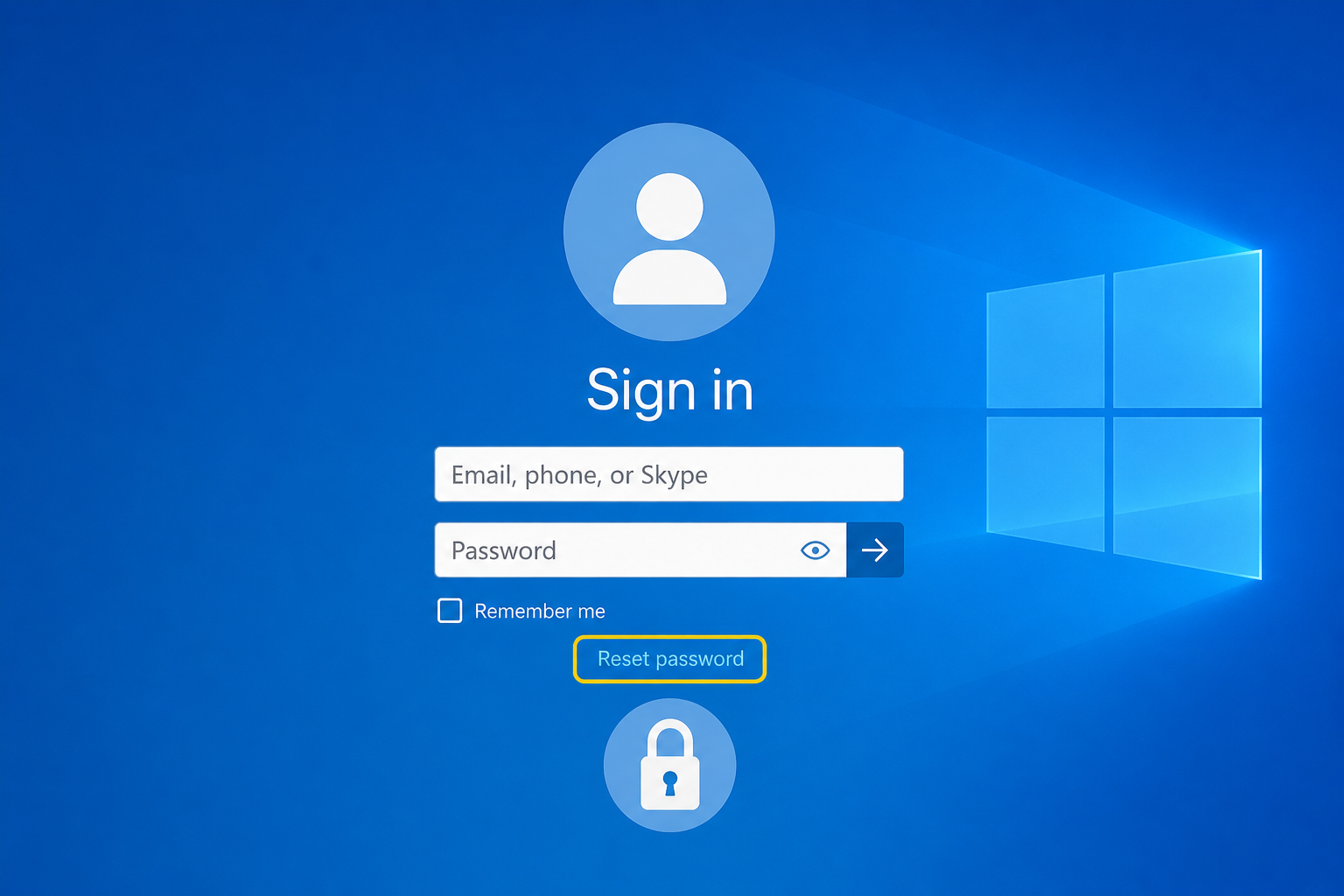
An account lockout happens when Windows blocks sign-in access after too many failed password attempts, an expired credential, a forgotten password, or a security policy that temporarily disables the account. It’s a protective measure, not a sign your PC is broken — the data and apps are still there, waiting behind the lock screen.
Common triggers include:
- Entering the wrong password too many times in a row
- A recent Microsoft account password or email change that hasn’t synced to the device
- Group Policy or company IT settings that lock accounts after a set number of failed attempts
- A forgotten PIN after a Windows Hello or biometric change
- BitLocker triggering a recovery key prompt after a hardware or firmware change
Quick Checks That Solve Many Account Lockout Problems Fast
Before trying a full recovery process, rule out the simple causes first — they resolve a surprising number of account lockout cases without any reset at all.
- Check Caps Lock and keyboard language — a mismatched layout is one of the most common reasons a correct password fails.
- Confirm you’re entering the right account type: a local account username looks different from a full Microsoft account email address.
- If you recently changed your Microsoft account password on another device, wait a few minutes for sync, then try again.
- Try signing in from a different device or browser to confirm whether the lockout is account-wide or specific to one PC.
How to Fix a Local Account Lockout on Windows
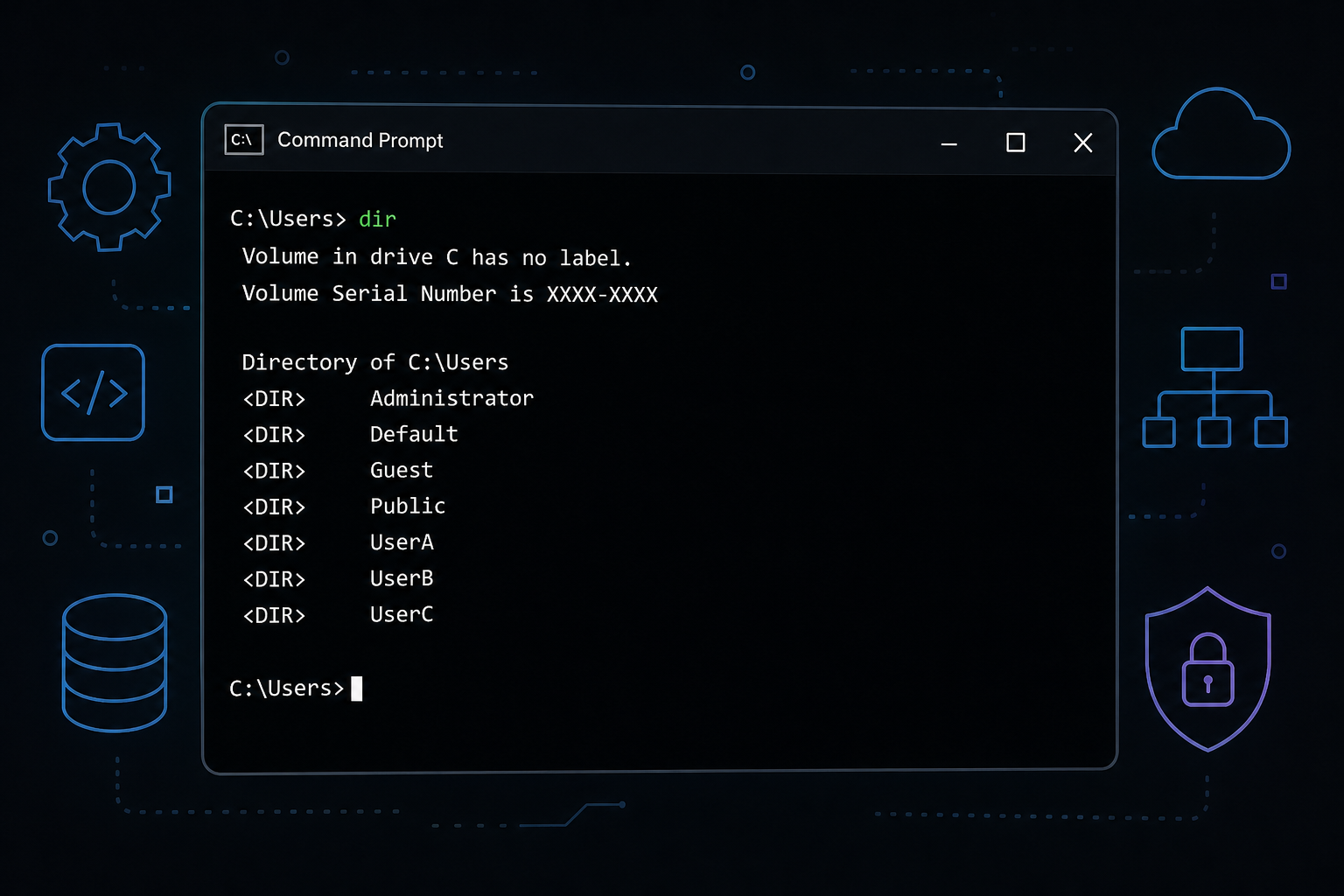
A local account lockout is usually the easiest to resolve because the credentials live only on that machine, not on Microsoft’s servers. Three methods cover almost every case.
Reset Your Password From the Sign-In Screen
If you set up a security question when creating the local account, click “Reset password” directly under the password field on the Windows lock screen. Answer the security questions and you’ll be prompted to set a new password immediately — no internet connection required.
Use a Password Reset Disk
If you created a password reset USB drive in advance (Control Panel > User Accounts > Create a password reset disk), insert it at the lock screen and Windows will detect it automatically, letting you set a new password in under a minute.
Reset a Local Account Password With Command Prompt
If you have another administrator account on the same PC, this admin trick works reliably:
- Sign in with the admin account, or boot into Safe Mode if no other account is accessible.
- Open Command Prompt as Administrator.
- Type
net userto list all accounts on the PC. - Run
net user [accountname] [newpassword]to set a new password for the locked account. - Restart and sign in with the new password.
This command-line approach is one of the fastest admin-level fixes for a local account lockout and doesn’t require any third-party tools.
How to Resolve a Microsoft Account Lockout
A Microsoft account lockout is handled entirely through Microsoft’s servers, since the credentials aren’t stored locally — this means you need internet access on any device to recover it.
Use Microsoft’s Official Account Recovery Form
Go to the account recovery page, select “Forgot password,” and follow the identity verification steps, which may include a code sent to a recovery email, phone number, or an authenticator app. Microsoft’s own support documentation notes that if you submit the recovery form without a verified recovery method, a human reviewer typically responds within 24 hours — so allow time if automated verification doesn’t pass immediately. You can read the full official process on Microsoft’s account lockout support page.
Recovering Access Without an Email or Phone Number
If your recovery email or phone number is also out of reach, use the account recovery form and answer every question as accurately as possible (old passwords you remember, recent subject lines, device names). The more detail you provide, the faster the manual review resolves the account lockout.
Using a BitLocker Recovery Key During an Account Lockout
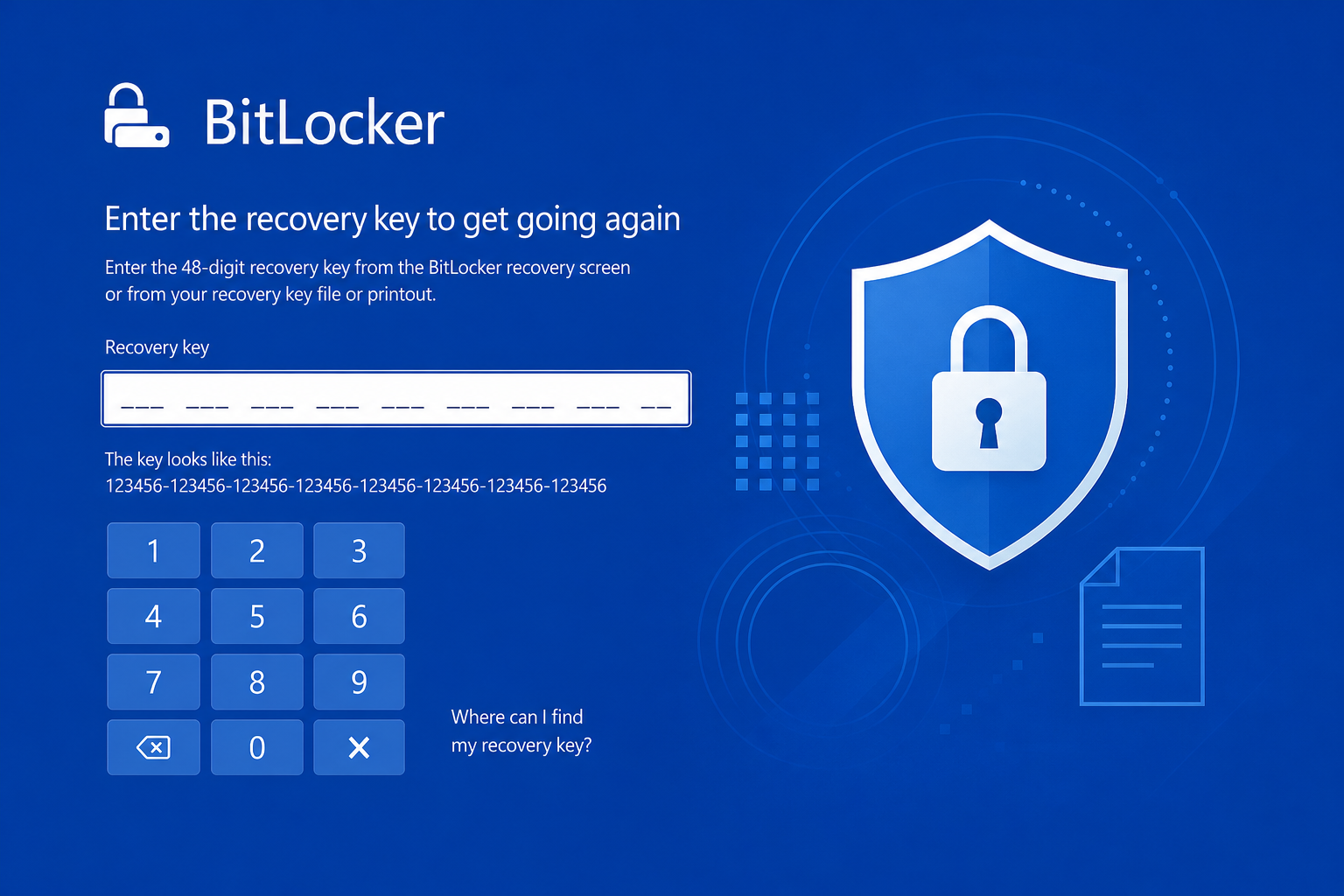
If your PC shows a blue recovery screen asking for a 48-digit recovery key instead of your usual password, that’s BitLocker — not a standard account lockout, but it blocks sign-in the same way and is often confused with one.
- Check your Microsoft account online at account.microsoft.com under “Devices” for a saved recovery key.
- Look for a printed copy, a saved USB file, or your organization’s IT portal if this is a work PC.
- Enter the 48-digit key exactly as shown — there’s no limit on attempts, so take your time copying it correctly.
Once the key is accepted, Windows unlocks normally and you can sign in with your usual local or Microsoft account credentials.
Creating a Backup Admin Account to Avoid Future Account Lockout
A second administrator account is the single best insurance policy against a future account lockout, because it guarantees you always have a way in, even if your main account’s password, PIN, or biometric data fails.
- Go to Settings > Accounts > Other users.
- Click “Add account” and create a separate local account.
- Set its account type to Administrator under Family & other users.
- Store its password somewhere separate from your main account’s credentials, such as a password manager.
If you’re reinstalling Windows as part of a recovery process, a genuine Windows 11 Home license sets you up with a clean activation so you can rebuild both a main and backup admin account from scratch.
When an Account Lockout Means You Need a Full Windows Reset
A full reset is only necessary when every recovery path above fails — no backup admin account exists, no recovery key is available, and Microsoft’s identity verification can’t confirm ownership. In that situation, Windows Recovery Environment (WinRE) lets you reset the PC while optionally keeping personal files, though installed apps and settings are removed.
Before resetting, it’s worth trying one more time to boot into Safe Mode and check for any dormant administrator account, since Windows often creates a hidden built-in Administrator account during setup that isn’t password-protected by default on some configurations.
How to Prevent Account Lockout in the Future
Preventing the next account lockout is mostly about redundancy — having more than one way back into your PC.
- Keep your Microsoft account recovery email and phone number current.
- Create and store a password reset disk for local accounts.
- Save your BitLocker recovery key in at least two places (Microsoft account and a printed copy).
- Maintain a second administrator account with a separately stored password.
- Use a password manager instead of relying on memory for complex passwords.
Taking twenty minutes to set these up now is far cheaper than the hours lost recovering from a full account lockout later.
FAQ
What causes a Windows account lockout?
Most account lockouts come from repeated failed password attempts, an unsynced password change, expired credentials, or a security policy on a managed device. BitLocker encryption triggers a similar-looking lock screen after certain hardware changes, though it’s technically a separate mechanism.
How long does an account lockout last?
A local account lockout isn’t time-limited — it stays locked until the password is reset. A Microsoft account lockout tied to manual identity review can take up to 24 hours for a response, according to Microsoft’s own support documentation, though automated verification is often instant.
Can I unlock my PC without the password?
Yes, if you have a password reset disk, a second administrator account, or access to Safe Mode with Command Prompt. Without any of these, you’ll need to go through Microsoft’s official recovery form or perform a system reset.
What is a BitLocker recovery key and where do I find mine?
It’s a 48-digit numerical code generated when BitLocker encryption is turned on. It’s typically saved to your Microsoft account, a printed copy, a USB drive, or your organization’s IT system — check all of these before assuming it’s lost.
Will resetting my password delete my files?
No. Resetting a password, whether local or Microsoft account, does not touch your files, apps, or settings. Only a full system reset with the “Remove everything” option deletes personal data.
What’s the difference between a local account lockout and a Microsoft account lockout?
A local account lockout is resolved entirely on the device itself, often instantly with a reset disk or admin account. A Microsoft account lockout requires contacting Microsoft’s servers for identity verification since the credentials aren’t stored on the PC.
