
Updated 10 November 2026. Microsoft has now fixed this bug on current Windows 11 versions. We’ve added the fix updates and the full list of affected versions, corrected where to find File History, and removed advice we couldn’t confirm.
If File History stopped backing up your files in September 2026, the cause was that month’s security updates, including KB5124008 for Windows 11. Microsoft has fixed it for Windows 11 24H2 and 25H2 in the optional update KB5124010, released on 22 September, and in every monthly update since, including October’s Patch Tuesday. Install the latest updates, then check that File History has made a new backup. Any changes you made between your September update and your fix may not be backed up.
What went wrong with File History
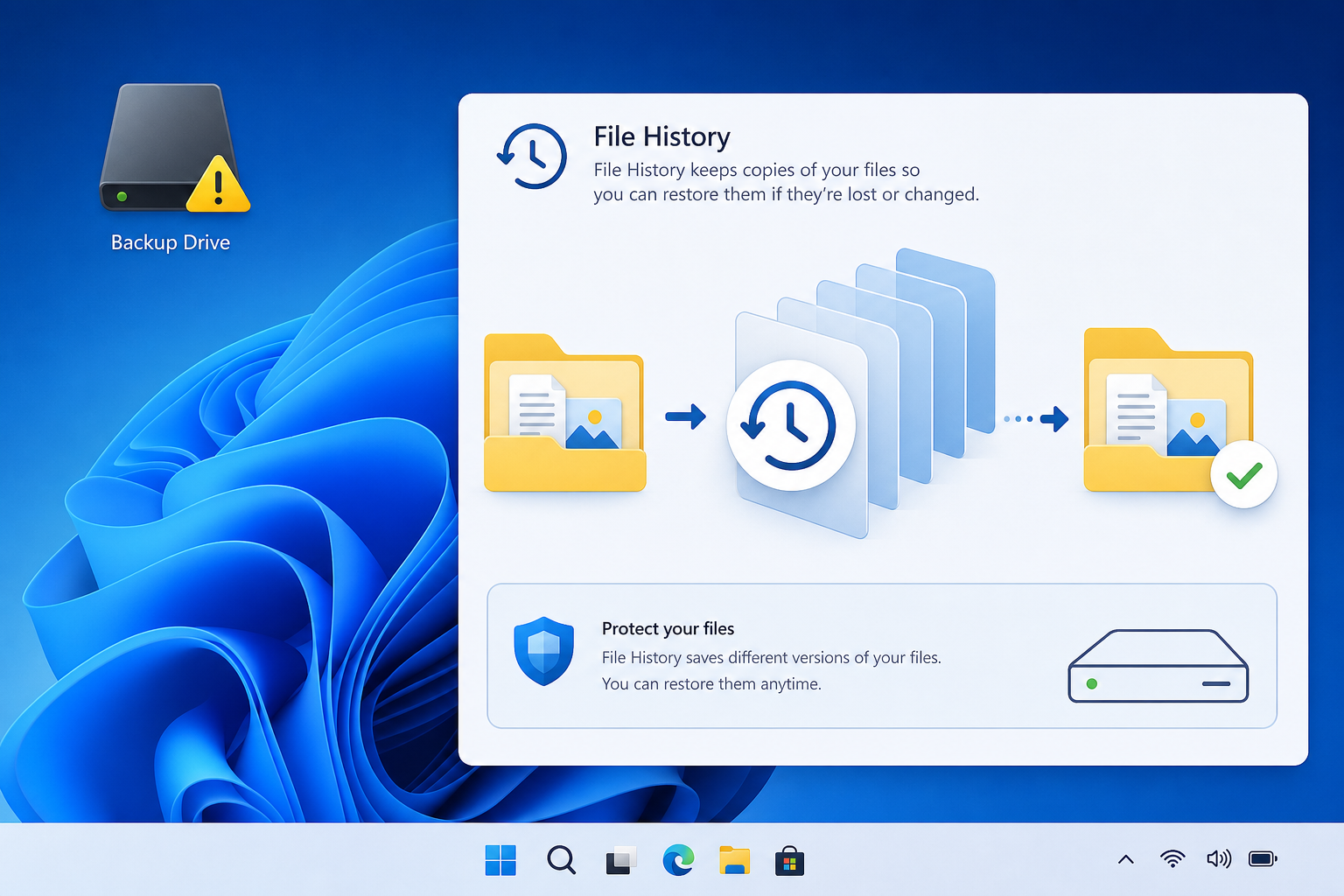
The 8 September 2026 Patch Tuesday updates broke File History on many PCs. Microsoft added it to its known issues on 19 September, saying that “some customers using File History, might be unable to create or update backups.” The problem was easy to miss, because File History often looked switched on while nothing new was being copied.
Reported symptoms included:
- A “Reconnect your drive” warning even though the backup drive was connected and working
- File History not recognising the backup drive at all
- The last backup time no longer updating
- “No previous version available” when trying to restore a file
- FileHistory.exe crashes logged in Event Viewer
Which Windows versions were affected
It wasn’t only Windows 11. According to BleepingComputer, Microsoft listed these versions and the September updates that caused the problem:
- Windows 11 24H2 and 25H2: KB5124008
- Windows 11 26H1: KB5124012
- Windows 11 23H2: KB5122880
- Windows 10 21H2 and 22H2: KB5122878
- Windows 10 Enterprise LTSC 2019: KB5122876
- Windows 10 Enterprise LTSC 2016: KB5123099
How to check if your File History backup is working
Don’t trust the on/off switch. Check when the last backup actually happened:
- Open Control Panel and go to System and Security > File History. You can also search for “File History” in the Start menu.
- Look at the date and time of the last backup. If it hasn’t changed since early to mid September, File History has stopped working.
- Select Run now and wait a few minutes, then check whether the time updates.
- Select Restore personal files and look for a file you edited recently. If its newest version is missing, the backup isn’t current.
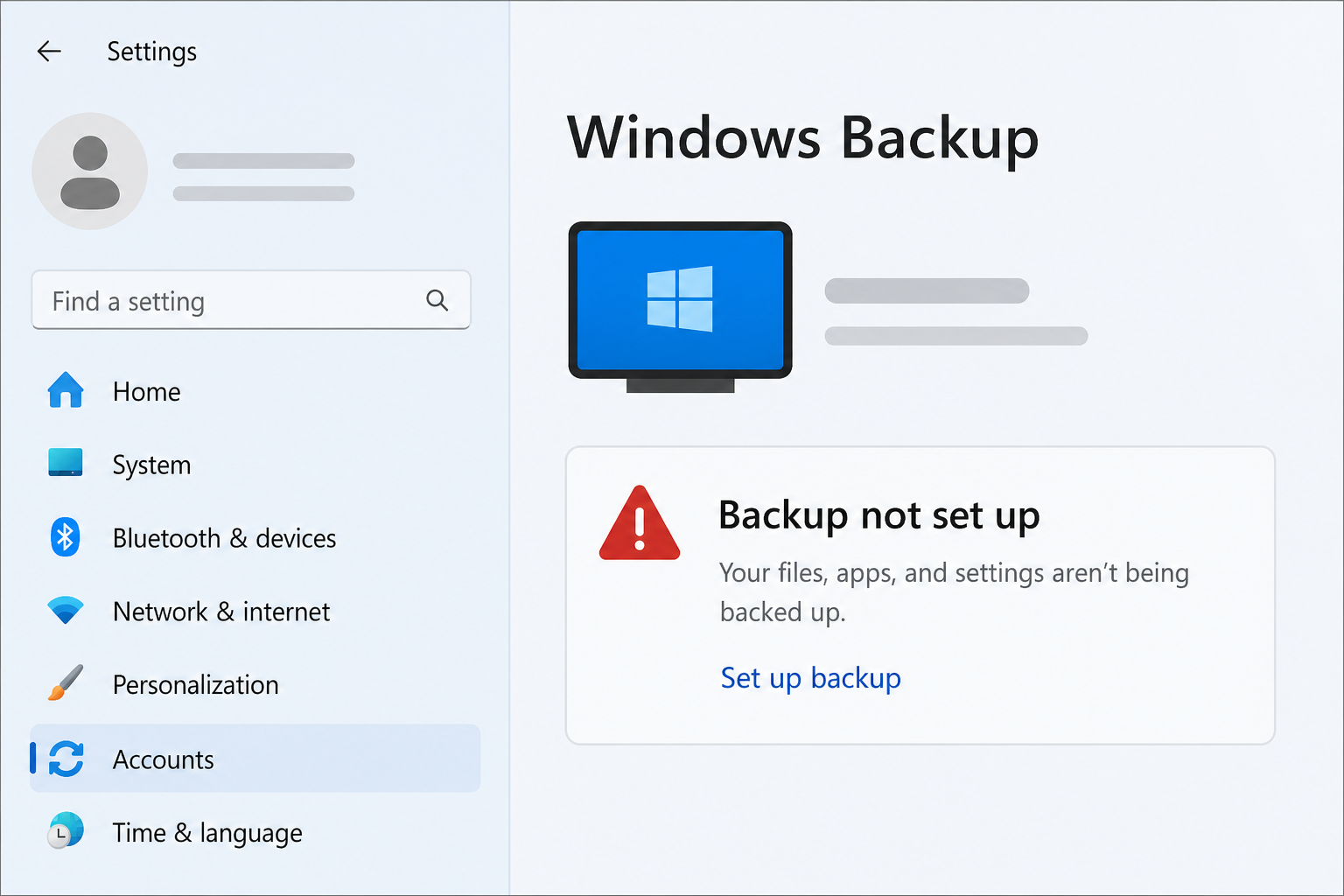
File History is in Control Panel, not in Settings > Accounts > Windows Backup. Windows Backup is a separate tool that backs up to OneDrive.
How to fix File History
Windows 11 24H2 and 25H2
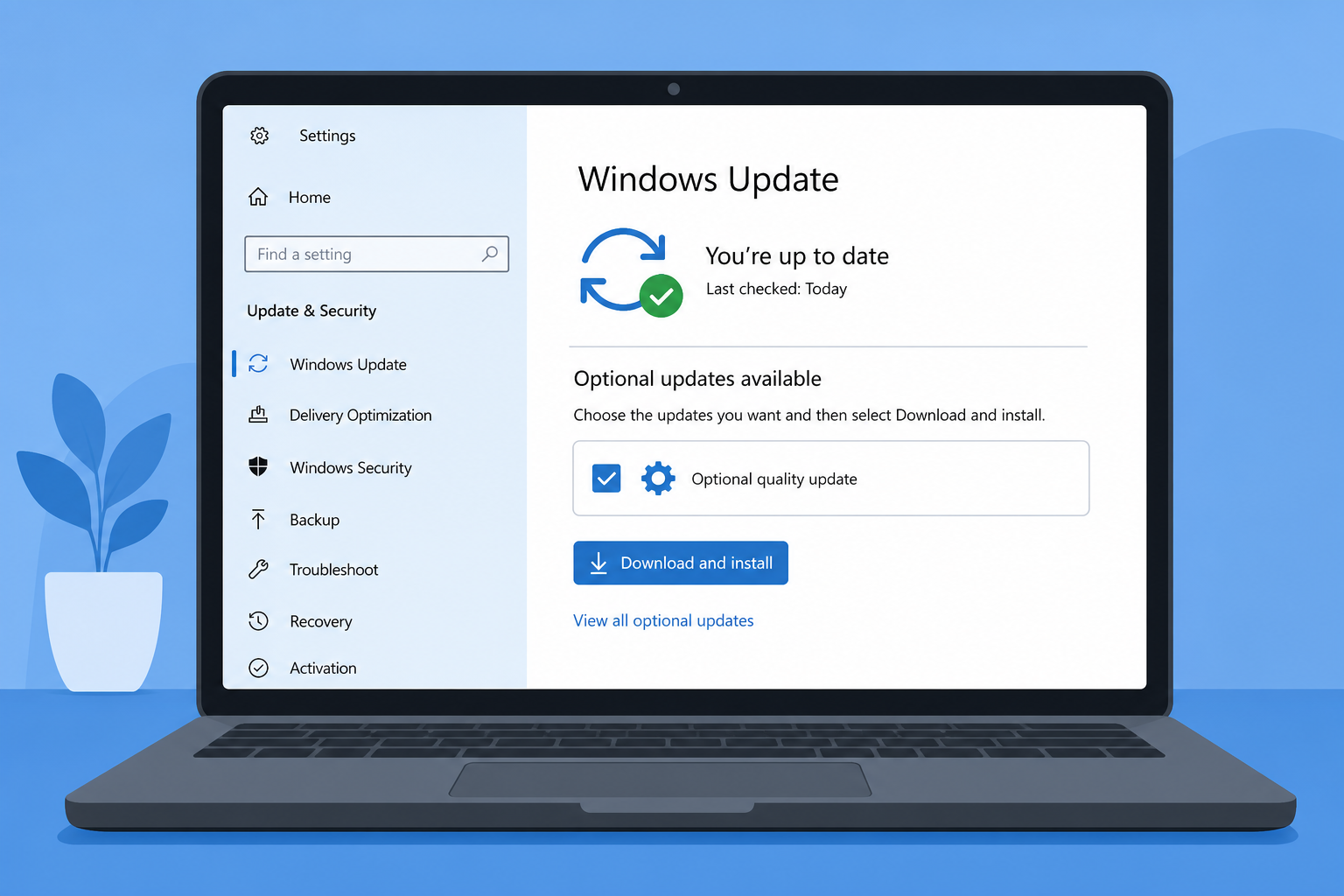
Install the latest updates from Settings > Windows Update, then restart. The fix first came in the optional preview update KB5124010 (builds 26100.9550 and 26200.9550) on 22 September 2026, and Microsoft says the issue is “resolved in Windows updates released on and after September 22, 2026.” The October Patch Tuesday update and everything since include it, so you no longer need to look for the optional update.
To confirm, press Windows key + R, type winver and check the build. 26100.9550 or later on 24H2, 26200.9550 or later on 25H2, or any 26H2 build, includes the fix.
An emergency update Microsoft released on 14 September, KB5129195, did not fix File History, so having it installed isn’t enough.
Windows 11 26H1
The fix came in the optional update KB5124006 on 22 September and is in later monthly updates too. Install the latest updates.
Windows 10 and Windows 11 23H2
When Microsoft fixed 24H2 and 25H2, it hadn’t named a fix for these versions, and users on Microsoft’s community forums were still reporting problems in October. Install the latest updates, check File History with the steps above, and keep a second copy of important files until you’ve seen a successful new backup. Windows 10 users only get updates through Extended Security Updates now, which we explain in Windows 10 security updates extended to 2027.
Should you uninstall the September update?
Not any more. Some outlets suggested rolling back KB5124008 as a stopgap before the fix existed, but that also removes September’s security fixes, and the corrected updates are now available. Installing the latest update is the better route.
After the fix: make sure File History catches up
Once you’ve updated, run a backup straight away so the gap since September is covered:
- Open File History in Control Panel and select Run now.
- Check that the last backup time changes to today.
- Restore a test file from Restore personal files to make sure it works.
- Check the backup drive has free space. File History can’t complete backups on a full or disconnected drive.
- If you back up to a network location, make sure the share is reachable and your saved credentials still work.
Some users on Microsoft’s forums reported that, even after KB5124010, the last backup time didn’t always update after Run now. If that happens to you, open Restore personal files and check that recent file versions are there. That’s the real test of whether backups are working.
Don’t rely on one backup

This bug ran for about two weeks before a fix arrived, and longer for anyone who didn’t install optional updates. If File History was your only backup, every change in that time was unprotected. A second copy closes that gap:
- Pair File History with cloud storage such as OneDrive, so a local bug never leaves you with nothing.
- Check your backup’s last run date once a month. It takes seconds, and it would have caught this bug early.
- Keep a separate full system backup or recovery drive. File History saves versions of your files; it doesn’t restore Windows itself. For that, see our guide to the Windows Cloud Recovery Tool.
Update problems like this one happen a few times a year. Our post on the Excel KB5002914 copy paste bug, from the same Patch Tuesday, covers habits that limit the damage, and our Windows Update troubleshooting checklist helps if the fix won’t install.
FAQ
Which update broke File History?
The September 2026 security updates: KB5124008 for Windows 11 24H2 and 25H2, KB5124012 for 26H1, KB5122880 for 23H2, and KB5122878 and others for Windows 10. Microsoft confirmed the problem on 19 September 2026.
Is the File History bug fixed?
Yes, on Windows 11 24H2, 25H2 and 26H1. The fix came in optional updates on 22 September 2026 (KB5124010 and KB5124006) and is included in every monthly update since, including October’s Patch Tuesday.
Do I still need to install the optional update?
No. The latest monthly update includes the fix. Just install what Windows Update offers, then check that File History has made a new backup.
Did the bug delete my existing backups?
Microsoft hasn’t said that existing backups were deleted. The risk is that files you created or changed after the September update weren’t backed up until you installed the fix, so run a backup now.
Where is File History in Windows 11?
In Control Panel under System and Security > File History, or search for “File History” in the Start menu. It isn’t the same as Windows Backup in Settings, which backs up to OneDrive.
Does the File History bug affect Windows 10?
Yes. Windows 10 21H2 and 22H2 were affected through KB5122878, as were Windows 10 Enterprise LTSC 2016 and 2019. Install the latest updates, check the last backup time, and keep a second copy of important files until a new backup succeeds.
