
If copy-paste suddenly stopped working in Excel after your PC updated, you need the Excel KB5002914 copy paste fix right now: use Paste Special (Ctrl+Alt+V) instead of a normal paste, or uninstall the KB5002914 update to restore normal function while Microsoft rolls out a permanent patch. Neither option risks your existing spreadsheet data if you follow the steps below in order.
This issue affected a meaningful number of Excel users after Microsoft shipped its September 2026 security update, and it’s the kind of bug that can quietly derail an afternoon of work if you don’t know what’s causing it. Here’s what happened, who got hit, and exactly how to get copy-paste working again — safely.
What Is the Excel KB5002914 Copy Paste Bug?
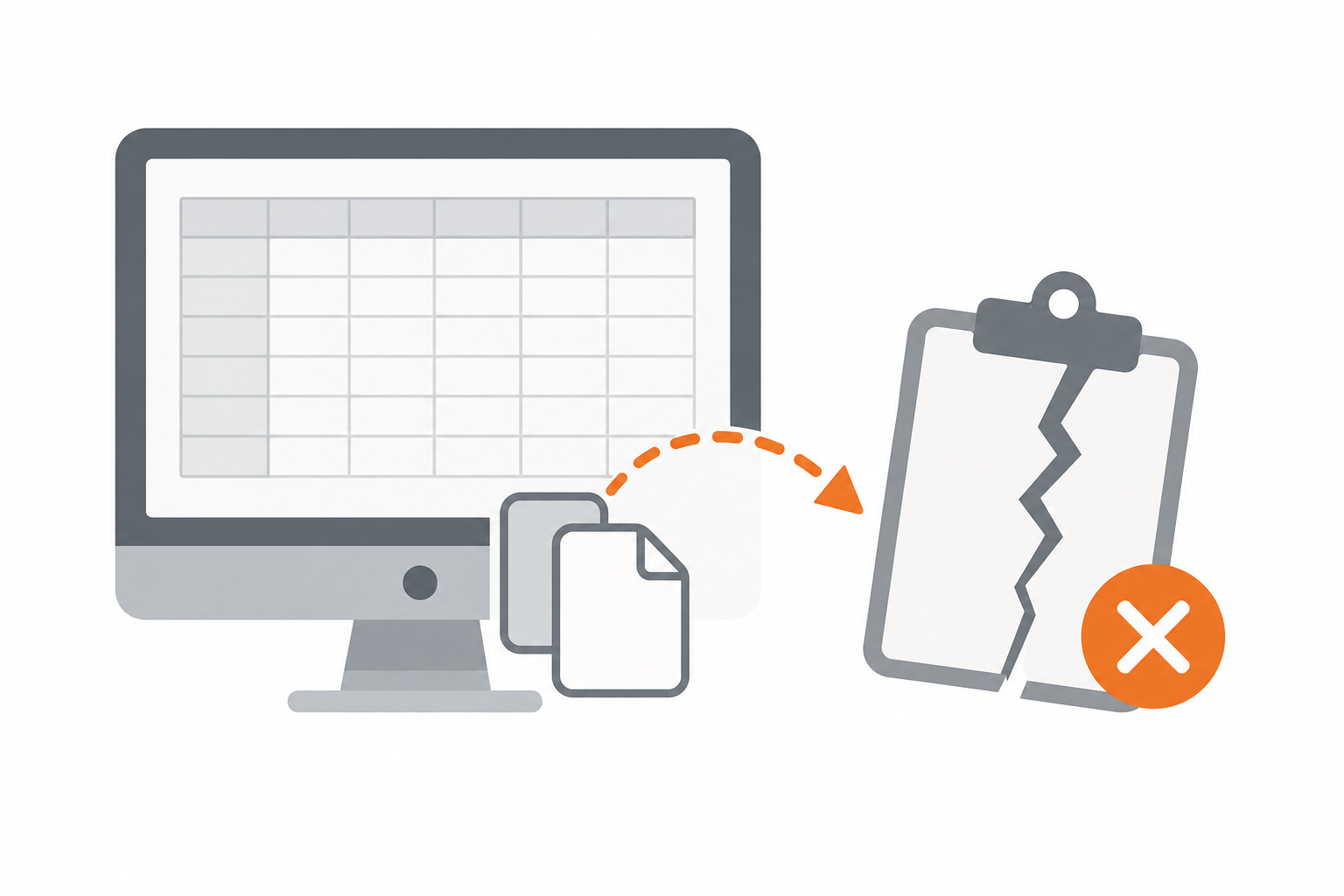
KB5002914 is a Windows security update released in September 2026 that, for a subset of users, silently broke the clipboard functions in Excel. Instead of throwing an error message, affected copies of Excel simply failed to paste — cells would appear empty, formulas wouldn’t transfer, or the paste action would do nothing at all.
The silent nature of the failure is what made this bug particularly disruptive. A visible error at least tells you something is wrong. A paste that fails without warning can mean you don’t notice missing data until much later, which is exactly why so many office workers, students, and small business owners flooded Microsoft’s support forums after the update rolled out, as detailed in BleepingComputer’s report on the KB5002914 copy-paste bug.
Which Excel Versions Were Affected
Reports centered heavily on Excel 2016 running through MSI-based Office installations, though users on Excel 2019 and Excel 2021 also reported similar copy-and-paste failures after the same update. Click-to-Run installations appeared less consistently affected, but the exact scope varied by machine configuration, which made the bug frustrating to diagnose from user reports alone.
- Excel 2016 (MSI-based Office installs) — most heavily reported
- Excel 2019 and Excel 2021 — scattered but confirmed reports
- Both standalone Excel installs and full Office suites
What Triggered the KB5002914 Excel Bug
The root cause traces back to how KB5002914 interacted with Excel’s clipboard and OLE (Object Linking and Embedding) handling on certain Office builds. Microsoft confirmed the update caused certain paste operations to fail silently rather than returning an error, which pointed to a regression in how the update patched shared system components that Excel relies on for clipboard operations.
This wasn’t a deliberate Excel change — it was a side effect of a broader Windows security patch. That’s an important distinction: the bug isn’t in Excel’s own code, which is why a straightforward Excel repair alone often didn’t resolve it for affected users.
How to Apply the Excel KB5002914 Copy Paste Fix
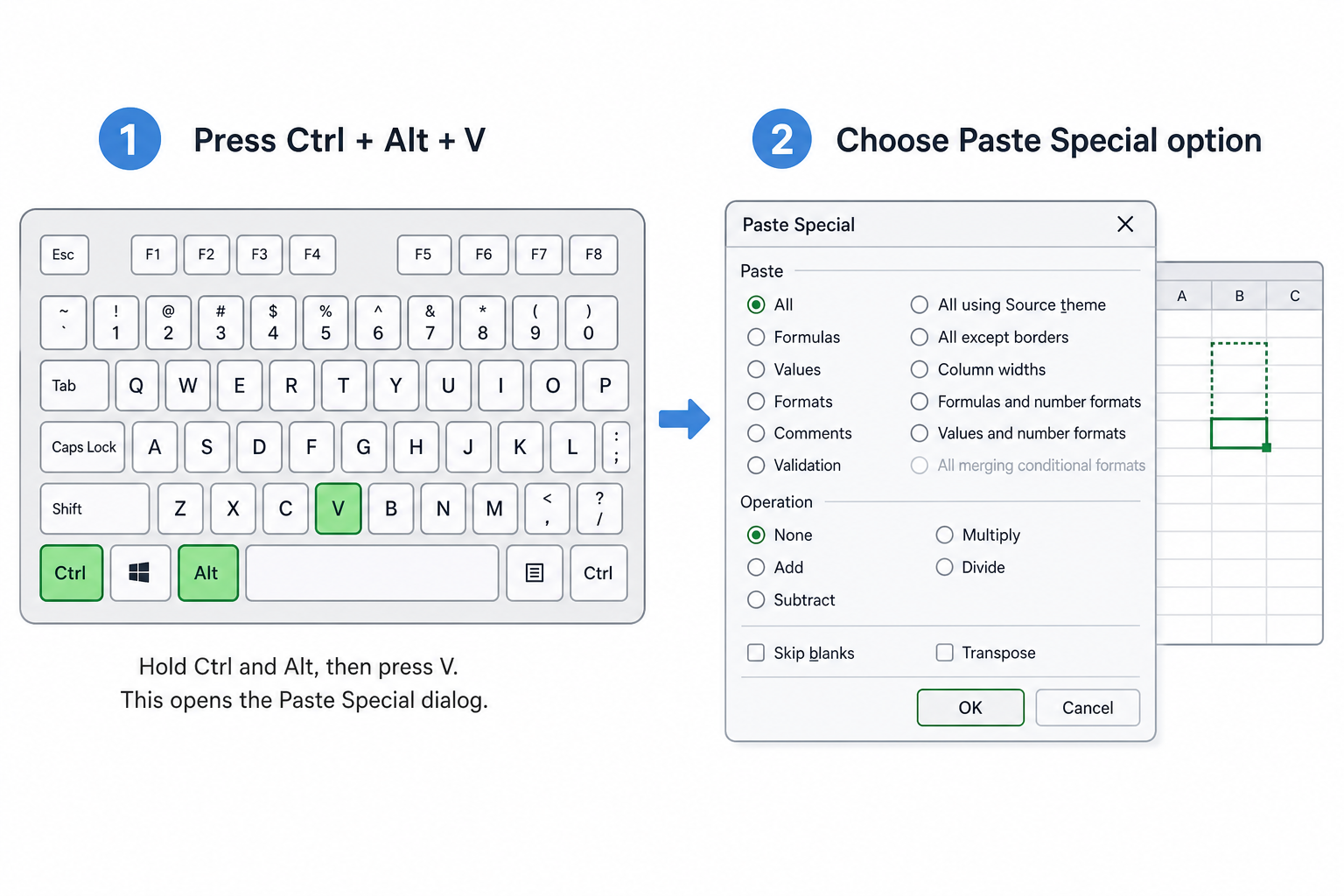
The fastest fix that doesn’t touch your system update history is switching your paste method. This works immediately and requires no downloads, restarts, or admin rights.
Method 1: Use Paste Special Instead of Ctrl+V
- Copy your cell or range as normal (Ctrl+C).
- Click the destination cell.
- Press Ctrl+Alt+V to open Paste Special.
- Choose Values or Formulas, depending on what you need to preserve.
- Click OK.
This bypasses the broken clipboard handoff that KB5002914 disrupted, because Paste Special uses a different internal path than a standard paste. It’s not a permanent fix, but it keeps you working without losing formatting or data.
Method 2: Route Through Word as a Clipboard Buffer
Some affected users found that pasting into Microsoft Word first, then copying from Word into Excel, avoided the broken clipboard path entirely. It’s clunky, but it’s a genuine workaround if Paste Special still fails on your machine for certain content types like merged cells or embedded objects.
Method 3: Restart the Clipboard Service
Occasionally the issue compounds with a stuck Windows clipboard history service. Closing Excel completely, disabling Clipboard History in Windows Settings, then re-enabling it and reopening Excel has resolved the issue for some users without needing to touch the update itself.
How to Roll Back KB5002914 Safely
If workarounds aren’t cutting it and you need copy-paste fully restored, uninstalling KB5002914 is the most direct route — but do it carefully to avoid leaving your system without recent security patches for longer than necessary.
- Save and close all open Excel files first — this step matters, since a rollback restarts background update services.
- Open Command Prompt as Administrator.
- Run:
wusa /uninstall /kb:5002914 - Restart your PC when prompted.
- Reopen Excel and test copy-paste on a non-critical file before resuming normal work.
Alternatively, go to Settings → Windows Update → Update History → Uninstall Updates, find KB5002914 in the list, and remove it through the graphical interface if you’re not comfortable with Command Prompt.
Important: Pause Updates After Rolling Back
Once you uninstall the update, Windows will likely try to reinstall it automatically. Use Pause Updates in Windows Update settings for a few days to prevent KB5002914 from reinstalling itself before Microsoft ships a corrected version. Don’t leave updates paused indefinitely — you’re trading a productivity bug for a security gap, and that trade should be temporary.
Will This Excel KB5002914 Copy Paste Fix Cause Data Loss?

No, none of these fixes affect your existing spreadsheet data. Paste Special, the Word workaround, and clipboard service restarts are all non-destructive — they change how you interact with the clipboard, not your files. Uninstalling KB5002914 also doesn’t touch saved documents; it only reverts the underlying Windows patch.
The real data-loss risk in this whole situation isn’t the fix — it’s the original bug itself. Because paste failures were silent, some users may have pasted data that didn’t actually land in the cell, then saved and closed the file without noticing. If you were affected before you knew about this issue, it’s worth spot-checking recent spreadsheets for missing values in pasted ranges.
Has Microsoft Released an Official Patch?
Yes — Microsoft has shipped a corrective update specifically addressing the known issue in KB5002914 that caused certain paste operations to fail silently, according to Microsoft’s own support documentation. If Windows Update shows a newer cumulative update available for your Office or Windows build, installing it is the cleanest long-term resolution, since it removes the need for workarounds or a rollback altogether.
Before installing any new update, check your current build against Microsoft’s update history page for your Windows version to confirm the fix applies to your specific configuration. Not every Office channel received the correction on the same timeline.
Preventing Future Update-Related Excel Problems
This isn’t the first time a Windows or Office update has broken a core function, and it won’t be the last. A few habits reduce how much these incidents disrupt your work:
- Enable AutoSave or set a shorter manual save interval so partial paste failures are easier to catch.
- Check Microsoft’s release health dashboard or community forums before installing cumulative updates on a primary work machine.
- Keep one Office install on a slower update ring (like a business or LTSC channel) if you rely on Excel for critical daily work.
- Maintain a recent backup of key spreadsheets outside of OneDrive’s version history, in case corruption isn’t caught immediately.
If your current Office installation is aging and you’re weighing whether to patch through problems like this or move to a fresh, stable license, it’s worth comparing a standalone Excel 2024 license against staying on an older Office build that may carry more legacy compatibility quirks. A clean install can also rule out whether accumulated update conflicts are contributing to instability beyond just this one bug.
FAQ: Excel KB5002914 Copy Paste Fix
What exactly does KB5002914 do?
KB5002914 is a Windows security update released in September 2026. It was intended to patch underlying system vulnerabilities but had the unintended side effect of breaking Excel’s clipboard operations for some installations.
Why does copy-paste fail silently instead of showing an error?
The bug affects how Excel communicates with Windows’ clipboard and OLE handling. Because the failure happens at that lower system level rather than inside Excel’s own paste logic, Excel doesn’t generate a visible error — it just doesn’t complete the paste.
Does the Excel KB5002914 copy paste fix work on Mac?
No, this issue is specific to Windows installations affected by the KB5002914 update. Mac versions of Excel use a different clipboard architecture entirely and were not reported as affected.
Should I uninstall KB5002914 even if I’m not sure I’m affected?
No. If copy-paste is working normally on your machine, there’s no reason to roll back a security update. Only uninstall it if you’re actively experiencing the paste failure and workarounds aren’t sufficient for your workflow.
Will reinstalling Excel fix the problem?
Reinstalling Excel alone usually won’t fix it, since the root cause sits in a shared Windows component patched by KB5002914, not in Excel’s own program files. Uninstalling the update or applying Microsoft’s corrective patch is more effective than a fresh Excel install.
How do I check if KB5002914 is installed on my PC?
Go to Settings → Windows Update → Update History, and look for KB5002914 in the list of installed updates. You can also check via Control Panel → Programs → View Installed Updates on older Windows builds.
Copy-paste is one of the most-used functions in any spreadsheet, so a silent failure like this understandably causes real frustration. Whether you switch to Paste Special as a quick daily workaround or roll back the update entirely, none of these fixes put your existing data at risk — and once Microsoft’s correction reaches your update channel, normal copy-paste behavior should return without any extra steps on your part.
