
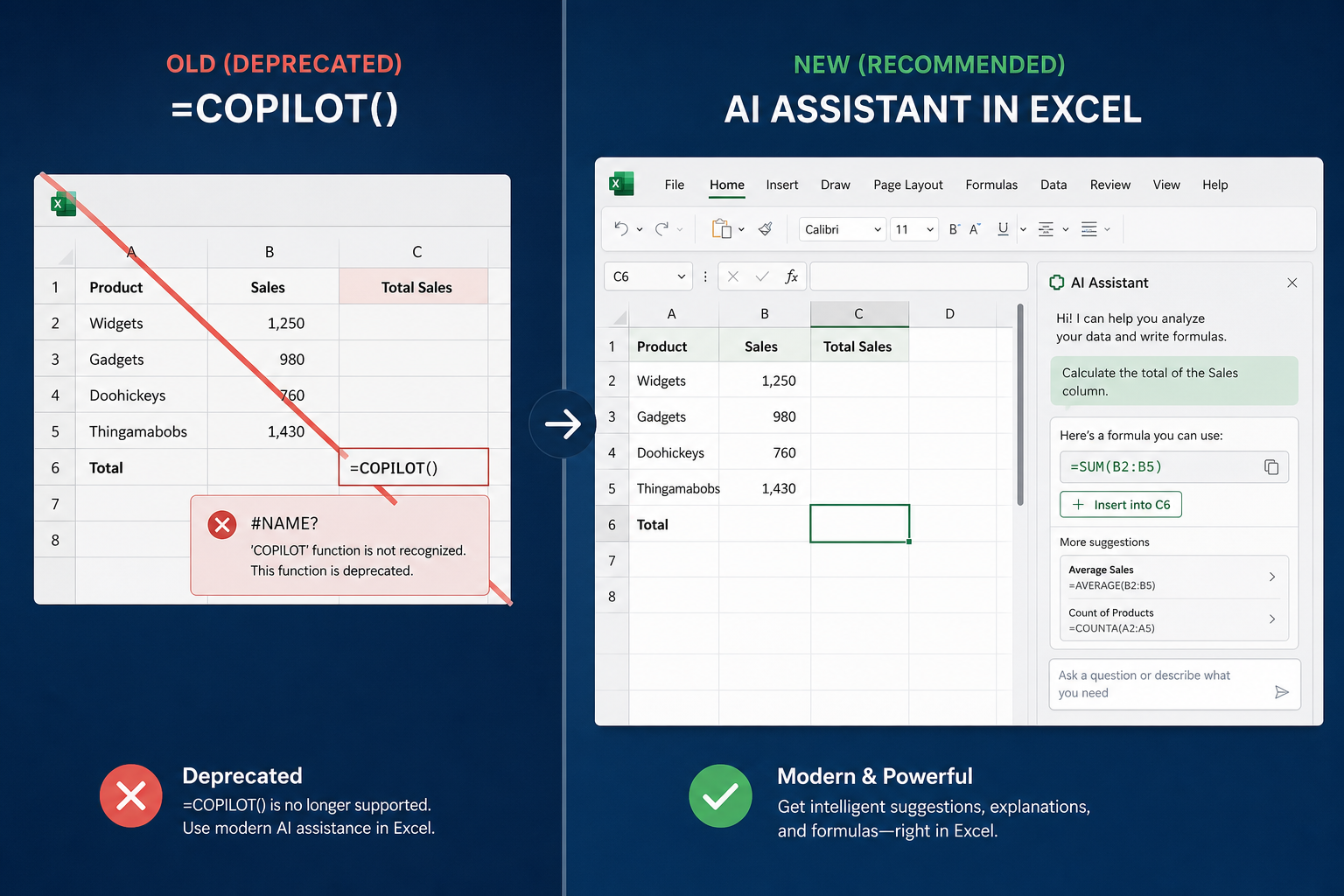
The Excel Copilot retirement is now confirmed: Microsoft will permanently remove the =COPILOT() worksheet function on 14 September 2026, less than 12 months after it was first rolled out to Microsoft 365 subscribers. If your spreadsheets rely on it, they will simply stop working. This article breaks down exactly what went wrong, what Microsoft says replaces it, and which third-party Excel AI formula tools are worth your time right now.
What Was the =COPILOT() Function, Exactly?
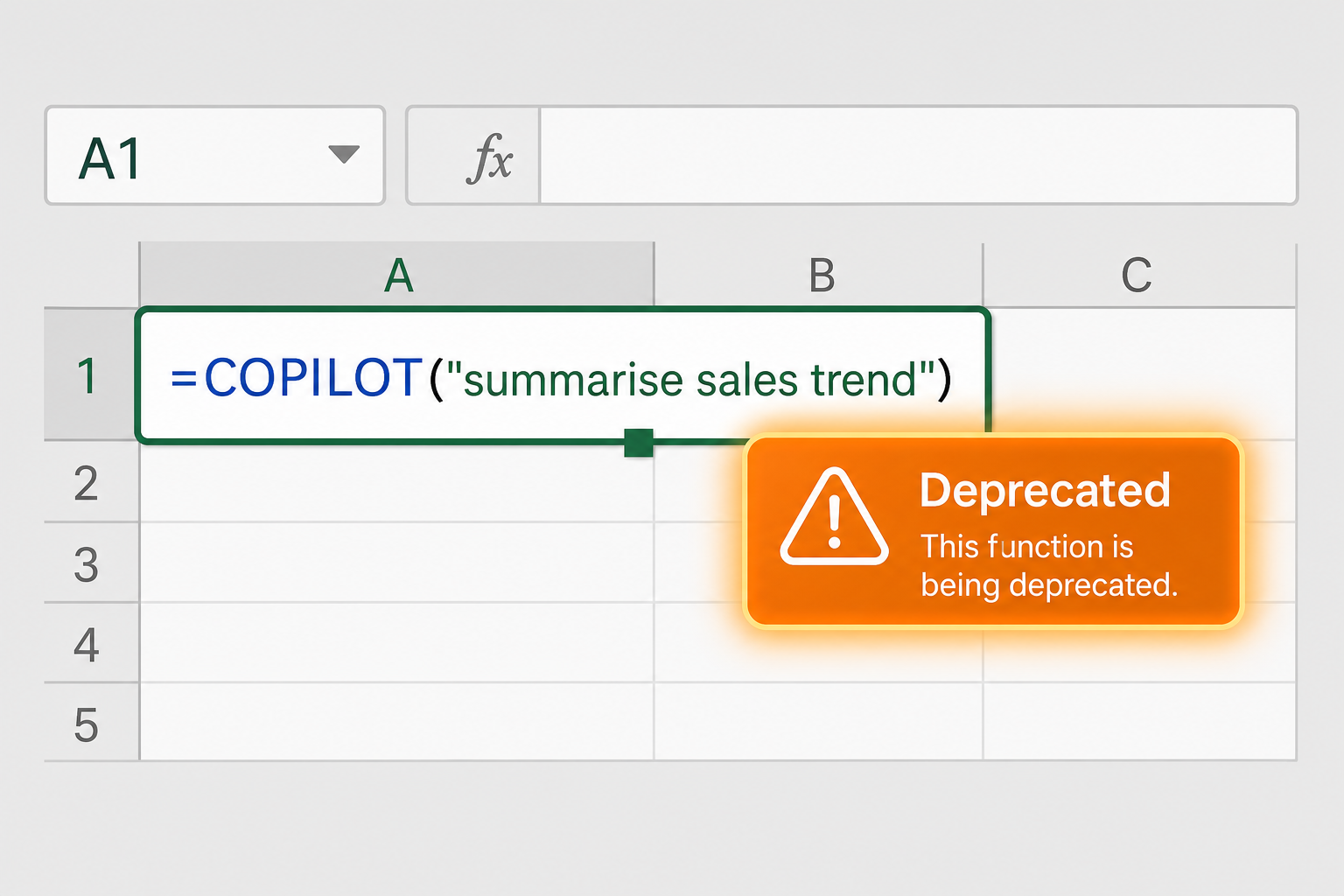
Launched in late 2025, =COPILOT() was a native Excel worksheet function that let users embed a natural-language AI prompt directly inside a cell formula. The idea was compelling: instead of writing a complex nested IF or XLOOKUP, you could type something like =COPILOT("Summarise the sales trend in column B") and get an AI-generated answer inline. It was positioned as the killer feature that would bring GPT-style intelligence into everyday spreadsheet work.
In practice, the Copilot function Excel experience was plagued by three persistent problems:
- Reliability: Results were non-deterministic — the same prompt could return different values on recalculation, making it unsuitable for audited or business-critical workbooks.
- Low adoption: Microsoft’s own telemetry showed that the function was used by a very small fraction of eligible Microsoft 365 users, suggesting the workflow never resonated with mainstream Excel users.
- Durability: Workbooks shared with colleagues who lacked a Copilot licence returned errors, creating a compatibility nightmare for teams.
The Official Excel Copilot Retirement Date and What Microsoft Says
According to Microsoft’s official support page for the COPILOT function, the retirement takes effect on 14 September 2026. After that date, any workbook containing a =COPILOT() call will display an error instead of a result. Microsoft’s guidance is clear: users should replace or convert any existing =COPILOT() formulas before that deadline.
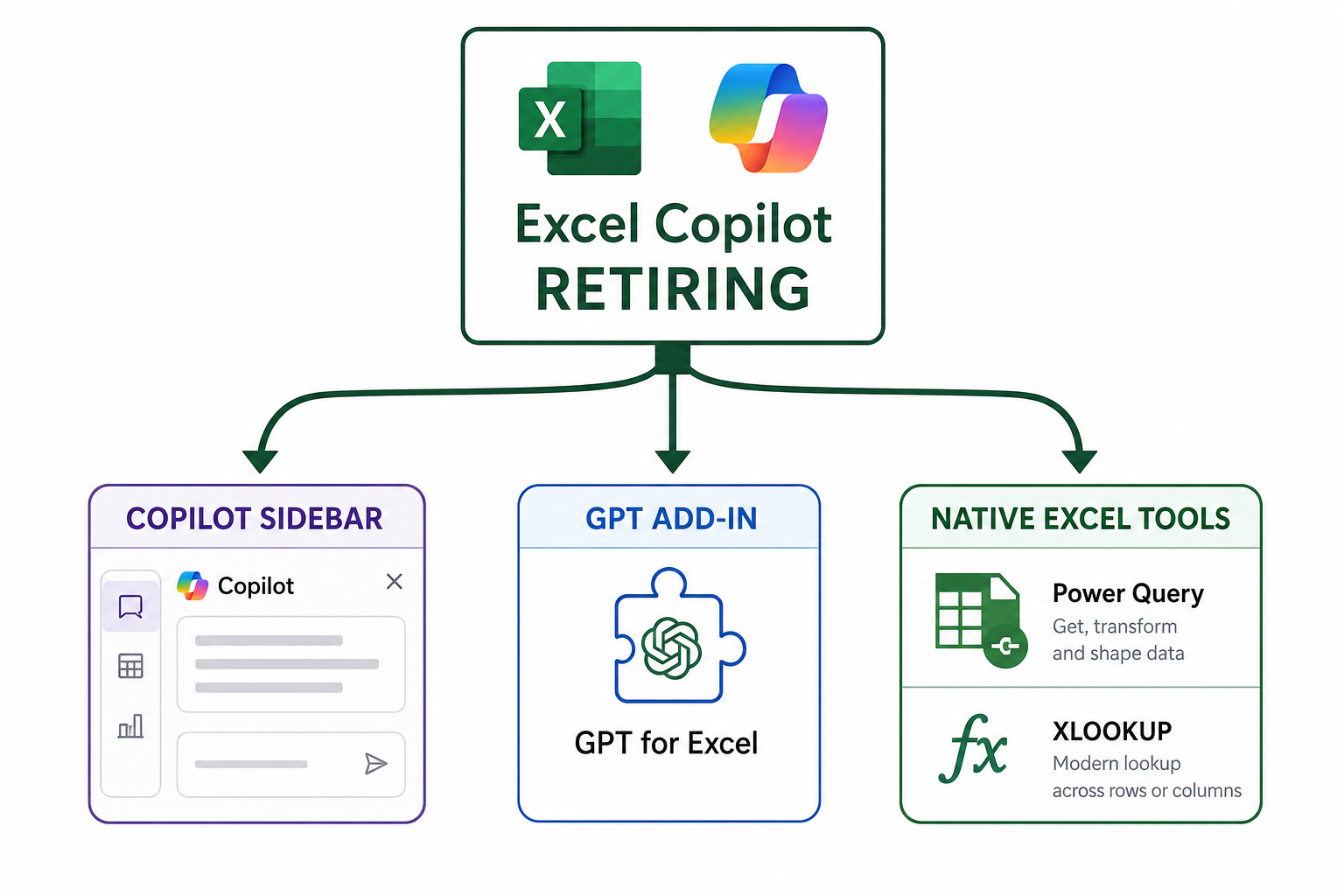
Importantly, Microsoft is not abandoning AI in Excel altogether. The Copilot sidebar — the panel-based assistant that can generate formulas, create charts, and analyse data on request — remains fully operational. The distinction Microsoft is drawing is between an AI assistant you talk to and an AI function you embed in a cell. The company has concluded the latter model does not work reliably enough to ship broadly.
Why the Copilot Function Excel Model Was Flawed by Design
The Excel AI formula concept sounded innovative, but it ran into a fundamental tension: spreadsheets are built on the assumption that a formula always returns the same result for the same input. AI language models are probabilistic — they do not guarantee identical outputs. This isn’t a fixable bug; it’s an architectural mismatch.
There’s also a licensing and sharing problem. An Excel workbook travels. It gets emailed, uploaded to SharePoint, opened by auditors, and inherited by new team members. A cell that requires a live Copilot subscription to resolve its value is a liability in that context. The Register reported that Microsoft had originally planned to make the function generally available, but pulled back after recognising those reliability concerns.
The lesson here is one the broader AI industry is still learning: embedding a generative model inside a deterministic tool is harder than it looks. Voice assistants, chat sidebars, and co-pilots that suggest rather than commit a value tend to work better in practice.
Excel Copilot Alternatives for Formula Automation
So where does this leave power users who genuinely relied on the Copilot function Excel capability? There are several credible paths forward, ranging from Microsoft’s own sidebar to third-party add-ins.
1. Copilot Sidebar in Excel (Microsoft’s Recommended Route)
The Copilot sidebar is the Excel Copilot alternative Microsoft is officially pointing users toward. It can write complex formulas, suggest column transformations, and explain existing formulas in plain English — without embedding an AI-generated value directly in a cell. You review the output before it’s committed, which sidesteps the determinism problem entirely. It requires a Microsoft 365 Copilot licence (currently bundled with Microsoft 365 Business plans at the higher tier).
2. GPT for Work Add-In
GPT for Work (available at gptforwork.com) introduced a =GPT() function as a direct Excel AI formula replacement. Unlike Microsoft’s version, it is transparent about the probabilistic nature of AI outputs and lets you lock results once you’re satisfied — converting the AI output to a static value that won’t change on recalculation. This solves the durability issue that killed the Copilot function.
3. Native Excel Intelligence Features (No AI Licence Needed)
It’s worth remembering that Excel already contains powerful automation capabilities that don’t require any AI subscription:
- Flash Fill — pattern-detects and fills columns automatically
- XLOOKUP and dynamic arrays — handle most complex data retrieval scenarios
- Power Query — automates data transformation without a single formula
- Macros and VBA — for repeatable, deterministic automation (see our guide on how to enable macros in Microsoft Office)
For many workflows that users were routing through =COPILOT(), one of these built-in tools will do the job more reliably and without any licence dependency.
4. Standalone AI Tools Alongside Excel
A growing number of professionals are abandoning the idea of AI-inside-the-cell entirely and instead using ChatGPT, Claude, or Microsoft Copilot Chat to generate a formula, then paste it manually into Excel. This keeps the spreadsheet deterministic while still benefiting from AI. It’s a pragmatic workaround that requires zero additional tooling beyond what most Microsoft 365 users already have.
What This Means for Your Microsoft 365 Licence
The Excel Copilot retirement does not affect your core Microsoft 365 licence or any of the standard Office applications. Excel itself is not changing — only the specific =COPILOT() worksheet function is being removed. If you hold a standalone Excel licence or a perpetual Office licence, you were likely never eligible for the Copilot function in the first place, so nothing changes for you.
If you’re evaluating whether a Microsoft 365 subscription is worth the ongoing cost versus a one-time licence, our breakdown of lifetime Microsoft Office licence price vs Microsoft 365 covers the maths in detail. For users who primarily use Excel for data work, a perpetual Excel licence — available as a standalone product — may be a smarter long-term investment.
At TopKeyShop, you can pick up a standalone Excel 2024 licence for Windows at a competitive price, with instant email delivery and free 24/7 customer support. It covers the full desktop application without any subscription or AI dependency.
Is Microsoft’s AI Strategy in Excel Still on Track?
Despite the Excel Copilot retirement, Microsoft is not retreating from AI in its productivity suite — far from it. The company is expanding Copilot’s multi-agent capabilities, adding web search integration to the Copilot sidebar, and building Agent Mode into Excel to replace the older App Skills feature (which was itself retired in December 2025). The direction is clear: AI as a co-pilot that assists and suggests, not AI as a formula that returns a committed cell value.
This is actually a more defensible product philosophy. Users who tested the =COPILOT() function consistently found that the value changed unexpectedly when the sheet recalculated — a behaviour that is simply incompatible with how professionals use spreadsheets for reporting, budgeting, and compliance. Retiring it after one year shows Microsoft is willing to course-correct quickly, even on a headline feature.
Action Checklist Before 14 September 2026
- Search all your workbooks for
=COPILOT(using Find & Replace (Ctrl+H). - Decide whether each instance should be replaced by a native Excel formula, a Power Query transformation, or a static value.
- If you want to preserve AI-generated outputs, manually lock the current result as a static value before the retirement date.
- Explore the Copilot sidebar as a formula-generation assistant — it fills most of the same use cases without the cell-level reliability problem.
- Consider whether a perpetual Excel licence better fits your workflow if the AI add-ons are not features you actively use.
FAQ
When exactly does the Excel Copilot retirement happen?
Microsoft has confirmed the =COPILOT() function will stop working on 14 September 2026. Any workbook that contains the function after that date will display an error in the cells that use it. You should audit and replace all instances before that deadline.
Does the Excel Copilot retirement mean Copilot is gone from Excel entirely?
No. The retirement only affects the =COPILOT() worksheet function — the formula you could type directly into a cell. The Copilot sidebar panel, which assists with formula generation, data analysis, and chart creation, remains available and is being actively expanded. Microsoft 365 Copilot subscribers keep full sidebar access.
What is the best Excel Copilot alternative for formula automation?
The best Excel Copilot alternative depends on your workflow. For most users, the Copilot sidebar is the simplest replacement — it generates formulas on request without embedding AI values in cells. For teams that need AI-generated text or calculations in cells, the GPT for Work add-in offers a =GPT() function with a value-locking feature that solves the recalculation problem.
Will my existing workbooks break on the retirement date?
Yes — any cell containing =COPILOT() will return an error after 14 September 2026. Workbooks are not automatically migrated. You need to manually find and replace every instance. Microsoft recommends converting AI-generated outputs to static values if you want to preserve the current results permanently.
Is an Excel AI formula still possible without a Copilot licence?
Yes, through third-party add-ins like GPT for Work, which brings =GPT() and similar functions to Excel using the OpenAI API under your own key. Alternatively, you can use ChatGPT or any AI chat tool to generate formulas, then paste them manually — keeping your spreadsheet fully deterministic without any ongoing AI licence.
