

Free JSON and CSV conversion has never been easier — the right tool lets you flip between formats in under a minute, no account, no subscription, and no headaches. Whether you are pulling API data into a spreadsheet or prepping a flat file for a developer, this guide covers the best no-login tools available right now and explains exactly how each one fits into a real Excel workflow.
Why JSON and CSV Conversion Matters for Spreadsheet Workers
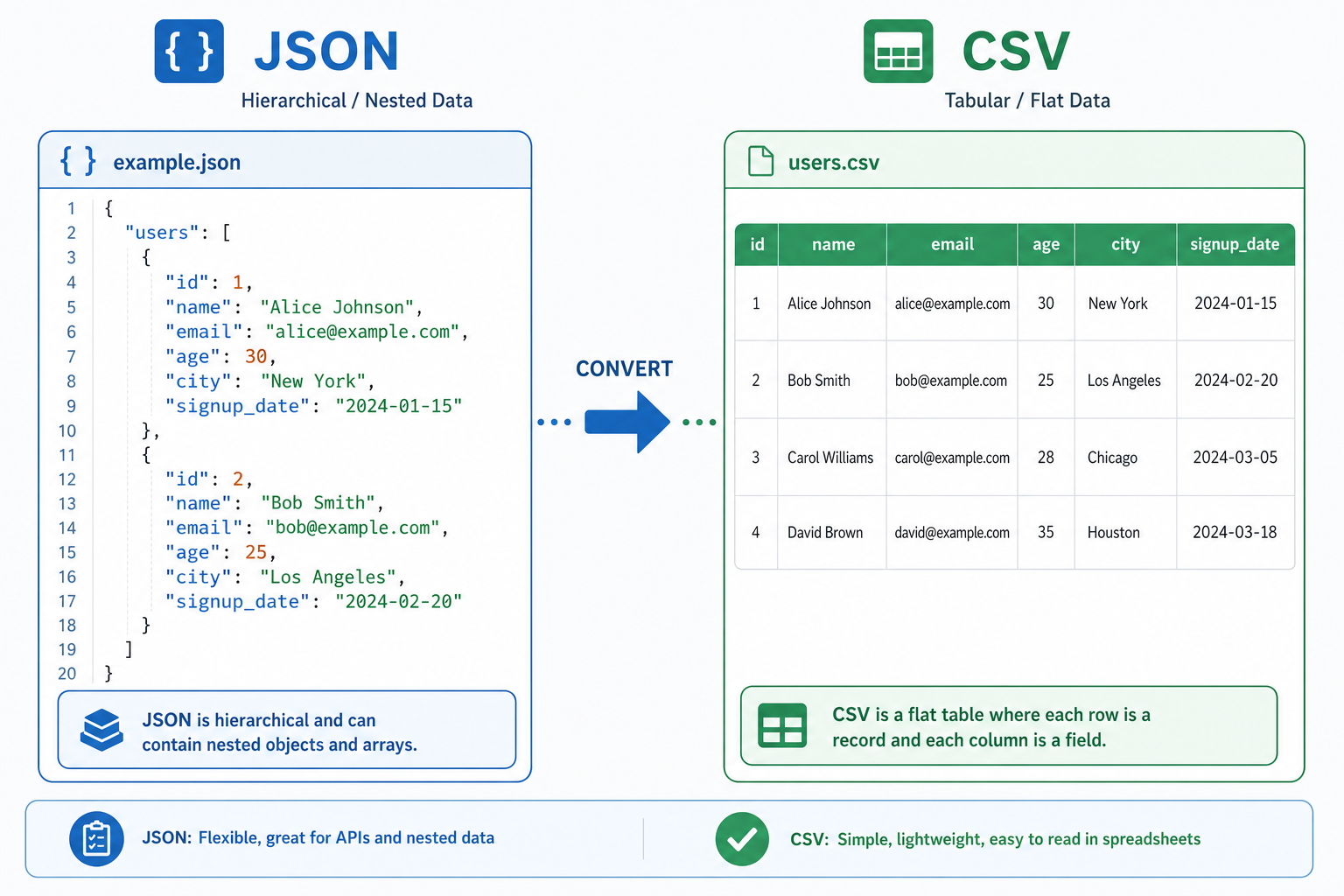
Most modern APIs and web services return data in JSON (JavaScript Object Notation). Excel, on the other hand, speaks CSV and XLSX fluently. The gap between these two formats creates a daily friction point for data analysts, business intelligence teams, and anyone who lives inside a spreadsheet. A reliable, free JSON to CSV converter eliminates that friction instantly — no IT ticket, no paid middleware, no waiting.
According to Microsoft’s official Power Query JSON connector documentation, Excel can connect directly to JSON sources through Data > Get Data > From File > From JSON — but Power Query adds complexity that not every user needs. Browser-based converters give you the same outcome in far fewer steps.
Top Free JSON to CSV Tools — No Account Required
The tools below were selected because they work entirely in the browser, require zero registration, and produce Excel-ready output. Each handles JSON to CSV as its primary job.
1. Data.Page JSON to CSV Converter
data.page/json/csv accepts raw JSON text, a file upload, or a direct URL — making it the most flexible option here. Paste the API response, click Convert, and download a .csv file that opens cleanly in Excel. Nested objects are flattened automatically, which saves analysts a significant amount of manual cleanup time.
2. Instant-CSV
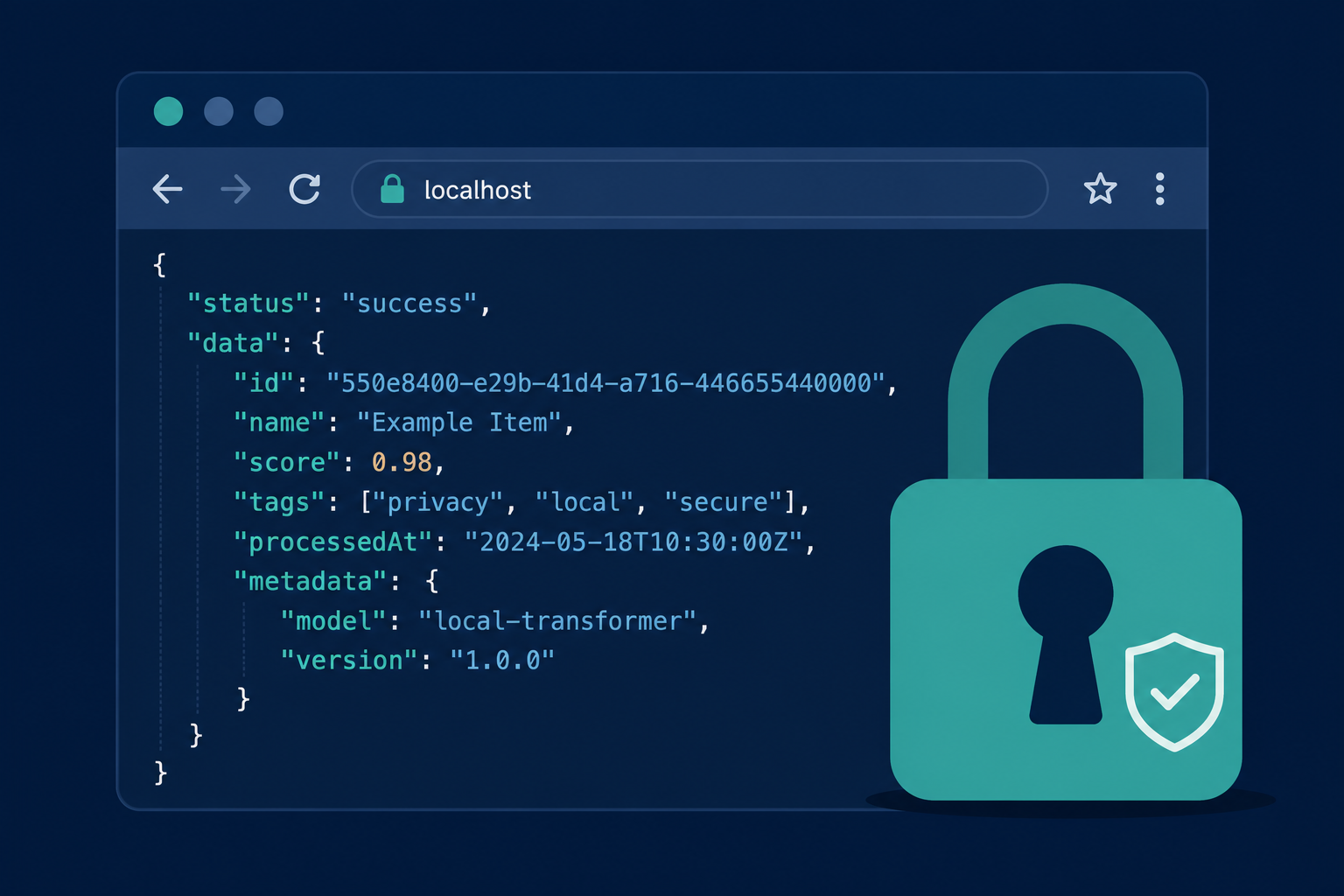
Instant-CSV runs entirely in your browser without uploading data to a server, which is a meaningful privacy advantage for sensitive datasets. It renders a live editable preview before you export, so you can spot column-alignment issues before the file ever reaches Excel. The tool explicitly flags itself as compatible with both Excel and Google Sheets.
3. DataFormatterPro JSON to CSV
DataFormatterPro handles advanced nested JSON — arrays of objects, deeply nested keys, mixed types — and gives you control over which columns to include in the final CSV output. For analysts dealing with messy API payloads, this extra control is worth the slightly longer setup step.
4. Jam.dev CSV to JSON (Bidirectional)
Not every workflow goes JSON → CSV. Sometimes you need to convert JSON Excel data back into JSON for an API push. Jam.dev covers both directions: upload a CSV (exported from Excel), map the columns, and receive clean JSON. It is open-source and ad-free, which is a rarity in this space.
5. YourGPT JSON to CSV
YourGPT’s converter is straightforward and fast, confirming 100% free access with no sign-up required. It handles large payloads without throttling and downloads a file ready to open directly in Excel — a solid fallback when you just need the job done quickly.
How to Convert JSON to CSV and Open It in Excel
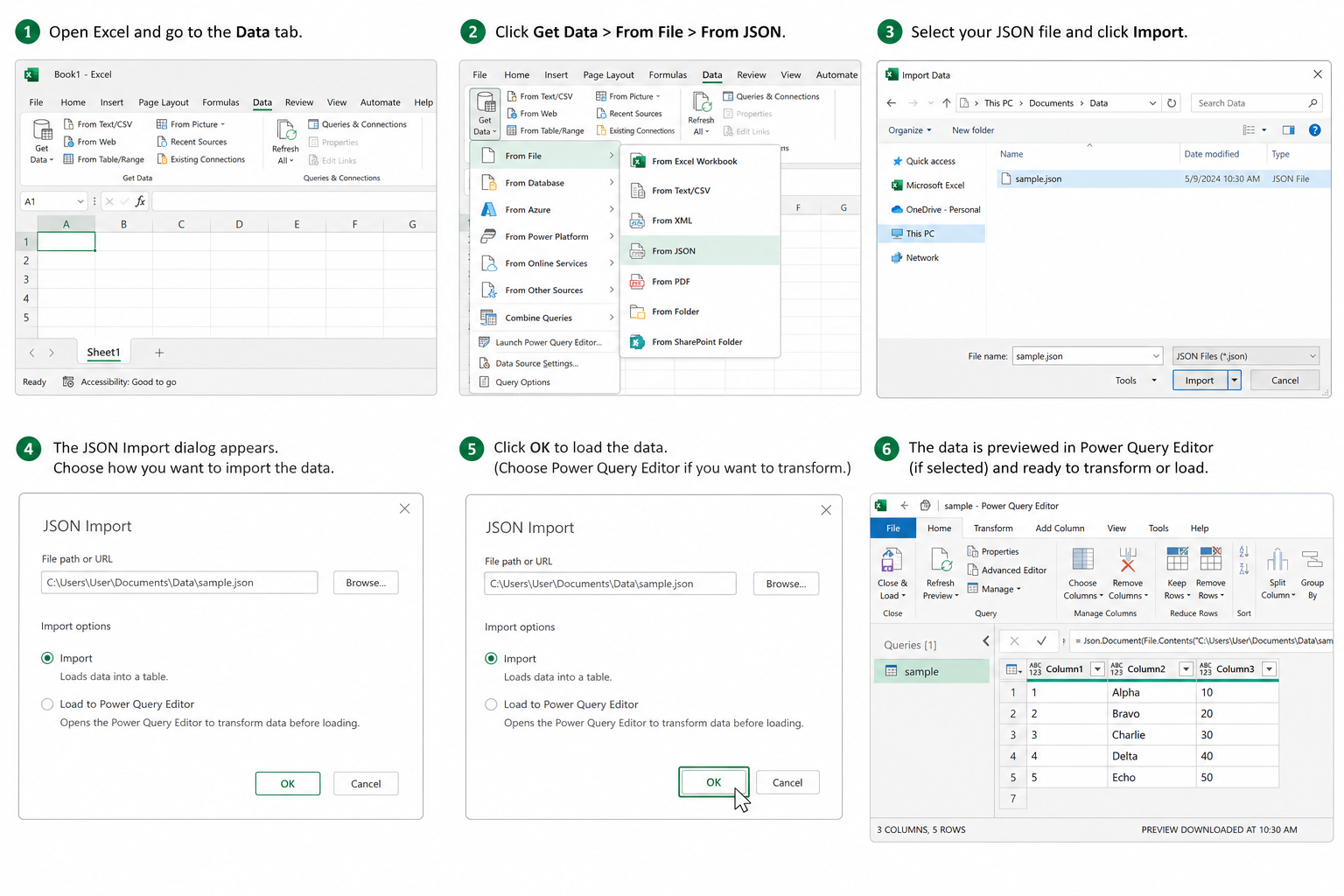
The general workflow is the same across all the tools above. Follow these steps for a clean result every time:
-
Get your JSON source. Copy the raw JSON from your API response, a log file, or any text editor.
-
Paste or upload. Go to your chosen free converter and paste the text or upload the .json file.
-
Preview the output. Check that column headers look correct and nested keys have been flattened as expected.
-
Download the CSV. Click the download or export button to save a .csv file to your machine.
-
Open in Excel. Double-click the .csv file, or use Data > From Text/CSV in Excel for encoding control. Set the delimiter to comma and confirm the import.
-
Save as XLSX. Once the data is in Excel, save as .xlsx to preserve formatting, formulas, and data types.
Using Excel’s Built-In Power Query for JSON Import
If you prefer to convert JSON directly inside Excel without a third-party site, Power Query is the built-in answer. It is available in Excel 2016 and later (including Excel 2019, 2021, and Excel 2024).
-
Go to Data > Get Data > From File > From JSON.
-
Browse to your local .json file and click Open.
-
Power Query’s editor opens. Click To Table to convert the JSON structure into rows and columns.
-
Expand nested records using the column expander icon (the arrows icon at the top of each column).
-
Click Close & Load to push the data into a worksheet.
Power Query is powerful but has a steeper learning curve than a browser-based CSV to JSON converter. For one-off tasks, the free online tools win on speed. For recurring, automated imports — such as a daily API pull — Power Query’s refresh capability makes it the better long-term choice.
CSV to JSON: When You Need to Go the Other Way
CSV to JSON conversion comes up whenever you need to feed spreadsheet data into an API, a NoSQL database, or a web application. The same no-account tools handle this direction equally well.
A typical use case: a marketing team exports a lead list from Excel as .csv, then a developer needs it as a JSON array to load into a CRM’s API endpoint. Free browser tools like Jam.dev or TableConvert handle this in under 60 seconds — no Python script needed, no IT dependency.
The convert JSON Excel approach works in both directions: Excel → CSV → JSON for outbound data, and JSON → CSV → Excel for inbound data. Understanding this two-way flow is fundamental to modern data analyst work.
What to Look for in a Free JSON CSV Conversion Tool
Not all free converters are equal. Before you commit to one, check these criteria:
-
No account required: Any tool asking for an email before conversion is adding unnecessary friction. The best tools work immediately.
-
Nested JSON support: Flat JSON is easy. Tools that can flatten deeply nested objects or arrays automatically save significant manual work.
-
File size handling: Some browser tools struggle above 5 MB. If you work with large API payloads, test the tool with your actual file size before relying on it.
-
Privacy / no server upload: For sensitive business data, prefer tools that process locally in your browser (like Instant-CSV) over those that upload your data to a remote server.
-
Excel compatibility: The output CSV must use UTF-8 encoding and comma delimiters. Some tools default to semicolons, which causes column-splitting issues when opening in Excel on certain regional settings.
-
Preview before download: A live preview catches problems before they reach your spreadsheet.
Why the No-Account Model Matters for Data Analysts
Account-gated tools create three concrete problems for daily analysts: they slow down ad-hoc tasks, they introduce email marketing noise, and — in regulated industries — they raise data governance questions about where your data is being stored. Free JSON CSV conversion tools that work without registration respect both your time and your data.
This matters even more in enterprise settings where IT policies restrict new account creation on external services. A browser-based tool that processes data locally sidesteps approval workflows entirely, letting analysts stay productive without administrative overhead.
Get More Out of Excel with the Right Software
Free conversion tools are only part of the picture. To get full value from your data, you need Excel itself performing at its best. If you are still running an older version, upgrading to a modern licence unlocks Power Query improvements, better JSON handling, dynamic array functions, and the LAMBDA function — all of which make working with converted data dramatically faster.
At TopKeyShop, you can pick up a genuine Excel 2024 for Windows licence for €42.90 — a one-time cost with no ongoing subscription. If you need the full Microsoft stack, the Windows 11 Pro + Excel 2024 Bundle is available at €46.80 (regularly €52.00), combining a fully activated OS with a permanent Excel licence in a single purchase.
FAQ
Can I convert JSON to CSV without any software installed?
Yes. Browser-based tools like Data.Page, Instant-CSV, and YourGPT run entirely online. You paste or upload your JSON, preview the output, and download a CSV — no software installation required. All you need is a modern browser.
Do free JSON CSV conversion tools handle nested JSON?
Most do, to varying degrees. Tools like DataFormatterPro and Data.Page automatically flatten nested objects and arrays into separate columns. If your JSON is deeply nested with multiple array levels, test your specific file first — some tools handle three or four nesting levels cleanly while others truncate or skip nested keys.
Is it safe to use online converters with sensitive data?
It depends on the tool. Instant-CSV, for example, processes data locally inside your browser without uploading it to a server. For sensitive business, financial, or personal data, always check the tool’s privacy policy and prefer local-processing options. Alternatively, use Excel’s built-in Power Query, which keeps data entirely on your machine.
How do I convert JSON to CSV inside Excel without a third-party tool?
Use Excel’s Power Query: go to Data > Get Data > From File > From JSON, select your file, click “To Table” in the editor, expand nested columns, then click “Close & Load”. The result lands directly in a new worksheet. This method works in Excel 2016, 2019, 2021, and 2024.
Why does my CSV open in one column in Excel instead of multiple columns?
This usually means a delimiter mismatch. Your system may expect a semicolon delimiter while the CSV uses commas (or vice versa). Fix it by opening Excel, going to Data > From Text/CSV, and manually selecting the correct delimiter in the import wizard. Alternatively, change the delimiter setting in the converter before downloading.
