
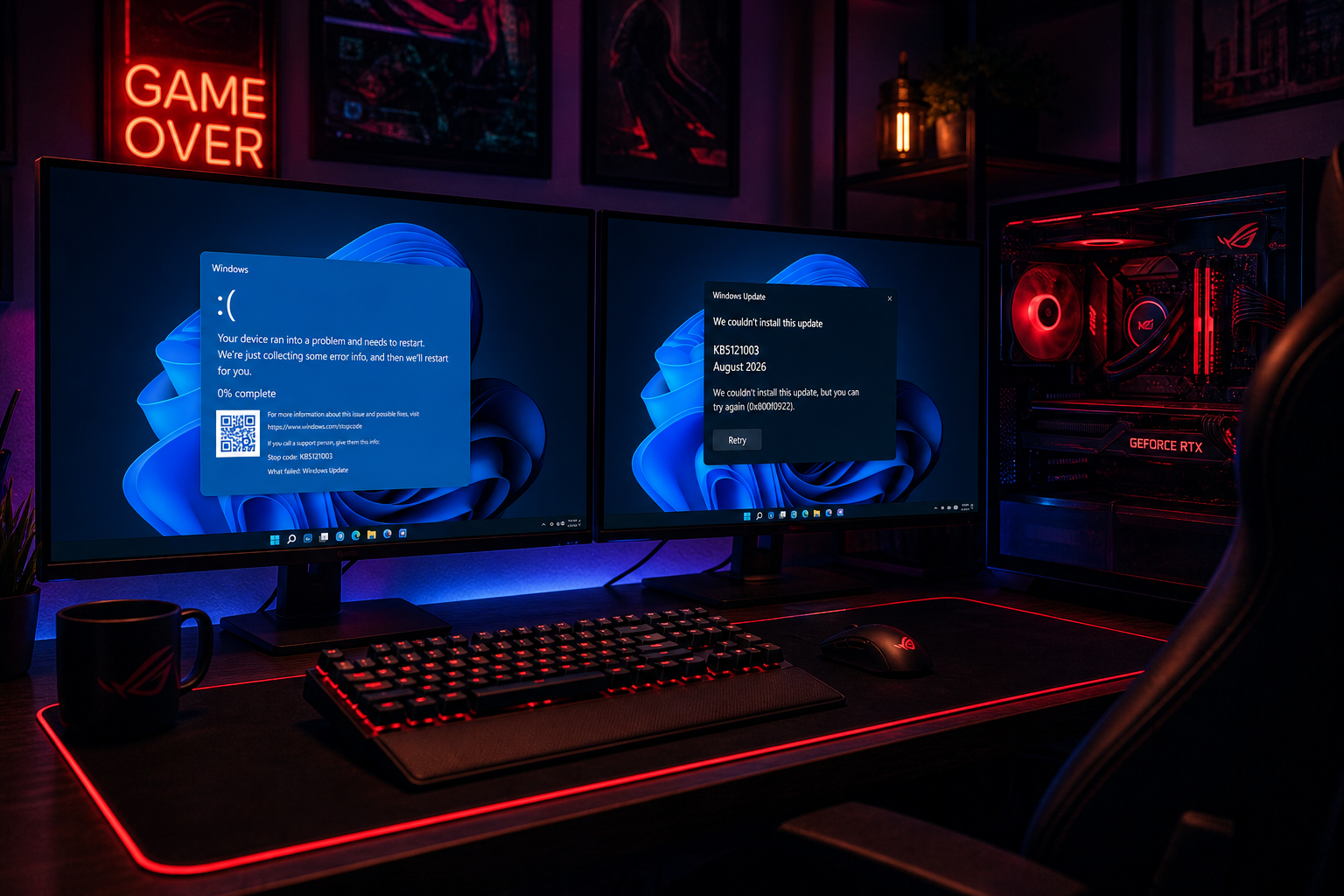
If your games started crashing after a recent Windows Update, KB5121003 game crashes are almost certainly the culprit. Microsoft’s August 2026 cumulative security patch — officially KB5121003 — shipped on 11 August 2026 and fixed more than 400 security vulnerabilities, but it simultaneously broke game compatibility for a significant portion of Windows 11 24H2 and 25H2 users. This guide explains exactly what the patch changed, which titles are most affected, and the safest step-by-step procedure to roll it back while you wait for Microsoft to issue a fix.
What Is KB5121003 and Why Did It Ship?
KB5121003 is August 2026’s mandatory cumulative update for Windows 11 versions 24H2 and 25H2 (OS builds 26200.9168 and later). Like every Patch Tuesday release, it bundled security fixes, quality improvements, and kernel-level changes aimed at hardening the operating system. Microsoft confirmed the update patched over 400 distinct security issues, making it one of the largest single-month security drops in recent memory. Because many of those fixes operate at the kernel and memory-management level — precisely the layers that game engines rely on — the update introduced unintended side effects for a notable subset of gaming hardware configurations.
What Changed Inside the Update That Causes Windows 11 Gaming Issues?
The specific technical root cause is still under active investigation by Microsoft’s engineering team, but early analysis from gaming studios and community reports points to three likely culprits inside the patch:
- Kernel memory-allocation changes — Modifications to how the OS allocates and protects memory regions appear to conflict with the way certain game anti-cheat and DRM modules claim memory, causing immediate crashes on launch or mid-session.
- GPU scheduler adjustments — Changes to the DirectX scheduling pipeline seem to trigger GPU hangs on NVIDIA and AMD cards in specific driver configurations, producing black screens and system reboots.
- Windows Defender integration update — KB5121003 also modified Windows Defender’s real-time scanning hooks. Several studios have noted these new hooks interfere with games that use kernel-level anti-cheat software such as Easy Anti-Cheat and Ricochet.
Microsoft’s official support page for KB5121003 (OS Builds 26200.9168 and later) acknowledges a known issue: “Reports of certain games becoming unresponsive… Ongoing investigation.” The company has not yet committed to a timeline for an out-of-band fix.
Which Games Are Affected by KB5121003 Game Crashes?
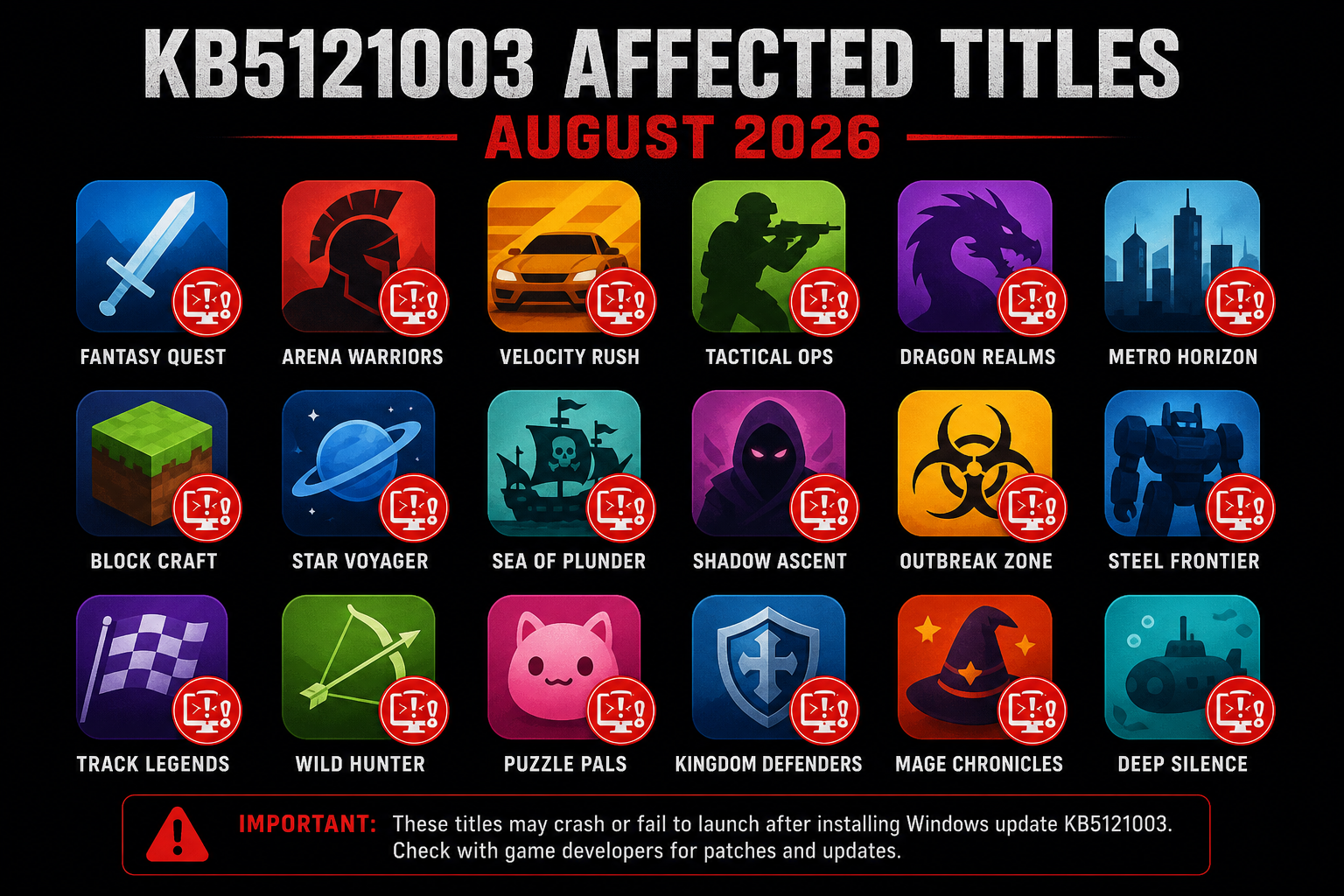
Windows 11 gaming issues from this patch are widespread but not universal — the crash rate appears highest in online multiplayer titles that use kernel-level anti-cheat. Community reporting across Reddit and developer forums has flagged these games as most frequently problematic:
- The Finals (kernel anti-cheat conflict confirmed by developer)
- Call of Duty: Warzone (Ricochet anti-cheat conflicts)
- Valorant (Vanguard anti-cheat kernel driver clashes)
- Fortnite (EasyAntiCheat-related crashes)
- Rainbow Six Siege (mid-match crashes and lobby freezes)
- Star Wars Outlaws and other recent Ubisoft titles (display driver hangs)
- Single-player games with Denuvo DRM (launch failures reported)
Games without kernel-level protection — classic titles, indie games, and most Steam games without online anti-cheat — are largely unaffected. If your affected title is on the list above, rolling back the update is currently the only reliable workaround.
Other Symptoms Beyond KB5121003 Game Crashes
Game crashes are the most visible symptom, but KB5121003 rollback requests are also coming from users experiencing:
- Blue Screen of Death (BSOD) — typically citing KERNEL_SECURITY_CHECK_FAILURE or SYSTEM_THREAD_EXCEPTION_NOT_HANDLED
- PIN and Windows Hello login failures — some users cannot sign in with their PIN after the patch installed
- Display and refresh-rate issues — HDR monitors reverting to SDR, or resolution dropping after waking from sleep
- System reboots during gameplay — sudden cold restarts with no BSOD, particularly on AMD GPU systems
If you’re experiencing any combination of these alongside Windows 11 gaming issues, the August patch is the common denominator and removal is the recommended first step.
How to Roll Back KB5121003: Step-by-Step
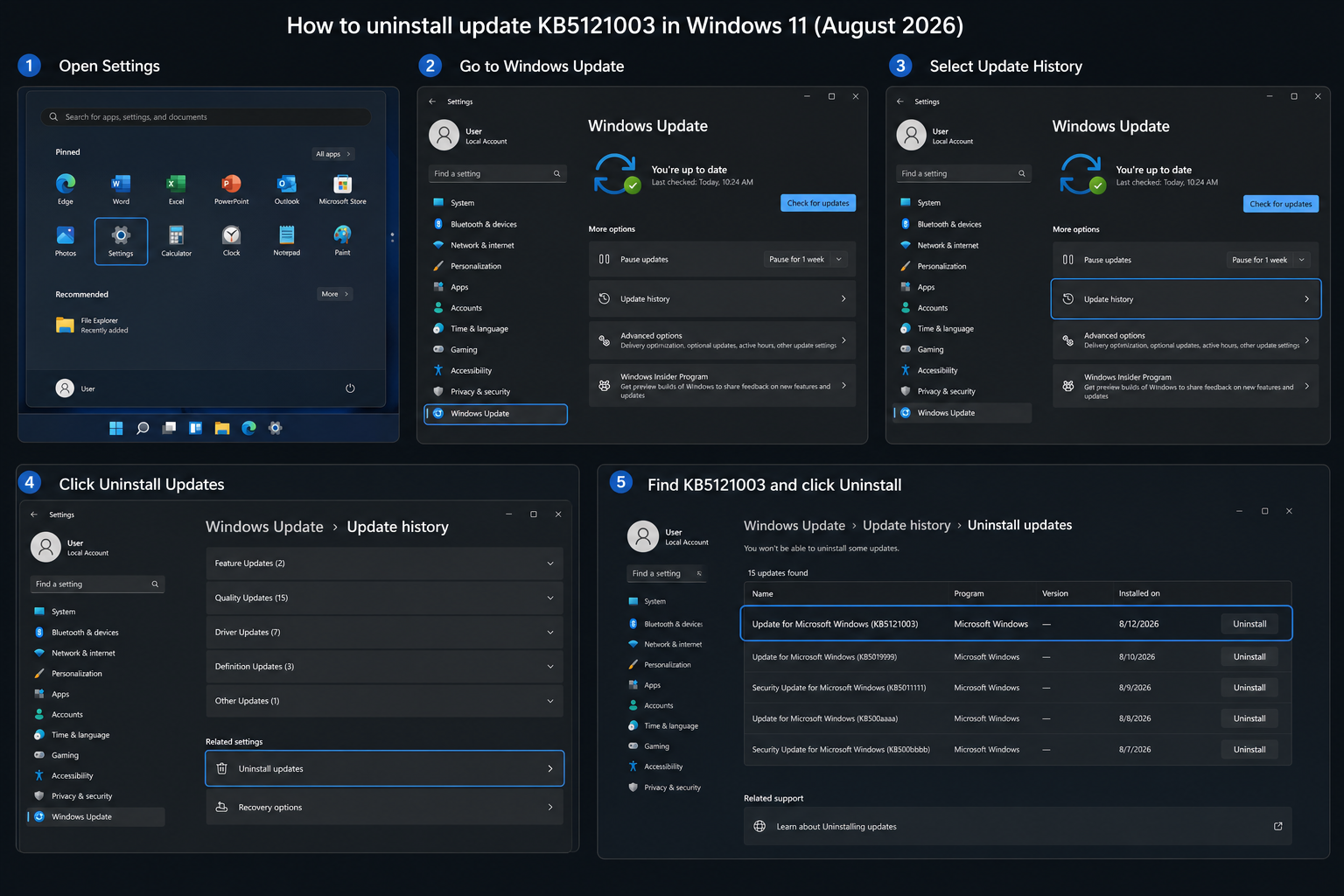
The KB5121003 rollback process is straightforward but time-sensitive — Windows 11 will attempt to reinstall the update automatically within a few days unless you pause updates. Follow these steps carefully.
Step 1 — Open Update History
Go to Settings > Windows Update > Update history. Scroll down until you see Related settings and click Uninstall updates. This opens a filtered list of recently installed cumulative patches.
Step 2 — Locate and Uninstall KB5121003
Find the entry labelled 2026-08 Cumulative Update for Windows 11 (KB5121003). Click it and select Uninstall. Confirm when prompted. Windows will prepare the removal — this usually takes 2–5 minutes.
Step 3 — Restart Your PC
Windows will ask you to restart to complete the removal. Save all open work and restart. The boot sequence may take slightly longer than usual as the OS reverts kernel components — this is normal.
Step 4 — Pause Automatic Updates
Immediately after restarting, go back to Settings > Windows Update and click Pause updates. Set the pause for at least 4 weeks. This prevents Windows from automatically reinstalling KB5121003 before Microsoft releases a corrected patch. You will miss other security updates during this window, so re-enable updates as soon as Microsoft confirms a fix.
Step 5 — Test Your Games
Launch the games that were crashing. In the majority of reported cases, removing KB5121003 immediately resolves Windows 11 gaming issues. If crashes persist after removal, update your GPU drivers (NVIDIA and AMD both released driver updates in August 2026) and verify game file integrity through Steam or your game launcher.
Can You Block KB5121003 from Reinstalling Permanently?
Pausing updates is the simplest approach, but power users can also use the Windows Update Blocker utility or Group Policy (available on Windows 11 Pro) to defer specific cumulative updates. Navigate to Computer Configuration > Administrative Templates > Windows Components > Windows Update > Manage updates offered from Windows Update and enable the Do not include drivers with Windows Updates policy as a supplementary measure. Note that this does not specifically block KB5121003 — the pause-updates method remains the most reliable short-term fix.
Should You Stay on Windows 11 for Gaming?
One broken patch shouldn’t change your long-term OS decision. Windows 11 remains the best-supported platform for modern gaming, with DirectX 12 Ultimate, Auto HDR, and DirectStorage all being Windows 11–first features. Issues like these KB5121003 game crashes are historically resolved within 2–4 weeks via an out-of-band patch or the following month’s Patch Tuesday. Microsoft has an incentive to fix this quickly given the scale of community backlash.
If you’re running Windows 11 on a genuine licensed copy, you’re also best positioned to receive the corrective update as soon as it drops. Top Key Shop carries genuine Windows 11 licence keys for Home and Pro at competitive prices — from €14.70 for a retail Home key — so if you’re still on Windows 10 and considering the move, now’s a good time to plan the transition once this patch drama settles. You can also check the Windows 11 quality improvements Microsoft delivered since March 2026 to see the bigger picture of where the OS is heading.
Frequently Asked Questions
Will Microsoft release a fix for KB5121003 game crashes?
Yes. Microsoft has officially acknowledged the gaming issue on its support page and confirmed an ongoing investigation. Based on historical precedent, an out-of-band patch or a revised cumulative update addressing Windows 11 gaming issues typically arrives within two to four weeks of the initial report. Keep an eye on the Microsoft support article for KB5121003 for status updates.
Is it safe to roll back KB5121003?
Rolling back a cumulative Windows update is a supported Microsoft procedure and is generally safe on healthy systems. The main trade-off is that you temporarily lose the security fixes included in the patch — over 400 of them in this case. Avoid rolling back on systems that handle sensitive data unless the instability is significantly impacting usability, and re-enable updates as soon as a corrected patch is available.
My game still crashes after the KB5121003 rollback — what now?
If Windows 11 gaming issues persist after uninstalling the update, first update your GPU drivers to the latest release from NVIDIA or AMD — both manufacturers pushed August 2026 driver updates that independently address some game-stability bugs. Next, verify the integrity of your game files through Steam, the Epic Games Launcher, or Battle.net. If problems continue, check the game’s official support forum, as some developers have also released client-side patches in response to the KB5121003 conflict.
Which versions of Windows 11 are affected?
KB5121003 targets Windows 11 versions 24H2 and 25H2, specifically OS builds 26200.9168 and later. Users still on Windows 11 23H2 received a different update bundle in August 2026 and are not affected by this specific set of KB5121003 game crashes, though Microsoft strongly recommends upgrading to a supported feature version.
Can I pause Windows updates without losing security protection?
Pausing updates for up to four weeks is a built-in Windows 11 feature and carries an accepted level of risk for most home users. During the pause window, your existing Defender definitions continue to update independently of cumulative patches, so real-time malware protection remains active. The main gap is unpatched kernel and component vulnerabilities — acceptable for a short pause but not advisable long-term.
