
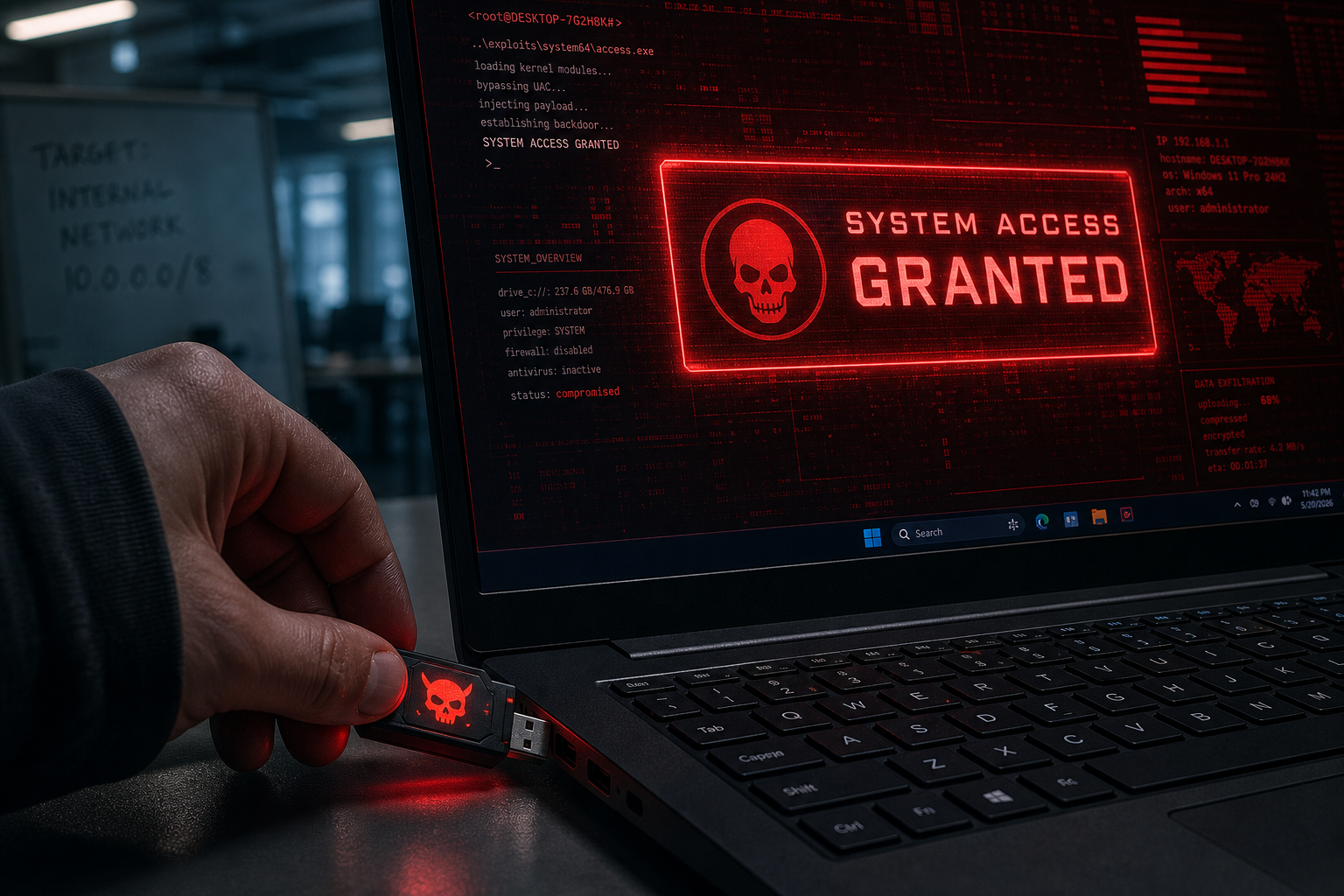
A USB physical access attack can hand an attacker full SYSTEM-level control of a Windows machine in seconds — no password, no login prompt, no warning. Security researchers Alejandro Hernando and Borja Martínez demonstrated this alarming technique, dubbed Plug and Pwn, at DEF CON 34, showing just how badly Windows’ own automatic hardware recognition can be turned against itself. If you manage Windows endpoints, work in an open-plan office, or travel with a laptop, this is a threat you need to understand right now.
What Is the Plug and Pwn Attack?
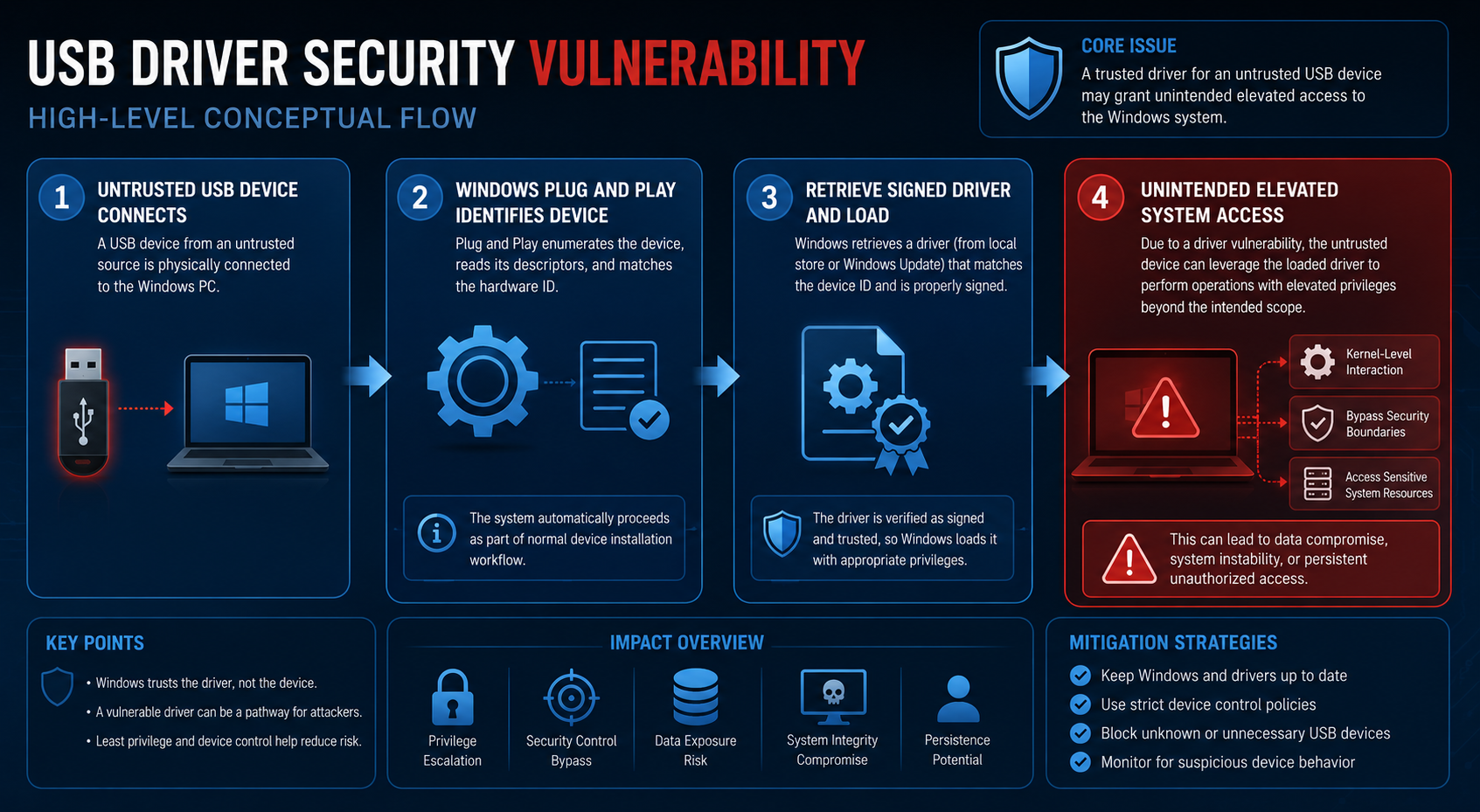
Plug and Pwn is a family of fake USB attack techniques that weaponise Windows’ built-in Plug and Play (PnP) subsystem. PnP was designed as a convenience feature: plug in a peripheral and Windows automatically identifies, downloads, and installs the correct driver — no user interaction required. Plug and Pwn flips that convenience into a critical vulnerability.
The attacker connects a specially crafted USB device — often a cheap microcontroller programmed to impersonate a legitimate hardware vendor — to the target machine. Windows sees a recognised hardware signature, reaches out to fetch the associated driver package, and in doing so executes code with SYSTEM-level privileges. The entire chain can complete in under a minute, and the victim may see nothing more than a brief “Installing device driver” notification in the system tray.
What makes this particularly dangerous is that the drivers being fetched are legitimately signed by real vendors. Windows Driver Signature Enforcement, designed to block untrusted code, is effectively bypassed because the driver being installed is genuinely signed — it just happens to contain exploitable components that the attacker chains into privilege escalation.
How the Fake USB Attack Achieves SYSTEM Access
Achieving USB SYSTEM access through this method involves several technical steps, but the attacker’s tooling handles all of it automatically:
-
Hardware emulation: A device such as a Raspberry Pi, a USB Rubber Ducky, or a similar programmable board is flashed to present a specific USB Vendor ID and Product ID — matching a known hardware peripheral with a signed driver on Windows Update.
-
Driver auto-installation: Windows PnP detects the “device,” contacts Microsoft’s driver delivery infrastructure, and silently installs the associated vendor package — even on a locked or unattended machine.
-
Exploiting the vendor software: The installed driver or companion software contains a vulnerable service running as SYSTEM. The attacker exploits that service — often via a local named pipe, DLL hijack, or insecure file path — to escalate from a low-privileged or unauthenticated context straight to SYSTEM.
-
Persistence: Once at SYSTEM level, the attacker can create a backdoor account, disable security tools, exfiltrate credentials from memory, or deploy ransomware — all before the screen saver even kicks in.
Researchers demonstrated this fake USB attack successfully against fully patched Windows 10 and Windows 11 machines, underlining that this is not a legacy OS problem. The research was covered in depth by BleepingComputer — you can read the original disclosure at BleepingComputer’s Plug and Pwn report.
Who Is Most at Risk from a USB Physical Access Attack?

Any environment where an attacker can briefly touch a Windows endpoint is vulnerable. That is a much broader category than most IT teams assume:
-
Open-plan offices: A malicious USB device takes seconds to plug in while you fetch a coffee.
-
Conference rooms and co-working spaces: Shared desks and presentation PCs are prime targets.
-
Hotels and airports: Charging stations and shared kiosks may already be compromised.
-
Unattended laptops: A locked screen provides no protection against a USB physical access attack — the driver install happens independently of the user session.
-
Industrial and OT environments: Operational technology PCs are often less monitored and may run older driver packages with even more exploitable components.
Corporate espionage, insider threats, and opportunistic attacks at public venues are the most realistic scenarios. Nation-state actors have used USB-based attack vectors for over a decade — Stuxnet, discovered in 2010, is the most famous example — but Plug and Pwn lowers the skill bar dramatically, making the technique accessible to a far wider range of adversaries.
Why Windows Defender Alone Won’t Stop It
Many users assume Windows Defender — Microsoft’s built-in security solution — is sufficient to block this kind of threat. Unfortunately, a USB SYSTEM access attack of this nature largely sidesteps signature-based endpoint detection. Because the drivers being installed are legitimately signed, Defender’s real-time protection has no obvious malicious file to flag. The exploitation of the vulnerable service happens in memory or via OS-native mechanisms that look like normal system activity.
This is consistent with a broader trend we covered in our analysis of Windows Defender’s limitations and why layered security now matters — Microsoft itself quietly scaled back claims that Defender provides complete protection. For physical-vector attacks especially, you need defences that go beyond the software layer.
How Plug and Pwn Relates to Recent Windows Vulnerabilities
Plug and Pwn does not stand alone. It fits into a broader pattern of escalating hardware-level attacks on Windows. At Pwn2Own Berlin 2026, hackers collected $385,750 in prize money over just two days by cracking Windows 11 and other enterprise software — demonstrating that even the most hardened modern OS configurations remain exploitable by skilled researchers. Our breakdown of those Windows 11 security vulnerabilities from Pwn2Own Berlin 2026 shows how physical and logical attack surfaces increasingly overlap.
The common thread is that Windows’ extensive hardware compatibility — a feature that makes it the world’s most widely deployed desktop OS — also makes it a rich target. Every signed driver in Microsoft’s catalogue is a potential attack surface if it contains a vulnerable service or privilege boundary.
Defensive Measures Against a USB Physical Access Attack
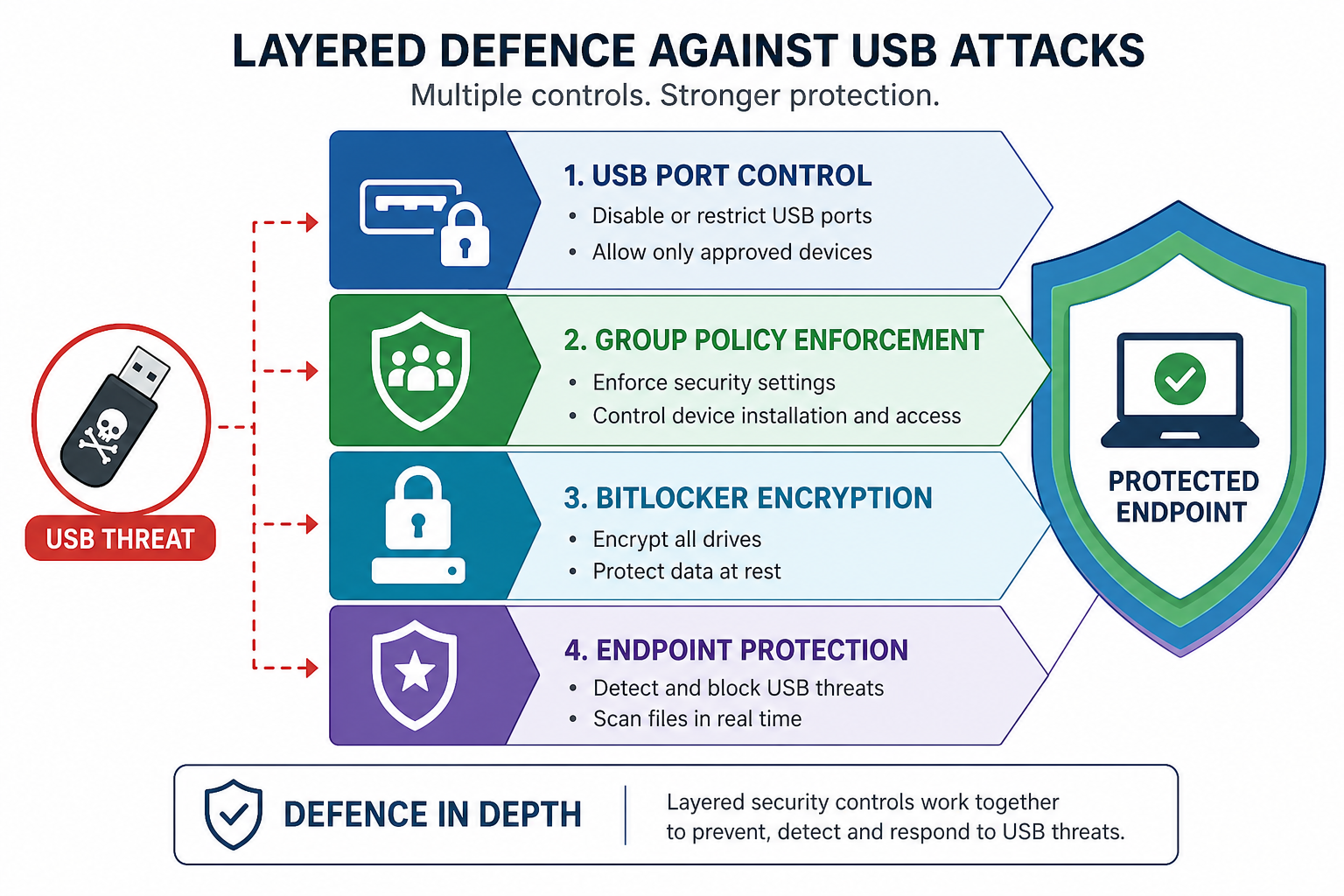
The good news: this attack requires physical access, which means physical and policy controls are your first and most effective defence layer. Here is a prioritised action list for individuals and IT teams alike.
1. Disable Automatic Driver Installation via Group Policy
Windows allows administrators to prevent PnP from automatically installing drivers for unknown or unwhitelisted devices. In Group Policy Editor, navigate to Computer Configuration → Administrative Templates → System → Device Installation → Device Installation Restrictions and enable “Prevent installation of devices not described by other policy settings.” This is the single most direct technical countermeasure against the Plug and Pwn vector.
2. Enforce USB Port Control
Endpoint management platforms such as Microsoft Intune, as well as dedicated USB control tools, allow you to whitelist only approved USB device classes (e.g., your company’s standard keyboard and mouse) and block everything else. This stops a fake USB attack before the OS even begins device enumeration.
3. Enable BitLocker and Secure Boot
While BitLocker does not directly block driver installation, it protects data at rest if the attacker attempts to reboot into an alternative environment. Secure Boot ensures only trusted bootloaders and early-launch drivers are allowed, raising the bar for persistent firmware-level implants that might accompany a USB physical access attack.
4. Apply Principle of Least Privilege
Running day-to-day user accounts without local administrator rights does not fully prevent PnP driver installation (which runs as SYSTEM regardless), but it significantly limits what an attacker can do if they obtain only user-level code execution. Restrict admin rights to dedicated privileged accounts and use Privileged Access Workstations (PAWs) for sensitive tasks.
5. Physical Security Controls
No software policy compensates for an unattended, accessible machine. Use cable locks for laptops in shared spaces, enforce screen lock policies (Windows + L), configure BIOS/UEFI to disable USB boot and require a supervisor password to change settings, and implement a clear-desk policy that ensures no machine is left logged in and unattended.
6. Deploy Layered Endpoint Security
Supplement Windows Defender with a dedicated antivirus or endpoint detection and response (EDR) solution that monitors behavioural patterns — particularly privilege escalation chains — rather than relying solely on file signatures. Our antivirus software range includes options that add this behavioural detection layer to Windows endpoints at an affordable price.
7. Monitor Driver Installation Events
Windows Event Log captures driver installation events under Event ID 20001 (in the Microsoft-Windows-DriverFrameworks-UserMode/Operational log). Setting up alerts for unexpected driver installations — especially outside of your standard change windows — can flag a USB SYSTEM access attempt in near real-time, even if it cannot prevent it outright.
Should You Upgrade to Windows 11 for Better Protection?
Windows 11 ships with several security improvements over Windows 10 — hardware-enforced stack protection (HVCI), stricter Secure Boot requirements, and TPM 2.0 as a baseline — but as the Plug and Pwn research confirms, these safeguards do not eliminate the risk of a USB physical access attack. The PnP subsystem and driver delivery mechanism are fundamentally similar across both OS generations.
That said, Windows 11’s security baseline is meaningfully stronger, and it receives more aggressive security patching. If you are still running Windows 10, upgrading is a sensible step — not a silver bullet, but a genuine improvement in your overall posture. Windows 11 Home licences start from €14.70 at Top Key Shop, making the upgrade cost-effective for most users.
FAQ
Can a USB physical access attack work on a locked Windows machine?
Yes. Windows Plug and Play driver installation occurs at the kernel and SYSTEM level, independently of whether a user is logged in or the screen is locked. An attacker only needs a few seconds of physical access to the USB port. This is what makes the Plug and Pwn technique so alarming — the locked screen provides no barrier to driver-level code execution.
Does disabling USB ports in BIOS prevent the attack?
Disabling USB ports entirely in BIOS/UEFI is the most absolute prevention method, but it is impractical in most environments because it also blocks keyboards, mice, and storage. A more balanced approach is to whitelist specific USB device classes via Group Policy or an endpoint management platform, blocking unknown device types while preserving normal peripheral use.
Are Macs or Linux systems also vulnerable to Plug and Pwn?
The Plug and Pwn research specifically targets Windows’ PnP driver delivery mechanism and the signed vendor software ecosystem around it. macOS and Linux handle driver installation very differently and do not automatically fetch and install drivers from a cloud catalogue in the same way. That said, USB-based attack techniques exist for all platforms — this particular attack chain is Windows-specific.
Will a VPN protect me from a fake USB attack?
No. A VPN encrypts network traffic but has no effect on local hardware events. A fake USB attack operates entirely at the local hardware and operating system level — no network connection from the attacker’s side is required for the initial exploitation. VPNs are valuable for other threat models but offer zero protection here.
How quickly can Microsoft patch this type of vulnerability?
The challenge with Plug and Pwn is that it exploits legitimate signed drivers from third-party vendors, not a single flaw in Windows itself. Microsoft can revoke specific driver certificates and update PnP policies, but the attack surface is broad — any of thousands of signed driver packages could harbour an exploitable component. Comprehensive mitigation requires a combination of Windows policy hardening, driver vetting improvements, and vendor-side patches, which makes a rapid universal fix unlikely.
