

Windows 11’s KB5102117 recovery update quietly landed on July 28, 2026, yet its impact on system reliability is anything but quiet. This Safe OS Dynamic Update refreshes the Windows Recovery Environment (WinRE) on Windows 11 versions 24H2 and 25H2, giving your PC a stronger safety net the next time something goes wrong. Whether you have never heard of WinRE or you live inside Advanced Startup Options, this guide covers exactly what KB5102117 changes, why it matters, and the fastest ways to get it running on your machine.
What Is Windows 11 KB5102117 and Why Did Microsoft Release It?
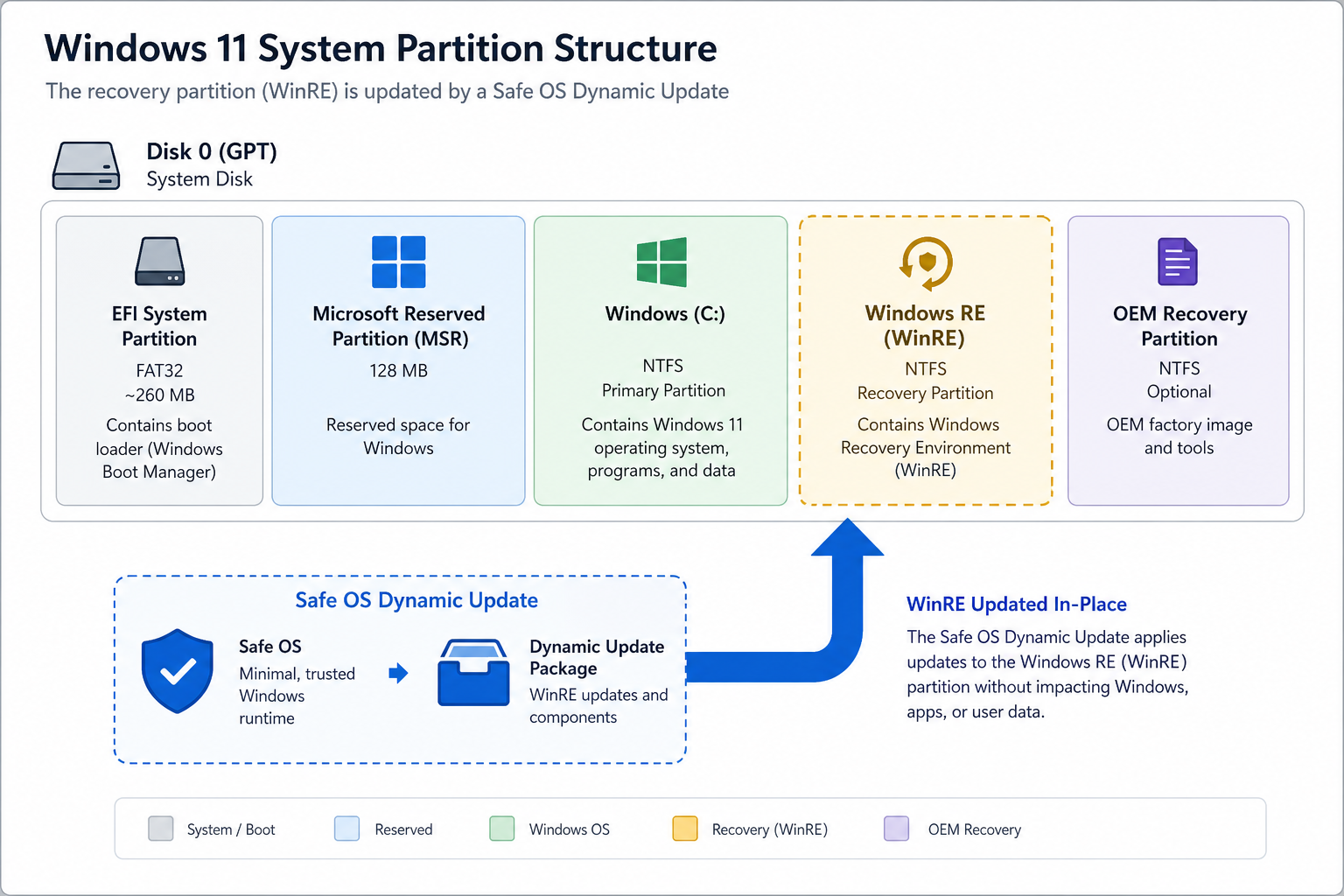
KB5102117 is a Safe OS Dynamic Update — a specialised class of update that targets the recovery partition rather than the live operating system. Unlike cumulative updates that patch the running Windows installation, a Safe OS Dynamic Update is injected into WinRE so that the recovery tools themselves stay current and reliable. Microsoft released KB5102117 specifically to improve the Windows Recovery Environment for Windows 11 24H2 and 25H2, addressing gaps in recovery reliability that could leave users stranded during a critical repair session.
Dynamic Updates like this one were introduced to solve a longstanding problem: recovery media and recovery partitions age quickly, meaning a PC that ships in January might already have outdated repair tools by March. KB5102117 keeps WinRE aligned with the latest system components without requiring users to rebuild recovery media from scratch.
What Does the Windows 11 Recovery Update Actually Change?
Microsoft’s official support page for KB5102117 states the update “makes improvements to the Windows Recovery Environment.” While the release notes are intentionally concise — as is standard for Safe OS Dynamic Updates — the practical effects are meaningful:
-
Updated WinRE components: Core drivers, tools, and binaries inside the recovery partition are refreshed to match the current 24H2/25H2 codebase, reducing the chance of compatibility errors during a repair.
-
Improved Startup Repair reliability: The updated environment is better equipped to diagnose and automatically fix boot failures, corrupted system files, and failed feature updates.
-
Stronger Reset and Reinstall paths: The “Reset this PC” and “Fix problems using Windows Update” recovery flows benefit from the refreshed WinRE, making these operations more likely to succeed on the first attempt.
-
Better support for newer hardware: Devices running 25H2 in particular gain updated driver support inside WinRE, so recovery doesn’t stall on hardware it fails to recognise.
Because WinRE runs in a completely separate, lightweight OS partition, these changes take effect even when your main Windows installation cannot boot — which is precisely when you need them most.
Who Needs This WinRE Update?
KB5102117 applies to any PC running Windows 11 version 24H2 or 25H2. If you are still on version 23H2 or earlier, this particular Safe OS Dynamic Update does not target your build — though staying on an older version brings its own risks as Microsoft phases out support.
You should treat KB5102117 as a priority install if any of the following apply to you:
-
Your PC came out of the box on Windows 11 24H2 and has never had a WinRE update applied.
-
You have experienced boot failures, blue screens, or incomplete Windows Updates that left your system unstable.
-
You use BitLocker or other drive-encryption tools — an outdated WinRE can cause recovery key prompt failures.
-
You manage a fleet of business PCs and need recovery tools to be consistent and current across devices.
-
You plan to upgrade to Windows 11 25H2 soon and want a solid recovery environment in place first.
How to Install the KB5102117 Safe OS Dynamic Update
Installing a Safe OS Dynamic Update is straightforward because Windows handles most of the heavy lifting automatically. Here are all the supported routes:
Method 1: Windows Update (Recommended)
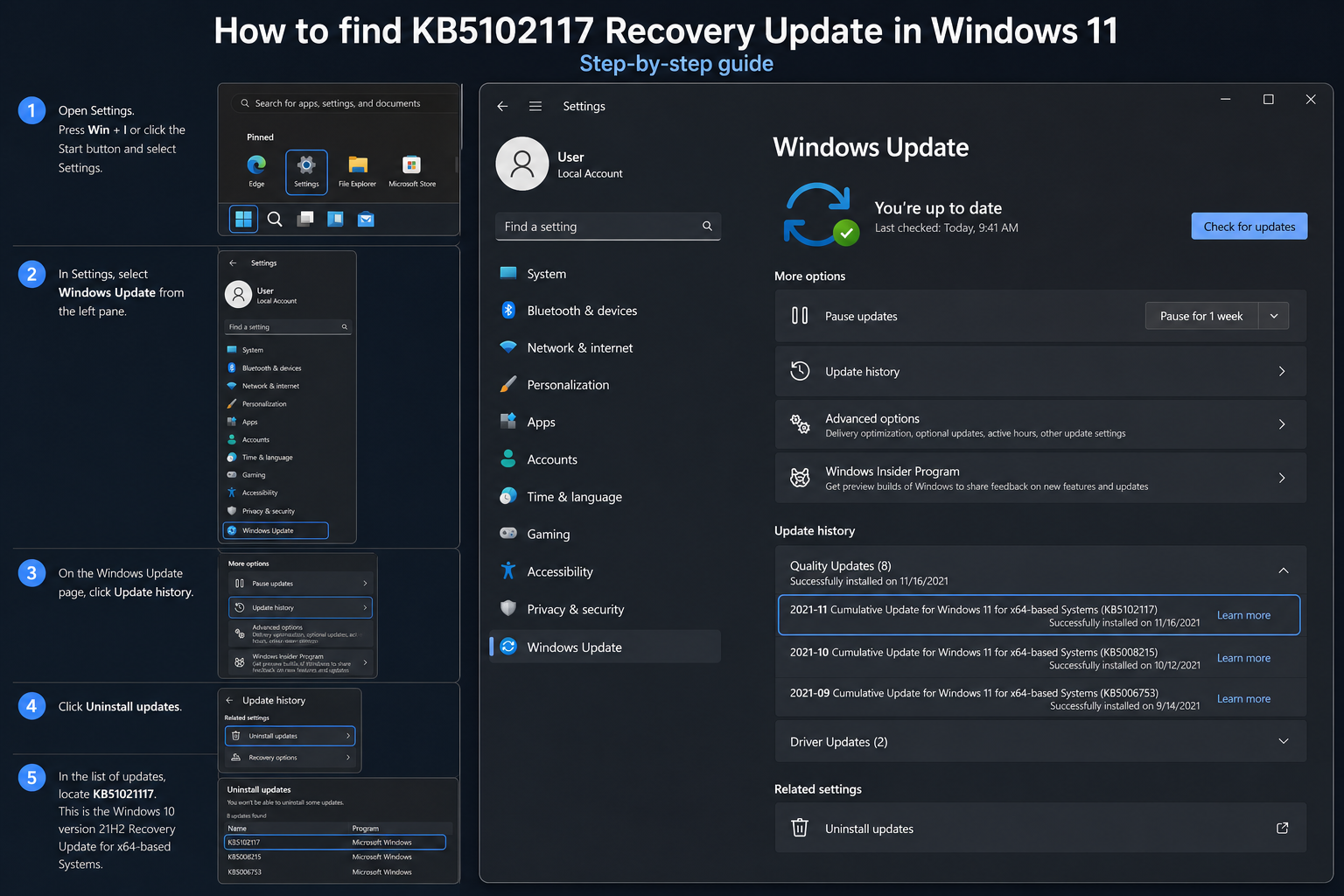
The easiest path is to let Windows Update fetch and apply KB5102117 for you. Open Settings → Windows Update → Check for updates. If your device is running 24H2 or 25H2, the update will appear in the Optional Updates or Dynamic Updates section and install silently in the background. A restart is typically not required for the WinRE update itself, though any pending cumulative updates installed alongside it may prompt one.
Method 2: Microsoft Update Catalog
If your PC is managed by an IT department or is air-gapped from the internet, you can download KB5102117 directly from the Microsoft Update Catalog. Search for KB5102117, select the package matching your architecture (x64 is standard for most modern PCs), and deploy it via WSUS, Intune, or a manual install. Microsoft’s own support documentation for KB5102117 Safe OS Dynamic Update confirms no device restart is required to apply the update.
Method 3: During a Feature Update or Fresh Install
Dynamic Updates are also downloaded automatically during Windows Setup — so if you are performing an in-place upgrade to 25H2 or doing a clean install, Windows Setup will pull KB5102117 as part of the setup process when it calls home for the latest Dynamic Update packages. This means freshly installed or upgraded machines get an up-to-date WinRE without any extra steps.
How to Confirm the KB5102117 Recovery Update Is Applied
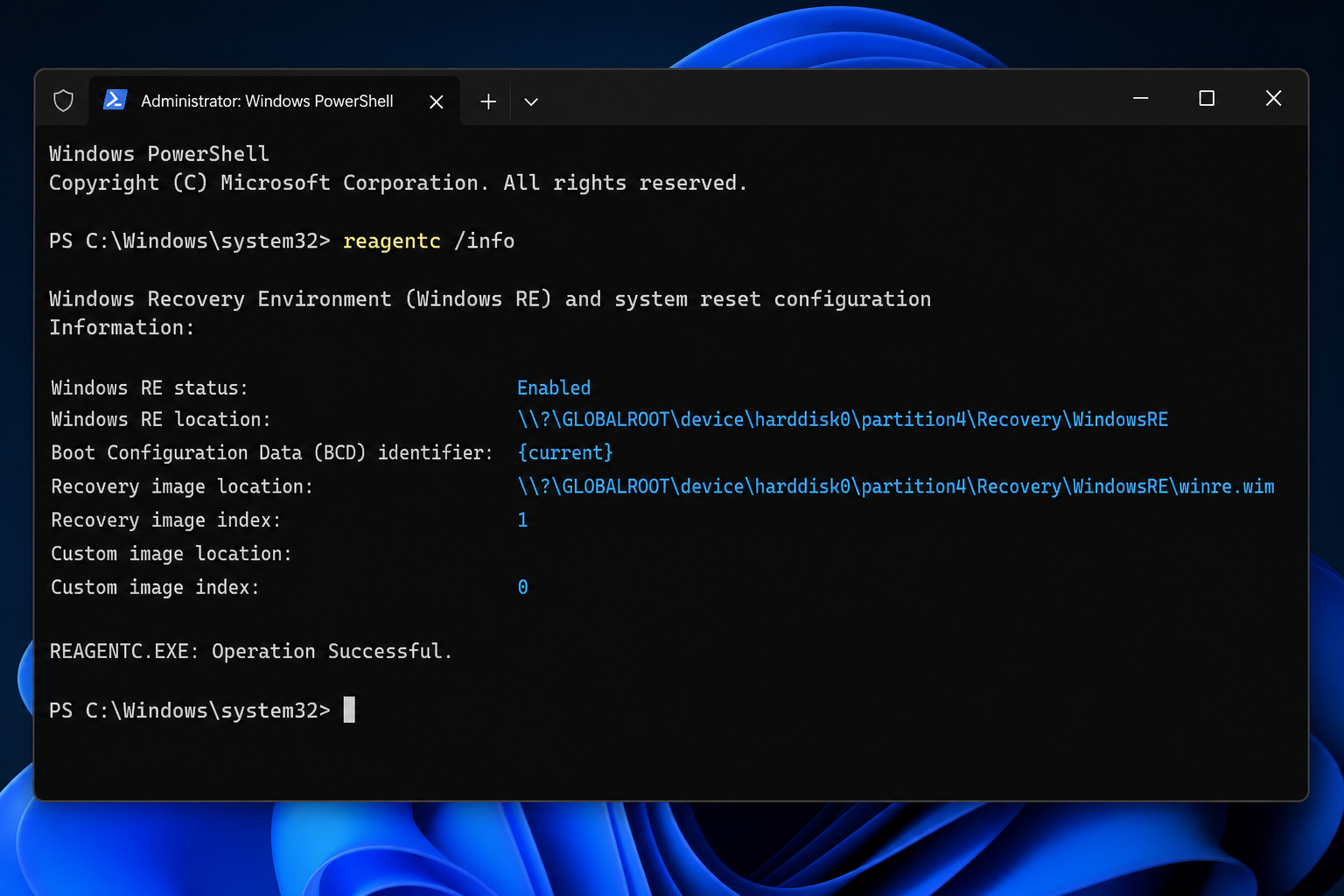
Because Safe OS Dynamic Updates target the recovery partition rather than the main OS, they do not always appear in the standard Windows Update history. The most reliable way to verify the update is applied is via PowerShell:
-
Open PowerShell as Administrator (right-click Start → Terminal (Admin)).
-
Run:
reagentc /info— this displays the current WinRE status and partition location. -
To confirm the WinRE version, run:
Get-WindowsImage -Mountedor inspect the WinRE.wim version using DISM:dism /Get-WimInfo /WimFile:C:\Recovery\WindowsRE\Winre.wim
An enabled WinRE with a current build number aligned to July 2026 confirms the update has been successfully staged to the recovery partition.
What Happens If You Skip This Windows 11 KB5102117 Recovery Update?
Skipping KB5102117 does not cause immediate problems — your PC will continue working normally. The risk surfaces when something goes wrong. An outdated WinRE may fail to repair a modern Windows 11 installation because its internal tools predate the system components it is trying to fix. In worst-case scenarios, an aged recovery environment can even prevent the “Reset this PC” option from completing, leaving you with no straightforward path back to a working system without external media.
For BitLocker users, there is an additional consideration: Microsoft has previously noted that an outdated WinRE can trigger unexpected BitLocker recovery prompts after certain cumulative updates. Keeping WinRE current with updates like KB5102117 is one of the steps Microsoft recommends to avoid those disruptions.
Windows 11 KB5102117 and a Clean, Licenced Windows 11 Installation
KB5102117 strengthens the recovery layer, but the best foundation is always a fully licenced, genuine copy of Windows 11. A genuine licence ensures you receive all security and recovery updates directly from Microsoft, that your activation status never interrupts a repair session, and that you are eligible for the full range of WinRE tools without limitations.
If you are setting up a new PC, reinstalling after a hardware change, or upgrading an older machine, TopKeyShop offers genuine Windows 11 licence keys at competitive prices — starting from €9.70 for Windows 11 Home OEM. For users who want both the operating system and a productivity suite in a single purchase, the Windows 11 Pro Retail + Office 2024 Professional Plus Bundle is available from €19.10, combining a full retail Windows 11 Pro key with Office 2024 Pro Plus in one deal.
Frequently Asked Questions
Does Windows 11 KB5102117 require a PC restart to install?
No. Microsoft’s official support documentation confirms that KB5102117 does not require a device restart to apply. The update is staged to the recovery partition in the background. If you install it alongside a standard cumulative update, that cumulative update may still require a restart, but KB5102117 itself does not trigger one.
Is KB5102117 a cumulative update or a security patch?
Neither — it is a Safe OS Dynamic Update, a specific category that targets the Windows Recovery Environment (WinRE) rather than the live OS. It is not a security patch in the traditional sense, but it does improve the reliability and compatibility of recovery tools, indirectly protecting users from situations where an outdated WinRE could leave a system unrecoverable.
Which versions of Windows 11 does KB5102117 support?
KB5102117 applies to Windows 11 version 24H2 and version 25H2. It does not apply to Windows 11 21H2, 22H2, or 23H2, nor to Windows 10. If you are on an earlier version of Windows 11, Microsoft will have released separate Safe OS Dynamic Updates for those builds.
Can I install KB5102117 without internet access?
Yes. You can download the update package from the Microsoft Update Catalog on any internet-connected machine, transfer it via USB or network share, and install it manually on the offline PC. This is the standard approach for enterprise environments and air-gapped systems managed through WSUS or Microsoft Intune.
Will KB5102117 fix my current Windows 11 boot problem?
KB5102117 updates the recovery tools — it does not repair the live OS on its own. If your PC is already failing to boot, the improved WinRE may help Startup Repair succeed where an older version could not. Boot into WinRE by holding Shift while clicking Restart, then navigate to Troubleshoot → Advanced Options → Startup Repair, or use the “Fix problems using Windows Update” option to pull a fresh repair image from Microsoft’s servers.
Does a fresh Windows 11 installation include KB5102117 automatically?
If you perform a clean install or in-place upgrade while connected to the internet, Windows Setup will automatically download the latest Dynamic Updates — including KB5102117 — during the setup process. This means new installations on 24H2 and 25H2 should include an up-to-date WinRE without any additional steps on your part.
