

OneDrive Photos auto-install is Microsoft’s latest unsolicited addition to Windows 11 — silently rolled out in late July 2026 without user consent, turning a cloud-sync client into a full-blown photo viewer that even wants to scan your face. If you’ve suddenly noticed a new app opening your images, you’re not imagining things. Here’s the full story and, more importantly, how to take back control.
What Is OneDrive Photos and Why Did It Appear on Your PC?
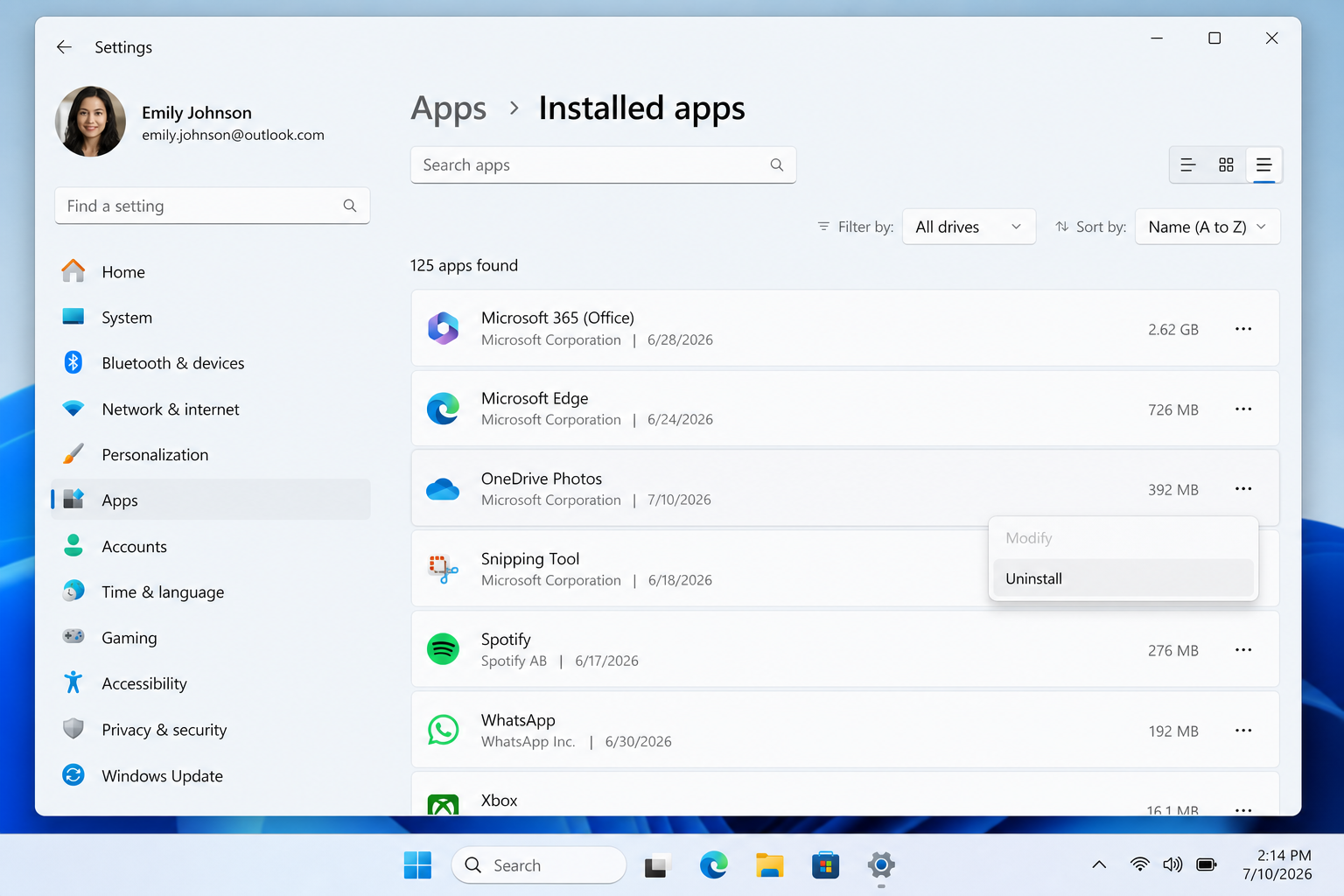
OneDrive Photos is a new application Microsoft began bundling with the OneDrive sync client on Windows 11 systems in late July 2026. It is not listed as a standalone install in the Microsoft Store — it arrives as a component of the broader OneDrive package, meaning most users had no idea it was being added. The app positions itself as a photo viewer, organiser, and editor, automatically indexing the images stored in your OneDrive cloud storage and on your local drive.
The key issue is consent — or the total lack of it. According to reporting by Windows Latest, Microsoft pushed the app to Windows 11 machines automatically via the standard OneDrive update channel, with no opt-in prompt and no notification in the Action Centre. Users simply found it already installed.
OneDrive Photos Windows 11: What the App Actually Does
Beyond being an unwanted Windows 11 photo viewer replacement, OneDrive Photos introduces several capabilities that raise immediate privacy concerns:
- Facial recognition scanning: The app requests permission to scan your photo library for faces, building a local (and potentially cloud-synced) facial index to group photos by person.
- Automatic cloud sync: It hooks into your OneDrive account to display and back up photos without requiring any additional setup steps.
- Default app hijacking: On some systems it registers itself — or attempts to — as a default handler for common image file types such as JPG, PNG, and HEIC.
- Non-removable via standard means: Crucially, OneDrive Photos is bundled directly into the OneDrive sync client. You cannot uninstall OneDrive Photos separately — removing it requires uninstalling the entire OneDrive application.
That last point is what has IT administrators and power users most frustrated. A new follow-up report from Windows Latest in August 2026 confirmed that even after manually removing OneDrive Photos through scripts, it reinstalls itself the next time OneDrive updates — a behaviour that has drawn sharp criticism from enterprise IT teams managing thousands of endpoints.
Why Microsoft Keeps Doing This
This is hardly a one-off event. Microsoft has a well-documented history of pushing apps and features onto Windows users without explicit permission — from the forced Bing integration in the Start Menu search bar, to Copilot appearing in the taskbar, to the persistent nudges to switch the default browser to Edge. OneDrive Photos follows the same playbook: integrate deeply, make removal difficult, and rely on user inertia to build an install base.
The commercial logic is clear. Microsoft’s cloud strategy depends on expanding OneDrive’s reach. A photo viewer that keeps users inside the OneDrive ecosystem, exposes them to Microsoft 365 upgrade prompts, and (with permission) builds a facial index of their photo library is valuable data and engagement territory. The problem is that this approach erodes user trust — and, in regions covered by GDPR, may raise legitimate questions about consent before processing biometric data like facial scans.
How to Disable OneDrive Photos on Windows 11
There are several approaches depending on how much of OneDrive’s functionality you actually use. Choose the method that fits your situation.
Option 1 — Disable the Facial Recognition Feature
If you want to keep OneDrive for file sync but simply don’t want the photo-scanning behaviour, navigate to OneDrive Settings → Privacy & Permissions → People and toggle off the facial recognition option. This stops the app from building a facial index, though the OneDrive Photos viewer itself remains installed.
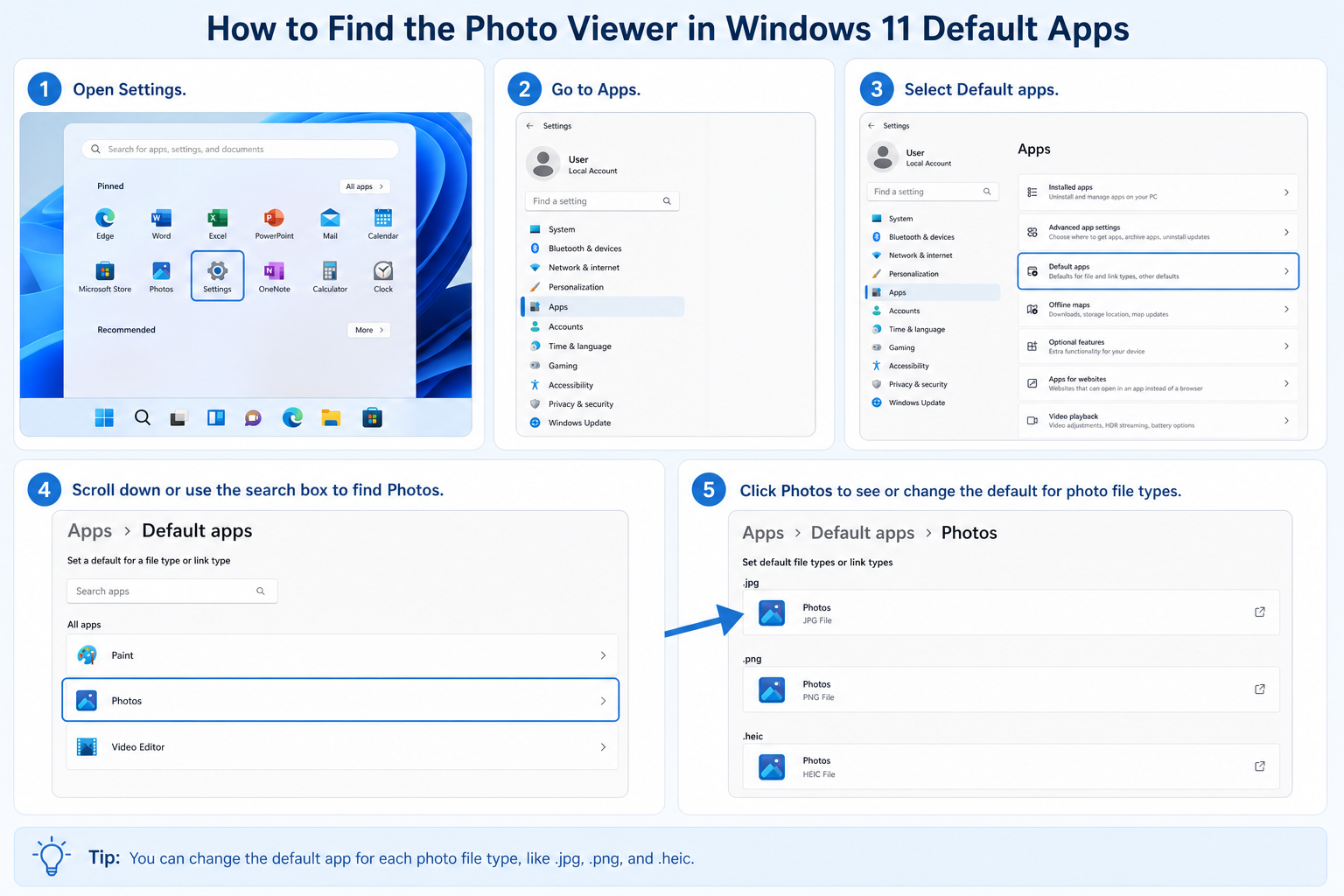
Option 2 — Reassign Your Default Windows 11 Photo Viewer
If OneDrive Photos has taken over as your default image opener, reclaim control through Windows Settings:
- Open Settings → Apps → Default Apps.
- Search for your preferred image viewer (e.g. Microsoft Photos, IrfanView, or any other app you use).
- Select it and click Set as default.
- Alternatively, search for specific file types like .jpg or .png and assign them individually to your preferred app.
This won’t remove OneDrive Photos from your system, but it will stop it from opening your images uninvited.
Option 3 — Uninstall OneDrive Entirely
Because disable OneDrive Photos as a standalone package isn’t possible, removing the whole OneDrive client is the nuclear option — but it’s the cleanest if you don’t rely on OneDrive for file sync:
- Go to Settings → Apps → Installed Apps.
- Search for Microsoft OneDrive.
- Click the three-dot menu and select Uninstall.
- Confirm the uninstall prompt.
According to Microsoft’s own support documentation, you can also unlink your PC from OneDrive (via the OneDrive tray icon → Settings → Account → Unlink this PC) if you want to stop sync without fully removing the client.
Option 4 — Block It via Group Policy (Enterprise/Pro Users)
IT administrators managing Windows 11 Pro or Enterprise deployments can use Group Policy or Intune Proactive Remediation scripts to prevent OneDrive Photos from being installed or re-installed after updates. Community-maintained scripts for exactly this purpose have already appeared on forums like AskWoody, though keep in mind that the app’s persistent re-install behaviour means scripts need to run on a schedule, not just once.
Should You Be Worried About the Privacy Implications?

The facial recognition element deserves particular attention. Under the UK GDPR and EU GDPR, biometric data — including facial recognition data — is classified as a special category of personal data requiring explicit, informed consent before processing. Simply bundling a facial-scanning feature into an auto-installed app and presenting it as an opt-in toggle after the fact is a grey area at best.
If you are based in the UK or EU and OneDrive Photos has already scanned or attempted to scan your photos for faces, it is worth reviewing the OneDrive privacy settings immediately and checking whether any data has been processed. The safest course is to disable the People/facial recognition feature (Option 1 above) or remove OneDrive entirely until Microsoft clarifies its data handling practices for this feature.
What This Means for Your Windows 11 Setup
The OneDrive Photos auto-install episode is a timely reminder that Windows 11, as shipped, is not a neutral operating system — it is a platform with commercial and data-collection interests baked in. Every Windows 11 update is a potential vector for new app installs, new default-app changes, and new feature rollouts that you didn’t ask for.
That’s one reason it pays to start from a clean, genuine Windows 11 licence and to know exactly what your system is running. If you’re still on Windows 10 — which is also losing OneDrive support for older builds — now is an excellent time to consider upgrading while you still have full control over your setup. Top Key Shop offers genuine Windows 11 licence keys — including Windows 11 Home and Pro — at highly competitive prices, delivered instantly to your inbox.
Whichever path you take, the bottom line is the same: stay aware of what Microsoft is pushing, audit your default apps regularly, and don’t let silent installs go unnoticed on your machine.
FAQ
What is the OneDrive Photos auto-install on Windows 11?
OneDrive Photos is a new photo viewer and organiser app that Microsoft began silently installing on Windows 11 PCs in late July 2026 as part of the OneDrive sync client update. It was not announced to end users and arrives without a consent prompt. The app can scan photos for faces and attempts to position itself as the default Windows 11 photo viewer.
Can I uninstall OneDrive Photos without removing OneDrive?
Unfortunately, no. As of late July 2026, OneDrive Photos is bundled directly into the OneDrive sync client and cannot be removed as a standalone package. To fully remove OneDrive Photos, you must uninstall the entire Microsoft OneDrive application via Settings → Apps → Installed Apps. IT admins can deploy remediation scripts, but the app tends to reinstall when OneDrive updates.
Is the facial recognition in OneDrive Photos safe?
Facial recognition data is classified as biometric data under GDPR, making it a special category requiring explicit consent before processing. Microsoft presents the feature as an opt-in toggle, but given that the app itself was installed without consent, users in the UK and EU should carefully review their OneDrive privacy settings and disable the People/facial scanning feature until Microsoft provides clearer documentation on how this data is stored and used.
How do I change my default photo viewer back on Windows 11?
Go to Settings → Apps → Default Apps, search for your preferred viewer (such as Microsoft Photos or IrfanView), and set it as default. You can also assign specific file types like .jpg or .png individually. This prevents OneDrive Photos from opening your images without removing the app from your system entirely.
Does this affect Windows 10 users?
The silent OneDrive Photos rollout has primarily been reported on Windows 11 systems. However, Windows 10 users face a separate but related issue: Microsoft is ending OneDrive sync support for older Windows 10 builds as of August 15, 2026, which is yet another reason to consider upgrading to Windows 11 with a clean, genuine licence.
