
A Windows account lockout almost always has a fix that doesn’t involve reinstalling your operating system or losing your files. Most lockouts come down to one of three things: a forgotten password, a sign-in method that stopped working, or a device that thinks you’ve tried too many times. This guide walks through the recovery paths in the order you should actually try them, starting with the fastest and safest.
What Causes a Windows Account Lockout?
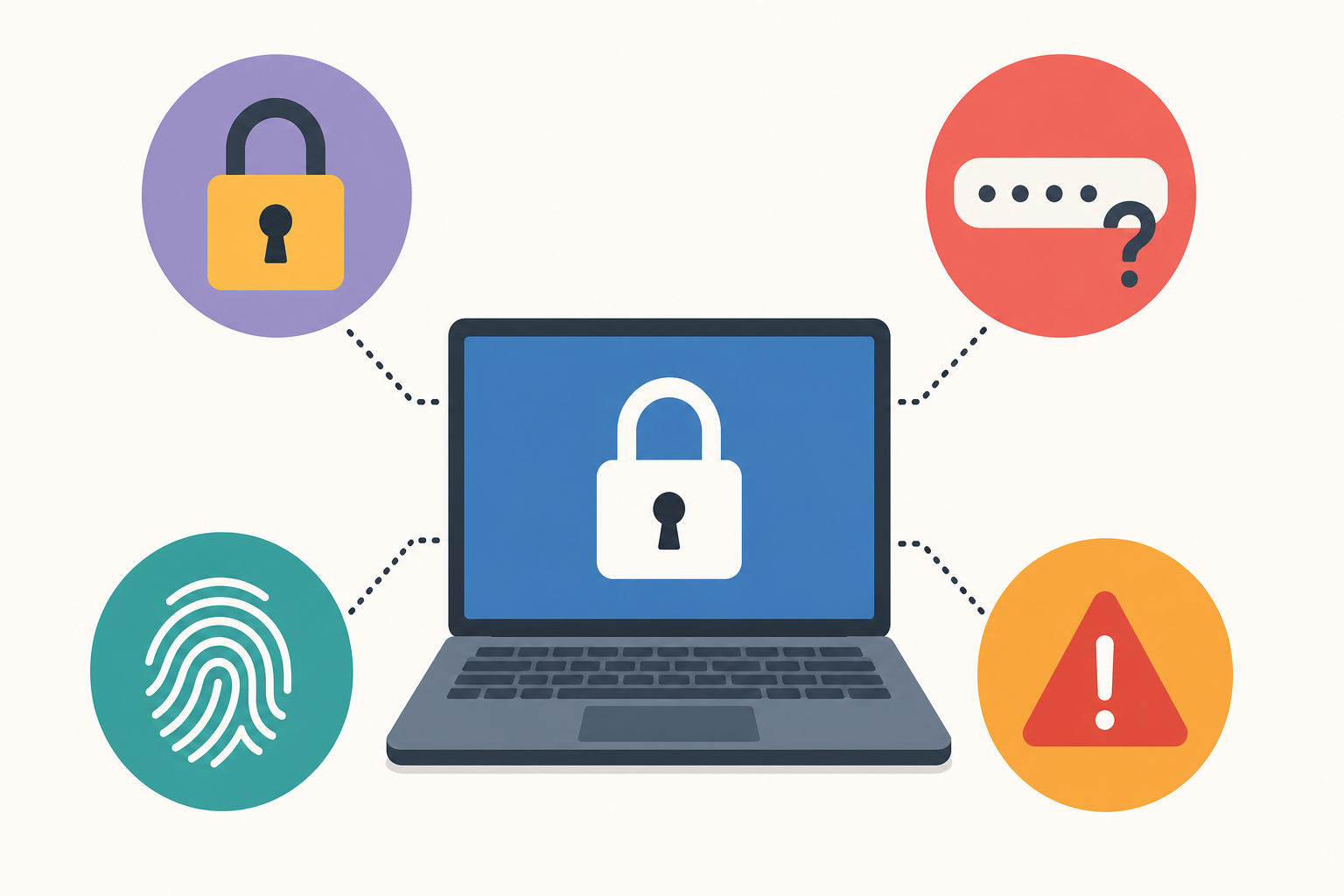
A Windows account lockout usually happens for one of a handful of reasons, and knowing which one applies to you saves a lot of wasted effort. The most common triggers are a forgotten or mistyped password, an expired or changed Microsoft account password that Windows hasn’t synced yet, a PIN that no longer matches after a reset, or a security policy that locks the account after repeated failed attempts.
- Forgotten local account password or PIN
- Microsoft account password changed on another device but not updated locally
- Too many failed sign-in attempts triggering a temporary lock
- A corrupted user profile that refuses to load after sign-in
- BitLocker prompting for a recovery key after a hardware or firmware change
Identifying which of these applies narrows your next step considerably, so check the sign-in screen’s error message before trying anything else.
Windows Account Lockout vs. a Password Reset Loop
A true Windows account lockout is different from a password reset loop, and mixing the two up wastes time. A lockout means the system is refusing sign-in attempts outright, often showing “This account has been locked” or similar. A reset loop happens when you keep entering a password reset flow that circles back to the same screen without ever accepting a new password, usually because of a connectivity issue or an outdated recovery email.
If you’re stuck in a loop rather than a hard lockout, check your internet connection first — several Microsoft account recovery steps require it to verify your identity.
Step 1: Try the Built-In Windows Account Lockout Recovery Flow
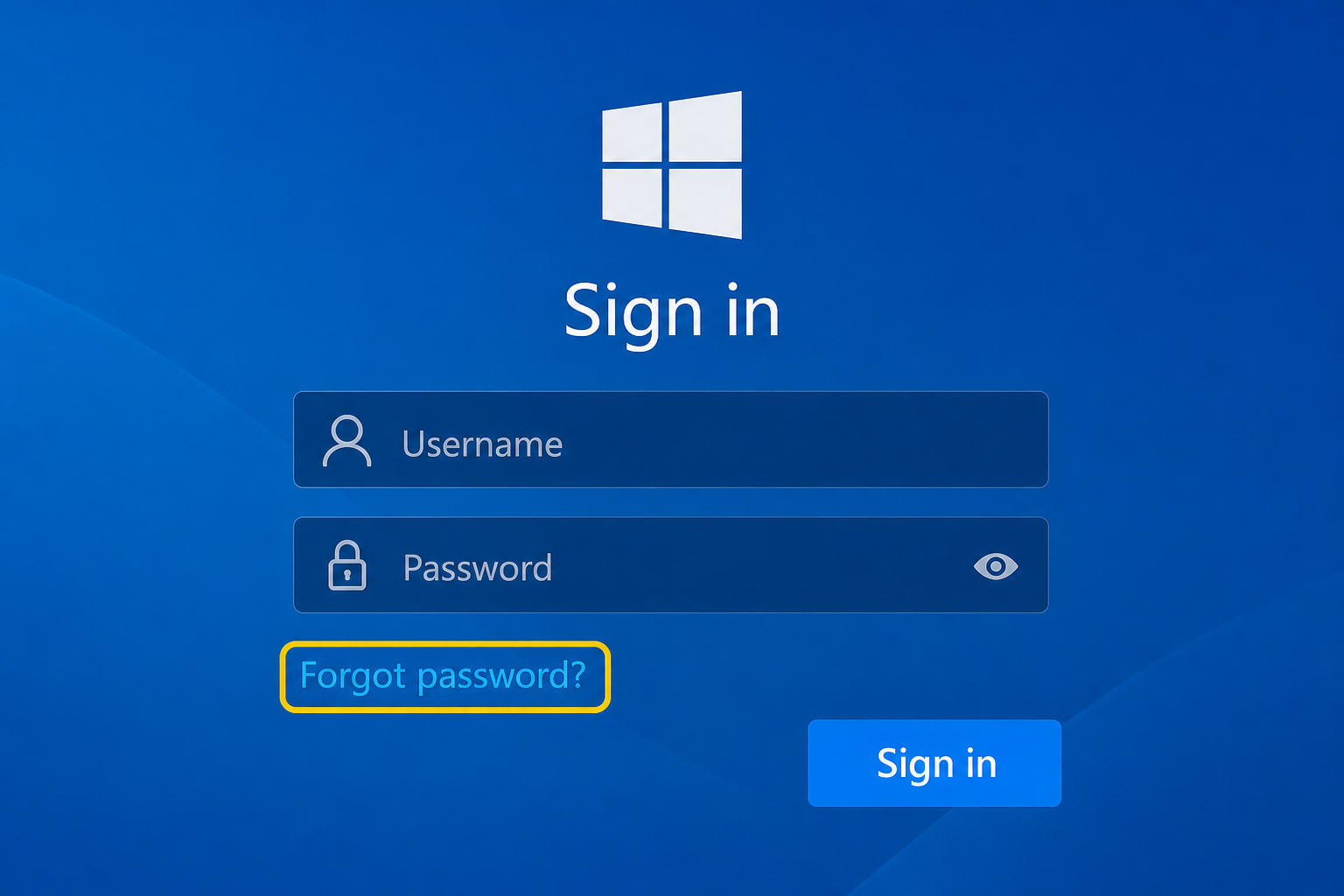
The fastest fix for most people is Windows’ own built-in recovery option, accessible directly from the sign-in screen. Both local and Microsoft accounts have a dedicated path, and you should try this before anything more technical.
Resetting a Microsoft Account Password
If your device is signed in with a Microsoft account, select “I forgot my password” on the lock screen. This redirects you (or lets you use another device) to Microsoft’s account recovery form, where you verify your identity using a recovery email, phone number, or authenticator app. Once verified, you set a new password that syncs back to the locked PC the next time it connects to the internet.
Resetting a Local Account Password
Local accounts don’t have an online reset option unless you created a password reset disk in advance. If you have one, insert it at the sign-in screen and follow the reset wizard. If you don’t, skip ahead to the sections on password reset disks and administrator account access below — those are your remaining paths.
Using a BitLocker Recovery Key During a Windows Account Lockout
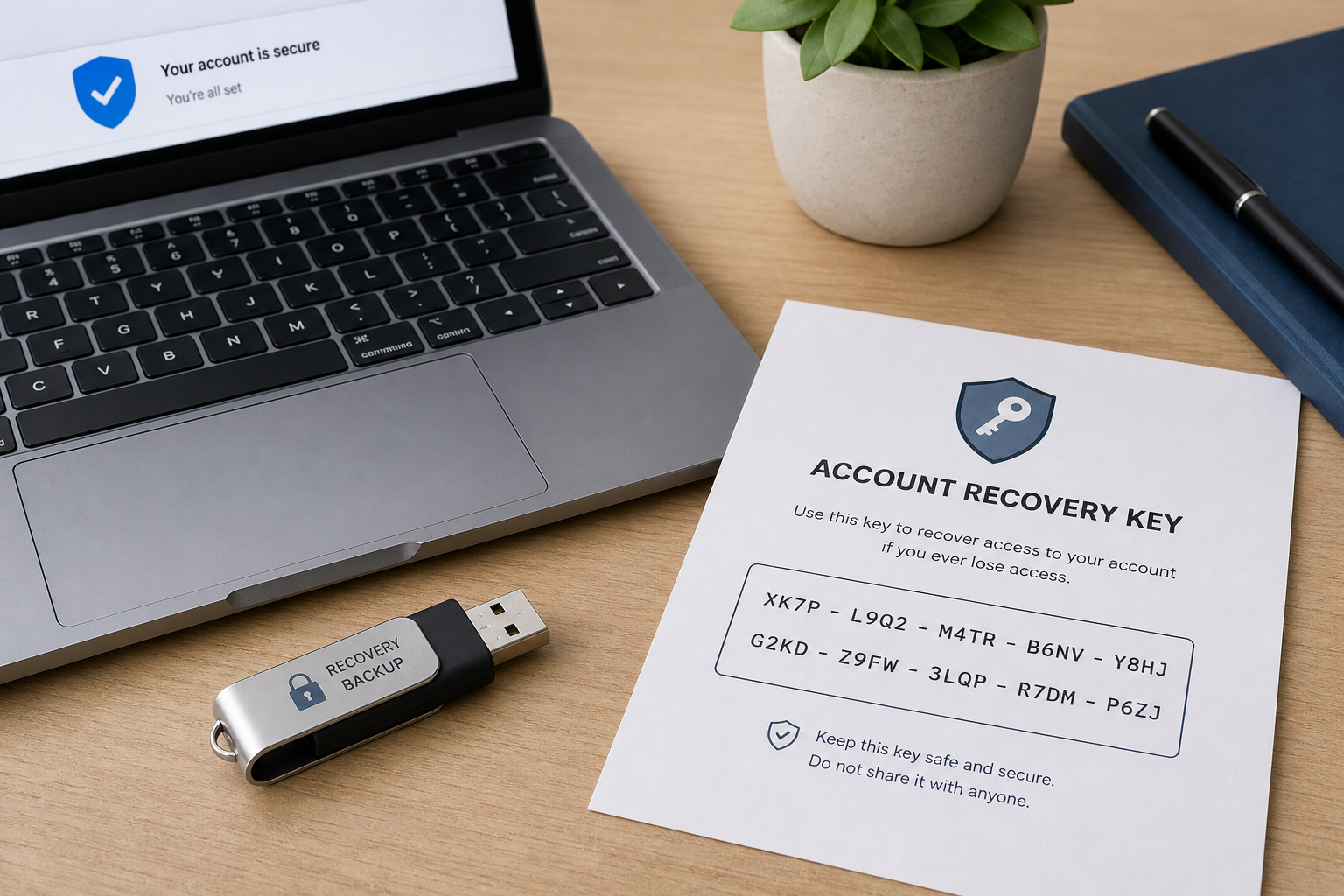
If your Windows account lockout is accompanied by a blue BitLocker recovery screen, you need the 48-digit recovery key rather than your password. This typically appears after a firmware update, a change to boot order, or removing/reinserting a drive — not from a forgotten password. Find the key in your Microsoft account’s device recovery page, printed on paper from setup, saved to a USB drive, or stored by your organization’s IT admin if the device is managed. Enter it exactly as shown; there’s no way to bypass it, by design, since it protects your disk encryption.
Accessing a Backup Administrator Account
If no reset option is available and you still have another administrator account on the same PC, you can use it to reset the locked account entirely. Sign in to the working admin account, then go to Settings > Accounts > Other users, select the locked account, and choose to remove its password or reset it from there. This is often the cleanest fix because it doesn’t touch any files.
Enabling the Hidden Administrator Account
When no second admin account exists, Windows’ built-in (and hidden) Administrator account can sometimes help. Boot into Advanced Startup (hold Shift while selecting Restart, or interrupt boot three times to trigger Automatic Repair), open Command Prompt from the Troubleshoot menu, and run net user administrator /active:yes. This enables a blank-password administrator account you can use to reset the locked one — then disable it again afterward with net user administrator /active:no for security.
When You Don’t Have a Password Reset Disk
Without a reset disk, a backup admin account, or a synced Microsoft password, recovery gets harder but isn’t impossible. Advanced Startup’s Command Prompt (reached the same way as above) can be used with built-in tools to reset a local account password without deleting data, though this route requires care and is best attempted by someone comfortable with command-line recovery. If that’s not you, a system refresh that keeps personal files is the safer fallback, though it will remove installed apps and settings.
This is also the point where many IT professionals choose to do a clean reinstall instead of fighting an unrecoverable lockout — particularly on older machines where the license and setup were already due for a refresh. If that’s the direction you’re headed, a genuine Windows 11 Pro Retail license lets you do a clean, fully licensed install rather than relying on a locked-out copy.
Preventing a Future Windows Account Lockout
The best way to handle a Windows account lockout is to make the next one impossible. A few habits dramatically cut the odds of getting locked out again:
- Create a password reset disk now, before you need it (Control Panel > User Accounts > Create a password reset disk)
- Set up a second administrator account on every PC you manage
- Record your BitLocker recovery key somewhere outside the device itself
- Enable Windows Hello PIN or biometric sign-in as a backup to your password
- Keep your Microsoft account’s recovery email and phone number current
Windows Hello in particular has become more robust; recent security upgrades to Windows Hello extended enhanced sign-in protection to external fingerprint readers, making biometric sign-in a more reliable backup than it used to be. For a deeper look at how local accounts behave differently from Microsoft accounts during sign-in and recovery, local account setups are worth understanding before you hit a lockout, not after.
According to Microsoft’s own account recovery documentation, verifying your identity accurately on the first attempt is the single biggest factor in how quickly a Microsoft account gets restored — incomplete recovery forms are the most common reason requests get delayed or rejected.
FAQ
How long does a Windows account lockout last?
A temporary lockout triggered by failed sign-in attempts usually clears itself within 30 minutes to a few hours, depending on the security policy set on the device. A lockout caused by a forgotten password or sync issue, however, won’t resolve on its own — you’ll need to complete a reset.
Can I recover files without resetting a Windows account lockout?
Yes. If you can access another administrator account or boot into Advanced Startup, you can usually copy files off the locked profile from C:\Users\[username] before resetting anything, as long as the drive isn’t BitLocker-encrypted with a key you also don’t have.
What’s the difference between a local account and a Microsoft account lockout?
A Microsoft account lockout can usually be fixed online through the account recovery form from any device with internet access. A local account lockout has no online recovery path — you’re limited to a password reset disk, a second admin account, or the hidden Administrator account.
Will resetting my password delete my files?
No. Resetting a password, whether local or Microsoft, does not delete personal files, installed programs, or settings. Only a full system reset with “Remove everything” selected deletes data, and that’s a separate, optional step.
Do I need the original Windows installation media to fix a lockout?
Not for most lockouts. Installation media is mainly needed if Windows won’t boot into Advanced Startup at all, or if you’re doing a clean reinstall rather than a password reset. Most account lockouts are solved entirely within the existing installation.
Why does Windows keep asking for a BitLocker key instead of my password?
This happens when BitLocker detects a change it considers a security risk, like a firmware update or boot configuration change, and it isn’t related to your account password at all. You’ll need the 48-digit recovery key rather than any password to get past this screen.
