
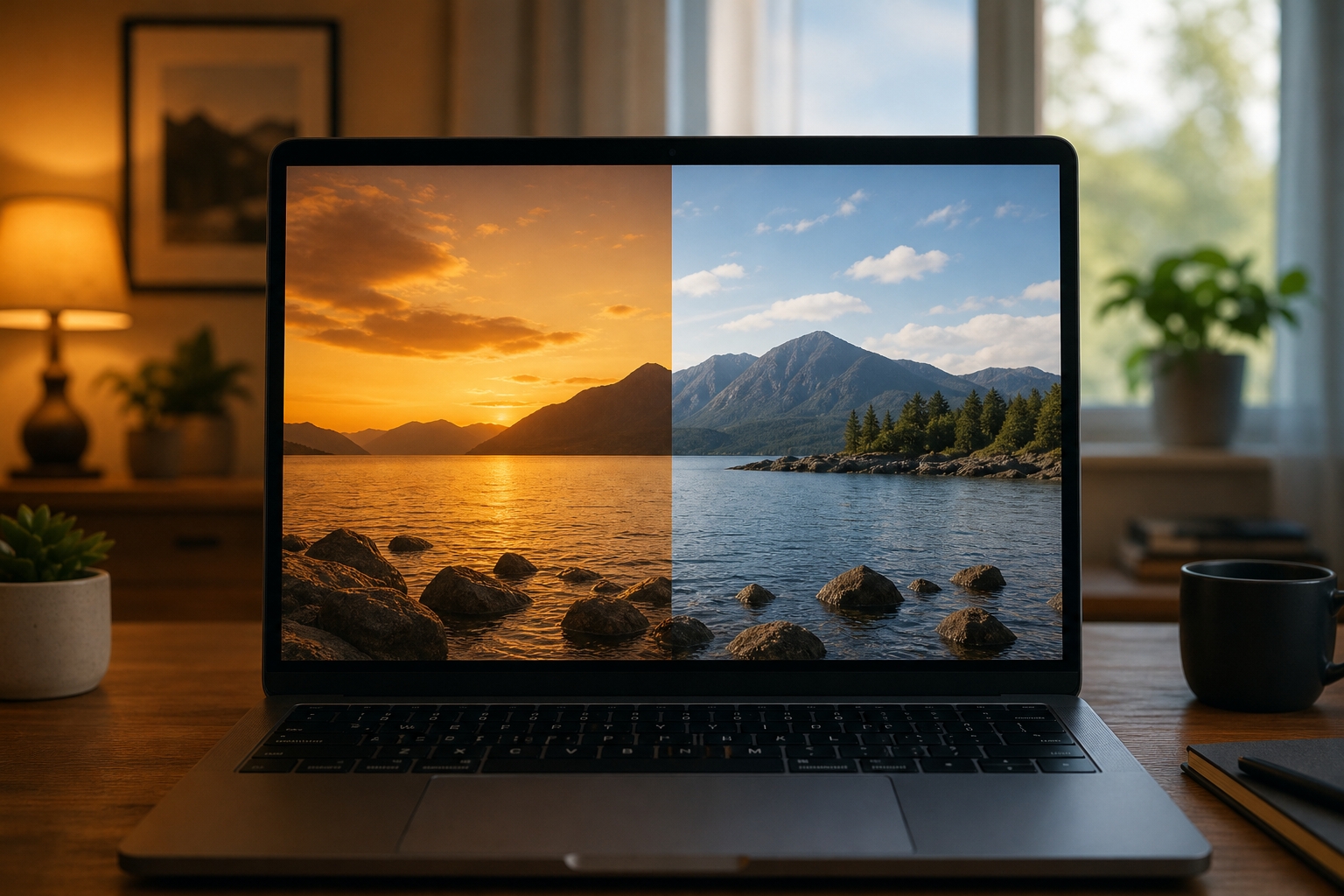
Night light scheduling lets Windows automatically warm up your screen’s colors in the evening and switch back to normal in the morning, without you touching a single setting. The easiest way to get it working reliably is to turn on the built-in Sunset to Sunrise option, set your location correctly, and then adjust the strength slider until the warmth feels comfortable rather than orange.
That sounds simple, and most of the time it is. But Night Light has a reputation for drifting out of sync, refusing to turn on at the right time, or getting stuck altogether. This guide covers the full setup, how to dial in color temperature properly, and the fixes for the glitches that trip people up most often.
What Is Night Light Scheduling in Windows?
Night light scheduling is the automatic timer built into Windows that shifts your display’s color temperature from cool white to a warmer, amber tone at a set time each day. It doesn’t dim your screen’s brightness — it changes the color balance, cutting the amount of blue light your eyes are exposed to in low-light conditions.
The feature exists in both Windows 10 and Windows 11, tucked inside Display settings. It was built on the idea that blue-heavy light in the evening can interfere with your body’s natural wind-down cues, so shifting the screen toward warmer tones after dark is meant to make late-night screen use a little easier on the eyes.
How to Turn On Sunset-to-Sunrise Night Light Scheduling
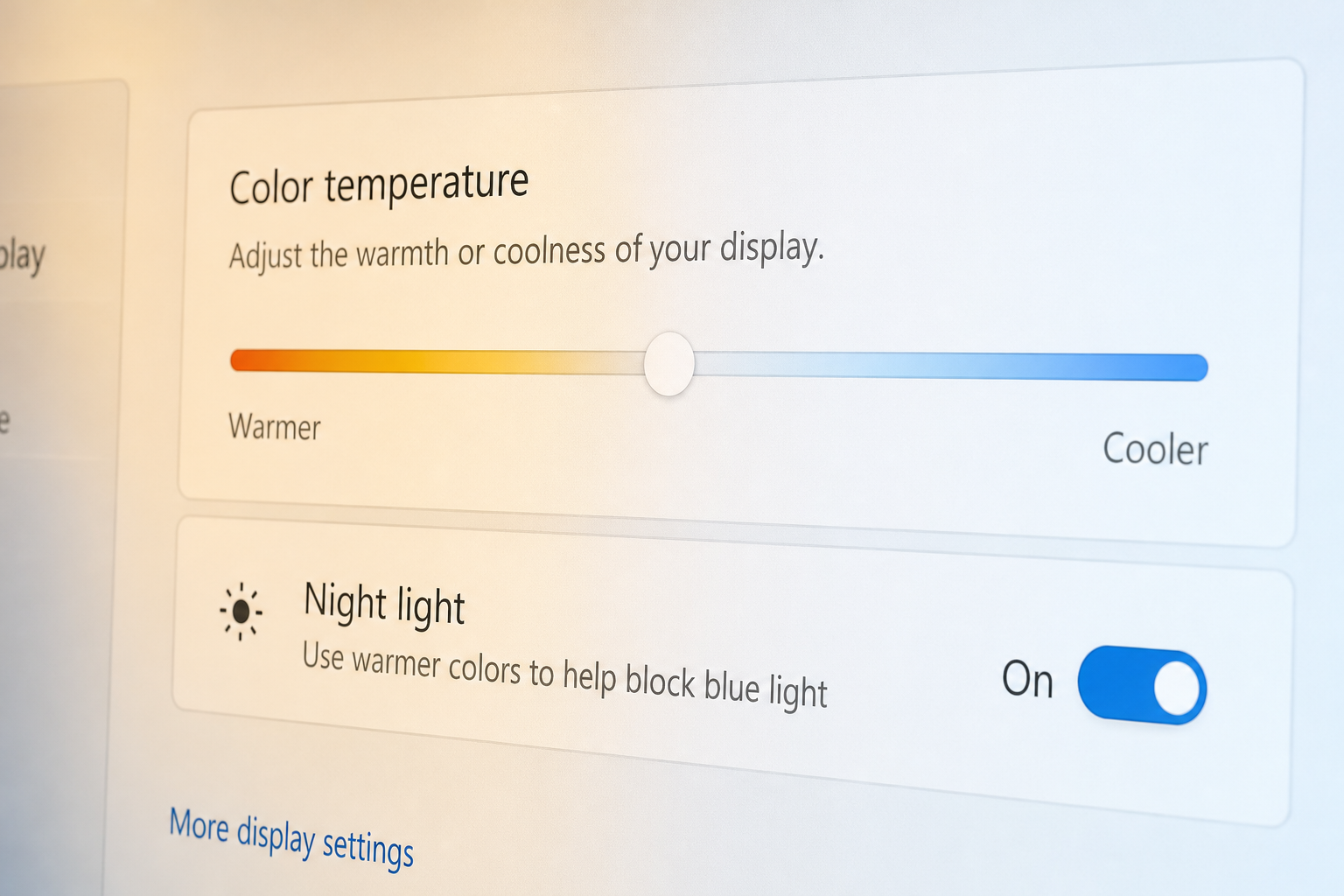
To turn on automatic night light scheduling, open Settings, go to System, select Display, click Night light, then turn on “Schedule night light” and choose “Sunset to sunrise.” Windows will use your device’s location to calculate local sunset and sunrise times and switch the effect on and off automatically.
Using Automatic Sunset to Sunrise Mode
This is the setting most people want, since it adapts through the year as days get longer or shorter. For it to work correctly:
- Location services must be turned on for Windows (Settings > Privacy & security > Location).
- Your system date, time, and time zone must be accurate.
- Your PC needs a working internet connection the first time it calculates sunrise and sunset for your area.
If any of these three are off, the sunset-to-sunrise schedule can calculate the wrong times or fail to update at all, which is the single most common cause of complaints about the feature.
Setting a Custom Night Light Schedule
If you’d rather not rely on sunrise and sunset calculations — for example, you work night shifts or keep unusual hours — switch the schedule toggle to “Set hours” instead and enter a fixed on and off time. A manual night light schedule is more predictable because it doesn’t depend on location data at all, just the system clock.
Adjusting Color Temperature for Night Light Scheduling
Color temperature for Night Light is controlled by the Strength slider directly beneath the schedule toggle, and it’s worth tuning rather than leaving at the default. Windows maps the slider roughly between 6500K (closer to neutral daylight white) at one end and around 1200K (a deep amber, candlelight-like tone) at the other.
A few practical starting points:
- For general evening computer use, a slider setting in the lower third gives a mild warm tint without distorting colors too much for things like reading or browsing.
- For color-sensitive work (photo editing, design), consider turning Night Light off during active editing sessions, since even a mild shift changes how colors appear on screen.
- For late-night reading or writing, push the strength higher — the stronger amber tone is specifically what reduces blue light exposure the most.
There’s no single correct number — it’s a trade-off between color accuracy and eye comfort, so adjust it while you’re actually using the PC at night rather than guessing in daylight.
Common Night Light Scheduling Glitches (and How to Fix Them)
Most night light scheduling problems fall into four categories: it won’t turn on automatically, it won’t turn off, the sunrise/sunset times are wrong, or the toggle itself is greyed out. Each has a distinct, usually quick, fix.
Night Light Scheduling Not Turning On Automatically
If the schedule is enabled but Night Light never actually kicks in at the set time, start by toggling Night Light off and back on manually from Quick Settings, then check that Location services are enabled system-wide and for Windows specifically. Users troubleshooting this on Microsoft’s own support community frequently trace it back to incorrect or stale location data, which throws off the sunset and sunrise calculation entirely.
Night Light Stuck On or Won’t Turn Off
A Night Light schedule that won’t switch off at the scheduled time is often caused by a background task conflict rather than the Night Light setting itself. One well-documented fix involves checking the hidden Windows Task Scheduler entry that governs the automatic schedule and making sure it isn’t restricted by a condition (such as requiring AC power) that silently blocks it from running. If toggling the feature off and back on doesn’t help, a sign-out and sign-back-in, or a restart, usually clears a stuck state.
Wrong Sunset or Sunrise Times
If Night Light turns on hours earlier or later than actual sunset in your area, your device’s location is almost always the culprit — either location services are off, or Windows has cached an old location (common after travel or after using a VPN). Re-enabling location access and toggling the schedule off and back on forces Windows to recalculate.
Night Light Toggle Greyed Out
An unresponsive or greyed-out Night Light toggle is typically a display driver issue. Updating your graphics driver through Device Manager or the manufacturer’s tool usually restores it; on rare occasions, a Windows feature update temporarily disables Night Light until the driver catches up.
Keeping Night Light Scheduling Consistent Across Multiple Monitors
Night light scheduling is meant to apply across every connected display at once, but in mixed-monitor setups (especially with HDR or wide color gamut external monitors) it can apply unevenly or not register on a secondary screen at all. If one monitor isn’t following the schedule, check that its driver is current and that HDR isn’t overriding Night Light’s color output, since HDR and Night Light can conflict on some displays.
Night Light Scheduling vs Third-Party Blue Light Apps
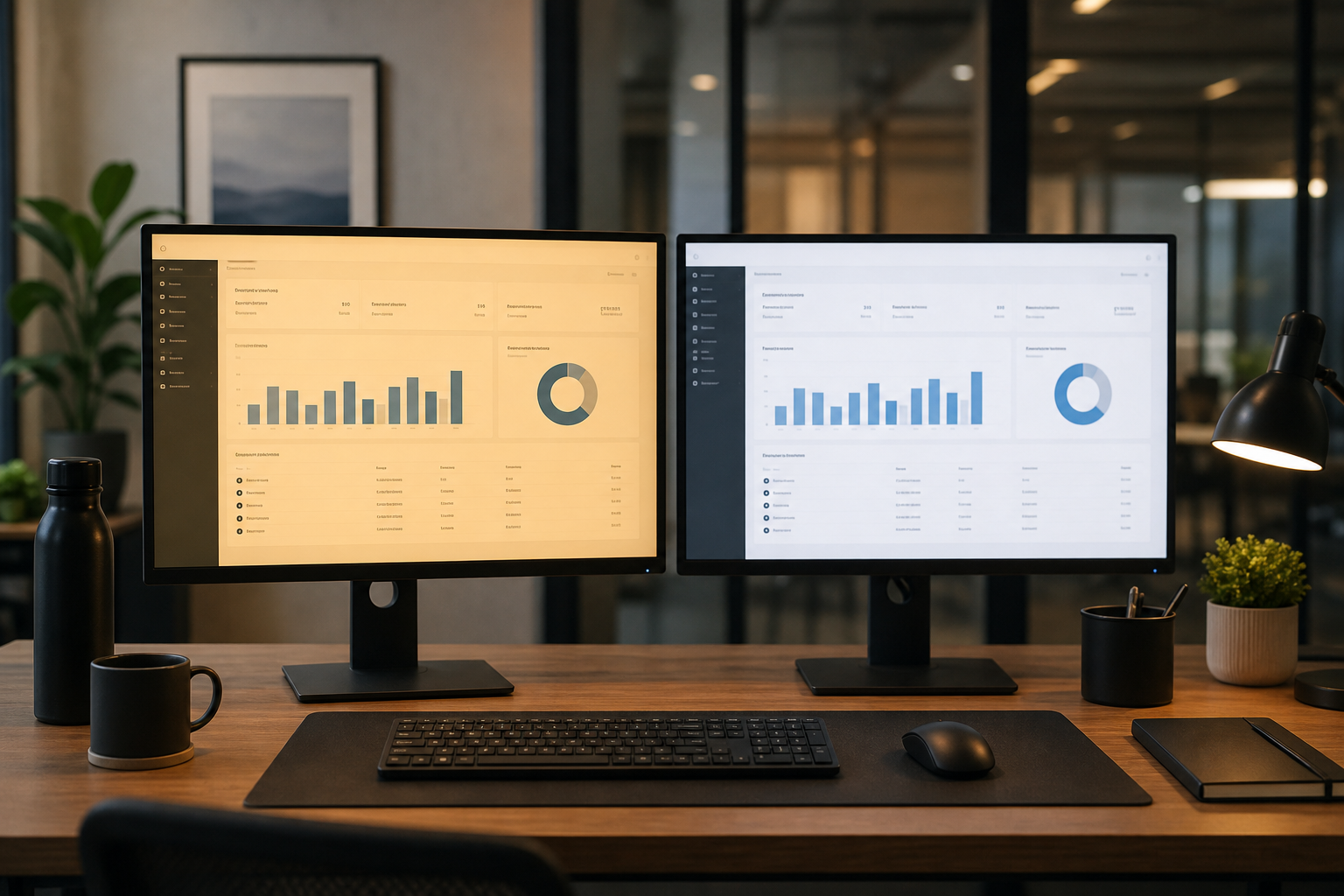
Built-in night light scheduling covers most needs without installing anything extra, which matters since third-party blue light tools can sometimes conflict with Windows’ own color management and cause flickering or inconsistent warmth. Stick with the native feature unless you specifically need finer control, like per-app exceptions or custom color curves, that Windows doesn’t expose.
If you’re troubleshooting Night Light on a freshly set up machine, it’s worth confirming your copy of Windows is genuine and fully licensed first, since activation issues can sometimes coincide with missing or restricted display settings options. A properly activated Windows 11 Home license ensures you have full access to every display and personalization setting, including Night Light scheduling, with no feature restrictions.
FAQ
Does night light scheduling affect battery life?
No, Night Light only changes color output, not screen brightness, so it has no meaningful impact on battery life. Any battery difference you notice is more likely tied to brightness or background app activity, not the color schedule itself.
Can I use different color temperatures for different times within the same night light schedule?
Windows’ built-in scheduling only supports one strength setting applied for the entire scheduled window, not a gradual shift through the night. Some community discussions describe wanting a staged temperature change (milder at sunset, deeper closer to bedtime), but that level of control currently requires third-party software rather than the native feature.
Why does night light scheduling turn off when I restart my PC?
This usually isn’t the schedule breaking — it’s Night Light briefly reverting to default color on boot until Windows re-evaluates the time against your schedule, which normally resolves within a few seconds. If it stays off, recheck the schedule toggle, since some updates have been known to reset display preferences.
Does night light scheduling work on external monitors?
Yes, in most setups, but consistency depends on the monitor’s driver and whether HDR is active. If an external display isn’t following the same schedule as your laptop panel, update the monitor driver and confirm HDR isn’t overriding the color output.
Is night light scheduling the same as Dark Mode?
No. Dark Mode changes the interface theme (dark backgrounds, light text), while Night Light scheduling changes the color temperature of everything displayed on screen, including in apps that use a light theme. The two are independent and can be used together.
How accurate is automatic sunset-to-sunrise scheduling?
It’s generally accurate to within a few minutes of actual local sunset and sunrise, provided location services are enabled and your device’s location data is current. Accuracy degrades noticeably if location permissions are disabled or your PC hasn’t updated its location recently, which is the main cause of schedules that seem “off” by hours.
Most night light scheduling issues come down to the same handful of culprits: disabled location access, an out-of-date display driver, or a background task condition blocking the automatic toggle. Working through those in order resolves the vast majority of cases without needing any third-party tool.
