

The Chrome graphical bug sweeping across Windows 10 and Windows 11 machines is one of the more disruptive glitches to emerge in 2025 — blank white windows appearing on startup, page content only half-rendering, and strange artefacts flickering across the desktop. Reports are growing fast, and the evidence points squarely at Google Chrome’s GPU rendering pipeline as the root cause. Here is a clear breakdown of what is happening, how to confirm your machine is affected, and every practical workaround available right now.
What Is the Chrome Rendering Glitch?
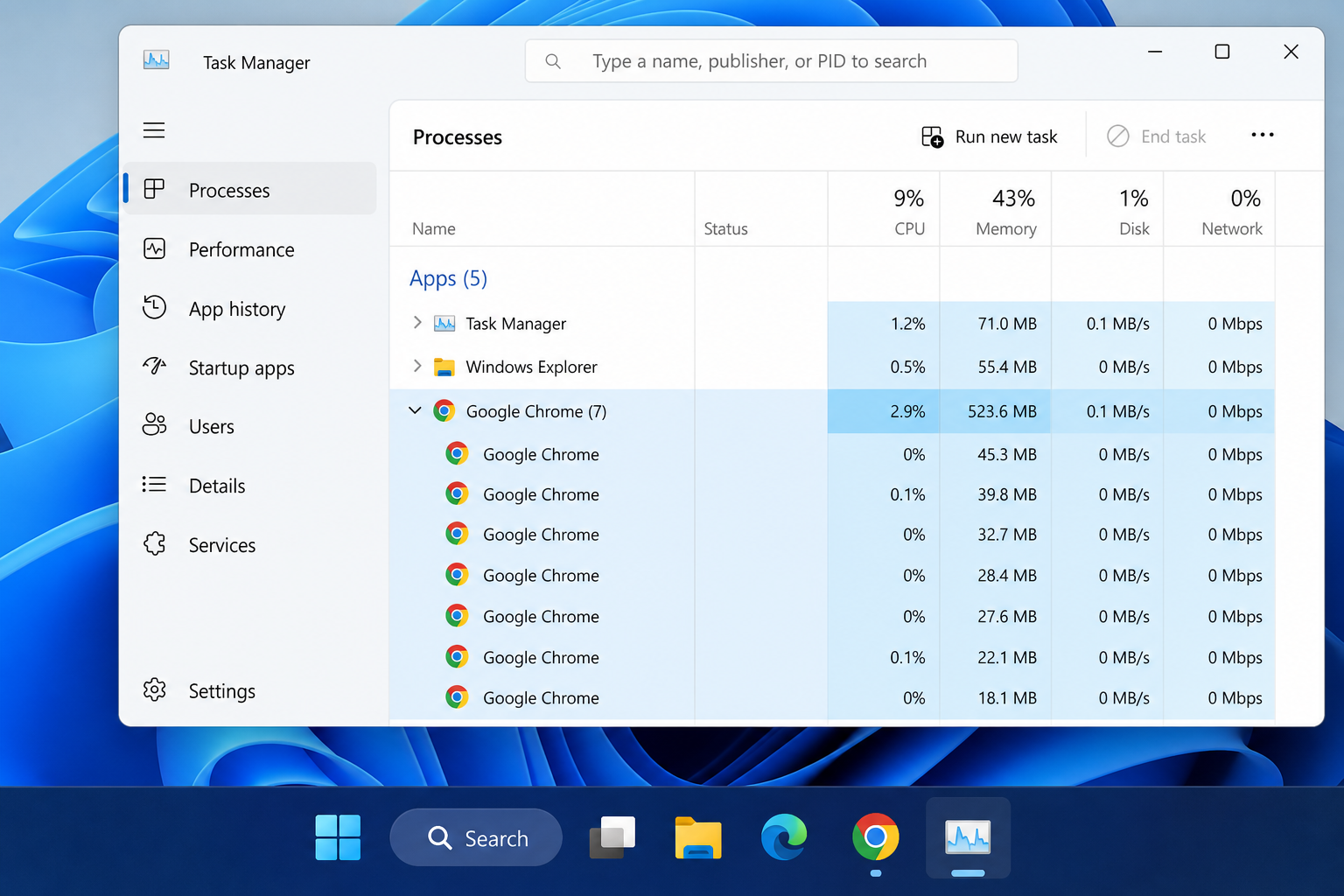
The Chrome rendering glitch manifests in several ways, but the most widely reported symptom is a blank or pure-white window that appears on the Windows desktop — even when Chrome is not visibly open. Users on Reddit and Google’s own support forums have documented the issue appearing after a Chrome update, after upgrading to Windows 11 24H2, or sometimes after a routine Windows Update. The common thread: Chrome’s background processes remain active and interact poorly with the operating system’s graphics stack, producing phantom windows, visual artefacts, and partial page loads.
According to reports documented on Neowin, the glitch is not limited to a single hardware configuration — AMD, Intel, and Nvidia GPU owners have all reported it. That points away from a driver-specific issue and toward something in Chrome’s own rendering layer.
Why Does the Chrome Display Issue Happen?
To understand the Chrome display issue, you need to know how Chrome uses your GPU. Chrome employs hardware acceleration by default, offloading rendering tasks — scrolling, animations, video decoding — to the GPU rather than the CPU. This is handled through an API layer called ANGLE (Almost Native Graphics Layer Engine), which translates Chrome’s OpenGL calls into whatever graphics API your system supports (DirectX, Vulkan, or Metal on Mac).
When Chrome’s ANGLE layer clashes with a Windows graphics driver or with the specific Direct3D version Windows is serving — particularly after the 24H2 update, which adjusted how the OS handles GPU contexts — the result is rendering artefacts, blank surfaces, or full white-screen failures. Chrome version 142 has been specifically flagged in community threads for introducing a diagonal-line rendering artefact on Windows, suggesting a regression was introduced during a Chromium engine update.
- Hardware acceleration conflict: Chrome’s GPU process crashes or stalls, leaving an empty window shell behind.
- ANGLE backend mismatch: The wrong graphics API is selected for your hardware configuration.
- Background process persistence: Chrome’s utility processes keep running after the browser appears closed, creating orphaned windows.
- Windows 24H2 GPU context change: Microsoft’s update altered how Direct3D surfaces are managed, exposing latent bugs in Chromium’s rendering path.
- Outdated or mismatched GPU drivers: A driver that pre-dates the 24H2 GPU changes can amplify the conflict significantly.
How to Detect Whether Chrome Is Causing Your Windows Graphics Bug
Before applying any fix, confirm that the Windows graphics bug is actually Chrome-related rather than a broader driver or OS issue. These steps take under five minutes.
- Check Task Manager for Chrome processes: Press
Ctrl + Shift + Escand look under the Processes tab. If you see multiple “Google Chrome” or “chrome.exe” entries running when you have not opened Chrome, a background process is active and likely responsible for the phantom window. - Inspect the orphan window: Right-click the blank white window in your taskbar and select “Move”. If the window title briefly shows “Chrome” before disappearing, Chrome is the source.
- Test in a different browser: Use Microsoft Edge or Firefox for one day and observe whether the graphical artefacts disappear. If they do, Chrome is the culprit.
- Open chrome://gpu in Chrome’s address bar: Scroll to “Problems Detected” at the top. Any red-flagged items here confirm Chrome has identified a conflict with your GPU subsystem.
Temporary Workarounds for the Chrome Graphical Bug
Google has not released an official patch specifically addressing the Chrome graphical bug on Windows as of mid-2025, so the fixes below are community-verified workarounds rather than permanent solutions. Try them in order — most users find resolution at step 1 or 2.
1. Disable Hardware Acceleration in Chrome
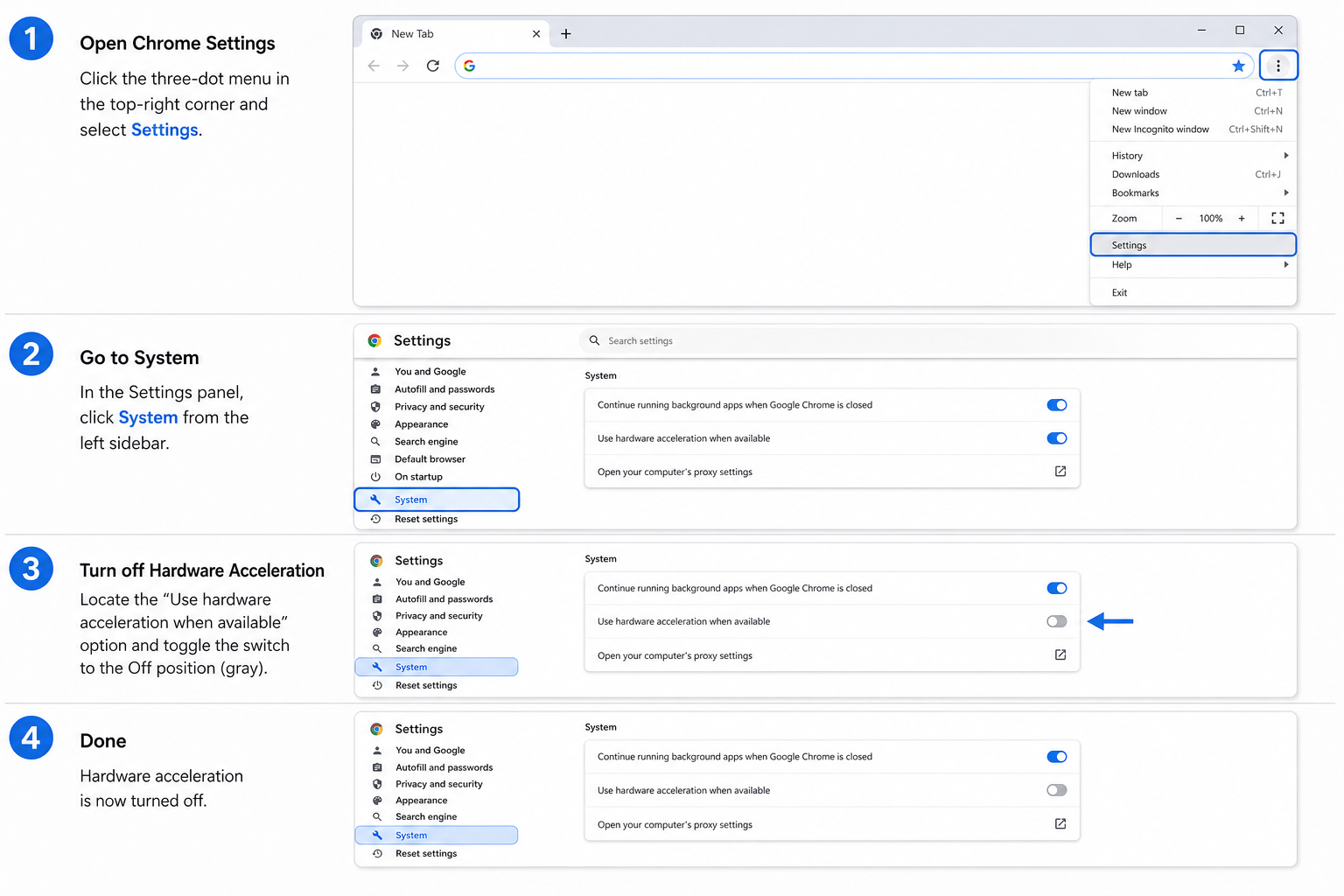
This is the most reliable short-term fix for the Chrome rendering glitch. Open Chrome, click the three-dot menu in the top-right corner, go to Settings → System, and toggle off Use graphics acceleration when available. Click Relaunch to restart the browser. You may notice a slight drop in scroll smoothness and video performance, but artefacts should disappear immediately.
2. Change Chrome’s ANGLE Graphics Backend
If disabling hardware acceleration entirely feels too drastic, try switching the ANGLE backend instead. In Chrome’s address bar, navigate to chrome://flags/#use-angle. Change the dropdown from Default to OpenGL or D3D11 and relaunch. Some users on AMD hardware have had success with Vulkan, while Nvidia users often report that switching to D3D11 eliminates artefacts.
3. Add the –disable-gpu Launch Flag
For a more targeted approach, right-click your Chrome desktop shortcut and select Properties. In the Target field (which will look something like "C:\Program Files\Google\Chrome\Application\chrome.exe"), add --disable-gpu to the end of the line, leaving a space before the double-dash. Click OK and relaunch Chrome from that shortcut. This forces Chrome to use software rendering for GPU tasks, bypassing the problematic ANGLE layer entirely.
4. Update Your GPU Drivers
A driver that pre-dates Windows 11 24H2’s GPU context changes can worsen the Windows graphics bug significantly. Visit your GPU manufacturer’s website — Nvidia GeForce Experience, AMD Adrenalin, or Intel Arc Control — and install the latest available driver. After updating, reboot your machine before testing Chrome again.
5. Reset Chrome Flags to Default
If you have previously experimented with chrome://flags settings, a conflicting flag combination could be amplifying the issue. Navigate to chrome://flags and click Reset all in the top-right corner. Relaunch Chrome and observe whether the rendering problem persists.
6. Disable Chrome’s Background Processes
To stop Chrome from creating orphaned windows after you close it, go to Settings → System and toggle off Continue running background apps when Google Chrome is closed. This prevents Chrome’s utility processes from running when the browser is not in use, which eliminates one of the main triggers for the phantom blank-window symptom.
Is This a Chrome Bug or a Windows Bug?
The honest answer is: probably both. The Chrome display issue appears to be a collision between a regression in Chromium’s GPU rendering path and changes Microsoft introduced in Windows 11 24H2’s Direct3D surface management. Neither party has issued an official statement attributing blame exclusively to the other. Community analysis on Chromium’s own issue tracker (issue #429859152) shows the problem appeared specifically after upgrading from Windows 10 to Windows 11, which is consistent with a 24H2-triggered incompatibility rather than a pure Chrome bug. That said, Chrome version 142’s rendering changes appear to have made things considerably worse for users already on the edge of compatibility.
Microsoft and Google are both aware of user reports. Expect a resolution either through a Chrome point release or a Windows Update patch — whichever team identifies the cleaner fix first.
Should You Switch to a Different Browser?
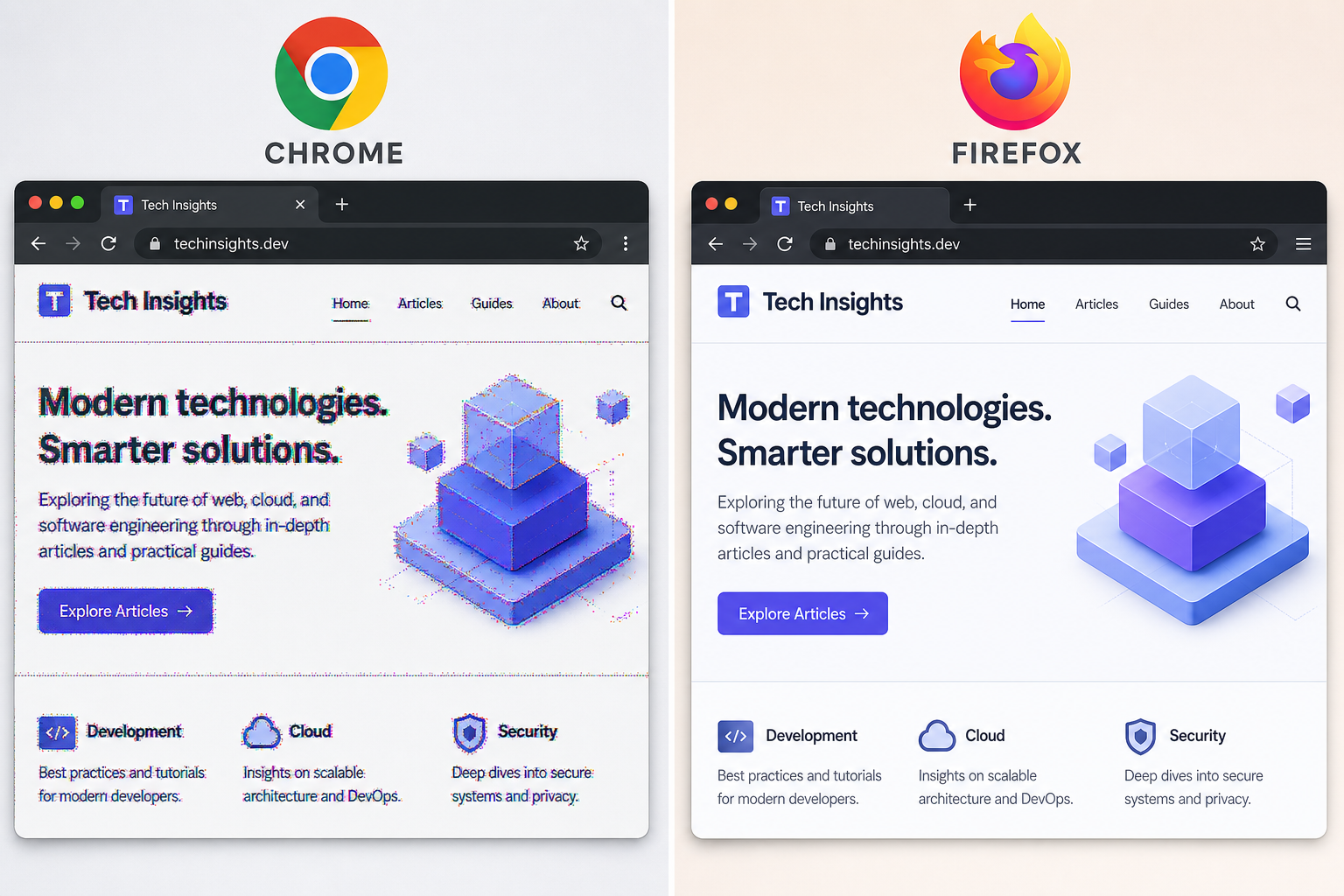
If the workarounds above do not resolve your Chrome rendering glitch and the artefacts are significantly disrupting your workflow, switching to an alternative browser temporarily is a reasonable option. Microsoft Edge is built on the same Chromium engine, so it may exhibit the same ANGLE-related conflicts — though its tighter integration with Windows means Microsoft tends to patch GPU-related regressions faster for Edge than Google does for Chrome. Firefox uses a completely different rendering engine (Gecko) and avoids the Chromium ANGLE issue entirely, making it the safest temporary alternative if stability is your priority.
That said, most users can resolve the problem without switching browsers by applying the hardware acceleration or ANGLE flag changes described above.
Keep Windows Healthy for the Long Term
While waiting for an official Chrome or Windows patch, it is a good time to ensure your Windows licence is in order — particularly if you are still running Windows 10, whose mainstream support ended in October 2025. A clean, fully activated installation of Windows 11 gives you access to the latest GPU driver framework improvements, DirectX updates, and security patches that can reduce the frequency of these kinds of compatibility clashes. You can browse Windows 11 licences at TopKeyShop for a cost-effective way to stay current, or check out our guide on unlocking the hidden power of Windows 11 to make the most of your upgraded environment.
Frequently Asked Questions
What exactly is the Chrome graphical bug on Windows?
It is a rendering glitch where Google Chrome — or its background processes — causes blank white windows, visual artefacts, or partially loaded pages to appear on Windows 10 and Windows 11 machines. The root cause appears to be a conflict between Chrome’s GPU hardware acceleration layer (ANGLE) and the graphics subsystem changes introduced in Windows 11 24H2. Reports escalated significantly with Chrome version 142.
Does the Chrome rendering glitch affect Windows 10 as well as Windows 11?
Yes. Both Windows 10 and Windows 11 users have reported the issue, though Windows 11 24H2 users appear to experience it more frequently. The underlying cause — Chrome’s ANGLE rendering backend conflicting with the OS graphics stack — exists on both platforms, but 24H2’s changes to Direct3D surface management appear to make it more pronounced on Windows 11.
Will disabling hardware acceleration slow Chrome down?
You may notice slightly less smooth scrolling or minor delays during heavy video playback, since the CPU handles tasks normally delegated to the GPU. For everyday browsing, document editing, and email, the difference is negligible. Re-enable hardware acceleration once Google releases a fix, and the performance returns to normal immediately.
Is my data or security at risk because of this Chrome display issue?
No. The Chrome display issue is a graphical rendering problem, not a security vulnerability. Your browsing data, passwords, and files are not at risk. It is purely a visual/performance fault caused by a software incompatibility between Chrome and the Windows graphics layer.
How will I know when Google has fixed the Chrome graphical bug?
Check Chrome’s release notes at Google Chrome Releases for patch notes mentioning GPU rendering or ANGLE fixes. You can also monitor the Chromium bug tracker. Once a fix lands, Chrome will update automatically in the background — restart Chrome to apply any pending update immediately via Settings → Help → About Google Chrome.
Does this affect Chromium-based browsers like Edge or Brave?
Potentially, yes. Microsoft Edge and Brave both use the Chromium engine and the same ANGLE rendering layer, so they are theoretically susceptible to the same conflict. However, Edge’s deeper integration with Windows means Microsoft tends to patch GPU regressions faster, and community reports of the same issue in Edge and Brave are far less frequent than those for Chrome.
