

Enabling macros in Microsoft Office comes down to matching the right fix to the warning you see on screen. If you see a yellow Security Warning bar, you click Enable Content. If you see a red SECURITY RISK banner on a downloaded file, you need to unblock the file in Windows first. Get those two cases straight and every other scenario falls into place naturally.
Macros let Word, Excel, PowerPoint, Access, Outlook, and Visio files run automated tasks exactly the way their creator intended. Microsoft blocks them by default because a macro embedded in an untrusted file can execute harmful code — but when you trust the source, enabling them is straightforward once you know where to look.
Why Microsoft Blocks Macros by Default
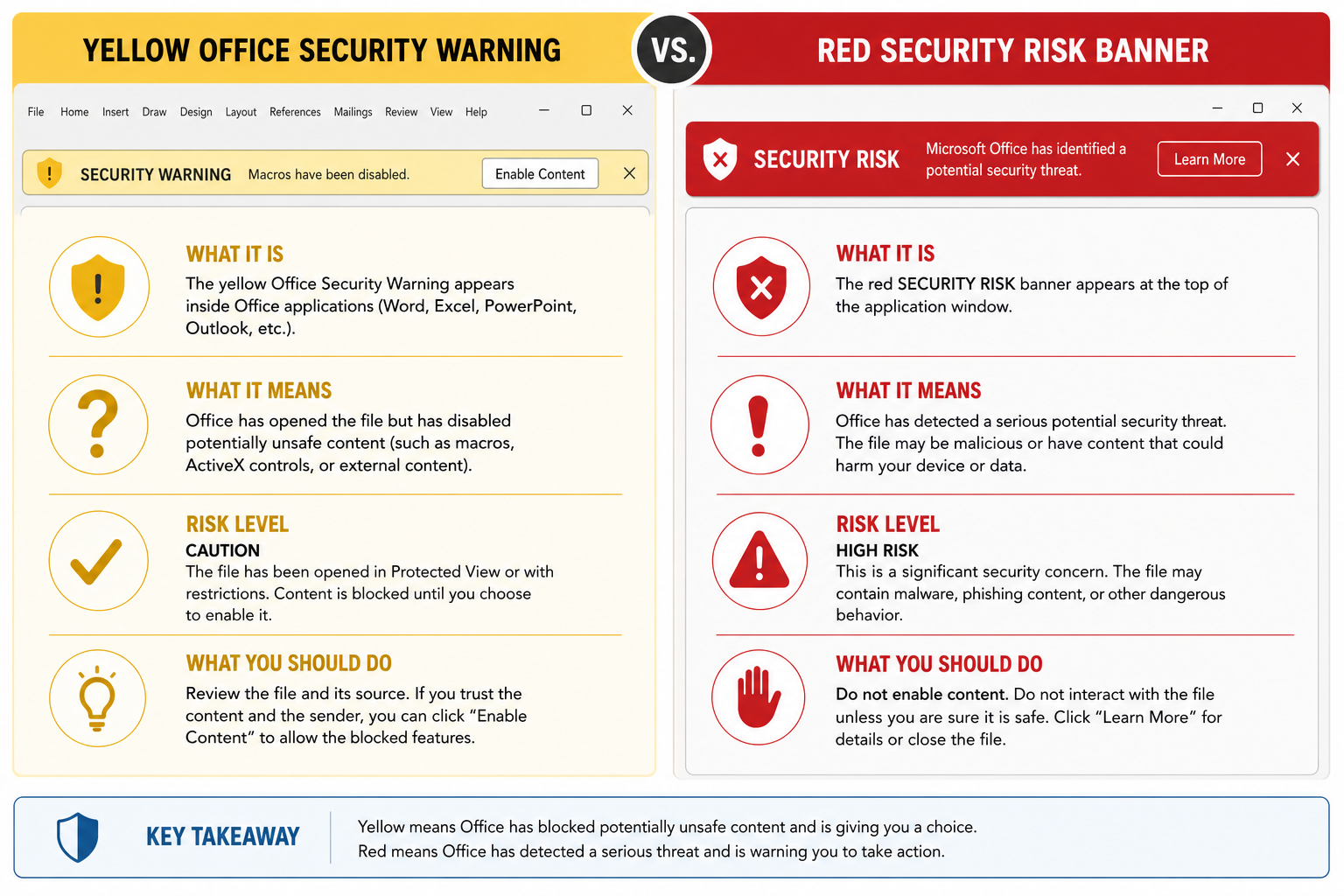
Since 2022, Microsoft has tightened its default macro policy. Files downloaded from the internet receive a Mark of the Web tag that tells Office the file came from an untrusted source. The result is either the yellow notification bar (for locally stored files) or the red SECURITY RISK banner (for files still carrying the internet mark). Understanding which block you are dealing with determines the correct fix — and skipping this step is the most common reason people get stuck.
-
Yellow Security Warning bar — the file is already stored locally and your Trust Center settings allow you to enable macros in Microsoft Office for it on demand.
-
Red SECURITY RISK banner — the file carries a Mark of the Web; the Enable Content button does not appear here. You must unblock the file first.
-
No banner at all — macros are either fully blocked without notification, or the file is in a Trusted Location and runs automatically.
Enable macros in Microsoft Office from the Yellow Security Warning Bar
This is the fastest path when Office is already set to notify you and you trust the document. It applies to Word, Excel, PowerPoint, Access, and other desktop Office apps on Windows.
-
Open the file in the desktop Office application.
-
On the yellow Security Warning bar, click Enable Content.
-
In the Security Warning dialog that follows, click Yes.
Office marks the document as trusted and remembers that choice the next time you open the same file. Do not attempt this method for the red banner — it simply will not offer you an Enable Content button.
Unblock a Downloaded File on Windows to Enable VBA Macros
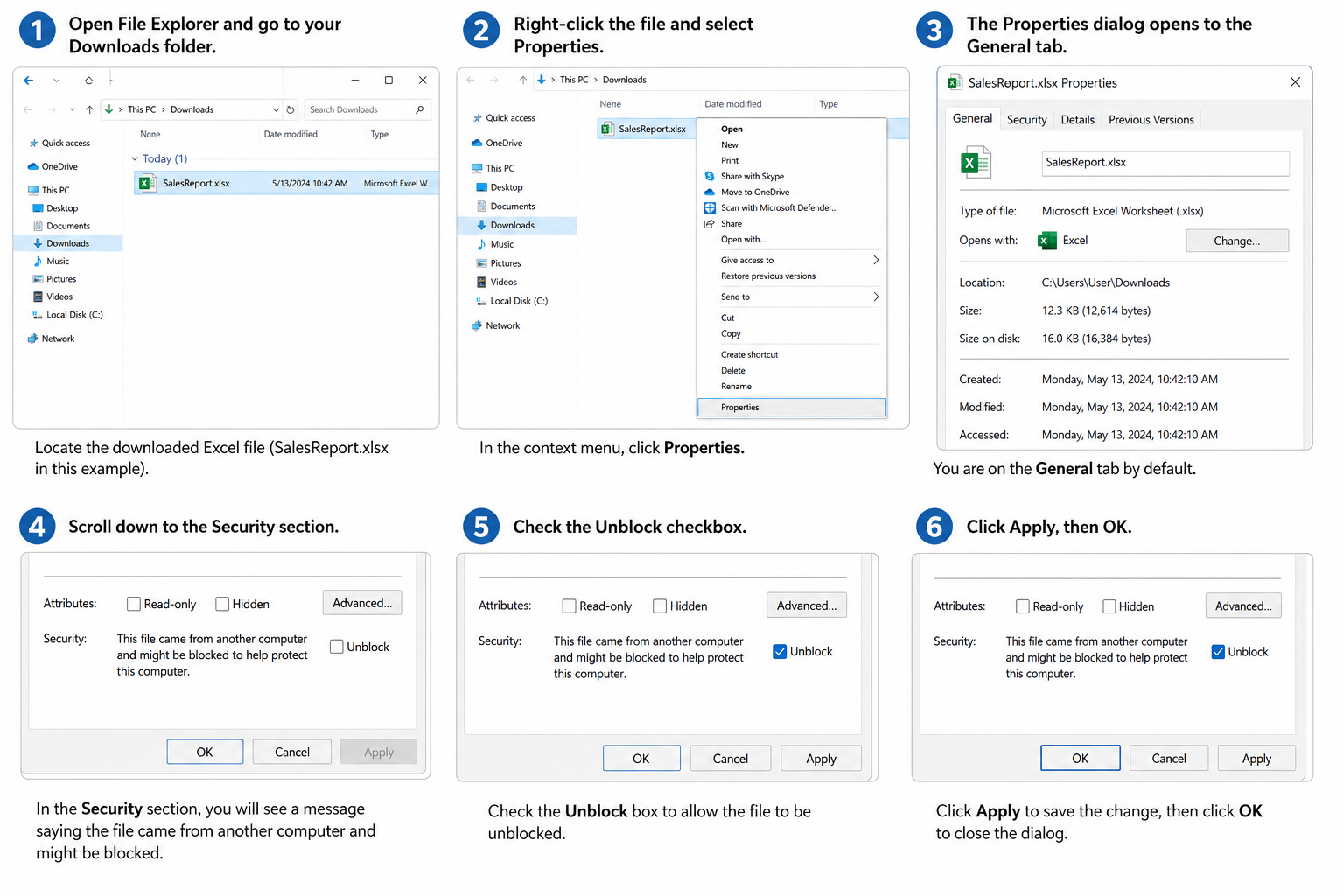
When a file arrives via a browser download or email attachment, Windows stamps it with a Mark of the Web. Until you remove that stamp, Office will show the red SECURITY RISK banner regardless of your macro settings. Here is how to remove it:
-
Close the file in Office completely.
-
Open File Explorer and navigate to the folder containing the file.
-
Right-click the file and choose Properties.
-
On the General tab, tick the Unblock checkbox.
-
Click OK.
-
Reopen the file in your Office desktop app.
If the Unblock checkbox does not appear — which can happen on certain network shares — you can achieve the same result with PowerShell. Open PowerShell and run: Unblock-File -Path "C:\Path\To\YourFile.xlsm", then reopen the file. After unblocking, the yellow bar replaces the red one, and you can use Enable Content as normal.
Change Office Macro Settings in Trust Center (Windows)
Adjusting your Office macro settings in Trust Center changes the default behaviour for an entire app going forward. These settings are per application — changing Word’s macro settings does not affect Excel or PowerPoint. This is where you go when you want a broader, persistent change rather than a one-file decision. If you need a standalone Office licence with the full Trust Center and macro controls, Office 2021 Professional Plus for Windows comes with an original activation key and official download links.
In the Office app you want to change, go to File → Options → Trust Center → Trust Center Settings → Macro Settings, pick your preferred option, then click OK.
What the Four Macro Settings Mean
-
Disable all macros without notification — macros are silently blocked; no prompt appears.
-
Disable all macros with notification (default) — macros are blocked but the yellow bar lets you enable them per file.
-
Disable all macros except digitally signed macros — unsigned macros are blocked; signed ones prompt you to trust the publisher.
-
Enable all macros — all macros run automatically. Microsoft labels this option as not recommended because potentially dangerous code can run without warning.
Excel uses the phrase VBA macros in its labels, but the options and their behaviour are identical. To reach the same screen directly in Excel, go to the Developer tab and click Macro Security — a useful shortcut if you already have that tab turned on.
How to Enable Macros in Microsoft 365 for Mac
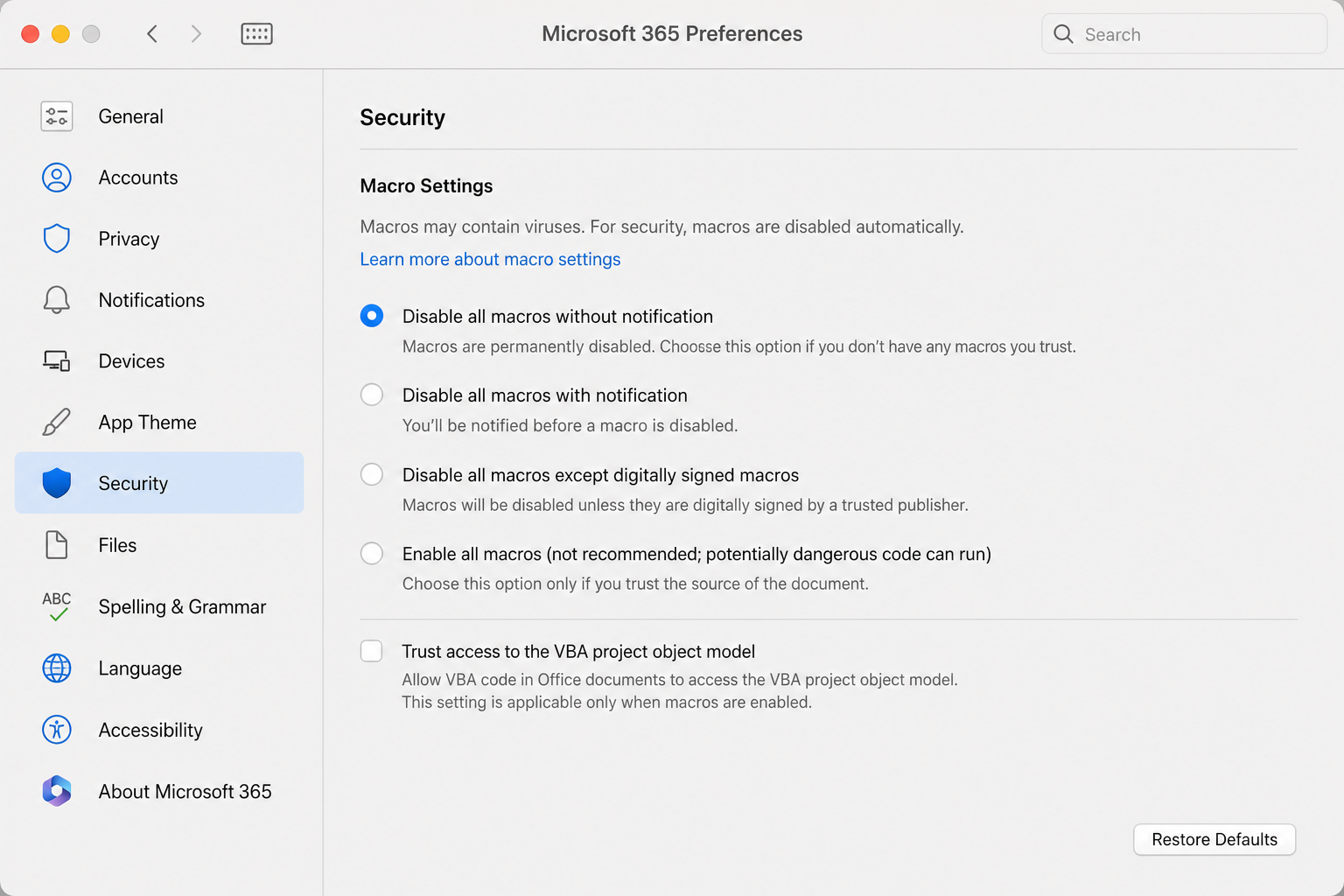
Mac users will find macro controls inside the application preferences rather than a Trust Center panel. The steps below work for Word, Excel, and PowerPoint in Microsoft 365 for Mac, where Microsoft sets the default to Disable all macros with notification.
-
Open Word, Excel, or PowerPoint.
-
From the app menu at the top of the screen, select Preferences.
-
Click Security.
-
Under Macro Security, choose Enable all macros to run all macros, Disable all macros with notification to be prompted each time, or Disable all macros without notification to block silently.
Note that these settings apply only to the app you configure. Changing Excel for Mac does not change Word for Mac — each application stores its own preference independently.
Handling OneDrive, SharePoint, and Microsoft Teams Files
Files opened directly from OneDrive, SharePoint, or a Teams channel carry a particular risk: if you download them to your local drive first, Windows marks them with the internet tag and the macro block kicks in. The safest approach is to avoid that download step altogether.
-
Open the file from the OneDrive website or SharePoint site, then click Open in Desktop App. Microsoft confirms this path does not assign a Mark of the Web to the file.
-
If you have already downloaded the file locally, use File Explorer → Properties → General → Unblock → OK to remove the mark before reopening.
-
For a trusted macro file received by email, save it to OneDrive first and then use Open in Desktop App, or save it locally and run the Unblock step before opening.
Set Up a Trusted Location for Repeat Macro Files
A Trusted Location tells Office to skip its normal security checks for files in a specific folder. This is ideal when you work with the same macro-enabled templates or workbooks every day and do not want to click Enable Content each time. Use it only for folders you genuinely control — do not designate your Downloads folder as trusted.
-
Open any Microsoft 365 desktop app.
-
Go to File → Options → Trust Center → Trust Center Settings → Trusted Locations.
-
Click Add new location.
-
Click Browse and select the folder you want to trust.
-
Click OK until all windows are closed.
-
Move your trusted macro files into that folder.
Files stored there open with macros enabled automatically because Office bypasses its normal Trust Center checks. Microsoft allows network paths as Trusted Locations but does not recommend them due to the additional security exposure. For more detail, the official Microsoft documentation on internet macro blocking explains exactly how the Mark of the Web interacts with trusted location policy.
Trust a Signed Macro Publisher
If a macro file is digitally signed and you trust the organisation or developer who created it, Office lets you trust every document from that publisher in one step — so you never see the security prompt for their files again.
-
Open the file (unblock it first if Windows flagged it as an internet file).
-
Click File → Info.
-
In the Security Warning area, click Enable Content.
-
Click Advanced Options.
-
In Microsoft Office Security Options, select Trust all documents from this publisher.
This adds the publisher’s digital certificate to Windows as a trusted publisher, so all future files signed with that certificate open without a prompt. For a one-time exception — where you want to run the macros now but keep the warning for future sessions — choose Enable content for this session instead. The warning will return the next time you open the file.
When an Admin Policy Blocks Office Macros
On a managed Microsoft 365 device in a corporate environment, your IT administrator can enforce macro policies through Cloud Policy, Microsoft Intune, or Group Policy. These controls override the settings in Trust Center — so even if you change your macro settings, the policy takes precedence and the block remains in place.
These macro policies apply to Microsoft 365 Apps for enterprise; Microsoft 365 Apps for business does not support them. If you are on a managed device and none of the steps above work, the solution lies with your IT helpdesk, not in your Office settings. Contact your administrator and follow your organisation’s approved process for accessing the file.
Enable VBA Macros in Excel: The Developer Tab Shortcut
Excel includes a shortcut to the macro security screen that power users find convenient. If you have the Developer tab enabled in Excel, you can reach the same Trust Center Macro Settings panel in two clicks instead of navigating through File → Options:
-
Open Excel and click the Developer tab in the ribbon.
-
Click Macro Security.
-
In the Macro Settings panel, choose your preferred option and click OK.
This shortcut opens the identical screen as the Trust Center path — it does not bypass an internet-file block or an admin policy. It is simply a faster route to the same setting. If you are looking for a reliable copy of Excel to work with, Excel 2024 for Windows is available with an original activation key and official download links.
FAQ
Why do I see a red SECURITY RISK banner instead of an Enable Content button?
The red banner appears because Windows has tagged the file as coming from the internet — usually because you downloaded it via a browser or received it as an email attachment. Current versions of Office block macros in these files by default and deliberately remove the Enable Content option. Your fix is to close the file, right-click it in File Explorer, open Properties, tick Unblock on the General tab, and click OK before reopening. Alternatively, run Unblock-File in PowerShell to remove the Mark of the Web.
Can I enable VBA macros in Excel for the web?
No. Excel for the web can open and display workbooks that contain VBA macros, but it cannot create, run, or edit VBA code. To run the macros in that workbook, click Open in Desktop App inside Excel for the web. The desktop version of Excel will open the file and give you full macro control.
Do I need to change Office macro settings separately for each app?
Yes. Trust Center macro settings are stored individually per application. Changing the setting in Excel has no effect on Word, PowerPoint, Access, Outlook, or Visio — each app keeps its own configuration. If you want consistent behaviour across all of them, you need to update the Trust Center settings in each application independently.
Can I still run Excel 4.0 macros?
Yes, but you need to explicitly enable them. In Excel, go to File → Options → Trust Center → Trust Center Settings → Macro Settings, tick Enable Excel 4.0 macros when VBA macros are enabled, and make sure your VBA macro setting permits macros to run. You may also need to adjust File Block Settings in Trust Center to allow Excel 4 MacroSheets to open with editing permitted.
What is the safest way to enable Office macros regularly?
The safest approach for recurring use is a Trusted Location. Create a dedicated folder on your local drive, add it as a Trusted Location in Trust Center, and store only files you have personally verified in that folder. This avoids having to enable macros in Microsoft Office every time while keeping the broader default setting — Disable all macros with notification — intact for everything else.
