
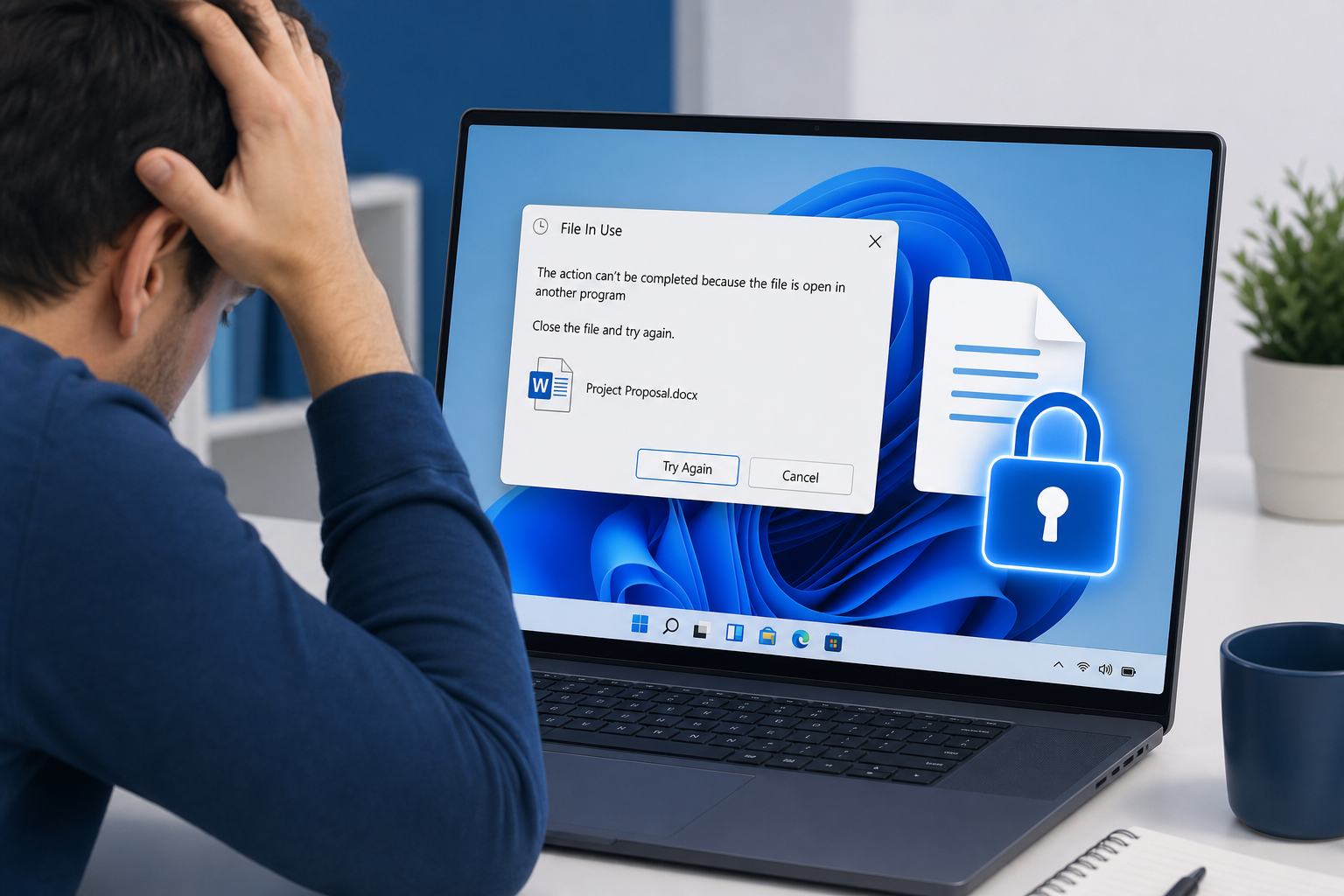
The file in use error on Windows 11 is one of the most frustrating messages a PC user can encounter: you close an application, try to rename or delete a file, and Windows stubbornly insists the file is still being used by another program. Microsoft has now officially explained why this phantom lock happens — and released a fix. Read on for the root cause, the workarounds, and how to prevent it happening again.
What Is the Windows 11 File in Use Error?
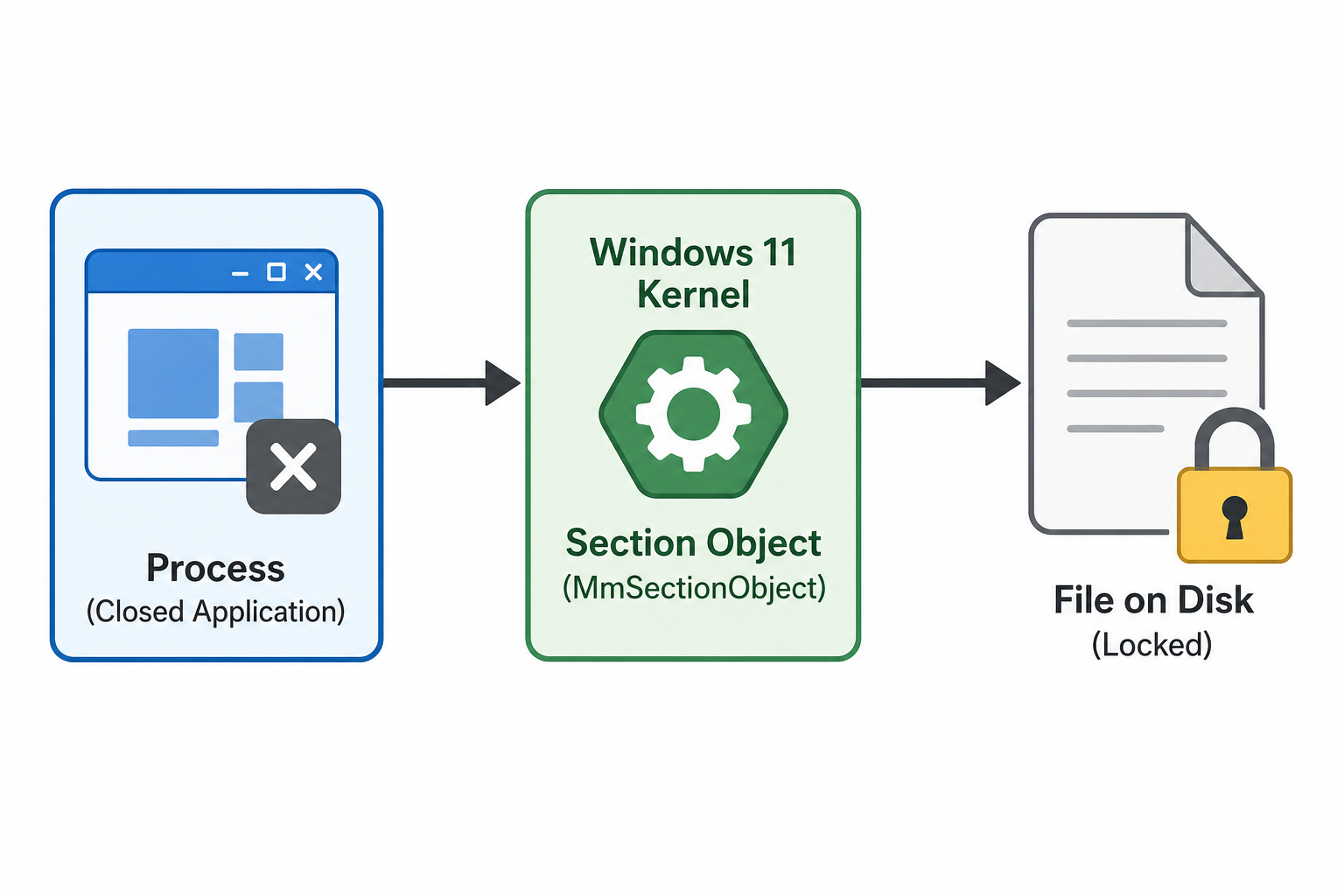
When you see this error, Windows is telling you that some process still holds an active reference — a file handle or a memory-mapped section — pointing to that file. As long as that reference exists, the operating system refuses to allow deletion, renaming, or overwriting the file because doing so could corrupt whatever is still reading or writing it. In theory, that is sensible behaviour. In practice, the culprit process is often one you already closed minutes ago.
The error typically reads something like: “The action can’t be completed because the file is open in [application name]” — even when Task Manager shows the application is no longer running.
The Root Cause: Memory-Mapped Files and Lingering Section Objects
Microsoft’s Azure CTO Mark Russinovich shed light on the real technical cause behind the persistent file in use Windows 11 behaviour. The culprit is a Windows kernel feature called memory-mapped files — specifically, section objects that can outlive the application that created them.
Here is how the chain of events unfolds:
- An application opens a file and maps it into its virtual address space using the Windows
CreateFileMapping/MapViewOfFileAPI. This creates a section object in the kernel that ties the file to a region of memory. - The application is closed. Windows tears down the process and reclaims most resources — but if another component (a DLL, antivirus scanner, shell extension, or the Windows prefetcher) still holds a reference to that same section object, the kernel keeps the object alive.
- The file handle count drops to zero, so no running process “owns” the file in the traditional sense. Yet the section object remains, and Windows uses that object’s existence to conclude the file is still in use.
- You try to delete or rename the file and hit the Windows file lock wall — even though nothing is visibly running.
In other words, the lock is not caused by the application itself continuing to run; it is caused by a residual kernel object that the application’s closure did not fully clean up. This is a long-standing behaviour in the Windows I/O model, and it affects Windows 11 more visibly because modern apps — especially those using runtime frameworks like .NET, Electron, and the Windows App SDK — make much heavier use of memory-mapped files than classic Win32 applications did.
Why This Became Worse on Windows 11
Windows 11 introduced a raft of new UI frameworks and shell integrations. Many of these components — thumbnail providers, search indexers, shell extensions, and the new Widgets service — routinely map files into memory to generate previews or index content. According to the Windows Latest report covering Microsoft’s own disclosure, these background components can silently hold section objects open long after you have finished with a file — making the file locked error appear far more frequently on Windows 11 than on Windows 10.
Additionally, Windows Defender’s real-time protection scans files as they are accessed, temporarily mapping them. If a scan is mid-flight when you close an application, the section object the scanner holds can persist for several seconds — sometimes longer — before the scan completes and the lock releases.
How to Identify Which Process Is Holding the File Lock
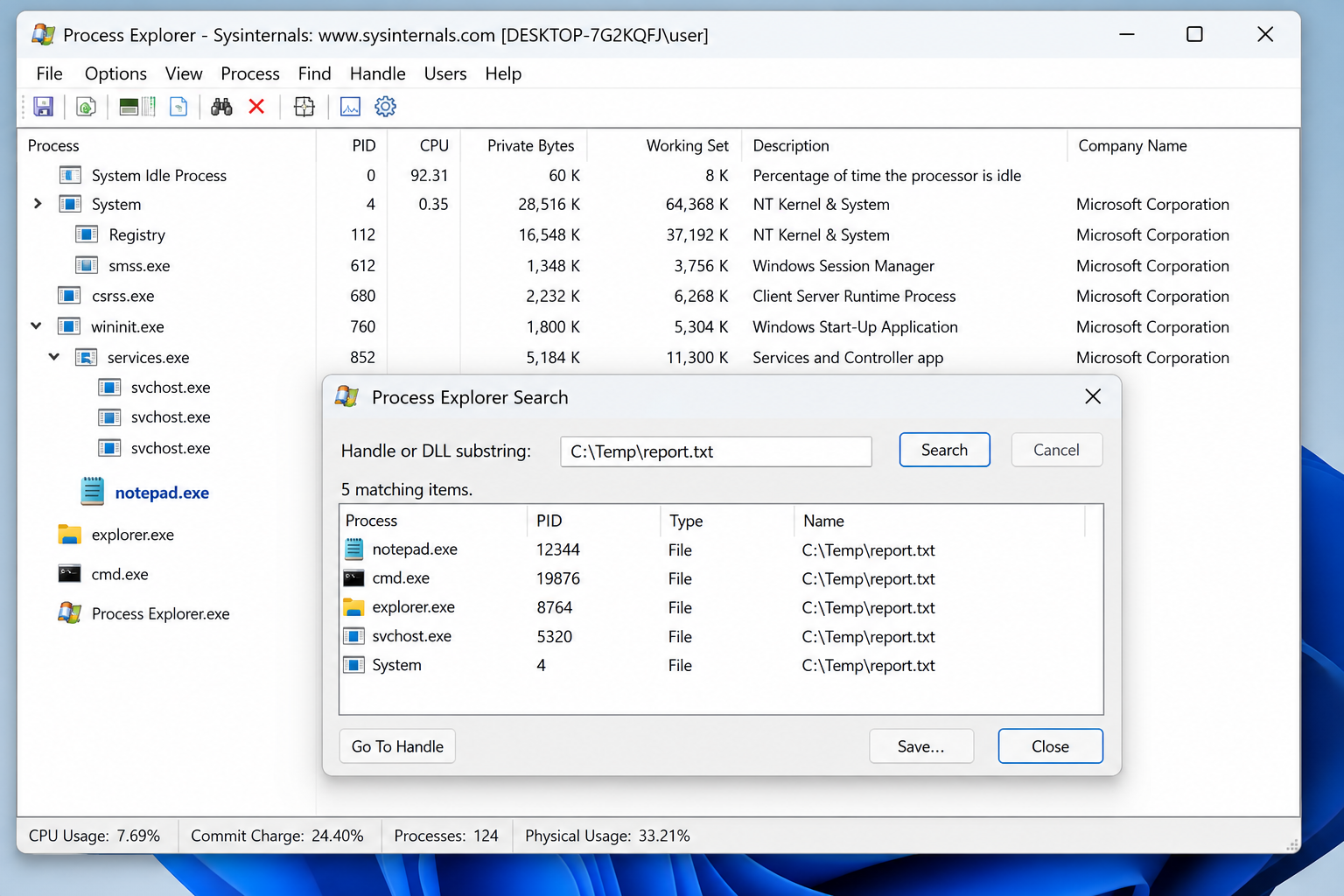
Before applying any fix, it helps to confirm which process is responsible. Microsoft’s own Sysinternals toolkit provides the best tools for this job.
- Process Explorer — open it, press Ctrl+F, and type the file name. It will list every process that holds an open handle to that file, including processes you might not expect.
- Handle.exe (command-line) — run
handle.exe filenamein an elevated Command Prompt to get a precise list of owning processes and handle IDs. - Resource Monitor — built into Windows 11 (search for it in Start). Go to the CPU tab, expand Associated Handles, and search for the file name.
- PowerToys File Locksmith — Microsoft’s PowerToys suite (version 0.64 and later) includes a right-click context-menu option called File Locksmith that instantly shows which processes are locking a selected file.
In many cases, you will discover it is a system process — SearchIndexer.exe, MsMpEng.exe (Windows Defender), or explorer.exe itself — rather than the app you thought was the problem.
Microsoft’s Official Fix for the File in Use Error
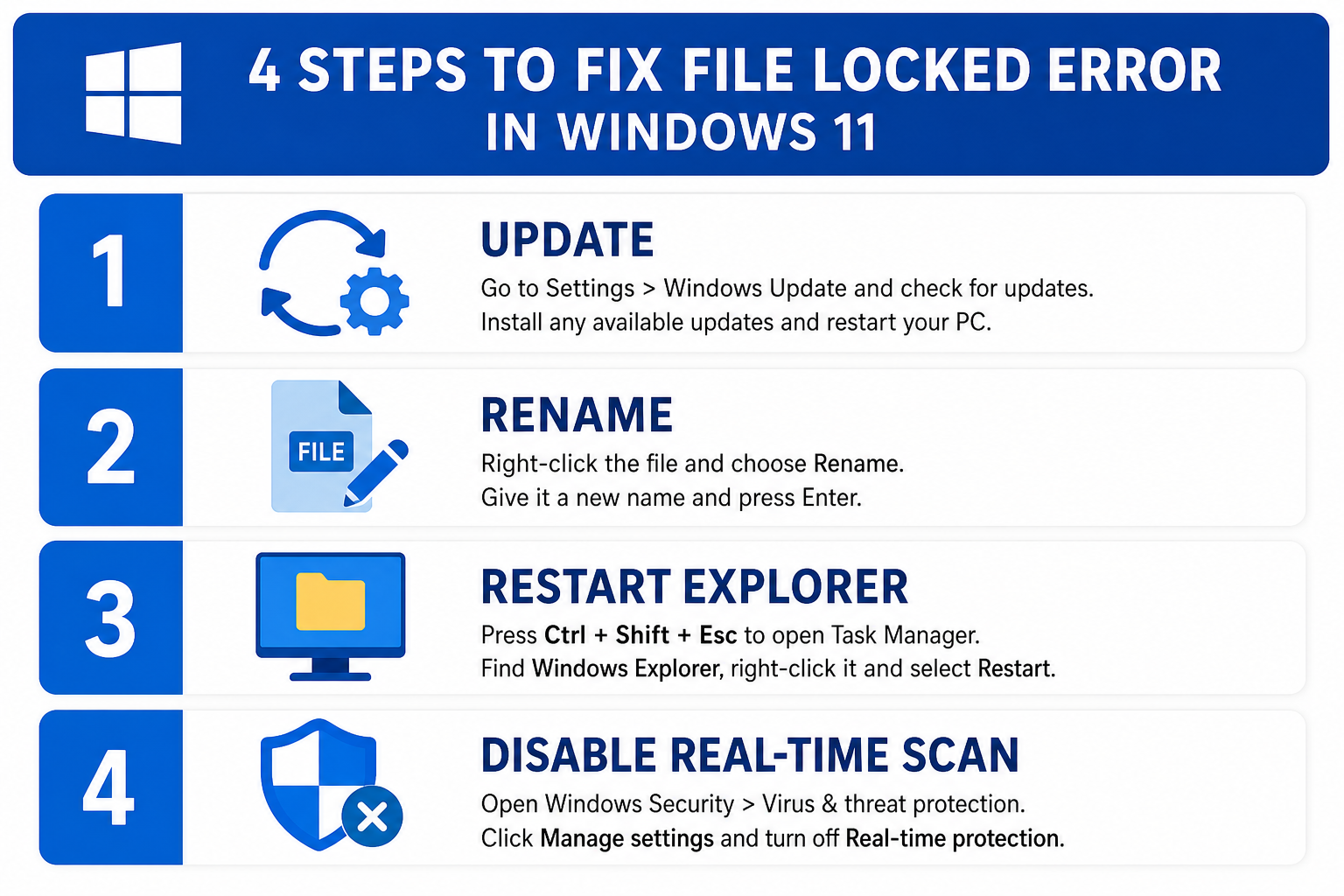
Microsoft’s recommended resolution involves a combination of a targeted Windows Update and a practical rename-based workaround for files that are already stuck. Here is what Microsoft advises:
Step 1 — Install the Latest Cumulative Update
Microsoft addressed the most common trigger of the phantom file in use Windows 11 lock through Windows Update. Ensure your system is fully up to date: go to Settings → Windows Update → Check for updates and install everything available. The fix was rolled out in cumulative updates released in June 2026, so machines that have not updated since then are most at risk.
Step 2 — Use the Rename Workaround for Stuck Files
For files already locked, Microsoft’s practical workaround sidesteps the section-object problem:
- Rename the locked file to a temporary name (e.g.,
document_old.docx). Windows often permits a rename even when a delete is blocked, because renaming does not invalidate the existing section object — it just changes the file’s directory entry. - Drop a fresh copy of the file into the same folder using the original file name.
- Reboot (or wait for the section object to time out), then delete the renamed file.
This works because the in-memory section object holds a direct reference to the file’s internal data structures (its inode equivalent), not to its name. Renaming it leaves the existing mapping intact while freeing the name for immediate reuse.
Step 3 — Restart Windows Explorer for Shell-Held Locks
If the file locked error is caused by Windows Explorer’s thumbnail cache or shell extension, restarting Explorer releases the lock without a full reboot:
- Open Task Manager (Ctrl+Shift+Esc).
- Find Windows Explorer under Processes.
- Right-click it and choose Restart.
Step 4 — Temporarily Disable Real-Time Protection
If Windows Defender is the confirmed holder (visible in Process Explorer), briefly pausing real-time protection through Windows Security → Virus & threat protection → Manage settings will release any in-progress scan locks within seconds. Re-enable protection immediately afterwards.
Preventing the File in Use Error Going Forward
A few habits and settings reduce how often you encounter the Windows file lock problem:
- Keep Windows updated — Microsoft continues to patch section-object handling. Staying current is the single most effective preventive measure.
- Add exclusions judiciously — if a specific folder (such as a development workspace or a media library) is constantly triggering lock errors, adding a targeted Windows Defender exclusion for that folder can help. Only do this for trusted directories.
- Avoid third-party shell extensions — many context-menu add-ons from older software hook into Explorer and hold file handles. Removing unused shell extensions with tools like ShellExView reduces the pool of potential lock holders.
- Use PowerToys File Locksmith — install Microsoft PowerToys and make File Locksmith your first stop when a lock occurs. Knowing the exact process lets you address it precisely instead of rebooting.
Is This a Windows 11-Only Problem?
The underlying mechanism — section objects outliving processes — has existed in Windows since the NT kernel was introduced in the early 1990s. However, the file in use error became significantly more visible on Windows 11 because of the operating system’s expanded use of memory-mapped I/O in its shell, search, and security components. Windows 10 users do encounter it, but less frequently. Windows 11 24H2 users report it most often, which is consistent with the additional shell integrations that shipped with that feature update.
Upgrade to a Stable Windows 11 Licence
If you are still running an unactivated copy of Windows 11 or are planning a clean install to get a fresh, fully updated system, a genuine licence key is the safest starting point. TopKeyShop offers Windows 11 Home Retail keys with instant email delivery and free activation support — so you can get a verified, patch-ready system without the premium price. If you need the additional features of the Pro edition, the Windows 11 Pro + Office 2024 bundle pairs both essentials at exceptional value.
A clean, fully activated Windows 11 installation ensures Windows Update can deliver Microsoft’s patches — including the June 2026 cumulative update that addresses the phantom file-lock behaviour — without activation-related blocks getting in the way.
FAQ: Windows 11 File in Use Error
Why does the file in use error appear even when no app is open?
The lock is held by a kernel section object, not necessarily the visible application window. Background processes such as the Windows Search Indexer, Windows Defender, or shell thumbnail providers can hold these objects open independently of the foreground app. The application may appear closed, but the kernel object persists until the background process releases it or the system is rebooted.
Does restarting the PC always fix a file locked error?
In most cases, yes — a full reboot clears all section objects and file handles, releasing any phantom locks. However, if the root cause is an unpatched Windows 11 bug, the lock may reappear the next time the same file is accessed. Installing the latest cumulative update addresses the underlying bug rather than just clearing its symptoms.
Is the rename workaround safe to use?
Yes, for most files. Renaming a file while a section object holds it open does not corrupt the data that the mapping points to — the kernel’s reference is to the file’s internal structure, not its name. The original data remains intact. The workaround is not recommended for system files or files actively being written to by a running service.
Can antivirus software cause the Windows file lock problem?
Yes. Real-time antivirus scanners — including Windows Defender — temporarily map files into memory to inspect them. If a scan is in progress when you attempt to delete or rename a file, the scanner’s section object triggers the file in use error. The lock typically clears within a few seconds once the scan finishes. If it persists, restarting the antivirus service or temporarily pausing real-time protection resolves it.
Does Microsoft PowerToys help with file locked errors?
Yes. The File Locksmith tool included in Microsoft PowerToys (available free from the Microsoft Store or GitHub) adds a right-click option to any file or folder. It immediately shows which processes are holding locks on the selected file, along with their process IDs and names — making it far easier to decide whether to close the process, wait, or use the rename workaround.
Will this issue be fully resolved in future Windows 11 updates?
Microsoft has already patched the most common trigger through the June 2026 cumulative update. Longer term, improving how Windows handles section-object lifetime — so objects are released more aggressively when the primary process exits — would reduce the problem structurally. Microsoft’s Sysinternals team continues to develop tooling that makes diagnosing and resolving file locks faster and more accessible for everyday users.
