
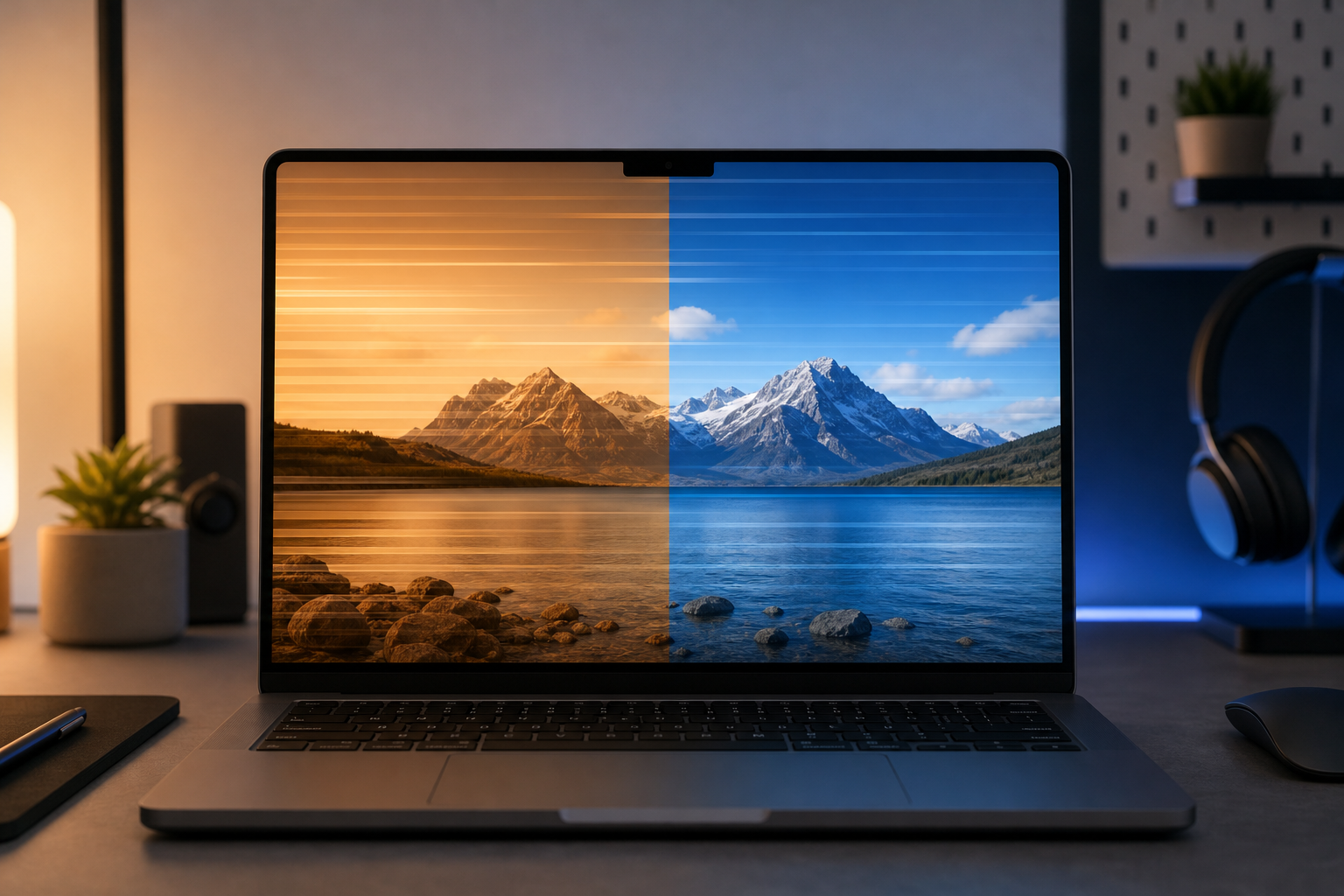
Night Light flickering almost always comes down to one of three things: a graphics driver that can’t apply the color filter smoothly, a display running a refresh rate or HDR mode that conflicts with the filter, or a Night Light schedule that’s fighting another color-management tool. If your screen flashes between a warm orange tint and normal colors every few seconds, you can usually fix it without reinstalling Windows or buying new hardware.
What Causes Night Light Flickering and Screen Tint Issues?
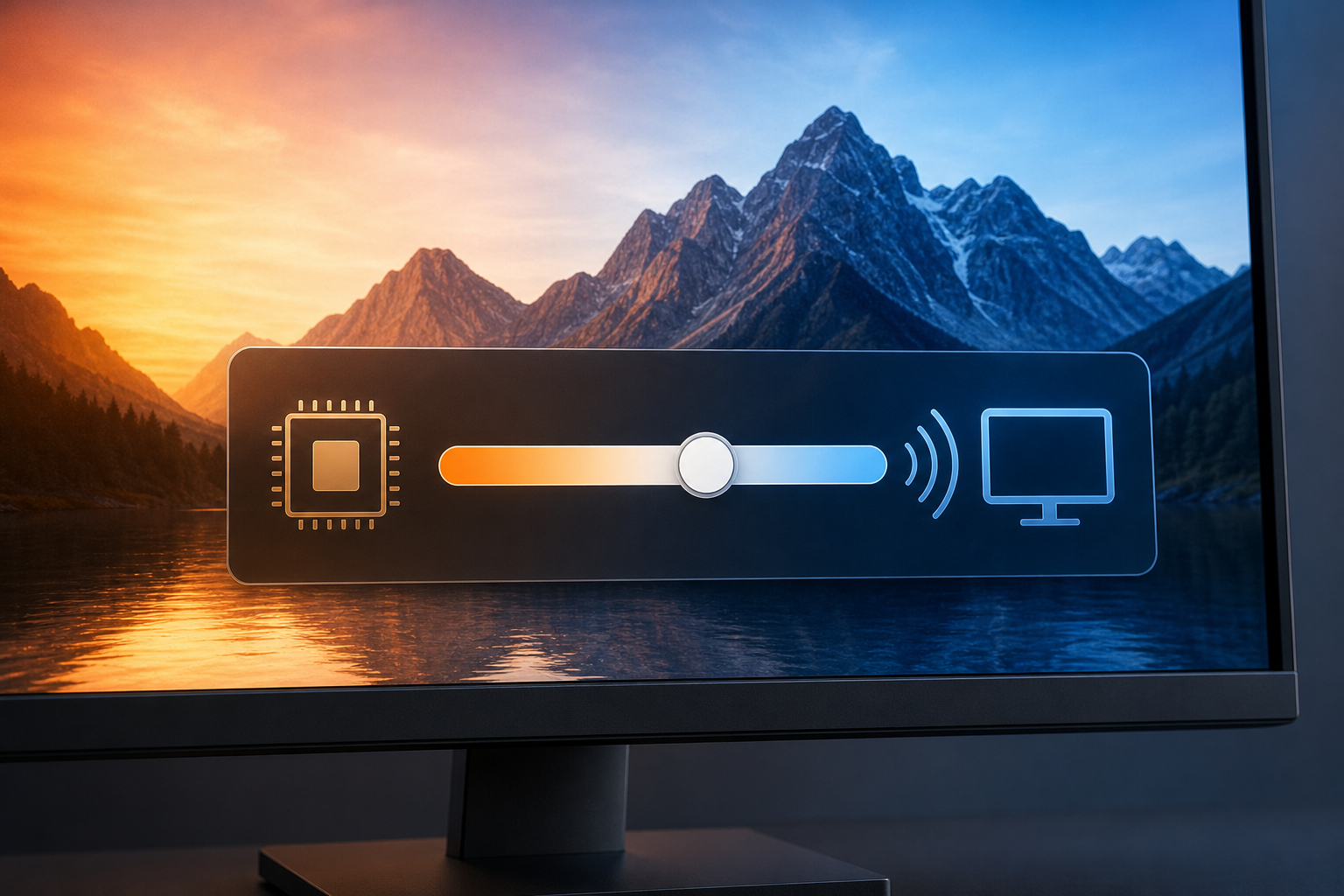
Night Light works by asking your graphics driver to shift the color temperature of every frame sent to the display, usually somewhere between roughly 1,200K and 6,500K on the slider. That shift has to be applied continuously by the GPU driver, so anything that interrupts or double-applies that process shows up as visible flickering. The most common triggers are:
- An outdated or corrupted graphics driver that can’t keep the color transform stable
- HDR switching on or off at the same time Night Light tries to adjust color temperature
- A variable or mismatched refresh rate that re-negotiates the display signal repeatedly
- A third-party color app (like f.lux or a monitor’s own blue-light mode) fighting Night Light for control
- A buggy Windows build where the Night Light toggle itself resets unexpectedly
Any one of these can produce the same symptom: a screen that blinks between tinted and untinted, or color flickering, every time Night Light should be smoothly applied.
Why Night Light Triggers Light Flickering on Some Displays
Light flickering with Night Light happens because the color filter is a software-level overlay, not a hardware setting, and not every display pipeline handles that overlay the same way. Laptops with hybrid graphics (an integrated GPU plus a discrete GPU), external monitors connected through a dock, and displays running HDR are the three setups most likely to show the problem.
HDR Mode and Night Light Conflicts
Windows explicitly limits what Night Light can do once HDR is active, because HDR already manages color and brightness at a much wider range than standard dynamic range. When both try to manage color temperature at once, the result is often a visible flicker as the system toggles between the two color pipelines. On many PCs, turning HDR off removes the light flickering instantly — confirming the two features are the actual source of the conflict rather than a hardware fault.
Refresh Rate Mismatches That Cause Light Flickering
Displays running at a non-standard or variable refresh rate (common on 120Hz, 144Hz, and adaptive-sync monitors) sometimes renegotiate their signal with the GPU more often than a fixed 60Hz panel. Each renegotiation can momentarily drop the Night Light color transform, producing a quick flash back to normal color before Night Light reapplies. This is more of a timing problem than a hardware defect, which is why it’s fixable through settings rather than a monitor replacement.
Fix Light Flickering by Updating Your Display Driver
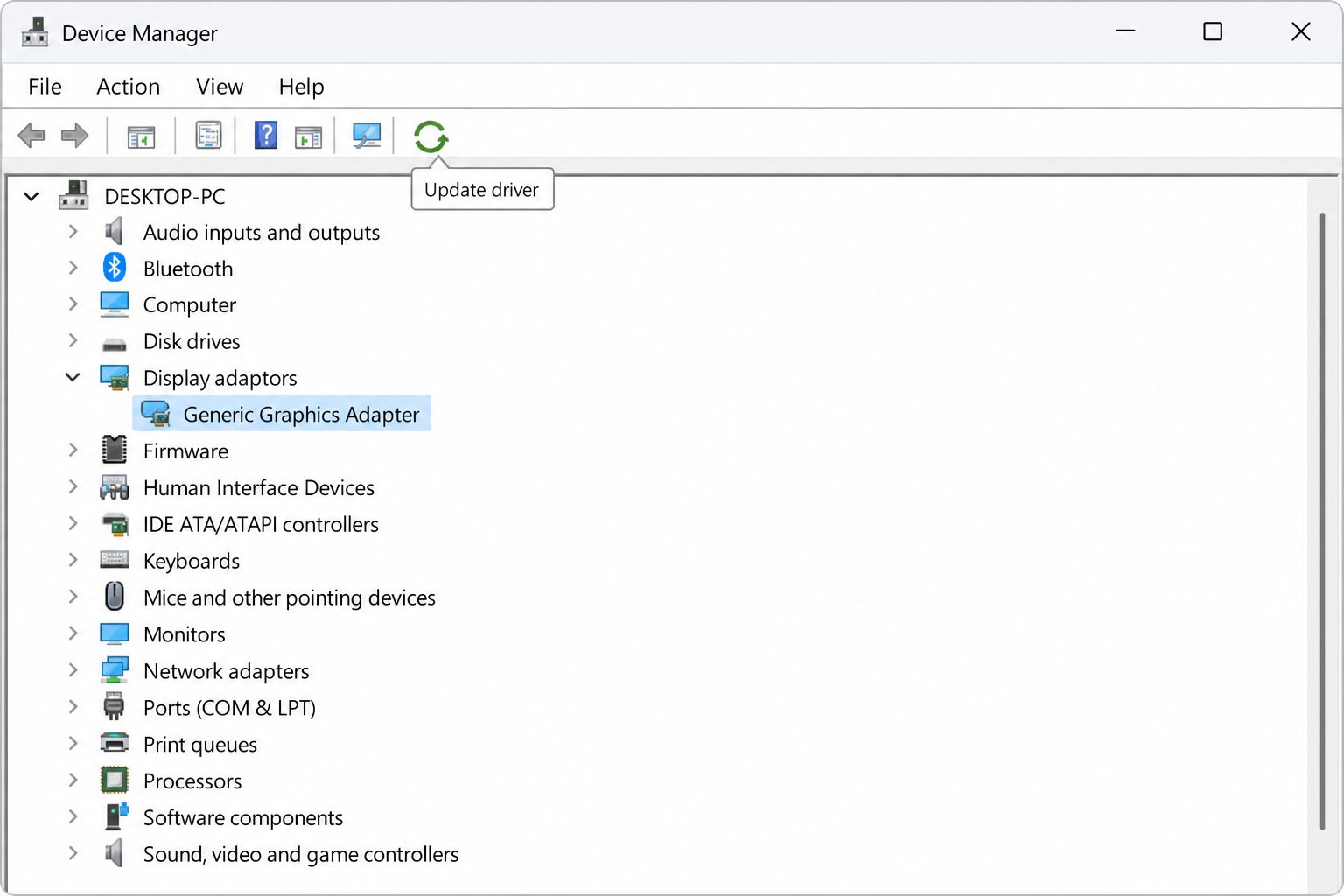
Updating your graphics driver resolves light flickering in the majority of reported cases, because Night Light’s color pipeline runs through the driver, not through Windows itself. If your driver is several months or more out of date, this should be your first step before touching any other setting.
How to Update Graphics Drivers on Windows 11 and Windows 10
- Right-click the Start button and open Device Manager.
- Expand Display adapters and right-click your graphics card.
- Select Update driver, then Search automatically for drivers.
- If Windows finds nothing newer, download the latest driver directly from your GPU maker’s site (NVIDIA, AMD, or Intel) instead of relying on Windows Update alone.
- Restart your PC after installing, since a partial driver reload is a common cause of ongoing screen flickering.
If a fresh driver install doesn’t resolve the screen flickering, try a full driver removal with Display Driver Uninstaller in Safe Mode before reinstalling — a corrupted driver file won’t always get cleanly replaced by an in-place update. If you’re not sure how to get into that mode safely, our guide to booting into Safe Mode on Windows 11 walks through every method.
Refresh Rate Settings That Stop Screen Flickering
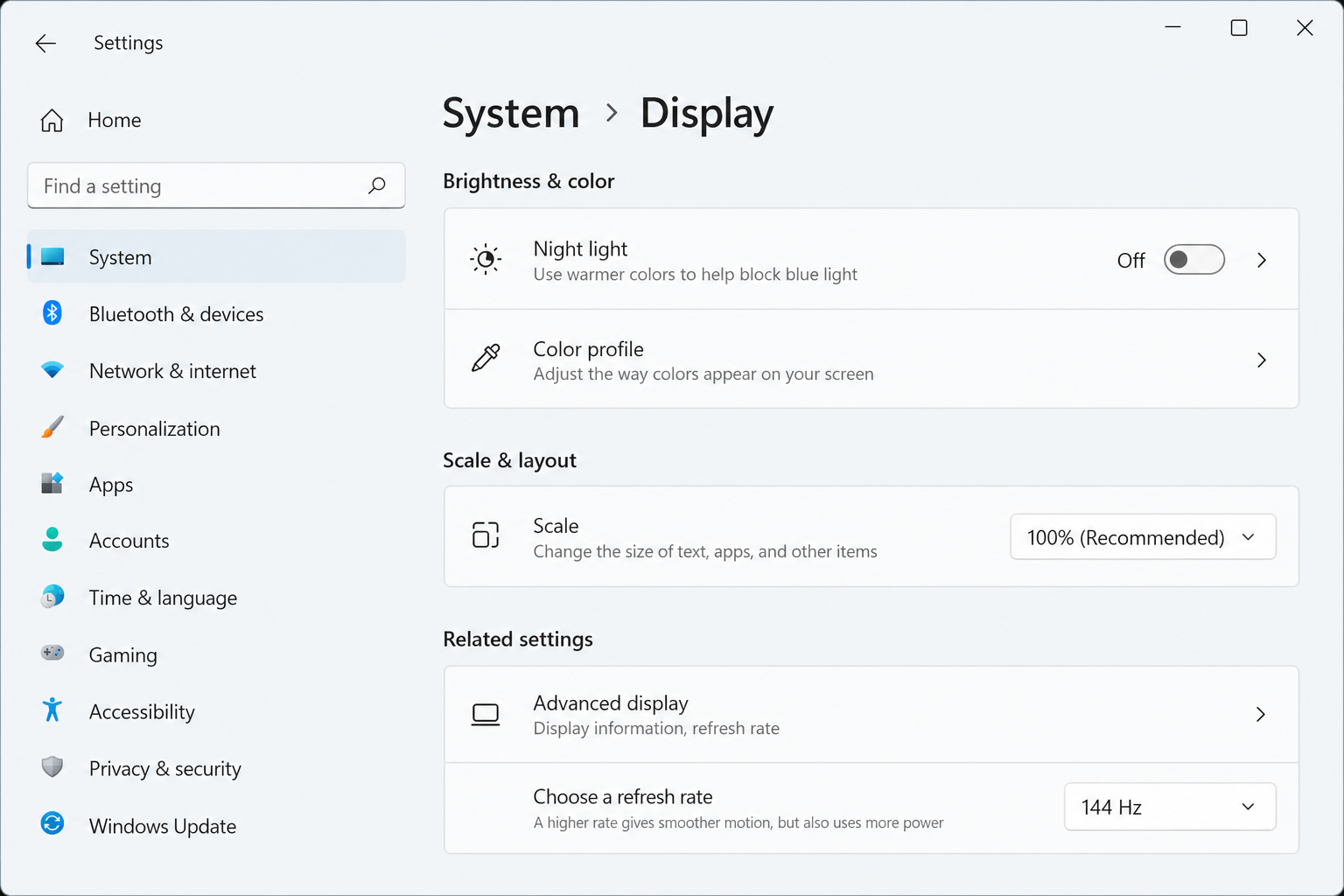
Lowering or locking your refresh rate to a fixed value often stops the flicker immediately, because it removes the repeated signal renegotiation that triggers Night Light’s color transform to drop and reapply. To check and adjust it:
- Go to Settings > System > Display > Advanced display
- Check the refresh rate listed under your monitor
- If it’s set to a high or variable value, try switching to a standard fixed rate (60Hz or 120Hz, depending on your panel) as a test
- If the flicker disappears, the issue is refresh-rate related rather than a driver fault
If adaptive sync (G-Sync or FreeSync) is enabled in your GPU control panel, temporarily disabling it is another useful diagnostic step — many users find that variable refresh rate is directly incompatible with Night Light’s continuous color adjustment on their specific panel.
Night Light Settings That Reduce Tint Flickering
Adjusting Night Light’s own settings resolves tint flickering for users whose driver and refresh rate are already fine, since the problem sometimes sits in how aggressively the filter is scheduled or how strong the color shift is.
Lower the Color Temperature Intensity
Go to Settings > System > Display > Night Light and drag the strength slider down. A lighter color temperature shift is less taxing on the color pipeline and, on affected displays, noticeably less prone to visible flicker than the maximum warmth setting.
Fix the Night Light Schedule
If Night Light is set to turn on and off automatically by sunset/sunrise, switch to a manual schedule instead. Automatic scheduling relies on location services recalculating sunset times, and a stale or incorrect location can cause Night Light to toggle on and off repeatedly right at the boundary — which looks exactly like flickering but is really a scheduling bug. A fixed manual time removes that variable entirely.
- Open Night Light settings and turn off “Schedule Night Light”
- Turn Night Light on manually and leave it on for a few minutes to confirm the flicker is gone
- Re-enable scheduling only if the manual test stays stable
When Disabling Night Light Is the Better Fix
If none of the above resolves it, disabling Night Light and using your monitor’s built-in blue-light or low-blue-light mode is a reasonable permanent workaround, since that filter is applied at the hardware level instead of through the Windows color pipeline. This sidesteps the software conflict entirely and is often the quickest fix for older laptops or monitors that simply don’t support Night Light’s color management cleanly. It’s also worth checking for pending Windows updates — Microsoft has shipped multiple quality fixes addressing display and color-management bugs, and an outdated build can carry bugs that a current one has already resolved. Keeping your Windows 11 Home installation current, alongside your graphics driver, closes off one more variable when you’re troubleshooting a persistent screen flicker.
For a deeper look at display-related options generally, our display settings resources cover related topics like HDR configuration and multi-monitor setup that often intersect with Night Light issues.
FAQ
Why does my screen flicker when Night Light turns on?
Most often it’s an outdated graphics driver struggling to apply the color temperature shift smoothly, or a conflict with HDR or a variable refresh rate. Updating the driver and testing with a fixed refresh rate resolves it for the majority of users.
Does Night Light cause permanent screen damage?
No. Night Light is a software color filter, and flickering caused by it is a display and driver issue, not physical damage to the panel. It can be uncomfortable to look at, but it won’t harm the monitor.
Can a graphics driver update fix Night Light flickering?
Yes, in most reported cases updating or reinstalling the graphics driver fixes Night Light flickering because the color transform runs entirely through the driver, not Windows itself. If flickering persists after an update, a clean driver reinstall in Safe Mode is the next step.
Why is Night Light greyed out on my PC?
Night Light is unavailable on certain driver types, including the generic “Basic Display Adapter” driver and some DisplayLink or virtual display drivers. Installing the correct manufacturer driver for your GPU usually re-enables the toggle.
Does HDR conflict with Night Light?
Yes. HDR manages color and brightness independently, and running it alongside Night Light causes the two color pipelines to compete, which commonly shows up as flickering or tint flashing. Turning HDR off is a quick way to confirm this is the cause on your setup.
