
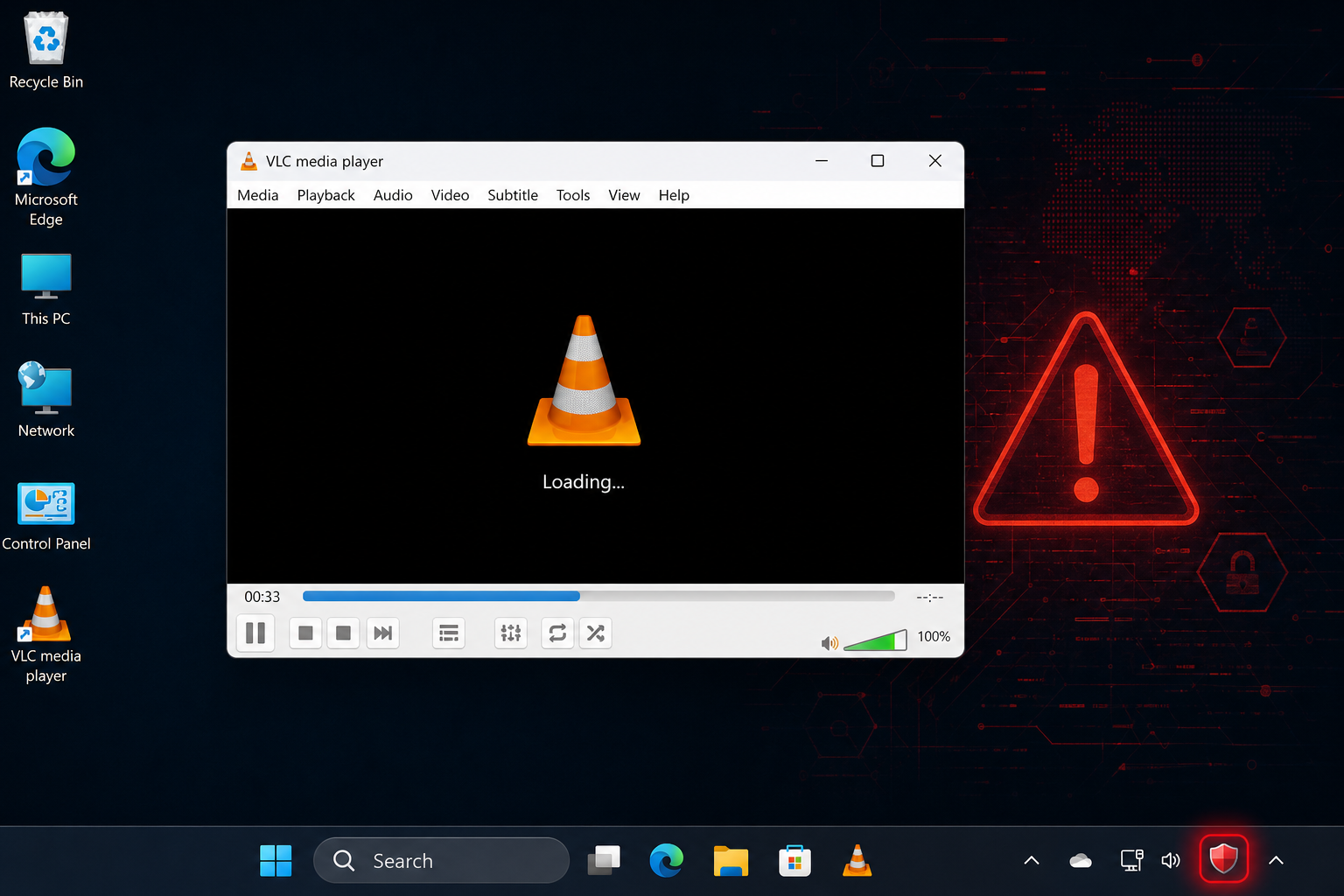
The VLC Windows 11 performance bug is real, confirmed, and currently unpatched — and it is not VLC’s fault. A Windows 11 update quietly caused Microsoft Defender to quarantine VLC’s plugin cache, producing startup delays of up to 33 seconds when opening MP3 files. VideoLAN, the open-source organisation behind VLC, went public with a pointed callout of Microsoft, sparking a wider conversation about how platform-level bugs can silently break third-party software and leave users confused about who is to blame.
What Exactly Is the VLC Windows 11 Performance Bug?
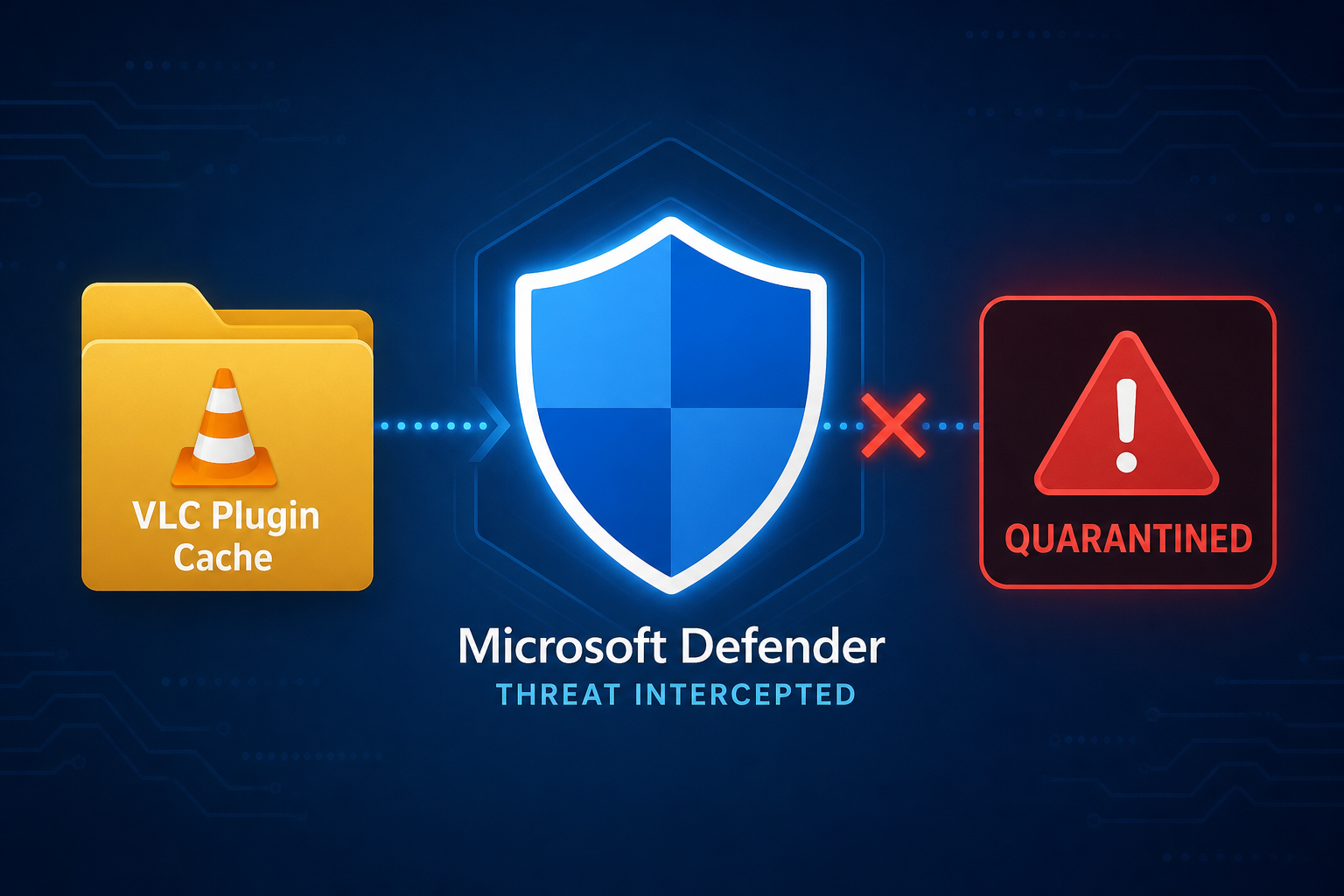
The issue traces back to a specific Windows 11 update that changed the behaviour of Microsoft Defender. After the update, Defender began flagging and effectively quarantining VLC’s plugin cache — a collection of small files VLC generates to speed up its own startup. With the cache neutralised, VLC is forced to re-scan all its plugins from scratch every single time it opens, causing the well-documented VLC startup delay of roughly 33 seconds before an MP3 file begins playing.
VideoLAN’s official X (Twitter) account put it plainly: “This is because of a bug from Microsoft Defender in one update of Windows 11, who magically made VLC plugins cache quarantined by Windows.” The team confirmed that regenerating the plugin cache or reinstalling VLC resolves the symptom — but the root cause, the Defender behaviour, remains unaddressed by Microsoft.
Why Microsoft Defender Is Triggering a VLC Startup Delay
Microsoft Defender’s real-time protection works by scanning files before they are loaded into memory. Plugin cache files are not executables in the traditional sense, but they contain binary data that Defender’s heuristic engine apparently misidentifies as suspicious. Rather than simply alerting the user, Defender quarantines the cache silently — VLC never receives an error, it simply cannot find its pre-built index and has to rebuild it on every launch.
This kind of silent interference is particularly frustrating for users because the symptom (a slow, laggy VLC) looks exactly like a VLC bug. Many users uninstalled and reinstalled VLC multiple times, or blamed ageing hardware, before the VideoLAN team went public. The Windows 11 media playback issue affects any PC running an affected Windows 11 build with Defender’s real-time protection active — which is the vast majority of consumer machines.
Who Is Affected by the Windows 11 Media Playback Issue?
-
MP3 file users: The most widely reported symptom is a 33-second delay specifically when double-clicking an MP3 file with VLC set as the default player.
-
Default-player setups: Users who open VLC by clicking a media file (rather than launching VLC first and then loading a file) are hit hardest, because the plugin cache scan happens before playback can begin.
-
Windows 11 Home and Pro: Both editions are affected — Defender ships enabled by default in both and the regression is in Defender’s engine, not an edition-specific feature.
-
Updated systems: Machines that have applied recent Windows 11 cumulative updates are the ones experiencing the regression. Ironically, keeping Windows up to date introduced the problem.
-
Users who haven’t reinstalled VLC recently: If your VLC installation pre-dates the offending Defender update, its plugin cache will already be quarantined and the delay will be permanent until you act.
VLC Startup Delay Workarounds You Can Try Right Now
None of these are permanent fixes — Microsoft needs to issue a Defender update to resolve the root cause — but each one has been confirmed to eliminate the VLC startup delay for most users.
1. Regenerate the VLC Plugin Cache
This is VideoLAN’s own recommended first step. Open a Command Prompt or Run dialog and execute:
"C:\Program Files\VideoLAN\VLC\vlc.exe" --reset-plugins-cache
This forces VLC to rebuild its cache immediately. The delay should vanish on the next launch. However, if Defender quarantines the new cache again, the problem may return after a subsequent Defender definition update.
2. Reinstall VLC
A clean reinstall of VLC generates a fresh plugin cache. Download the latest version from the official VideoLAN website, uninstall your current copy, then install fresh. Again, this is a temporary measure if the Defender behaviour persists.
3. Add a Defender Exclusion for VLC
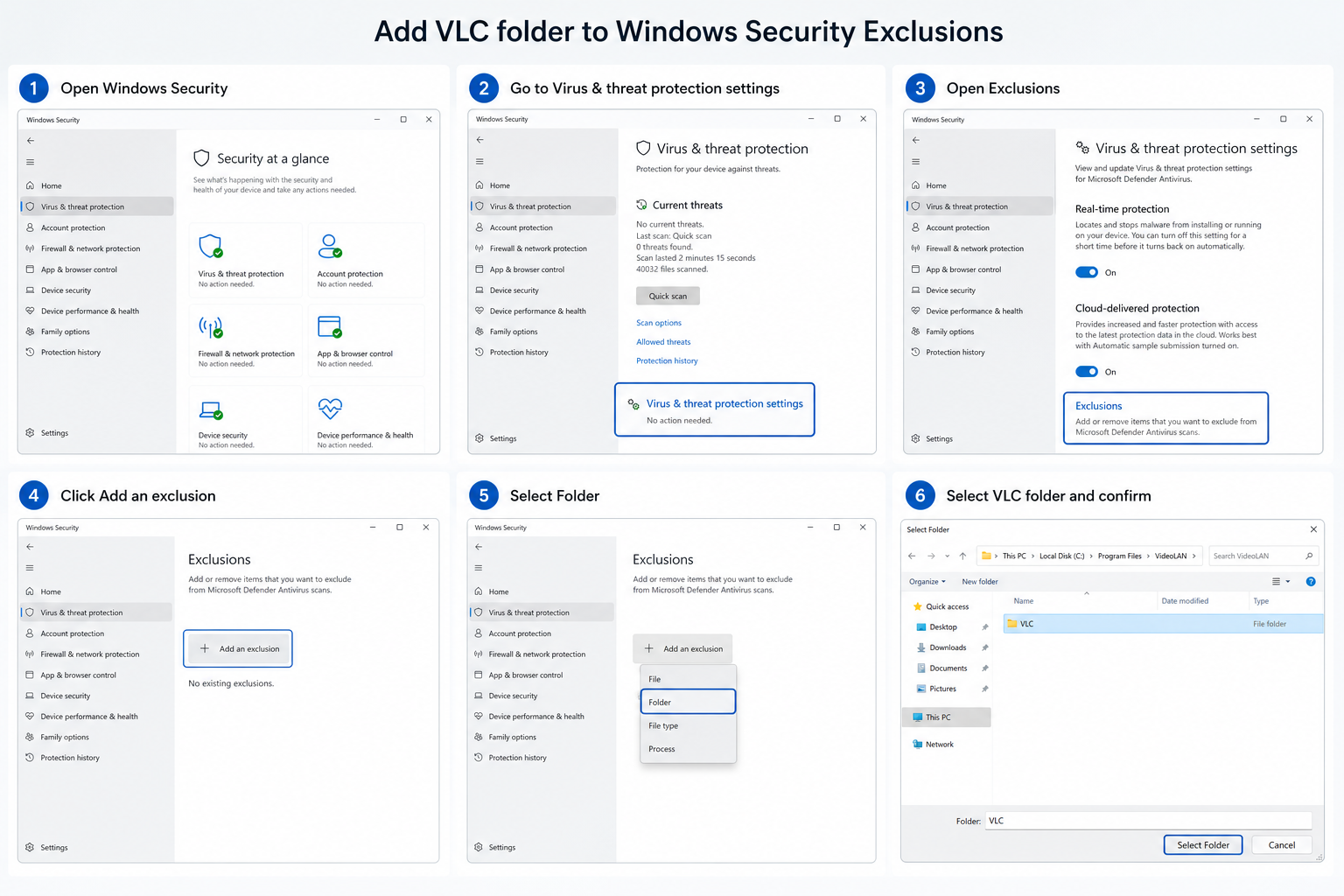
The most durable workaround is to tell Microsoft Defender to stop scanning VLC’s installation folder. To do this:
-
Open Windows Security from the Start menu.
-
Go to Virus & threat protection → Manage settings.
-
Scroll to Exclusions and click Add or remove exclusions.
-
Click Add an exclusion → Folder.
-
Navigate to
C:\Program Files\VideoLAN\VLCand confirm.
Note: Excluding a folder from Defender reduces your protection for that path. VLC is a well-established, open-source application, so the practical risk is minimal — but it is worth knowing this trade-off exists.
4. Exclude VLC.exe from Real-Time Scanning
A narrower alternative to excluding the entire folder is to add only the VLC executable as a process exclusion. Follow the same Exclusions menu path but choose Process instead of Folder, then enter vlc.exe. This limits the scope of what Defender ignores.
The Bigger Picture: Open-Source Software and Platform Bugs
What makes this episode notable beyond the technical details is VideoLAN’s willingness to call out Microsoft publicly. The organisation made clear that VLC was not at fault, and that the open-source community frequently bears reputational damage from regressions introduced by closed-source platform vendors. When Defender silently broke the plugin cache, user-facing blame landed on VLC — the software users could see misbehaving — rather than on Defender, which operates invisibly in the background.
This is a pattern that repeats across the Windows ecosystem. A platform update changes a behaviour; a third-party app breaks; users blame the app. For open-source projects with no marketing budget, the reputational cost can be significant. VideoLAN’s public statement was as much a defence of VLC’s 3 billion+ estimated downloads and decades-long reliability record as it was a bug report.
For a broader look at how Microsoft’s quality control has been performing in 2026, the Windows 11 Quality Improvements: What Microsoft Delivered Since March 2026 post documents the fixes Microsoft has shipped — and where gaps still remain.
Is This the Only VLC Windows 11 Performance Bug?
No. VideoLAN’s own bug tracker reveals a messier picture than the single Defender cache issue. Users have reported a range of Windows 11 media playback issues separate from the MP3 delay, including general slowdowns after Windows updates, crashes on launch following certain cumulative patches, and audio processing conflicts introduced by third-party audio drivers bundled with Windows 11 updates. The MP3 cache problem is the most clearly documented and most reproducible, which is why it attracted the most attention — but it is not an isolated incident.
Microsoft has not issued an official statement on the Defender regression as of the date of publication. A corrective Defender definition update is the expected resolution path, given that the issue lies in Defender’s heuristics rather than the Windows kernel itself.
What Should You Do With Windows 11 Right Now?
If VLC is slow on your Windows 11 machine, apply the plugin cache regeneration or Defender exclusion workaround immediately — it takes under two minutes and the improvement is instant. Beyond that, the advice is straightforward: keep checking for Windows and Defender updates, because the fix will arrive as a definition update rather than a full OS patch.
If you are still on Windows 10 and this episode has you thinking about whether Windows 11 is worth the upgrade, the Windows 11 Home vs Pro comparison breaks down every meaningful difference between the two editions — so you can decide which licence makes sense before you commit. Genuine Windows 11 licences are available at Top Key Shop from €14.70 for Home and from €7.75 for Pro OEM, with instant email delivery and free activation support included.
For authoritative detail on how Microsoft Defender’s exclusion system works, Microsoft’s own documentation on configuring Defender Antivirus exclusions is the definitive reference — follow it precisely to avoid inadvertently weakening your system’s protection beyond what is necessary.
Frequently Asked Questions
What is causing the VLC Windows 11 performance bug?
A Windows 11 update changed the behaviour of Microsoft Defender so that it quarantines VLC’s plugin cache files. Without its cache, VLC must re-scan all plugins on every launch, producing a delay of up to 33 seconds before an MP3 file begins playing. The VLC application itself has not changed — the regression is entirely in Defender’s handling of VLC’s data files.
Does the VLC startup delay affect all file types or just MP3s?
The most widely reported symptom involves MP3 files opened directly from File Explorer with VLC as the default player. Some users report general sluggishness with other formats, but the 33-second delay is most consistently reproduced with MP3s. Video formats appear less affected in most reports, though results vary depending on the installed Defender definition version.
Is it safe to add a Defender exclusion for VLC?
VLC is a well-established, open-source application with an excellent security track record and billions of installs. Adding an exclusion for its installation folder or executable carries minimal practical risk for most home users. That said, exclusions do reduce Defender’s coverage for that path, so only apply exclusions you understand and trust. Microsoft’s own documentation explains the process in detail.
Will a Windows Update fix the VLC slow on Windows 11 problem automatically?
Yes — the expected fix is a corrective Microsoft Defender definition update, which Windows will download and apply automatically through Windows Update. You do not need to wait for a full cumulative OS patch. In the meantime, regenerating the plugin cache or adding a Defender exclusion will restore normal VLC performance immediately.
Does this bug affect Windows 10 users?
Reports are concentrated on Windows 11 machines with recent cumulative updates applied. Windows 10 users have not widely reported the same 33-second MP3 delay, suggesting the regression was introduced in a Windows 11-specific Defender update. Windows 10 reaches end of support in October 2025, so users on that platform face different, longer-term concerns about ongoing protection.
Which version of VLC should I download to avoid the issue?
The issue is not caused by any specific VLC version — it is caused by Defender’s behaviour toward VLC’s plugin cache. Downloading the latest stable VLC release will generate a fresh cache and typically resolves the delay, but the effect is temporary if Defender quarantines the new cache again. Pairing a clean VLC install with a Defender exclusion is the most reliable combination until Microsoft issues a fix.
